Candidate Fraud Detection Overview & Admin Settings
Candidate Fraud Detection allows you to manually run fraud checks and automatically flag inbound job applications that contain potential fraud signals. These fraud signals are identified based on specific criteria, and the applications are segmented for manual review, helping you streamline the identification of potentially fraudulent applications.
This article explains how Candidate Fraud Detection works and the steps to configure it in your Admin settings.
Permissions & access
Candidate Fraud Detection is available across all plans:
Foundations | Legacy Plus | Plus | Enterprise |
|---|---|---|---|
✅ | ✅ | ✅ | ✅ |
Only those with Organizational Admin privileges can configure Candidate Fraud Detection settings.
How it works
When Candidate Fraud Detection is enabled, this tool analyzes four signal categories on applications:
- Device
- IP address
- Email address (only if this information has been provided as part of the candidate's application)
- Phone number (only if this information has been provided as part of the candidate's application)
The analysis of these areas is used to identify suspicious patterns that could be indicative of fraudulent activity.
Once Candidate Fraud Detection is enabled, Ashby automatically analyzes new applications as they are submitted. Existing applications are not analyzed automatically, but you can run fraud checks on them manually or in bulk. See Running Candidate Fraud Detection Checks & Reviewing Fraud SignalsRunning Candidate Fraud Detection Checks & Reviewing Fraud Signals for more information.
Enabling the Candidate Fraud Detection tool
Enabling admin settings
Candidate Fraud Detection must be enabled in your admin settings before it can be enabled for specific applications.
- Navigate to Admin > Organization Setup > Opt-In Features and scroll to the Security section.
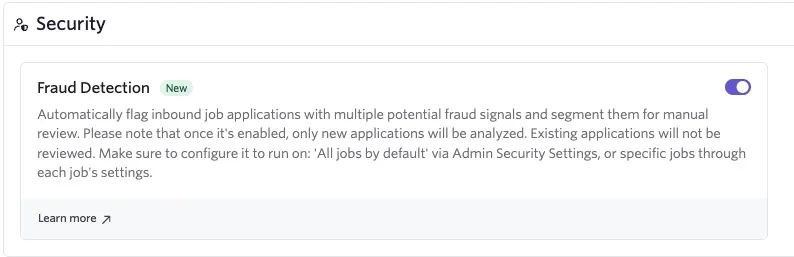
- Enable the Fraud Detection toggle:
- Scroll back up and locate the Candidate Fraud Signal Summary tile. To receive an AI-generated summary of fraud signals (recommended), turn this on.
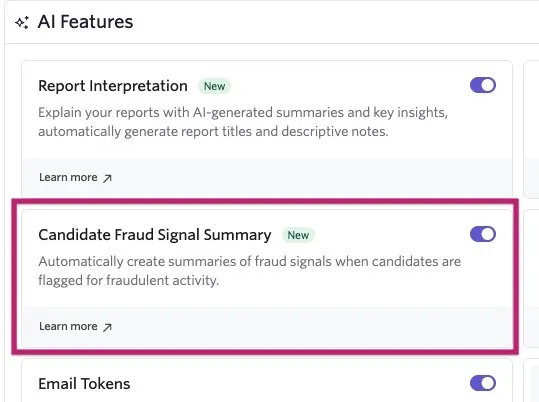
Using Candidate Fraud Detection requires two AI credits per candidate. Enabling Candidate Fraud Signal Summaries does not add any additional charge on top of this.
- Information on how AI credits are allotted can be found in AI CreditsAI Credits.
- For information on purchasing additional credits, see How do I purchase additional email lookups, AI credits or texting credits in-app?How do I purchase additional email lookups, AI credits, or texting credits in-app?
Enabling fraud detection on all jobs or specific jobs
To enable fraud detection across all jobs, or jobs that match a set of filters:
- Navigate to Admin > Organization Setup > Security.
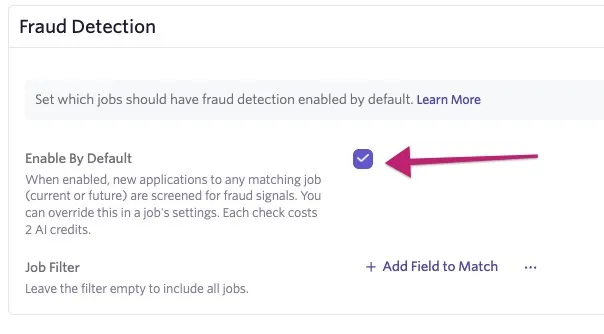
- Check Enable By Default. Stopping here enables fraud detection on all jobs.
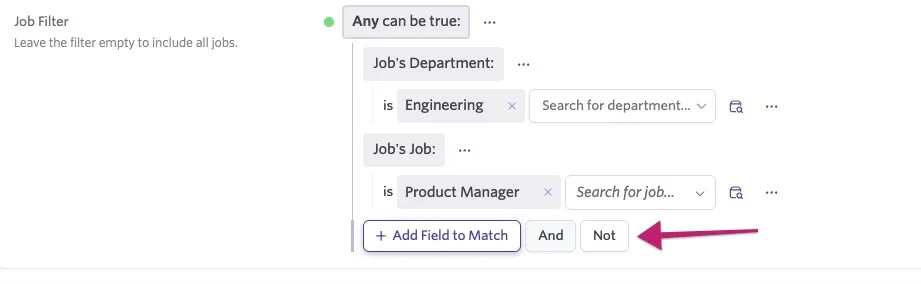
- To run fraud detection by default only on certain jobs, select the + Add Field to Match button to add filter criteria — for instance, jobs only in a specific department or for high-volume roles.
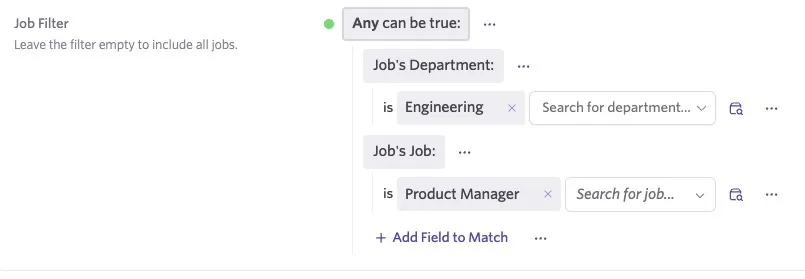
Hovering over the three dots next to each criterion, or over the + Add Field to Match button, allows you to choose from And, Or, or Not operators, defining whether all criteria must be true, any criteria can be true, or the criteria must not be true in order to trigger fraud detection. In the screenshot above, Or logic is used, indicating that if any of the criteria below are met (the job is in the Engineering department or the job is Product Manager), Candidate Fraud Detection triggers by default.
Enabling/disabling fraud detection for specific jobs
By default, fraud detection runs across all jobs when enabled within the Security section of Admin. You can also enable fraud detection for specific jobs only, or turn off fraud detection for certain jobs if you have it set as enabled by default.
To access and update the fraud detection settings for a specific job:
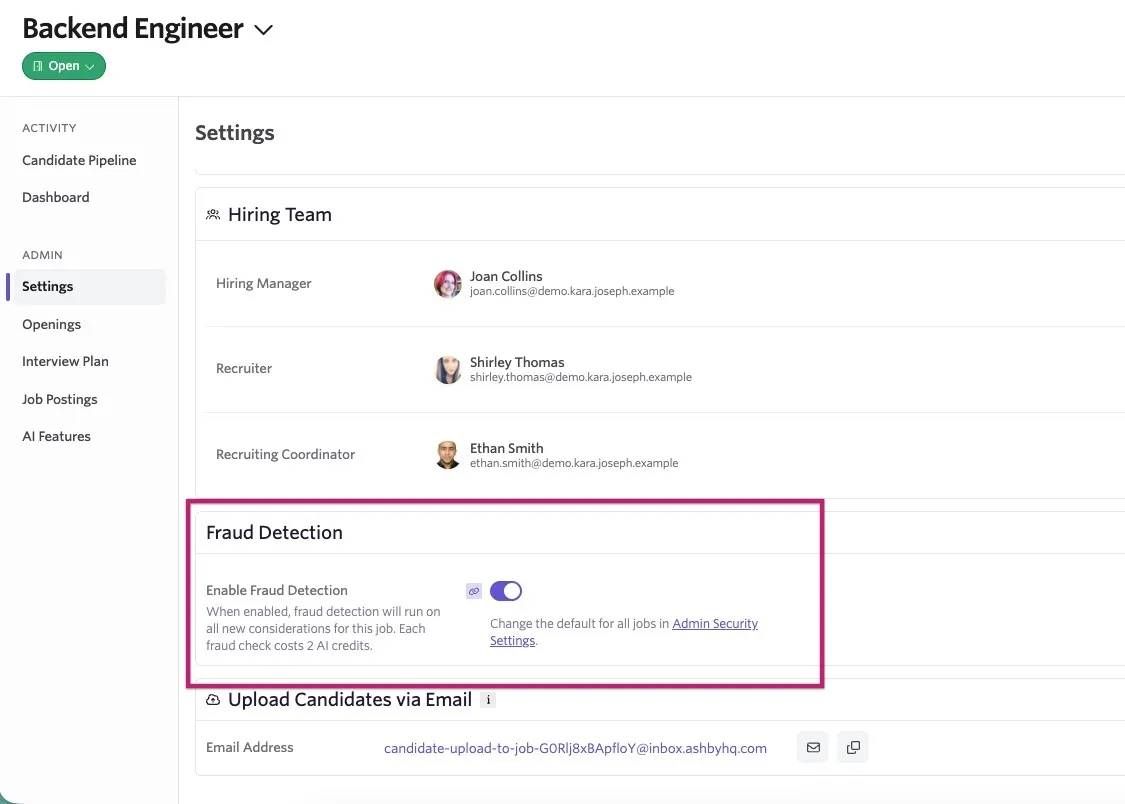
- Navigate to Jobs > Jobs and select the relevant job.
- Navigate to the Settings section of the job.
- Use the Enable Fraud Detection setting to enable or disable the tool as required.
FAQs
Can I give feedback on the AI summary provided when fraud signals are detected?
Yes. Click the three dots on the AI summary and select Give Feedback.
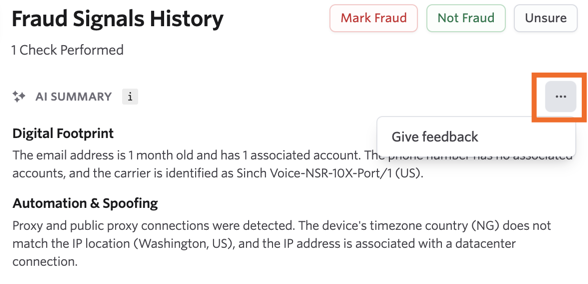
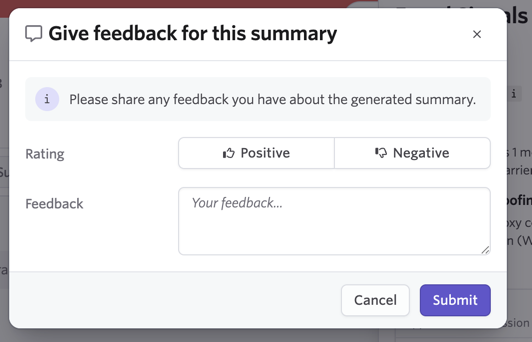
From there you can give a positive or negative rating and add any comments. Feedback is greatly appreciated.
How do I enable the AI-generated Candidate Fraud Signal Summary option?
- Navigate to Admin > Organization Setup > Opt-In Features.
- If you have not yet opted in to AI features, opt-in is required before enabling this feature.
- Check the AI-Generated Candidate Fraud Signal Summary checkbox to enable this specific AI feature.
This step enables the AI-generated summary only, not the Candidate Fraud Detection tool as a whole.
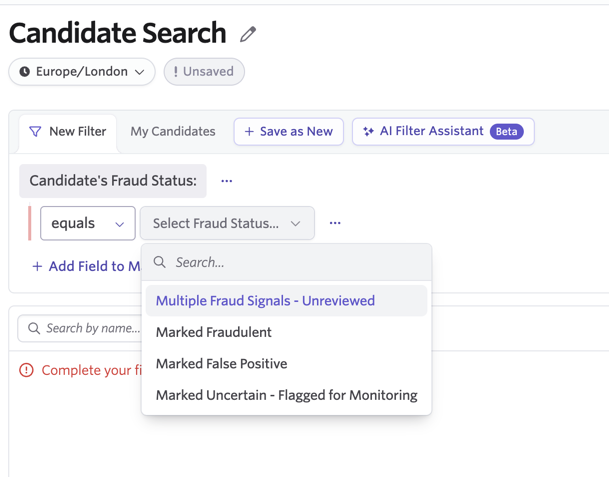
Can I filter candidates by their fraud status?
Yes. Use the Fraud Status field to filter candidates by their status when it comes to fraud detection. Use the drop-down to select the fraud status you are looking for. The available options are:
- Multiple Fraud Signals - Unreviewed
- Marked Fraudulent
- Marked False Positive
- Marked Uncertain - Flagged for Monitoring
Are fraud signal detection checks only run at the Application Review stage?
Yes. Candidate fraud signal checks are currently only run automatically at the Application Review stage, and only at the point of application submission.
Are there reporting options for candidate fraud signals?
Yes. You can find report examples and further information in Reporting on Candidate Fraud Status and SignalsReporting on Candidate Fraud Status and Signals.