Automatically Push Hired Candidates to HRIS Integrations
Automatically push candidate data from Ashby to your connected human resources information system (HRIS) integrations when a candidate is hired. This article explains how automatic push works, when it runs, and how to configure it.
Set up at least one post-hire HRIS integration and enable Automatically push hired candidates to HRIS integrations before configuring filters. The filter settings appear below the automatic-push setting. See Post Hire for the different HRIS integrations we offer and their setup guides.
Permissions & access
Automatically pushing candidates to your HRIS integrations is available on Foundations, Plus, Enterprise, and Legacy Plus plans.
Foundations | Legacy Plus | Plus | Enterprise |
|---|---|---|---|
✅ | ✅ | ✅ | ✅ |
You must be an Organization Admin to configure this setting.
How automatic push works
When you enable automatic push, Ashby sends eligible hired candidate applications to the configured HRIS integrations.
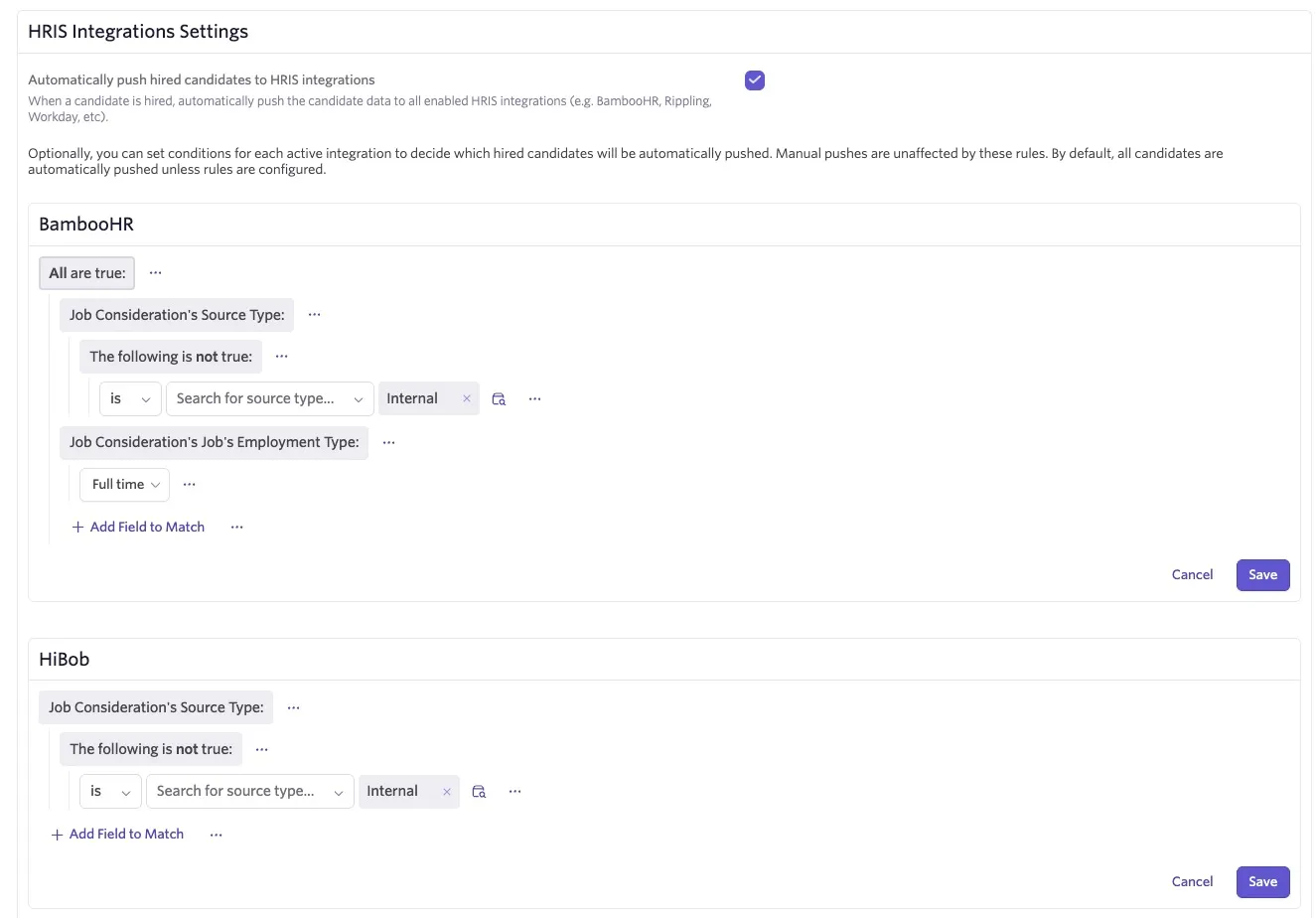
The Automatically push hired candidates to HRIS integrations setting controls whether automatic push is enabled. When enabled, you configure filters for each integration to control which hired candidates are sent to each post-hire integration. The filters let you send an application to one integration while excluding it from another. If an integration has no rules, Ashby pushes all candidates to that integration.
Configuring automatic push
- Set up the HRIS integrations you want to use.
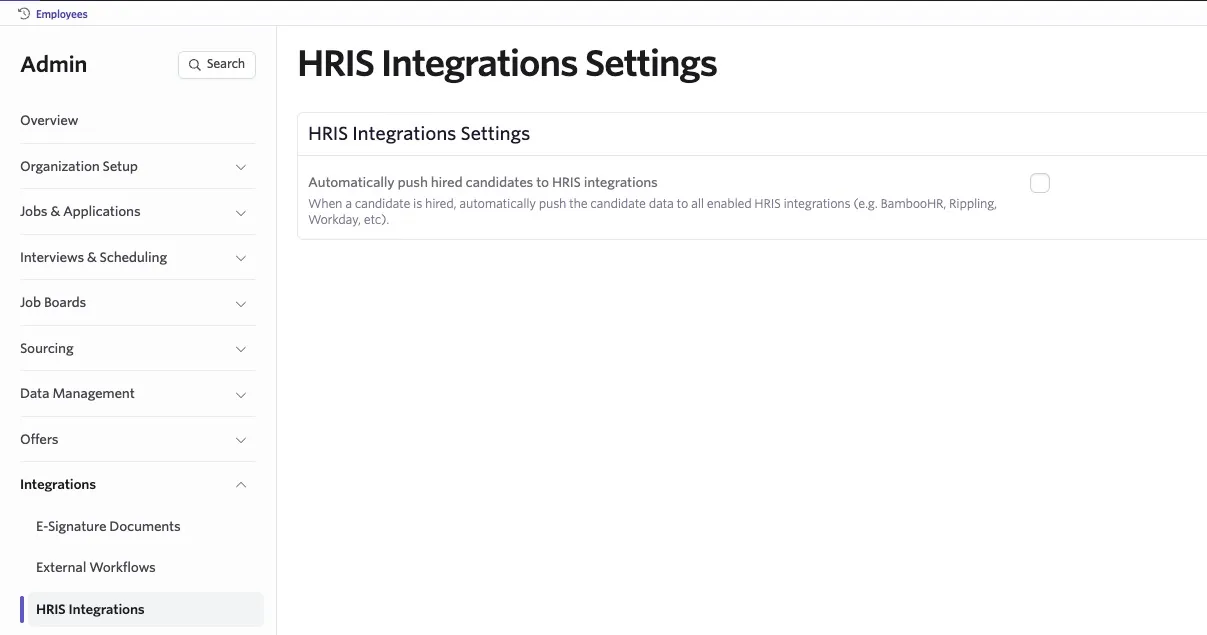
- Once you have a post-hire integration connected, navigate to Admin > Integrations > HRIS Integrations.
- Enable Automatically push hired candidates to HRIS integrations.
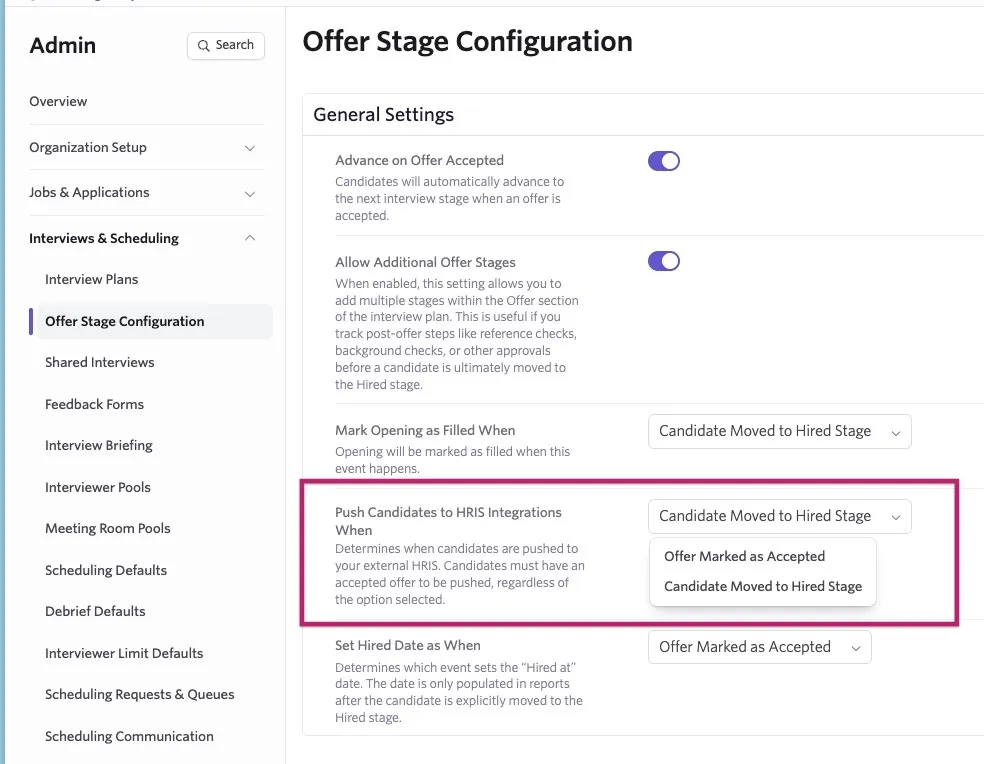
If your organization uses additional offer stages, choose when to push candidates in Admin > Interviews & Scheduling > Offer Stage Configuration. Next to Push Candidates to HRIS Integrations When, use the dropdown menu to select Offer Marked as Accepted or Candidate Moved to Hired Stage.
For more information about offer-stage settings and push timing, see Configuring Offer Stage Admin Settings.
- Under each integration, click + Add Field to Match to configure filters to define which job considerations Ashby sends to that integration automatically. You can use application fields and related candidate, job, and other fields. Click Save.
- Repeat for each integration.
FAQs
Can I use different filters for different HRIS integrations?
Yes. Each enabled integration has its own filter, so you can define different eligibility conditions for each integration.
Can I exclude internal hires from automatic pushes?
Yes. Configure the relevant integration's filter to exclude job considerations with an internal source type.
When does Ashby push a candidate?
The push timing depends on your offer-stage configuration. If your organization uses additional offer stages, you can choose to push when the offer is marked as accepted or when the candidate moves to the Hired stage.
What information does Ashby send to the HRIS?
The fields and follow-up steps depend on the integration. See the guide for your HRIS integration for details.
Do automatic-push filters affect manual pushes?
No. The filters apply only to automatic pushes. You can still manually push a candidate from their profile, even if the filters exclude them from automatic push.