Hi Bob
Connect HiBob to your Ashby account to automatically import hired candidates to HiBob. This article covers how to set up the integration in both HiBob and Ashby, push candidate data and offer letters from Ashby to HiBob, and add new hires to HiBob.
Overview
The table below outlines the data types this integration supports syncing, the direction of the sync, and any relevant notes.
Sync custom fields | Sync offer letters | Sync file uploads | One or two-way sync | Notes |
|---|---|---|---|---|
✔ | ✔ | See Notes | One-way sync from Ashby to Bob | Resume upload supported. E-Signature documents can also be pushed from Ashby. |
Setup instructions
Configure the integration in HiBob
Follow the HiBob setup steps in HiBob's integration guide. Then, return to this article when you reach the step to set up in the applicant tracking system (ATS).
Configure the integration in Ashby
In Ashby:
- Navigate to Admin > Integrations and search for the HiBob tile.
- Select the + Enable HiBob button.
- Enter the Service User ID, Service User Token, and Hire API URL. Configure any fields or settings if needed.
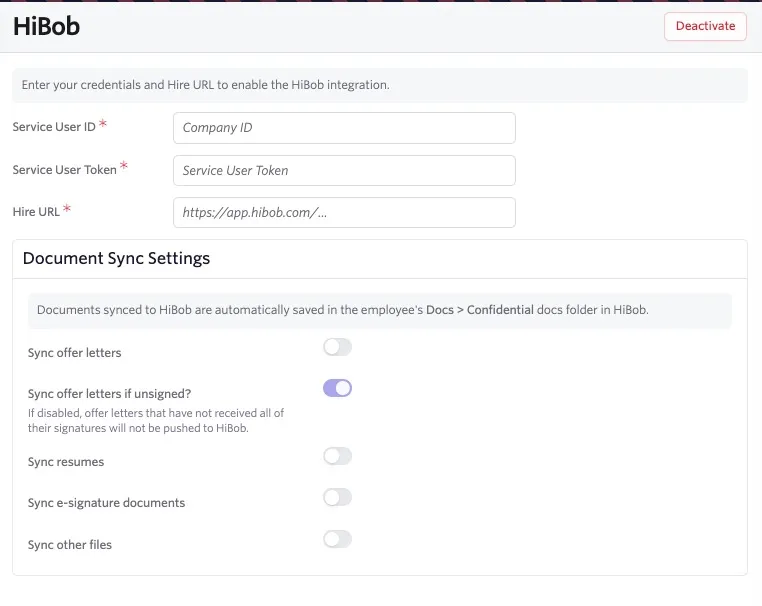
- Document Sync Settings: Use the document sync settings to control which candidate documents Ashby sends to HiBob. Documents synced to HiBob are automatically saved in the employee's Docs > Confidential docs folder in HiBob.
- Sync offer letters: Sends offer letters to HiBob.
- Sync offer letters if unsigned?: Sends offer letters that have not received all of their signatures. This setting applies only when Sync offer letters is enabled.
- Sync resumes: Sends the candidate's resume to HiBob.
- Sync e-signature documents: Sends completed e-signature documents that are not part of an offer packet.
- Sync other files: Sends other files from the candidate's profile to HiBob. Ashby skips files already included through another document setting.
E-Signature Documents included in an offer packet are handled as part of the offer document in HiBob. They may not appear as separate files.
- Test the integration: Send a test candidate from Ashby to HiBob to verify the connection. Review the Synced Record in HiBob, which displays custom fields synced from Ashby in the payload.
- Map custom fields: If necessary, map custom fields in the Data Mapping section of the integration settings within HiBob.
- Click the pencil icon beside Data Mapping to edit any existing mapping and add and map additional fields.
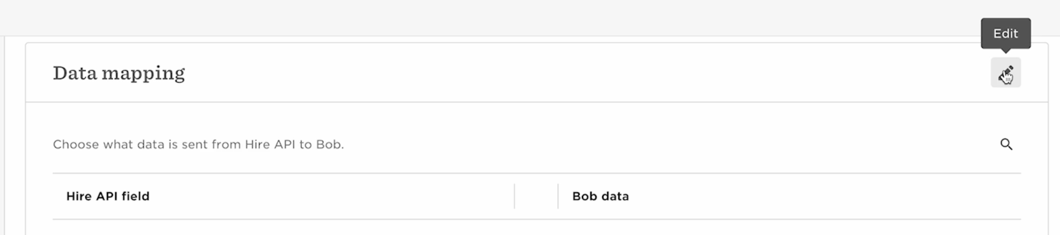
- To add a new field, click Add Field, then select an Ashby field from the Select dropdown. Then choose a field from the Select HiBob field dropdown to map the Ashby field to a HiBob field.

- Once you've added or amended the necessary fields, click Save.

- Set notifications: By default, notifications go to the user who set up the integration. You can add or remove other recipients.
- Save changes and finish: Save all changes. The integration between HiBob and Ashby is now complete.
You can retrieve the Hire URL from HiBob after clicking Done to close the pop-up showing your Service User Token and Service User ID. Once the pop-up closes, the token is no longer visible in HiBob.
Mapping candidate data to HiBob
Before a new hire's data can be pushed from Ashby to HiBob, the candidate fields need to be mapped in HiBob. This includes any default candidate fields (such as name and email address), as well as candidate, offer, job, and application custom fields that have a value defined and that are associated with the candidate.
Custom fields are not available on the Foundations plan. You can read more about custom fields at Custom Fields .
Here's HiBob's documentation on Mapping data for ATS integrations.
The integration supports pushing candidate data from Ashby to HiBob and signed offer letters. Once candidate fields are mapped in HiBob, you're ready to push new hire candidate data from Ashby to HiBob.
We also recommend checking your notification settings for your Ashby configuration in the HireAPI integration settings to ensure that those who complete the candidate's hiring process in HiBob receive all new hire ATS notifications.
Adding new hires to HiBob
Offer custom fields are pulled from the candidate's accepted offer. We recommend pushing the candidate only after the offer has been accepted.
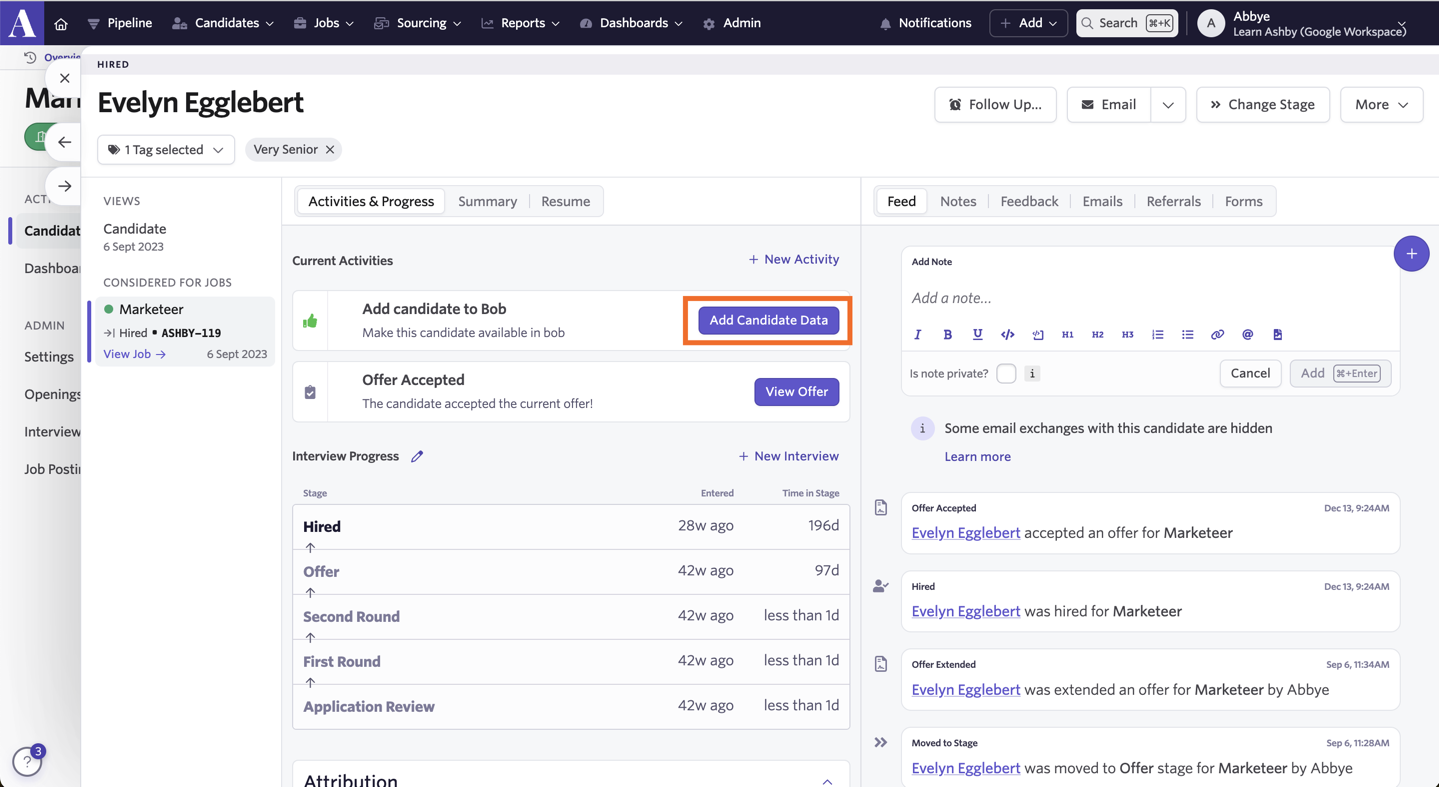
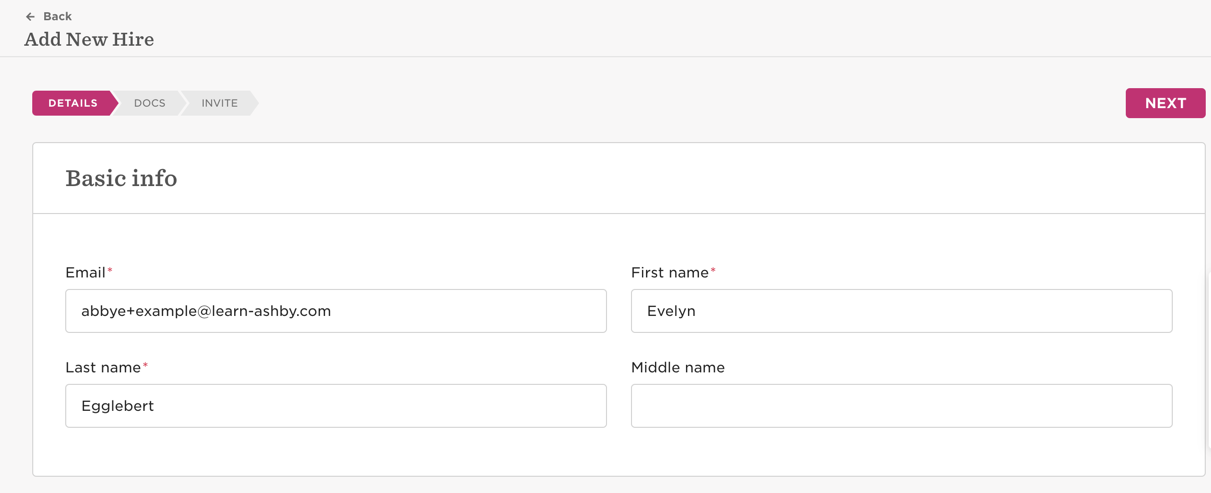
- After you've set the Candidate Offer Response to Accepted, a new activity titled Add Candidate to HiBob populates. Click Add Candidate Data.
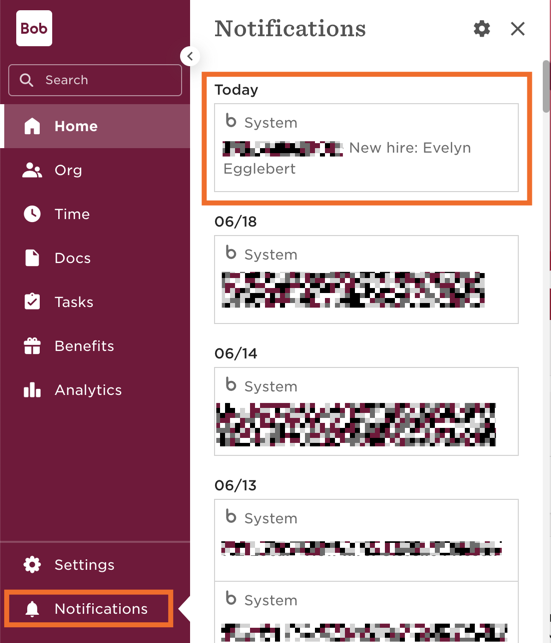
- Go back to your HiBob account and click Notifications. Here you find your new hire. Click their name and select a template for them.
- You now see all of the new hire data in HiBob to complete the onboarding process.
Pushing Candidate Data to HiBob automatically
One candidate will need to have been previously pushed to the system via the manual steps above before this can be enabled.
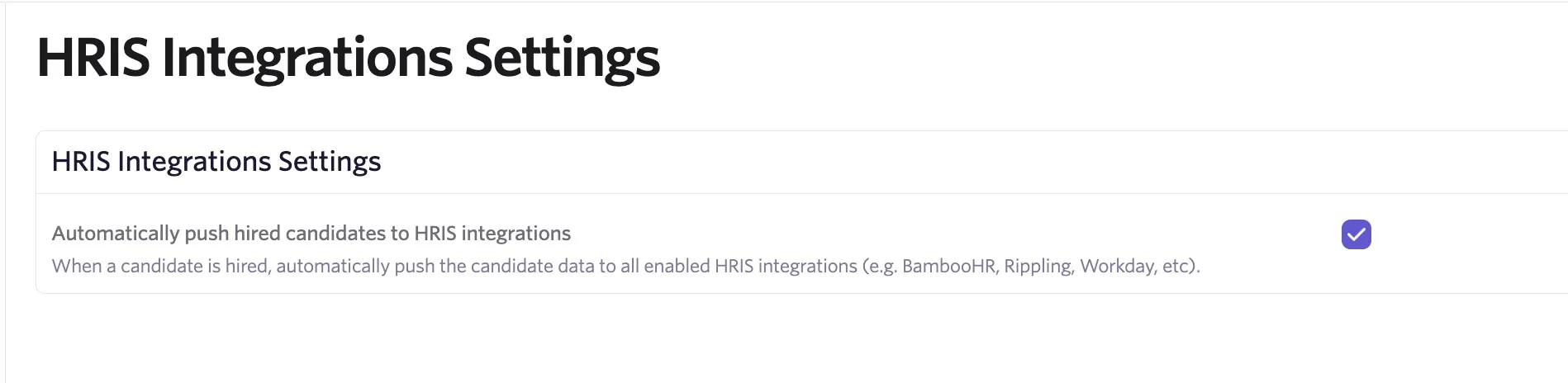
After the offer is accepted and the candidate is marked Hired, data can be sent to HiBob via an automatic sync. To enable this:
- Navigate to Admin > Integrations > HRIS Integrations
- Check Automatically push hired candidates to HRIS integrations
FAQ
Why isn't the Hiring Manager in Ashby syncing to HiBob?
HiBob only displays an employee's government name, so ensure the name of the Hiring Manager in HiBob aligns exactly with their name in Ashby.
I'm not seeing a button to push an employee to HiBob who was an internal hire.
Check if that candidate already exists in HiBob. If the candidate already exists in HiBob, they are not pushed again.
Can I push candidate data to multiple human resource information systems (HRIS) if I have integrated with more than one HRIS?
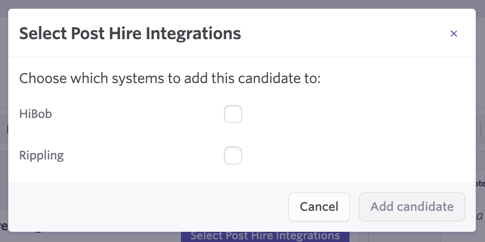
You can! Once a candidate is marked as hired, click the Select Post Hire Integrations button on the Add candidate to Post Hire Integrations activity that is generated on their profile.
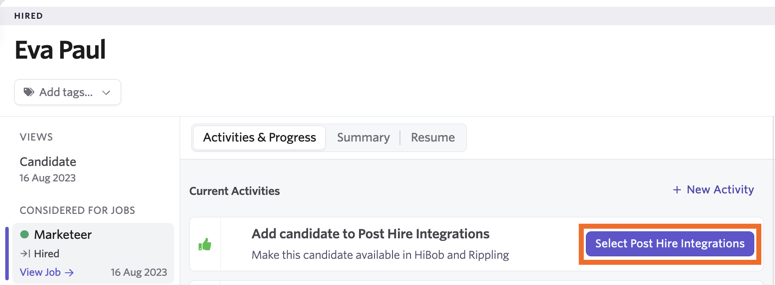
From here, use the checkboxes to determine the HRIS that the candidate should be added to.
Why doesn't an E-Signature Document sent with my offer appear as a separate file in HiBob?
E-Signature Documents sent as part of an offer packet are added to the offer document in HiBob. They do not always appear as separate, standalone files. If you expect a separate document, open the offer document in HiBob and review the E-Signature Document included there.