Assessment Integrations
Assessment integrations in Ashby People Ops allow teams to run critical onboarding steps, such as background checks, directly within onboarding workflows. These assessments can be triggered at the appropriate stage of onboarding, with configurable dependencies and filters that ensure downstream tasks only proceed once the assessment is complete and required conditions are met.
With flexible sequencing and logic controls, assessment integrations give People Ops and cross-functional teams confidence that onboarding progresses smoothly while ensuring key verification steps are completed before moving forward.
This article explains how to enable an assessment provider, add an assessment integration step to a workflow, and configure downstream steps that branch on the assessment result.
Ashby's People Ops module is currently available through restricted early access. The following documentation is provided for design partners participating in that program.
Permissions and access
Only users with Organization Admin access can enable assessment integrations in Ashby Recruiting.
Configuring assessment integrations within a workflow requires edit access to the relevant workflow template.
Access to assessment results is controlled by the Assessment Data employee field in a user's permission set.
Learn more about Ashby's People Ops permission sets: Configure Permission SetsAdminister permission sets.
Assessment results visibility
Users who should only view assessment results within a workflow must be assigned to a permission set with View Assessment Data access.
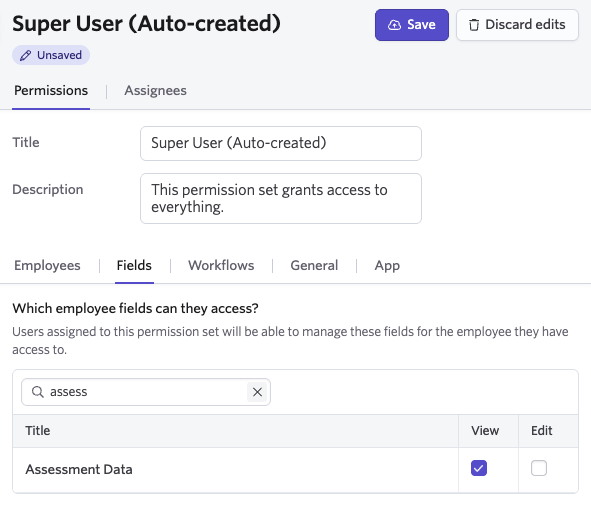
To start an assessment integration step or view and manage its results, users must be assigned to a permission set with View and Edit Assessment Data access.
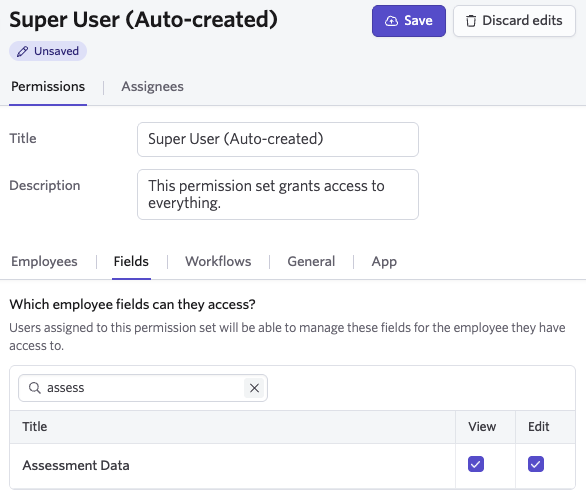
If a user does not have the required permission to access assessment data, they see the following message in Ashby: "You do not have access to assessment data for this employee."
Supported integrations
The following assessment integrations are currently supported in Ashby People Ops:
- Checkr
- Yardstik
- First Advantage (formerly Sterling)
- HireRight
- Zinc
If your assessment provider is not listed above, reach out to your Onboarding Customer Success Manager to discuss potential integration options.
Configuring assessment integration steps in workflows
Enable assessment integration in Ashby Recruiting
Before you can add an assessment integration step in Ashby People Ops, the integration must first be configured in Ashby Recruiting.
Follow the setup instructions for your integration:
- Checkr: Navigate to the Checkr integration page in Ashby Recruiting and follow the Checkr setup guide.
- Yardstik: Navigate to the Yardstik integration page in Ashby Recruiting and follow the Yardstik-Ashby integration guide.
- First Advantage (formerly Sterling): Navigate to the First Advantage integration page in Ashby Recruiting and follow the First Advantage setup guide.
- HireRight: Navigate to the HireRight integration page in Ashby Recruiting and follow the HireRight setup guideHireRight setup guide.
- Zinc: Navigate to the Zinc integration page in Ashby Recruiting and follow the Zinc setup guideZinc setup guide.
Once the integration is enabled in Recruiting, it becomes available for use within Ashby People Ops workflows.
Add an assessment integration step to a workflow
To add an assessment integration step to your workflow:
- Select + Add Step.
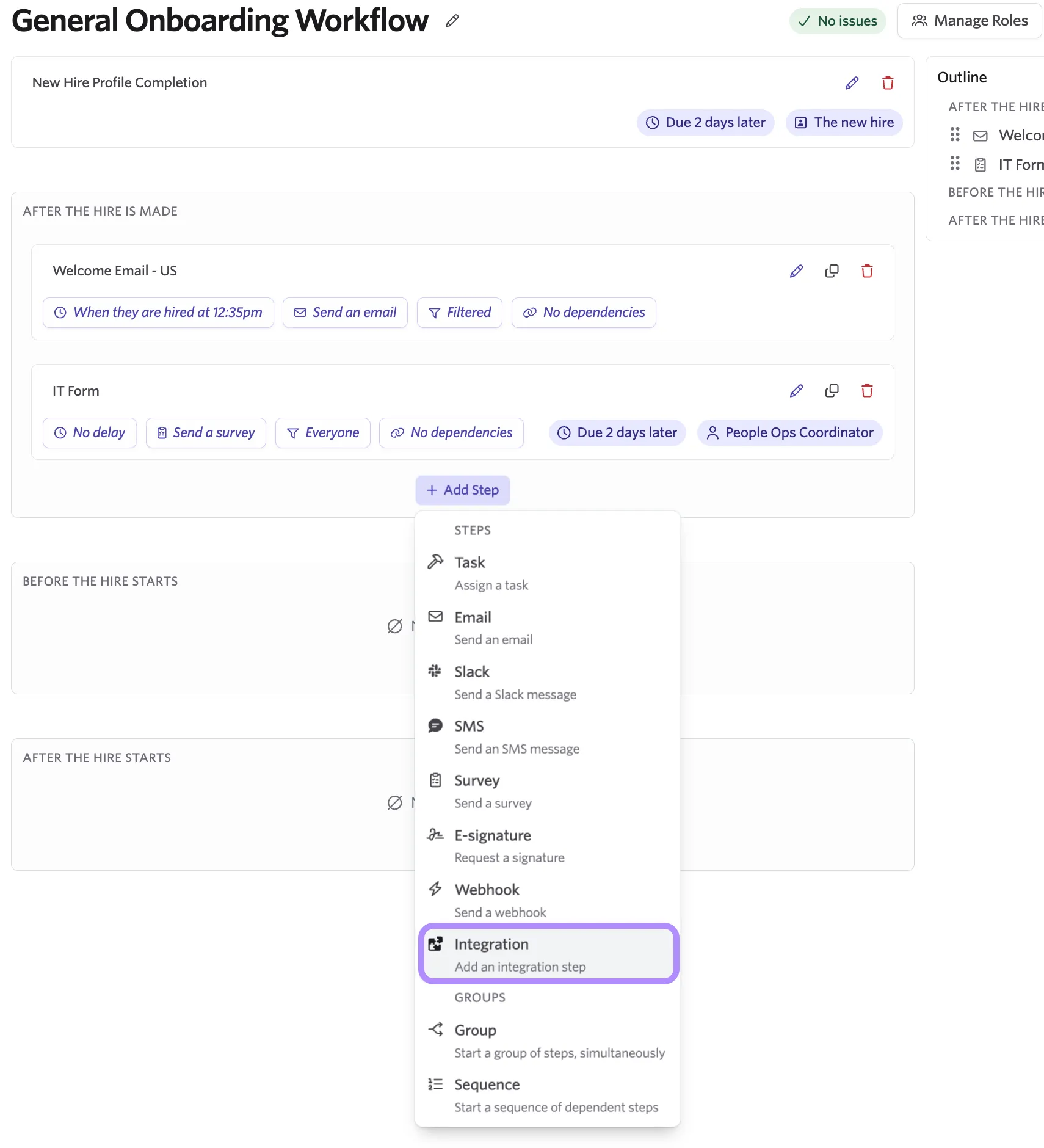
- Choose Integration from the dropdown menu.
A modal appears displaying the integrations currently configured for your organization. Select the assessment integration you would like to add to the workflow.
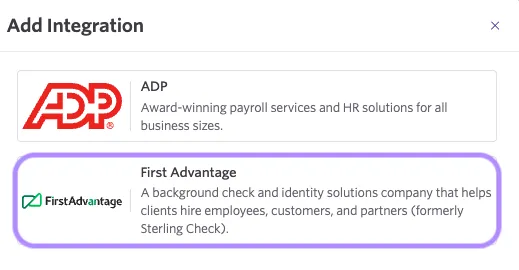
- After selecting the integration, configure the Automation Mode for the step.
Automation modes
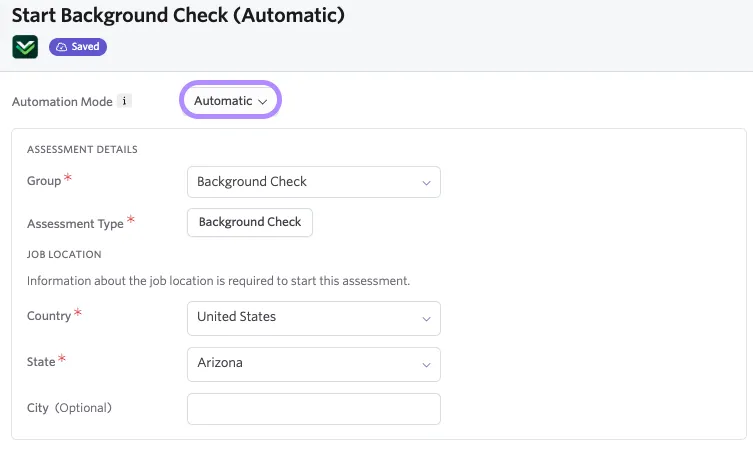
Automatic: When Automatic is selected, the assessment is configured directly within the workflow step. The integration triggers automatically based on the delays, filters, and dependencies defined in the workflow configuration.
For assessment vendors that require a location, like Checkr, we can still automate the background check. The location of the employee can be pulled from the employee or job fields.
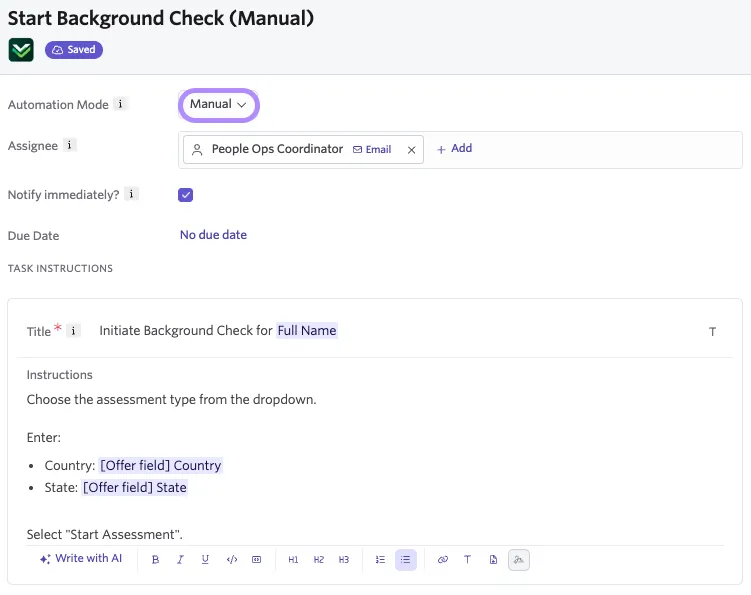
Manual: When Manual is selected, the step must be initiated by a specific user or onboarding role. The assigned user receives the step and can configure and trigger the assessment manually when ready.
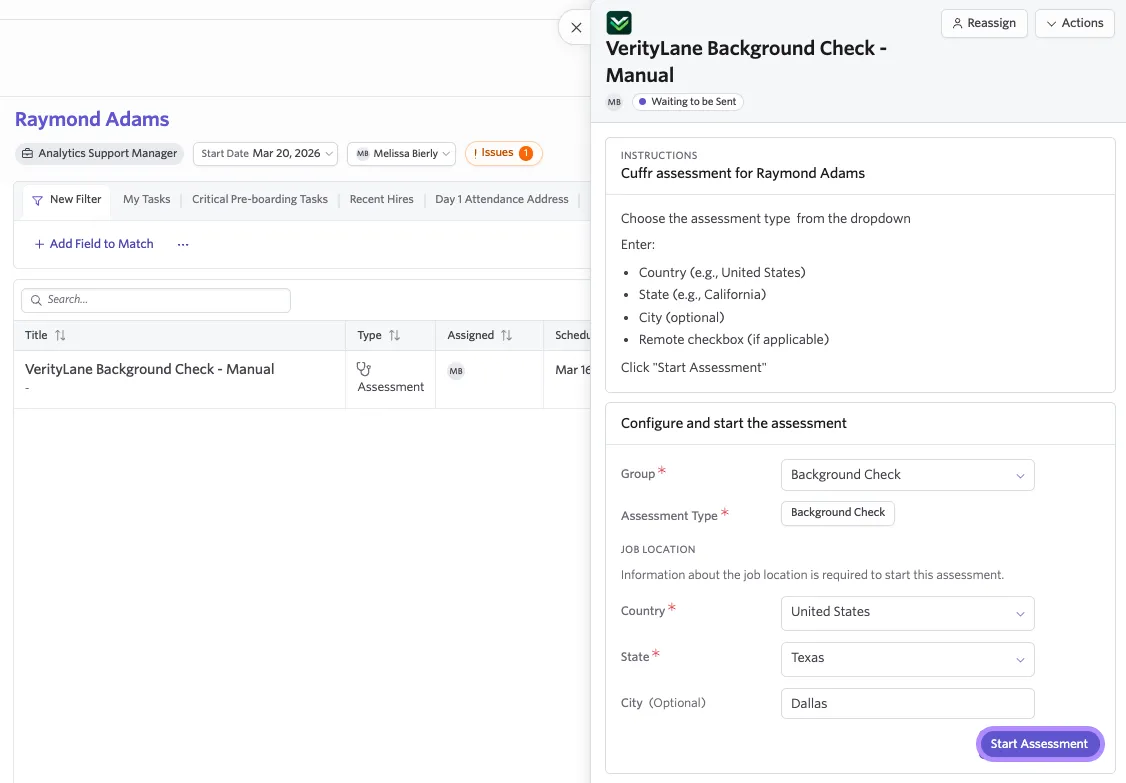
Starting manual assessment integrations
When an assessment integration is configured in Manual mode, the assigned user or Onboarding role receives a workflow task to configure and initiate the assessment. The assessment does not begin until the assignee completes this step.
Reviewing assessment integration results
Once an assessment integration is initiated, whether in Manual or Automatic mode, the corresponding workflow step displays a status of In Progress.
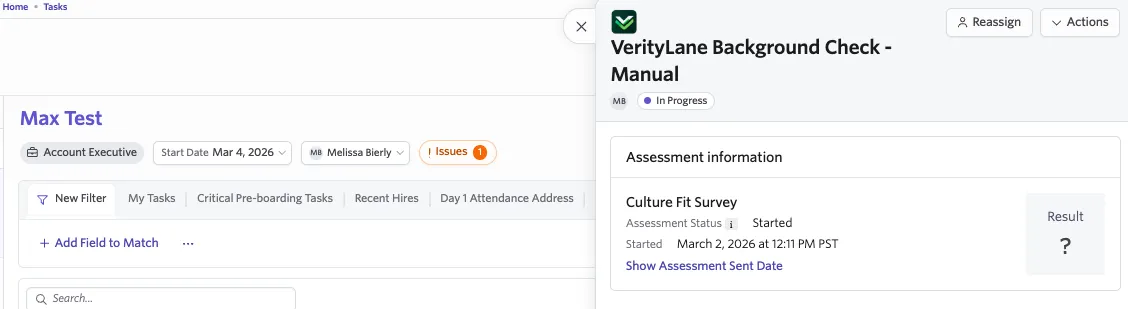
When the assessment is completed by the provider, the workflow step automatically updates to Complete.
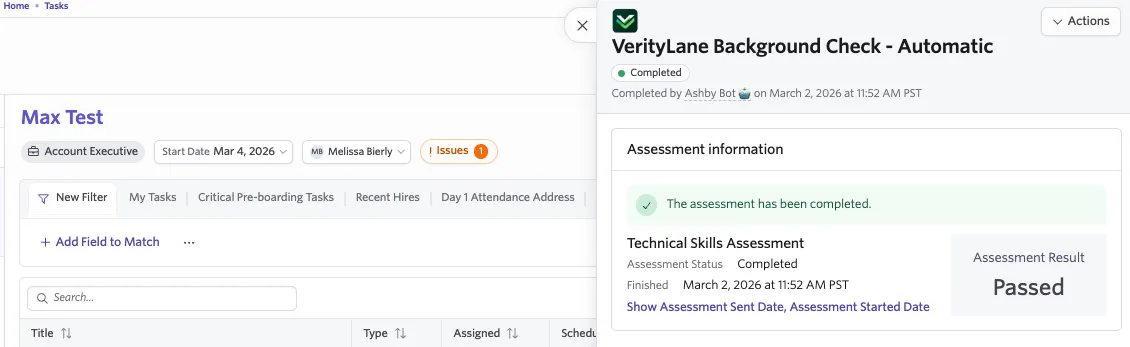
Configuring dependent workflow steps based on assessment integration results
You can configure future workflow steps to trigger based on the results of an assessment integration by using dependencies and filters within your workflow. This allows you to control which steps run depending on whether the assessment is passed or failed.
Triggering steps after an assessment is completed (passed or failed)
- Create the workflow step you want to trigger after the assessment is complete and configure the step as needed.
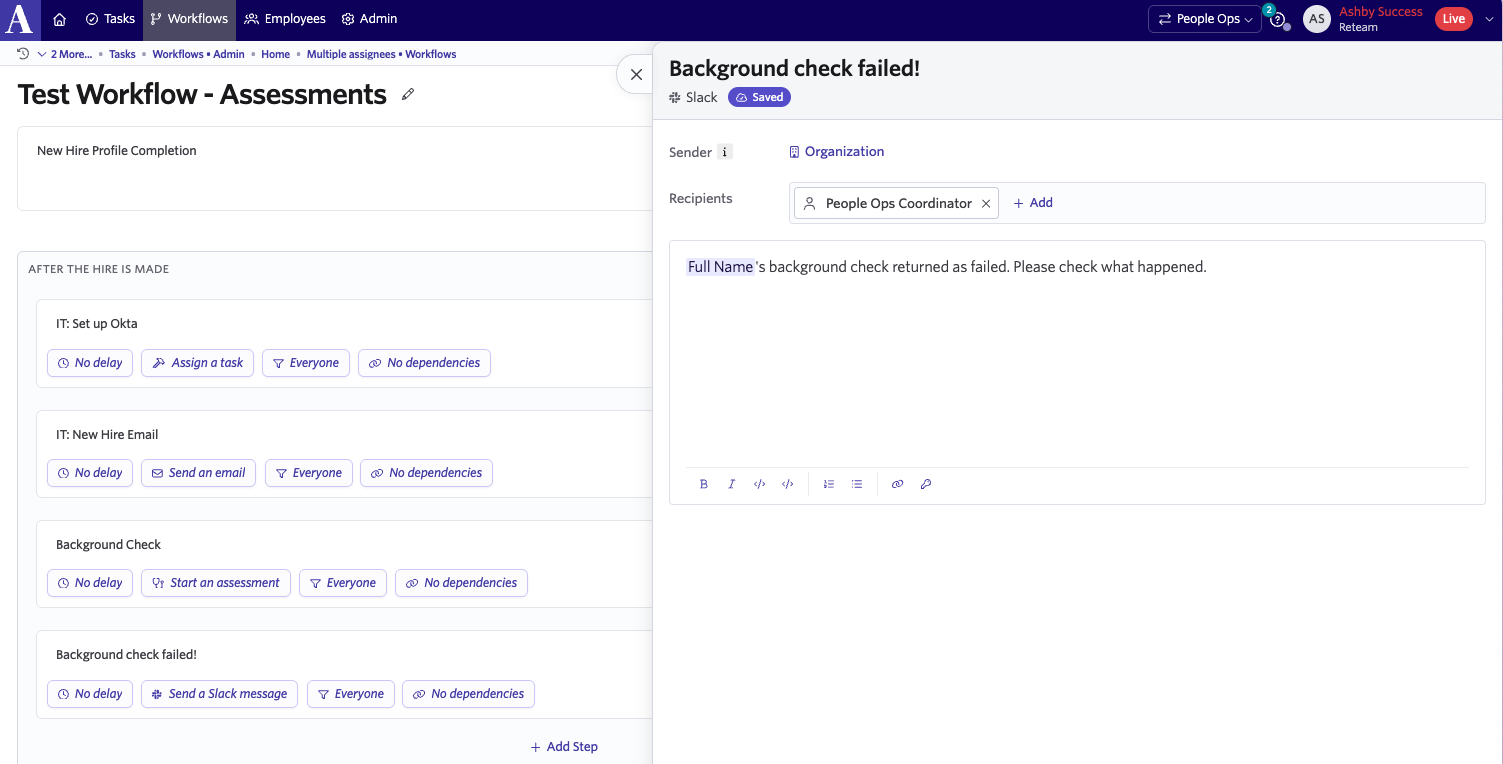
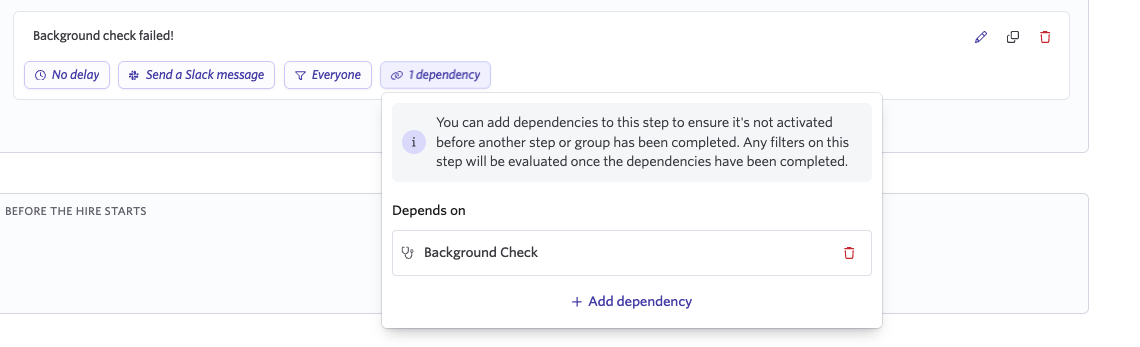
- Add a dependency on the assessment integration step. This ensures that the new workflow step does not trigger until the assessment is complete.
- Configure a filter to control when the step applies. For example, specify that the step only runs for employees who passed or failed the assessment.
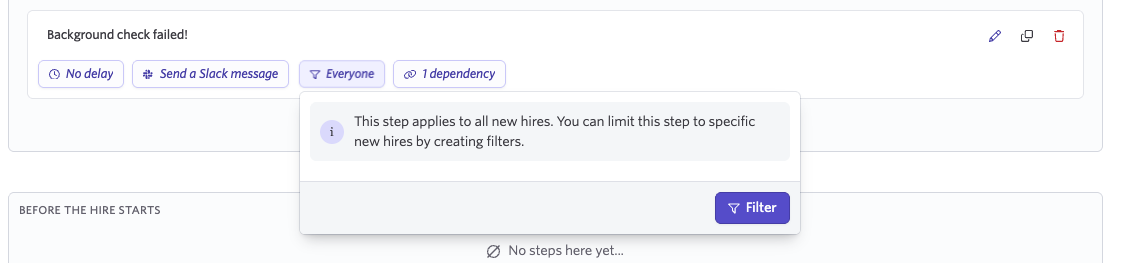
- Search for and select the assessment integration step (for example, "Background Check") and choose the appropriate result filter for the integration.
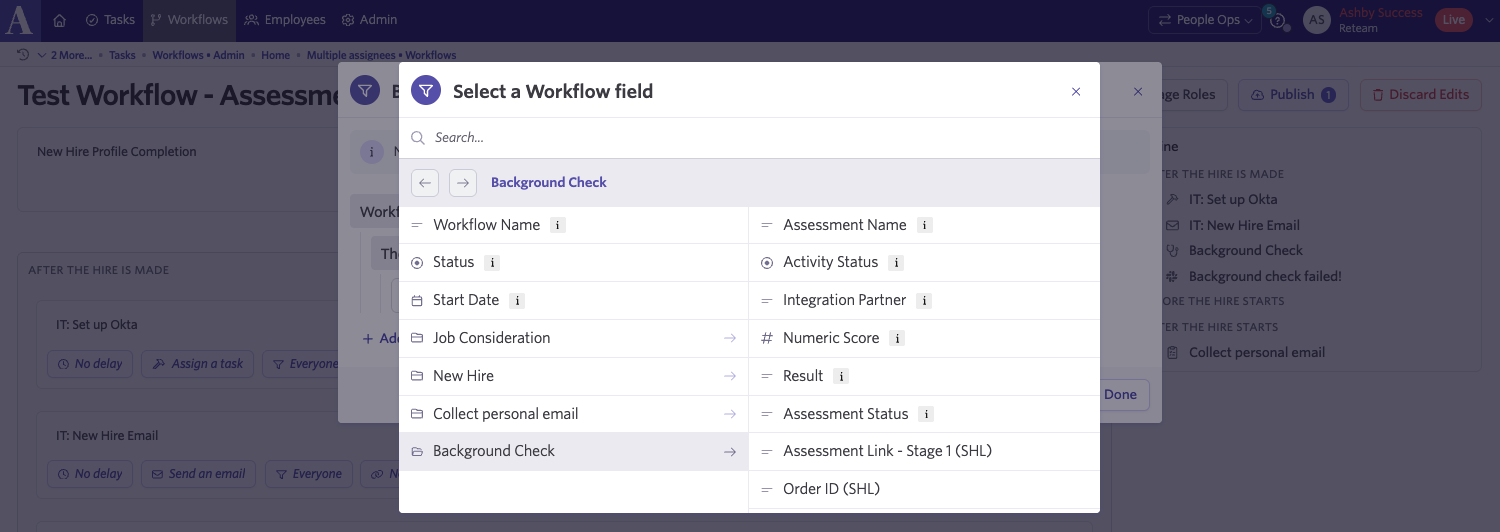
The available filters for each supported integration are listed below.
Checkr
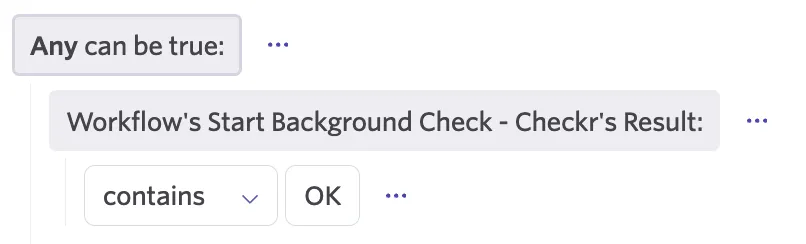
To trigger workflow steps based on Checkr background check results, configure a filter using the Checkr Results field.
Employees who passed the background check
Set the filter so that Checkr Results contains "OK."
Employees who did not pass the background check
Set the filter so that Checkr Results does not contain "OK".
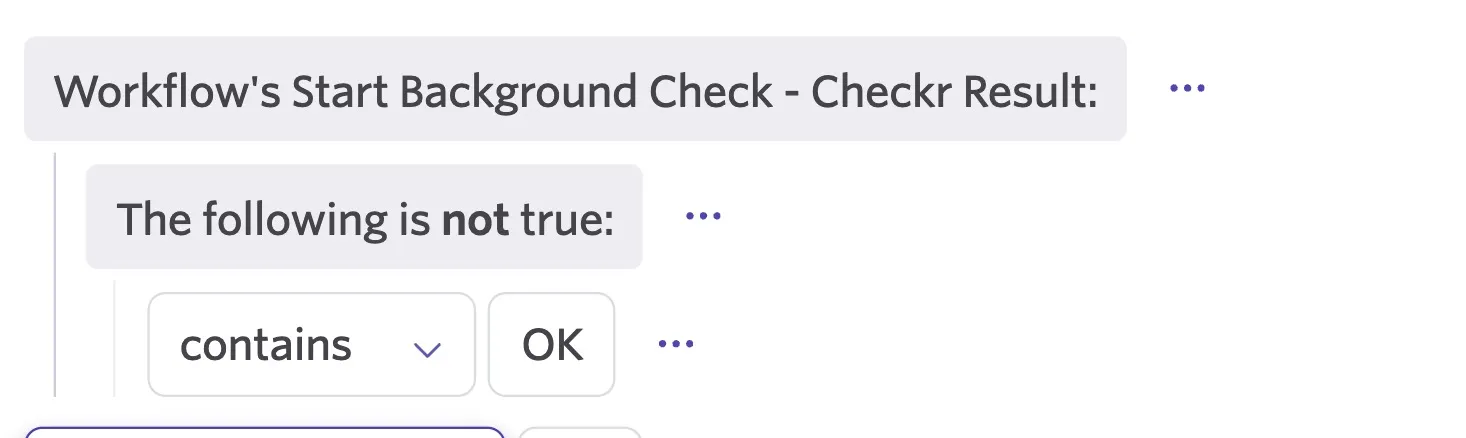
This allows you to route employees through different onboarding steps depending on the outcome of their Checkr background check.
First Advantage (formerly Sterling)
To trigger workflow steps based on First Advantage background check results, configure a filter using the First Advantage Results field.
Employees who passed the background check
Set the filter so that First Advantage Results contains "Clear."

Employees who did not pass the background check
Set the filter so that First Advantage Results does not contain "Clear."
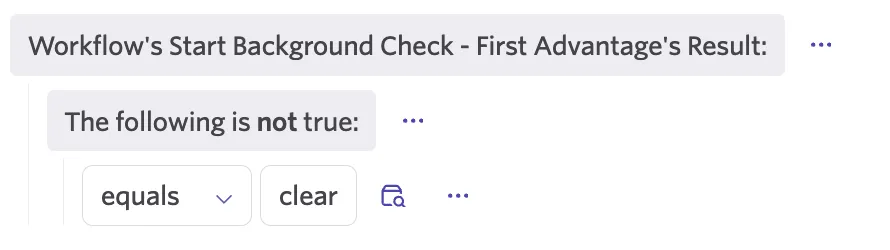
This allows you to route employees through different onboarding steps depending on the outcome of their First Advantage background check.
HireRight
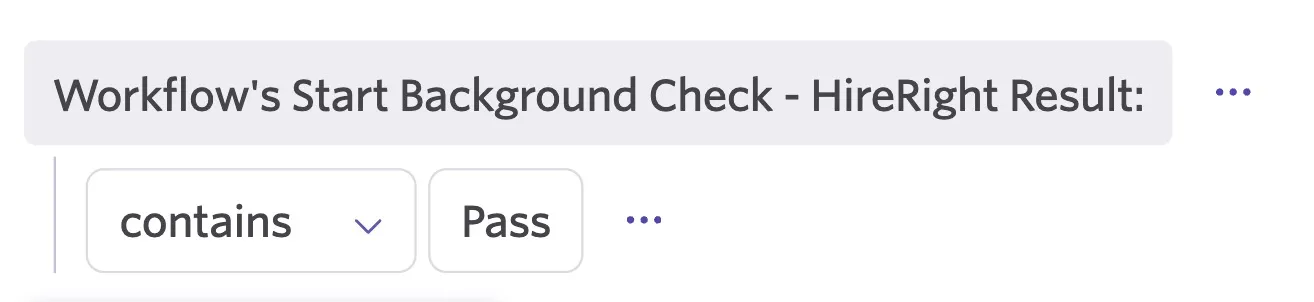
Employees who passed the background check
Set the filter so that HireRight Results contains "Pass"
Employees who did not pass the background check
Set the filter so that HireRight Advantage Results does not contain "Pass"
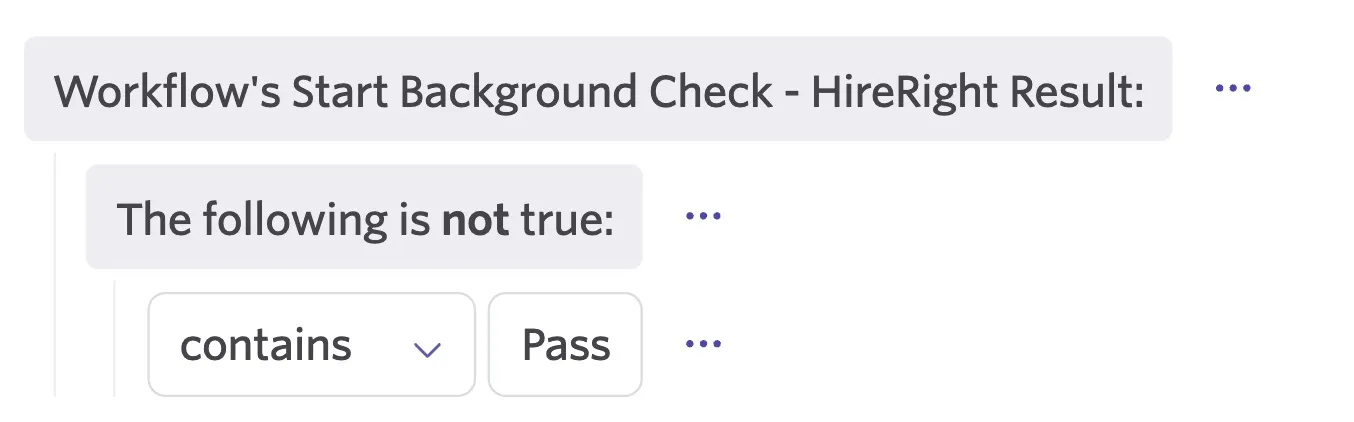
This allows you to route employees through different onboarding steps depending on the outcome of their HireRight background check.
Zinc
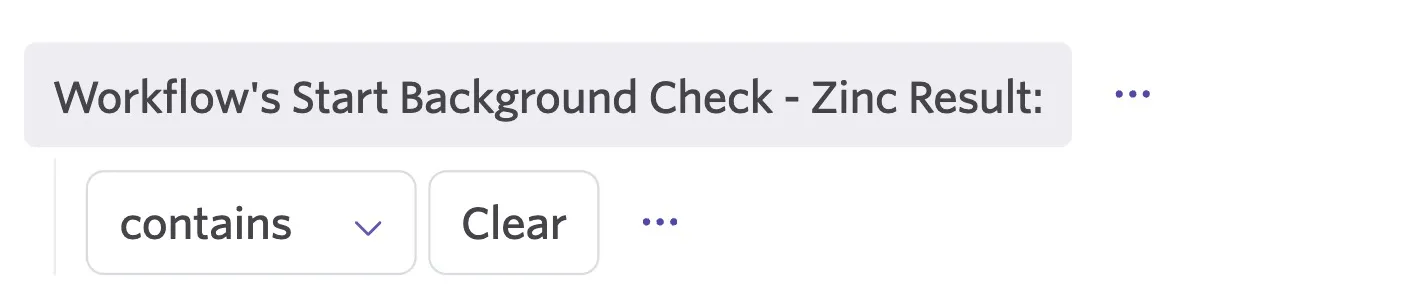
Employees who passed the background check
Set the filter so that Zinc Results contains "Clear"
Employees who did not pass the background check
Set the filter so that Zinc Results do not contain "Clear"
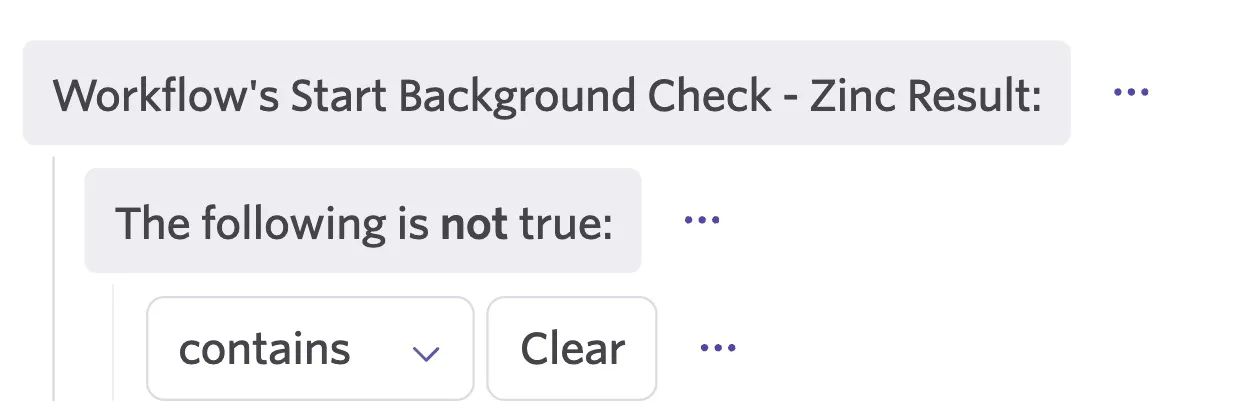
This allows you to route employees through different onboarding steps depending on the outcome of their Zinc background check.
Yardstik
To trigger workflow steps based on Yardstik background check results, configure a filter using the Yardstik Assessment Status field.
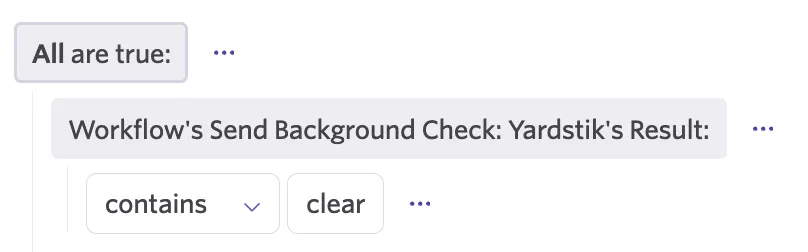
Employees who passed the background check
Set the filter so that Yardstik Assessment Result contains "Clear."
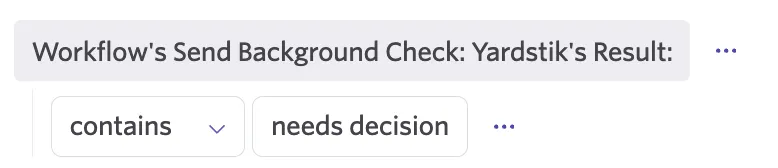
Employees who require further review or did not pass the background check
Set the filter so that Yardstik Assessment Result contains "Needs Decision."
This allows you to route employees through different onboarding steps depending on the outcome of their Yardstik background check.
FAQ
Do assessment integration steps work for employees who are not associated with a job consideration?
No. Employees must be associated with a job consideration for an assessment integration step to run. If an employee without an associated Job Consideration is enrolled in a workflow that contains an assessment integration step, Ashby surfaces an error and the step does not run.
What happens if the assessment integration is disabled in Recruiting after the workflow is created?
If the assessment integration is disabled or archived after the workflow step has been configured, the step fails with the error: "The integration is not enabled."
To resolve this, admins can either:
- Re-enable the integration in Recruiting, or
- Remove or skip the assessment integration step in the workflow.
What happens if the assessment is cancelled by the provider?
If the assessment is cancelled on the provider's side (for example, if the candidate does not complete required steps), the workflow step is automatically marked as skipped, and the workflow continues to the next step.
Can I retry a failed assessment integration step?
Yes. If an assessment integration step fails, its status updates to Waiting for Manual Retry. Anyone who has 'edit' access to the workflow enrollment can select Retry to attempt the step again. When a step is retried, any pending (not-yet-started) assessment requests from the previous attempt are deleted and a new assessment is created.
Can I skip an assessment integration step?
Yes. In-progress assessment integration steps can be skipped. If the step is skipped, the associated assessment is cancelled with the provider, and the workflow proceeds to the next step.