HireRight
11 min
The HireRight integration allows Ashby users to seamlessly add background check assessments to their hiring workflows. Prior to enabling the integration, please contact HireRight to have it set up on your HireRight Account. A HireRight Technical Consultant will contact you with instructions on how to install the integration in Ashby.
Before Enabling the Integration
To enable the HireRight integration, follow these preliminary steps:
- Contact HireRight: Reach out to HireRight to set up the integration on your account. A HireRight Technical Consultant will guide you through the necessary steps.
- Receive API Credentials: After approval, the consultant will provide instructions for generating the API key required to authenticate the integration in Ashby.
Enabling the Integration
Once your HireRight account is ready:
- Log in to your Ashby account.
- Visit the HireRight Integration page.
- Click Enable HireRight.
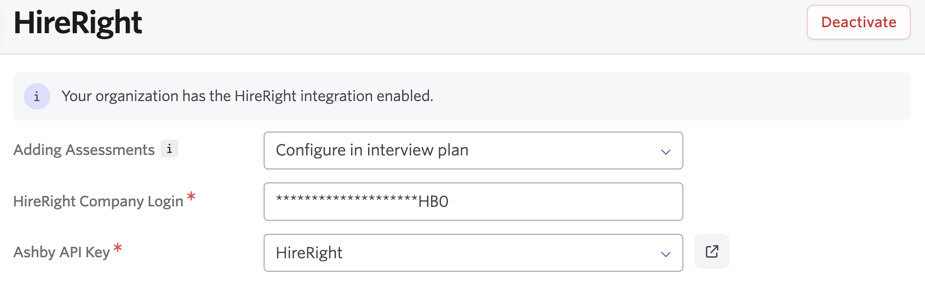
- Follow the authentication steps by entering:
- Adding Assessments: select how assessments should be added; we recommend Configure in interview plan
- HireRight Company Login: input the company login provided to you by HireRight
- Ashby API Key: generate an Ashby API key for the integration (save the key details, you won’t be able to access them again).
Configuring the Integration
You can configure the HireRight integration in the following ways:
Configure in the Interview Plan (Recommended)
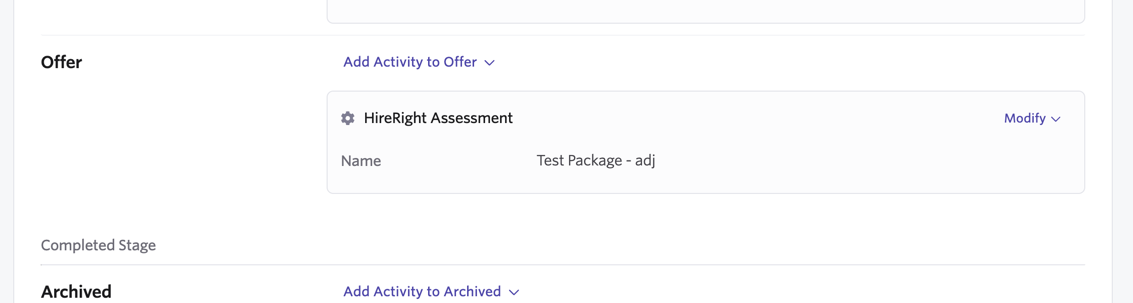
- Navigate to the Interview Plan of a job.
- Scroll to the relevant stage (e.g., Offer or Hired).
- Click Add Activity, then select HireRight under the Integration section.
- Choose the desired assessment package and, optionally enable automation to trigger the assessment when a candidate enters this stage.
Automatically Add to Specific Stages
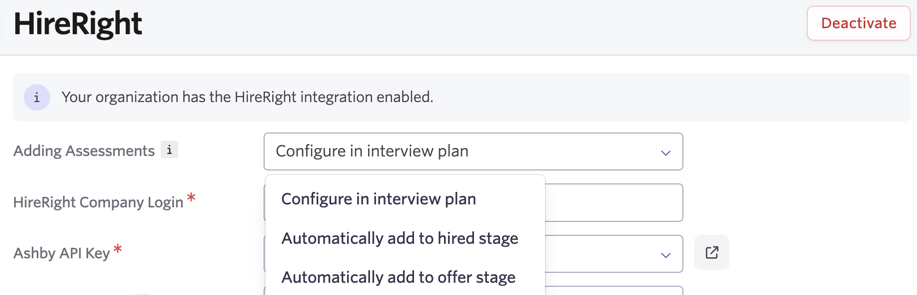
- Configure assessments to be automatically added when a candidate moves into the Offer or Hired stage.
- This option is set during the initial integration setup.
Add Assessments Manually
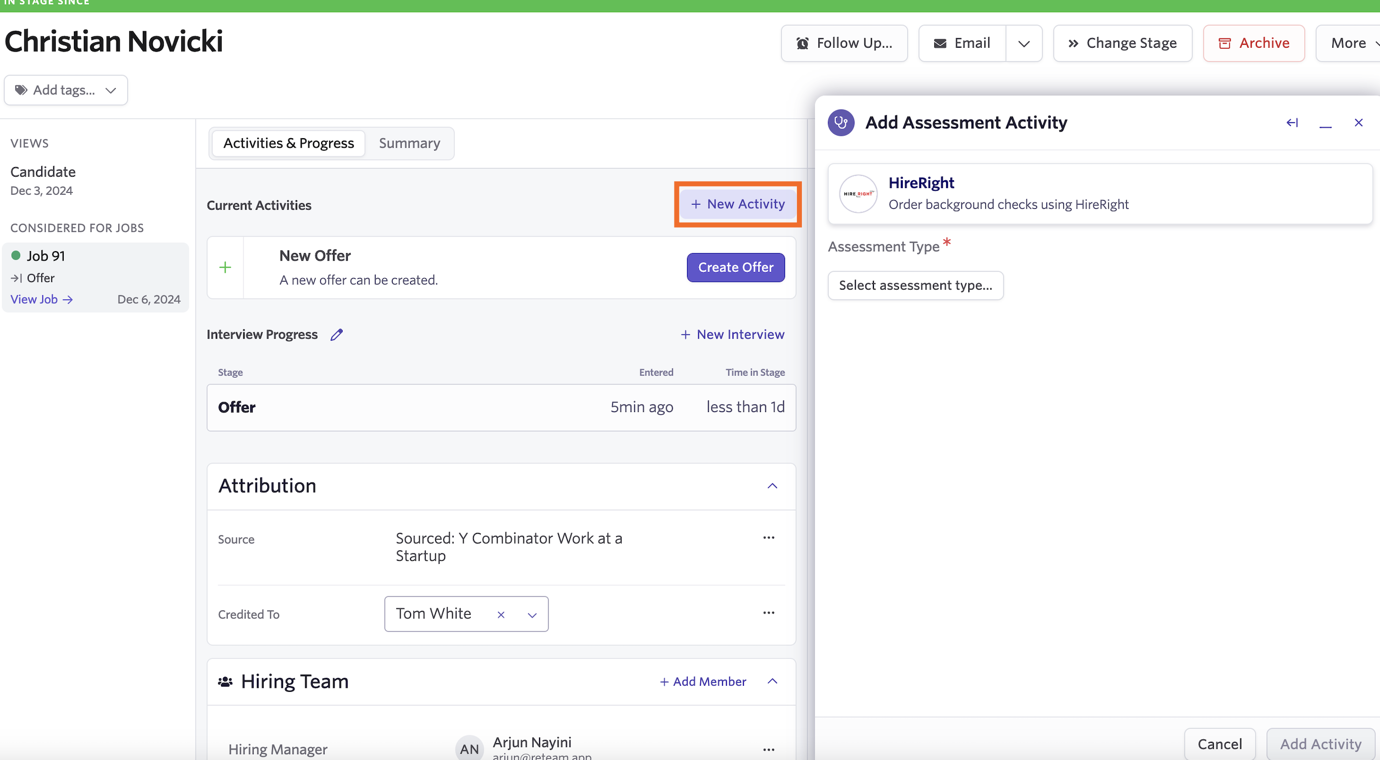
- On a candidate profile, click Add Activity and select HireRight.
- Choose the assessment package to send an invitation to the candidate.
Using the Integration
Sending Assessments
- Move a candidate into the configured stage (e.g., Offer).
- The HireRight activity will on their profile, or you can manually add using the Add Activity button. Click Start Assessment.
- Fill in the necessary details, including job location.
- Click Start to send the assessment invitation to the candidate.
Monitoring Progress
- Assessment status updates appear directly in Ashby.
- Once completed, the adjudication status is displayed, with a button to access the detailed results.