Recruiting Blocks: How They Work and How to Set Them Up
Recruiting Blocks help teams make interview availability intentional and predictable. Instead of relying only on general meeting hours or open calendar time, interviewers, recruiters, and executive assistants can reserve specific calendar times that Ashby recognizes as available for interviews.
For organization admin settings for Recruiting Blocks, see Managing Recruiting Blocks for Your Organization
Permissions & access
Recruiting Blocks are part of the Advanced Scheduling Automation Add-OnAdvanced Scheduling Automation Add-On and are included on the Enterprise plan.
Foundations | Legacy Plus | Plus | Enterprise |
|---|---|---|---|
❌ | ❌ | ➕ | ✅ |
The following permissions apply:
- Organization Admins can enable or disable the organization-level capability for personal Recruiting Blocks.
- Organization Admins and Elevated Access users with the Can add/edit jobs permission can configure Recruiting Blocks on schedule interview activities.
- Users with Limited Access, Elevated Access, or Organization Admin access can enable their own personal Recruiting Blocks when personal Recruiting Blocks are enabled for the organization.
See Manage Access RolesManage Access Roles for more information about Elevated Access permissions.
When to use Recruiting Blocks
Recruiting Blocks can help when:
- Interviewers have limited or unpredictable availability. Personal Recruiting Blocks let interviewers identify recurring times when they can reliably be scheduled, similar to submitting their availability in advance.
- Recruiters or executive assistants (EAs) manage busy calendars. An EA or recruiter can create explicit blocks on an interviewer's calendar, reducing back-and-forth coordination.
- Executives want to protect time for approved interviews. Executives can designate specific times when interviews may be scheduled, rather than leaving calendar time open for any meeting.
- Allocating time across multiple roles. Use schedule-level blocks to intentionally reserve more interviewer capacity for high-priority roles and less for lower-priority ones, so important hiring efforts don't get crowded out.
- You are hosting a hiring event, campus recruiting event, superday, or batch interview day. Use one-time or recurring blocks to reserve specific days and times for the event.
- Your organization has inconsistent meeting hours or calendar practices. A dedicated calendar event that explicitly means "available for interviews" can be easier to manage than trying to interpret inconsistent calendars, or checking which existing meetings can be moved or booked over.
The two types of Recruiting Blocks
Recruiting Blocks can be configured at two levels. The level you choose depends on whether you want to limit a person's availability across interviews or reserve availability for a particular interview workflow.
Type | What it controls | When to use it |
|---|---|---|
Personal Recruiting Blocks | When a specific interviewer should be considered available for scheduling any interviews. | Use when an interviewer wants to submit their own reliable interview availability, or when an EA or recruiter manages availability for a busy interviewer. |
Schedule-level Recruiting Blocks | When interviewers related to a specific interview should be considered available for scheduling that interview. | Use when a role, interview type, hiring event, or other workflow needs its own dedicated capacity. |
Before you set up Recruiting Blocks
Recruiting Blocks are calendar events, so Ashby must be able to read the event title and time from the interviewer's calendar. See Integration options for Google Workspace and Microsoft 365Integration options for Google Workspace and Microsoft 365 for more information on calendar integrations and permissions.
Requirements for using Recruiting Blocks
- Blocks must be on the interviewer's primary connected calendar. Ashby does not detect events on secondary calendars as Recruiting Blocks, even if those calendars otherwise contribute conflicts or availability.
- The event title must be visible to Ashby. If the calendar integration cannot expose event names, Ashby cannot distinguish a Recruiting Block from another calendar event. Review your Google WorkspaceGoogle Workspace or Microsoft 365Microsoft 365 calendar integration and visibility settings before rolling out the feature.
- Ashby recognizes a block event even if it has not been accepted. A recruiter, recruiting coordinator, or EA can create a shared event and invite interviewers.
If an interviewer declines the event, Ashby ignores that block for them.
- Ashby matches the event title, not its free/busy status. A Recruiting Block can be marked Busy or Free on the native calendar.
- Capitalization does not matter, but the rest of the title must match the title Ashby shows you. Personal block titles cannot be customized.
- One-off events are supported. We recommend setting recurring events to maintain regular weekly availability, so availability does not expire unexpectedly.
Setting up personal Recruiting Blocks
If your organization does not have personal Recruiting Blocks enabled for your account, you will not be able to enable them in your personal settings. See Enabling personal Recruiting Blocks for your organization for more information.
When a user enables personal Recruiting Blocks, Ashby considers that person available only during matching Recruiting Block calendar events when scheduling interviews.
Personal Recruiting Blocks are a personal setting. They apply across interview schedules unless a schedule-level Recruiting Blockschedule-level Recruiting Block with a custom suffix takes precedence.
- Go to Personal settings > Meeting Hours & Recruiting Blocks.
- Turn on Recruiting Blocks.
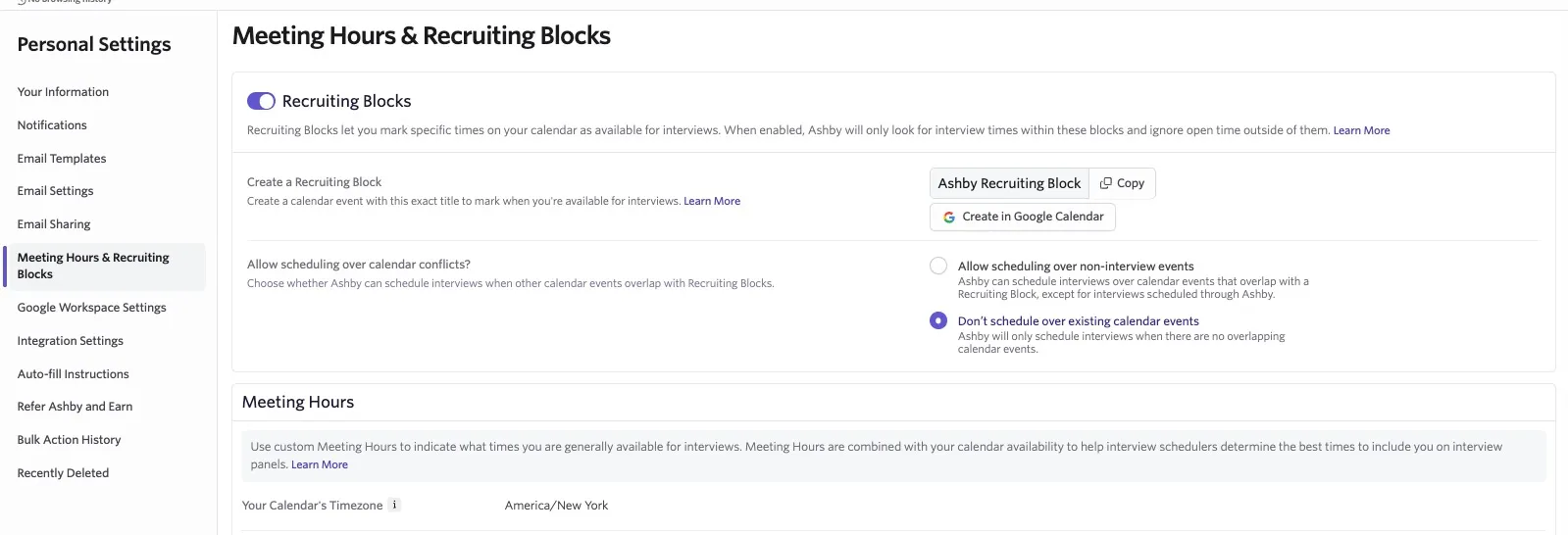
- Copy the title shown in Ashby, or select Create in Google Calendar, when available.
- Create a calendar event using the exact title shown in Ashby. For example, the default title may be Ashby Recruiting Block.
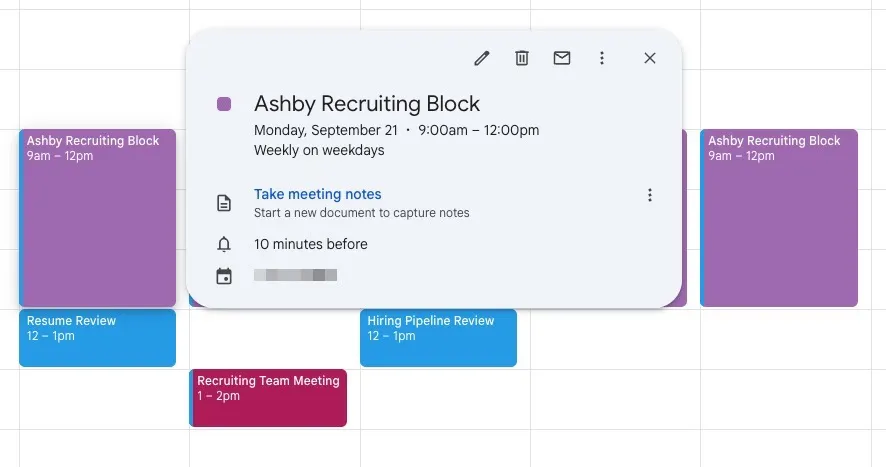
- Choose how Ashby handles other calendar events that overlap the block:
- Allow scheduling over non-interview meetings: Ashby treats the block as available even when ordinary calendar meetings overlap it.
- Don’t schedule over existing meetings: Overlapping calendar events make that portion of the block unavailable.
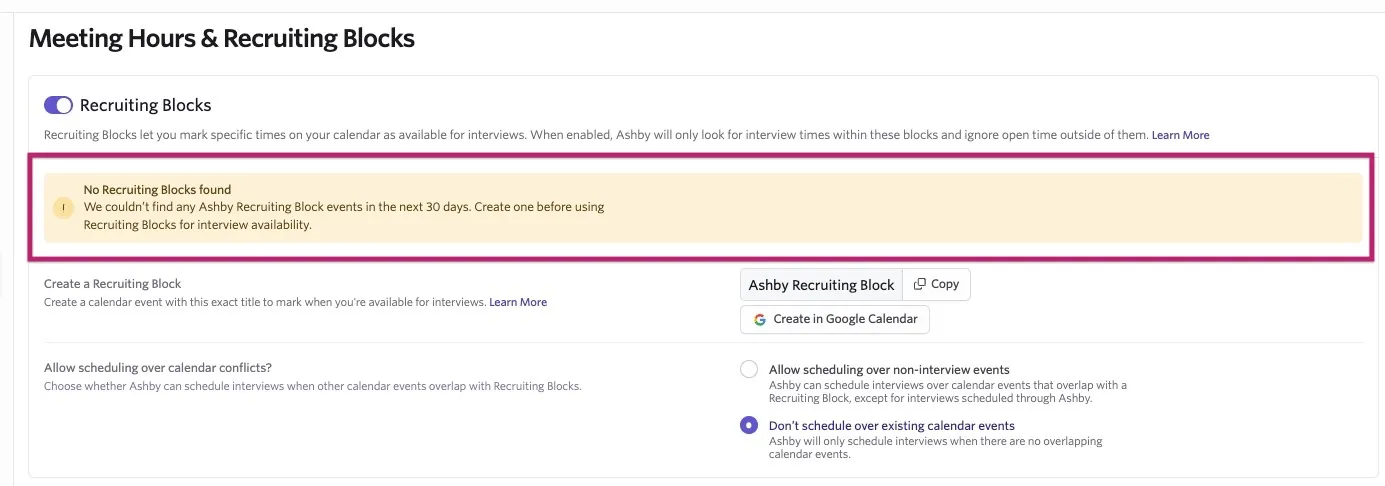
If Ashby cannot find any events with the block title in your calendar, you see a warning on the Personal Meeting Hours page where the personal Recruiting Blocks are set up.
Setting up schedule-level Recruiting Blocks
You configure schedule-level Recruiting Blocks on a schedule interview activity. The interviewers considered for that activity must have matching events on their calendars.
Schedule-level Recruiting Blocks reserve interviewer availability for a specific schedule interview activity. Enabling Recruiting Blocks on a specific schedule means any eligible interviewers must have corresponding Recruiting Block events on their calendar to be considered available when scheduling this interview.
Schedule-level Recruiting Blocks can use either:
- The standard title shown in Ashby, which is useful when the schedule can use the same events as personal Recruiting Blocks.
- A custom suffix, which creates a distinct title for only that schedule, such as "Ashby Recruiting Block [engineering]". Custom suffixes are useful when a team is hiring for multiple roles and wants to reserve more interviewer capacity for priority roles without allowing lower-priority hiring to consume all available time.
To set up schedule-level Recruiting Blocks, follow these steps:
- Open the job and go to the Interview Plan tab.
- Open the schedule interview activity you want to configure by selecting Modify > Edit, or create a new schedule interview activity.
See Setting up Schedule Interview Activities for more information on configuring schedule interview activities.
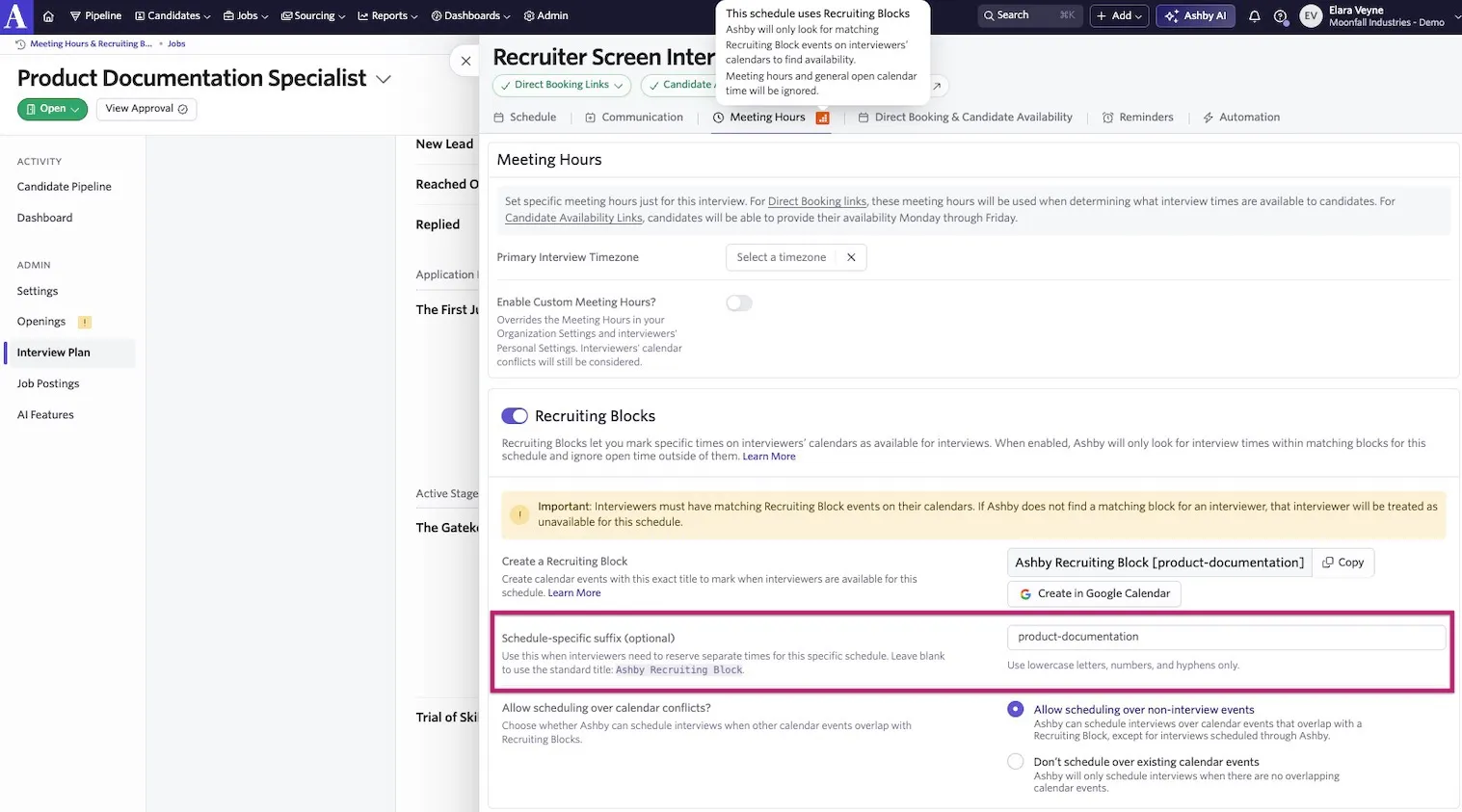
- Open the Meeting Hours tab.
- Turn on Recruiting Blocks.
- Optionally enter a value in the Schedule-specific suffix field:
- Leave the suffix blank to use the standard Recruiting Block title, Ashby Recruiting Block.
- Add a suffix to create a distinct title for this schedule, such as Ashby Recruiting Block [product-documentation].
- Use lowercase letters, numbers, and hyphens only in the suffix field.
- Create matching events on the interviewers’ primary connected calendars.
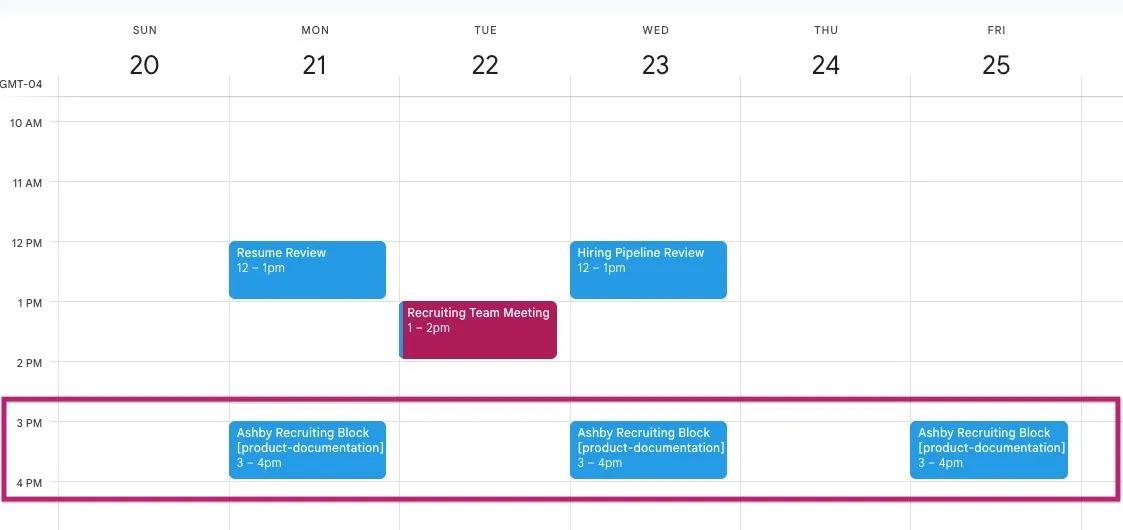
![Google Calendar showing recurring Ashby Recruiting Blocks, including a schedule-specific "Ashby Recruiting Block [product-documentation]" event from 3–4 PM on Monday, Wednesday, and Friday.](https://cdn.images.archbee.com/0p8tQ--ZZOxRtkVp6Qr-e/FXK4Hz_gMvykarYsCpbuA_week-of-september-20-2026-2026-09-17-at-84413-am.jpg?format=webp "Google Calendar showing recurring Ashby Recruiting Blocks, including a schedule-specific \"Ashby Recruiting Block [product-documentation]\" event from 3–4 PM on Monday, Wednesday, and Friday.")
- Choose how Ashby handles ordinary calendar events that overlap the block.
- Allow scheduling over non-interview meetings: Ashby treats the block as available even when ordinary calendar meetings overlap it.
- Don’t schedule over existing meetings: Overlapping calendar events make that portion of the block unavailable.
If you use a suffix, Ashby considers only events with the corresponding suffix for that schedule. A personal event titled Ashby Recruiting Block does not make an interviewer available for a schedule that expects Ashby Recruiting Block [product-documentation].
A centralized recruiting team can create shared, recurring schedule-level blocks and invite multiple interviewers. The invitees do not need to accept the events for Ashby to recognize them, but declining an event makes that block unavailable for the interviewer.
How Recruiting Blocks affect scheduling
Recruiting Blocks work with direct booking links, auto-scheduling, and manual scheduling.
Direct booking links
When a direct booking link uses a schedule with Recruiting Blocks, candidates see only the times that fall inside the corresponding Recruiting Block calendar events on the interviewer's connected calendar.
In the example below, you see three schedule-specific suffix Recruiting Block calendar events for 3 PM on Monday, Wednesday, and Friday.
On the direct booking link the candidate receives, they see only those times available to book.
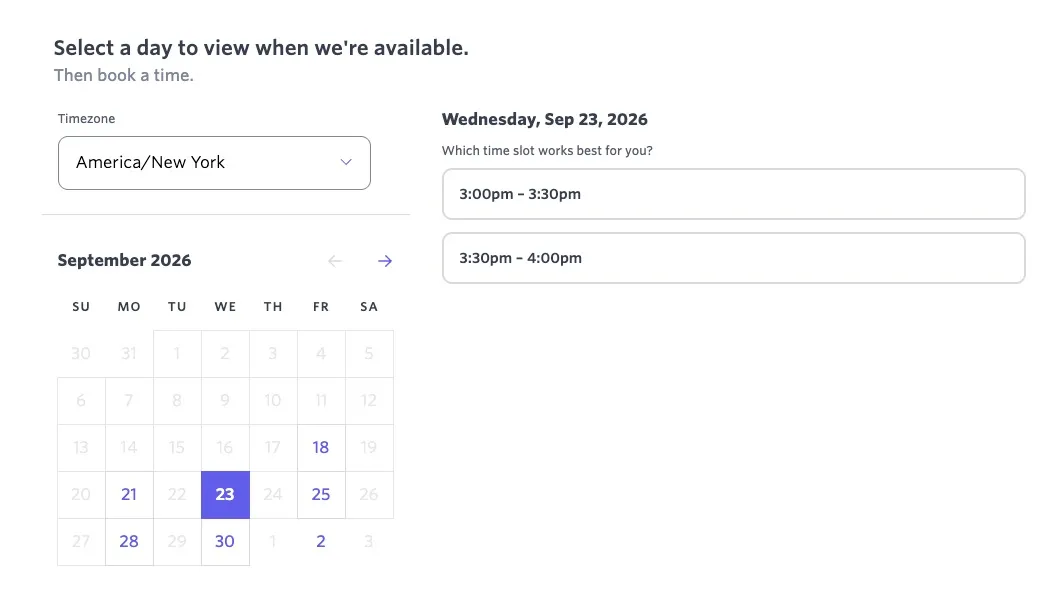
If a schedule-specific recruiting block event is missing or has the wrong title, the link may show no availability.
If the interview schedule does not have a schedule-specific suffix, Ashby searches the interviewer's calendar for "Ashby Recruiting Block" events.
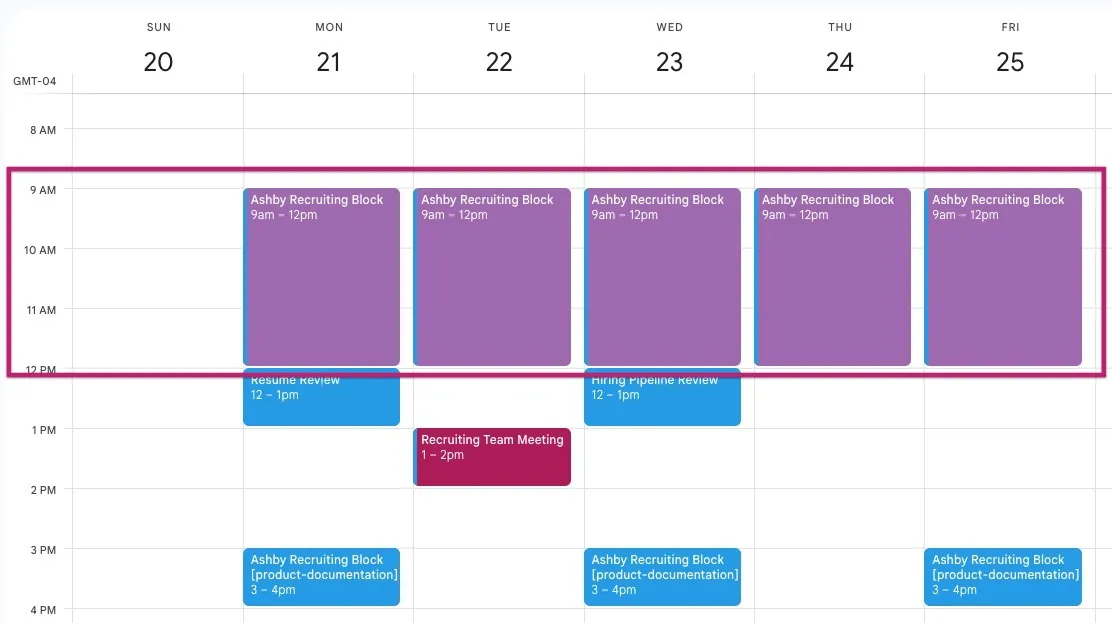
It then shows this availability in the direct booking link. Calendar events with a suffix are not considered in this case.
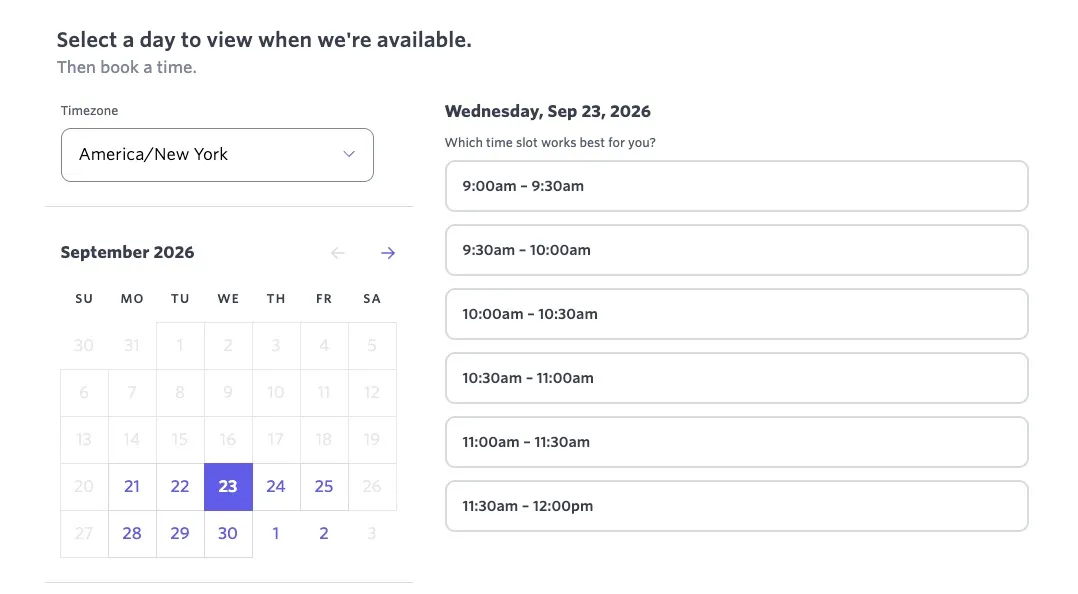
For more information about direct booking links, see Direct Booking & Candidate Availability LinksDirect Booking & Candidate Availability Links.
Auto-scheduling
Auto-scheduling considers the matching Recruiting Block events when proposing interview times. Meeting Hours can still influence the times auto-scheduling recommends when possible, but Meeting Hours do not prevent an interview from being booked inside a valid Recruiting Block. For example, a block created outside Meeting Hours can still be used for interviews.
For more information about auto-scheduling, see Advanced Scheduling Automation Add-On.
Manual scheduling
When you manually schedule an interview, the calendar view indicates the interviewer's Recruiting Block availability. The scheduler can manually book outside of a block when an exception is needed.
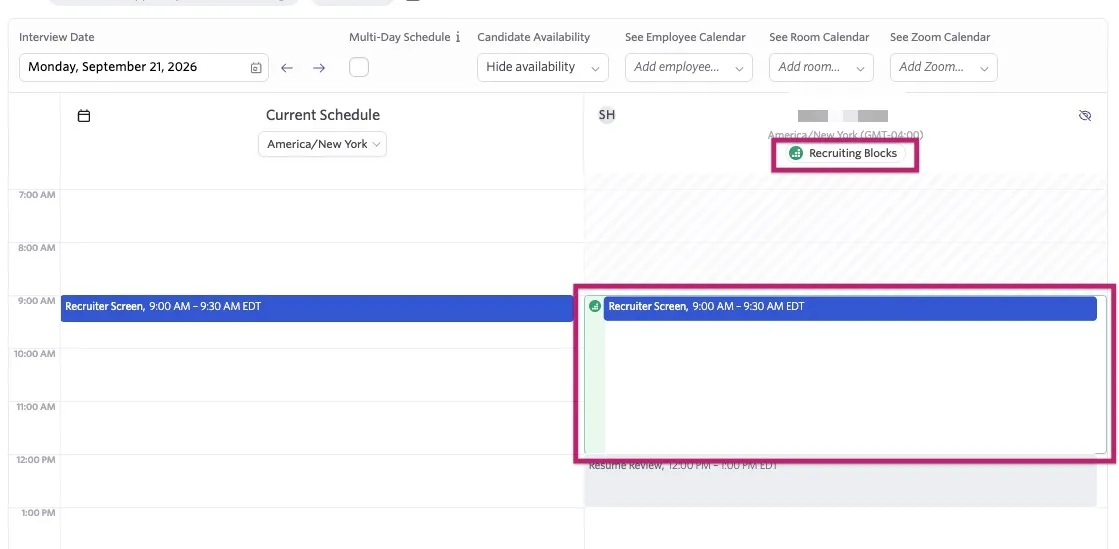
For more information about manual scheduling, see Manually Scheduling InterviewsManually Scheduling Interviews.
How overlapping events and calendar conflicts are handled
Ashby allows you to choose how ordinary calendar events that overlap the block affect the availability. Under each Recruiting Block set up, you see the following option for the Allow scheduling over calendar conflicts? field:
- Allow scheduling over non-interview meetings: Ashby treats the block as available even when ordinary calendar meetings overlap it.
- Don’t schedule over existing meetings: Overlapping calendar events make that portion of the block unavailable.
Ashby-managed interviews remain conflicts even when Allow scheduling over non-interview meetings is selected. That setting can ignore ordinary calendar meetings inside a block; it does not allow Ashby-managed interviews to overlap or double-book an interviewer.
For example, if you enable Allow scheduling over non-interview meetings for your personal Recruiting Blocks, Ashby continues to show the block as available even when ordinary calendar events overlap it.
In the image below, Recruiting Stand Up and Resume Review overlap with your Ashby Recruiting Blocks.
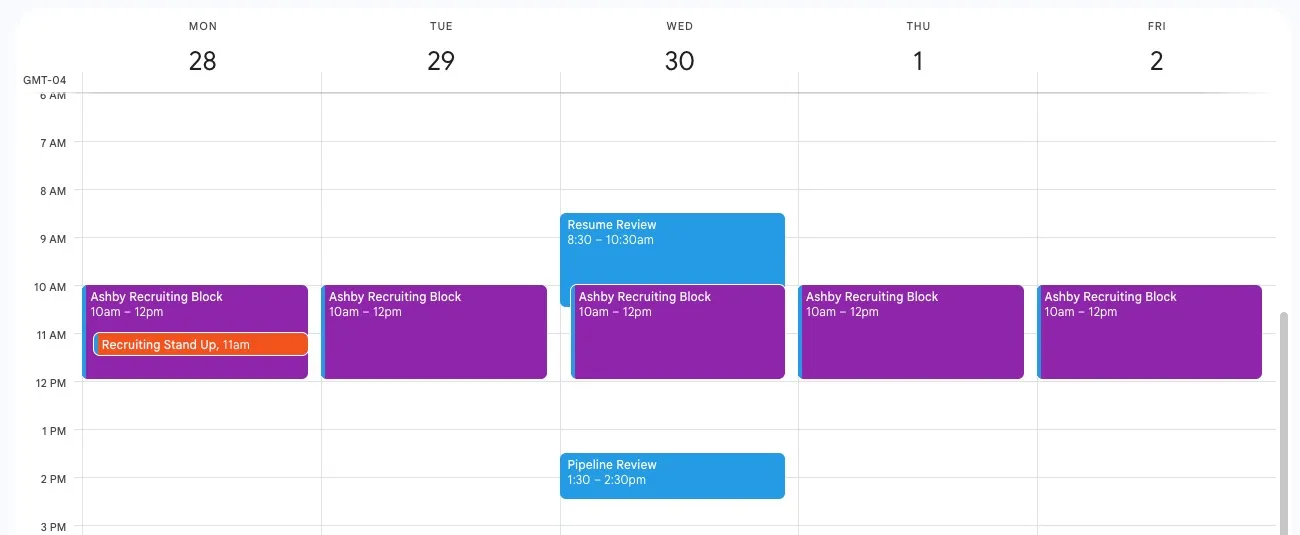
Because Allow scheduling over non-interview meetings is enabled, these times still appear as available on a direct booking link.
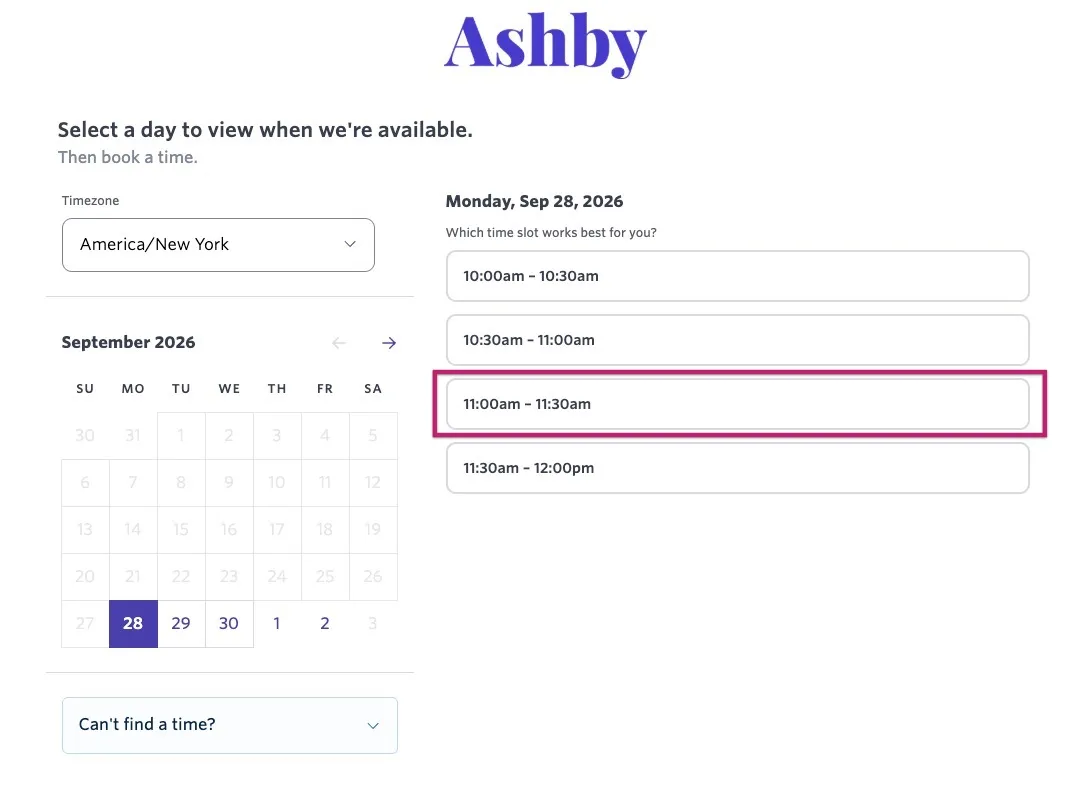
If you change the setting to Don’t schedule over existing meetings, Ashby treats the overlapping times as busy, and they no longer appear as available.
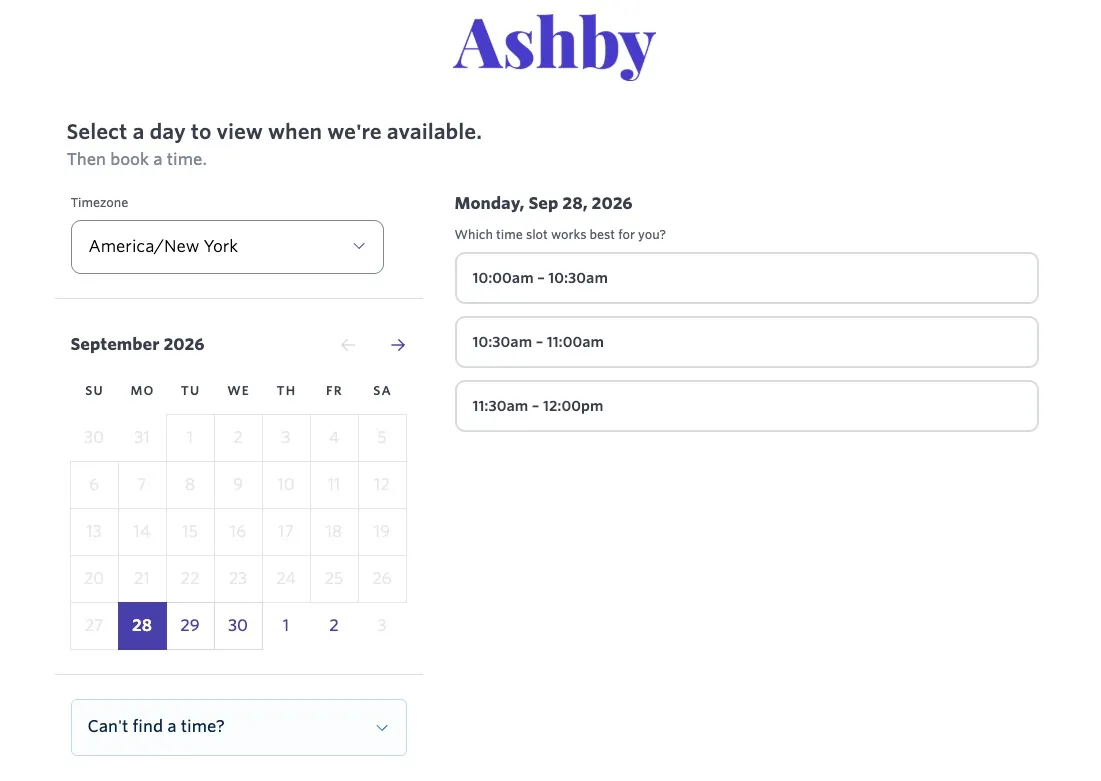
The same behavior applies to schedule-specific Recruiting Blocks. When Allow scheduling over non-interview meetings is enabled for a schedule, Ashby ignores overlapping ordinary calendar events within matching Recruiting Block calendar events. If Don’t schedule over existing meetings is selected, those overlapping times are treated as busy and do not appear as available.
Maintaining Recruiting Blocks
- Keep events up to date. When your availability changes, update or move the calendar event. Ashby uses the new details once your calendar syncs.
- Keep future recurring events active. Ashby looks for a matching event on each date it schedules. If it can't find one, any workflow that uses that recruiting block may show no availability.
FAQs
Why is an interviewer showing no availability?
If an interviewer's interview schedule is not showing availability, check the following:
- Calendar: The event is on the interviewer's primary connected calendar.
- Visibility: Ashby can see the event's title and time. Events marked private or shown only as busy may be hidden.
- Title: The event title matches the recruiting block name exactly. Capitalization doesn't matter, but spelling, spacing, and punctuation do.
- Dates: The event takes place on the date being scheduled. If it's a recurring event, the series hasn't ended.
- Response: The interviewer hasn't declined the event.
- Suffix: If the schedule uses a suffix, it's set up correctly, and the interviewer has an event with that suffix in the title.
- Conflicts: No other calendar event overlaps the block in a way that marks it as busy under your selected conflict setting.
I have a 30-minute block. Why isn’t a 45-minute interview available?
An interview must fit entirely within one continuous window created by matching Recruiting Blocks calendar events.
Adjacent or overlapping Recruiting Block events are combined when determining availability.
If the combined window is too short, extend the block or create an adjacent block so the full interview duration fits.
Do Recruiting Block events need to be accepted?
No. Ashby recognizes an event that has not been accepted. If the interviewer declines the event, Ashby ignores that block for them.
Can I use a block marked Free instead of Busy?
Yes. Ashby identifies Recruiting Blocks by their matching title, not their free/busy status.
Can I use a secondary calendar?
No. Recruiting Blocks must be on the interviewer’s primary connected calendar. Ashby does not detect events on secondary calendars as Recruiting Blocks.
Can I customize the personal Recruiting Block title?
No. Use the exact personal title shown in Ashby. Capitalization does not matter, but other changes to the title prevent Ashby from recognizing the event.
Can I use different blocks for different schedules?
Yes. Configure a unique schedule-level suffix for each schedule, then create events with the matching titles on the interviewers’ calendars.
If I change or remove a schedule-level suffix, what happens to existing booking links?
Active booking links use the schedule’s current Recruiting Block configuration. Changing or removing the suffix changes the event title Ashby expects, which can change the availability shown by those links.
Can I manually schedule outside a Recruiting Block?
Yes. Manual scheduling can be used as an exception. Direct booking links and auto-scheduling continue to use the configured block availability.
What happens when I use both personal and schedule-level Recruiting Blocks for the same interview schedule?
Ashby uses the following logic when determining interviewer availability:
| Schedule-level Recruiting Blocks | Calendar events Ashby checks |
|---|---|---|
Off | Off | Normal meeting hours and calendar availability |
On | Off | The user's standard personal Recruiting Block events |
Off | On, no suffix | Events using the standard Recruiting Block title |
On | On, no suffix | Events using the standard Recruiting Block title; these can be the same events used for personal Recruiting Blocks |
On / Off | On, with a suffix | Only events using the schedule-level title with that suffix; personal blocks do not apply |
A schedule-level Recruiting Block with a custom suffix takes precedence over personal Recruiting Blocks for that schedule. Meeting hours and general open calendar time do not create availability for that schedule.