Manually Scheduling Interviews
Ashby provides a variety of features that make it easy to schedule interviews and collect feedback on candidates. This article focuses on the manual scheduling flow, showing how to schedule an interview manually from an existing interview activity or by creating a new one. This is an option you can use if you've already determined a suitable time with the candidate.
Permissions and access
See the table below for information on who can schedule a candidate for an interview, either by sending out a direct booking link or manually scheduling interviews.
Access Role | Has Access? |
|---|---|
Limited Access | ❌ |
Agency User | ❌ |
Elevated Access - External Recruiter (not linked to an agency) | ❌ |
Elevated Access - Analyst | ❌ |
Elevated Access - Hiring Team Member | ❌ |
Elevated Access - Hiring Manager | ✅ |
Elevated Access - Admin | ✅ |
Elevated Access - Admin (Private) | ✅ |
Organization Admin | ✅ |
Scheduling overview
Scheduling interviews
Step 1a: Scheduling from an existing interview activity
If you do not have an existing interview activity to schedule from — for example, for a one-off or ad hoc interview — see Step 1b below.
When a schedule interview activityschedule interview activity has been configured on a job's interview plan, it appears automatically in the Activities & Progress section of the candidate's profile when they are moved to that stage. You can manually schedule an interview directly from this activity, which is the recommended and most common way to manually schedule.
Auto-scheduling interview activities is available for those with the Advanced Scheduling Automation Add-OnAdvanced Scheduling Automation Add-On .
To manually schedule an interview from an existing activity:
- Open the candidate's profile and locate the interview activity in the Activities & Progress section.
- Click Schedule on the activity.
- Select Manual Schedule.
The calendar interface opens with the interview type and interviewer panel already filled in. From here, continue to Step 2: Select the time, attendees, and meeting rooms.
If the activity includes a confirmation email template, the candidate confirmation email defaults to On the first time you manually schedule from that activity. This is the opposite of the default when starting a new interview from scratch, where it defaults to Off. You can toggle this on the Candidate Confirmation Email tab before clicking Schedule. Your preference is saved for future interviews you schedule.
Step 1b: Start scheduling by creating a new interview
If you do not have an existing interview activity to schedule from or need to create one ad hoc, you can manually create the interview and then schedule it.
- To create the interview, open the candidate profile of the candidate you want to schedule an interview for.
- Select More > Schedule New Interview, then click Manual Schedule.

Alternatively, click + New Interview, Schedule Interview, then Manual Schedule.

- Continue to Step 2 below.
You can configure your interview plans to automatically prompt your team to schedule interviews when candidates reach an active stage. More on this at Setting up Schedule Interview ActivitiesSetting up Schedule Interview Activities.
Step 2: Select the time, attendees, and meeting rooms
When scheduling interviews manually, the calendar interface is where you set up the bulk of the schedule. On this screen you decide:
- Which day the interview takes place (for scheduling multi-day interviews, see the FAQ below)
- Which interviews take place
- Which interviewers participate
- The start time and duration of each interview
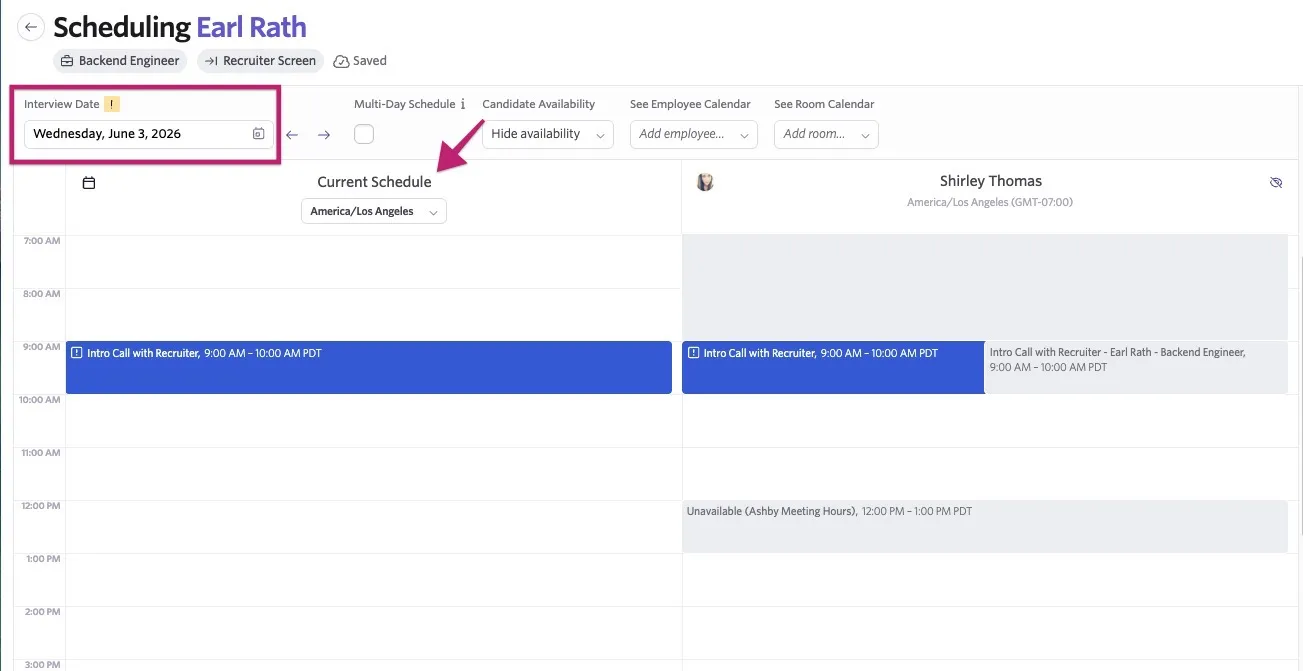
Current schedule and date
The first column in the calendar view shows the current schedule — a summary of all events the candidate is participating in on the day of the interview.
Use the date picker to switch the day on which the interview takes place. Click the date to open the full calendar, or use the arrows to move between days.
Scheduling options
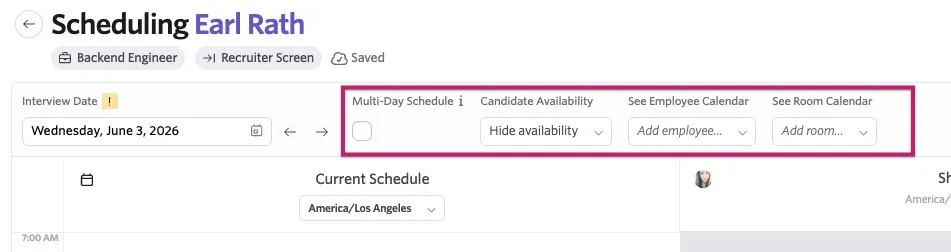
Check Multi-Day Schedule to jump to other dates on the calendar without automatically switching the date of the interview. This is useful when scheduling multiple interview events in one go.
Check Candidate Availability to overlay the candidate's availability on the calendar, if they have submitted it.
Use the See Employee Calendar dropdown to preview the calendars of potential interviewers. You can filter or scroll to find the calendar you'd like to see. For onsite interviews, use See Room Calendar to view room availability.
Interview settings panel
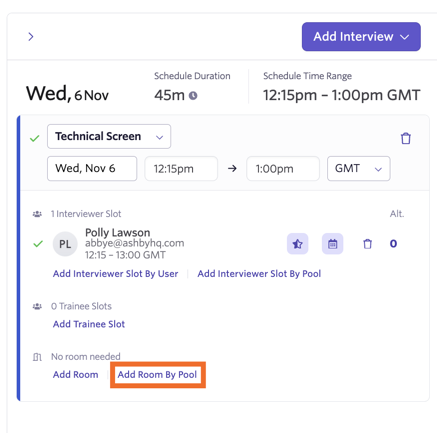
On the right side of the screen, there is a panel that shows interview details including the interview type, time, the interviewers, and rooms.
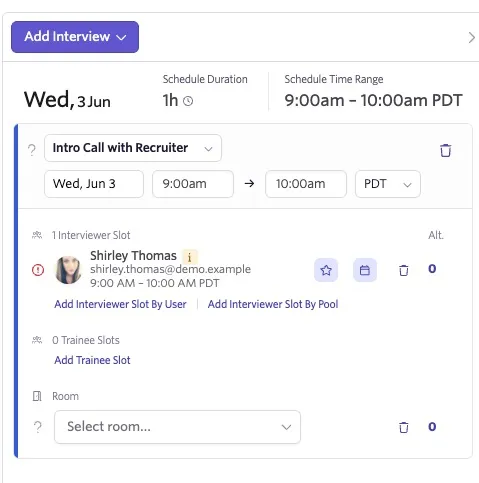
Click Add Interview to add additional interview events to the same day. To schedule interviews across different days, see How do I use multi-day scheduling? .
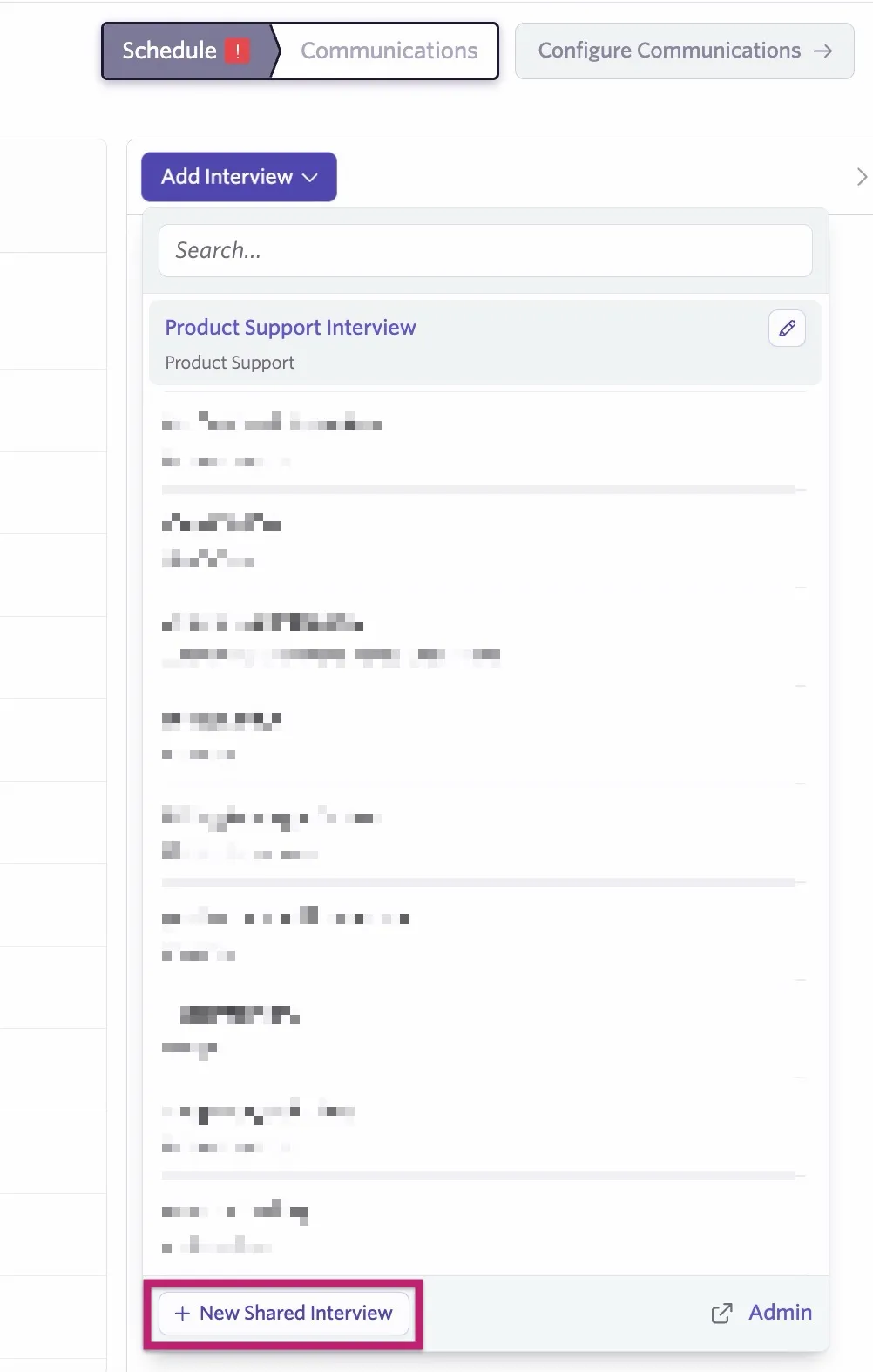
Use the interview dropdown to select or change the interview type. You can click + New Shared Interview in the interview selector dropdown to create a new shared interview type inline.
Once you've selected an interview type, use the panel controls to configure your interview further:
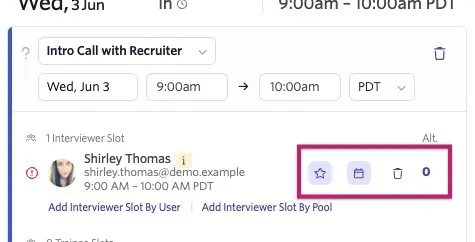
- Feedback Required ☆ — When turned off, the interviewer is not reminded to submit feedback to complete this interview. They can still submit feedback if needed.
- Hide/View Calendar 🗓 — Shows or hides the selected interviewer's calendar.
- Delete Slot 🗑 — Removes an interviewer from the interview panel.
- Alt. — Shows the number of alternate interviewers defined on the schedule template. Defaults to zero if none are defined.
- Add interviewer slot — Adds an additional interviewer to the panel. Once added, their calendar with their availability appears alongside the current schedule.
Hover over the i icon next to the interviewer's name to see their daily and weekly interview limits (if set) along with any interviewer preferences set on their profile. The i icon shows in yellow if the interviewer is nearing their limits, or in red if the interviewer has met or exceeded their interview limits. More on setting limits and preferences can be found at Assigning InterviewersInterviewers: Assigning, Rescheduling, and Setting Interviewer Limits.
Adding rooms
When you click Add Room, the meeting room selector surfaces the most relevant rooms at the top based on a few criteria:
- Availability during the interview time,
- Interviewers' working location,
- And rooms recently or frequently used by those interviewers in Ashby.
Rooms are grouped by building or location, and buildings are prioritized when they're relevant to the selected interviewers; for example, where an interviewer is working that day or where they've recently held interviews.
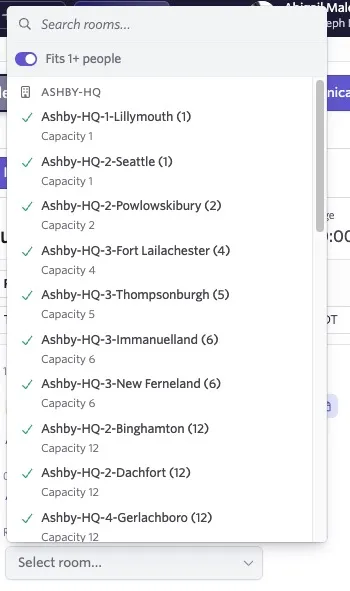
Available rooms appear at the top of each building's list with a green checkmark, so you can confirm a room works before selecting it.
When you first open the selector, it may take a brief moment to load availability while Ashby checks room calendars. You can search for a room by name while results are loading if you already know which one you want.
If you update the interview time or swap out an interviewer, reopening the room selector refreshes the results based on your latest selections.
Two things to know about how recommendations work:
- Working location-based recommendations are only available for interviewers who have set a working location in Google Calendar. If your organization uses Microsoft 365, or if working location data isn't available for a given interviewer, recommendations fall back to that interviewer's frequency of room use in Ashby instead.
- For organizations with a large number of meeting rooms, Ashby evaluates availability for up to 100 rooms it considers most relevant to the interview. Rooms beyond that threshold may appear in results without an availability status. If you're looking for a specific room outside those results, use the search field within the selector.
Selecting a room from a pool
If your organization has meeting room pools configured, you can select a room from a pool rather than specifying a room directly. Follow these steps:
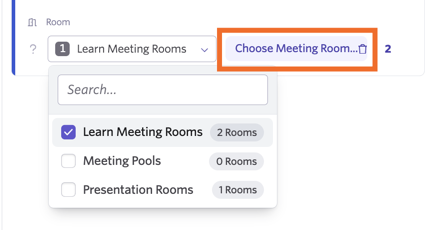
- Click Add Room By Pool.
- Select the pool you'd like to choose rooms from using the dropdown menu.
- Click Choose Meeting Room to see the rooms in your selected pool or pools.
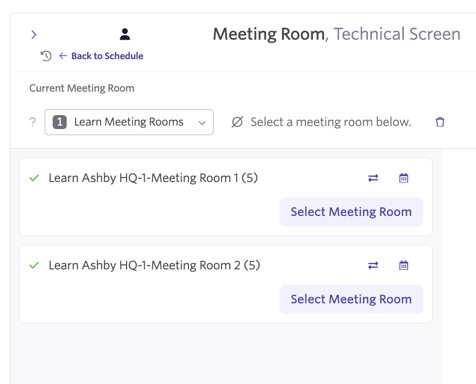
- Review the meeting rooms available within your pool, then click Select Meeting Room to confirm the meeting room you'd like to add to your interview.
Step 3: Configure calendar invites and communications
Once you've selected an interview time and picked the interview panel, you're ready to set up and send calendar invites. In this step, you can preview and edit calendar invite information for both the candidate and your interviewers, determine the invite settings, and configure interview reminders and confirmation emails.
Calendar invites - single interview event
On the Calendar Invites tab, you can determine whether calendar invites are sent to the candidate and/or interviewers using the Send Candidate Invite and Send Interviewer Invite toggles. We generally recommend sending out calendar invites when scheduling an interview.
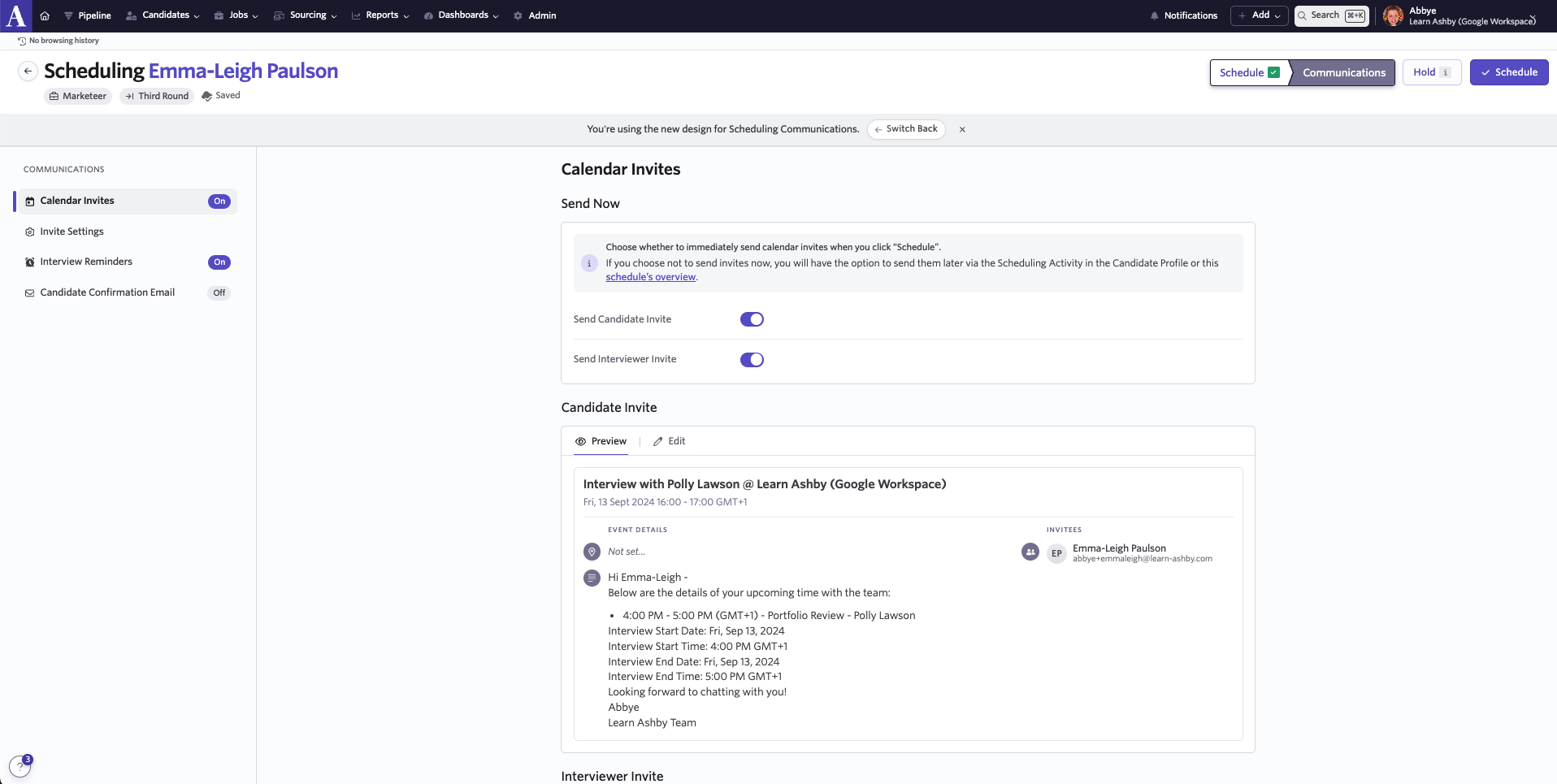
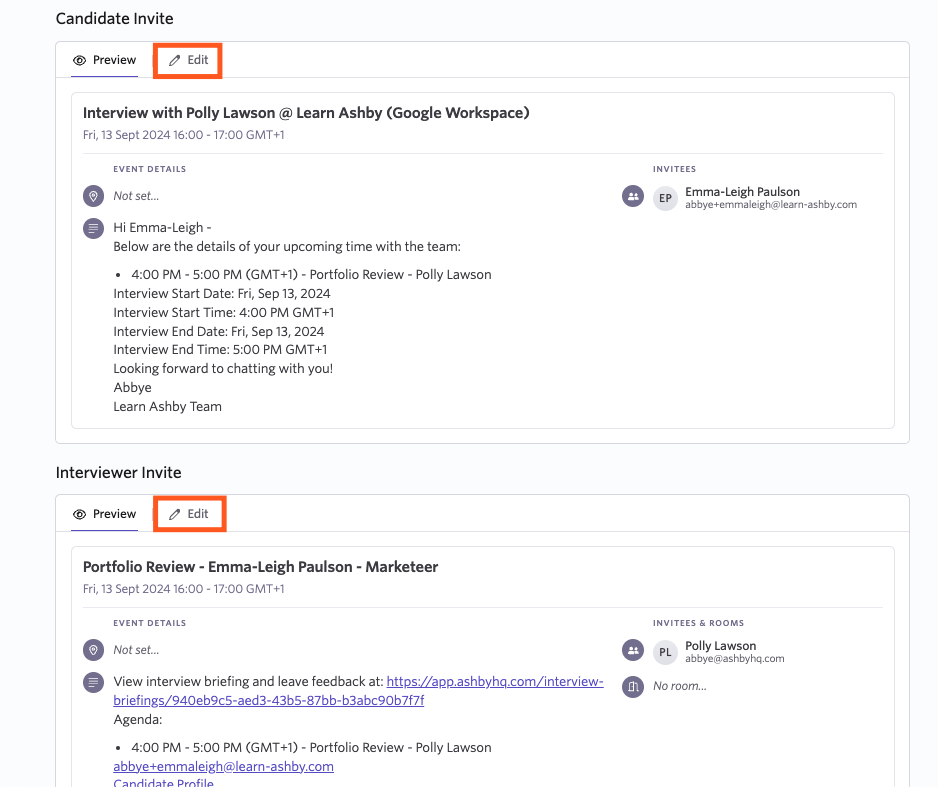
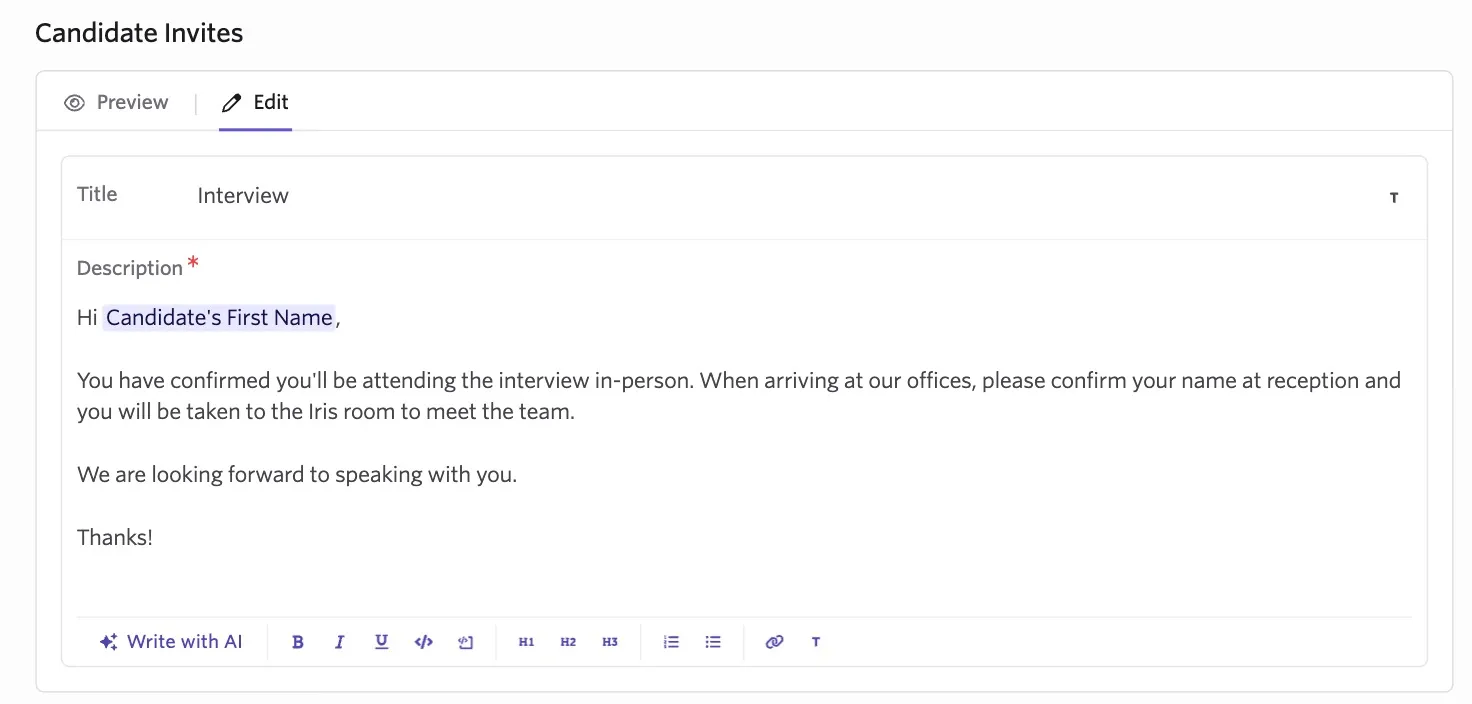
In the Candidate Invite and Interviewer Invite sections, you can preview the calendar invites that are sent out. To make any changes to either invite, click Edit.
Calendar invites - multiple interview events
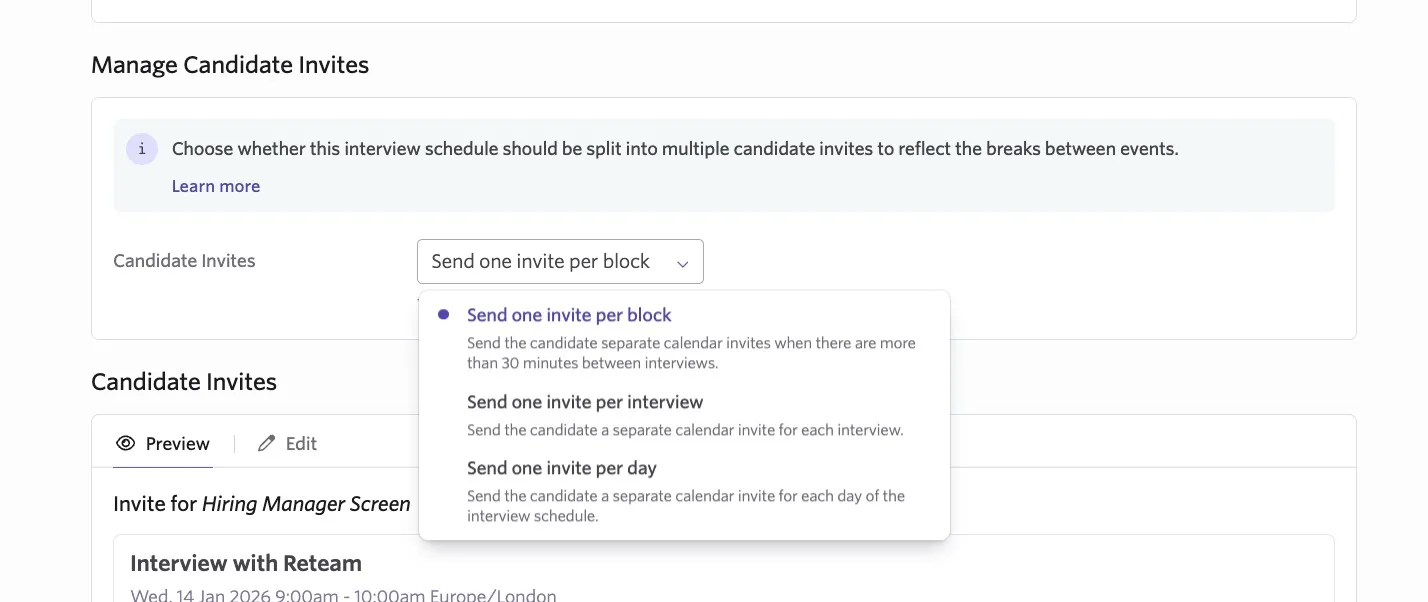
If you've added multiple interview events to your interview, you see some additional options when it comes to sending out calendar invites in the Manage Candidate Invites section. You can select from the following options:
Send one invite per block: The candidate receives a separate calendar invite for interview events that are more than 30 minutes apart. If they have two interview events with a 15-minute break between the two, they receive one calendar invite. If they have two interview events with a one-hour break in between, they receive two calendar invites.
Send one invite per interview: The candidate receives a separate calendar invite for each interview event, regardless of how far apart they are.
Send one invite per day: The candidate receives a calendar event per day they have interview events. So if they have one interview event on Monday and the other two on Tuesday, they receive two calendar invites. If they have one interview event on Monday, one on Tuesday, and one on Wednesday, they receive three calendar invites.
If you have video conferencing (Zoom, Google Meet, Teams) set as the location for your interview, each calendar invite has a unique meeting link. As such, the option you choose for sending out the calendar invites may impact the number of unique links generated.
You can also click Edit on each interview calendar invite to update the calendar invite title and description per invite, so if you have specific information relevant to only one interview event, it can be added only to the relevant invite.
Invite settings
On the Invite Settings screen, modify the details of both invites.
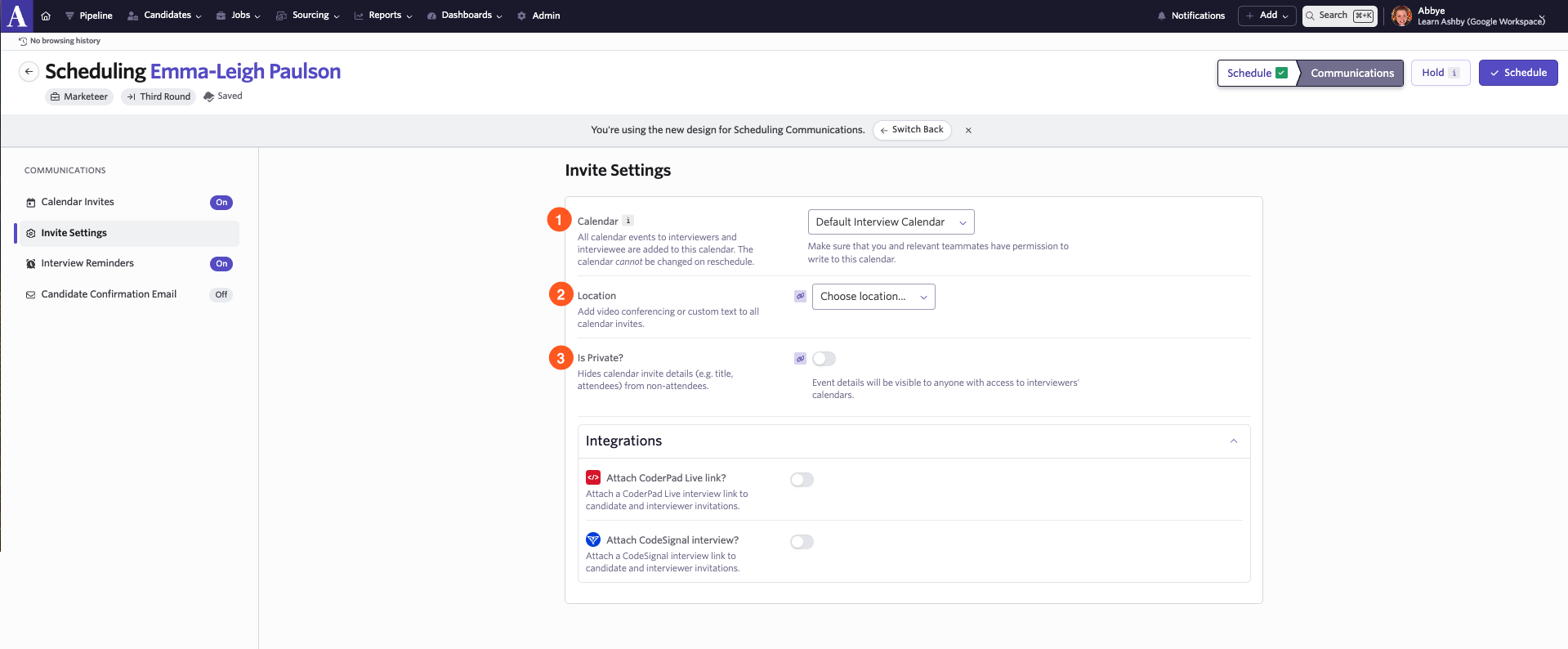
- The Calendar dropdown menu lets you select which calendar the calendar events are scheduled to. This calendar also receives a calendar invite, along with the candidate and interviewer calendars. The calendar cannot be changed on reschedule. As such, we recommend setting up a shared calendar to house these interview events to allow for easy rescheduling and so you have one calendar where you can view all scheduled interviews. For more information, check out What is a shared calendar?What is a shared calendar?
- The Location Type dropdown menu and Location field let you add physical or remote location details. Set custom text, or select one of the integrated options. The integrated options automatically generate a unique video conference link and include it in the invite. Current video conference integrations are:
- Google Meet
- Zoom
- Microsoft Teams
- The Is Private toggle lets you set invites as private. When enabled, the calendar invite details (e.g. title, attendees) are hidden from others and interviewers are only marked as busy.
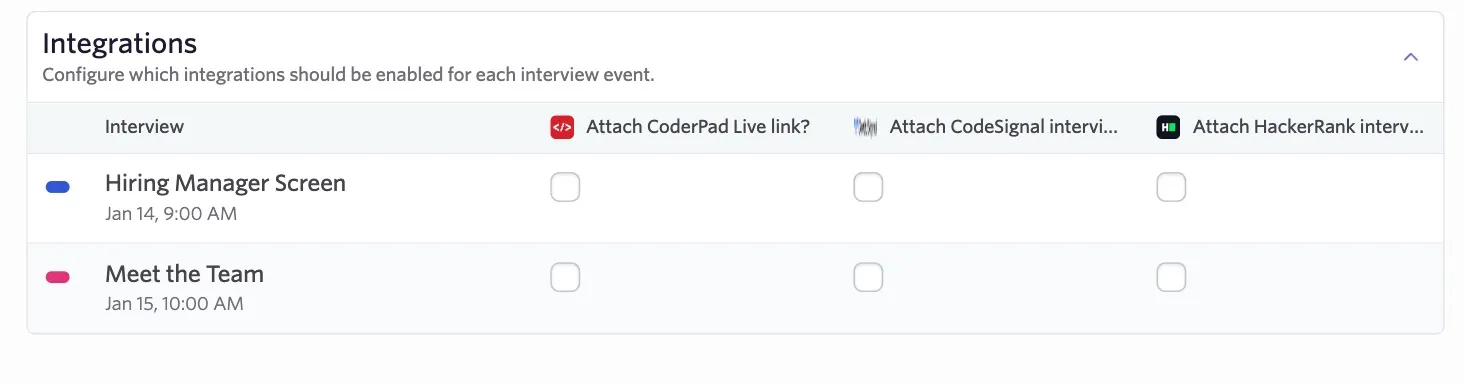
Finally, if you have the Coderpad, CodeSignal Interview, or HackerRank integrations in place, you can also specify which events (if any) use the integration. A unique assessment link is generated for each event that the integration has been enabled for and is automatically included in both candidate and interviewer invites.
Interview reminders
On the Interview Reminders tab, you can configure reminders for both candidates and interviewers.

To add an interview reminder for a candidate, click Add Candidate Reminder. To add a reminder for interviewers on your panel, click Add Interviewer Reminder.
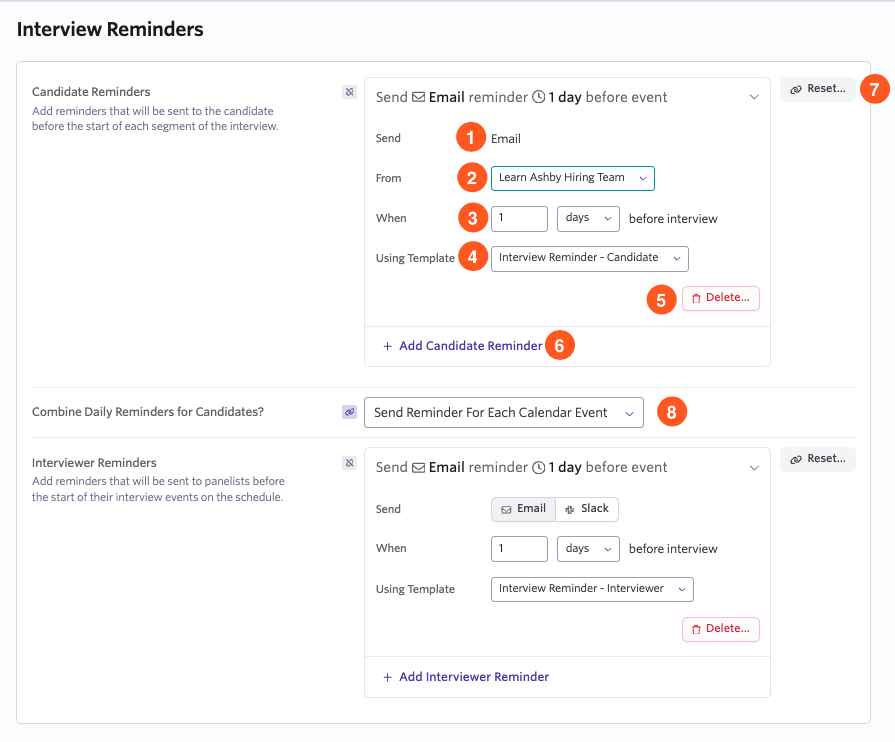
- Send: Determine the delivery method for your reminder. For candidates, reminders can only be sent via email. For interviewers, they can be sent via email or Slack if you have the integration in place.
- From: Determine the sender of the reminder.
- When: Configure how many minutes, hours, or days before the interview the reminder is sent.
- Using Template: Confirm your email template for the reminder here. For more on setting up email templates, check out Email Template Creation and ManagementEmail Template Creation and Management.
- Delete: Remove this reminder for this interview.
- Add Candidate Reminder: Create a new reminder for this interview.
- Reset: Reset the reminder to your organization's scheduling defaults. More on this at Setting Scheduling DefaultsSetting Scheduling Defaults.
- Combine Daily Reminders for Candidates?: If you're scheduling multiple interview events across a number of days for this interview, use this option to determine how reminders are sent to the candidate. More on this at How do I use multi-day scheduling?How do I use multi-day scheduling?
Candidate confirmation email
If you'd like to send a confirmation to the candidate for their interview, you can configure a confirmation email on the Candidate Confirmation Email tab.
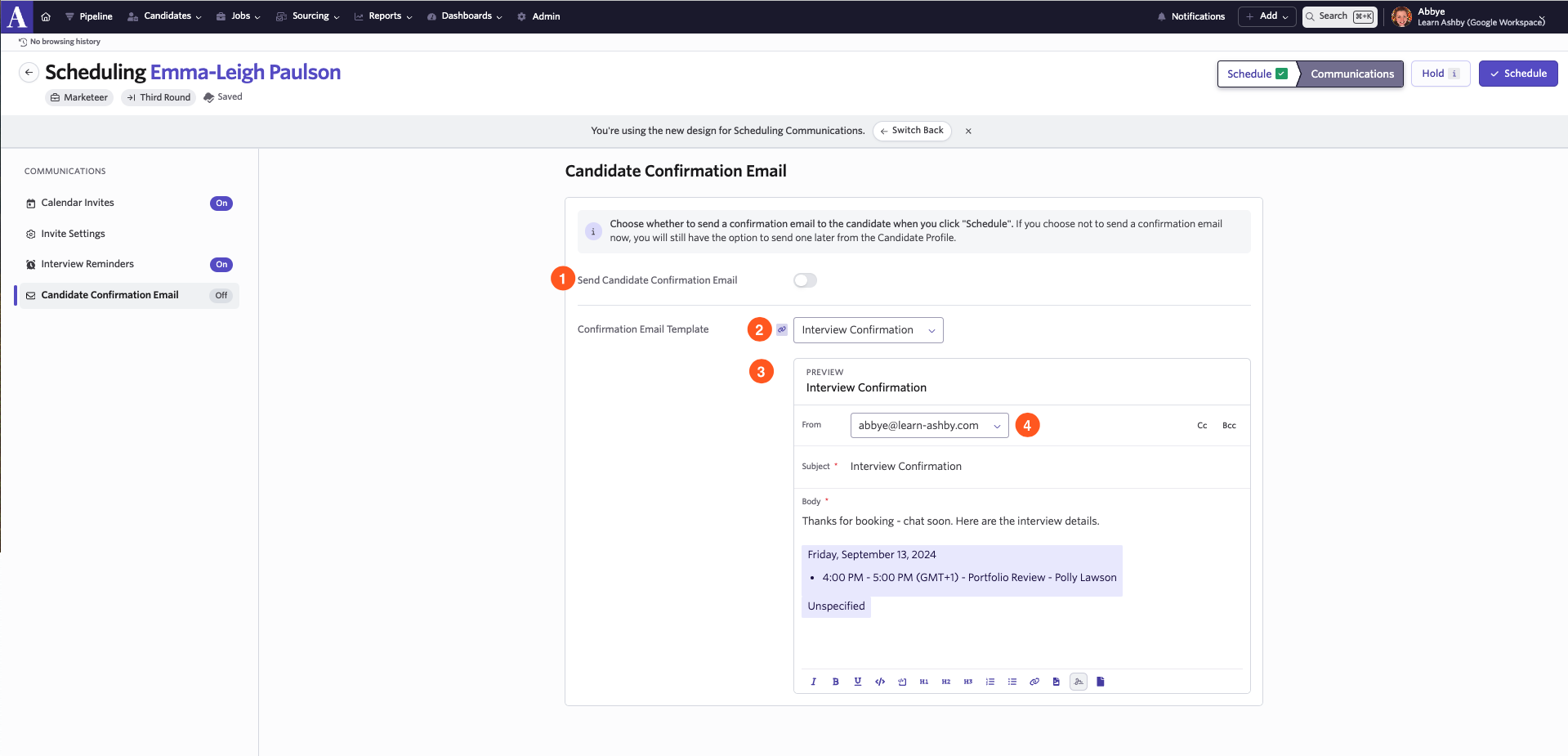
- Send Candidate Confirmation Email: Toggle this on to send out the configured confirmation email when you click Schedule.
- Confirmation Email Template: Determine the email template that is sent to the candidate.
- Preview: You can view your template here and make any adjustments to the body and subject of your confirmation email as needed.
- From: Use the dropdown to determine the sender of your confirmation email.
You may also see an AI Notetaker tab on this page if your organization uses AI NotetakerAI Notetaker.
Ashby offers a Candidate Confirmation Email Defaults option for opt-in until it is enabled for all users on October 21, 2026. You can access and enable this option by heading to Admin > Organization Setup > Opt-In Features and setting the Enable drop-down to Enabled.
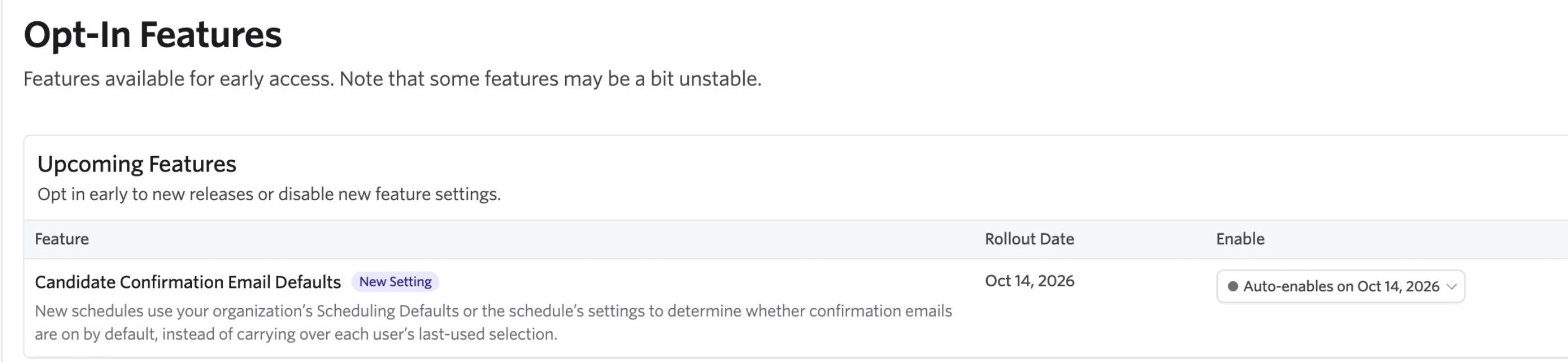
This option applies only the confirmation email template settings from your scheduling defaults or your schedule interview activity template to the interview without taking your last interview draft into account.
When you manually schedule a new interview with Candidate Confirmation Email Defaults turned on, the Send Candidate Confirmation Email toggle defaults to disabled if:
- Candidate confirmation emails are turned off in Scheduling Defaults.
- The communication settings for the schedule interview activity template do not override the setting (i.e a template has not been selected in the Candidate Confirmation Email Template field).
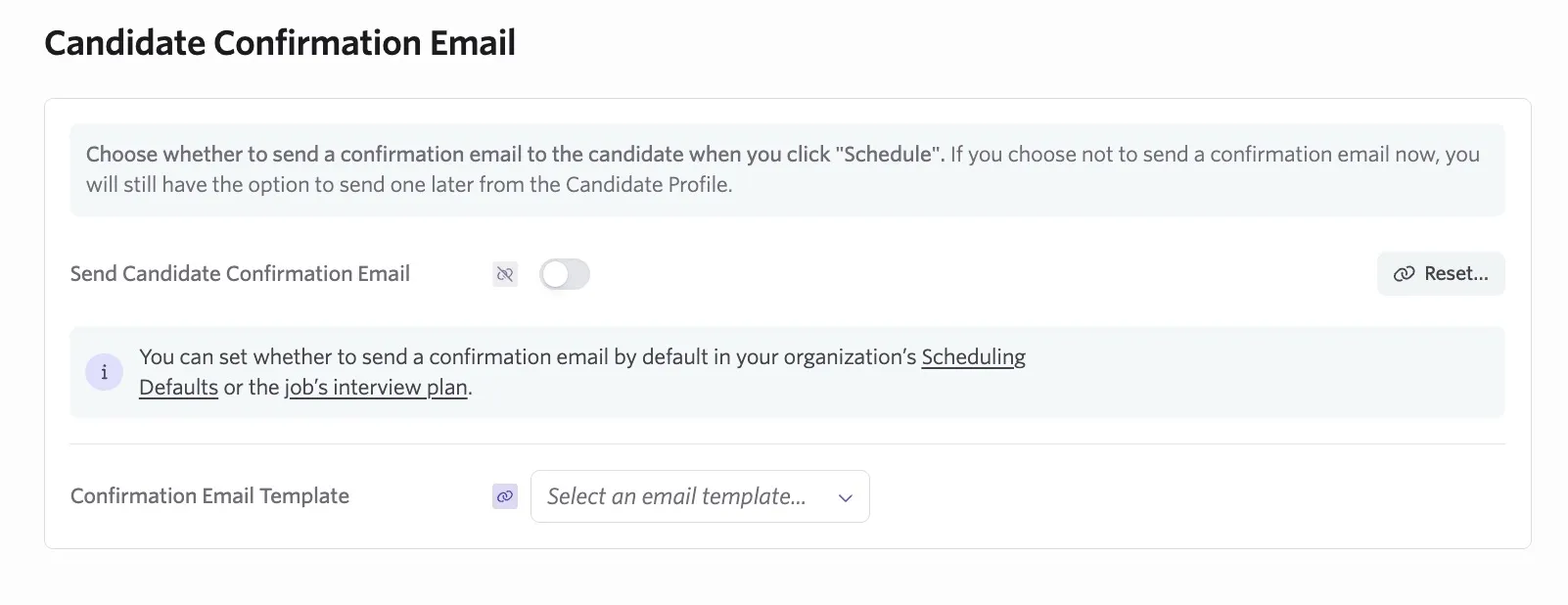
Without this option enabled, the Send Candidate Confirmation Email toggle is enabled under the same conditions if your last scheduled draft had the confirmation email enabled.
Final step: Schedule the interview
Once you've reviewed and configured the calendar invite, reminders, and confirmation email, click Schedule to complete the scheduling process.
Rescheduling interviews
When you need to reschedule interviews, navigate to the current schedule through the Reschedule button on the activity (where you can click Manual Reschedule or Request More Availability).
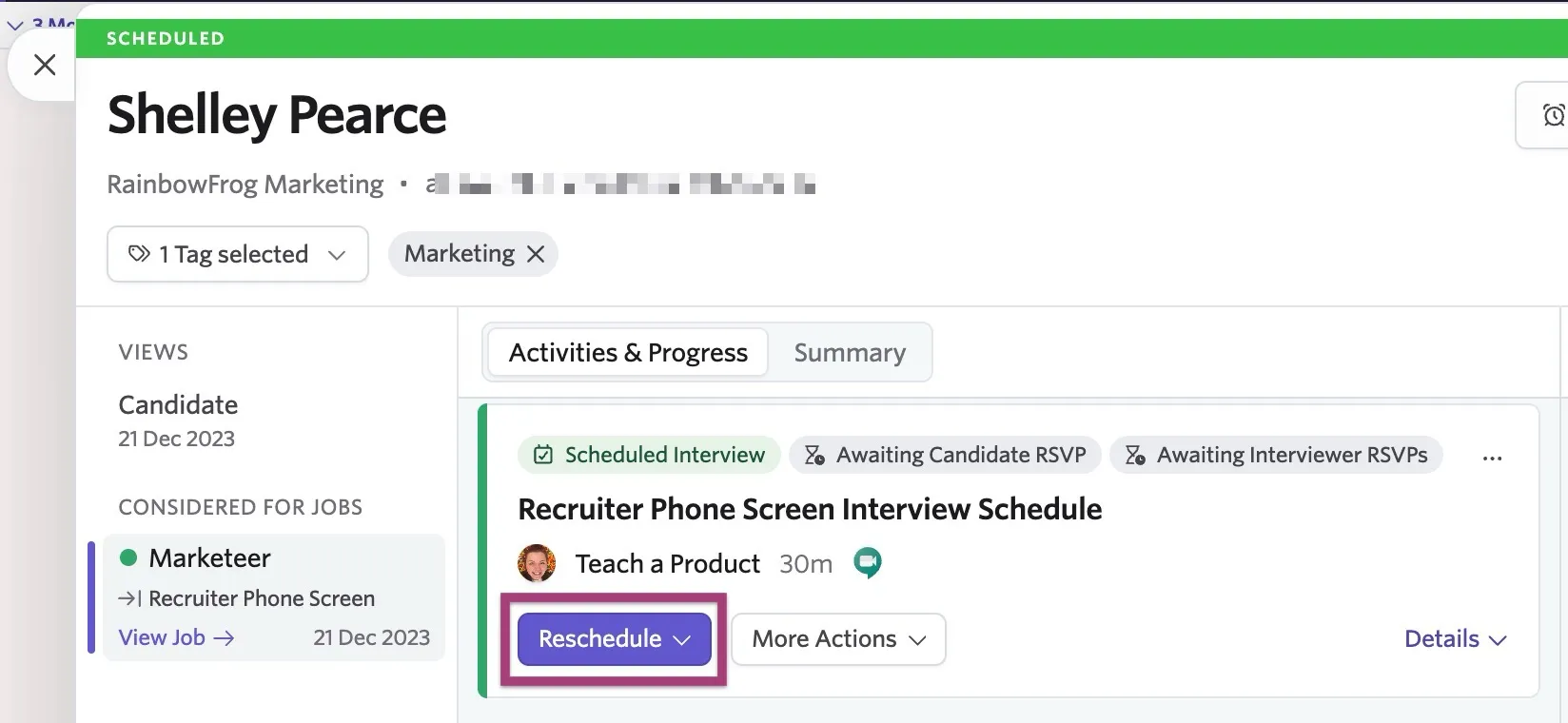
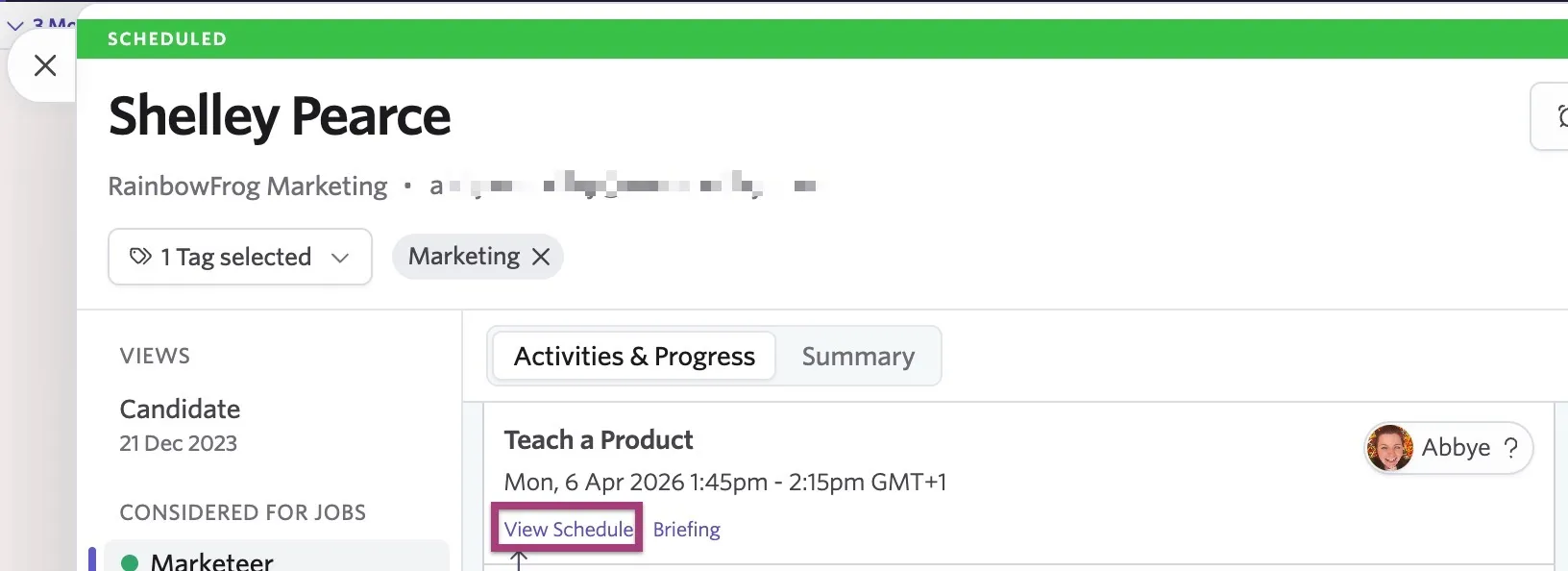
You can also click the View Schedule option beneath the interview details, then click the Manual Schedule button on the following Current Schedule page.
If you've navigated to Reschedule, then Manual Reschedule, you're immediately taken to the calendar and interview details to make any changes. When rescheduling, all details except for the interview calendar (or the Calendar field within Invite Settings) can be modified. This includes changing interviewers — select a new interviewer in the calendar interface the same way you would when scheduling for the first time. The only events that are updated are the ones directly impacted by the reschedule; all other invites are not resent. Review the Step 2: Select the time, attendees, and meeting rooms section above for more details.
Rescheduling via Google Calendar
Ashby supports a two-way syncing option whereby if you move an interview event in Google Calendar to a new date and/or time, the changes are synced and reflected in Ashby.
The calendar event needs to be moved on the account's shared interview calendar (the calendar determined in the Communication tab of your interview) if it wasn't scheduled via the direct booking option.
For an interview scheduled via a direct booking link, the calendar invite can be moved on the shared calendar, or the meeting organizer can move the interview on their personal calendar if they don't have access to the shared calendar.
These changes are then synced back to Ashby and new calendar invites are sent out. You do not need to resend the invites from Google.
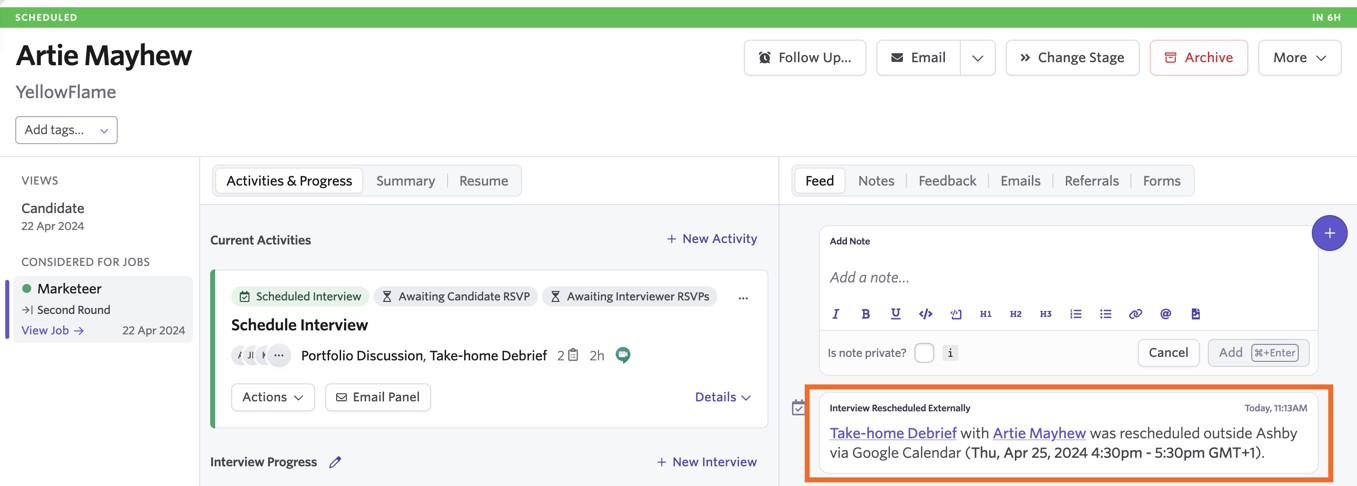
If the interview is rescheduled via Google Calendar, an event is added to the candidate's feed showing that rescheduling happened outside of Ashby.
Updates to the schedule in Ashby are dependent on Google syncing times. They should show in Ashby within a minute or so, but could take longer.
Canceling interviews
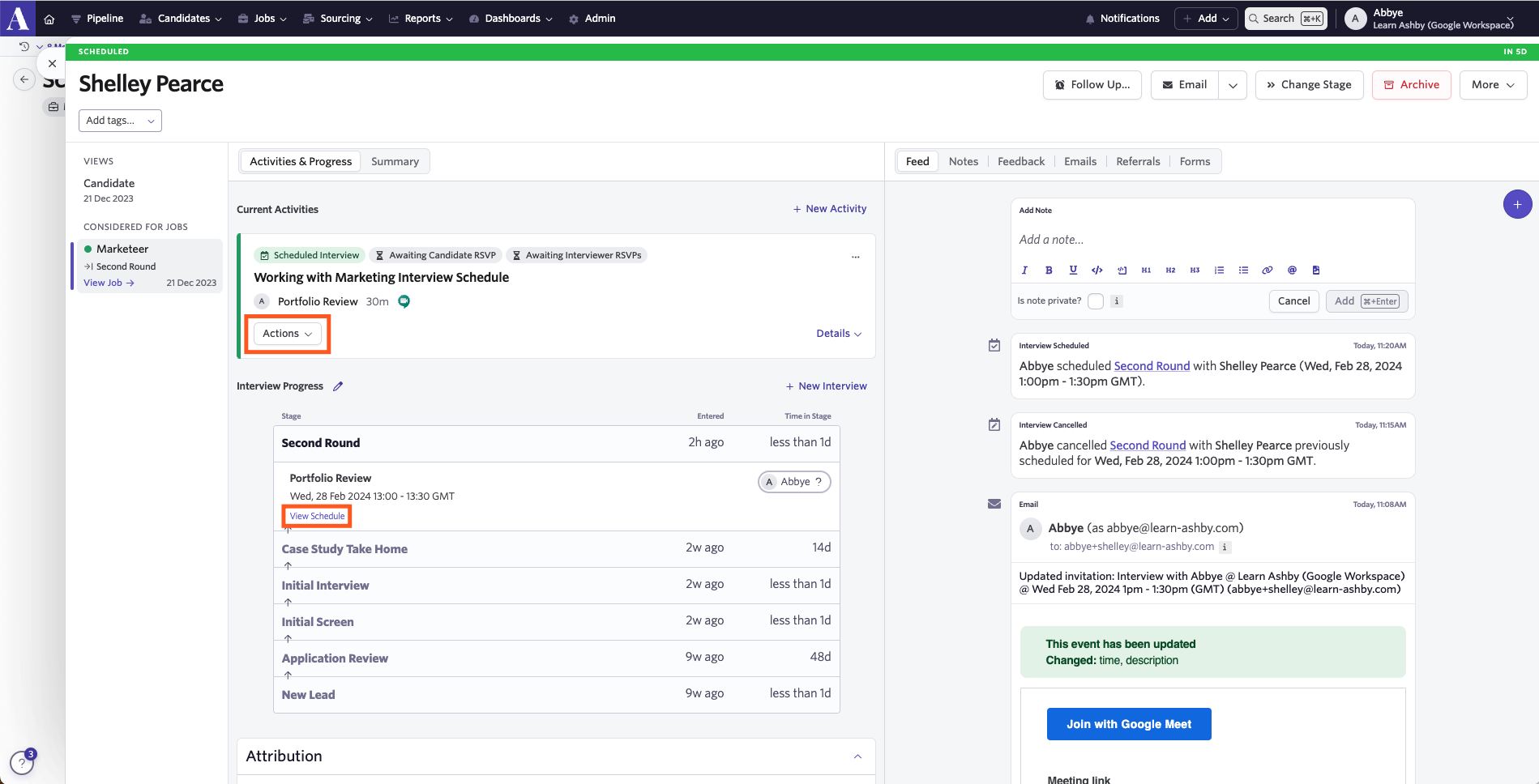
When you need to cancel interviews, either click Actions on the scheduled interview and select Cancel Interview…, or click View Schedule.
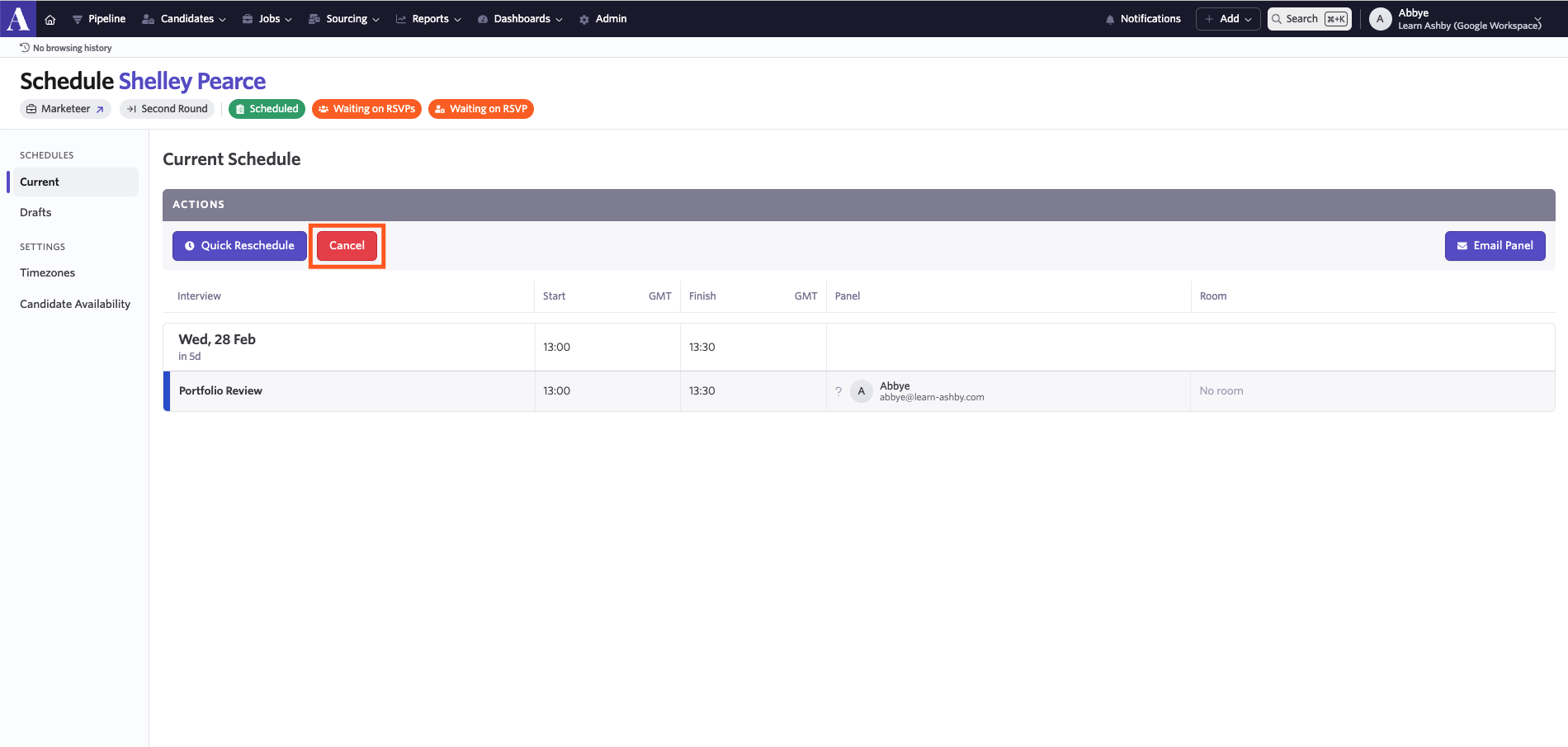
When viewing the current interview schedule, you see the option to cancel the interview.
When cancelling an interview, candidates receive a cancelled event notification (similar to the invite notification they receive when an interview is scheduled and calendar invites are sent). This happens both when cancelling directly from the candidate profile and when cancelling the interview as part of archiving the candidate's job consideration.
FAQ
How do I schedule multi-day interviews?
For a full guide, check out How do I use multi-day scheduling?How do I use multi-day scheduling?.
How do I see calendar invite details?
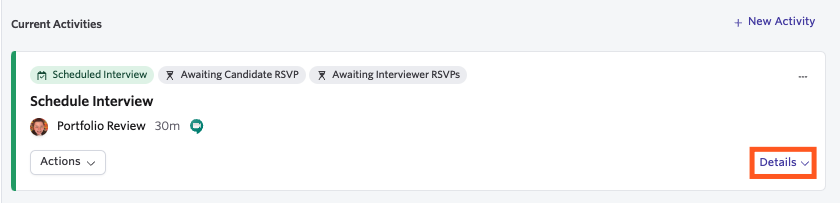
You can review calendar details at a glance by visiting the current activities section of the candidate profile and toggling the event using the Details button. In this view, you see the date and time of the interview, the location, and the organizer.
Can I schedule calendar invites to be sent?
No. Calendar invites can either be sent at the time of scheduling or sent manually from the scheduled interview activity on the candidate's profile. Indicators on the interview activity on the candidate profile will show whether or not calendar invites have been sent and if candidates and interviewers have accepted or declined the calendar invite.
To send a calendar invite manually for an interview that has already been scheduled:
- Click More Actions on the interview activity on the candidate profile
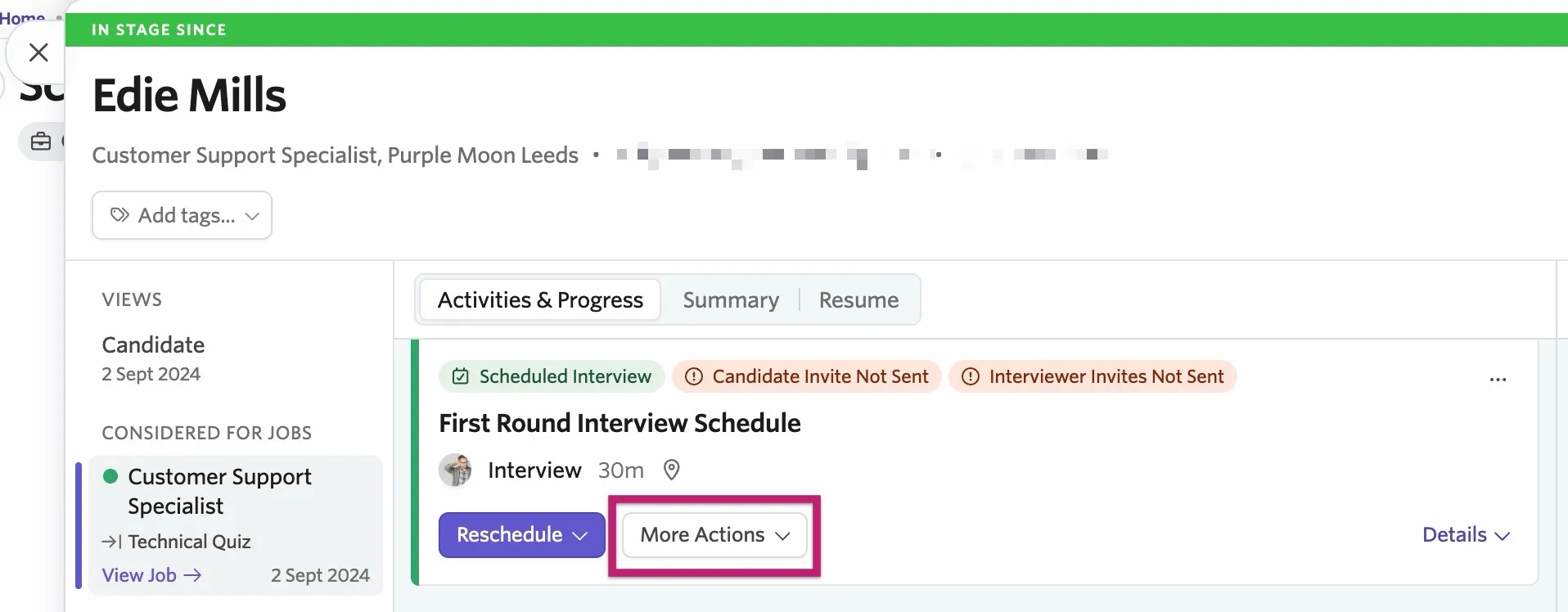
- Click Send Invite to Candidate and/or Send Invite to Interviewers to send the calendar invites immediately.
Create schedule interview activities to streamline scheduling. This pre-populates standard activities when a candidate reaches a certain stage (e.g., application review). More on this at Setting up Schedule Interview ActivitiesSetting up Schedule Interview Activities.
How do I request candidate availability?
You can read more on requesting candidate availability at Direct Booking & Candidate Availability LinksDirect Booking & Candidate Availability Links.
Can I reschedule an interview that I didn't schedule?
We recommend setting up a shared interview calendar and adding anyone on your hiring team who scheduled interviews to prevent scheduling issues when team members are away. More on this at What is a shared calendar?What is a shared calendar?.
How does Ashby determine scheduling status for interview stages?
For more information on the scheduling status on a candidate profile, check out Understanding Candidate Activity Statuses.