Managing Recruiting Blocks for Your Organization
Organization Admins can enable personal Recruiting Blocks, review which users have the feature enabled, and override an individual user's preference when needed. This article explains how the organization-level settings work.
For setup steps, scheduling behavior, and troubleshooting, see Recruiting Blocks: How They Work and How to Set Them UpRecruiting Blocks: How They Work and How to Set Them Up.
Permissions & access
Recruiting Blocks are part of the Advanced Scheduling Automation Add-OnAdvanced Scheduling Automation Add-On and are included on the Enterprise plan.
Foundations | Legacy Plus | Plus | Enterprise |
|---|---|---|---|
❌ | ❌ | ➕ | ✅ |
Organization Admins can enable or disable the organization-level capability for personal Recruiting Blocks.
Recommended rollout checklist
Before enabling personal Recruiting Blocks broadly:
- Decide whether your organization wants personal blocks, schedule-level blocks, or both.
- Confirm that interviewers’ primary Google or Microsoft calendars are connected and that Ashby can read event titles.
- Explain that personal blocks replace normal availability for the user’s interviews when enabled.
- For schedule-level blocks, define a naming convention for suffixes and communicate who creates the matching calendar events.
- Use reporting to monitor which users have personal Recruiting Blocks enabled.
Enabling personal Recruiting Blocks for your organization
Schedule-level Recruiting Blocks are configured on individual schedule interview activities. You can use schedule-level Recruiting Blocks without enabling personal Recruiting Blocks for the organization.
Turn on the organization-level capability before users can enable personal Recruiting Blocks in their personal settings.
- Go to Admin > Interviews & Scheduling > Meeting & Time Zone and open the Recruiting Blocks tab.
- Turn on Allow Personal Recruiting Blocks.
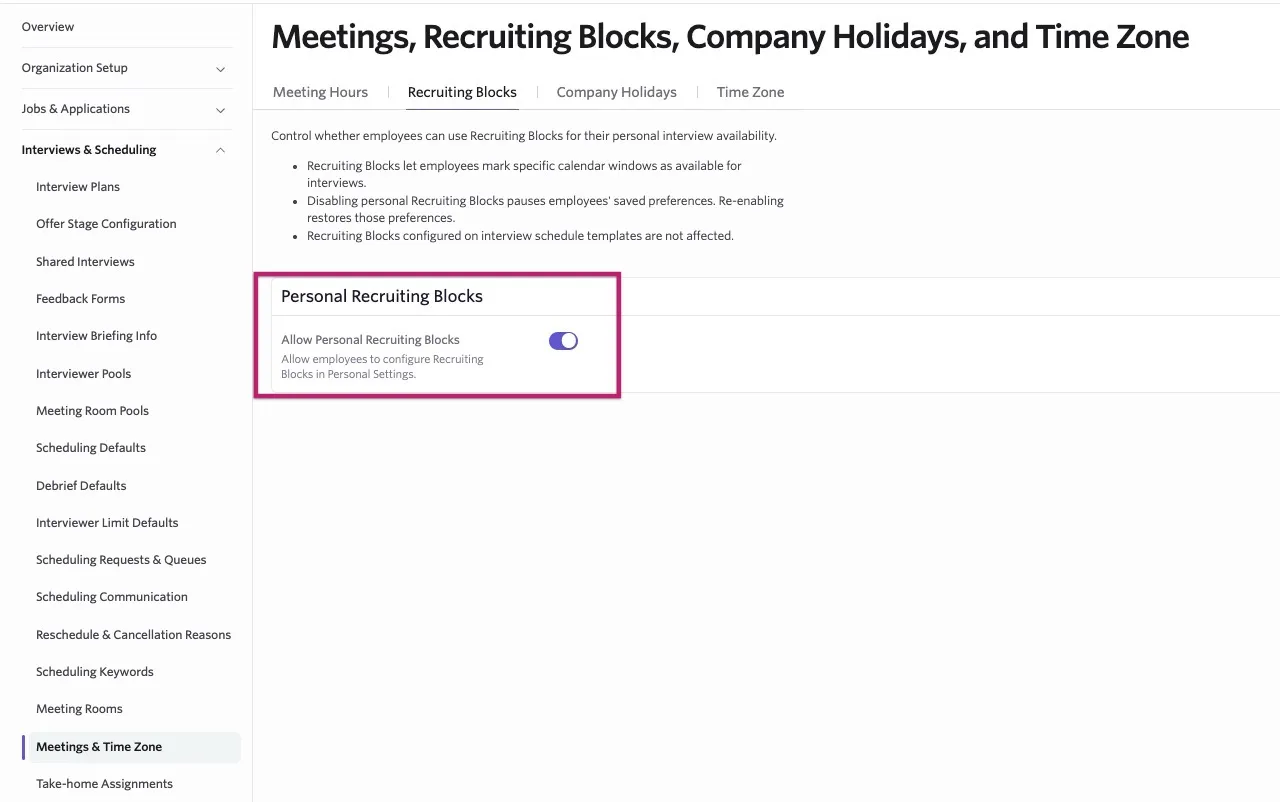
When this setting is off, users see that their organization has disabled personal Recruiting Blocks and cannot turn on the feature in their personal settings.
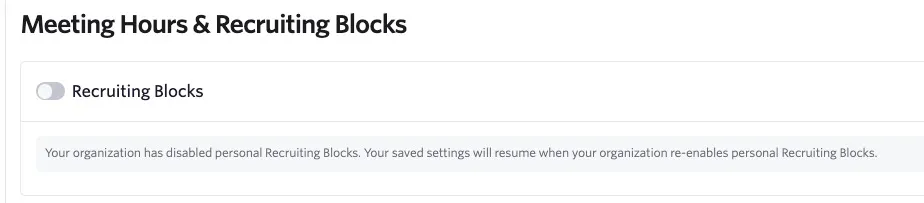
If you want to use Recruiting Blocks only for specific schedule interview activities, leave Allow Personal Recruiting Blocks turned off. You can still configure schedule-level Recruiting Blocks within individual schedule interview activities. For information on setting up schedule-level Recruiting Blocks, see Recruiting Blocks: How They Work and How to Set Them Up.
Viewing users with personal Recruiting Blocks enabled
Use reporting to identify which employees have personal Recruiting Blocks enabled.
- Create or open a report with Employee as the subject.
- Add the Personal recruiting blocks preference field.
- Review which users have the preference enabled or disabled.
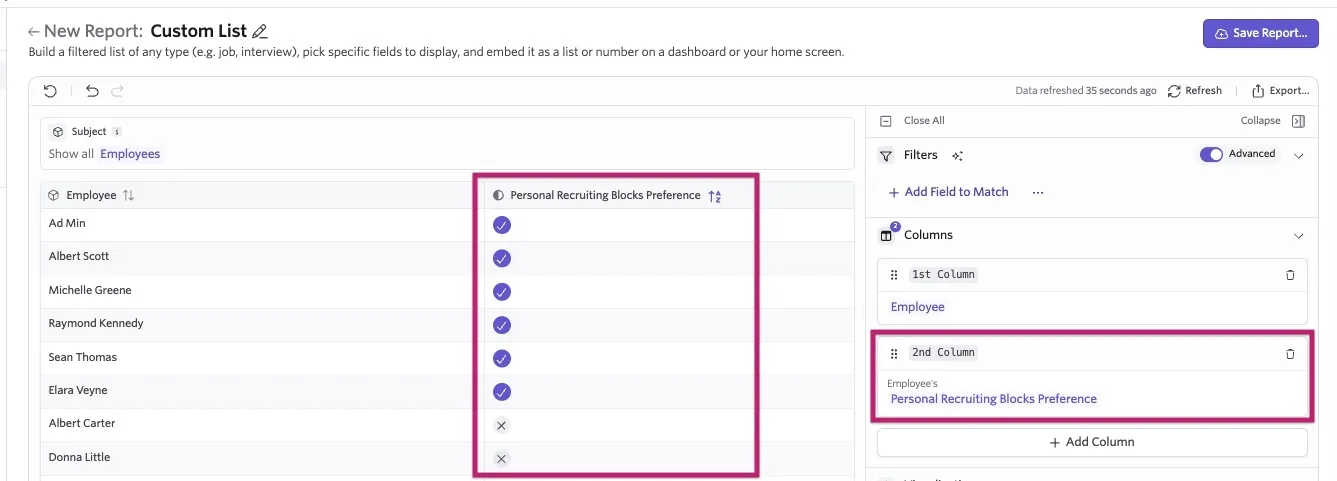
Updating an individual user’s personal preference
An Organization Admin can enable or disable a user’s personal Recruiting Blocks preference from the user’s interviewer information.
Use this control when a user configured Recruiting Blocks incorrectly and scheduling needs to continue using their normal availability or when you need to help troubleshoot a user’s setup.
- Go to Admin > Organization Setup > Employees.
- Search for the user and open their profile.
- Select the Interviewer Info tab.
- Scroll to the Recruiting Blocks section.
- Enable or disable the user’s personal Recruiting Blocks preference.
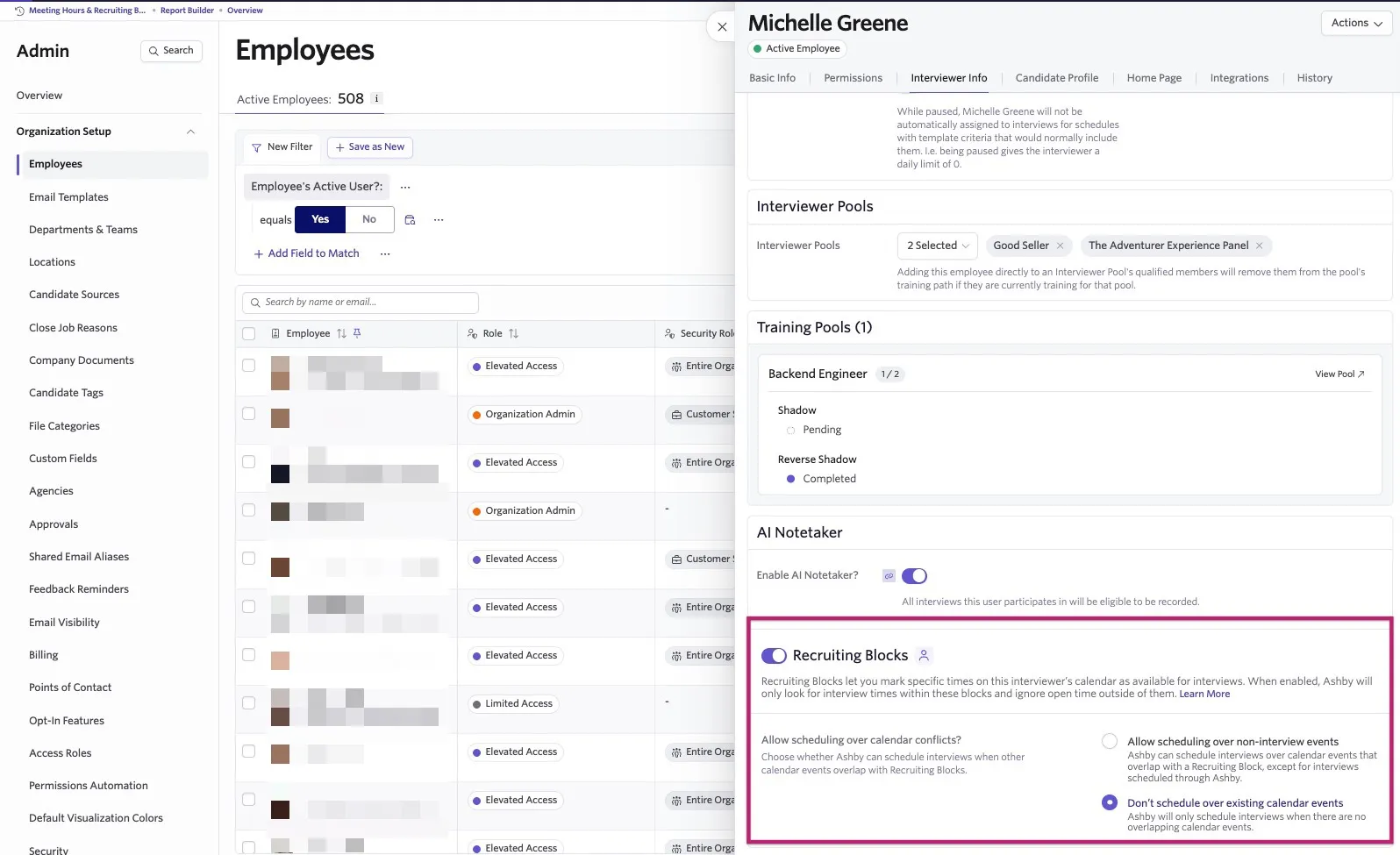
Changing a user’s preference does not create, delete, or rename calendar events. If the user enables Recruiting Blocks again without matching events on their primary connected calendar, Ashby may show no availability for their interviews.
The user can turn their own personal preference back on from personal settings after an administrator changes it.
Troubleshooting organization setup
A user cannot enable personal Recruiting Blocks
Confirm that Allow Personal Recruiting Blocks is enabled in Admin > Interviews & Scheduling > Meeting & Time Zone > Recruiting Blocks.
We want schedule-level blocks but not personal blocks
Leave Allow Personal Recruiting Blocks turned off. Users with the required job permissions can still configure Recruiting Blocks on individual schedule interview activities.