WhatsApp: Templates and Messaging
This guide covers configuring message templates, sending WhatsApp messages to candidates, and using WhatsApp for automated interview reminders, booking confirmations, and workflow steps for candidates.
Prerequisites:
- You need to have WhatsApp candidate messaging configured before you can send messages with WhatsApp in Ashby. For more on configuring WhatsApp candidate messaging, check out WhatsApp: Setup.
- Each message sent via WhatsApp candidate texting uses credits that come from your candidate texting credit pool.
- Templates in the Marketing category use 2 credits while other template types consume 1 credit. Categories are assigned by Meta.
- Ashby does not use credits when a candidate responds.
Permissions & access
- You need Organization Admin access and Has Candidate Texting Access permissions enabled on your employee profile to enable WhatsApp messaging and configure WhatsApp message templates.
- You need the Can Add/Edit Jobs permission to edit a schedule interview activity.
- You need the Can Email/Schedule Candidates permission to send a WhatsApp message from the candidate profile to a consenting candidate.
- You need to have Has Candidate Texting Access permissions enabled on your employee profile to send WhatsApp messages to a candidate.
WhatsApp message templates
Once you successfully connect your WABA to Ashby, seven pre-approved built-in templates are available in your account automatically.
These templates cover interview reminders, availability requests, booking links, take-home notifications, and recruiter outreach. You can start with those and add your own as needed.
Meta only allows you to send candidates templates that have been reviewed and approved by them unless the candidate has messaged within the last 24 hours.
Creating a new WhatsApp message template
Meta must approve a template before you can send messages using it to a candidate. Approval typically takes five minutes to 24 hours. You can only use templates with approved versions in automations.
Check out Twilio's documentation for more on best practices for creating templates.
To create a new WhatsApp message template:
- Navigate to Admin > Organization Setup > Candidate Texting Templates.
- Click the WhatsApp Template tab.
- Click + New to create a new template.
- Add your message body.
- You can assign a category and language to your template.
Meta requires every template to be classified as Marketing, Utility, or Authentication. Meta is the one who designated the classification during approval, and they can re-categorize an approved template to Marketing on re-review without notice.
The category of the template matters because credits are consumed based on the type of template you are sending a candidate.
Marketing templates use 2 credits while other template types consume 1 credit. You are not allowed to send templates in the Marketing category to US and Canada phone numbers. This is a Meta enforced restriction.
- Click the T icon to add a substitution token. Ashby replaces tokens with actual values when sending.
- Once your template is ready, click Submit for Approval.
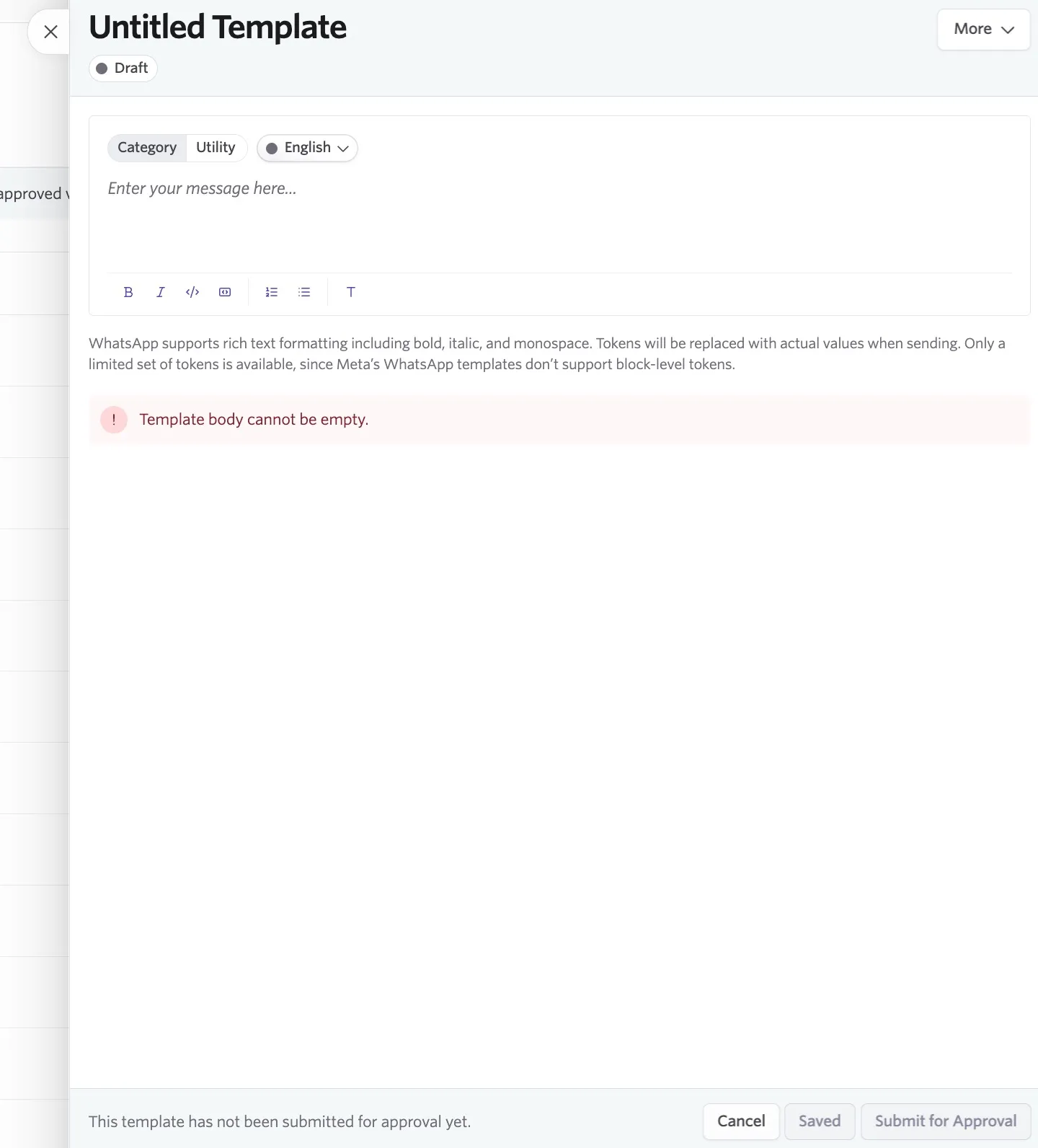
WhatsApp message templates can have the following states:
- Draft: You have created or edited the template but not yet submitted it to Meta. These templates don't appear as an option to send to candidates or use in automations. If this template has a version that was previously approved, you can still use that version.
- Submitted: The template is with Meta and awaiting review. During this time, you can't edit the template. These templates don't appear yet as an option to send to candidates or use in automations. If this template has a version that was previously approved, you can still use that version.
- Approved: Meta has approved the template, and you can send it to candidates moving forward. This approved template now appears in the WhatsApp template dropdown for automations and in the WhatsApp message composer on a candidate's profile.
- Rejected: Meta has rejected this template because of an issue it flagged, so you can't use the template. You can fix these issues and resubmit. Until this template gets approved, you can't use it in automations or to message from the candidate profile. If this template has a version that was previously approved, you can still use that version.
- Paused and Suspended: A template can also be Paused (Meta's response to candidate thumbs-down feedback building up) or Suspended (repeated pauses). You can't use that template moving forward.
For more information, check out Twilio's guide: Message Templates Approvals & Statuses.
Editing a WhatsApp message template
You can't edit templates in the Submitted state.
To edit an existing WhatsApp message template:
- Navigate to Admin > Organization Setup > Candidate Texting Templates.
- Click the WhatsApp Template tab.
- Click the WhatsApp template you want to change.
- Click Edit within the template pop-up and make your amendments. If the template is a draft, you can make edits right away.
- Click Submit for Approval to re-submit the message to Meta.
Editing an already approved template creates a new version under review. In the meantime, the previously approved version stays live for automations, and you can send it from the WhatsApp message composer on the candidate profile. Versioning is forward-only. You cannot revert to a prior approved version.
Archiving and restoring a WhatsApp message template
To archive a WhatsApp message template:
- Click the template you want to archive.
- Click More, then click Archive.
- Click Archive on the following pop-up to confirm.
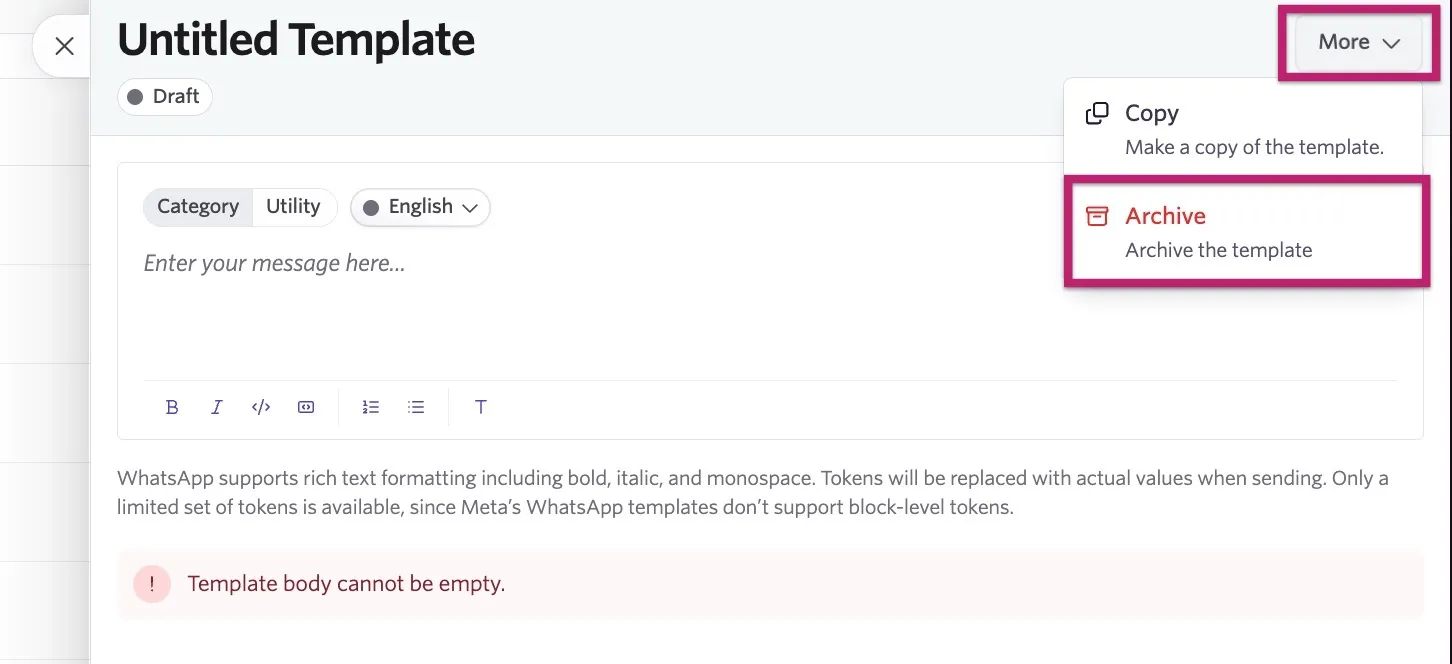
To restore an archived template:
- Set the Active dropdown on the WhatsApp Template tab to All.

- Click the template you want to restore.
- Click More, then click Restore.
- Click Restore on the following pop-up to confirm.
Sending a WhatsApp message to a candidate
To send a WhatsApp message to a candidate:
- Navigate to the candidate profile.
- Click the WhatsApp tab of the candidate feed.
- Click the + icon to select a WhatsApp message template and review the message content. The template content cannot be edited prior to sending.
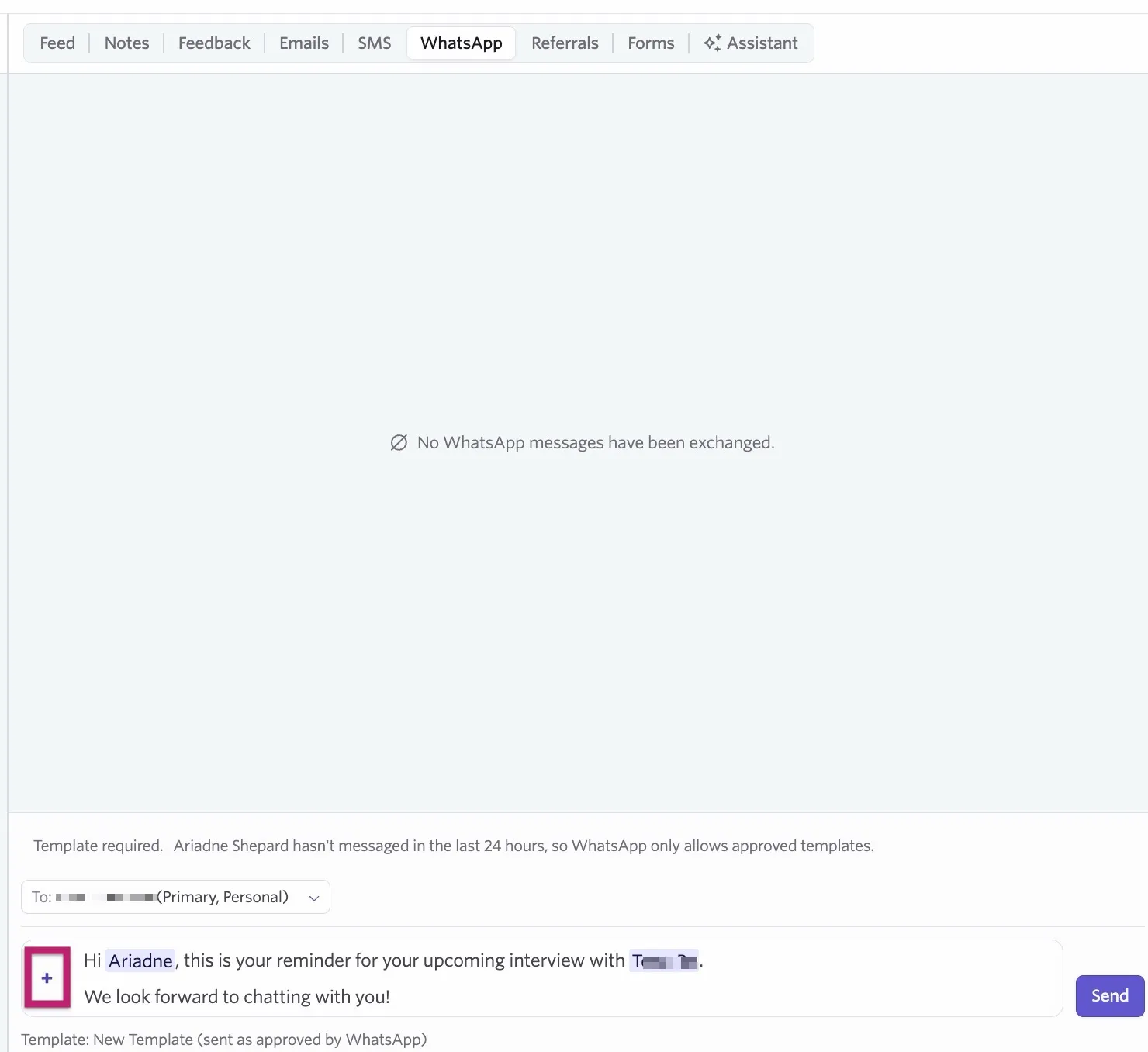
- Click Send.
A Missing Value For error means substitution tokens aren't resolving. Confirm that the relevant data is available for the candidate:
- For direct booking or candidate availability links, confirm that you have generated these for the candidate's interview.
- For take-home submission links, confirm that a take-home activity is on the candidate profile and that you have generated a take-home activity self-submission link.
Candidate Responses in WhatsApp
If a candidate responds to a message, the inbound message opens a 24-hour free form messaging window so you can respond without needing to use another template. A free-form response costs 1 credit. You are not charged credits for receiving messages from the candidate.
The candidate's response will show in the WhatsApp tab of the candidate feed.
You can opt to receive email or Slack notifications for WhatsApp responses within Personal Settings > Notification Settings. To ensure you receive email or Slack notifications when a candidate messages, enable the Candidate Replied to a Text Message and/or Candidate Replied to your Text Message toggles.
An inbound WhatsApp message from a candidate opens a 24 hour free form messaging window. If you receive a notification that the candidate has responded to your text message, then you can reply from the email or Slack notification received.
If you are responding outside of the 24-hour window, you will only have the option to send an approved template.
Using WhatsApp templates in scheduling defaults and schedule interview activities
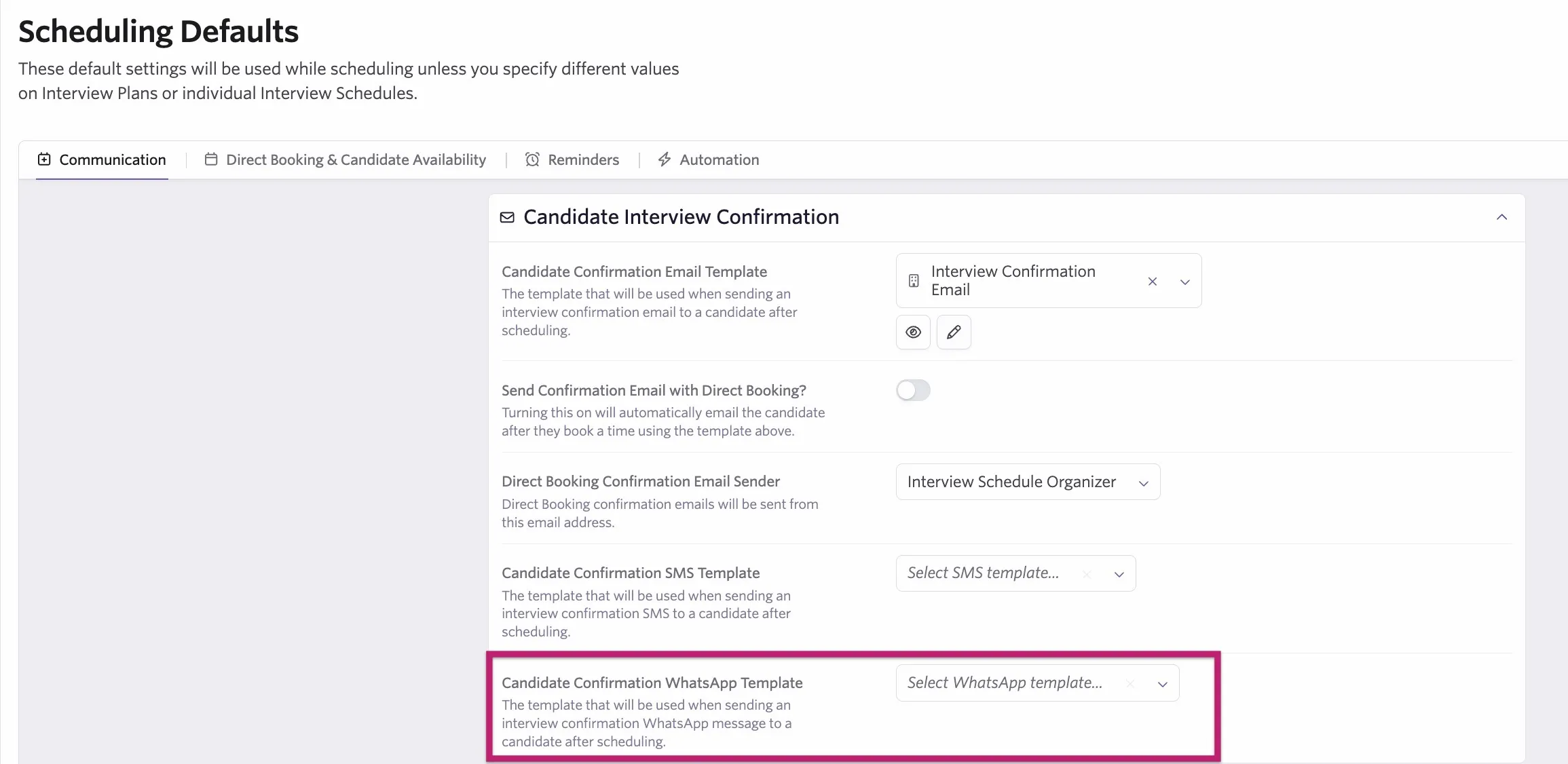
To set WhatsApp templates in Scheduling Defaults, navigate to Admin > Interviews & Scheduling > Scheduling Defaults. For more on scheduling defaults, check out Setting Scheduling DefaultsSetting Scheduling Defaults.
To set WhatsApp templates in specific schedule interview activities, navigate to a job, click the Interview Plan tab, and then either click an existing activity or create a new one. For more on overriding scheduling default settings in schedule interview activities, check out Setting up Schedule Interview ActivitiesSetting up Schedule Interview Activities.
You can set WhatsApp templates as defaults in the following cases:
- When sending a direct booking link out for an interview.
- When sending a confirmation message after you schedule the interview.
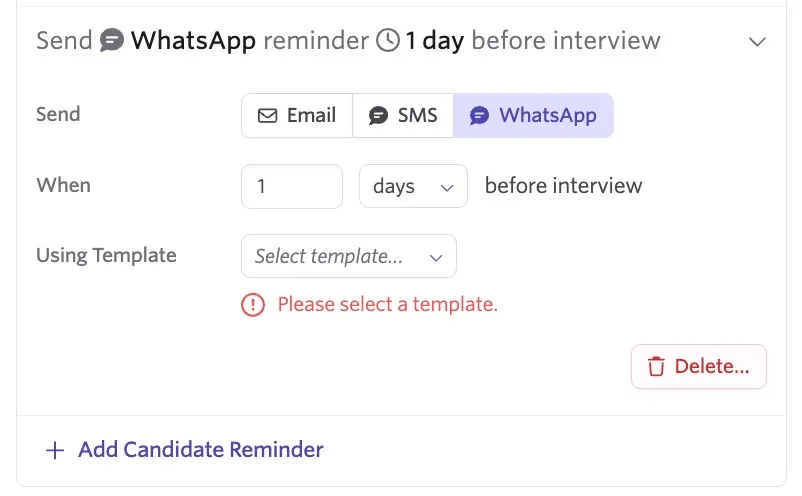
- When sending interview reminders to the candidate.
On the Communications tab of Scheduling Defaults or in your schedule interview activity:
Use the Direct Booking WhatsApp Template dropdown to determine the template used when sending a direct booking link out for an interview.
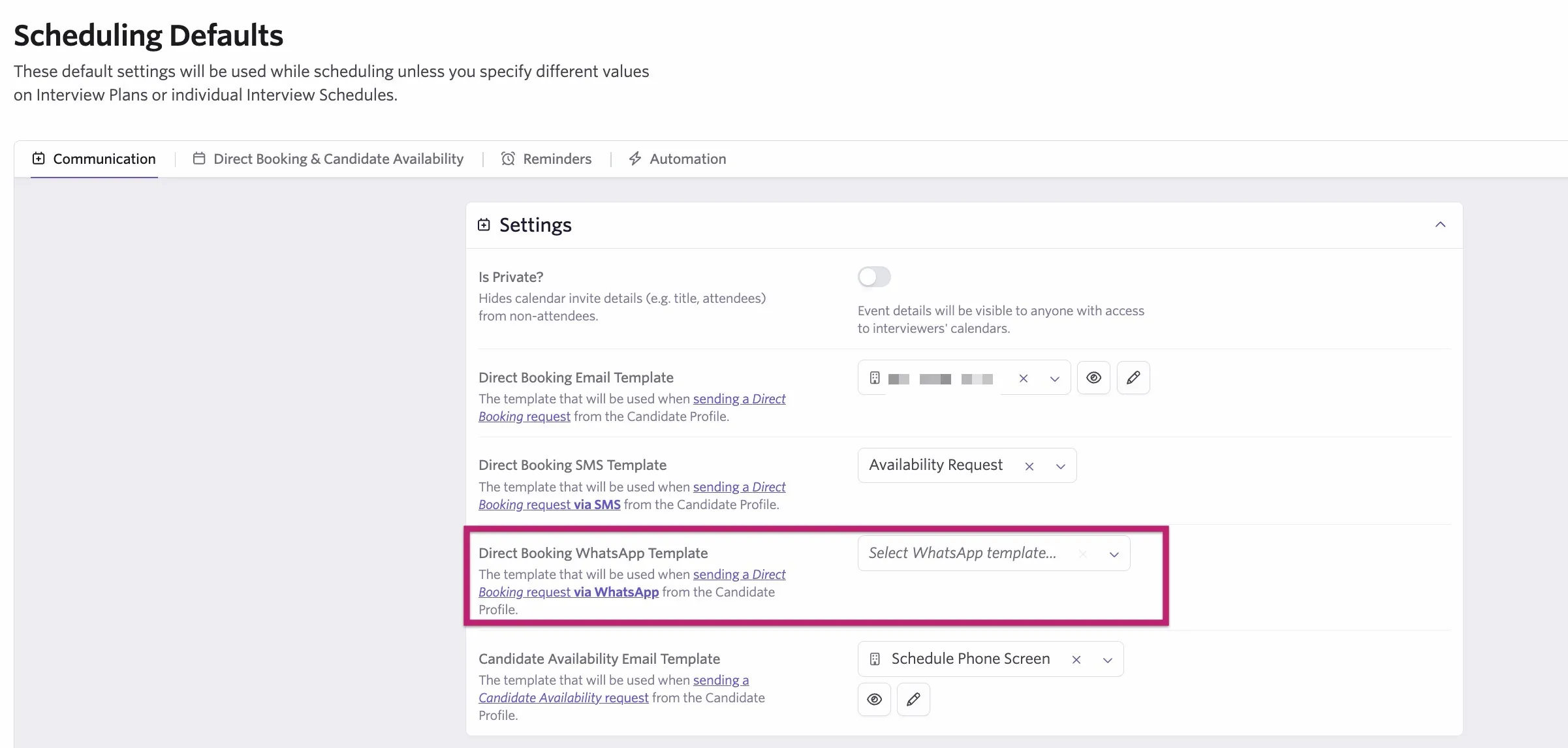
Use the Candidate Confirmation WhatsApp Template dropdown to determine the template used when sending an interview confirmation WhatsApp message.
On the Reminders tab of Scheduling Defaults or in your schedule interview activity:
- Click + Add Candidate Reminder in the Candidate Reminders section.
- Select WhatsApp using the Send selector.
- Use the When fields to determine when Ashby sends the reminder.
- Select the template with the Using Template dropdown.
FAQs
Do candidate replies use credits?
No. Only messages your team sends (outbound messages) consume credits.
Can I purchase additional texting credits?
Yes, you can find our guide on this at How do I purchase additional email lookups, AI credits or texting credits in-app?.
Can I message a candidate who never saw the opt-in question?
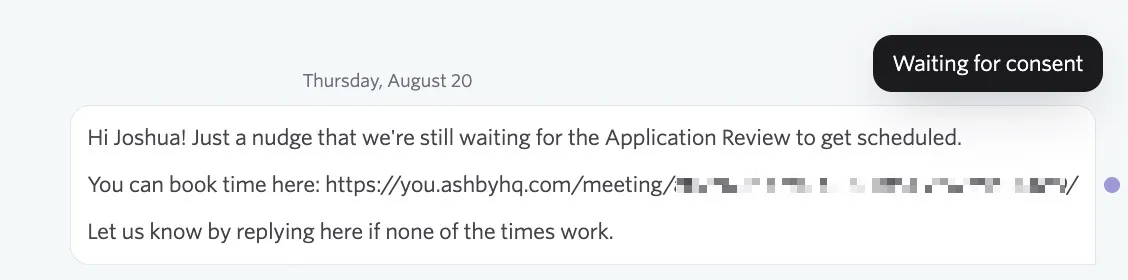
Not automatically. The message waits, marked with aWaiting for consent indicator. To send it, consent would need to be gathered outside of Ashby, then the user can override the consent status on the candidate profile once the candidate grants consent. They can then re-send.
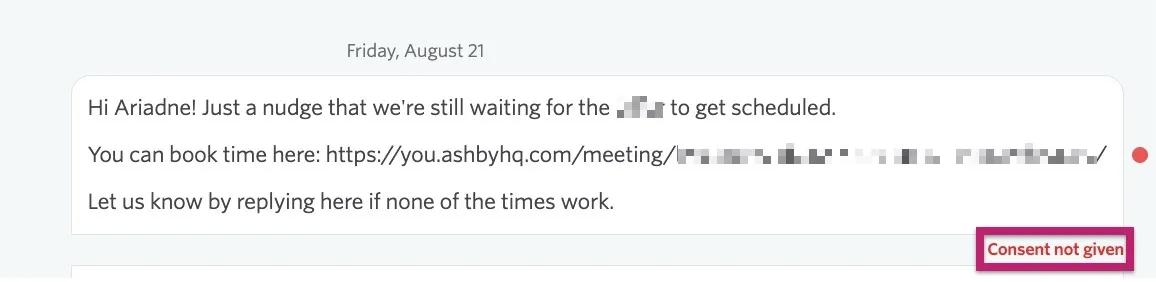
What happens if I try to message a candidate and they have opted out of WhatsApp messaging?
The message will not be sent to the candidate and a Consent not given indicator will show beside the message.
Are there restrictions on what tokens I can use in a template?
Yes. The following restrictions are from Meta:
- A template can't start or end with a token.
- Two tokens can't be back to back.
- Tokens can't contain new lines.
- Every token needs an example value before submission.
- Templates are capped at 10 emojis.
Can WhatsApp conversations be filtered or reported on like other data in Ashby?
Not currently.
What isn't supported with WhatsApp messages?
- Rich text messages can’t be sent. Inbound rich text messages will still show.
- You can’t send or receive pictures or any non-text content.
- We currently do not support emoji reactions to messages. If the candidate emoji reacts to a message, you will not see it or be notified.
- Support for your org to use non-US/Canada phone numbers
Please note, this will limit your ability to message candidates who have phone numbers from Brazil and Indonesia.
- Per-brand WhatsApp Business Accounts - we currently support one WhatsApp business account for the entire organization, but each brand is a phone number under the WhatsApp business account.
- Ashby does not support using customer numbers.