WhatsApp: Setup
You can configure WhatsApp to contact candidates, send direct booking links and send interview reminders. This guide covers how to set up WhatsApp candidate texting and how candidate consent works for the WhatsApp channel.
Prerequisites:
- To configure WhatsApp messaging, you must have Organization Admin access and 'Has Candidate Texting' permissions enabled.
- To set up WhatsApp messaging with Ashby, you need a WhatsApp Business Account (WABA) set up beforehand. The WABA lives under your Meta Business Portfolio. If you already have a WABA, you can use it, but you won't be able to use the phone number you already have the WABA set up with.
- If you don't have a WABA, you can create one when connecting with Ashby.
- You will need to have access to your company’s Meta Business Portfolio. This is what will house your WABA account. If your company runs ads on any Meta platform, you most likely have a Meta Business Portfolio. You will need to have access to this in order to get started and to connect a WhatsApp Business Account to Ashby. More about recommendations and requirements in Step 1: Create and verify Meta Business Portfolio.
Permissions & access
You need Organization Access to configure WhatsApp candidate texting. WhatsApp candidate texting is available on all plans:
Foundations | Legacy Plus | Plus | Enterprise |
|---|---|---|---|
✅ | ✅ | ✅ | ✅ |
Step 1: Create and verify Meta Business Portfolio
Before you connect your WhatsApp Business Account to Ashby, we recommend having an established and verified Meta Business Portfolio in place for the best experience. If your business already runs ads on Meta platforms, you most likely have a verified portfolio. If you are the one setting up WhatsApp in Ashby, you must have full access to manage assets, specifically WhatsApp assets, in the Meta Business Portfolio.
Use an established and verified Meta Business Portfolio whenever possible. If you create a new portfolio during setup and it has no real activity, Meta may flag it and require additional proof of business steps. For more on configuring a Meta Business Portfolio, check out Meta's guide Create a business portfolio in Meta Business Suite.
If you plan to use WhatsApp with multiple brands, you must verify your portfolio. An unverified Meta Business Portfolio limits you to only two phone numbers, and each of your brands requires its own phone number within the same WhatsApp Business Account. Once you verify your Meta Business Portfolio, you can have up to 20 phone numbers. Verification also means Meta rate limits your WhatsApp Business Account phone numbers less.
Your ability to send WhatsApp messages through Ashby depends on your WhatsApp business account being in good standing and passing any additional review or requirements Meta may assign you. This is outside of Ashby’s control.
Once you verify your Meta Business Portfolio, candidates see your account's display name in the chat rather than only the phone number. This improves the likelihood of hearing back from the candidate.
An unverified account shows the phone number unless the candidate has saved the contact. We currently only support messaging using +1 phone numbers, so the display name is especially helpful for candidates who might not expect a message from a US or Canada number.
For further information on how unverified and verified accounts show up in WhatsApp, check out Twilio's guide on Using WhatsApp Business Accounts.
For more information on verification, check out these Meta guides:
Step 2: Enable 'Has Candidate Texting Access' permissions for relevant users
To configure candidate texting and WhatsApp messaging or to send messages, users must have the 'Has Candidate Texting' permission enabled. To enable these permissions:
- Navigate to Admin > Organization Setup > Employees.
- Click on the employee in question and navigate to the Permissions tab on their profile.
- Toggle Has Candidate Texting Access to Yes.
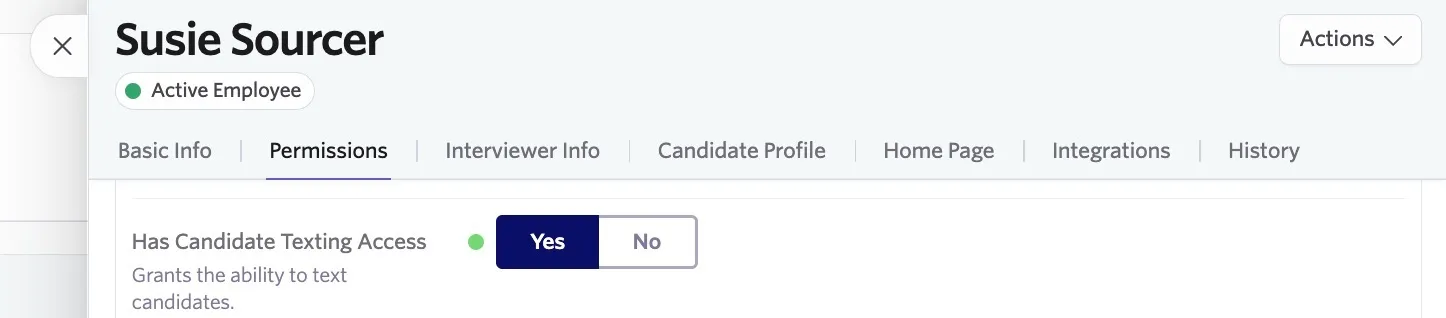
Only Organization Admins can update user permissions. Organization Admins cannot update their own permissions and will need another Organization Admin to adjust their access for them.
Step 3: Enable WhatsApp candidate texting
To enable WhatsApp candidate texting:
- Navigate to Admin > Organization Setup > Candidate Texting.
- Toggle on Enable WhatsApp.
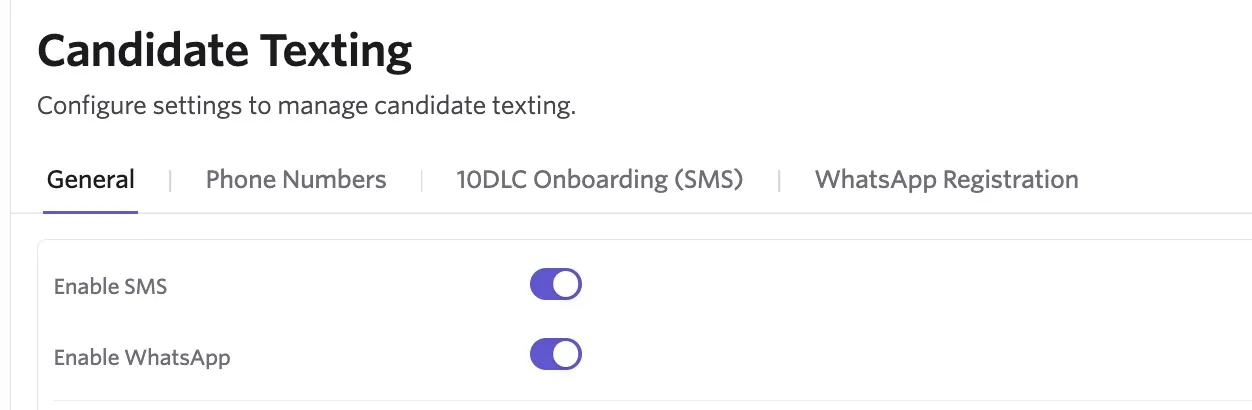
- A WhatsApp Registration page opens where you can connect your WhatsApp Business Account to Ashby. This step is critical to be able to send and receive WhatsApp messages.
You will then need to add your privacy policy URL to the Company Privacy Policy field and your terms and conditions URL to the Company Terms and Conditions field.
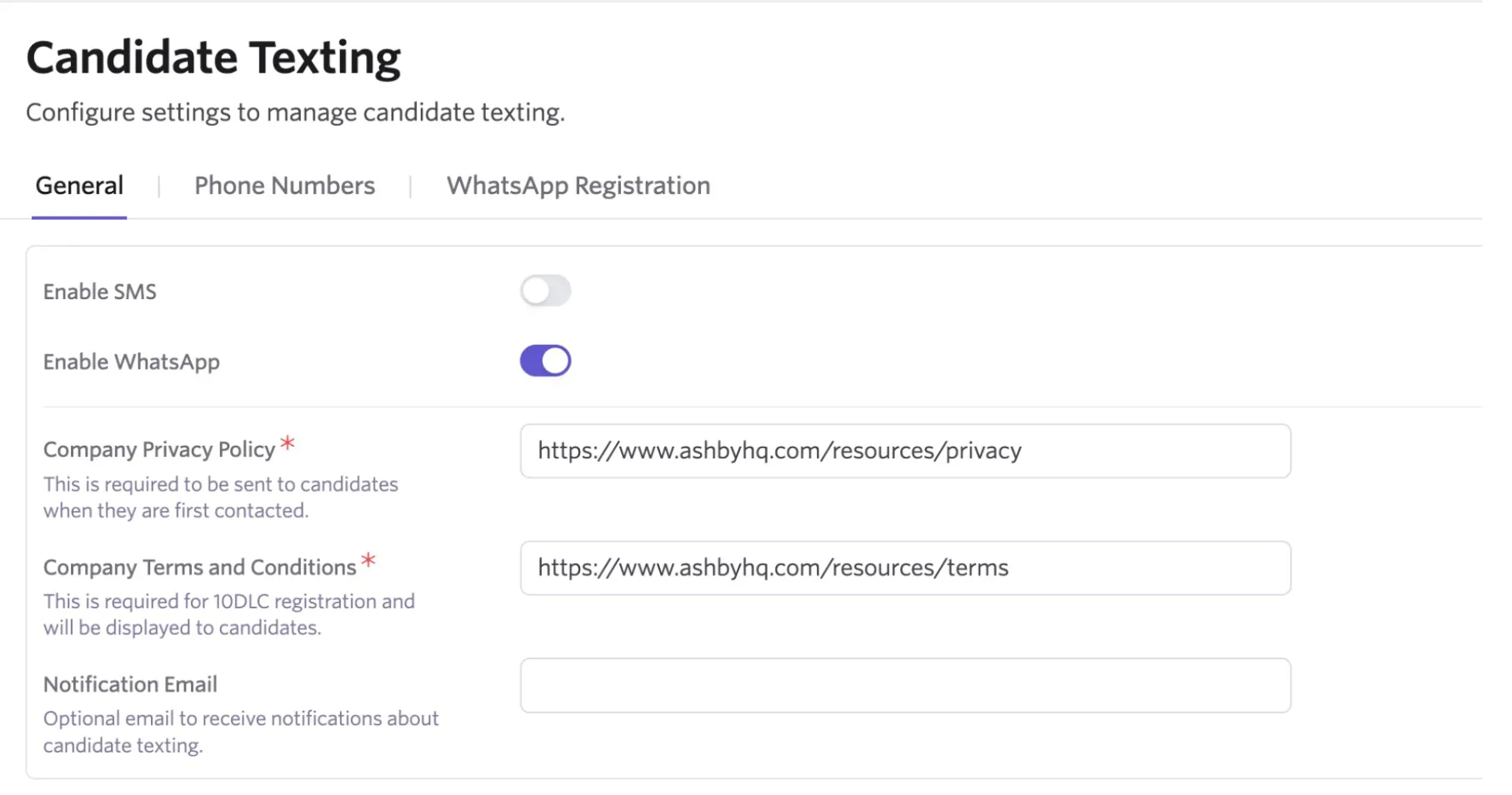
These are used in the WhatsApp consent message that we add to applications that request the candidate’s phone number. The consent message only starts appearing when you flip on WhatsApp for your organization.
You will also have the option to add an email address in the Notification Email field, this email will receive updates about candidate texting.
Step 4: Select a phone number
The next step is to go to the Phone Numbers tab and select a phone number. If you are using WhatsApp messaging with multiple brands support, you can assign each of your brands a phone number.
- You can currently only choose a US or Canada phone number and you will need to use a phone number configured from Ashby. For more on selecting a phone number, check out Candidate Texting. You can receive WhatsApp messages from and send to international candidates (with the exception of those who have Brazil or Indonesia phone numbers), see the FAQs below for information on other restrictions.
If you already have SMS configured in Ashby and have a phone number configured, you will use that same phone number for WhatsApp messaging.
Step 5: Complete WhatsApp registration
After you set up your phone number, complete Meta’s signup flow from Ashby.
- Navigate to the WhatsApp Registration page.
- Select Login with Facebook.
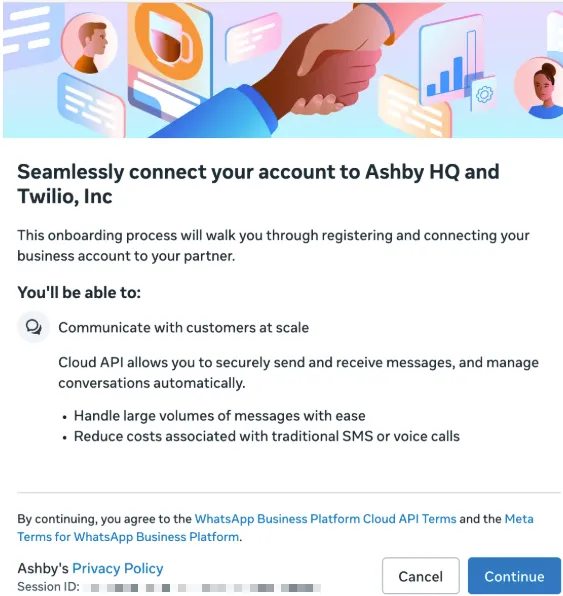
- Click Continue.
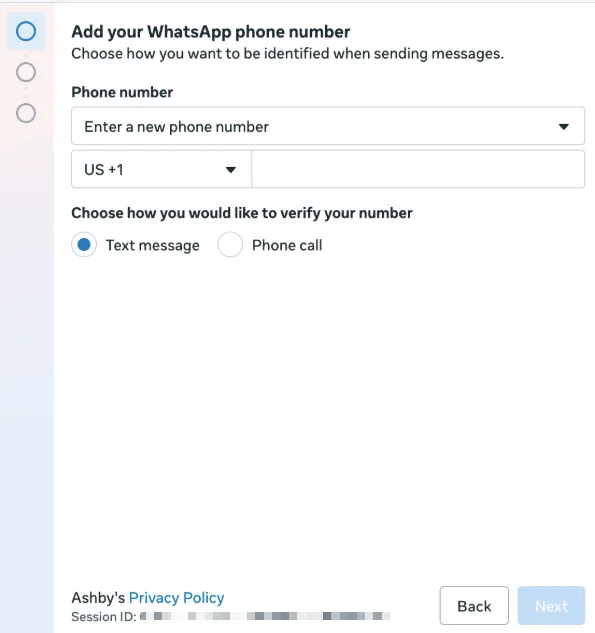
- In Meta’s signup flow, enter the phone number you set up in Ashby and select Text message as the verification method. Click Next.
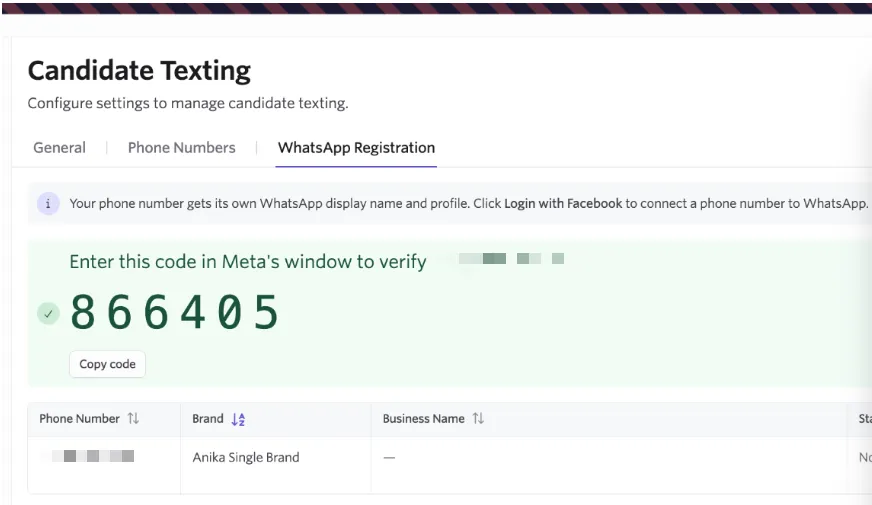
- Check the WhatsApp Registration page in Ashby for the verification code. Copy the code into the Meta signup window.
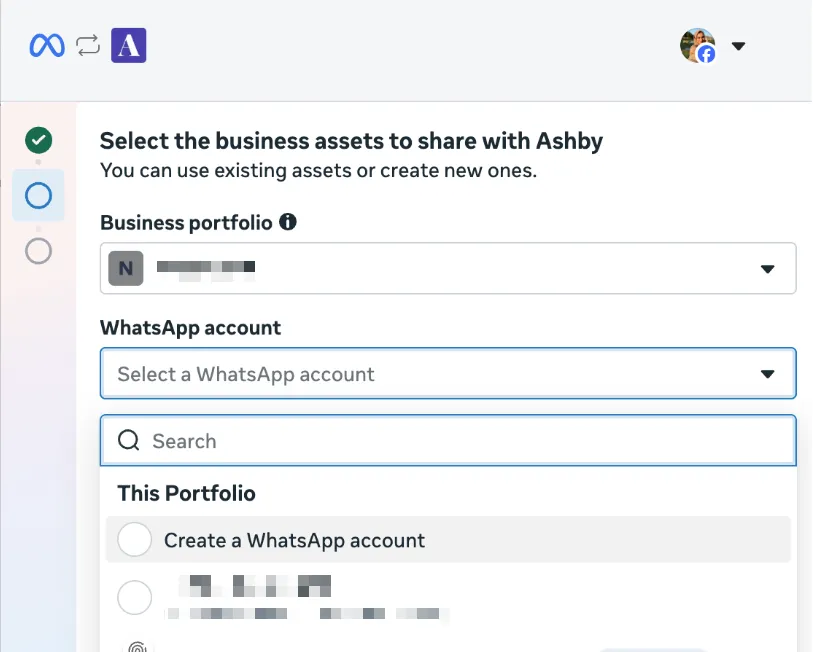
- Select the correct Meta Business Portfolio. We recommend using a portfolio that is already verified.
- In the WhatsApp account dropdown, select Create a WhatsApp account.
We highly recommend creating a new Whatsapp business account when registering. Meta’s current signup flow creates the WhatsApp account and its associated Messaging account together. If you connect an existing WABA or a phone number that was previously connected elsewhere, you may need help from Ashby Support.
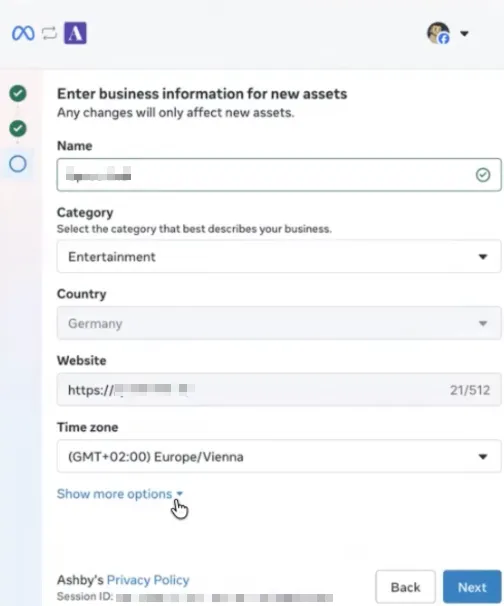
- Enter the requested information for your business, including its name, category, country, website, and time zone, then select Next.
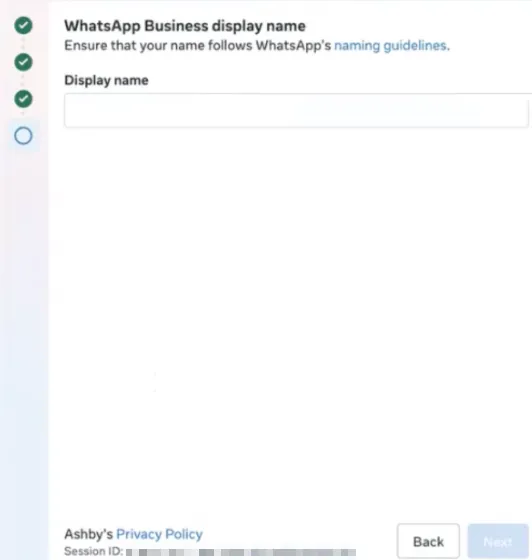
- Enter and confirm your WhatsApp Business display name in Meta’s signup flow, then select Next.
Choose a display name that follows Meta’s WhatsApp Business display name guidelines. The name is fixed when Meta creates the sender and cannot be changed from Ashby afterward.
If you need to change it later, contact Ashby Support. Meta’s review can take several days and may cause temporary downtime.
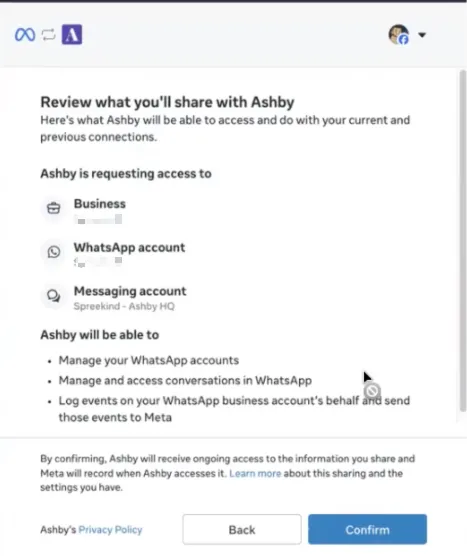
- Review the permissions and assets that Ashby requests, then select Confirm.
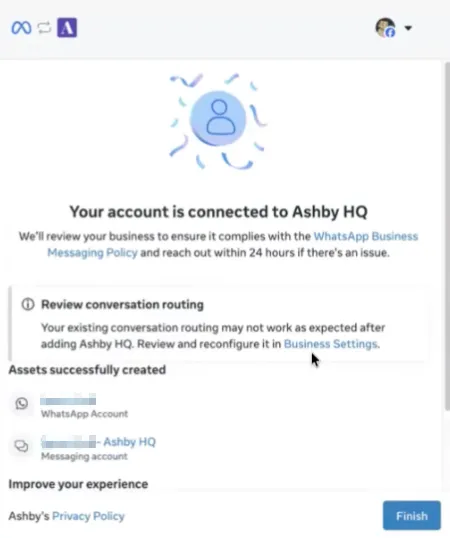
- When Meta finishes connecting the account, select Finish.
- If you use WhatsApp with multiple brands, connect each brand to the same WhatsApp Business Account. Otherwise, you cannot send messages for that brand.
Step 6: Wait for your WhatsApp sender to come online
Return to the WhatsApp Registration page in Ashby after you finish Meta’s signup flow. Ashby creates your WhatsApp sender, and the status may show as Offline while Meta completes the setup.
The page updates automatically. You can also select Refresh Status at any time. When the status changes to Online, you can send WhatsApp messages.
If the status still shows Offline after five minutes, hover over the status to read the error message, then contact Ashby Support.
Once your WhatsApp sender turns into a status of Online, you are now ready to message candidates. Check out the following guides for more information on candidate consent and messaging:
If, at any point, you disconnect your WhatsApp business account from Ashby and you need to reconnect to the same or even a different one, you will need to reach out to Ashby support to get this done. This is due to restrictions from Twilio. If you absolutely need to change the display name for your phone number, then you will need to reach out to Ashby support. This is a limitation from Twilio.
Step 7: Check your WhatsApp templates
Ashby submits seeded WhatsApp templates to Meta for review after your account connects. Approval usually takes about one hour, but it can take longer.
Manage your templates from the Candidate Texting Templates page in your admin settings.
FAQs
How does this work with SMS candidate texting?
WhatsApp is a second candidate texting channel alongside SMS. Recruiters send and receive WhatsApp messages directly from the candidate profile, using templates managed inside Ashby and following WhatsApp's own approval and consent rules.
Unlike SMS texting, where you can send free-form messages to your candidates at any time (once they give consent), WhatsApp only allows you to send candidates pre-approved templated messages. WhatsApp approves or rejects these templates, and approval status is outside of Ashby's control. You can send free-form messages to your candidate only once they respond. An inbound WhatsApp message from a candidate opens a 24-hour free-form messaging window.
SMS texting is only available for candidates with US and Canada +1 numbers. WhatsApp texting is available internationally, with the exception of countries WhatsApp does not support.
Does this replace SMS?
No. SMS and WhatsApp are separate tabs on the candidate profile that you can enable, and both can be active for the same candidate. Whether you use one or both is up to you.
My WhatsApp sender still shows Offline. What do I do?
Your sender can show Offline while Meta creates it. Return to the WhatsApp Registration page and select Refresh Status. If the status still shows Offline after five minutes, hover over the status to read the error message and contact Ashby Support.
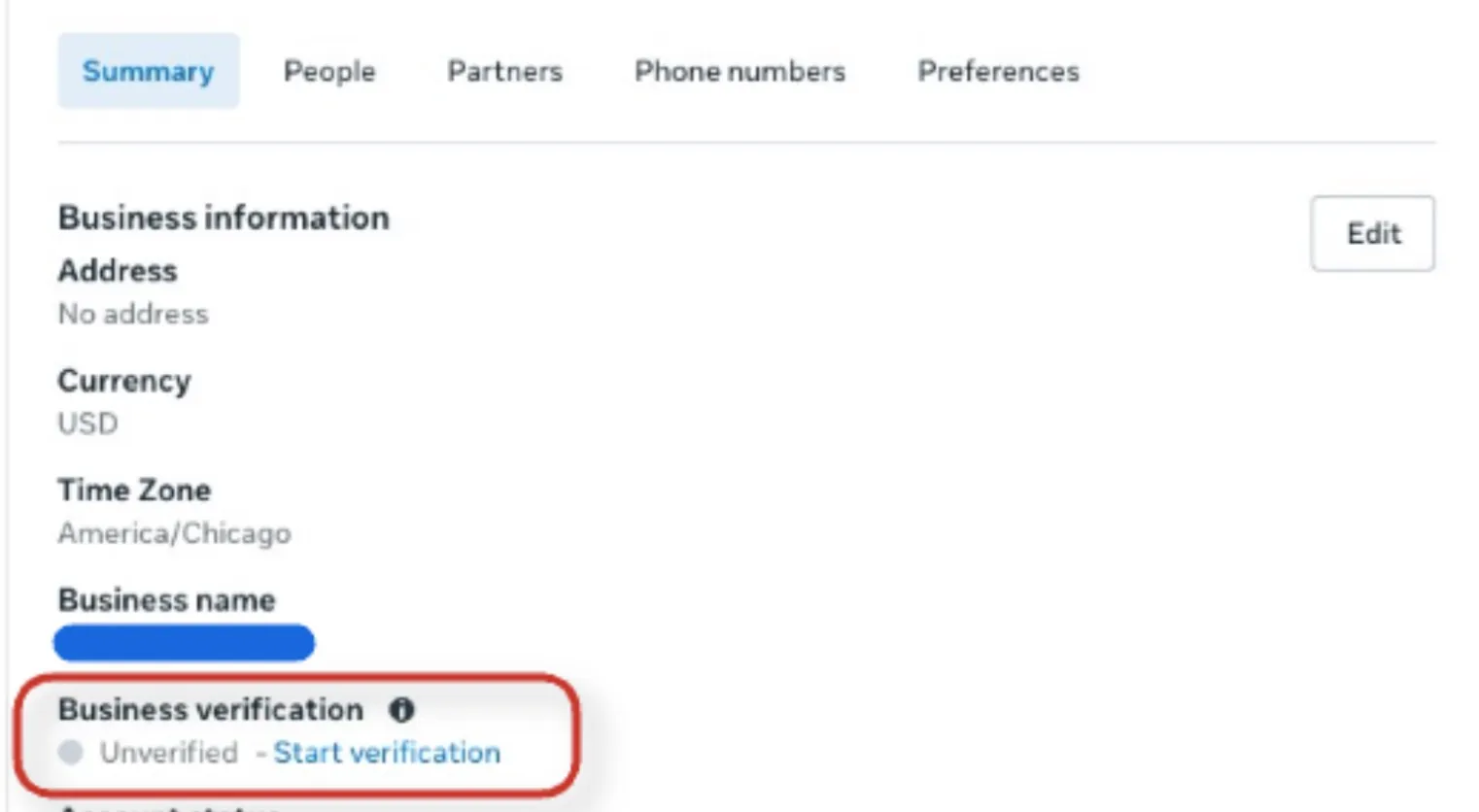
I don't see the option to get verified in Meta - what do I do?
If you don’t immediately see the option to verify your business, wait a few days after creating your WABA and connecting with Ashby. During this waiting period, you can still message candidates. You should eventually see the option to verify your business in the following places:
- Within your Meta Business Portfolio’s Security Center.
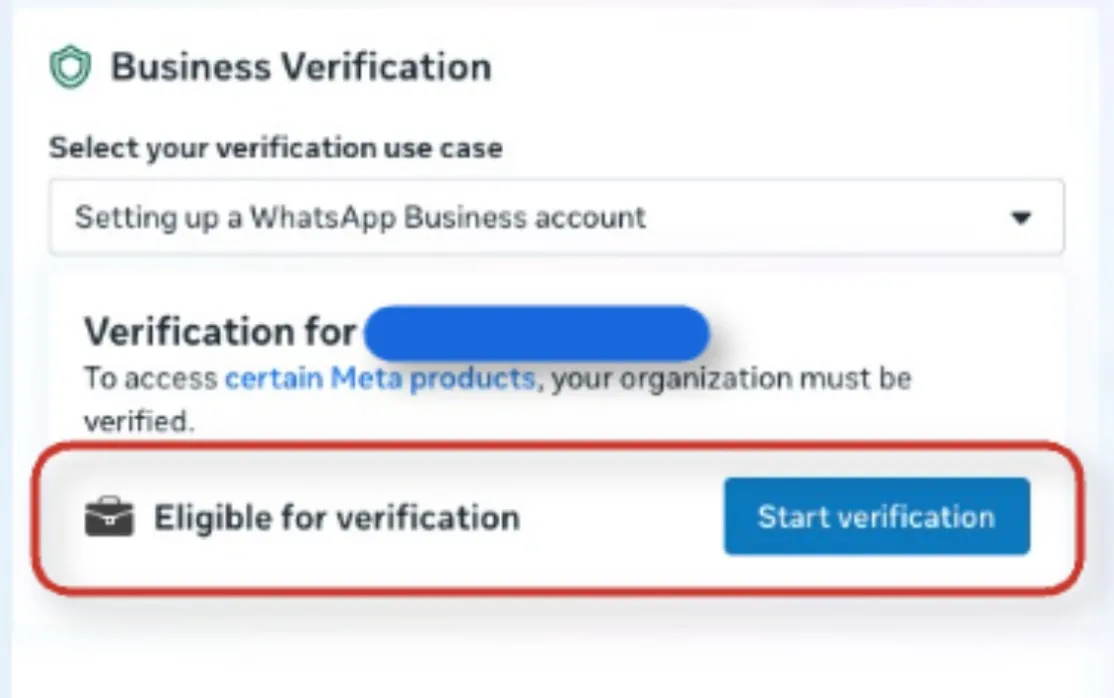
- Within your WhatsApp business account under Accounts.
Are any countries or regions not supported?
Ashby does not support the ability for customers to adopt a local phone number for non-US countries, and Meta enforces strict anti-spam and regional regulatory filters on international long-code senders (such as a US +1 number).
Hard Local Sender Restrictions & Local In-Country Presence:
Markets such as Brazil and Indonesia enforce strong local presence rules. When attempting to message users in these regions using an international long code (such as a US +1 number), messages are blocked by Meta. To ensure consistent delivery into these countries, Meta requires registering and sending from a local country number (e.g., a local +55 number for Brazil) associated with your WhatsApp Business Account (WABA). Local country numbers are currently not supported by Ashby.
Cross-Border Authorization via Business Verification:
For countries that allow cross-border messaging without a hard local sender requirement, Meta still limits unverified accounts from initiating international conversations. Completing Meta Business Verification and maintaining a high quality score on your WhatsApp sender allows your WABA to scale past the initial tier limits, granting broader cross-border access.
Depending on the status of your Meta Business account, there might be Meta-imposed restrictions on sending messages to candidates with phone numbers from other countries as well.
How can I set it so candidates see a display name in WhatsApp, rather than a phone number?
You select the WhatsApp Business display name in Meta’s signup flow in Step five, not in Ashby. Choose a name that follows Meta’s WhatsApp Business display name guidelines . You cannot change the name from Ashby after Meta creates the sender. Contact Ashby Support if you need to request a change.
Once you verify your Meta Business Portfolio, candidates see your account's display name in the chat rather than only the phone number. If your portfolio is unverified, then the candidate will see the assigned phone number unless they already have the number saved as a contact in WhatsApp.
For further information on how unverified and verified accounts show up in WhatsApp, check out Twilio's guide on Using WhatsApp Business Accounts. For more information on verification, check out Step 1: Create and verify Meta Business Portfolio.