Offer and E-Signature Document Conditional Tokens
Conditional tokens let you automatically include additional text in an offer letter or e-signature document when specific conditions are met on the offer. For example, you can use a conditional token to include a relocation assistance paragraph only when the offer indicates that relocation assistance is provided.
Offer conditional tokens are available on all plans:
Foundations | Legacy Plus | Plus | Enterprise |
|---|---|---|---|
✅ | ✅ | ✅ | ✅ |
Prerequisites:
- You must be an Org Admin or Elevated Access user with Offer letter templates permissions to create and manage conditional offer tokens.
- You must be an Org Admin to manage conditional e-signature document tokens.
- Non-offer e-signature documents can only be configured on the Legacy Plus, Plus and Enterprise plans. More on these at E-Signature Documents.
Overview
Review the video and read the steps below to learn how to use conditional tokens.
Creating a conditional token
Offer conditional tokens
Navigate to Admin > Offers > Offer Tokens. Scroll down to the Conditional Tokens section and click + New.

E-signature document conditional tokens
Navigate to Admin > Integrations > E-Signature Documents and select the Tokens tab. Scroll to the Conditional Tokens section and click + New.

Setting up your conditional token
When you create a conditional token, you are prompted to fill in the following fields:
Field | Description |
|---|---|
Name / Title | The name of your token. This is used to identify the token in the list. |
Description | Optional additional context to help others understand what the token is for. |
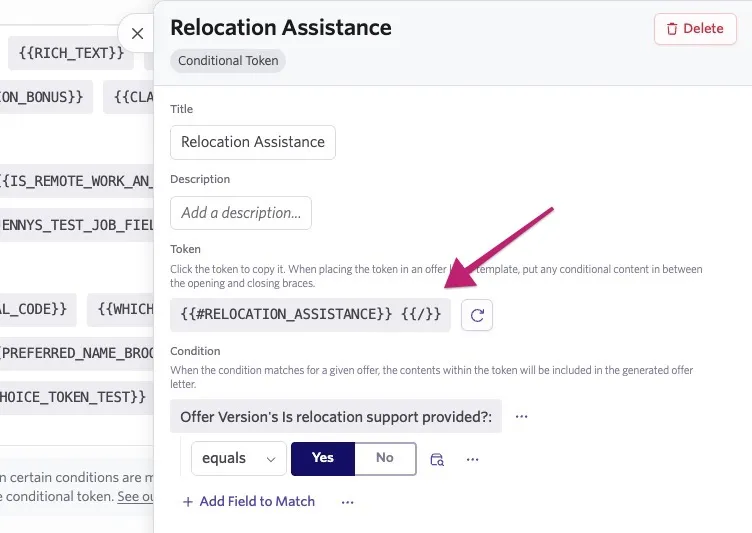
Token | Auto-generated once you name your token. Click the token to copy it for use in your offer letter template. |
Condition | The rule that must be met for the token's content to appear in the generated offer. If the condition is not met, the text is omitted from the offer. |
Example: A conditional token named "Relocation assistance" can be configured so that its content only appears in the offer when the Relocation assistance provided custom offer field is set to Yes. When set to No, the token content does not appear.
See Custom Fields to learn how to create them.
How to add a conditional token to an offer template
Once you have created your conditional token, follow these steps to add it to your offer letter or e-signature document template:
- In the Conditional Tokens section, click the token to copy it to your clipboard.
- Open your offer letter or e-signature document template in your preferred editor (such as Word or Google Docs).
For more on creating offer or e-signature templates, see Offer Letter Template Formatting and E-Signature Documents .
- Paste the token into the location in your template where the conditional content should appear. The pasted token looks like a pair of opening and closing tags with placeholder text.
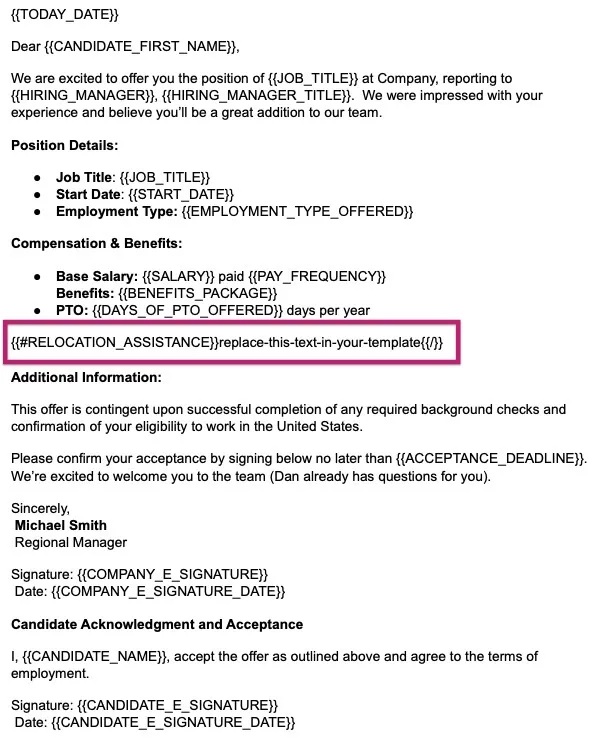
- Replace the placeholder text (shown as replace-this-text-in-your-template) between the opening and closing tags with the content you want to display when the condition is met. Make sure your text stays between both tags.
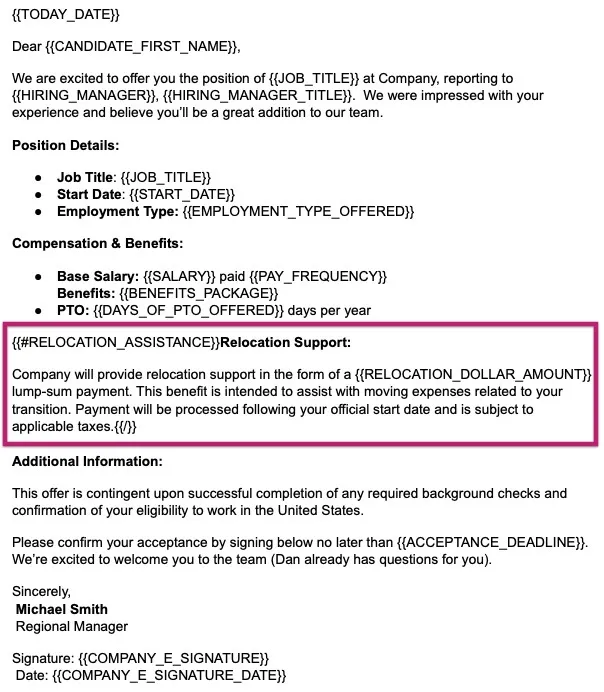
Any content you place outside the opening and closing tags will appear in all offers, regardless of whether the condition is met.
- Once you are happy with the template, upload it to Ashby by navigating to Admin > Offers > Offer Letter Templates or Admin > Integrations > E-signature Documents > E-signature Document Templates depending on the type of template you're creating.
Conditional tokens in practice: relocation assistance example
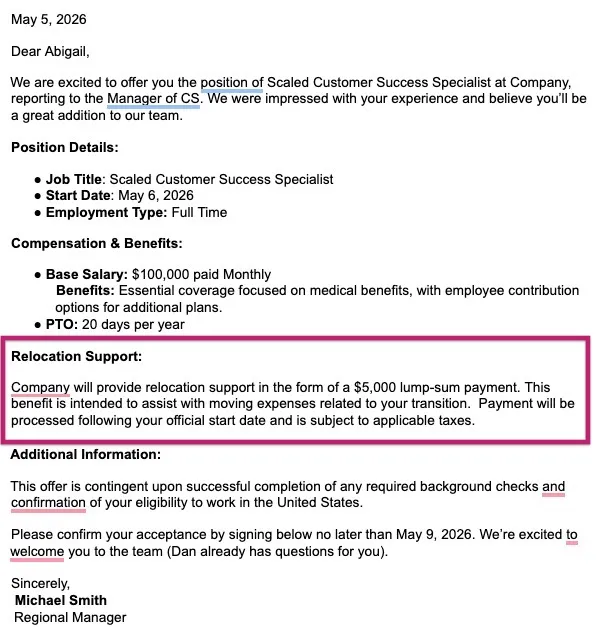
The screenshots below show how a conditional token behaves based on whether the offer meets the configured condition.
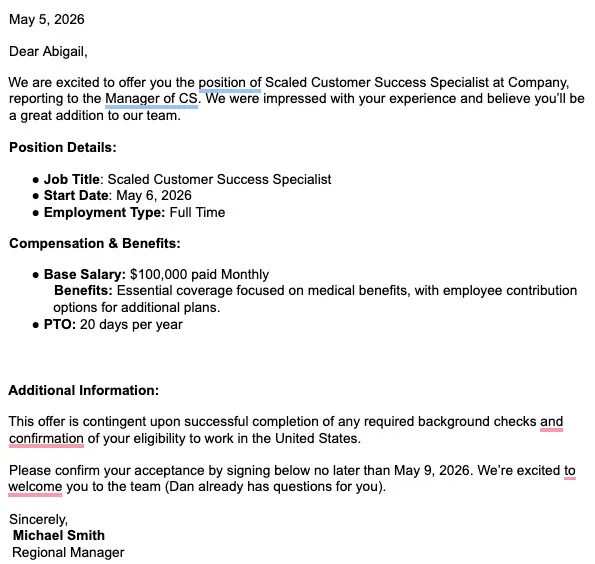
When the condition is met (relocation assistance provided: yes)
The conditional token content appears in the generated offer letter.
When the condition is not met (relocation assistance provided: no)
The conditional token content does not appear in the generated offer letter.