Manage Employee Workflow Roles
Employee Roles in Ashby's People Ops Workflows allow you to automate ownership and eliminate manual task routing. Whether you need to assign actions to defined individuals like a People Ops Coordinator or Manager, or to functional teams such as IT, Roles ensure the right work reaches the right people. By configuring roles tailored to your organization, Ashby Workflows unlock automatic task assignment, smoother cross-functional collaboration, and a more scalable onboarding experience.
Ashby's People Ops module is currently available through restricted early access. The following documentation is provided for design partners participating in that program.
Permissions and access
To configure onboarding roles, you need view and edit access to the workflow. Your permission set grants this access to either all workflows or specific workflows.
Learn more about Ashby's People Ops permission sets: Configure Permission SetsAdminister Permission Sets.
Create a custom Employee Workflow Role
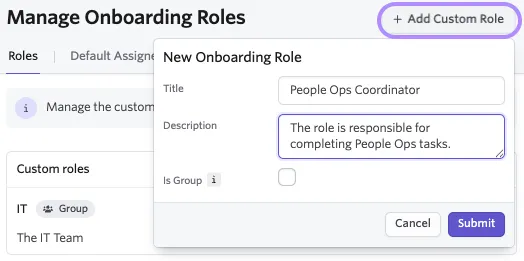
To create a custom Employee Workflow Role, navigate to your workflow's configuration and select Manage Roles in the upper right corner.

- Select + Add Custom Role in the upper right corner.
- Enter a Title and Description, and specify whether the role should function as a Group Role.
- Group Roles allow a single task to be assigned to multiple individuals.
- Select Submit to create the role.
Common use cases
Below are some of the most commonly configured Custom Onboarding Roles:
- People Ops Coordinator
- Payroll/Finance
- IT Team
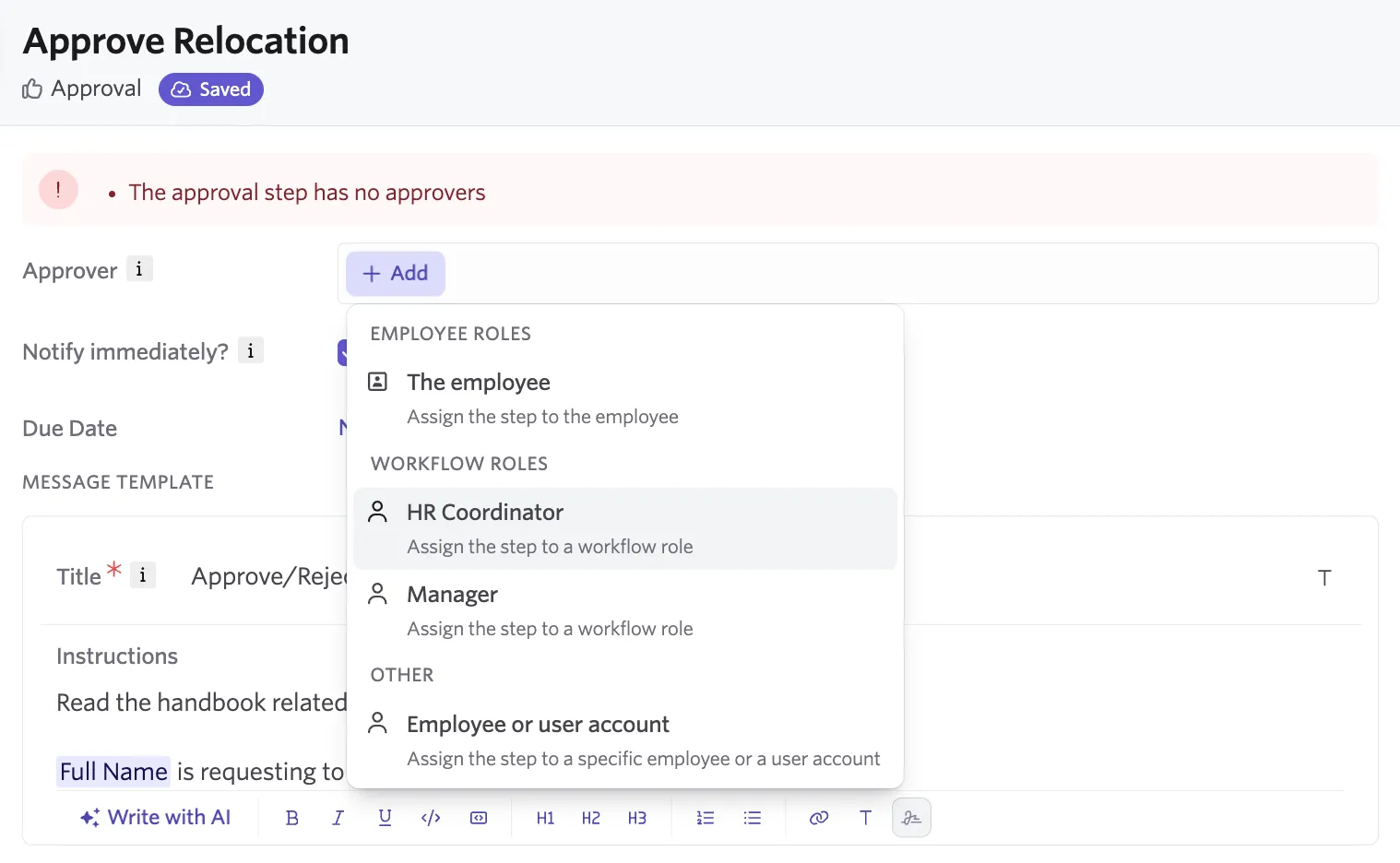
Assign a workflow step to a custom Employee Workflow Role
Once a Custom Onboarding Role is created, you see it as an Assignee option when assigning a step. To send a Workflow Step from a Custom Employee Workflow Role, select the role associated with the sender. Group Roles cannot be selected as the sender, as messages must come from a single individual.
Set a default assignee for a custom Employee Workflow Role
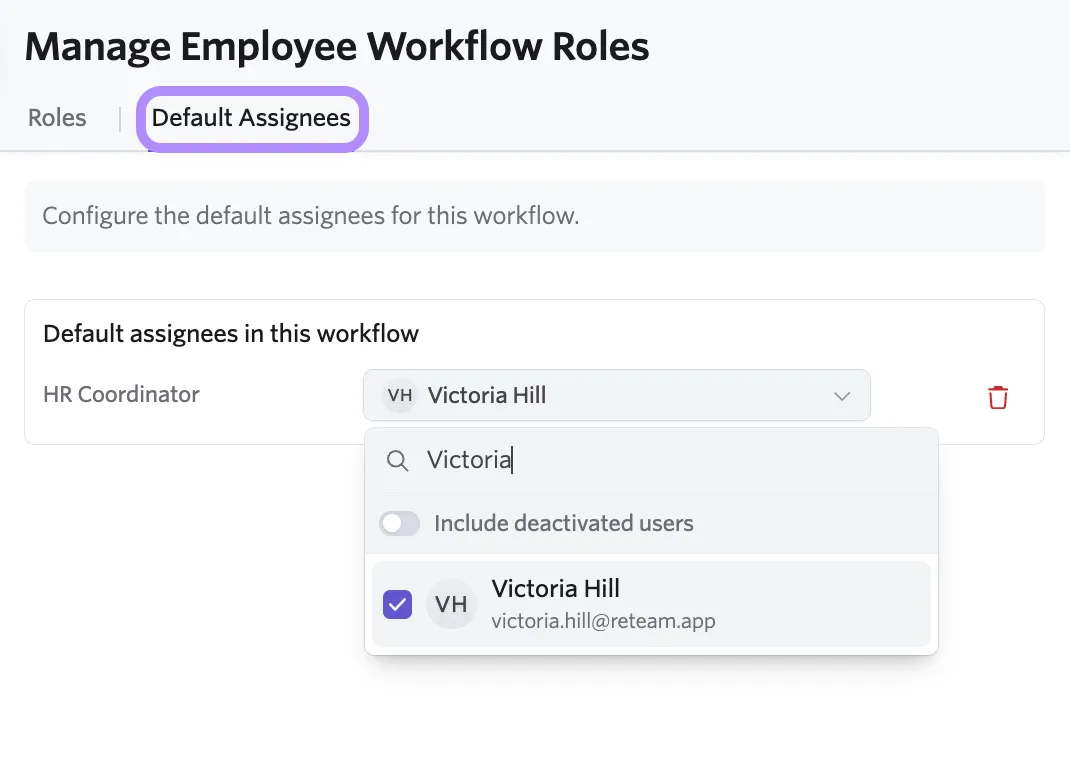
After assigning a custom role to a Workflow step, you can designate a Default Assignee. The default assignee automatically receives the task each time the Workflow reaches that step.
To set a Default Assignee:
- Navigate to Manage Roles and select Default Assignees.
- Locate the applicable custom role, then search for and select the individual who should automatically be assigned any Workflow steps associated with that role.
Assign a custom role via a survey step
If you don't know who will be assigned to a Custom Employee Workflow Role at the time a new hire is enrolled in a workflow, you can collect that information using a workflow Survey step. Configure a survey step and assign it to the internal team member responsible for determining the assignee of the Custom Onboarding Role. In the survey question, select "Assign the [Custom Role Name] role."
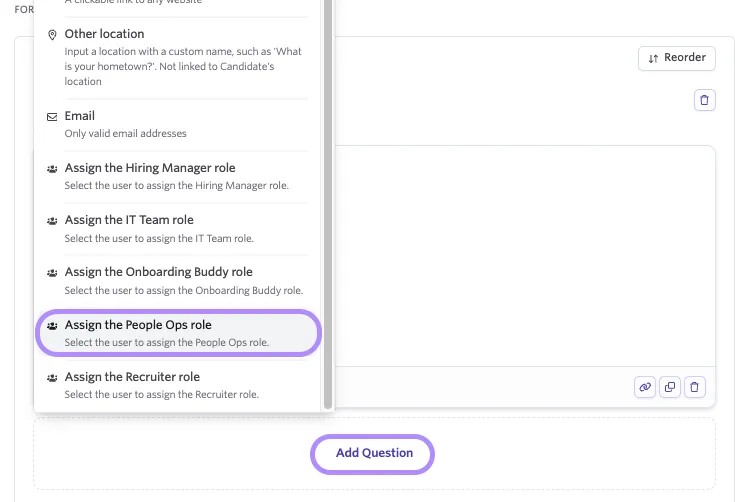
Set any subsequent steps assigned to the Custom Employee Workflow Role as dependent on this survey step.
Overwrite default assignees
If there are one-off changes to default assignees, you can edit those assignments when enrolling an employee in a workflow, or on a workflow that's already in flight.
When enrolling a new hire
For workflow enrollments with No automationNo Automation or Automation with reviewAutomation With Review, update default assignees or the individuals assigned to built-in roles directly within the workflow enrollment wizard.
- Navigate to the People Ops Home page.
- Select Enroll in Workflow or Review Workflow next to the employee. The option you see depends on your Configure Onboarding Workflow Automationsautomation configuration.
- Continue through the wizard to Confirm Workflow.
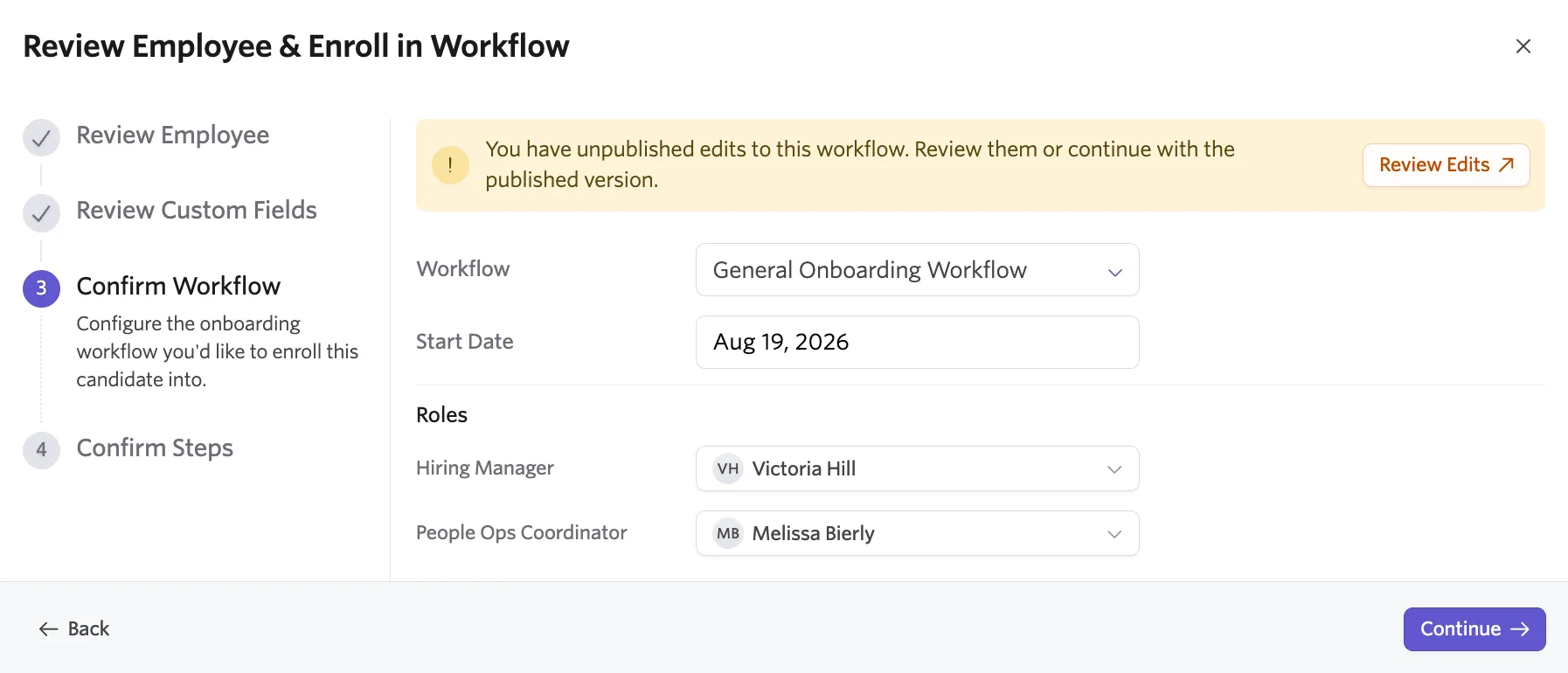
- Update the assignee for any role, including built-in roles like Hiring Manager and Recruiter that sync from the employee's job consideration.
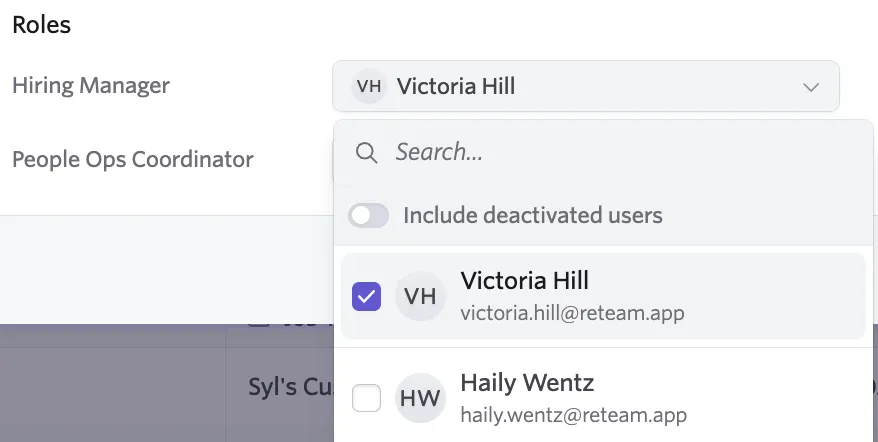
- Select Continue, review the steps, then select Start Workflow.
In-flight workflows
You can also swap assignees on a workflow that's already running. Ashby reassigns every pending and future step tied to that role to the new assignee. Steps that are already complete and emails that have already been sent aren't affected.
- Navigate to the employee's workflow and review assigned workflow roles.

- Select Users to review and reassign workflow role assignments.
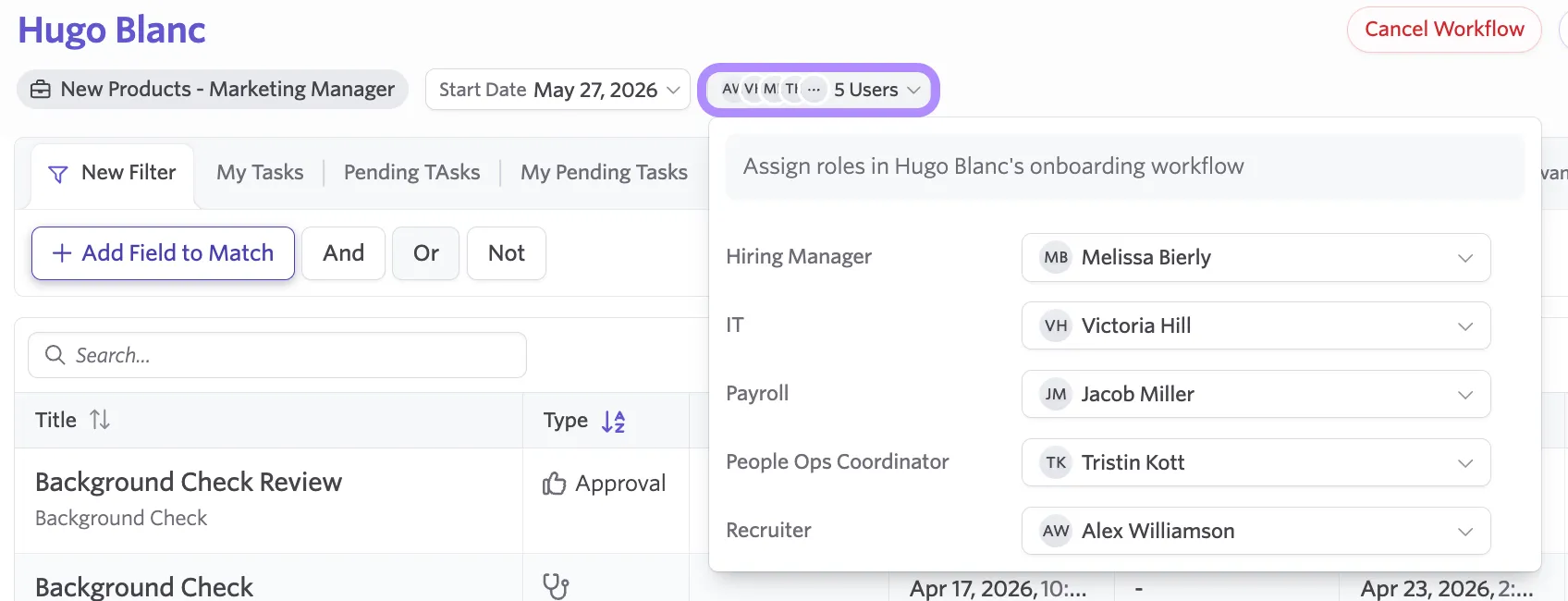
Overwriting an assignee on an enrollment applies to that employee only. It does not change the workflow template. To change who owns a role for every future enrollment, update the default assignee on the workflow's onboarding roles.
FAQs
For Group Custom Roles, what happens if one person marks a task as complete, or completes a survey?
When a task or survey is assigned to a Group Custom Role, it appears on the task list of every individual in that group. Once any one person completes the task or survey, Ashby automatically marks it complete and removes it from the task lists of all group members.
I don't see my new Custom Role as an option when assigning Default Assignees. Am I doing something wrong?
Custom Roles must be assigned to at least one workflow step before they appear as an option for Default Assignees. If your Custom Role isn't listed, confirm that you've added it to at least one workflow step.