Configure Onboarding Workflow Automations
This article explains how to configure automated enrollment for onboarding workflows, which adds new hires to the correct workflow without manual intervention. It covers the three automation modes, how to configure automation conditions, and how to review and start a workflow when Automation With Review is enabled.
Ashby's People Ops module is currently available through restricted early access. The following documentation is provided for design partners participating in that program.
Permissions and access
Configuring onboarding workflow automations requires edit access to the relevant workflow template.
Learn more about Ashby's People Ops permission sets: Configure Permission SetsConfigure Permission Sets.
Configure workflow automations
Automated enrollment adds employees to a workflow based on criteria you define. This reduces the need for manual enrollment and helps ensure you apply workflows consistently. Organizations commonly use automated enrollment to support New Hire Onboarding at scale.
By default, Ashby disables workflow automations. To configure automations for a workflow:
- Navigate to Workflows.
- Select Automation on the workflow in question.
- Select Configure.
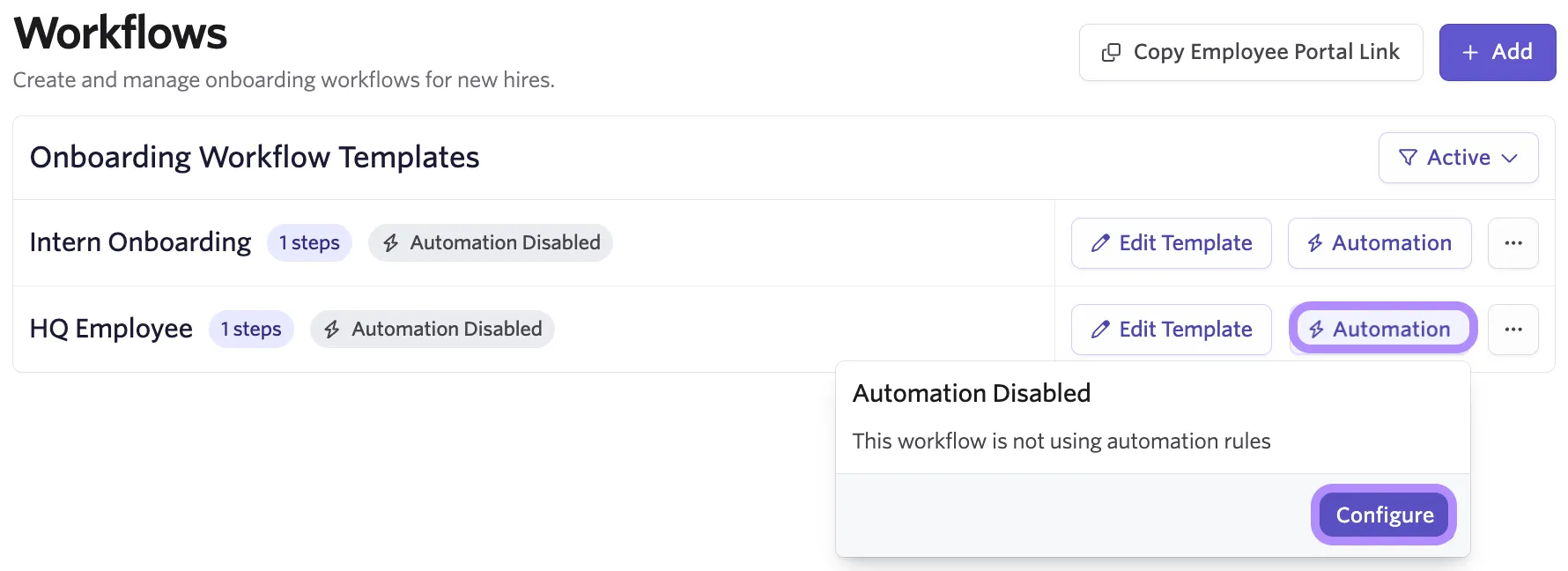
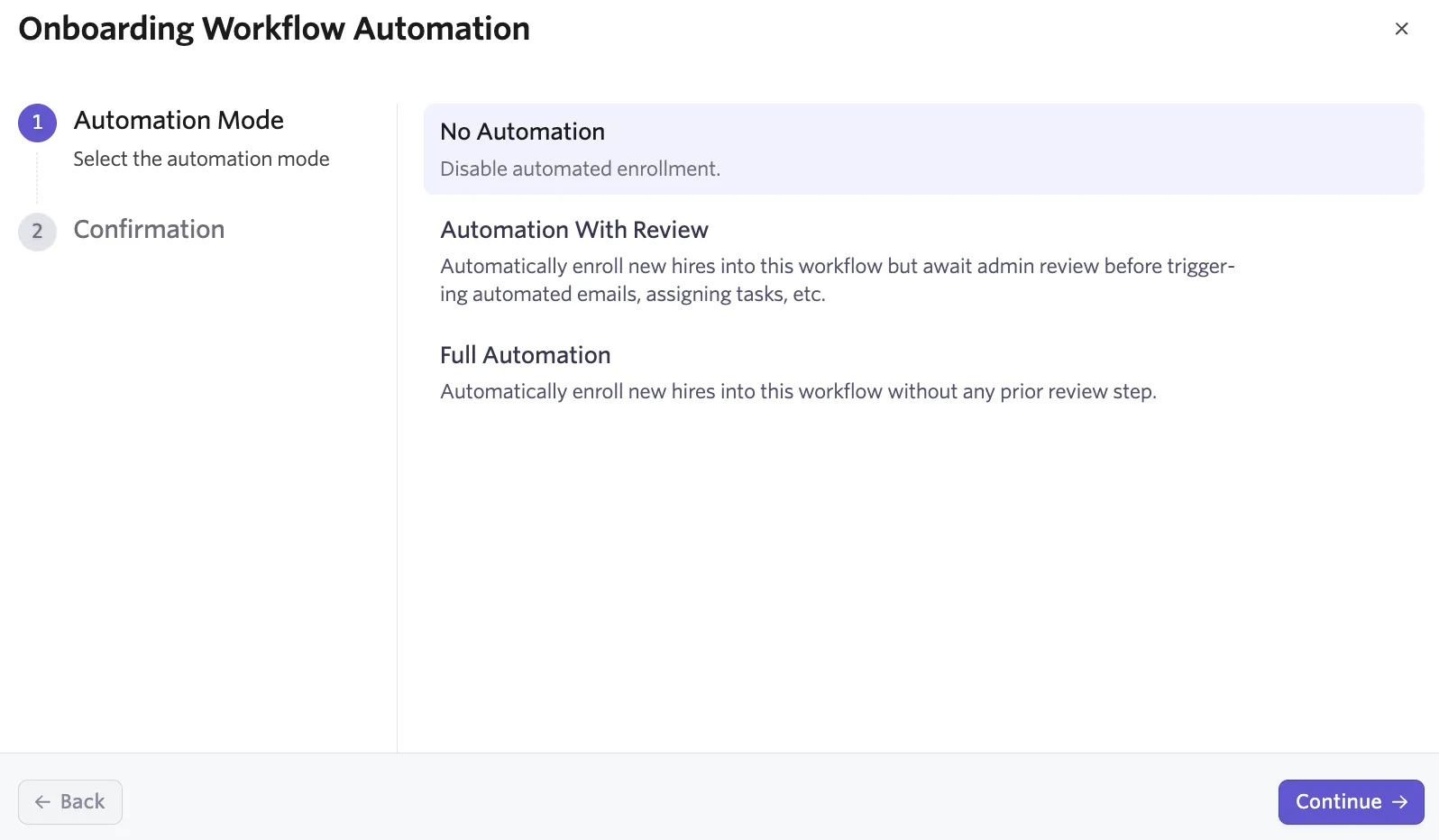
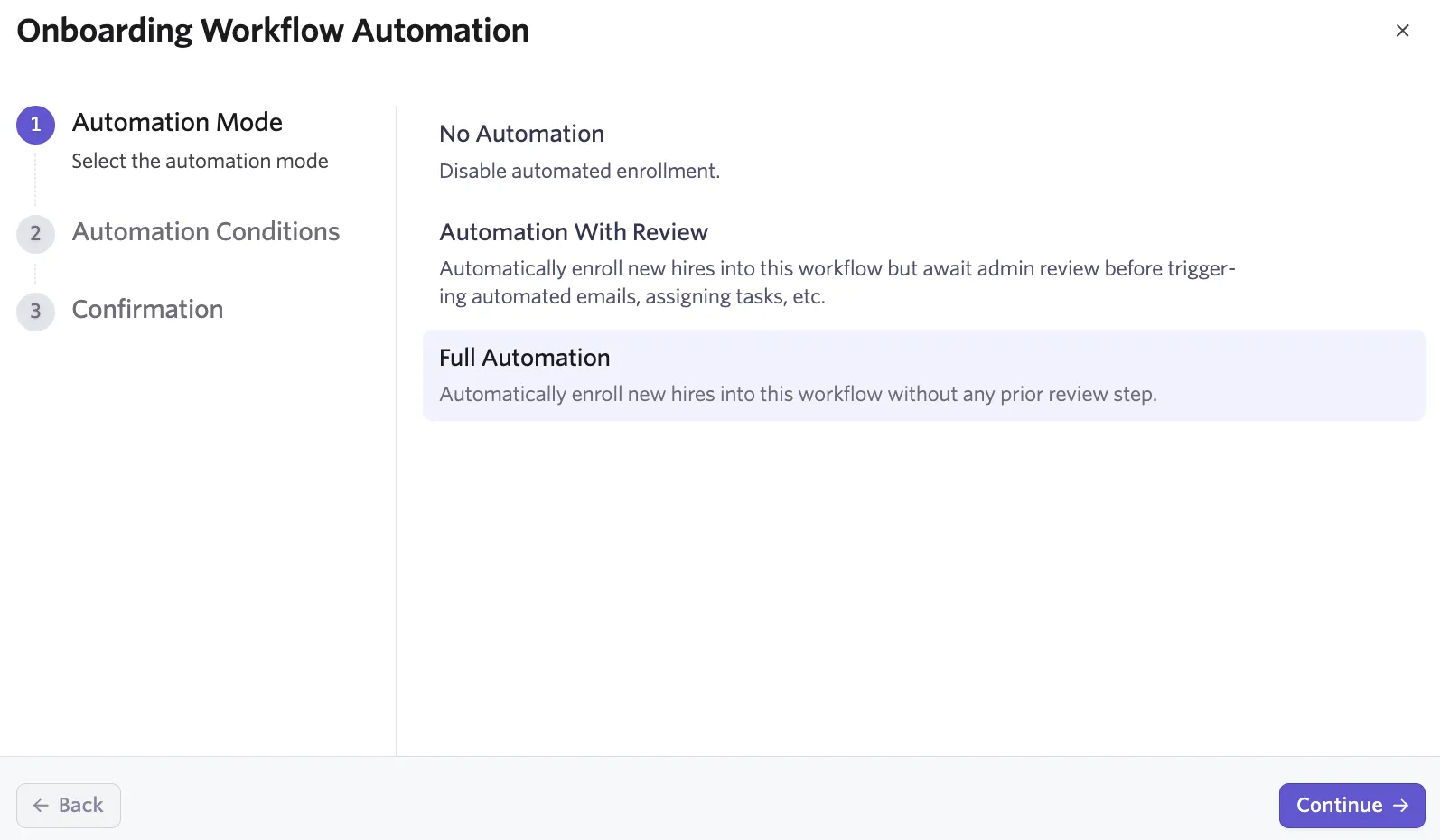
Within the Onboarding Workflow Automation setup wizard, you see three configuration options:
No automation
This setting keeps workflow automation disabled. People Ops Admins must manually enroll new hires in the appropriate workflow.
To apply this setting:
- Select No Automation.
- Select Continue.
- Select Confirm.
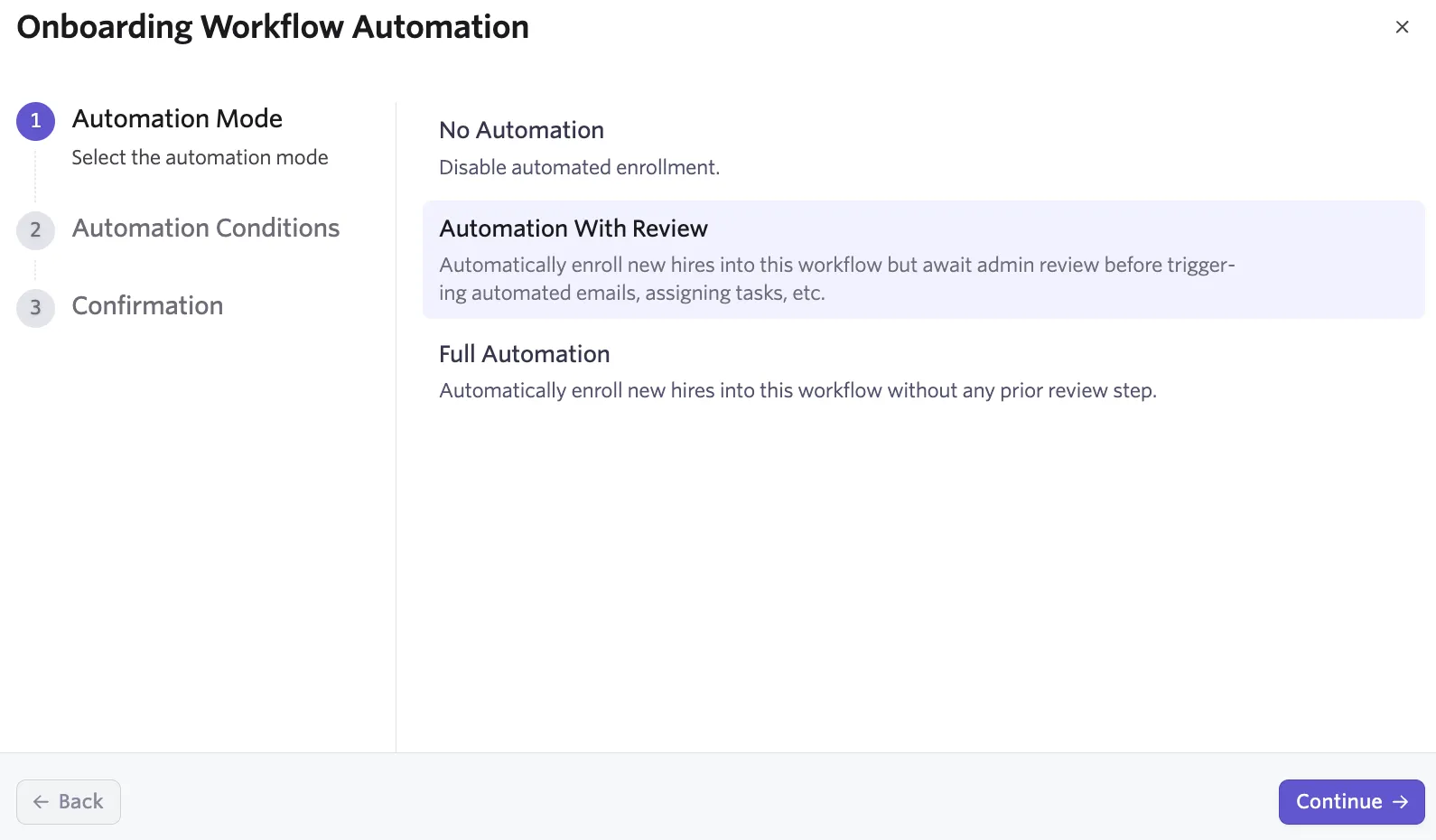
Automation with review
This setting automatically enrolls new hires in a workflow, but requires an admin to review the enrollment before workflow steps trigger.
Select Automation With Review, then select Continue.
Automation conditions
Configure one of two automation conditions:
- Auto-Enroll All New Hires: Automatically enrolls all new hires in the selected workflow.
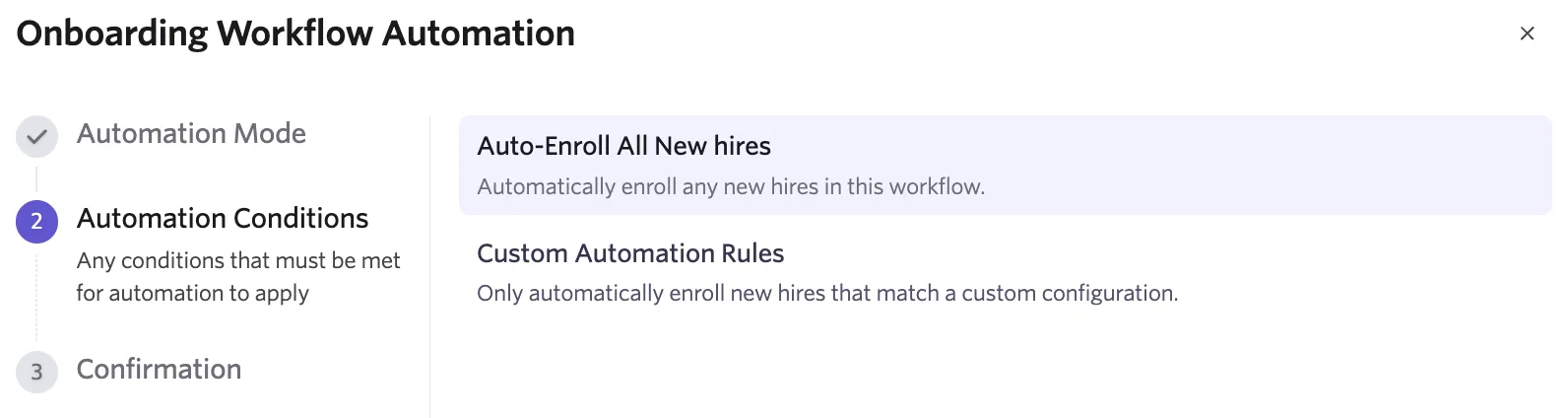
- Custom Automation Rules: Automatically enrolls new hires in the selected workflow only if they meet the conditions you specify.
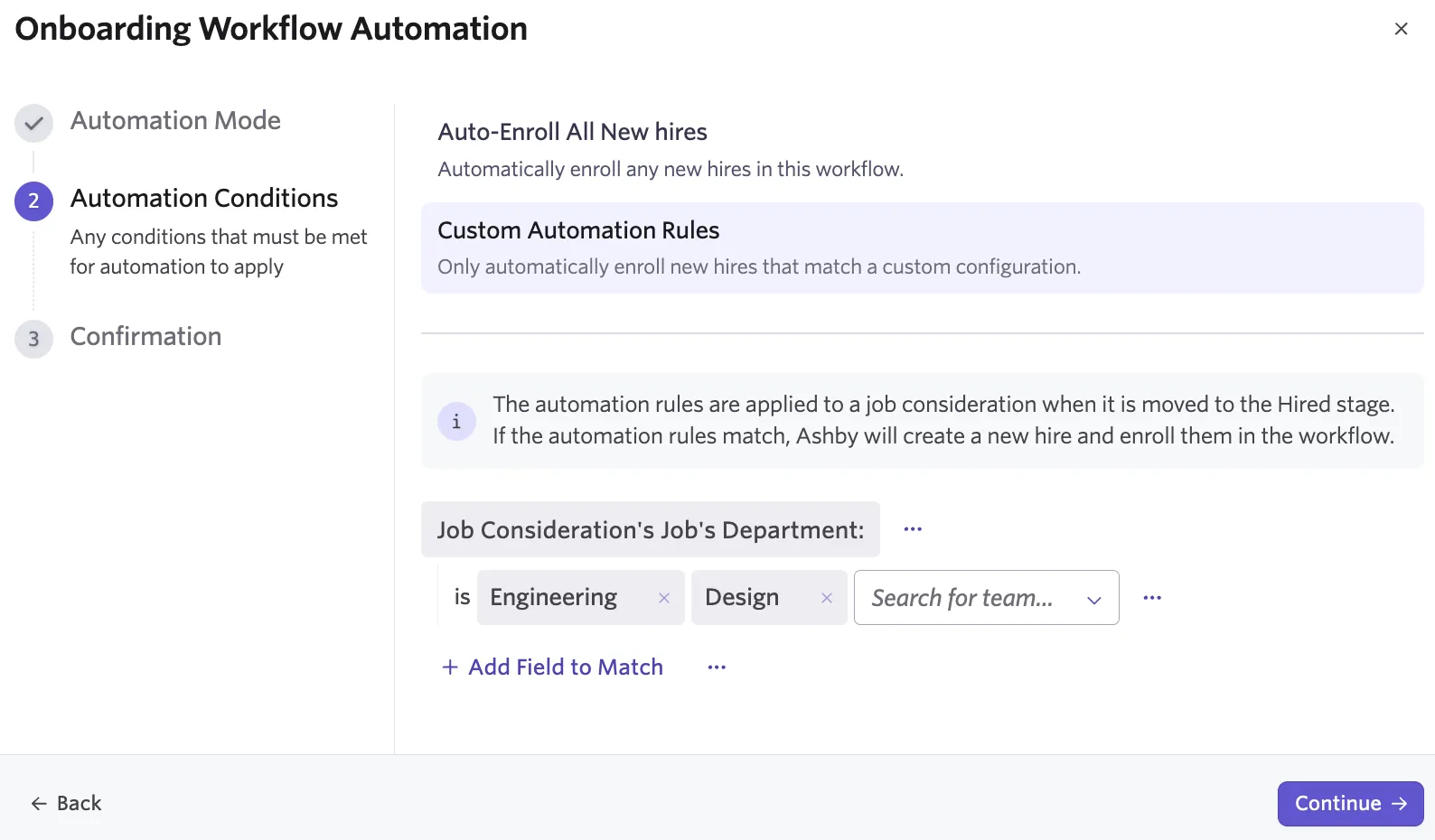
Ashby evaluates these rules when a new hire's offer is accepted and the job consideration moves to the Hired stage. If the new hire meets the conditions, Ashby creates the new hire and enrolls them in the workflow.
Because Automation With Review is enabled, admins must still review each enrollment from the People Ops Home page before workflow steps trigger.
After selecting Auto-Enroll All New Hires or configuring Custom Automation Rules, select Continue, then select Confirm to apply the Automation With Review settings.
Review workflow
When Automation With Review is enabled, navigate to the Needs Review section list on the People Ops Home page and select Review Workflow for any new hire with a status of Awaiting Review.
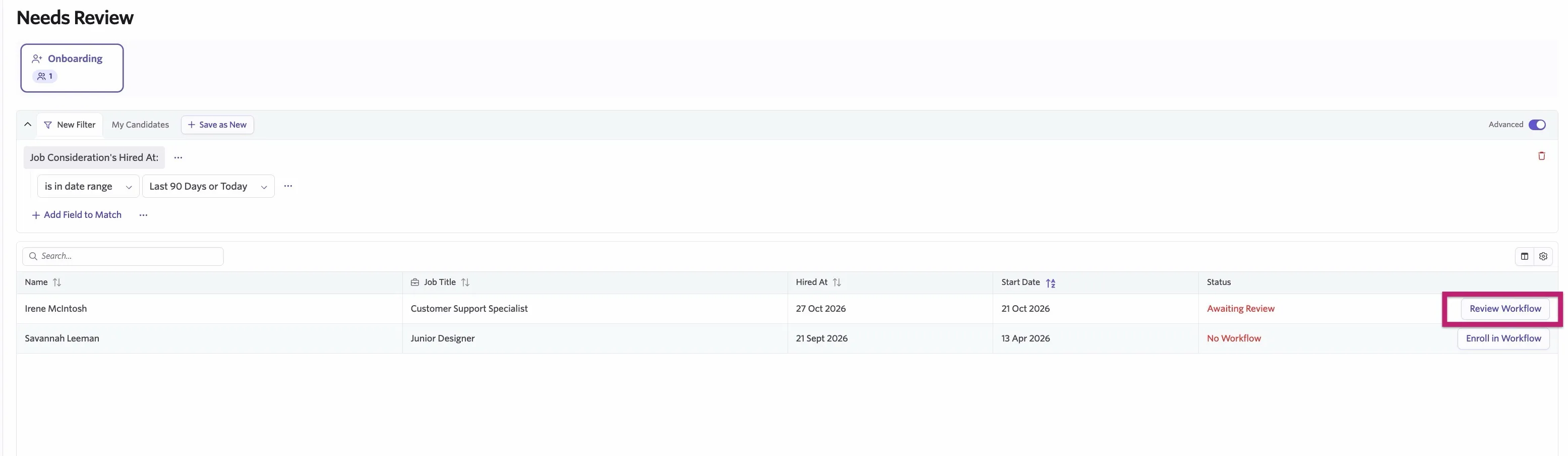
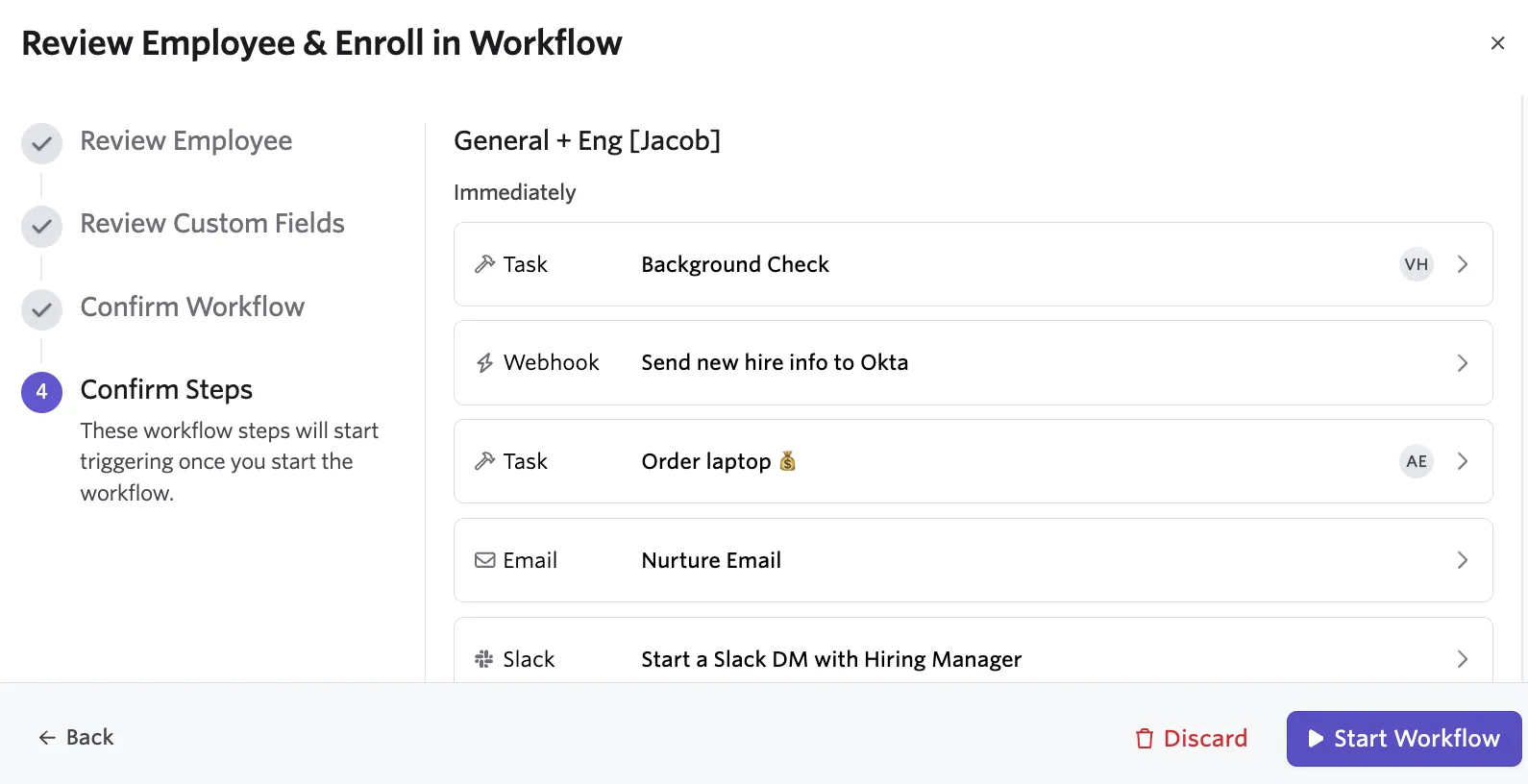
Review the employee's details and custom fields, and confirm the workflow and its steps. After confirmig or updating this information, select Start Workflow.
Full automation
This setting automatically enrolls new hires in a workflow without any admin review. Workflow steps trigger automatically as soon as a new hire's offer is accepted and the job consideration moves to the Hired stage in Ashby Recruiting.
Select Full Automation, then select Continue.
Automation conditions
Configure one of two automation conditions:
- Auto-Enroll All New Hires: Automatically enrolls all new hires in the selected workflow.
- Custom Automation Rules: Automatically enrolls new hires in the selected workflow only if they meet the conditions you specify.
Ashby evaluates these rules when a job consideration moves to the Hired stage. If the new hire meets the conditions, Ashby creates the new hire and enrolls them in the workflow.
After selecting Auto-Enroll All New Hires or configuring Custom Automation Rules, select Continue, then select Confirm to apply the Full Automation settings.
FAQs
Can I enroll a new hire in more than one workflow?
Yes. See Enroll New Hires in Onboarding WorkflowsEnroll New Hires in Onboarding Workflows.
Should I turn on Full Automation right away?
We recommend starting with No Automation or Automation With Review for your first several new hires. This lets you confirm that steps, timing, and assignees are correct before removing the review step with Full Automation.
What happens to a new hire already in progress if I change the workflow's automation mode?
Nothing. Changes to a workflow's automation mode only apply to new hires enrolled after the change. Anyone already in progress continues under the automation mode that was active when they were enrolled.