Creating and Editing Approval Processes
You can create an approval process when multiple stakeholders need to review and sign off on a workflow. Ashby currently supports configuring approvals for openings, jobs, and offers.
This guide covers configuring approval processes for your team to use. For more on submitting approvals, see Submitting Approval Requests. For more on approval settings and notifications, see Configuring Approval Settings and Notifications.
Permissions and access
Approvals can be set up on the Legacy Plus, Plus, and Enterprise plans:
Foundations | Legacy Plus | Plus | Enterprise |
|---|---|---|---|
❌ | ✅ | ✅ | ✅ |
- Only Organization Admins can configure an approval process and approval settings.
- Organization Admins and users with the Can make one-off edits to approval process permission stripe can make one-off edits to an offer approval process.
- Users with any access role in Ashby can be set as an approver.
When an approval request is submitted, approvers can approve or reject the request from their inbox using the approval notification. They do not need to have a specific access role or level of permissions to approve or reject the approval request via email or via Slack. They need to have at least Elevated Access to the role in question to be able to view the candidate's profile prior to approving, but users with Limited Access can be set as an approver and submit an approval.
When would I use each type of approval process?
Approval Type | Use Case | Common Approvers |
|---|---|---|
Opening Approval | Commonly used to validate that headcount has been approved by finance. | Finance, Talent |
Job Approval | Commonly used to ensure the accuracy of the interview plan stages and other job settings and the quality of job postings. | Talent |
Offer Approval | Commonly used to ensure appropriate stakeholders have reviewed offers. | CEO, Finance, Talent, Hiring Manager |
Create an approval process
Navigate to Approvals in Admin to build an approval process. Before you click + New, make sure you have selected the correct object type tab. Options include:
- Offer
- Job
- Opening
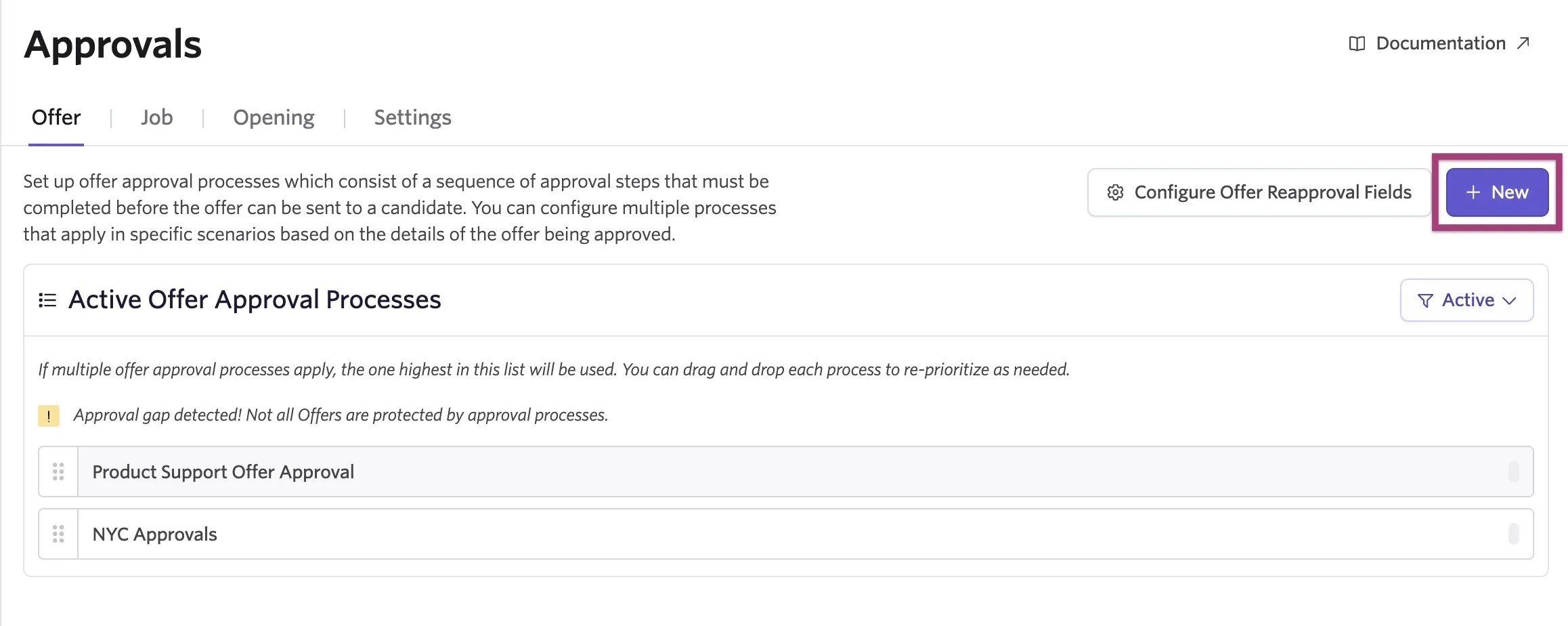
Configure a new approval process
To configure a new process, first set your scope, then add steps and approvers to each step.
Setting a scope
You set criteria by clicking + Add Field to Match, choosing your fields, and then determining your criteria using field values. The approval's scope contains the criteria Ashby must match to trigger an approval flow.
As an example, you could set your scope to only run this approval process for jobs within the Recruiting department. The approval process then only runs for roles that have the Recruiting team assigned to them.
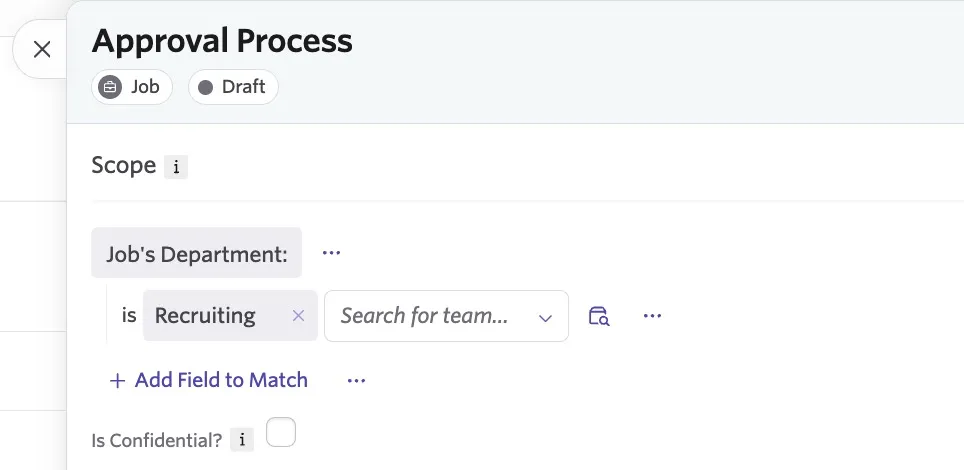
Steps
Steps are the rounds of review within an approval. Click + Add Step to add additional stages to your review process.
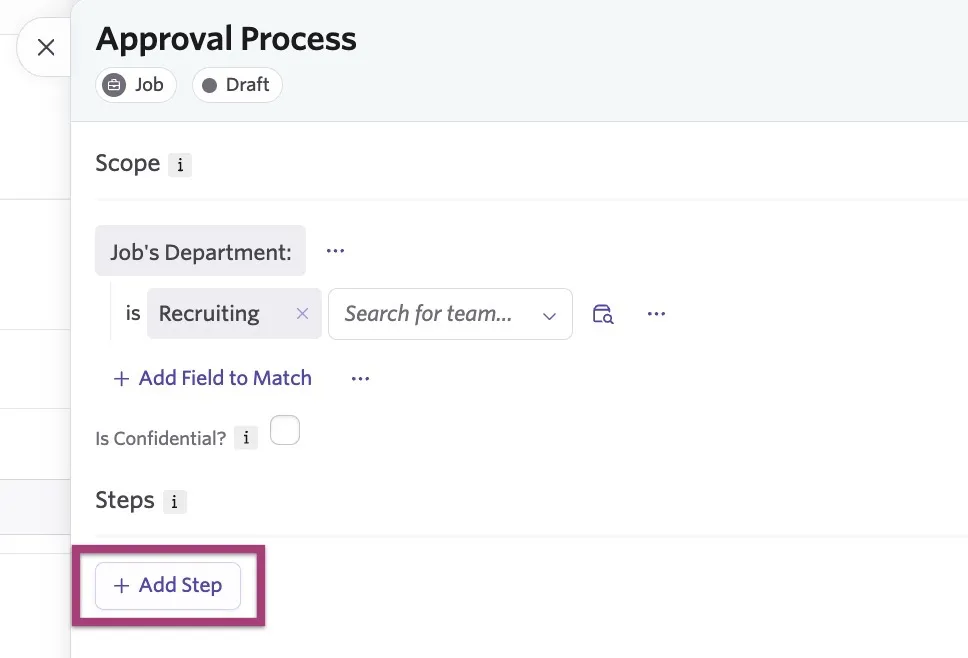
You can add names to your steps to more easily identify them. Click the pencil icon to the right of the step name to amend it.
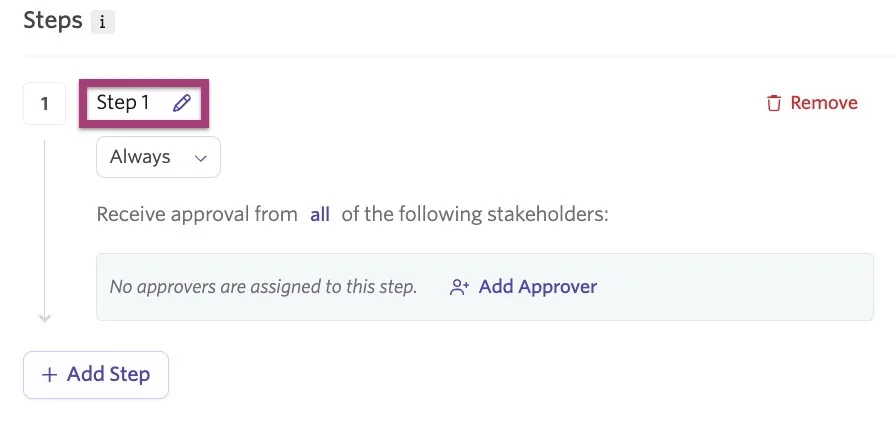
Conditional steps
Conditional steps allow you to set scopes within approval steps. This means you can create additional stages for offers, jobs, and openings that may need further review without the need to configure a whole new approval flow for those edge cases.
Conditional steps in Approvals are only available on the Plus and Enterprise plans.
Foundations | Legacy Plus | Plus | Enterprise |
|---|---|---|---|
❌ | ❌ | ✅ | ✅ |
To set a step to only run if specific conditions are met by the offer, job, or opening, click the Always dropdown within your step and set it to When condition matches.
Ashby evaluates the conditions of your scope when an approval request is submitted. For example, if you are creating an opening and an approval process is in place, Ashby reviews your approval flow scopes when the approval request is submitted. The opening uses the approval flow it matches the scope for.
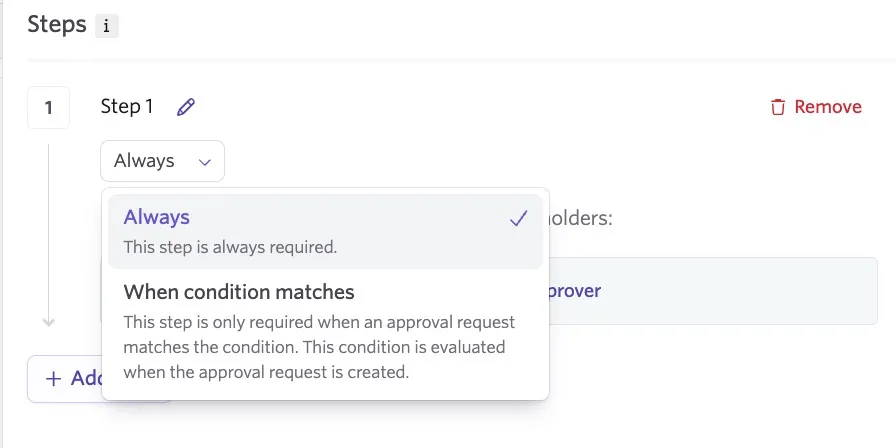
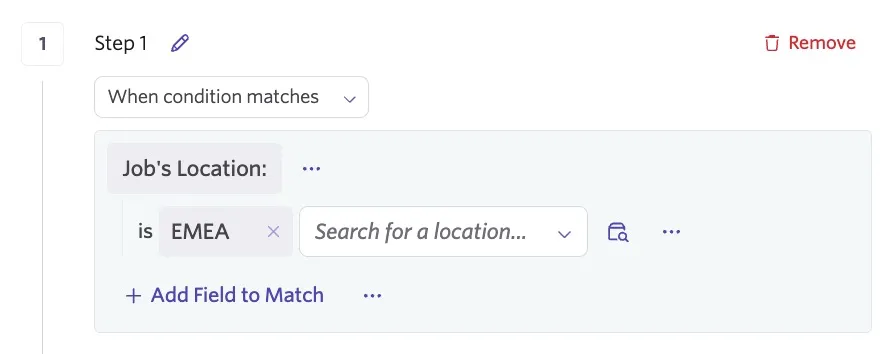
To set your step conditions, click + Add Field to Match to select a field and then determine the values that are part of your criteria.
In the example below, this step of a job approval process only runs if the job's location is set to EMEA. If the job's location is not EMEA, Ashby skips that step.
Approvers
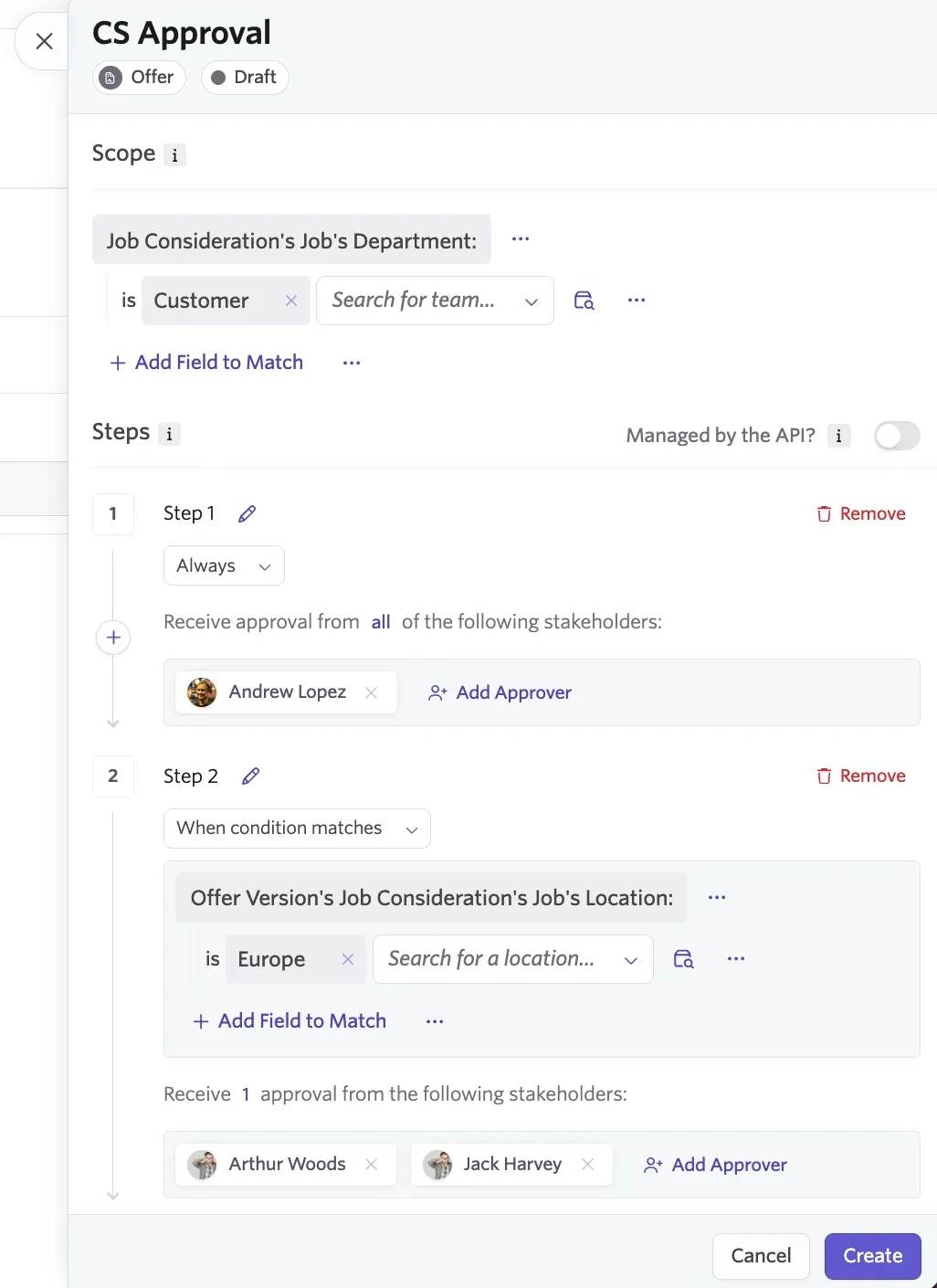
Approvers are the specific stakeholders completing the review. Click + Add Approver within a step to add a stakeholder to a step. You can include multiple approvers at each step or select a pool of users based on their role on the job consideration. You can then choose whether all, one, or some approvers need to provide approval.
Once you finish configuring your approval, click Create. It becomes active immediately.
Ordering the process list
Ashby evaluates activated processes in the order they are listed, so review your approval list as part of your setup. If multiple processes have a scope that applies, Ashby uses the one highest on your list. In the example pictured below, if an offer linked to a job in the Product Support department was also linked to a job with the location set as New York City, the Product Support Offer Approval flow is used because it is higher on the list.
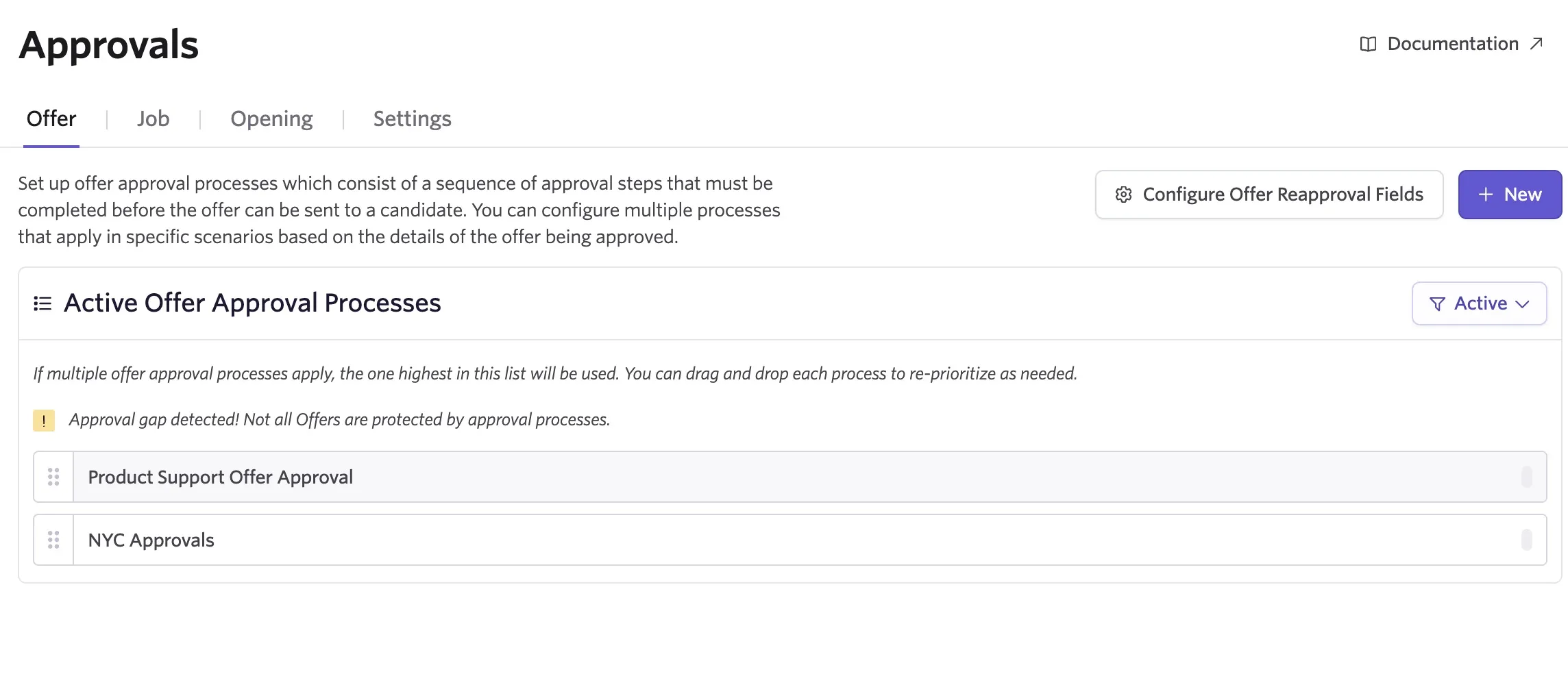
You can drag and drop each process to re-prioritize as needed. Hover over the six dots to the left of the approval flow's title, then click and drag the flows to re-order them.
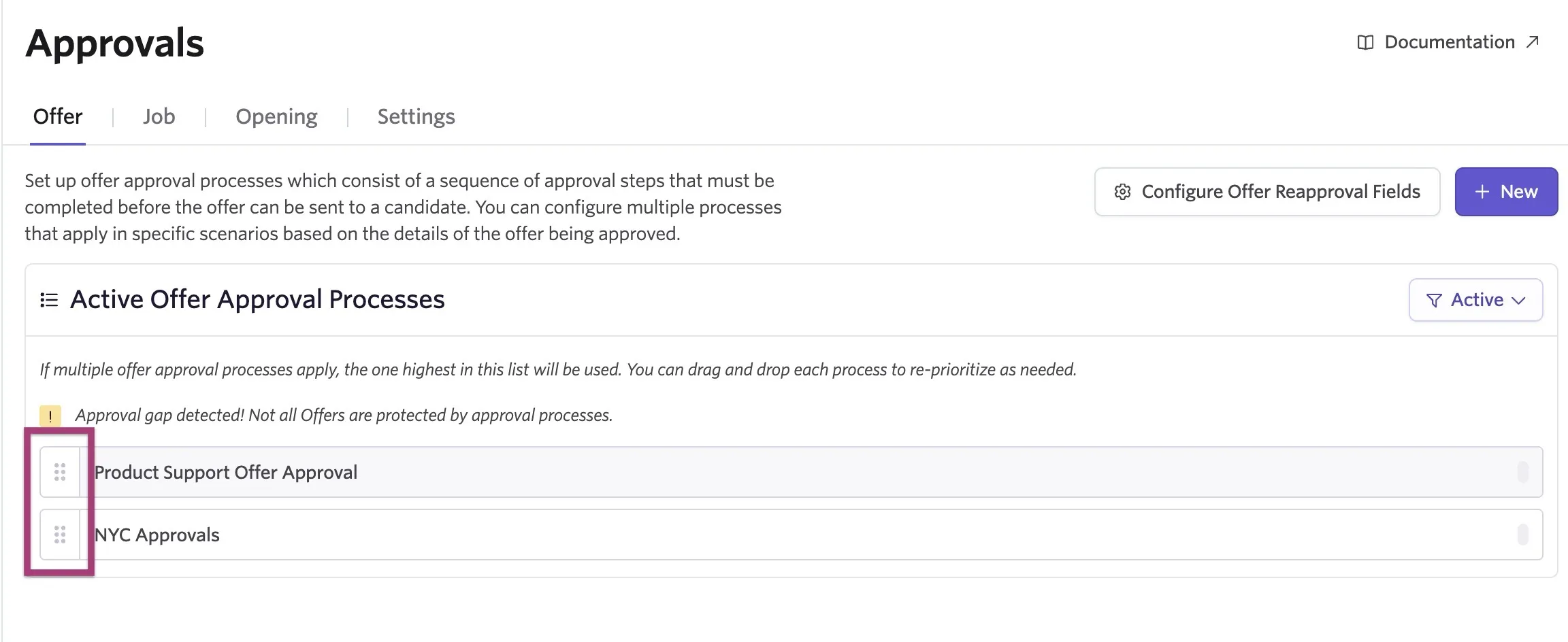
As an example, if you have a general catch-all approval flow, move it to the bottom of your Approvals list so Ashby considers all other flows first.
Example approval processes by scope types
Setting the scope is highly flexible, but the most common options selected are the department and the role. Examples of each are below.
Scope by department
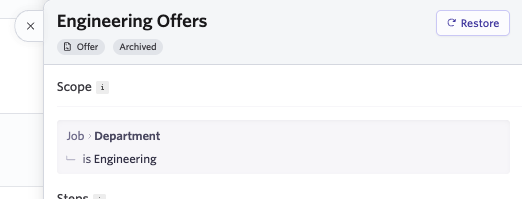
In this example, the scope field is set to the job's department. All job considerations that an offer is generated for in the engineering department follow this example process.
Scope by role
In this example, the scope field is set to rely on a specific recruiter. All job considerations that an offer is generated for where Arthur is set as the recruiter on the hiring team follow this example process.
What an approver sees
For more on this, see Configuring Approval Settings and NotificationsConfiguring Approval Settings and Notifications
Editing an approval
To edit an approval:
- Navigate to Admin > Organization Setup > Approvals.
- Select the approval tab and click the approval.
- Click Edit within the approval details.
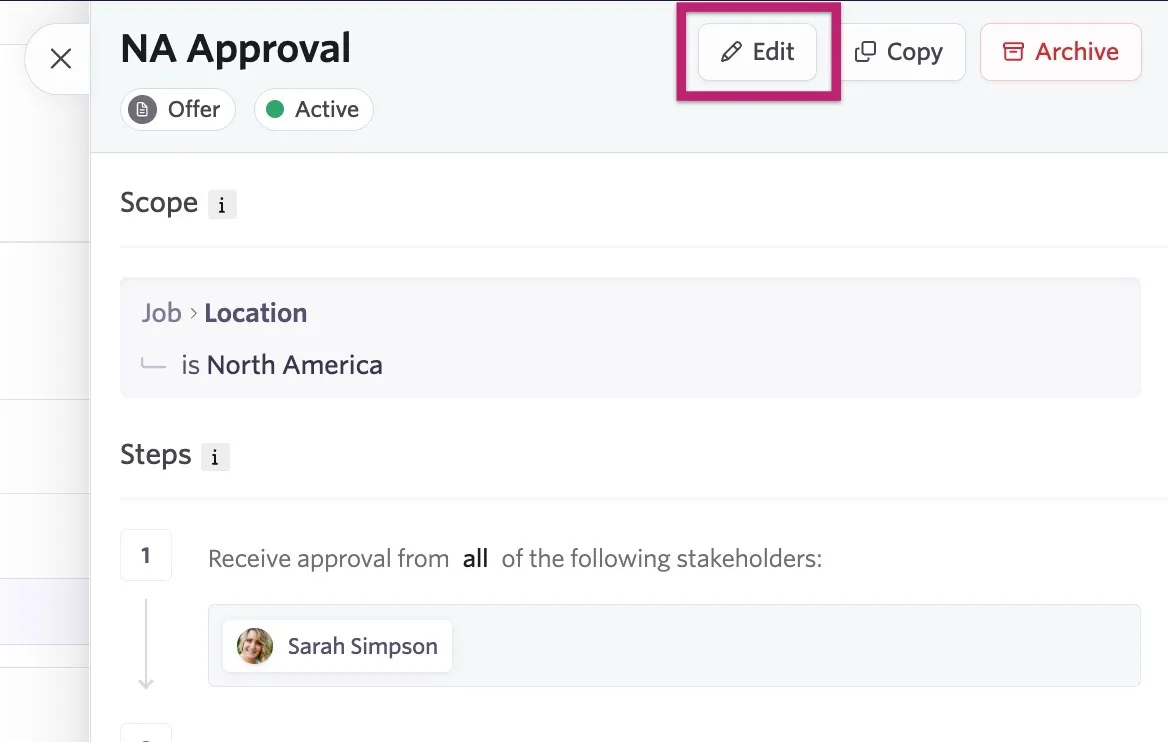
- Edit, remove, or add scopes and/or steps as needed, then click Save Changes to apply the new approval setup to approval requests moving forward.
Ashby evaluates approval setups when an approval request is submitted. If you have approvals in flight when editing an approval setup, Ashby does not apply the new approval process to them.
Reporting on approvals
For a list of available fields and reporting options, see Reporting on ApprovalsReporting on Approvals.
FAQ
How many processes can I have?
You can create unique approval processes that take effect under certain conditions. As only one approval process applies to each offer, the order of processes in the list determines the priority with which these processes take effect. You can optionally configure a default fallback process that runs when no other process applies.
Is it possible to set the Hiring Manager on the hiring team of a job as an approver instead of selecting a specific person?
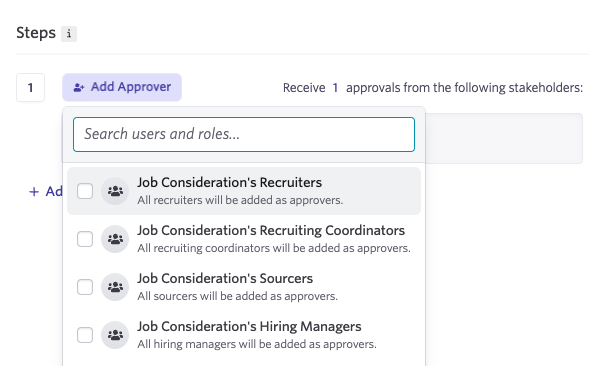
Yes. You can select a pool of users as approvers based on their role on the job. You can pick from pulling an approver from the Job Consideration's Recruiters, Recruiting Coordinators, Sourcers, and/or Hiring Managers.
Can I set an approval chain via the API?
The enterprise offer approval API tool is only available on the Enterprise plan. When creating an approval, you have the option to set it to be managed via the API.
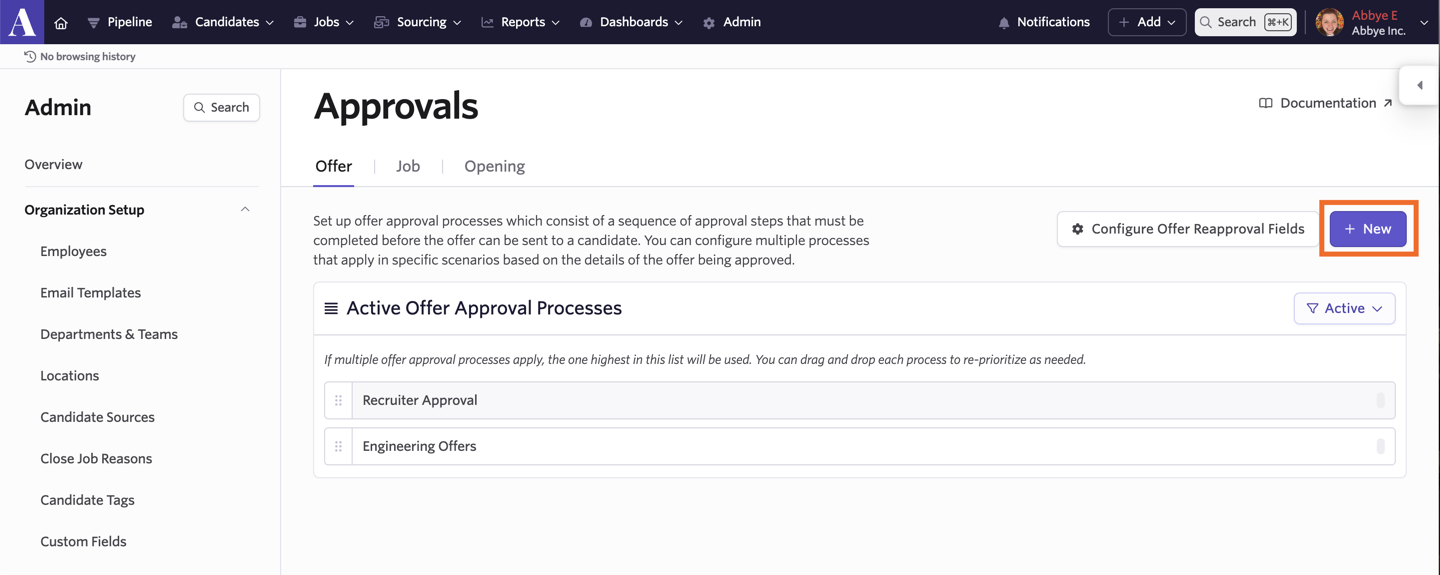
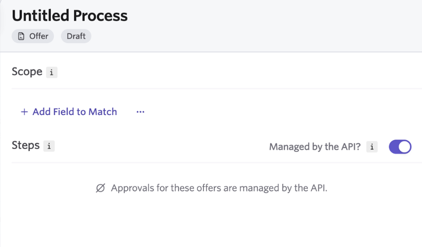
To create an approval within Ashby, navigate to Admin > Organization Setup > Approvals and click + New.
Toggle on the Managed by the API? option in the Steps section. Optionally, set up criteria in the scope section if only offers that meet certain criteria should be managed via the API.
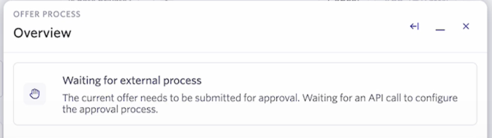
When a recruiter creates and submits an offer, a Waiting for external process message appears in the offer overview. This means that Ashby is waiting for an approval chain to be submitted via an API call.
To pull data via the API to update the approval chain, you can use the approvalDefinition.update request. For details, see the approvalDefinition.update API reference.
Once the approval chain is received, the approval steps are added to the offer.
This option is currently only available for offers.
Why isn't the 'Hired' stage appearing in the dropdown when I click on 'Change Stage'?
The Hired stage does not appear in the Change Stage dropdown if there are active Offer Approvals set up in the Admin > Approvals > Offers section. To complete the offer process, click Offer Accepted within the offer's settings. The candidate's stage automatically changes to Hired.
How do I archive an approval process?
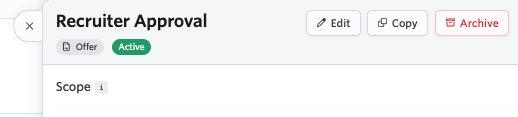
Navigate to Admin > Organization Setup > Approvals and click the approval process. From here, you can edit, copy, or archive the approval process.
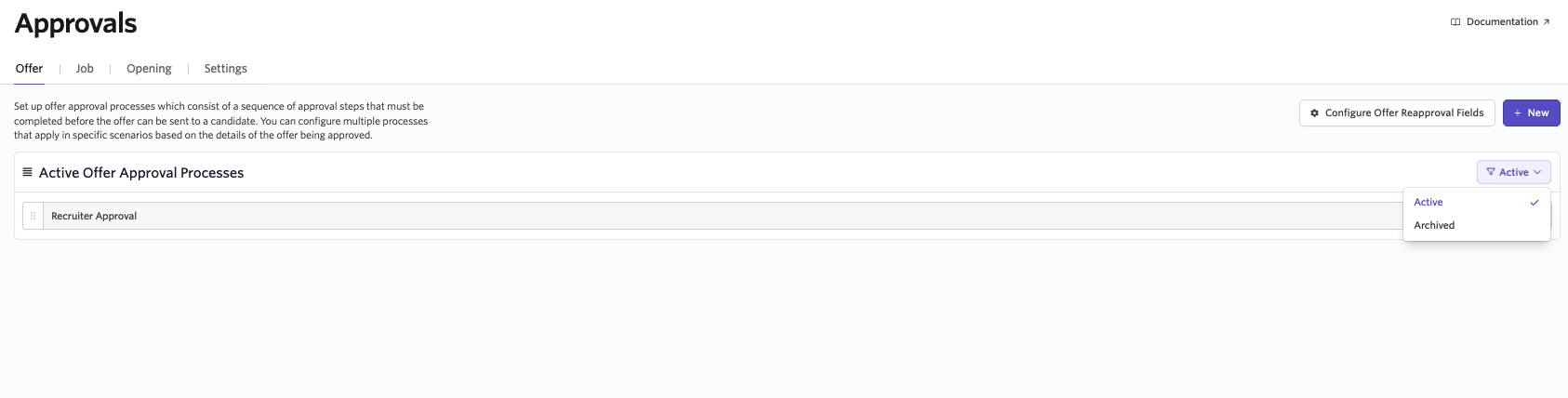
You can restore archived approval processes by changing the Active dropdown to Archived when viewing your approvals.
Click the process you want to restore, then click Restore.
How do job approval processes work with confidential jobs?
As part of the setup process for a job approval workflow, you can check the Is Confidential? checkbox within the Scope section.
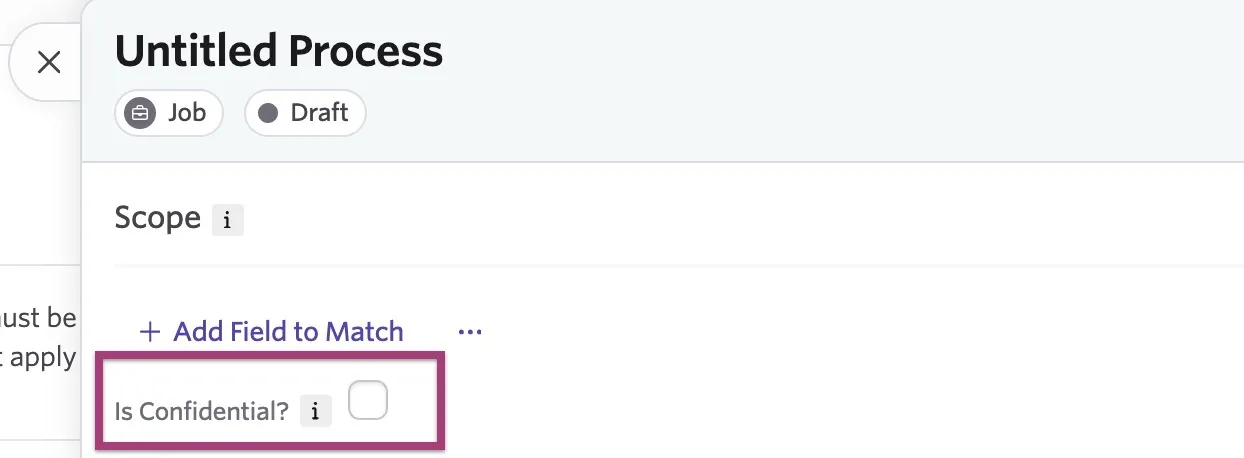
If you check this checkbox, the approval process only applies to confidential jobs that meet the criteria set in the approval scope. If you leave the checkbox unchecked, the approval process does not apply to confidential jobs, even if they meet the other scope criteria.