Submitting Approval Requests
This article covers how to submit approvals for openings, jobs, and offers. For information on setting up approvals and approval settings, see Creating and Editing Approval ProcessesConfiguring Approvals.
Permissions and access
Approvals can be set up on the Legacy Plus, Plus, and Enterprise plans:
Foundations | Legacy Plus | Plus | Enterprise |
|---|---|---|---|
❌ | ✅ | ✅ | ✅ |
- Users with any access role in Ashby can be set as an approver.
Using an approval process
Once activated, all approval types follow a similar flow.
- Complete the fields for the opening, job, or offer.
- Review the submission details and the approval flow before submitting the request.
- Approvers receive a notification prompting them to approve the request. Once they submit their response, the process moves on to the next approver.
Opening approvals
For more on openings, see Openings ManagementOpenings Management.
Use opening approvals to approve new headcount in Ashby.
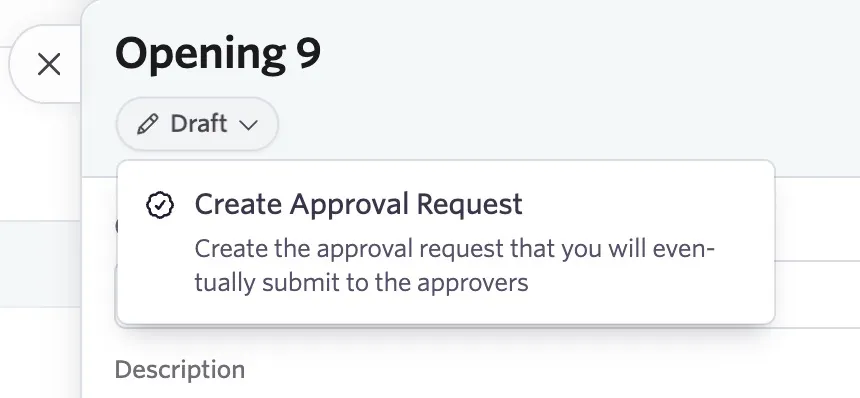
When you create an opening, it is in a Draft state. You can then move it into the next state by clicking the Draft tag. You have the option to approve it or create an approval request.
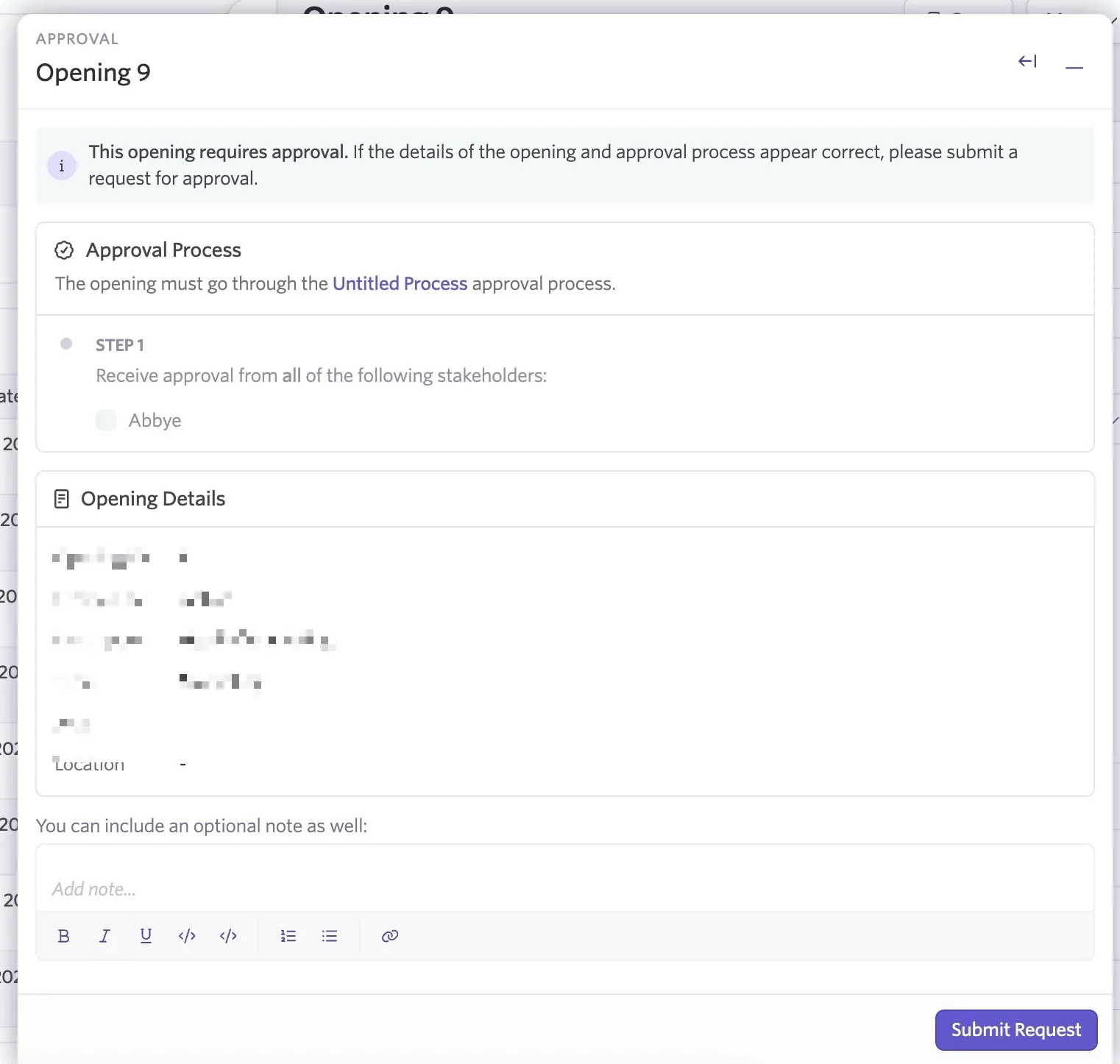
Review the approval flow details, then click Submit Request to start the approval flow. When submitting for approval, you have the option to add a note.
Once the approval flow is complete, the opening moves into the Approved state. From there, you can Open the opening and allow people to hire against it.
Sending a reminder for an opening approval request
If you need to send a reminder for an opening approval:
- Navigate to Jobs > Openings.
- Click the opening in question, then click View Approval.
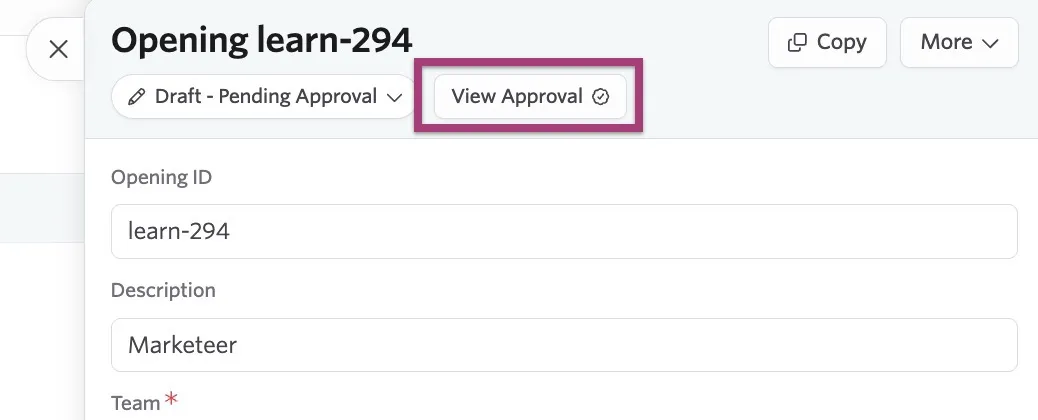
- On the following popover, click Send Reminders.
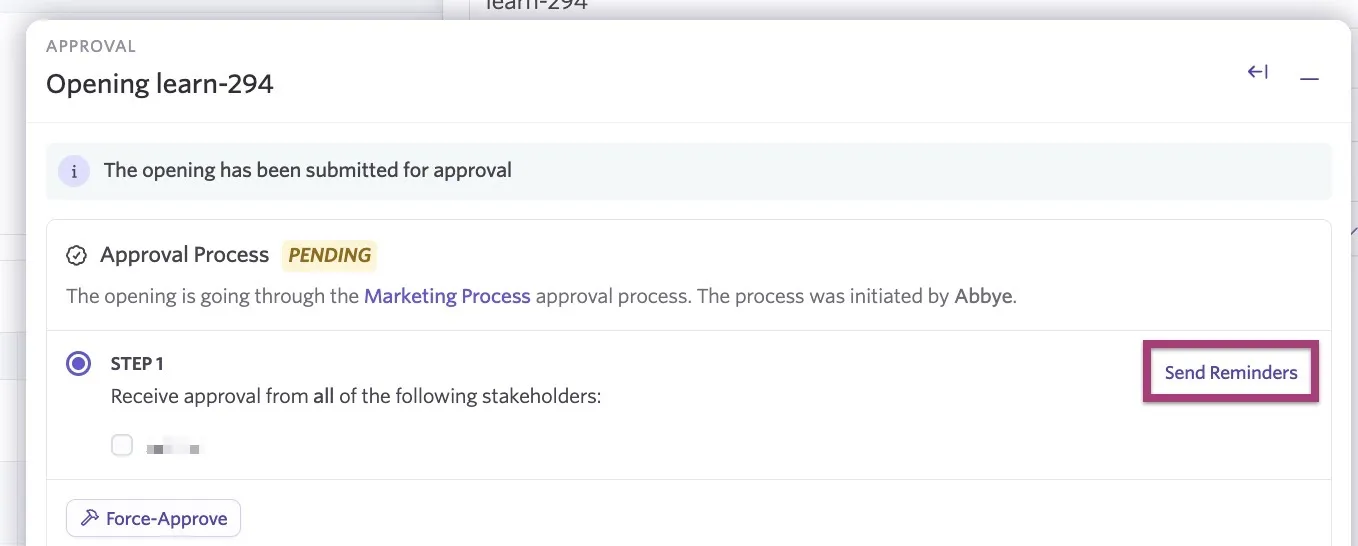
- Confirm the recipients and add a message if needed, then click Send Reminder to X Approvers.
Opening reapproval fields
On approved openings, changes to fields set to Require Reapproval trigger a new approval cycle before taking effect. Changes to fields that do not require reapproval are applied immediately when you save.
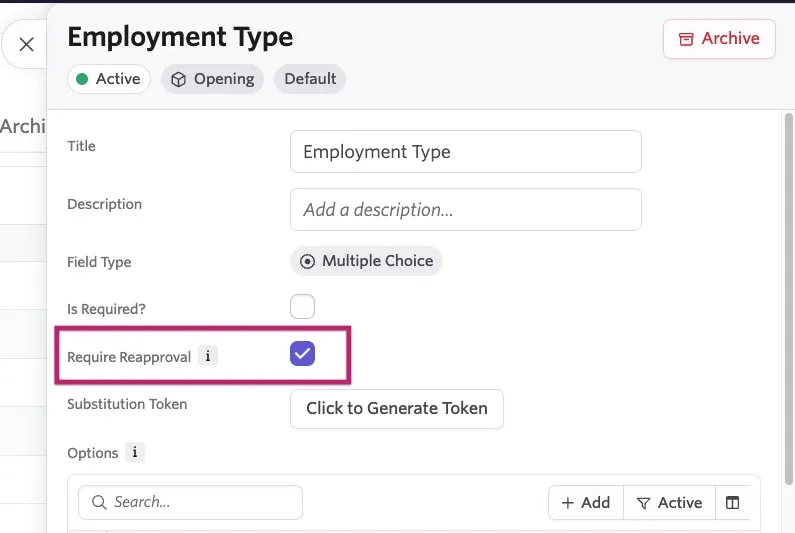
To learn how to create custom fields and mark them as requiring reapproval, see Custom FieldsCustom Fields.
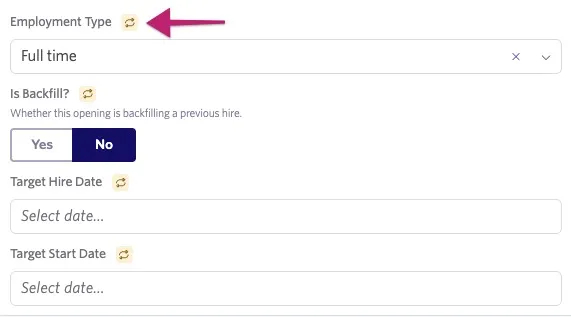
Fields that require reapproval have a yellow reapproval icon next to them to easily identify which fields fall under this condition.
When you make a change to a field that requires reapproval and select Save Changes, a window with the Pending Changes appears. Verify the details are correct, and select Submit Request to send to the approver(s).
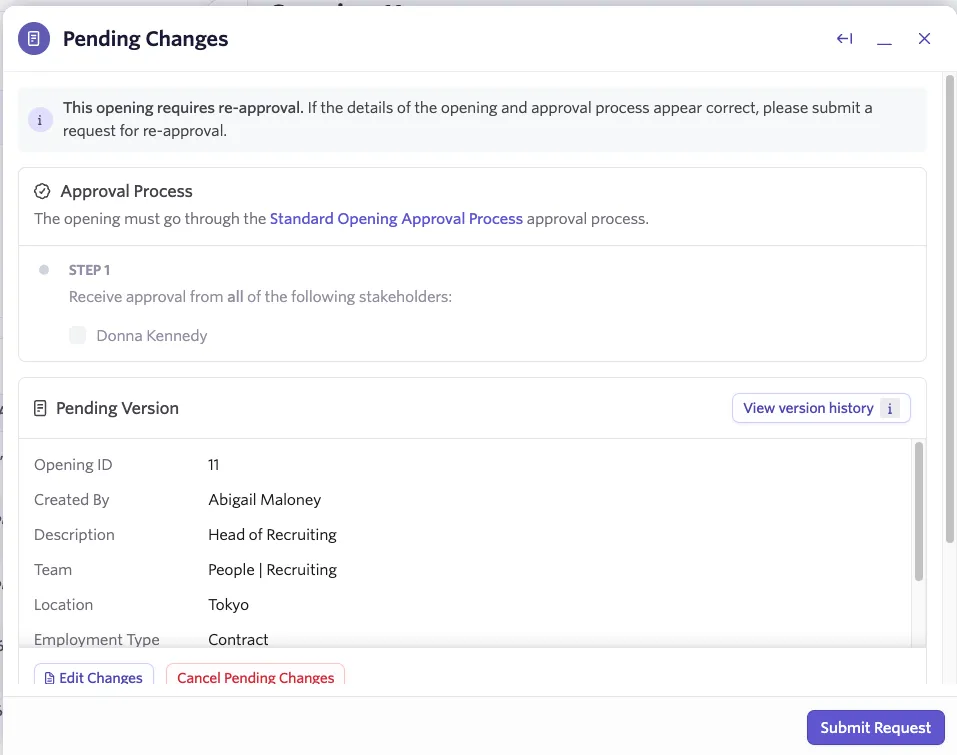
The approver receives a notification and can review a comparison of the changes.
While a reapproval is pending, the opening stays in an Approved state, so its connection to any linked jobs is not disrupted.
At the top of any openings with pending changes, a banner appears with a button allowing you to View Changes at any time. You can edit or cancel pending changes by selecting the respective buttons within this pane.
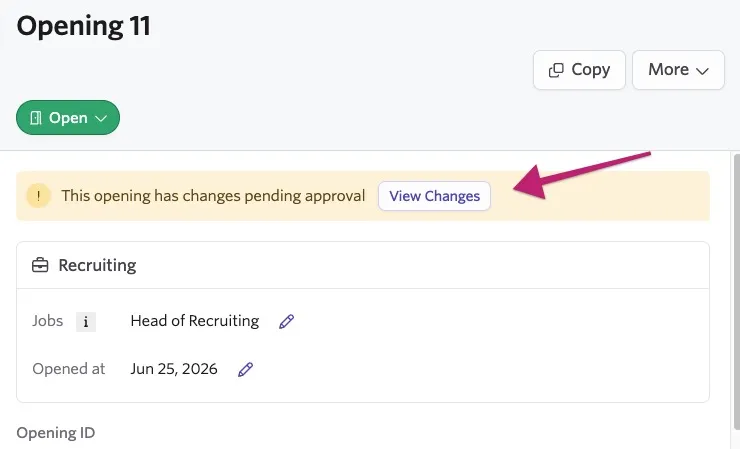
If an approver rejects the changes, you receive a notification and the opening reverts to its last approved version.
Job approvals
For more on jobs, see Creating & Opening JobsCreating & Opening Jobs.
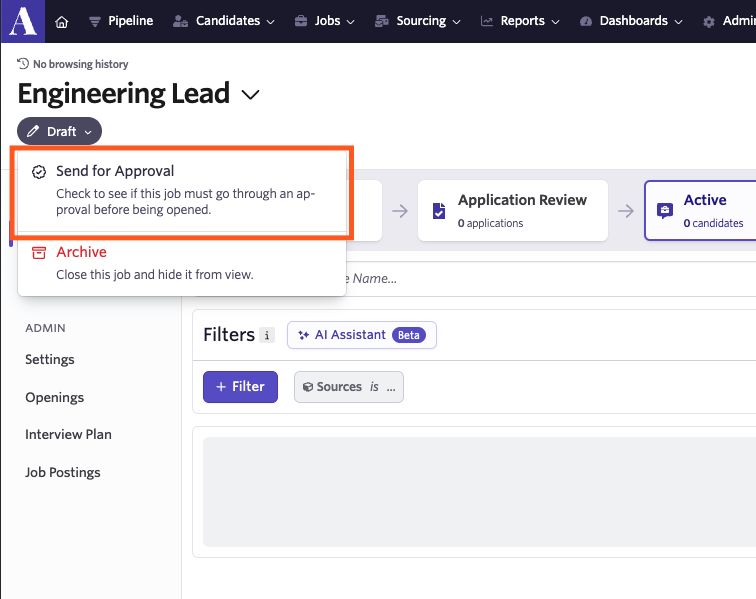
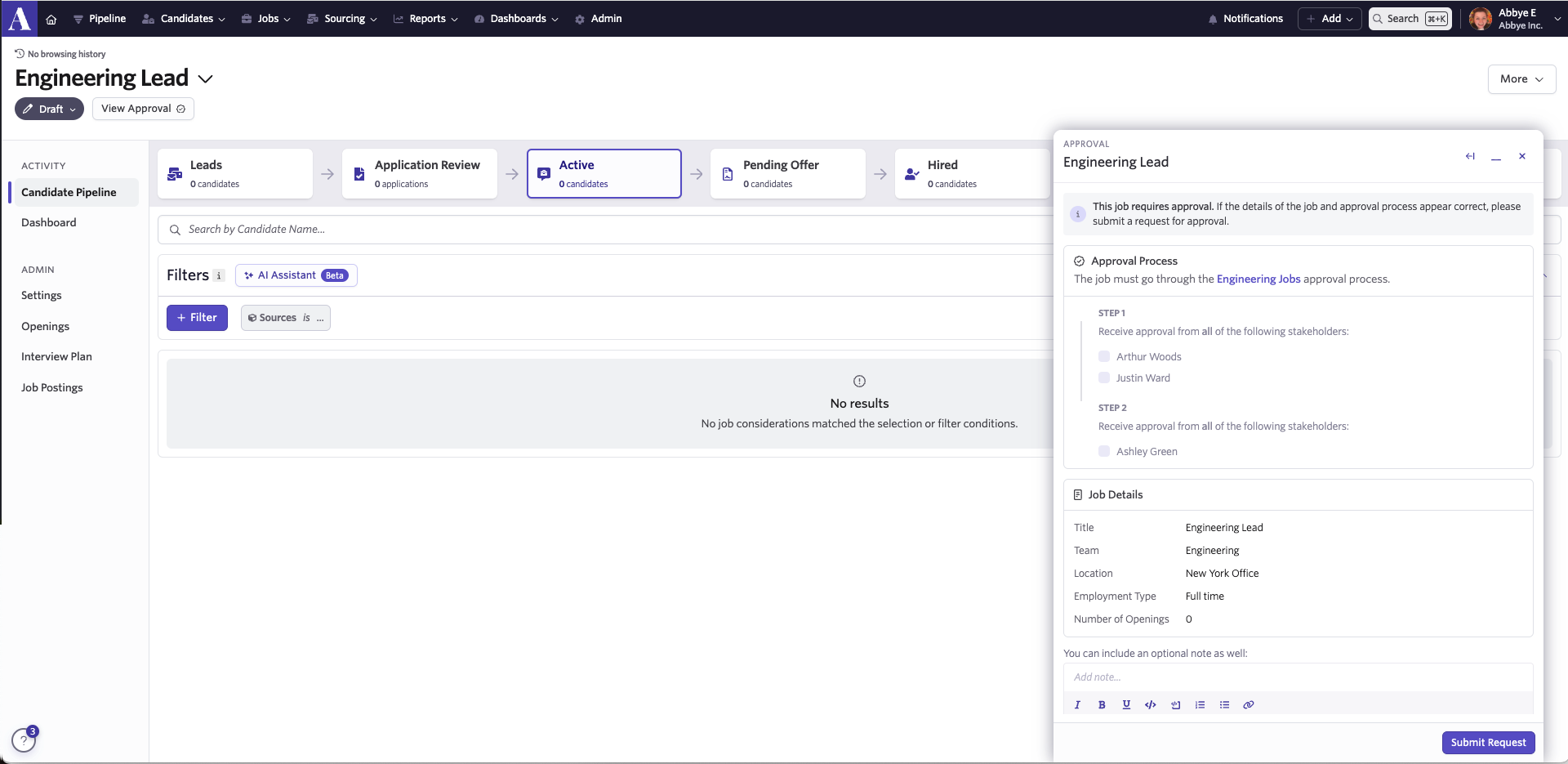
Use job approvals to approve the opening of a role. Once you create your job, click the Draft dropdown under the job title to see the option to Send for Approval. Click this to view the approval process and click Submit Request to start the approval flow.
Reviewers commonly ensure the interview plan has all steps needed to assess candidates' role fit, and the job postings meet quality standards.
Sending a reminder for a job approval request
If you need to send a reminder for a job approval request:
- Navigate to Jobs > Jobs.
- Click the job in question, then click View Approval.
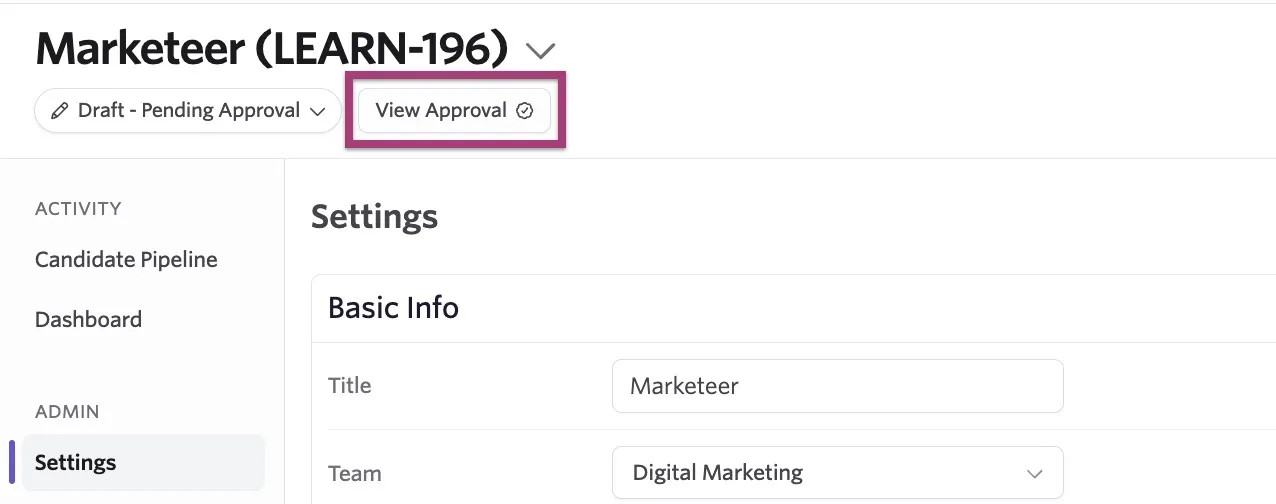
- On the following popover, click Send Reminders.
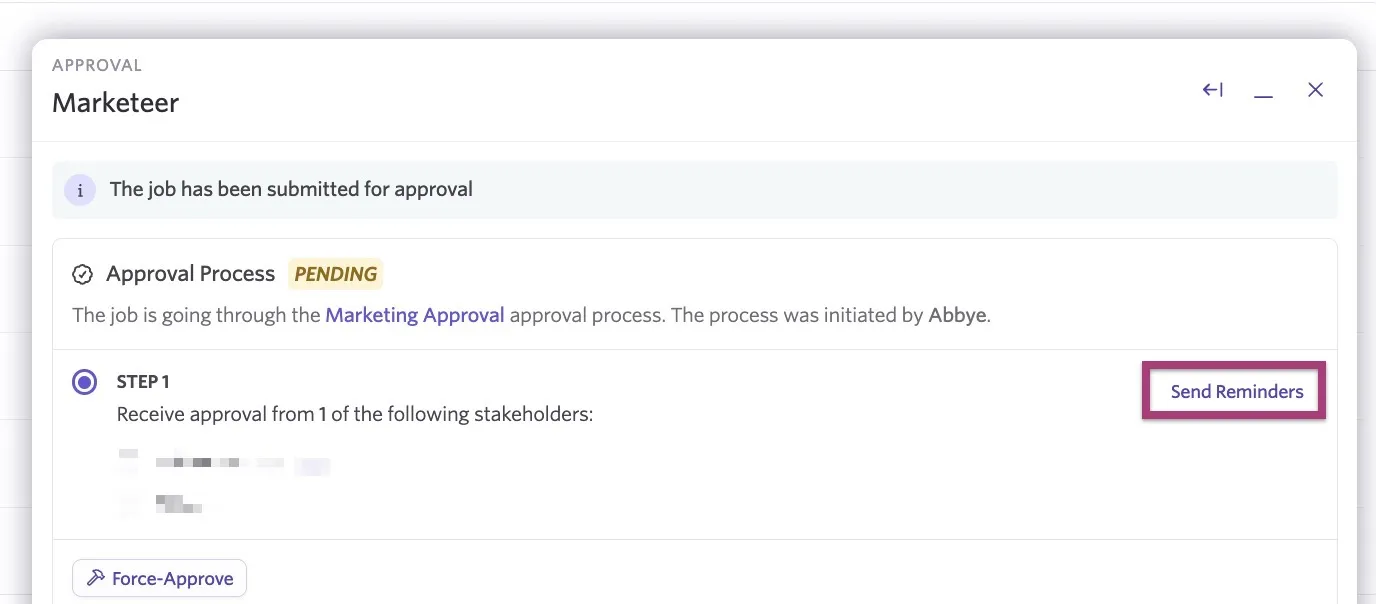
- Confirm the recipients and add a message if needed, then click Send Reminder to X Approvers.
Canceling and restarting an in-progress job approval
If you edit a job and make amendments to a job field that requires approval, Ashby restarts the approval request using the updated approval process, if one exists.
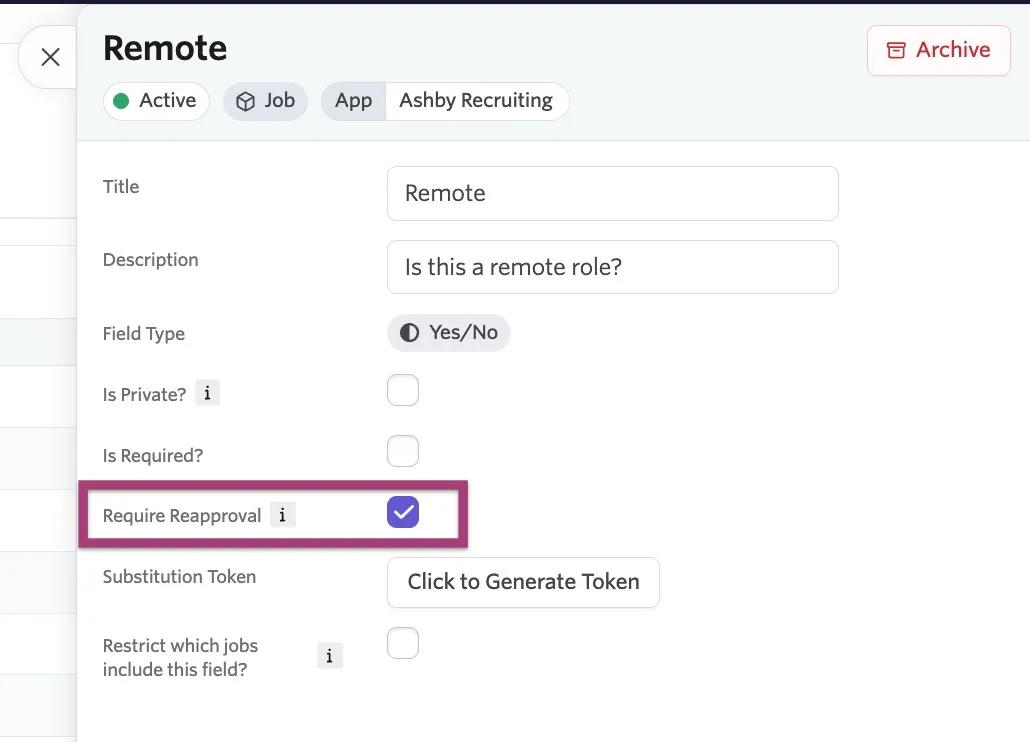
To set job Custom FieldsCustom Fields as fields that require reapproval if edited:
- Navigate to Admin > Organization Setup > Custom Fields.
- Click the Jobs tab.
- Create a new custom field or click an existing custom field to amend it.
- Ensure the Require Reapproval checkbox is checked.
To edit a job:
- Navigate to Jobs > Jobs.
- Locate and click the job in question.
- Navigate to the Settings section of the job and edit a field that requires reapproval.
- Confirm the correct approval process is showing and click Submit Request.
Offer approvals
For more on offers, see Offers and Offer LettersOffers and Offer Letters.
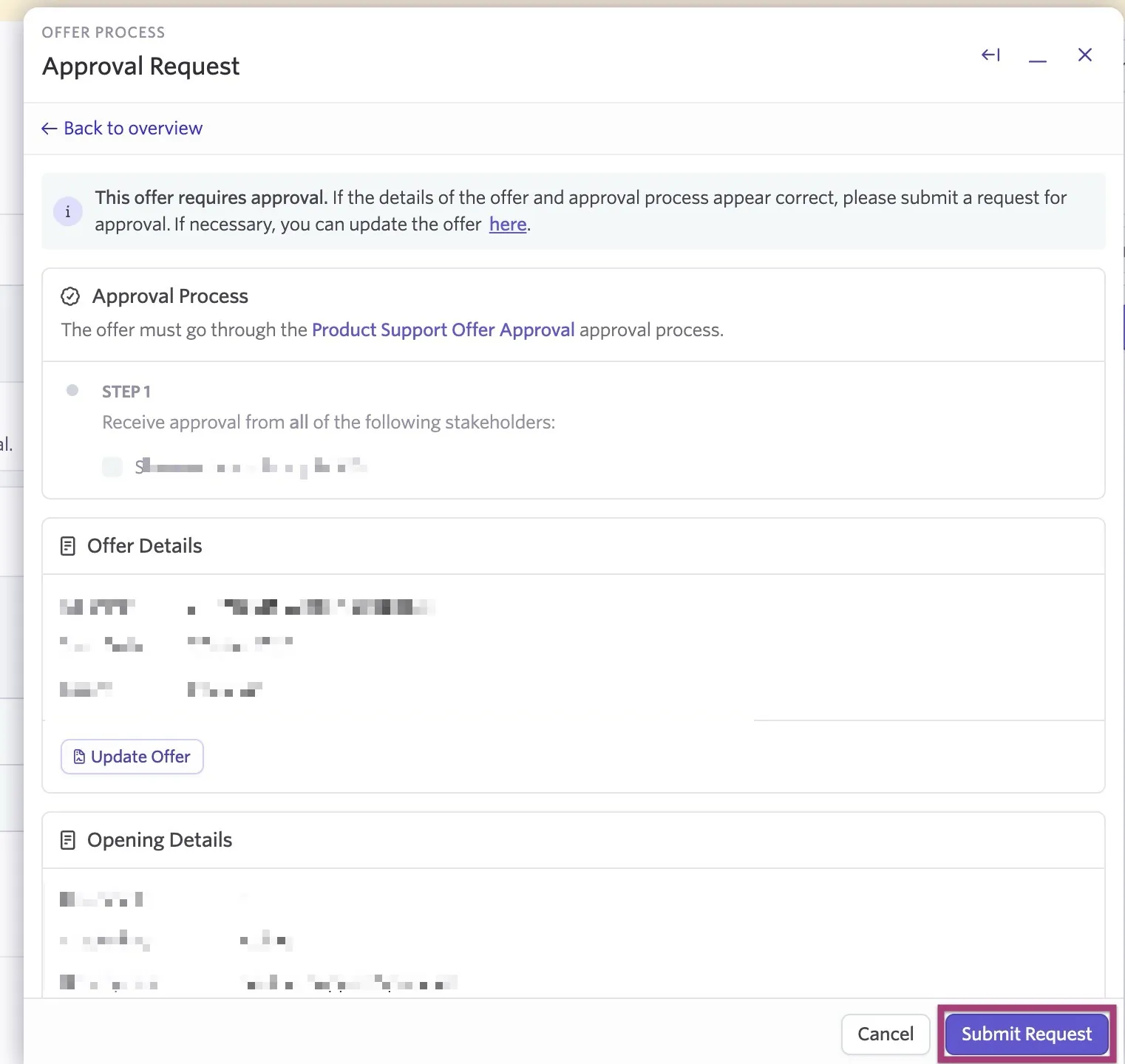
Use offer approvals to approve the offer details before generating an offer letter and extending an offer to a candidate. Once you create the offer and click Submit, you see the approval process details. Review the approval process and offer details, then click Submit Request to start the approval flow.
Sending a reminder for an offer approval request
If you need to send a reminder for an offer approval request:
- Navigate to the candidate's profile, then click View Offer on the offer activity.
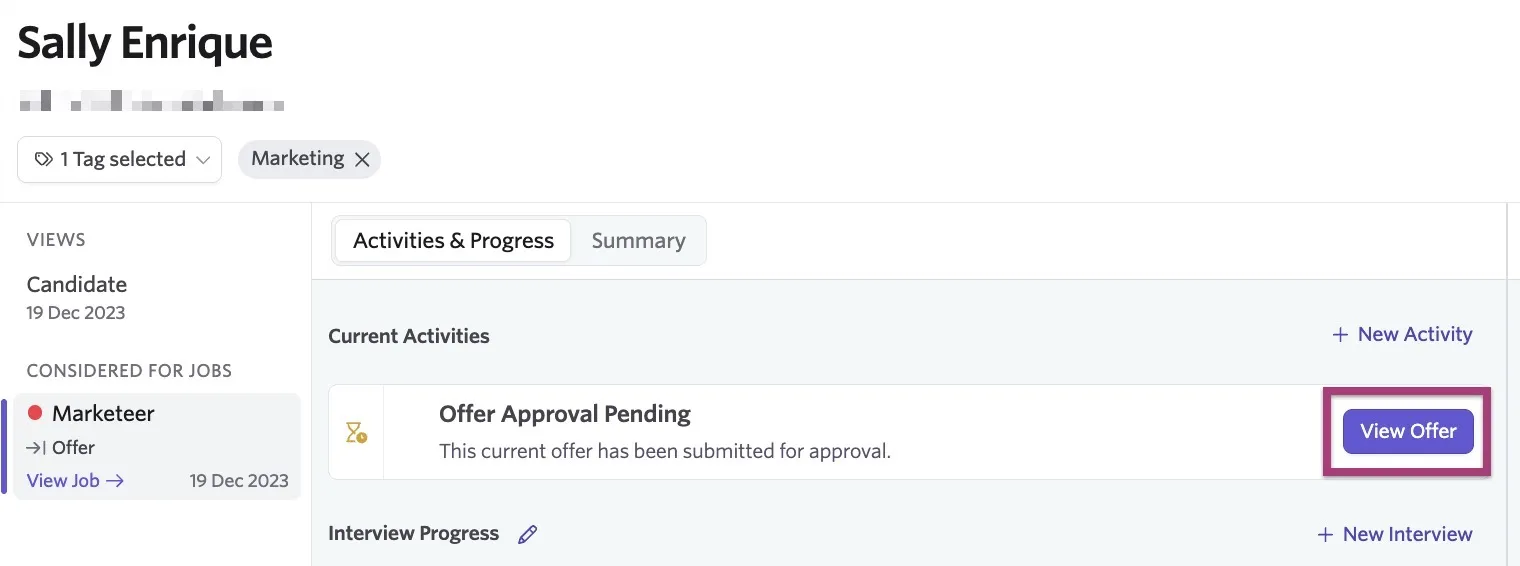
- Within the Offer Overview popover, click Send Reminders.
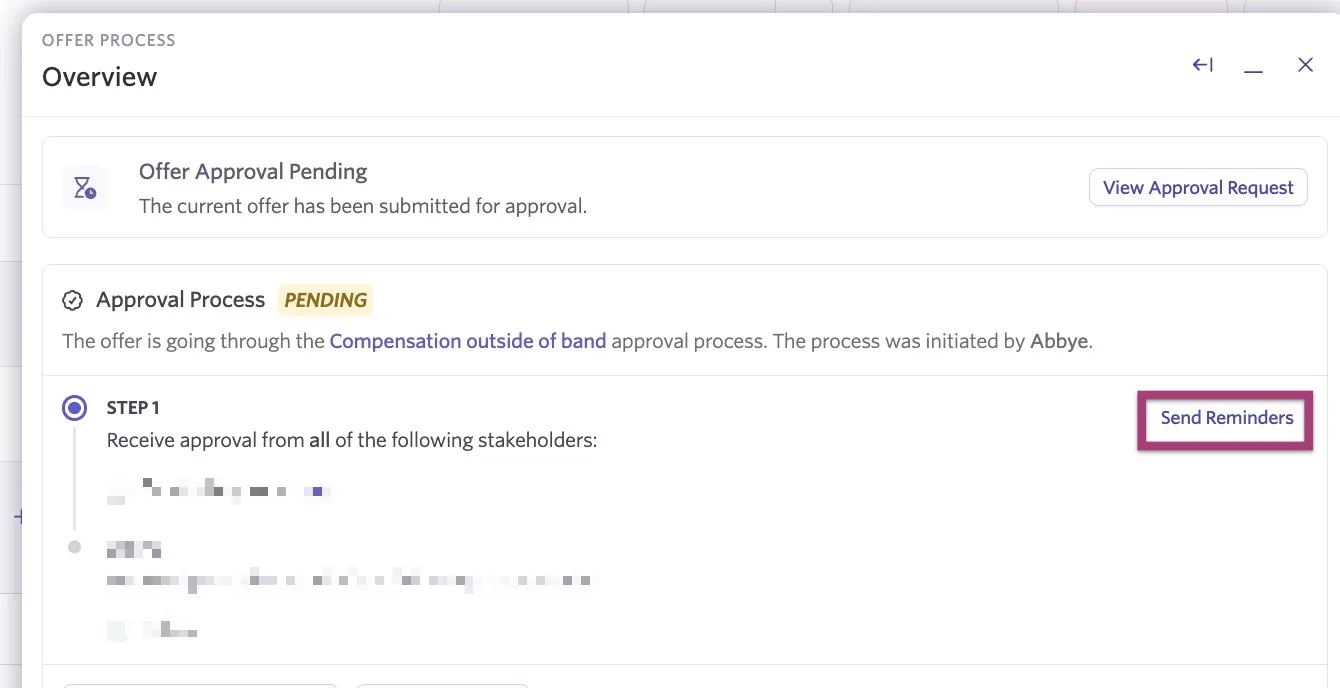
- Confirm the recipients and add a message if needed, then click Send Reminder to X Approvers.
Offer re-approval fields
On offers, changes like the candidate's last name or address often don't require reapproval, but adjustments to fields like salary and start date may require the approval process to run again. Reapproval fields allow your team to determine which fields do and don't require a new approval process. You can select your reapproval fields via the Configure Offer Reapproval Fields option on the Approvals page.
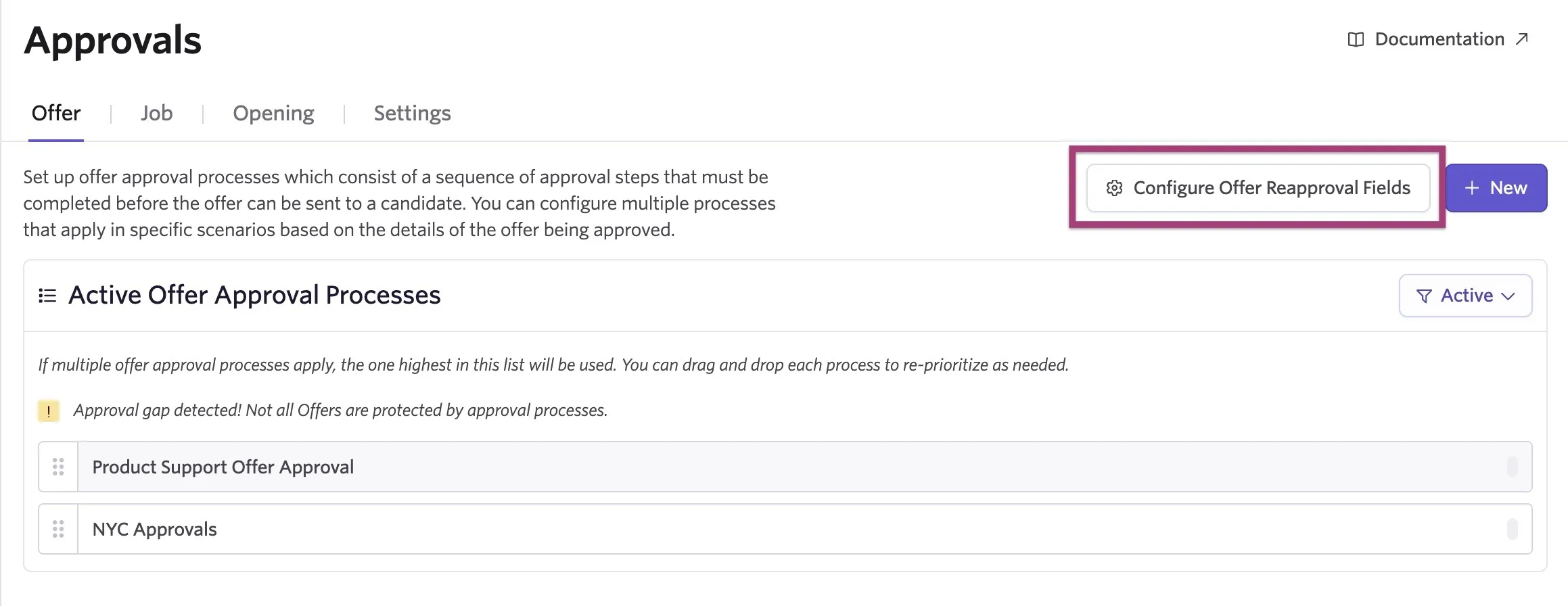
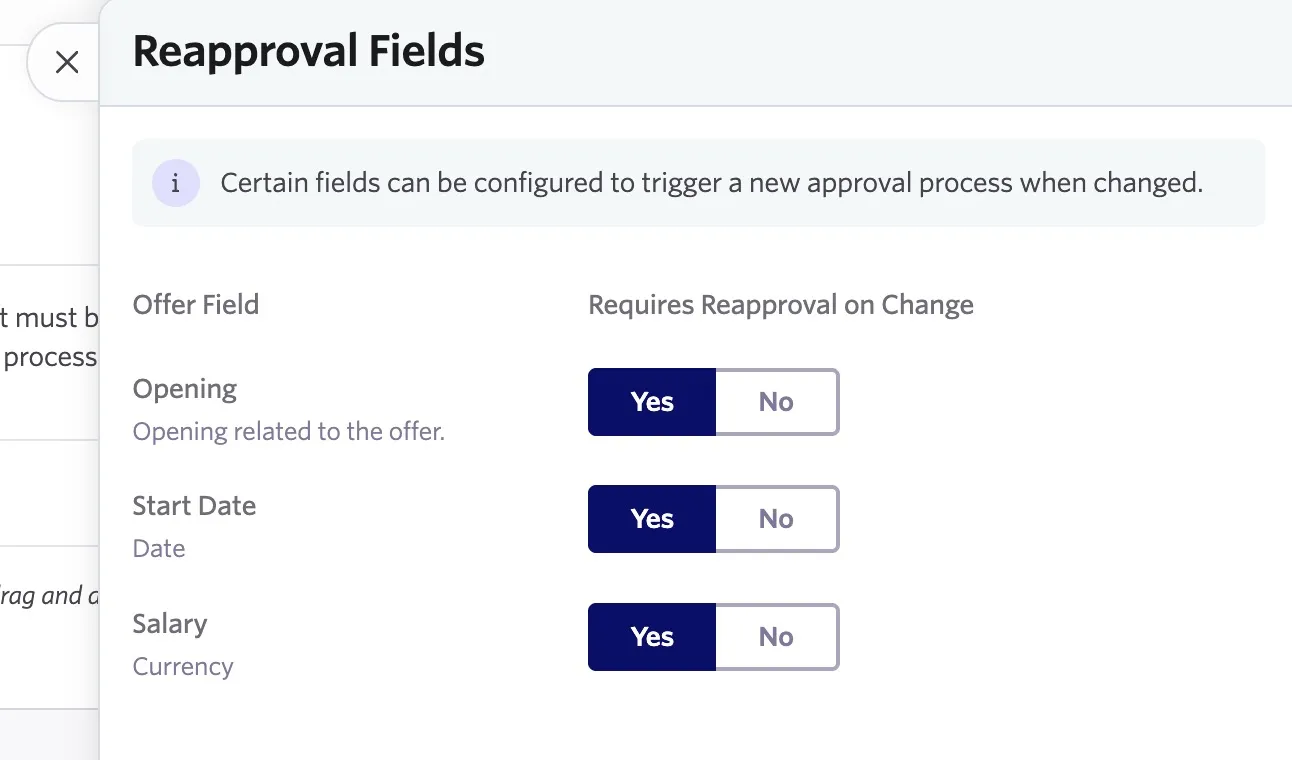
Use the Yes/No radio buttons to determine the fields that should trigger an offer reapproval in the popup. Your changes are saved automatically.
Enabling editing of offer approval processes on a one-off basis
Having the option to edit offer approval processes on a one-off basis can be useful in the case of any unexpected changes, such as assigning a delegate if the usual approver is on paid time off (PTO) or looping in an additional approver for a specific offer.
To have the option to edit an approval process on a one-off basis, either before the offer approval is submitted or during the active approval process, navigate to Admin > Organization Setup > Approvals > Settings. From here, using the Allow Editing One-Off Offer Approval Processes dropdown, select an option to determine the users who are allowed to make these edits.
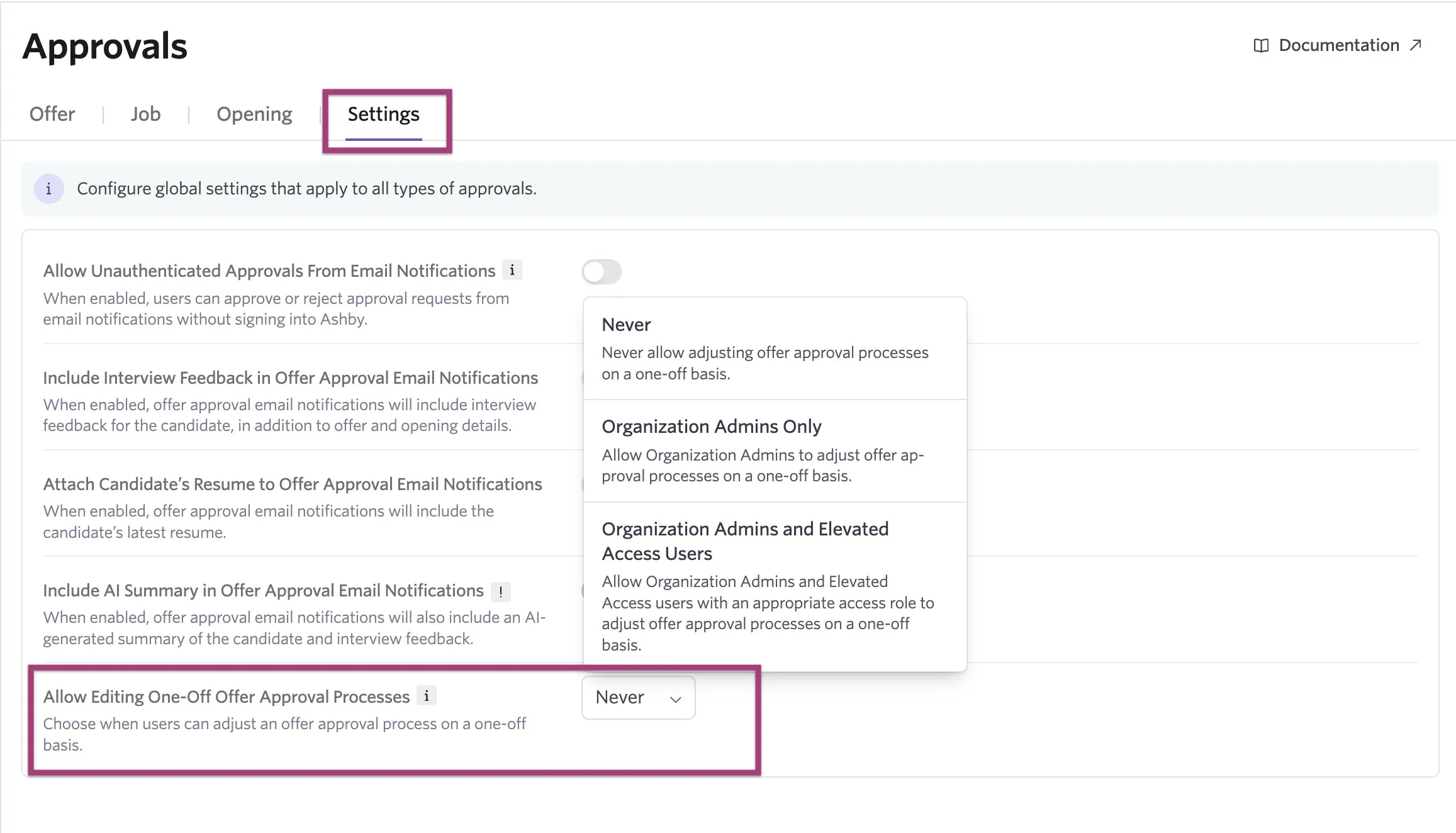
Never: Never allow offer approval processes to be adjusted on a one-off basis.
Organization Admins only: Only those with Organization Admin access can adjust offer approval processes on a one-off basis.
Organization Admins and Elevated Access users: Organization Admins and those with the required permissions as part of their Elevated Access role can adjust offer approval processes on a one-off basis.
The user needs to have Elevated Access - Admin Private access to view the offer and adjust the offer approval.
Adjusting the approval process for an offer
You cannot make one-off changes to the approval process once the offer has been approved.
You can make one-off amendments to your offer approval process either before you send the approval request for an offer, or during the approval process.
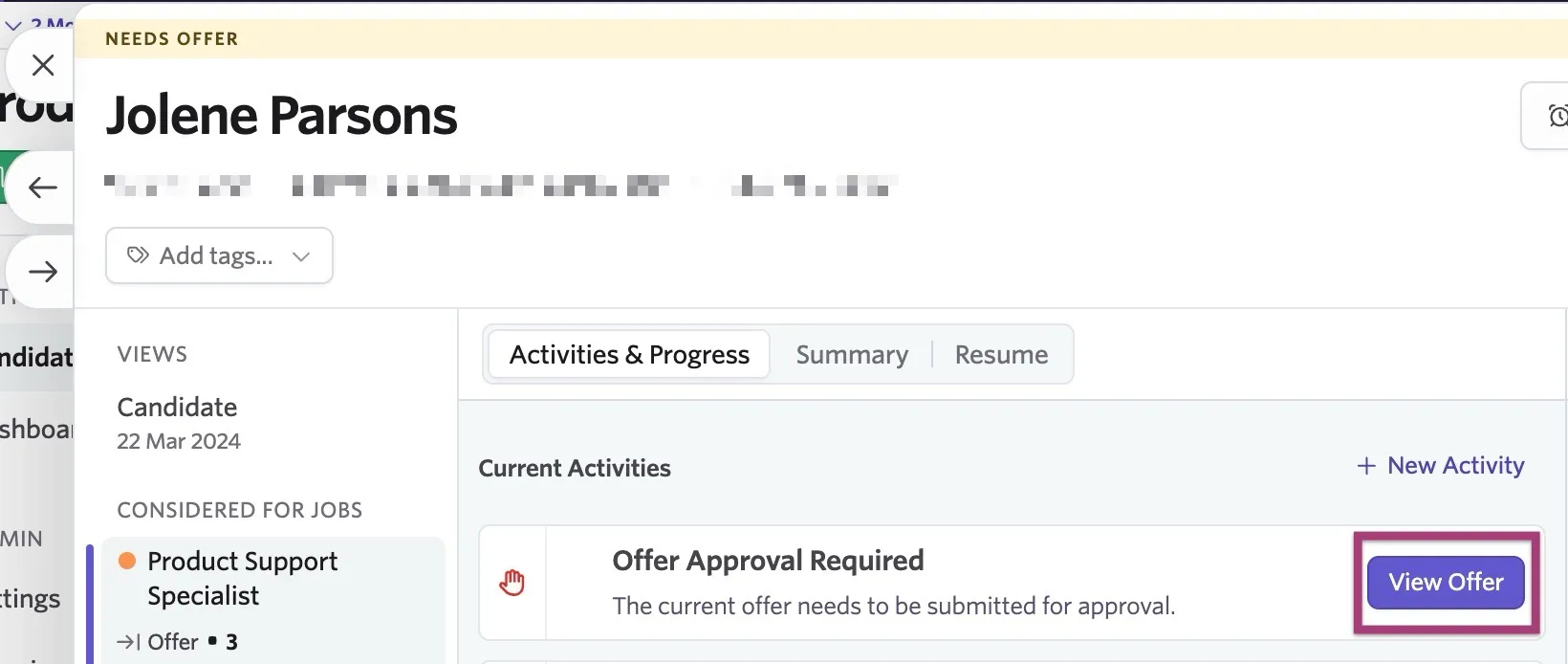
If you make changes to the approval process on the offer before submitting your request for approval, or while the approval process is in flight, click View Offer on the offer within the candidate profile.
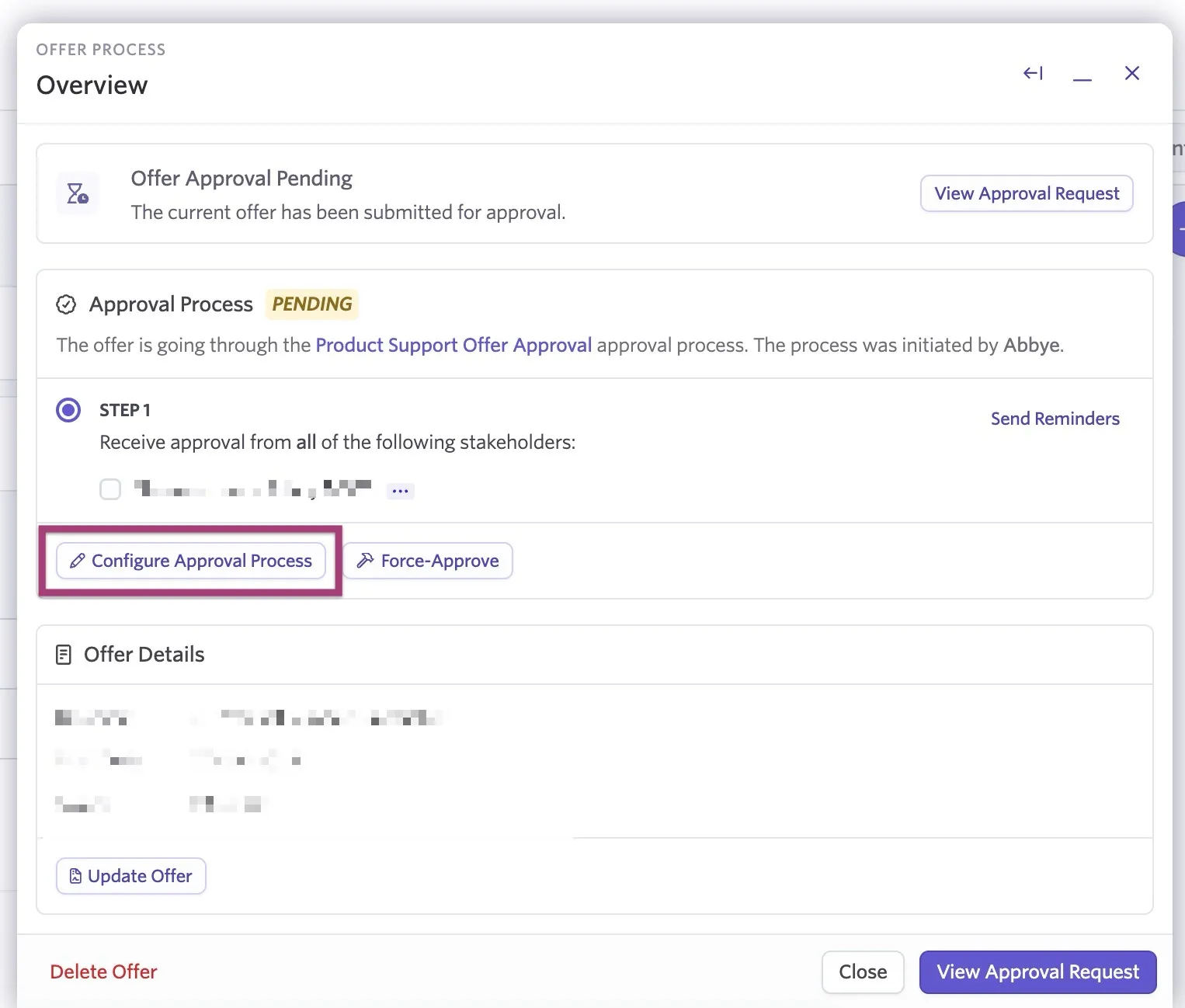
Click Configure Approval Process from within the Approval Process section of the offer.
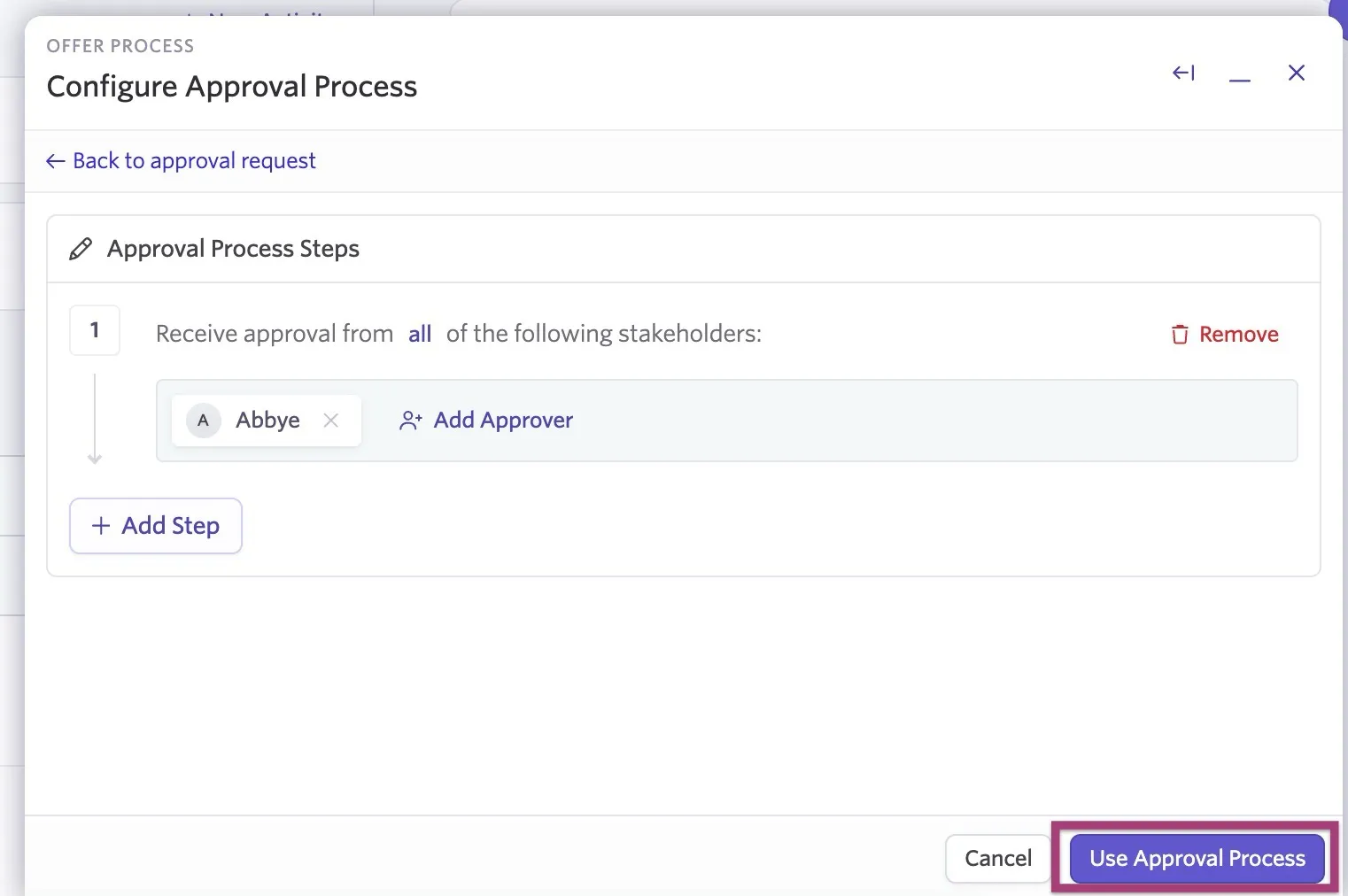
On the following screen, you can add or remove approvers from steps, add steps, or remove steps.
Once you make your adjustments, click Use Approval Process to confirm your changes. Your amendments appear on the offer.
These changes do not impact the original offer approval process set up within Admin > Organization Setup > Approvals.
The option to make one-off approval amendments is only available for the offer approval process. It is not available for opening or job approval processes.
FAQs
Can I trigger a reapproval process for jobs and openings once they've been approved?
For jobs, you cannot currently trigger a reapproval process for a job once it is approved. If reapproval fields are configured for specific custom fields, they only trigger reapproval while the initial approval is still in progress, not once it is complete. For example, if a change is made after approver 1 has approved a job but before approver 2 has done so, the approval process restarts and the first approver must provide approval again.
For openings, changes to fields marked as requiring reapproval trigger a new approval cycle before taking effect, even after the opening is fully approved. Changes to fields that do not require reapproval are applied immediately when you save. For more details, see the Opening reapproval fields section above.
Why am I seeing an approval gap message for openings and how do I resolve it?
You're seeing an approval gap message because your existing opening approvals have filters applied in their configurations. For example, you may have specified that an opening must be part of a specific team for that approval process to be triggered, or some other similar criteria. When you create an opening that doesn't meet the criteria of any configured approval flow, Ashby doesn't trigger an approval process, resulting in an approval gap.
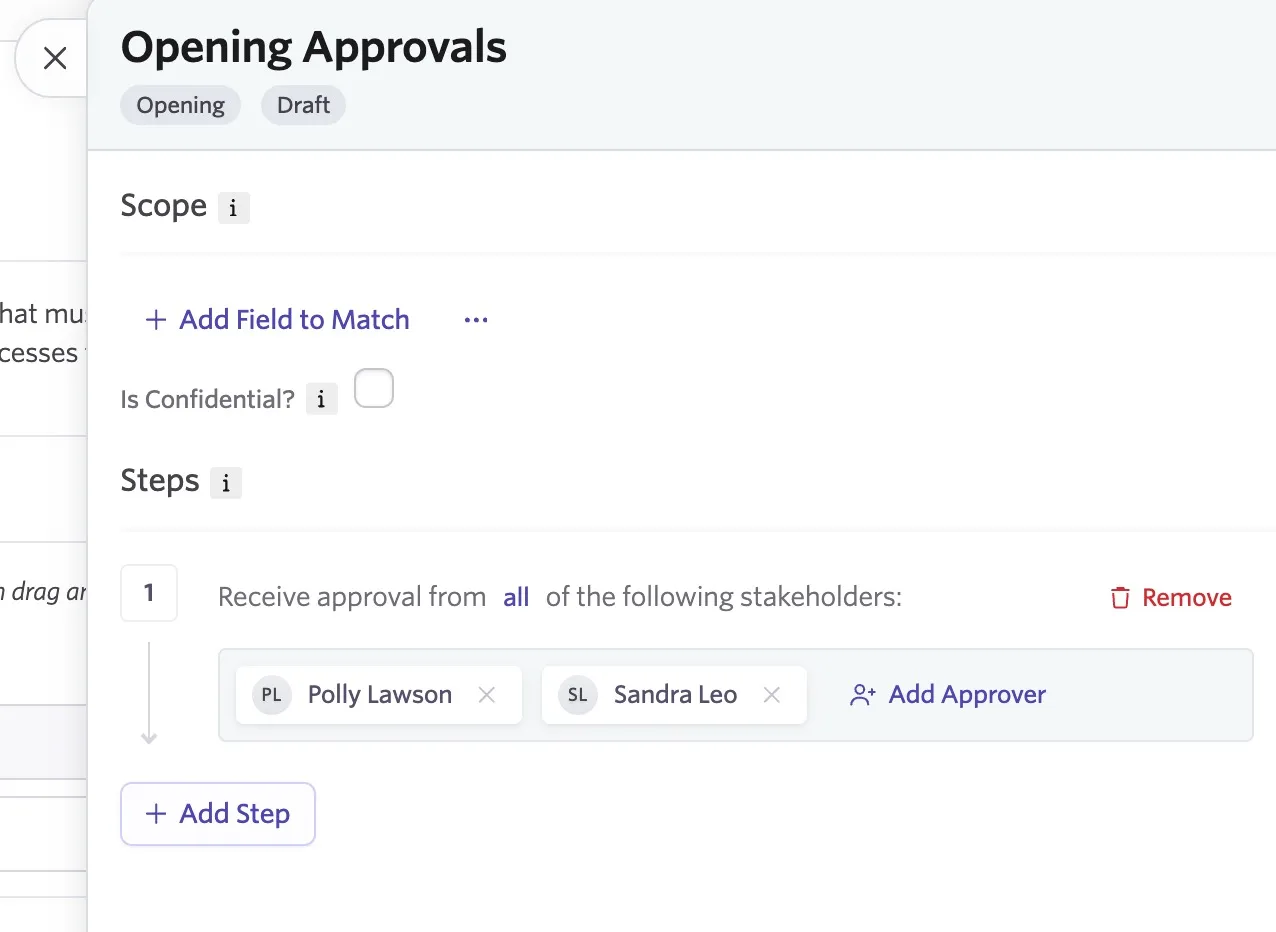
To prevent approval gaps, create one approval flow with no filters as a fallback, as shown below. This ensures that any openings that don't match criteria in your existing configurations still trigger an approval workflow.