Configuring Approval Settings and Notifications
As part of setting up your approval process, you can also determine the details that should be included in approver notifications. Adding offer, job, or opening details to the appropriate approval notifications can help answer any questions from approvers and streamline your approvals.
For a guide on configuring approval processes, see ApprovalsApprovals.
Permissions & access
Approvals can be set up on the Legacy Plus, Plus, and Enterprise plans.
Foundations | Legacy Plus | Plus | Enterprise |
|---|---|---|---|
❌ | ✅ | ✅ | ✅ |
Only Organization Admins can set approval notification details and settings.
Approval settings
You can access and amend your approval settings on the Settings tab in Admin > Organization Setup > Approvals.
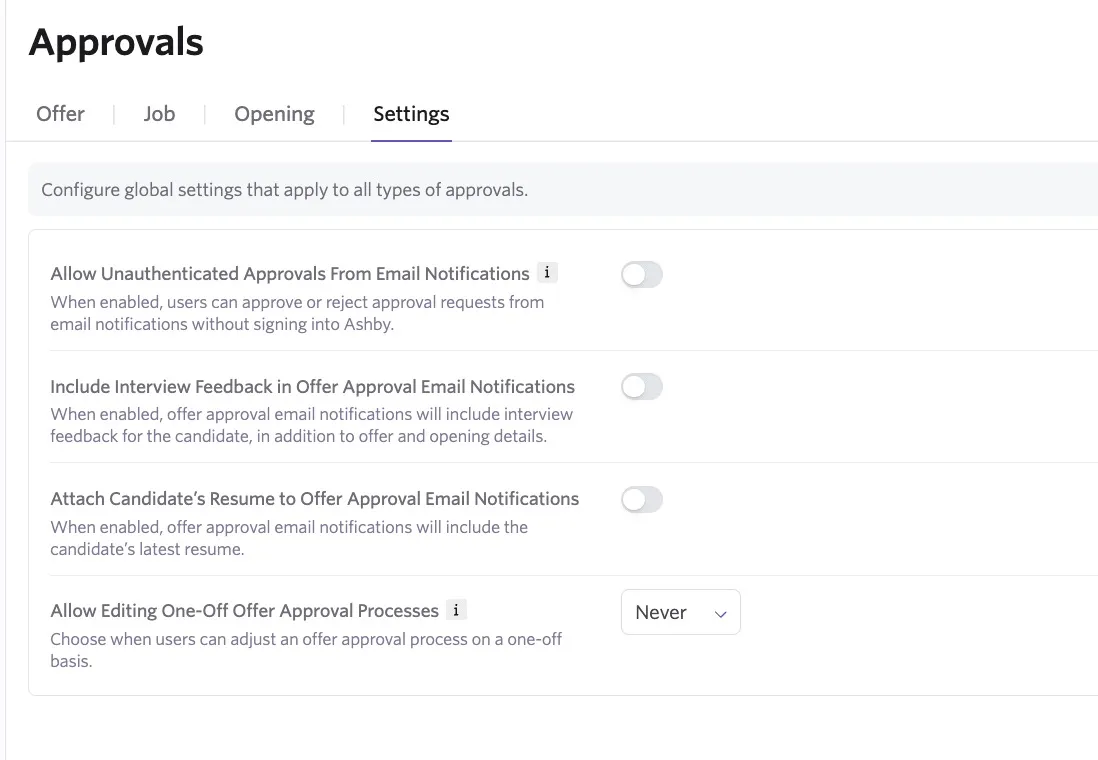
Allow Unauthenticated Approvals From Email Notifications: If you enable this option, users in the approval chain can approve or reject approval requests directly from email notifications they receive without needing to log in to Ashby. Each approval notification sent via email includes a secure unique link that automatically authenticates users when used. Users need to have email notifications enabled for approval requests to use this setting.
Include Interview Feedback in Offer Approval Email Notifications: When you enable this option, Ashby includes interview feedback in the body of approval email notifications, alongside the offer and opening details. Approvers can see interview feedback in their approval email when you enable this option.
Attach Candidate's Resume to Offer Approval Email Notifications: When enabled, offer approval email notifications include the candidate's latest resume.
Include AI Summary in Offer Approval Email Notifications: When you enable this option, offer approval email notifications include an AI-generated summary of the candidate and interview feedback.
Configuring approval notifications
To set the details to be included in approval notifications:
- Navigate to Admin > Organization Setup > Approvals.
- Click Configure Offer Notifications.
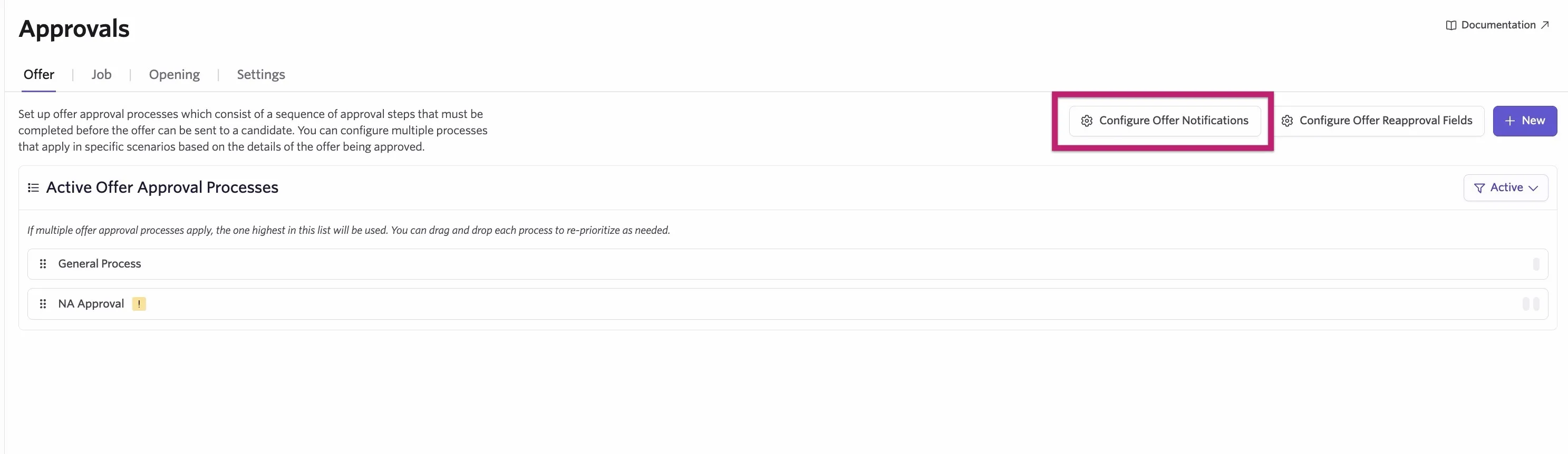
- Using the checkboxes, determine the details that should be included in offer, job, and opening approval notifications. You can have different settings for notifications and what the approver sees on the approval in-app. Custom field details can also be included.
If you check or uncheck a checkbox next to a heading (for example Offer Details), then this checks or unchecks all fields listed in that section.
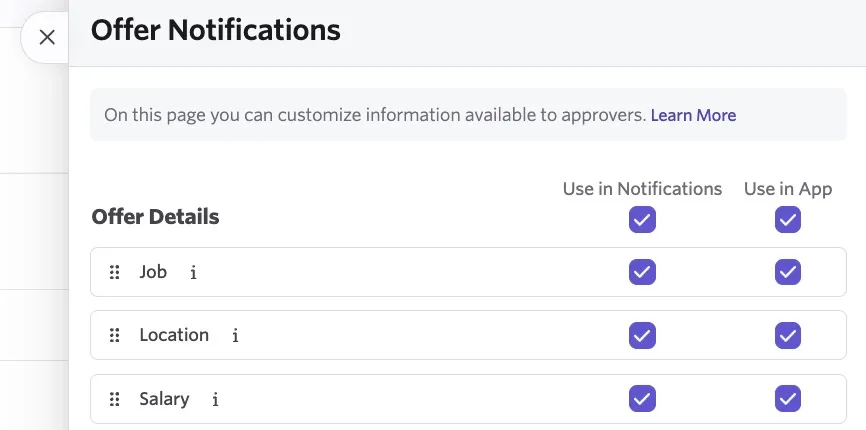
- Click Save to confirm the notification changes. Ashby adds the selected fields to those approval notifications moving forward.
How do approval notifications appear to an approver?
Once an approval request is submitted, approvers can receive notifications via Slack and/or email depending on their notification settings.
For more on notifications, see Notifications & Notification SettingsNotifications & Notification Settings.
In an approval request email or Slack notification, the approver sees the key job, offer, or opening details. If approvers have left previous notes, these also appear in the notification. The approver has the option to approve or deny directly from the notification. If the approver clicks Approve X from the email notification, they also have the option to add a note to their approval.
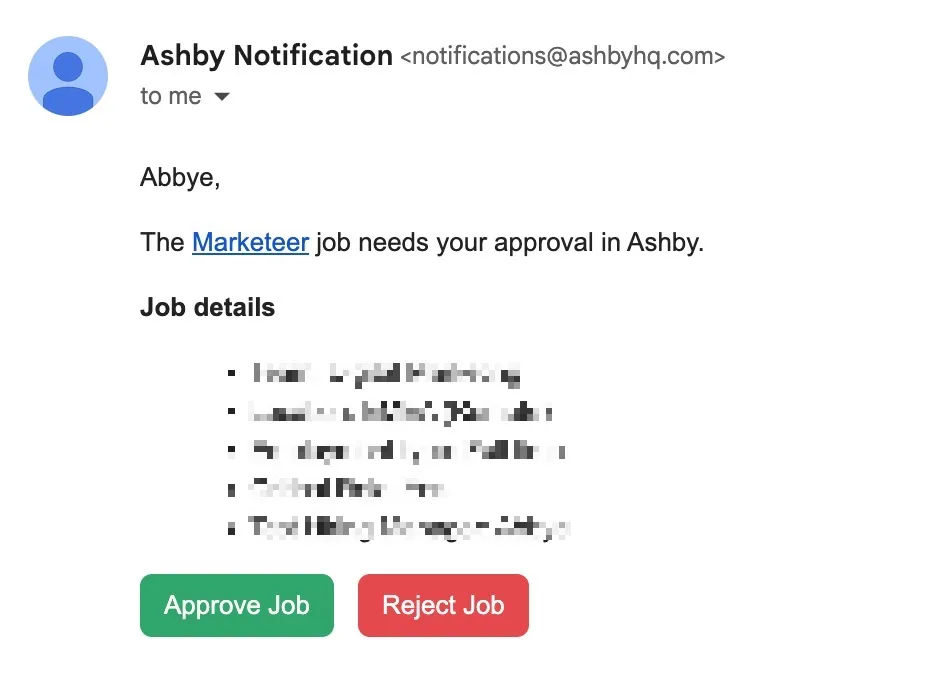
If the approver receives a notification via Slack, they have the option to approve, approve with a note, or deny.
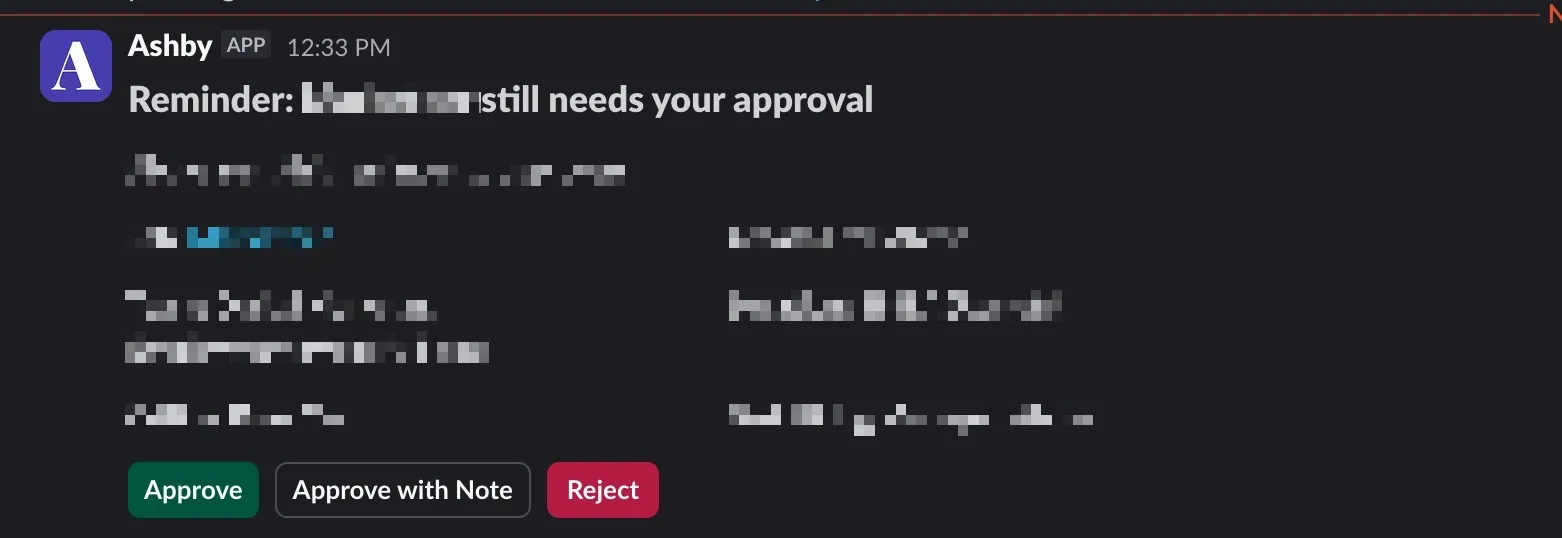
An approver does not need to have a specific access role or permission level to approve or reject the approval request via email or via Slack. They need to have at least Elevated Access to the role in question to be able to view the candidate's profile prior to approving.
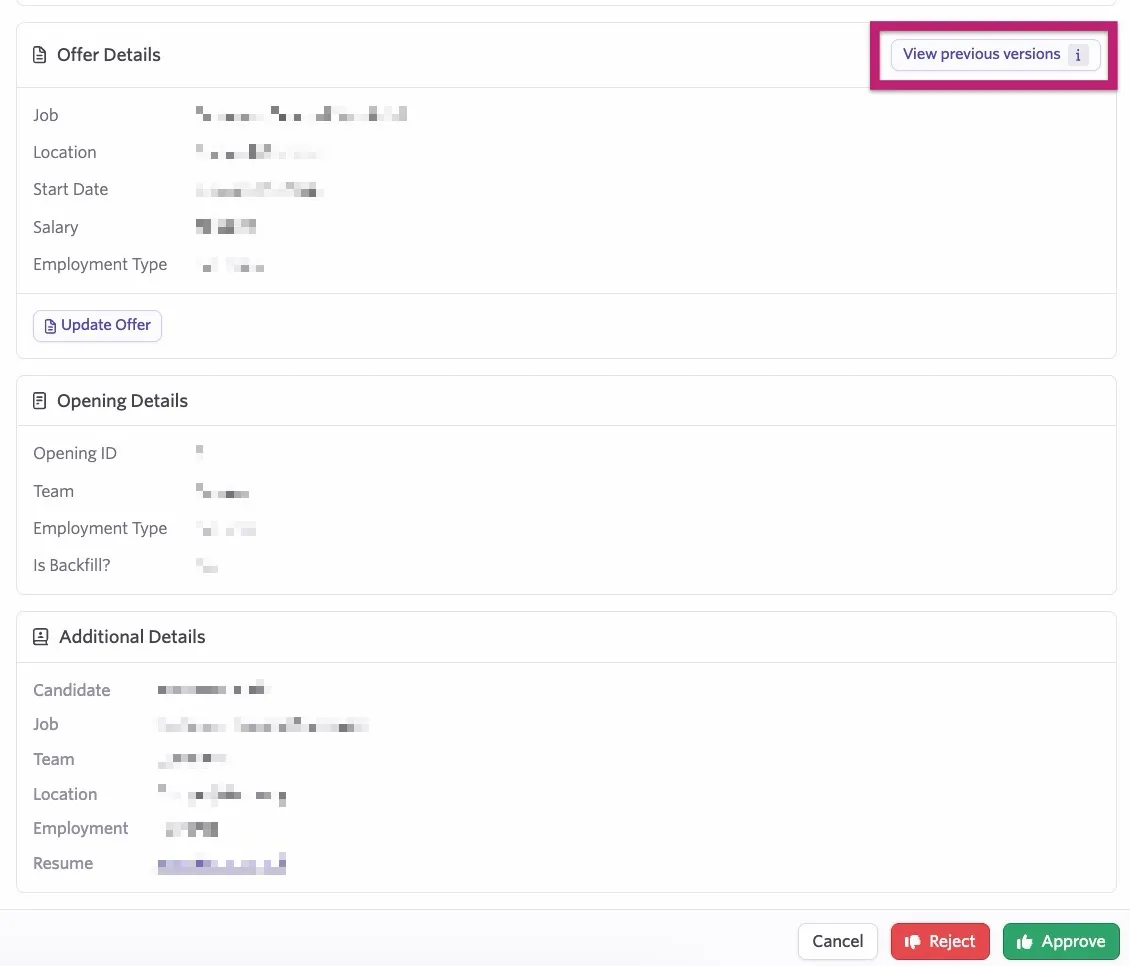
If the approver opts to view the approval in-app, the fields selected in the Use in App column show on the approval details. The approver can click View previous versions to view previous versions of the offer or opening (this isn't available for job approvals).
FAQs
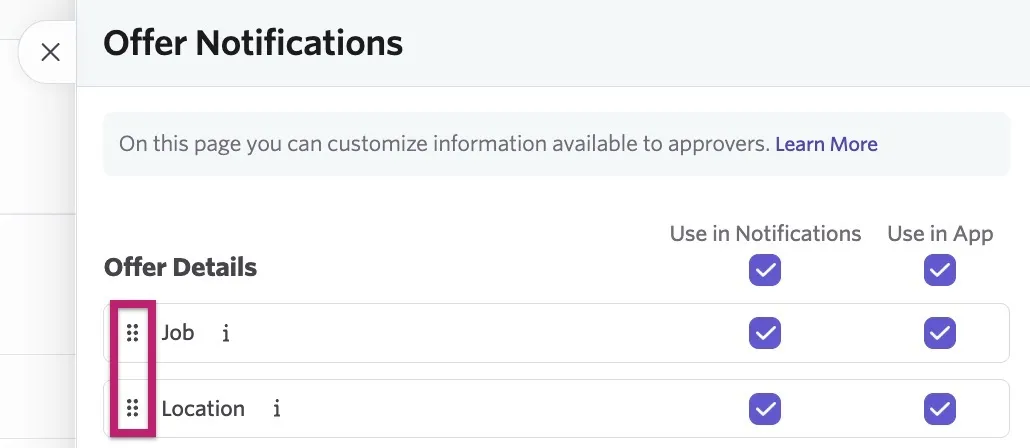
Can I rearrange the order the fields show in for approval notifications?
Yes. Use the grid icon on the left side of the field to click and drag to rearrange the field order.
Can a user be cc'd in to receive approval notifications?
Currently, only those involved in the approval process receive notifications about the approval flow.
If an Organization Admin forces through an approval, does the approver receive a notification?
The approver does not receive a notification, but if they try to click Approve, they see that the approval already occurred and no action is needed.
Will incomplete or blank offer fields be included in the email sent to an approver?
The offer approval email only includes fields that have been filled in, including offer custom fields.