ADP Workforce Now Connector
Ashby's integration with ADP Workforce Now® lets you automatically send new hire information from Ashby to ADP as pre-hires, saving time and reducing manual data entry.
Ashby integrates with both ADP Workforce Now and ADP Workforce Now Next Generation. When you add the Ashby app from ADP, the correct integration activates in Ashby, and the two integrations have exactly the same features. You do not need to let us know which you are using.
Permissions & access
The ADP Workforce Now® integration is available on all plans:
Foundations | Legacy Plus | Plus | Enterprise |
|---|---|---|---|
✅ | ✅ | ✅ | ✅ |
You must be an Organization Admin in Ashby and an ADP Admin user or HR Practitioner to set up the integration. Additionally, the connector must be purchased separately through ADP Marketplace.
What data is sent to ADP?
The integration currently supports the following fields. Reach out to [email protected] to request additional fields.
Ashby Field | ADP Field | Notes |
|---|---|---|
Full Name | First Name, Last Name | |
Email (personal, primary) | Personal Email | |
| Business Unit | |
| Classification Code | |
| Company Code | |
| FLSA | |
| Hire Date | |
| Home Department | |
| Job | |
| Landline Phone Number | |
| Legal Address City | |
| Legal Address Country Code | |
| Legal Address County | |
| Legal Address Line 1 | |
| Legal Address Line 2 | |
| Legal Address Line 3 | |
| Legal Address Postal Code | |
| Legal Address State/Province/Territory | |
| Lived-In State | |
| Location | |
| Location Name Code | |
| Management Position | |
| Middle Name | |
| Mobile Phone Number | |
| Onboarding Status * | Recommend setting this to In-Progress. |
| Onboarding Template * | See this note on template configuration. |
| Pay Frequency | |
| Pay Group | |
| Pay Rate | |
| Reason for Hire | |
| Worked In State | |
| Worker Category | |
| Works from Home | |
Connecting the integration
Get your account ID from Ashby
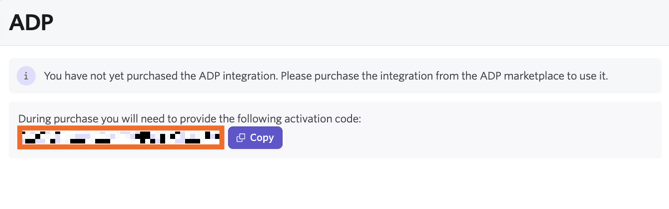
As an Ashby Admin, log in to the Ashby Marketplace to retrieve your activation code. Enter this during checkout.
Purchase the connector on ADP Marketplace
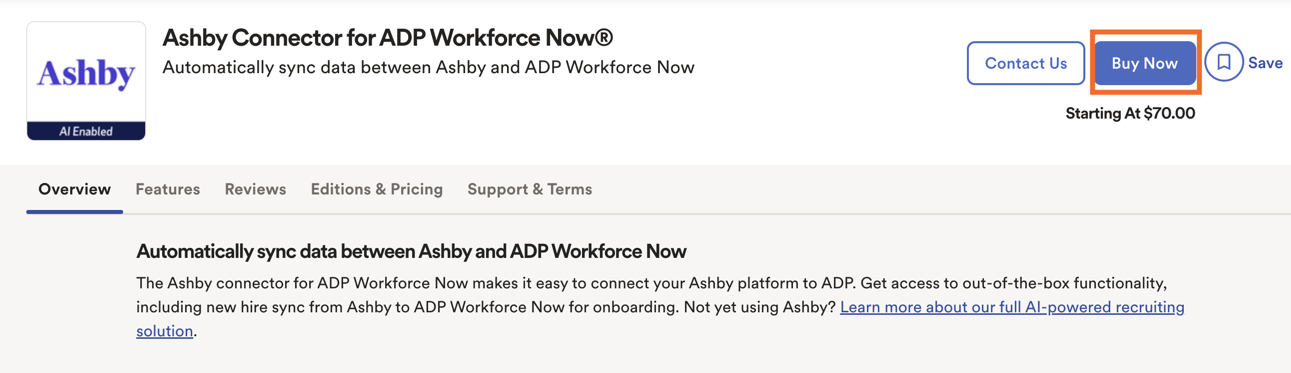
- Visit apps.adp.com and log in.
- Search for Ashby Connector for ADP Workforce Now.
- Click Buy Now and complete the checkout steps.
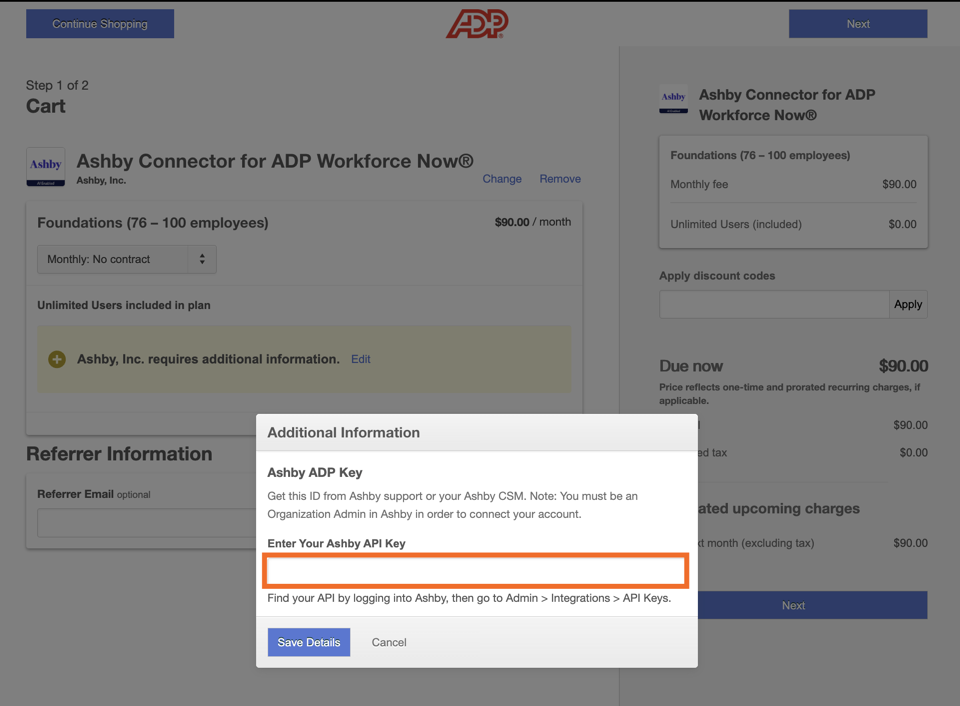
- Update the purchase option to align with your Ashby plan.
- When prompted, enter the activation code from Ashby. The system validates the ID. If valid, you can proceed with placing your order.
You can find the activation code under the ADP integration block within Admin > Integrations in your Ashby account.
Provide consent when prompted. Failure to do so prevents the integration from being activated.
- Confirm ADP profile permissions.
Activate the integration in Ashby
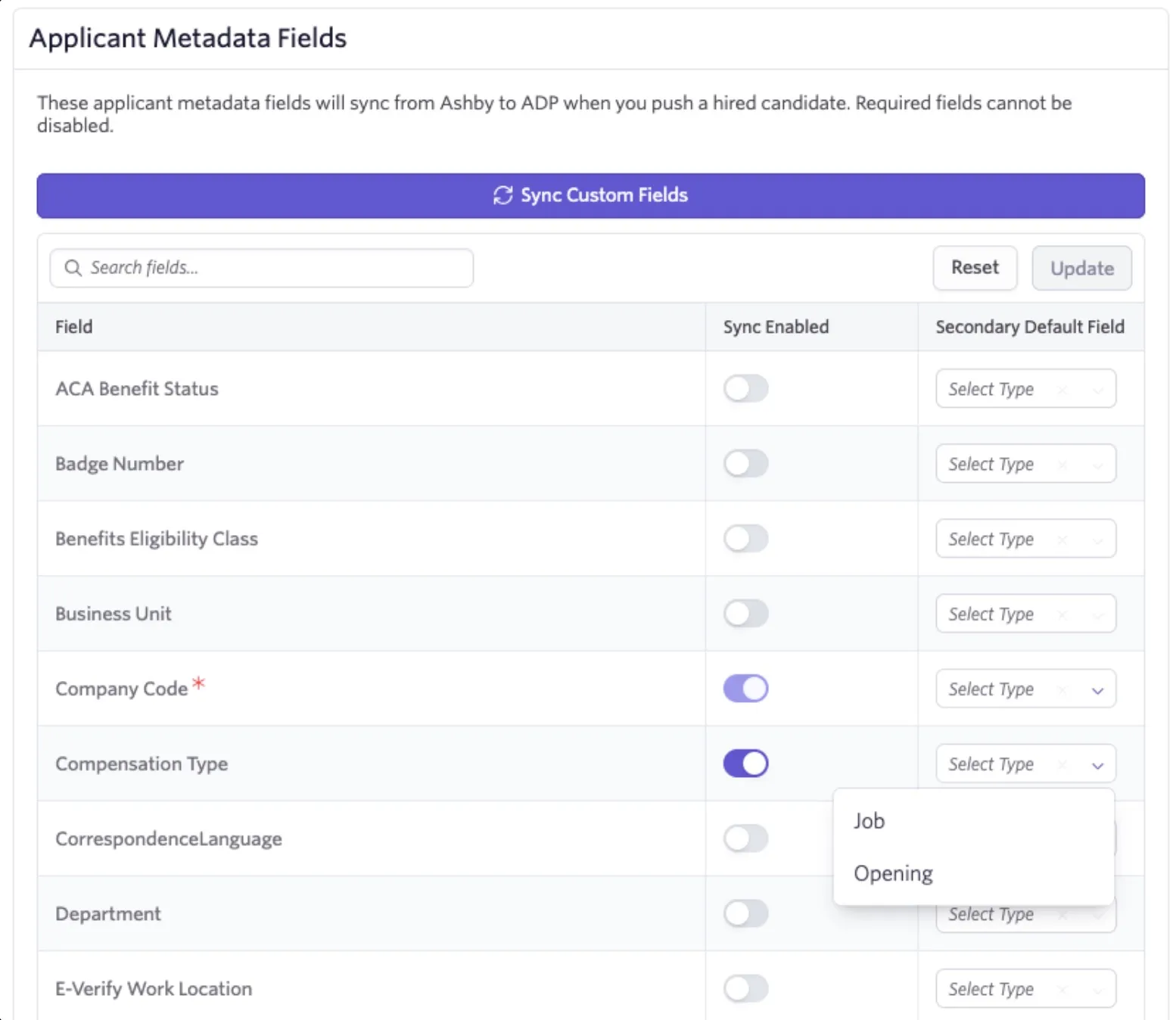
Once you've completed the above steps, return to the integration in Ashby by navigating to Admin > Integrations and searching for "ADP Workforce Now". Select Activate, then select Sync Custom Fields. Once the sync completes, you will see the list of supported fields on the offer form. Partner with your HR team to determine which fields your Talent team should populate when pushing hires. After you identify the fields, toggle Sync Enabled? for each field, then select Update to save the form.
Optionally, select a Secondary Default Field for a synced field. When you select one, Ashby syncs the field to a custom field of the selected type, such as a Job or Opening, in addition to the offer field. Ashby also sets a default for the offer field to automatically pull its value from that field. Use this option when you want to set the data on a Job or Opening instead of at the offer stage.
Configuring permission settings
To allow the selection of onboarding templates and the syncing of custom fields, configure some additional permission settings in ADP. To enable these permissions:
- Navigate to Setup > Template Management.
- Select Hire/Rehire and then select an active onboarding template.
- Click the Assign Users stage and ensure that the profile with the name starting with "Don't inactivate or delete this profile" is enabled.
- Complete the remaining setup steps, then confirm and submit your final selections.
- Repeat the above steps for all templates.
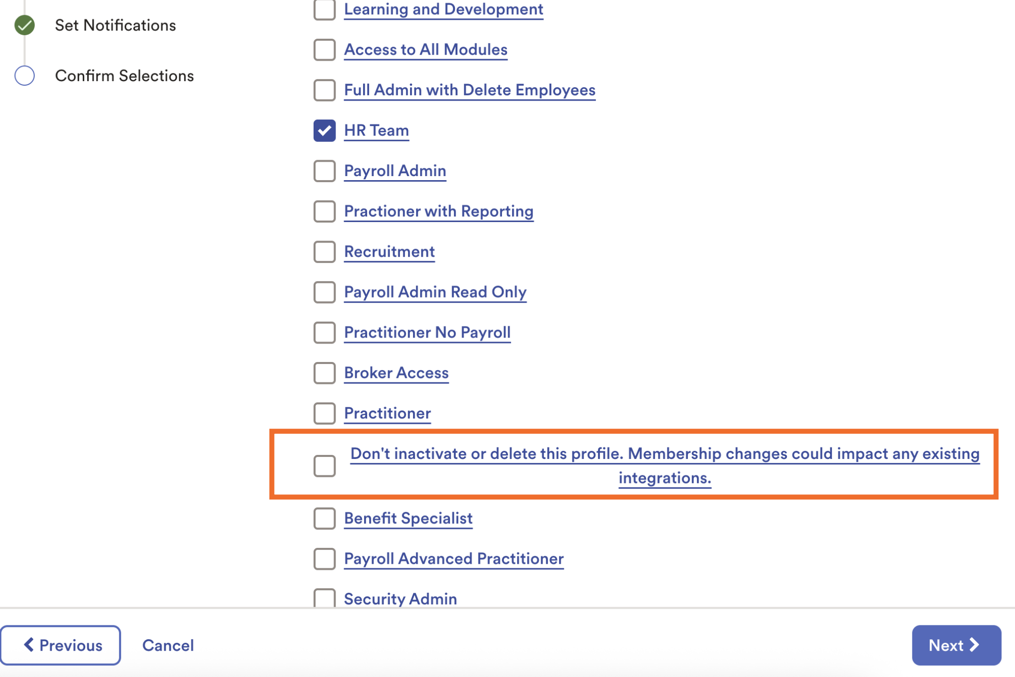
If these permissions are missing, you cannot sync the full range of fields.
Format offer fields
Once you've toggled on the selected fields, corresponding Offer custom fields are generated. These fields are synced with ADP and updated as changes occur on ADP's side. See Custom Fields and Offers and Offer Letters for more details.
Here are your formatting options:
- Order fields: you can slide custom fields by hovering over the space next to the icon to the left of the field name to expose the drag handle.
- Set default values and, optionally, hide fields that always have the same value.
Decide how to push data
Ashby offers two options for transferring candidate data to ADP:
- Manual push (recommended) - Use the Add Candidate Data button on the candidate's ADP activity panel. This option is recommended as you're getting started with the integration.
- Automatic push on hire - Enable automatic sync from the HRIS Integrations page in Ashby Admin.
Using the integration
Candidates are pushed to ADP as pre-hires for onboarding.
When a candidate enters the offer stage, Ashby surfaces the ADP metadata fields in the offer form. After the offer is accepted and the candidate is marked Hired, you can send data to ADP in either of the following ways:
- Manual push: Use the Add Candidate Data button on the ADP Activity section of the candidate profile.
- Automatic push on hire: Enable automatic sync from the HRIS Integrations page in Ashby Admin.
FAQ
Can I map values from other fields to my offer custom fields to pre-populate values?
Yes, see Custom Fields for more details.
Can I use my existing custom fields?
No, you need to use the custom fields generated by the integration. These fields are updated automatically whenever changes occur in ADP.
Does ADP cost to use?
Yes, pricing is available in the ADP Marketplace.
Where do candidates appear in ADP?
Candidates appear in the in-progress hires tab in the Hire/Rehire menu. Navigate to Process > Hire/Rehire > New Hire.
Can I sync pre-hires or candidates at the offer stage?
Not at this time. Sync occurs only when a candidate is marked Hired.
Will this trigger ADP onboarding flows?
This depends on your ADP template settings. Ashby only creates the pre-hire; your ADP onboarding process determines what happens next.
Can we filter which hires sync to ADP?
Yes. Use the manual push option to selectively sync candidates.
Why can't I push data to only one of my hire/rehire templates?
For every custom template, you need to:
- Navigate to Setup > Template Management > Hire/Rehire.
- Select the template you want to have access to in Ashby.
- Click Assign Users.
- Check Don't inactivate or delete this profile. Membership changes could impact any existing integrations.
- Select Save.
Why can't I see my international onboarding template?
ADP Workforce Now does not support fetching international onboarding templates that contain custom fields. If you want to use an international onboarding template in Ashby, make sure it does not have any custom fields.
Any limitations?
- Only new hires are synced; updates to existing employees are not supported.
- New hires cannot be pushed multiple times; ADP validates based on personal email.
- Documents and onboarding tasks are not transferred.
- Reports To is not currently supported; a fix is in the backlog.
- ADP custom fields are not supported for syncing through the ADP integration.