Test AI Interviewer Before Launch
Test the full candidate and reviewer experience before you invite external candidates. A test run lets you confirm that your interview outline, settings, and invitation flow work as expected. Use a dedicated test stage and test candidate so you can check the interview flow without affecting active candidates.
Prerequisites
This article is intended for testing an AI Interviewer before launch. You must have the AI interviewer you wish to test set up and configured prior to testing. See Creating a New AI Interviewer and AI Interviewer Settings Guide.
Permissions and access
You need access to the relevant job and interview plan. Users who configure the AI Interviewer need the AI Interviewers permission. An organization admin can grant this permission.
Create an isolated test stage
A dedicated stage keeps the test activity separate from existing candidates and makes cleanup easier.
Don't add a test activity to an existing stage that already contains candidates. If automation is enabled, those candidates receive invitations before you're ready.
- Open the interview plan for the relevant job.
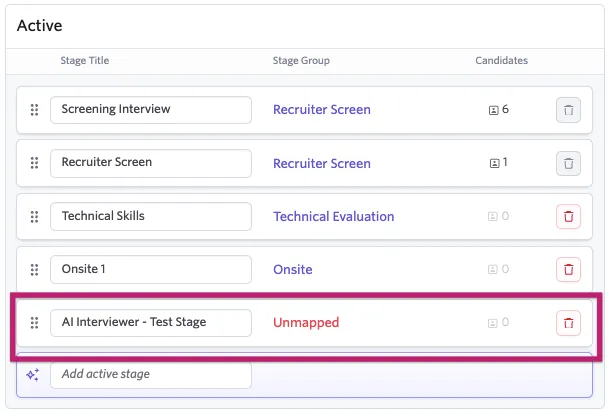
- Click Edit Plan Stages and add a new stage with a clear name, such as "AI Interview - Test." You can place the stage anywhere in the plan; its position doesn't affect existing candidates.
- On the test stage, select Add Activity > AI Interviewer.
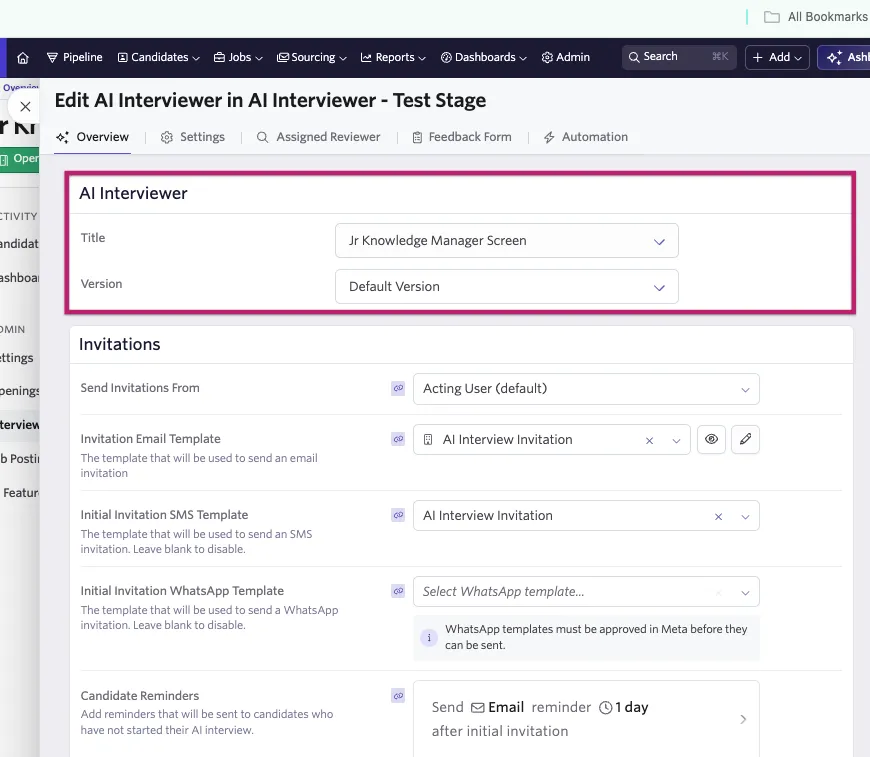
- Select the AI Interviewer and the version you want to test.
- On the Automations tab, choose how invitations send using the Automate Invite on Stage Entry? setting:
- Turn it off if you want to control when invitations go out during testing.
- Leave it on if you want to test the automated flow. Because a new stage has no candidates, nothing sends until you move someone into the stage.
Create and move a test candidate
- Create a test candidate using your own email address or a team member's email address so you receive the invitation.
- Apply the candidate to the job that contains the test stage.
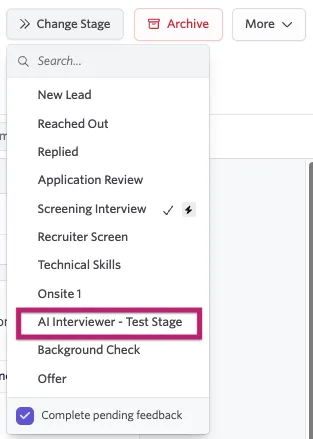
- Move the candidate into the test stage by selecting Change Stage.
What happens next depends on the automation setting:
Automation setting | What happens |
|---|---|
On | The invitation sends as soon as the candidate enters the stage. Check your inbox. |
Off | A Draft Invitation button appears on the candidate's activity card. Select it to compose and send the invitation manually. |
Take the interview
Open the invitation link from your email or SMS message, or open the copied interview link, and complete the interview as a candidate would. Pay attention to the welcome message, question flow, follow-ups, topic transitions, completion message, and any video or written-response settings.
You can also select Copy Interview Link and paste the link into a new browser tab to take the interview just as a candidate would.
Try answering some questions well and others poorly so you can see how the signal bands and evaluation rubrics respond to different answer quality.
If you don't want to complete the entire interview, you can ask the interviewer to end prematurely.
Review the results
- After completing the interview, return to the candidate's application.
- Select Review on the AI Interviewer activity to open the Review AI Interview page.
- Confirm that the summary, per-topic evaluations, transcript, recording, and integrity signals match what you expect based on your answers.
- Check the candidate feedback and the reviewer experience.
For details about interpreting the results, see Schedule and Review AI Interviews.
Reset and retest
If you've made changes and need to run the test again, click the three dots and select Reset Interview on the candidate's AI Interviewer activity.

Resetting deletes all results and the transcript and returns the interview to Not Started so the candidate can take it again.
Reset is available only while the candidate remains in the stage where the interview was assigned. If you move the candidate to a different stage, the Reset Interview option no longer appears.
Clean up the test
Deleting the AI Interviewer activity from the test stage removes the activity and all remaining test data from your test interview, including:
- The interview summary and per-topic evaluations
- The transcript and recording
- Integrity signals
- Candidate feedback
You don't need to delete these items separately.
When you're satisfied with the interview experience:
- Delete the AI Interviewer activity from the test stage.
- Remove the test candidate according to your organization's data-management process.
- If you need to change the outline without creating a new version, unpublish the version. Unpublishing returns the version to Draft status so you can edit and republish it.
You can't unpublish a version that has candidates assigned to it. Remove or complete all assigned interviews first, then unpublish.
FAQs
Can I test an AI Interviewer on an existing interview stage?
We recommend creating a dedicated test stage instead. An existing stage may already contain candidates who could receive invitations when automation is enabled.
Can I reuse the same test candidate?
Yes. Select Reset Interview while the candidate remains in the test stage, then take the interview again.