What is a shared calendar?
When setting up Ashby, we recommend configuring a shared calendar as part of your Google Workspace integration. If you're using the Microsoft 365 integration, this is known as a group calendar.
- For more information on Google Workspace integrations, see Google WorkspaceGoogle Workspace .
- For more information on Microsoft 365 integrations, see Microsoft 365Microsoft 365 .
What does a shared calendar do?
Makes rescheduling interviews easy
A shared or group calendar is a calendar that every user who can schedule or reschedule interviews should have access to. When interviews are scheduled, calendar invites go out to the candidate and to the panel, and events are also added to a calendar specified either within the schedule interview activity or when manually scheduling the interview.
Calendars can be set on the Communication tab within the schedule interview activity:

Or when manually scheduling an interview by configuring the Invite Settings:

We recommend setting up a shared calendar so that, if an interview needs rescheduling, users who can reschedule have access to the calendar the interview event is on and therefore the ability to edit it. They can then successfully reschedule the interview in Ashby.
If the calendar for the interview or schedule interview activity is set to a Personal Calendar of Scheduler, the event is added to the personal calendar of the user scheduling. As users don't usually have edit access to one another's calendars, this can cause errors when trying to reschedule interviews added to personal calendars.

All interviews visible on one calendar
Having a shared calendar for all interviews also allows those with access to view all scheduled interviews in one place, while ensuring that interview events they aren't on the panel for aren't added to their personal calendar and blocking availability unnecessarily.
How do I create and add a shared calendar to my Ashby account?
Create a group calendar in Microsoft 365
To get started:
- Create a Microsoft 365 Group.
- Add the people who will be scheduling interviews to that group as members.
- This group has a calendar attached to it that all added members can write to.
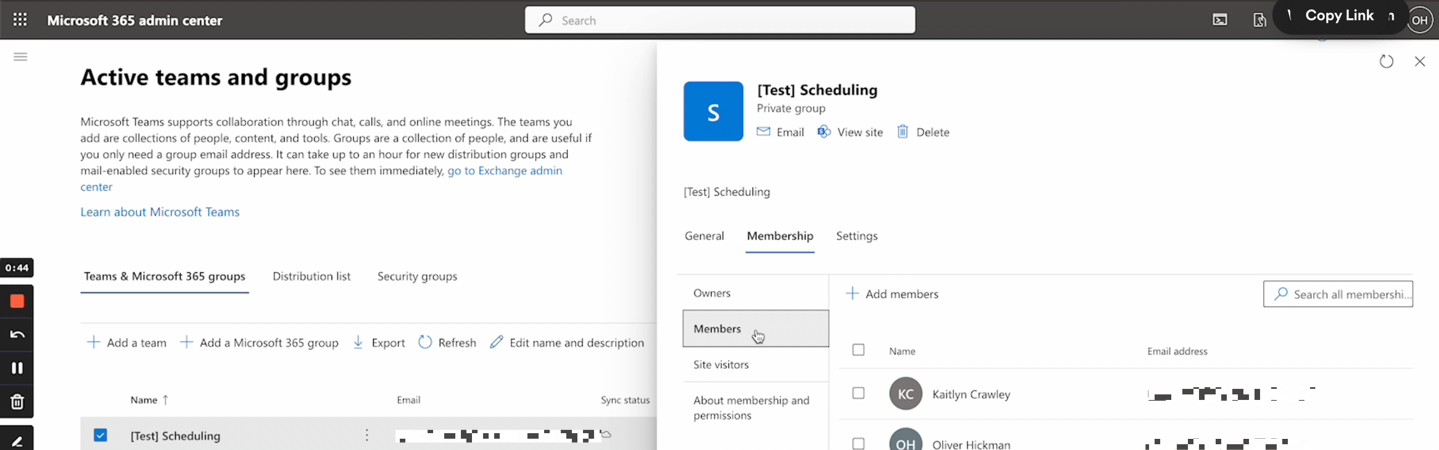
Important group requirements:
- It must be Public.
- It must be a Group (not a Distribution List or Shared Mailbox).
- Teams capabilities must be enabled.
- It must be mail-enabled (not a security group).
- Make sure Hide this group from the global address list is unchecked.
These requirements are critical for the calendar to sync correctly with Ashby.
Integrate the group calendar with Ashby
To integrate your group calendar:
- Navigate to Admin > Integrations > Integrations Marketplace and open the Microsoft 365 integration settings.
- Click the Group Calendars tab.
- Click Add Calendar.
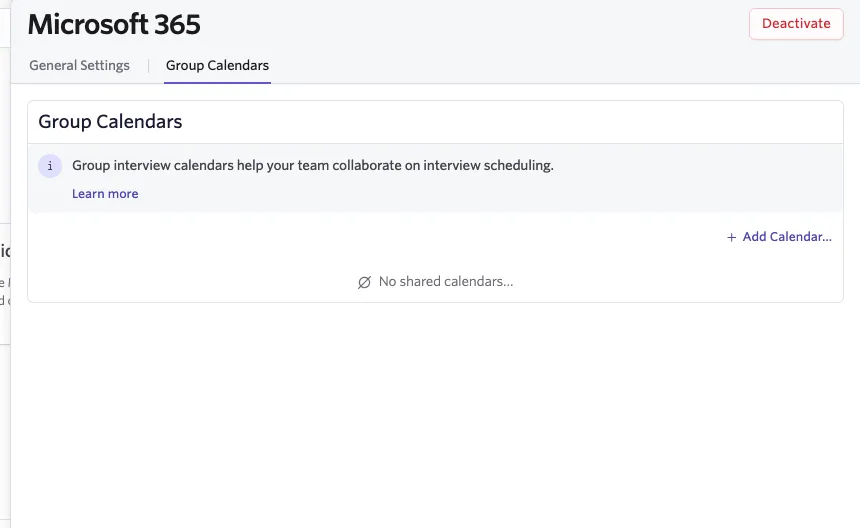
This calendar becomes the default calendar when scheduling interviews.
Anyone scheduling on that calendar needs to complete the individual Microsoft 365 authorization in Personal Settings.
Things to note
- To schedule interviews onto this calendar, users need to authorize with Individual OAuth in Personal Settings.
- The organizer of the meeting is the group name, and interviewers are attendees. Name the group something that can be externally facing, as it appears on candidate invites.
- When a new calendar is authorized, users should re-authenticate in their Personal Settings.
FAQs
What's the difference between booking on a shared calendar and booking on the interviewer's personal calendar?
We recommend setting up a shared calendar as part of your Google Workspace integration to ensure that you can reschedule interviews easily. When adding an interview to a calendar, only those with write access to that calendar can reschedule the interview. As such, setting up a shared calendar that everyone has write access to ensures that other users can reschedule or switch interviewers in Ashby if a team member becomes unavailable.
If an interview is scheduled to a personal calendar and another user tries to reschedule the interview, they receive the following error message if they don't have write access to the personal calendar in question.
Once you have a shared calendar set up, you can choose to schedule interviews on that calendar within the interview plans for each job or job template. If some interviews have already been booked on a personal calendar, we recommend canceling and rebooking them to ensure they're added to the shared calendar.
Why can't I schedule to the shared calendar?
If you aren't able to schedule people to the shared calendar, you haven't been added to it. You can adjust this in the settings of that calendar:
Why am I seeing two calendar events for an interview on my personal calendar?
When booking an interview and sending out calendar invites, calendar events are sent to three calendars. Separate calendar events are sent out for interviewers and candidates so party-specific interview information can be included.
- One set for the calendar the overall interview is scheduled on.
- One for the interviewer's calendar*.
- One for the candidate's calendar.
*If there are multiple interviewers on the panel, an event is sent out for each interviewer's individual calendar.
If the overall interview is scheduled on an interviewer's personal calendar, they receive the calendar event for the calendar the overall interview is scheduled on, and also receive the calendar event for themselves as an interviewer.
To avoid multiple events, ensure the shared calendar is selected when setting up a schedule interview activity and when booking one-off interviews. It's also important to ensure that all users who are scheduling interviews have write access to the shared calendar. Once scheduled, the calendar an interview is scheduled on cannot be changed — the interview needs to be cancelled and rebooked.
Can I configure multiple shared calendars?
You can, yes. You can follow the steps above multiple times to add more shared calendars. This is helpful if you'd like to set up a shared calendar per department.
What does 'Default Interview Calendar' mean?
If you have a shared calendar in place, you see this option when setting up a schedule interview activity, along with the name or names of shared calendars you have set up as part of your Google Workspace integration.
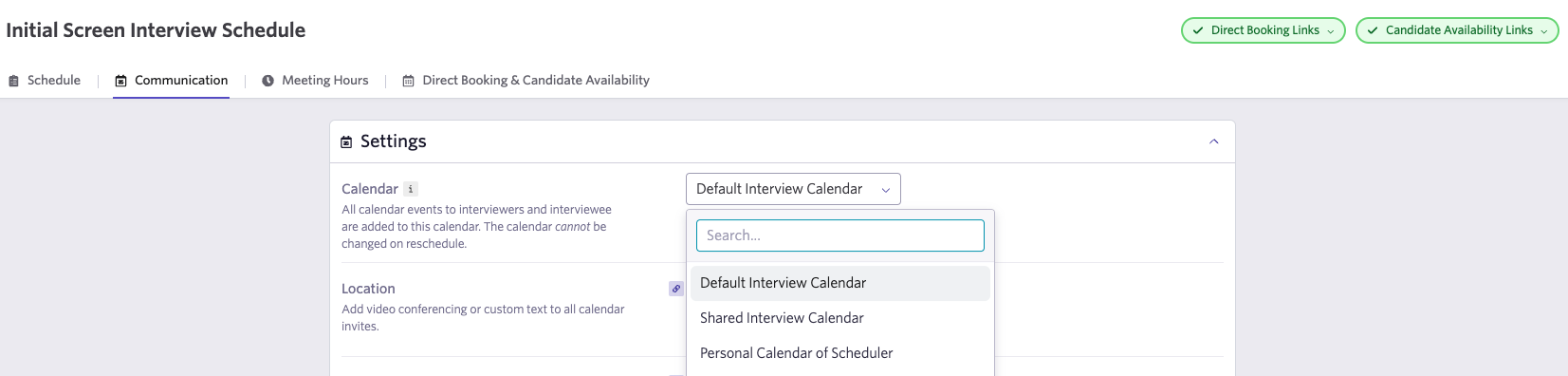
If only one shared calendar is set up in your account, 'Default Interview Calendar' refers to that shared calendar, as it is automatically set as the default. If you have set up multiple shared calendars, you can select the default in your Google Workspace integration settings.
I set up the shared calendar. Why isn't it being used for my existing interview plans?
The shared calendar becomes the default for any schedule interview activity created after it is added to your account.
Ashby does not automatically update existing schedule interview activities, so those activities continue to use the previous calendar.
To update an existing schedule interview activity:
- Navigate to the job and select the Interview Plan tab.
- Find the schedule interview activity you would like to edit and select Modify > Edit.
- Go to the Communication tab.
- In the Calendar dropdown, select the shared calendar instead of the scheduler's personal calendar.
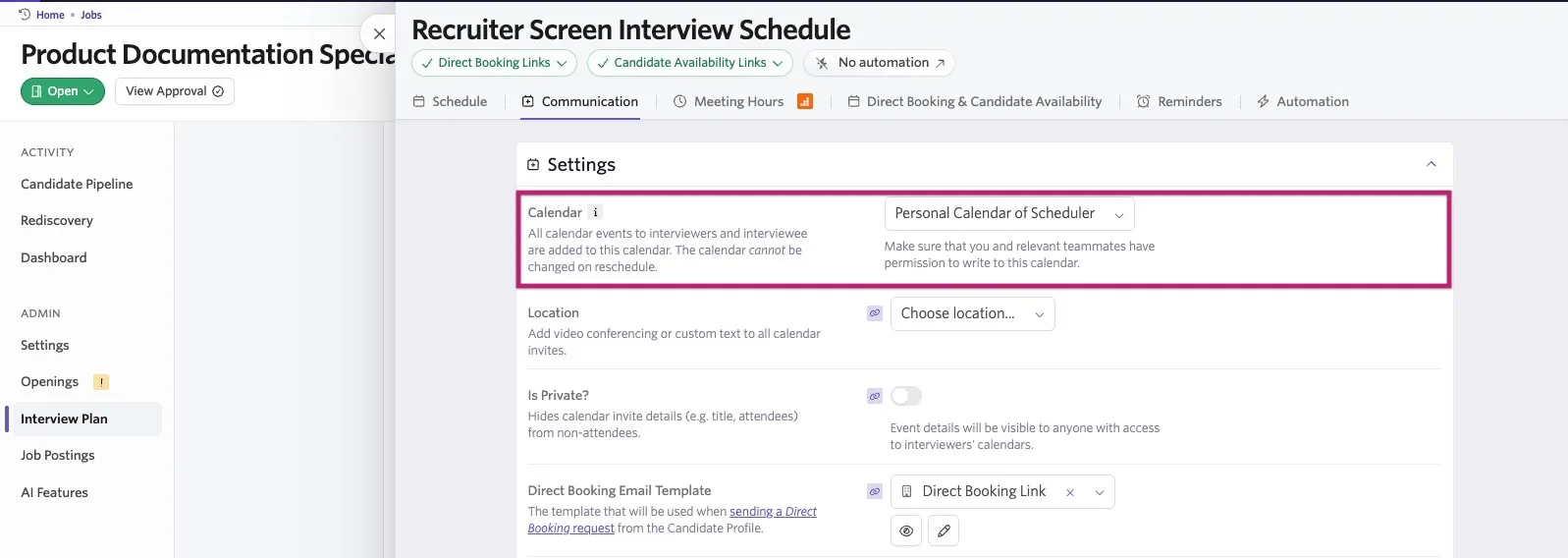
Repeat these steps for each existing scheduling activity you want to use with the shared calendar.
Updates to a schedule interview activity apply to interviews that haven’t been scheduled yet. Already-scheduled interviews retain their original calendar and details, including when using Quick Reschedule. To apply the update, fully cancel the interview and schedule it again.
Can I customize the colors of the Ashby events in my shared Google calendar?
This isn't currently possible in Ashby.
Does availability pull from the shared calendar? If an interview is already booked at one time, does that mean another with other interviewers can't be booked at the same time?
Availability is pulled from your interviewers' personal Google calendars, not from your shared calendar. If one interviewer is scheduled for an interview on Monday at 11am and another interviewer is available at that time and assigned to the panel on a different interview, they can also be booked for Monday at 11am.
Can I book two concurrent interviews on the same shared calendar?
Yes, you can schedule concurrent interviews on the shared interview calendar. Ashby flags scheduling conflicts for interviewers based on events in their individual calendars.
How do I add people to the shared calendar?
If a user isn't able to schedule people to the shared calendar, they haven't been added to it. To add them, go to the Shared with specific people or groups section in your calendar's settings in Google Calendar, then click + Add people and groups to add additional users.
How do I delete a shared calendar in my Ashby account?
Navigate to the Google Workspace or Microsoft 365 integration panel within the Integrations Marketplace.
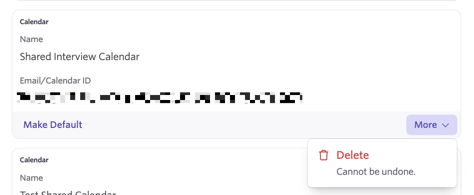
Click on the Shared Calendars or Group Calendars tab, then click More and Delete on the shared calendar you'd like to remove. Note that this action cannot be undone.