Getting Started for Employees
Ashby People Ops gives you one place to see and complete the tasks assigned to you, from onboarding paperwork to employee surveys and approvals. This article explains how to switch from Recruiting to the People Ops module, find your task list, and complete each type of task you receive.
Ashby's People Ops module is currently available through restricted early access. The following documentation is provided for Design Partners participating in that program.
Permissions and access
If you have an Ashby account, you can view and complete People Ops tasks assigned to you. You see only your own tasks. Users with the appropriate permission set can see additional tasks and views.
Learn more about Ashby's People Ops permission sets: Configure Permission SetsAdminister Permission Sets.
Navigate to People Ops from Recruiting
Ashby is made up of two modules: Ashby Recruiting and Ashby People Ops. To navigate to Ashby People Ops from Ashby Recruiting, follow the steps below.
- Select the module switcher in the top right corner along your top navigation bar. It displays the name of the module you are currently in, such as Recruiting.
- Select People Ops from the list.

- The left navigation updates to show People Ops pages, including My Tasks, where you can complete any tasks, approvals, or surveys assigned to you.
Find and complete your tasks
Home is your home base in People Ops. It lists everything assigned to you, along with due dates and status.
Navigating to My Tasks
- Switch to the People Ops module.
- Select My Tasks in the left navigation sidebar.
- Review your open tasks. Each row shows the task name, the type of task, and the due date.
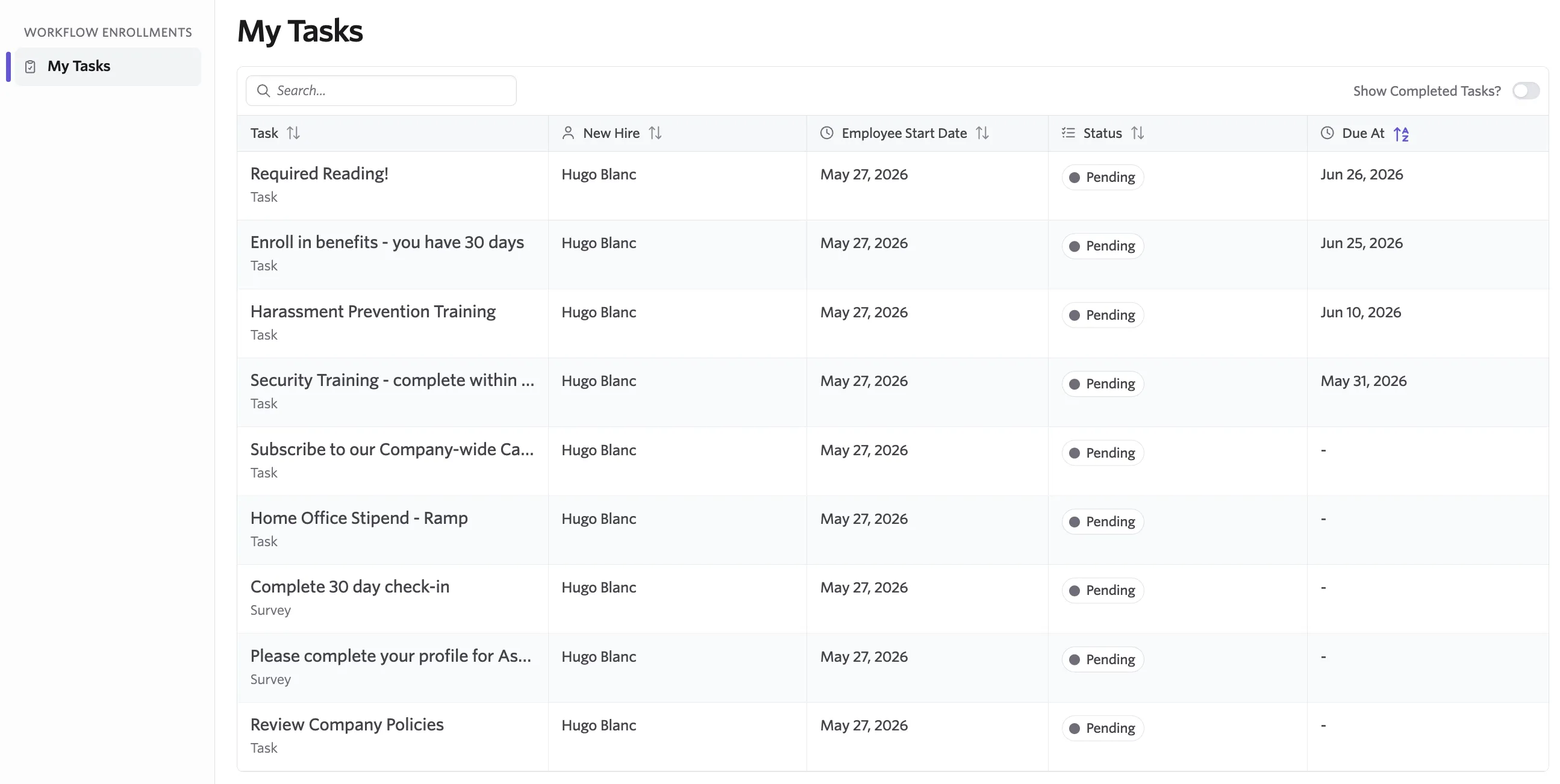
Understand your task list
- Task name: what you need to complete.
- Type: the kind of task, such as a form, survey, or approval.
- Due date: when the task is due.
- Status: whether the task is pending or complete.
To see all tasks, including completed ones, toggle Show Completed Tasks? on in the upper-right corner of the My Tasks list.

Complete a task
- Navigate to the task from People Ops > My Tasks. If you receive an email, Slack, or short message service (SMS) notification prompting you to complete the task, select the hyperlink to go there directly.
- Select the name of the task you want to complete.
- Review the instructions within the task and complete the requested action.
- Select Mark task as complete to complete the task.
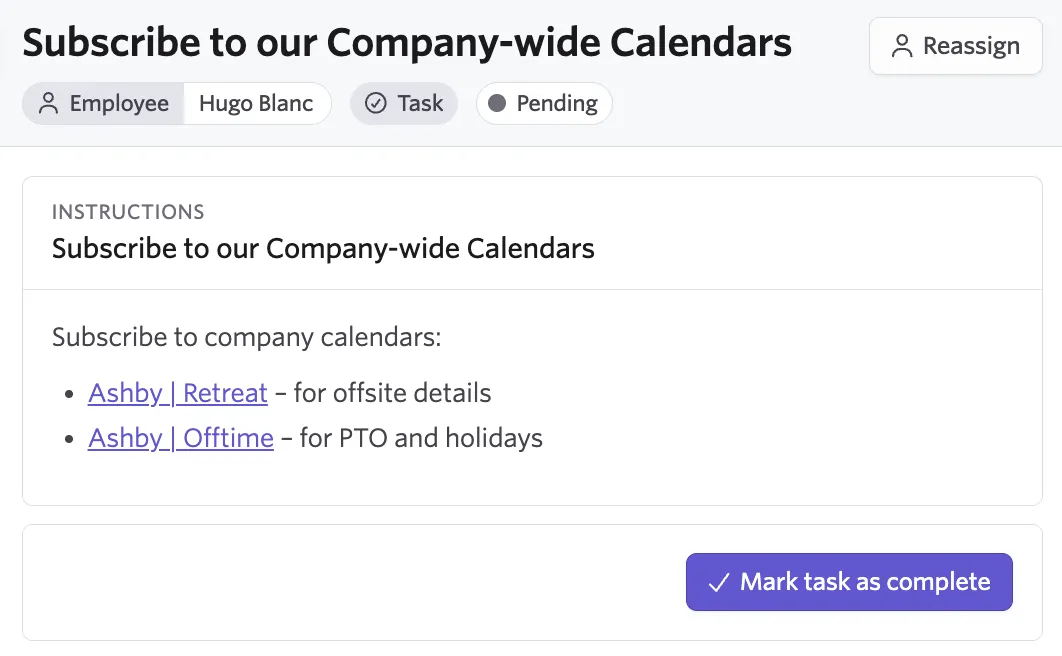
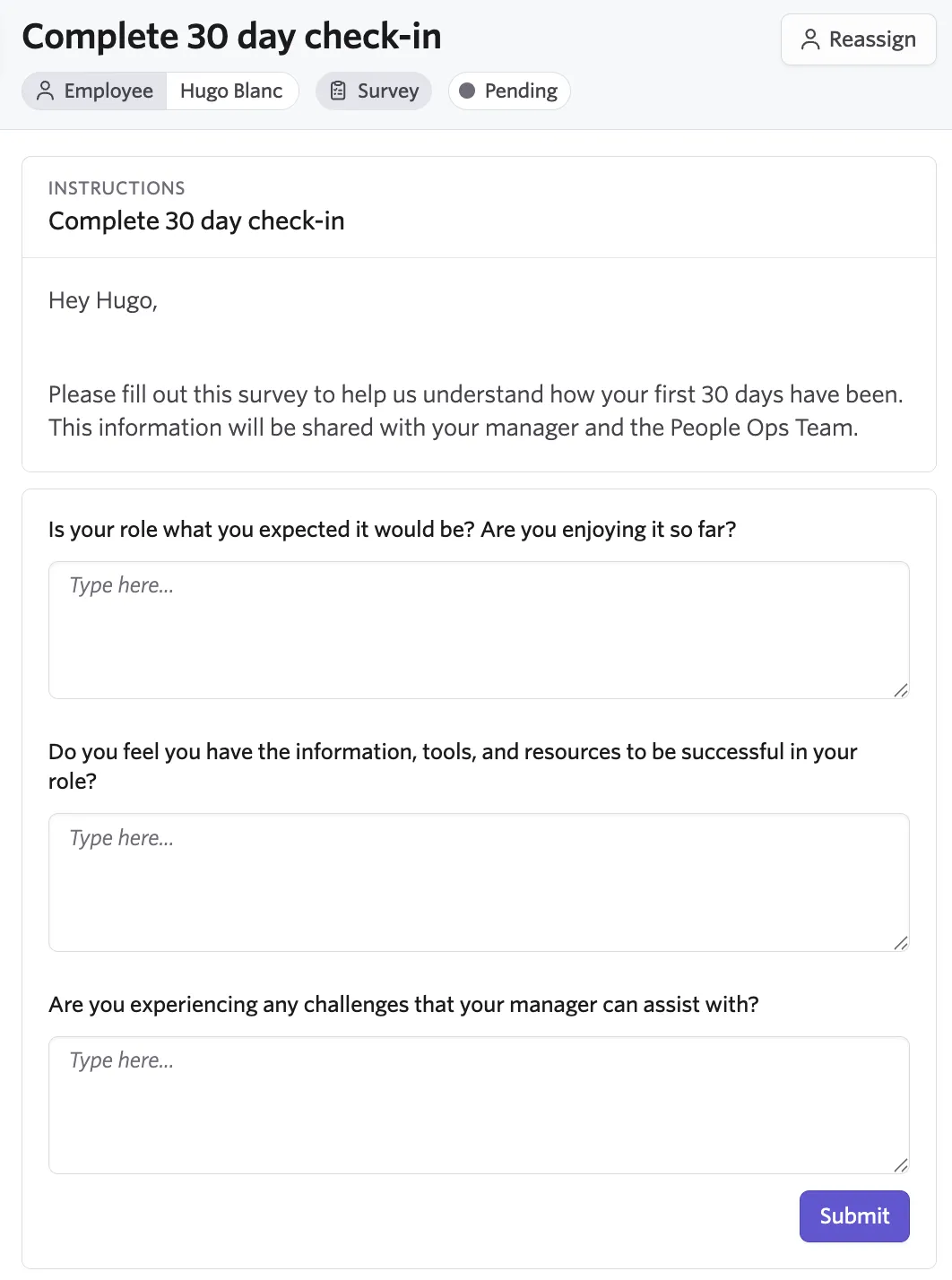
Complete a survey step
- Navigate to the survey from People Ops > My Tasks. If you receive an email, Slack, or SMS notification prompting you to complete the survey, select the hyperlink to go there directly.
- Select the survey task.
- Answer each question. An asterisk marks required questions.
- Select Submit.
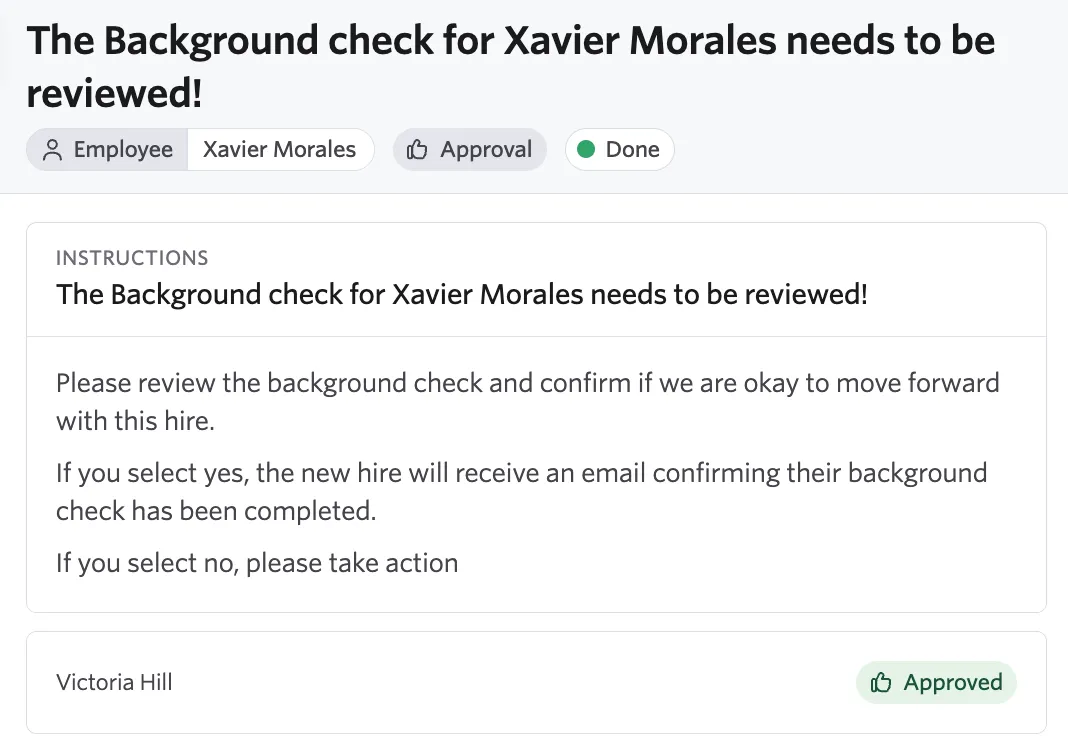
Complete an approval step
- Navigate to the approval request from People Ops > My Tasks. If you receive an email, Slack, or SMS notification prompting you to complete the approval request, select the hyperlink to go there directly.
- Select the approval task.
- Review the request details.
- Select Approve or Reject.
Submit a request form
This feature is in early access so may not be available in your People Ops account.
Not every process starts with your People Ops team. Some start with you — a leave request, a location change, or another change to your employment. You start these processes yourself from the Requests page by filling out a short form. When you submit the form, Ashby automatically starts the workflow behind it and assigns any steps that follow to the right people.
The requests available to you depend on how your organization sets them up. Your People Ops team decides which processes employees start themselves and which employees are eligible for each one, so your Requests page may look different from a teammate's.
Submit a request
- Switch to the People Ops module and select Requests.
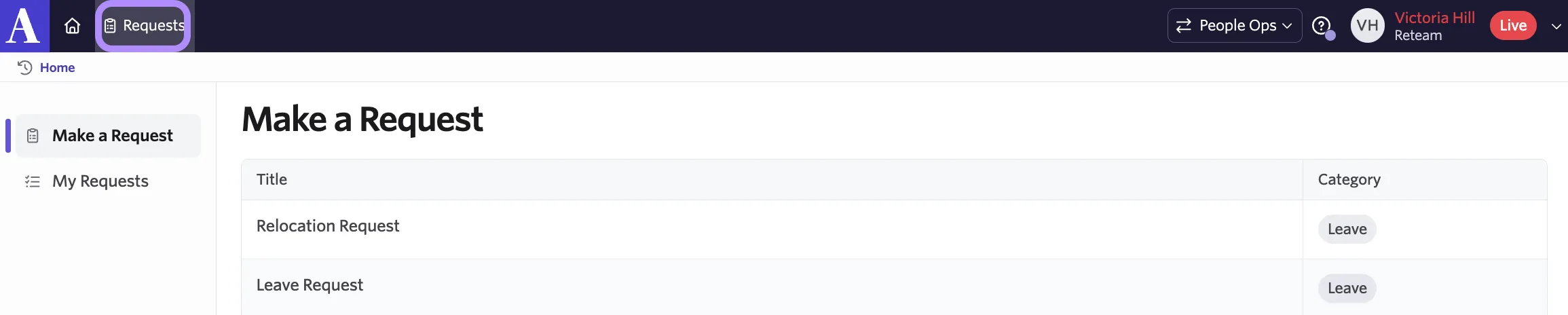
- The page lists every request available to you, along with the category it belongs to, such as Leave. Select the request you want to submit.
- Complete the form. An asterisk marks required questions.
- Select Submit. Ashby starts the workflow as soon as you submit. If the request needs approval first, the workflow starts once your approver approves it.
Track your requests
Every request you submit appears in My Requests, so you can check where it stands without asking for an update.
A request often creates work for you too, such as a form to fill out or a document to sign. Those steps appear in My Tasks, not in My Requests, so check both pages while your request is in progress.
FAQs
I was assigned a task, survey, or approval request, but it's gone from my list and I didn't complete it. Where did it go?
If the step was assigned to a group, only one person needs to complete it. Once someone does, Ashby removes it from everyone else's list. If that doesn't explain it, reach out to your People Ops admin.
What happens if I miss a due date?
You can still complete a task, survey, or approval step after its due date passes. You also continue to receive reminders about the step through Ashby's People Ops digest, or through any custom notification alerts your Org Admin has configured.
Can I reopen a task, approval, or survey after I submit it?
It depends on the step type.
- Tasks and approvals: You cannot reopen or resubmit these once you submit them. If something needs to change, reach out to your People Ops admin.
Who do I contact if a task looks wrong or was assigned to me by mistake?
Reach out to your Ashby People Ops admin.
Do I get notified when a task is assigned to me?
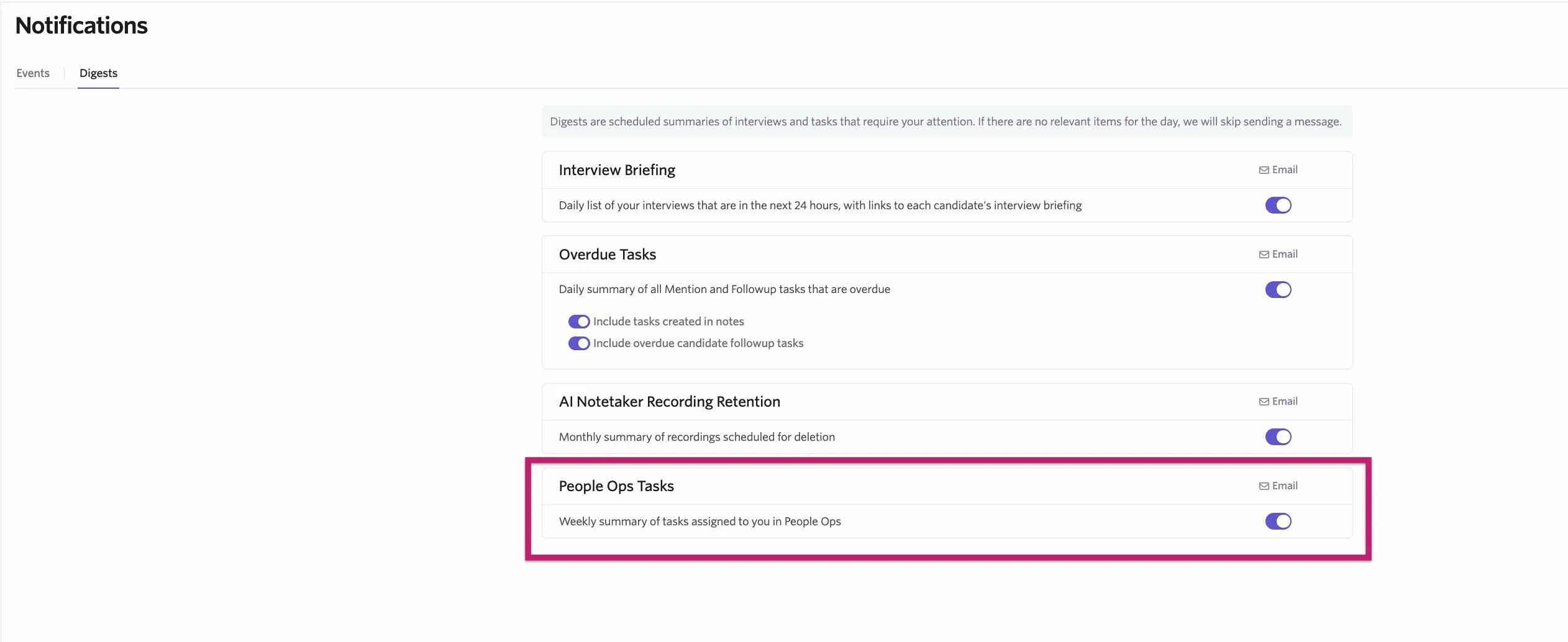
It depends on your organization's configuration. At a minimum, you receive a reminder via email of any pending steps in a weekly Ashby People Ops digest. You can unsubscribe from this digest in Personal Settings > Notification Settings. Click on the Digest tab and switch off the Weekly summary of tasks assigned to you in People Ops option to stop digests being sent to your inbox.
Why don't I see the request I need on the Requests page?
Each request is available to a specific group of employees, so you only see the ones you are eligible to submit. If you expect to see a request and don't, reach out to your People Ops admin.
What happens after I submit a request form?
Ashby starts the workflow attached to that request. Depending on how your organization configured it, the workflow may route the request to an approver, assign tasks to you or others, or both. Track the status in Requests > My Requests.
Can I resend a workflow step notification to remind assignees to take action?
You can, yes. For more on this, check out Resend Workflow Step Notifications.