Slack
Connecting Ashby to Slack lets your team receive notifications as messages from the Ashby bot in addition to email, with minimal setup required. Once enabled, the Ashby bot sends real-time updates via direct messages (DMs) or channels.
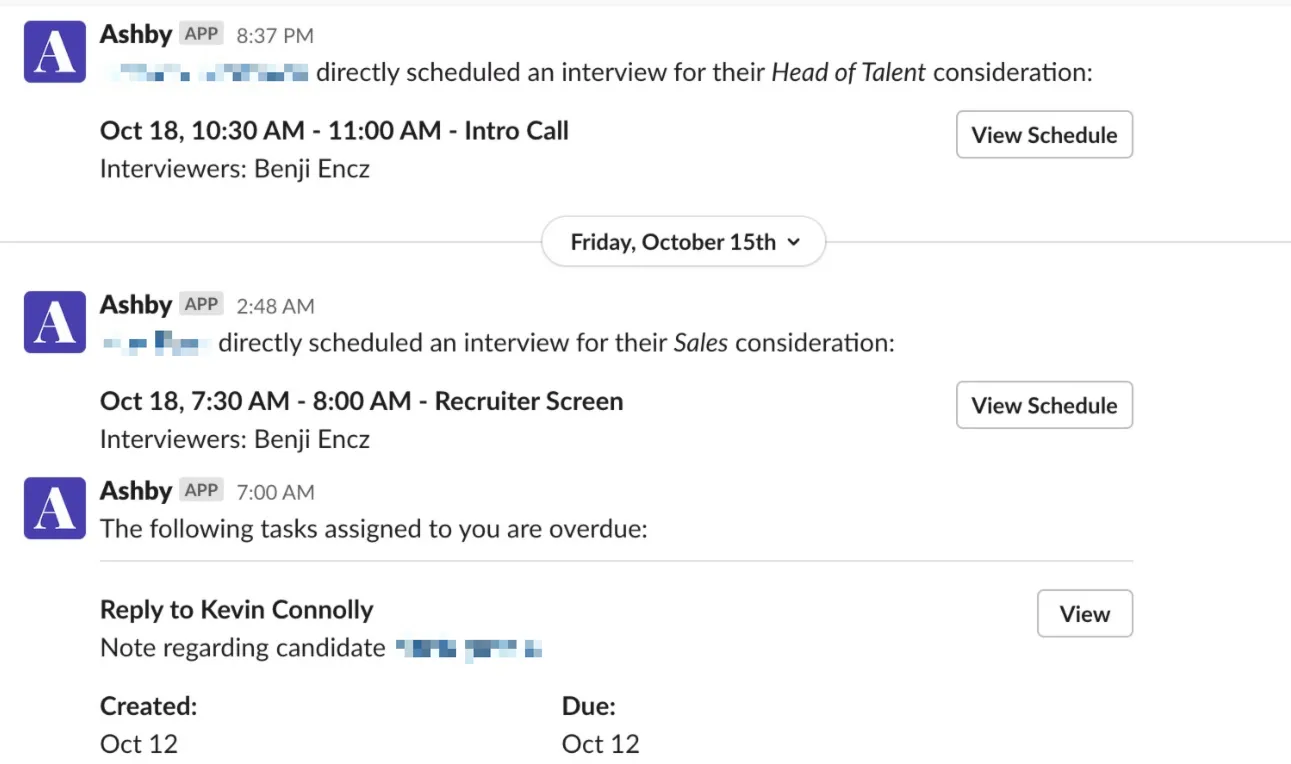
You can also automate the creation of private interview channels, set up interviewer reminders, reply to candidate text messages, and schedule alert delivery to specific channels. Ashby agents and the Ashby MCP server can also be used with the integration for Slack.
This app includes AI-powered features that generate responses, summaries, and recommendations based on the information available to it. AI-generated content may be inaccurate and should be reviewed before use. More on this at Using Ashby Agents in SlackUsing Ashby Agents in Slack.
Your use of Ashby's integration with Slack is governed by the same terms and conditions as your use of other Ashby services.
If you have an Ashby subscription, see our Terms and Conditions and Privacy Policy for more information. Otherwise, contact your account manager with any questions.
Enabling the integration and configuring notifications
You must be an admin in your team's Slack workspace to enable the Ashby integration in Slack. This is a global integration, so everyone on your team can get notifications without additional setup.
Steps to enable the integration for Slack
Follow the steps below to enable the integration for Slack from Ashby's Integrations marketplace.
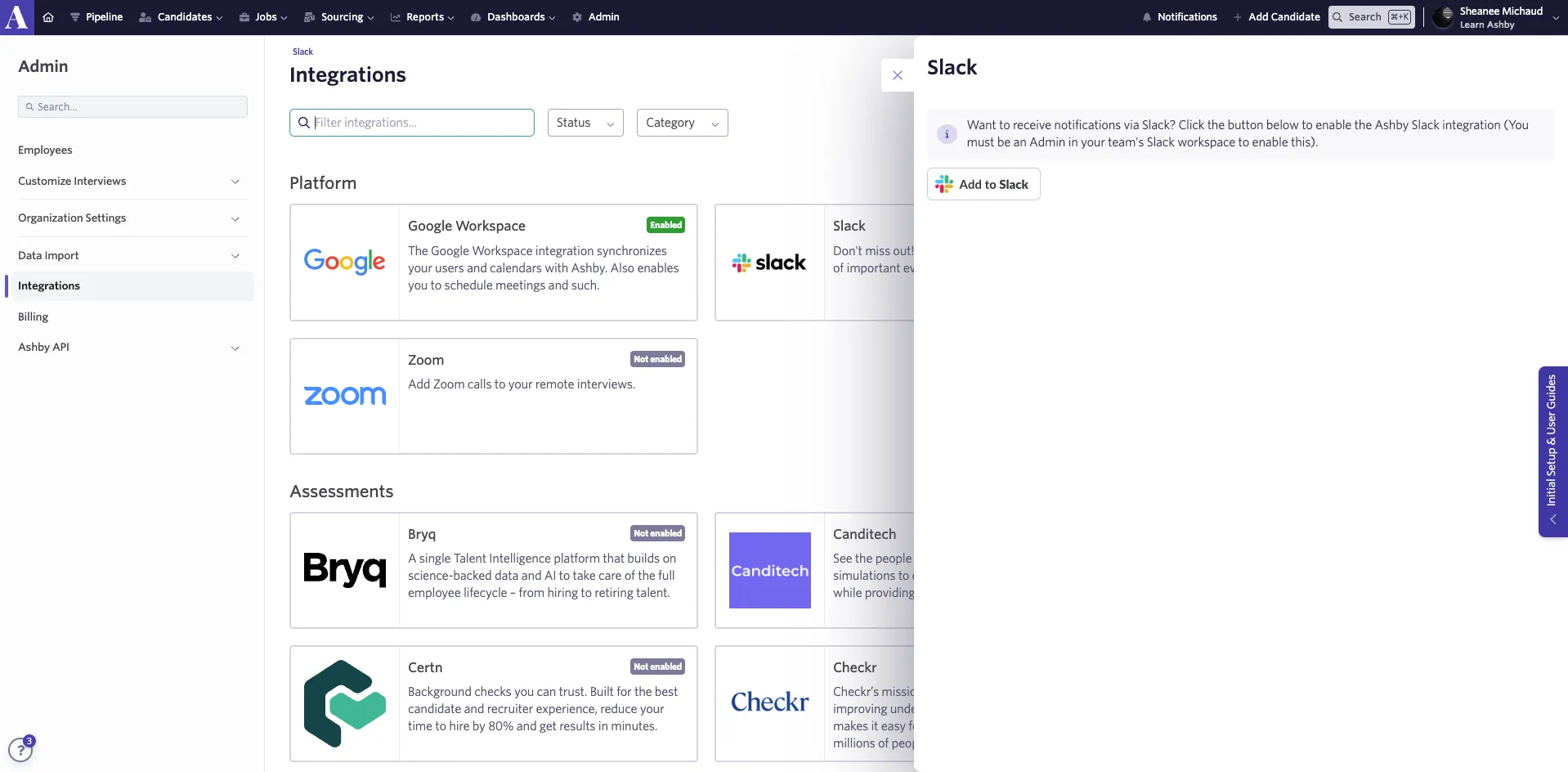
- Navigate to Admin > Integrations > Integrations > Slack (or use the link to the integrations marketplace above).
- Select the Slack tile and then click Add to Slack.
- This takes you to the Slack authorization page where you can:
- Identify the workspace to add the integration
- Review app permissions and actions
- When ready, click Allow to enable the integration.
Permissions we request from Slack
The Ashby integration accesses the following scopes:
- channels:read: View basic information about public channels in a workspace
- channels:manage: Manage public channels that your slack app has been added to and create new ones.
- chat:write: Post messages in approved channels & conversations
- chat:write.public: Send messages to channels Ashby Bot isn't a member of
- files:write: Upload attachments (used by scheduled dashboards)
- groups:read: View basic information about private channels that Ashby Bot has been added to
- groups:write: Manage private channels that Ashby Bot has been added to and create new ones
- im:read: View basic information about direct messages Ashby Bot has been added to
- im:write: Start direct messages with people
- users:read: View people in a workspace
- users:read.email: View email addresses of people in a workspace
- im:history: View messages and other content in direct messages that Ashby Bot has been added to
- files:read: View files shared in channels and conversations that Ashby Bot has been added to
- team:read: View the name, email domain, and icon for workspaces Ashby Bot is connected to
Configuring notifications
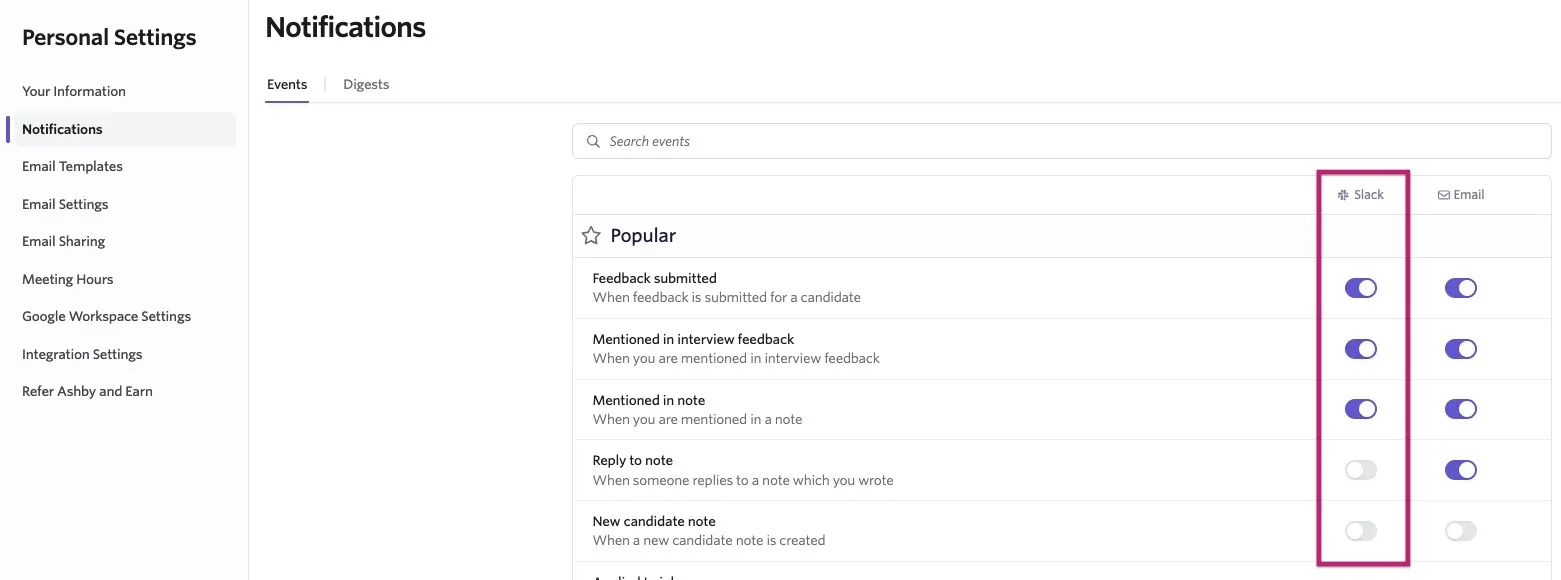
Once the integration is enabled, your team can add Slack as a notification channel from their personal settings page.
We recommend prompting your team to activate Slack notifications in Ashby, as they are disabled by default.
Ashby bot for Slack
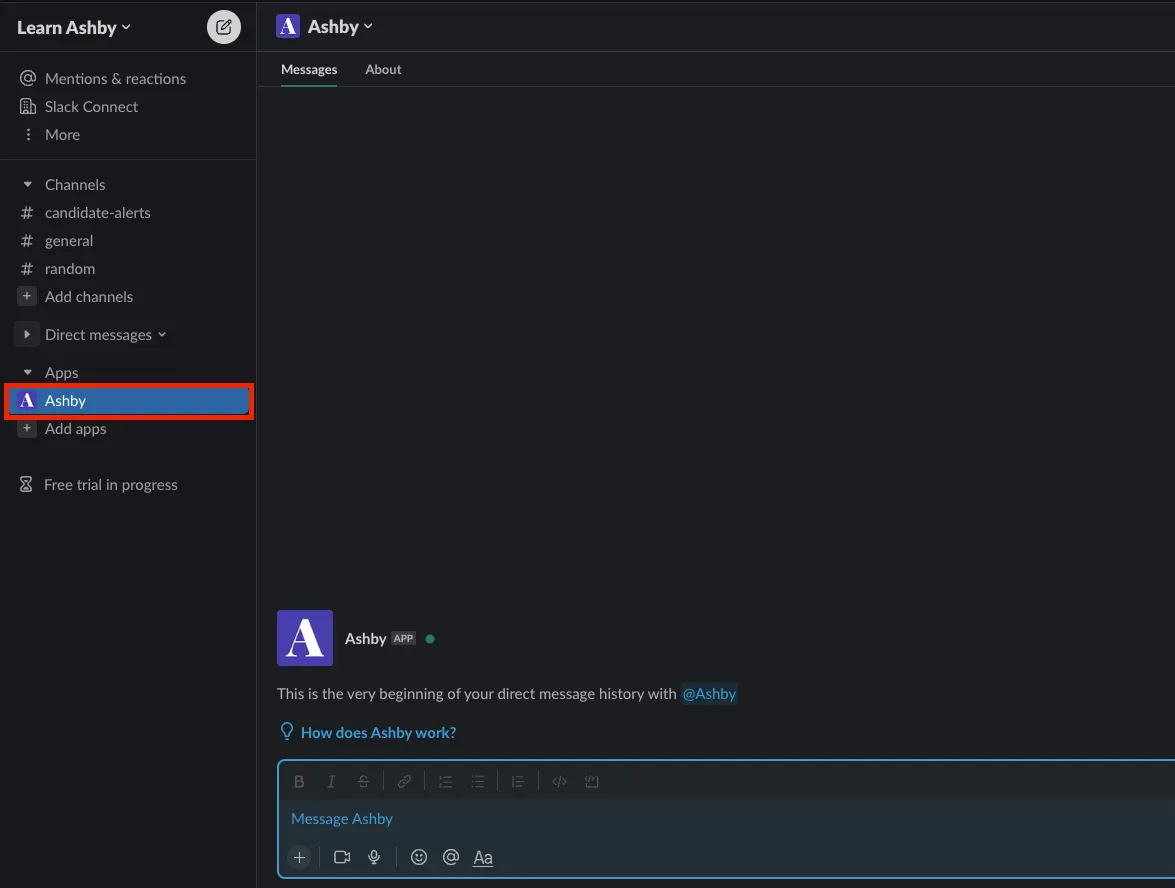
After you set up the integration for Slack, you start receiving messages from the Ashby bot.
How alerts work with Slack
Alerts is a reporting feature that allows report delivery to team members, either periodically (e.g., once a week) or immediately if a new record is added to or removed from the report.
If you have the integration for Slack in place, you can opt to have reports sent to a user or to a Slack channel.
To learn how to set up alerts, including Slack alerts, check out AlertsAlerts and Alerts LibraryAlerts Library. To learn how the alert is shared and formatted in Slack, see the section on Delivery via Slack .
Scheduled dashboards for Slack
You can also set up scheduled dashboards to be delivered to a specific Slack channel. For more on configuring scheduled dashboards and the integration for Slack, check out Scheduled DashboardsScheduled Dashboards.
Slack interviewer reminders
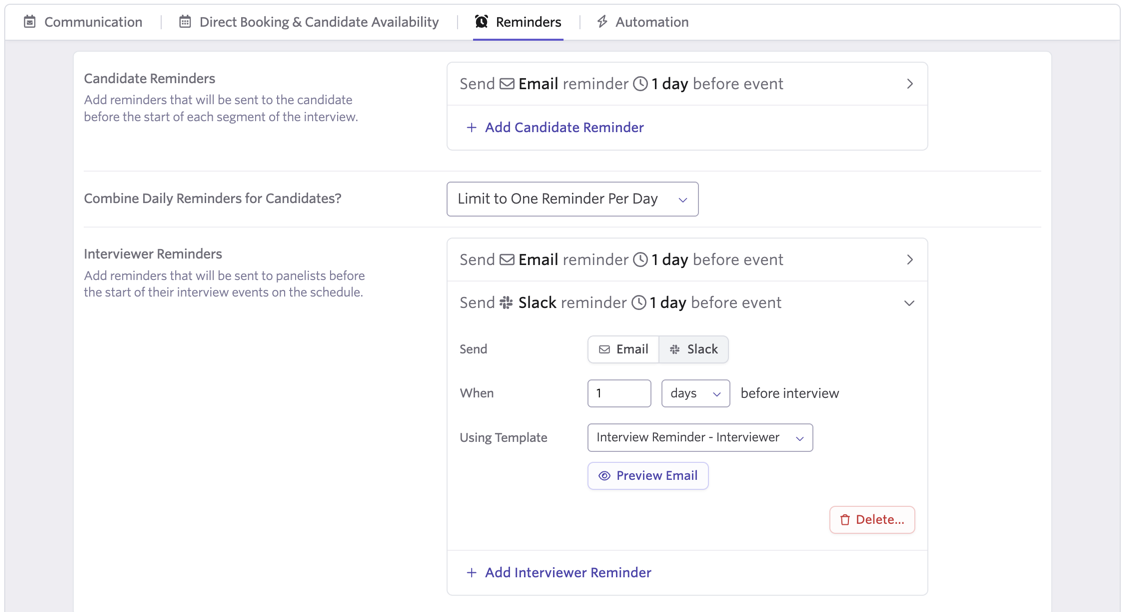
You can configure interview reminders to be sent to interviewers via Slack as well as email. You can set these up as part of your scheduling defaults or within individual interview activities.
To set up Slack interview reminders as part of your scheduling defaults:
- Navigate to Admin > Interviews & Scheduling > Scheduling Defaults.
- Click on the Reminders tab.
- Click Add Interviewer Reminder.
- Select Slack and determine when the reminder should be sent and the template to use. You have the option to preview the reminder.
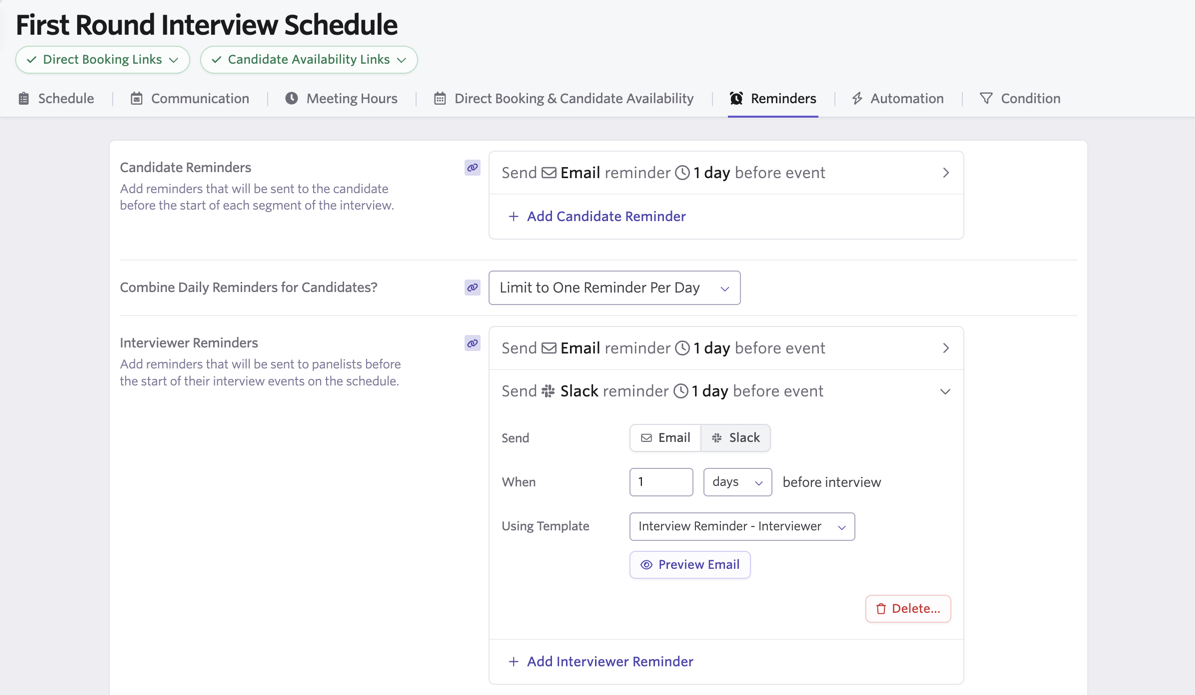
To set up Slack interview reminders as part of a scheduled interview activity:
- Navigate to Jobs > Jobs and select the job in question.
- On the Interview Plan tab of the job, select the schedule interview activity you'd like to add the reminder to.
- Click on the Reminders tab.
- Click Add Interviewer Reminder.
- Select Slack and determine when the reminder should be sent and the template to use. You have the option to preview the reminder.
Slack interview channels
You can configure private Slack interview channels to be automatically created upon the initial scheduling of an interview for a job consideration. Channels provide a place for interviewers, hiring team members, and/or specific users to communicate and share relevant information about interviews as needed.
How it works
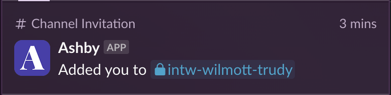
Once the first interview is scheduled for the candidate, interviewers and any other specified users receive an invitation from the Ashby app via Slack to join the interview channel.
Once the candidate has been archived or hired, the created Slack channel is archived automatically. Channels are set up per job consideration and cannot be shared across multiple candidates or job considerations.

If you set up Slack channels for multiple interview stages, a new channel is not created each time — the same channel is used throughout the interview loop.
New interviewers are automatically added to the channel.
Configuring Slack interview channel creation
Slack channels can be configured for job considerations in various ways. See the instructions below to learn how to create Slack channels for your interview loop.
Configure on the interview activity
For more on configuring interview activities, check out Setting up Schedule Interview ActivitiesSetting up Schedule Interview Activities.
- Navigate to your interview activity by going to the job's Interview Plan tab and clicking on the activity within the interview plan stage. Go to the Communication tab. At the bottom of the page, enable the Configure Slack option.
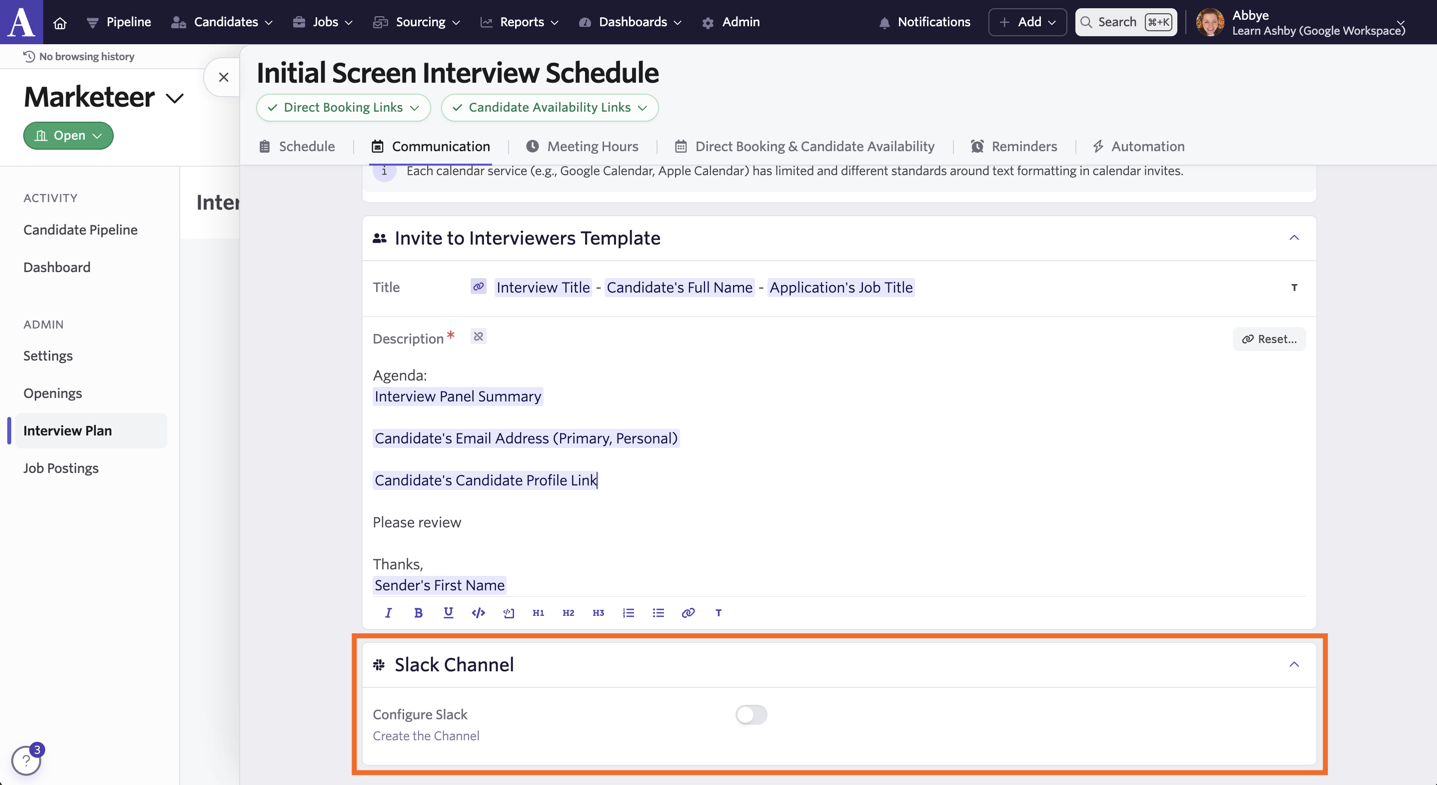
- From here, configure interview activity-specific settings for the Slack channel:
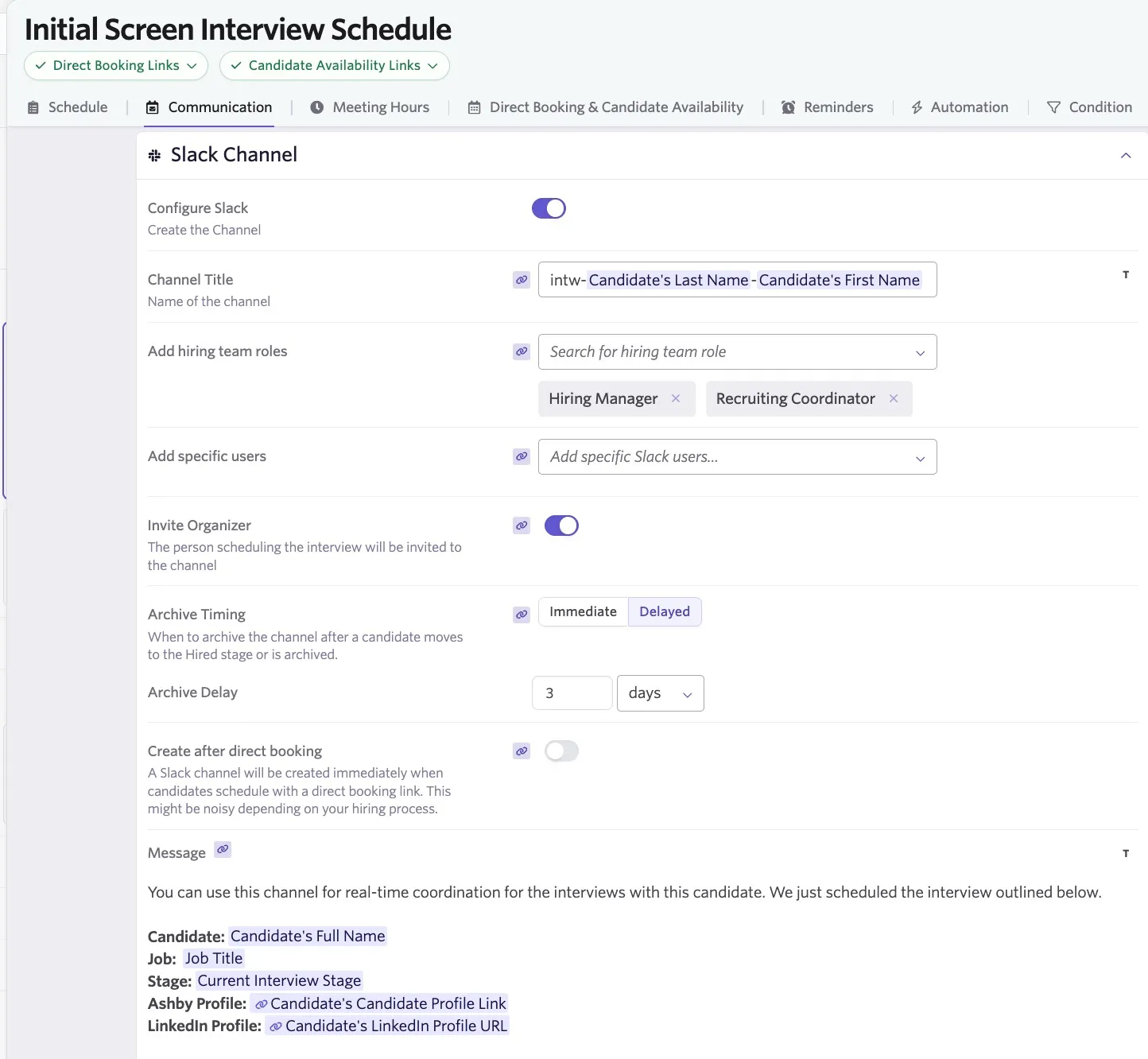
- Channel Title: Configure the name of the channel that will be created for the interview here. You can click the T icon to add substitution tokens.
- Add hiring team roles: Interviewers on the panel are added to the channel by default, but you can add hiring team roles here to add users in those roles to the Slack channel on creation.
- Add specific users: If you'd like to specify certain users to also be added to the channel on creation, specify them in the Add specific Slack users… field.
- Invite Organizer: Determine whether the person scheduling the interview is invited to the Slack channel.
- Archive Timing: When to archive the Slack channel once the candidate is moved to the Hired or Archived stages.
- Archive Delay: If the archive timing is set to delayed, you can determine the delay here.
- Create after direct booking: If you opt to send out a direct booking link to the candidate, you can switch this on to immediately create a Slack channel once the candidate has scheduled via the booking link. Depending on your hiring process and the stage the activity is in, this can be noisy.
- Message: Determine the contents of the Slack message to be sent to channel members providing additional information.
Configure on manually scheduled interviews
For more on the process of manually scheduling interviews, check out Manually Scheduling Interviews.
You can set a Slack channel to be created when manually scheduling an interview too.
- On the Communications tab of the calendar interface, click the Slack Channel option.
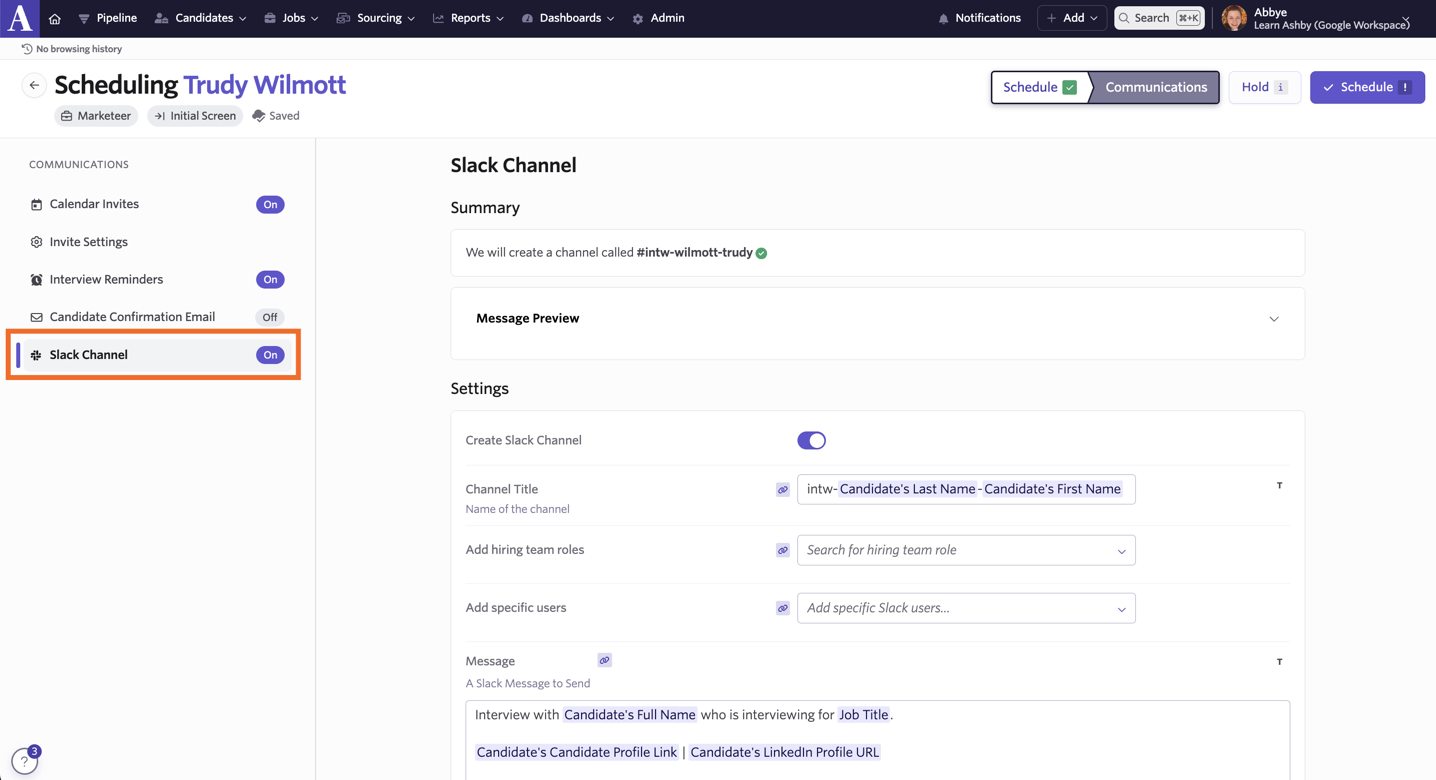
- Enable the Create Slack Channel option and complete the following fields to configure the Slack channel settings:
- Channel Title: Configure the name of the channel that will be created for the interview here. You can click the T icon to add substitution tokens.
- Add hiring team roles: Interviewers on the panel are added to the channel by default, but you can add hiring team roles here to add users in those roles to the Slack channel on creation.
- Add specific users: If you'd like to specify certain users to also be added to the channel on creation, specify them in the Add specific Slack users… field.
- Invite Organizer: The person scheduling the interview is invited to the channel.
- Message: Determine the contents of the Slack message to be sent to channel members providing additional information.
Configure while manually generating direct booking links or candidate availability links
More can be found on instant direct booking links or candidate availability links in Direct Booking & Candidate Availability LinksDirect Booking and Candidate Availability Links.
- Generate your instant direct booking link or candidate availability link.
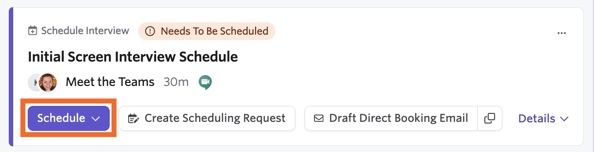
- Click the Schedule button on your interview activity, then View All Scheduling Options….
- Click the Template option.
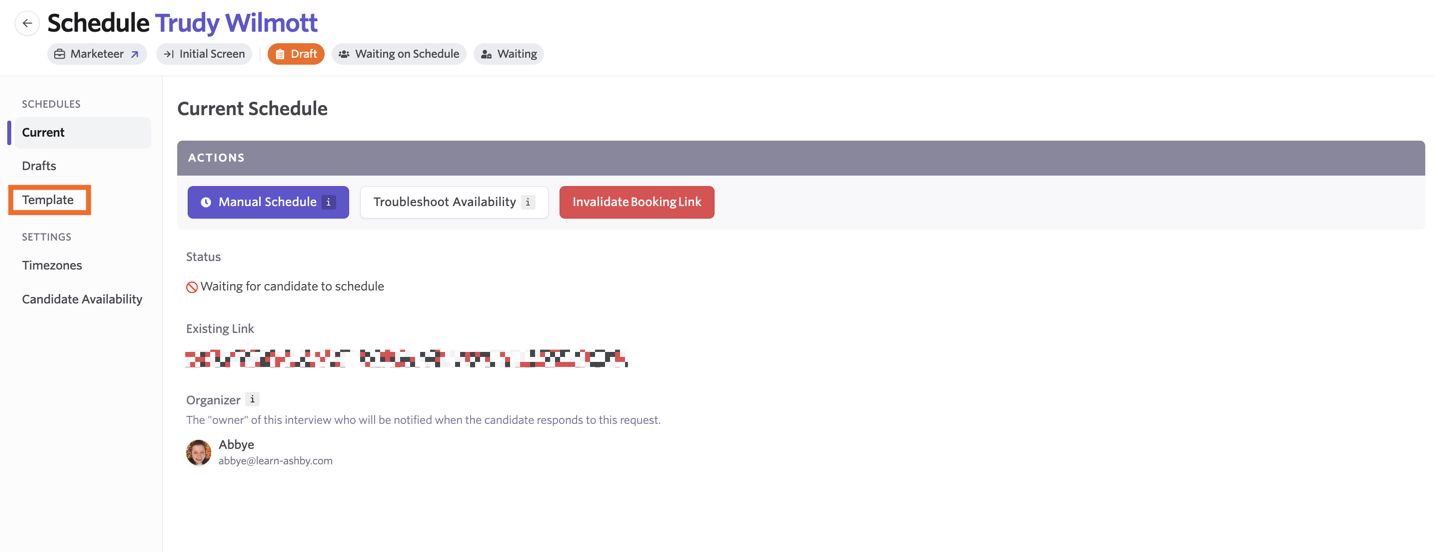
- Enable the Configure Slack option in the Communications tab, then determine the Slack channel details using the following fields:
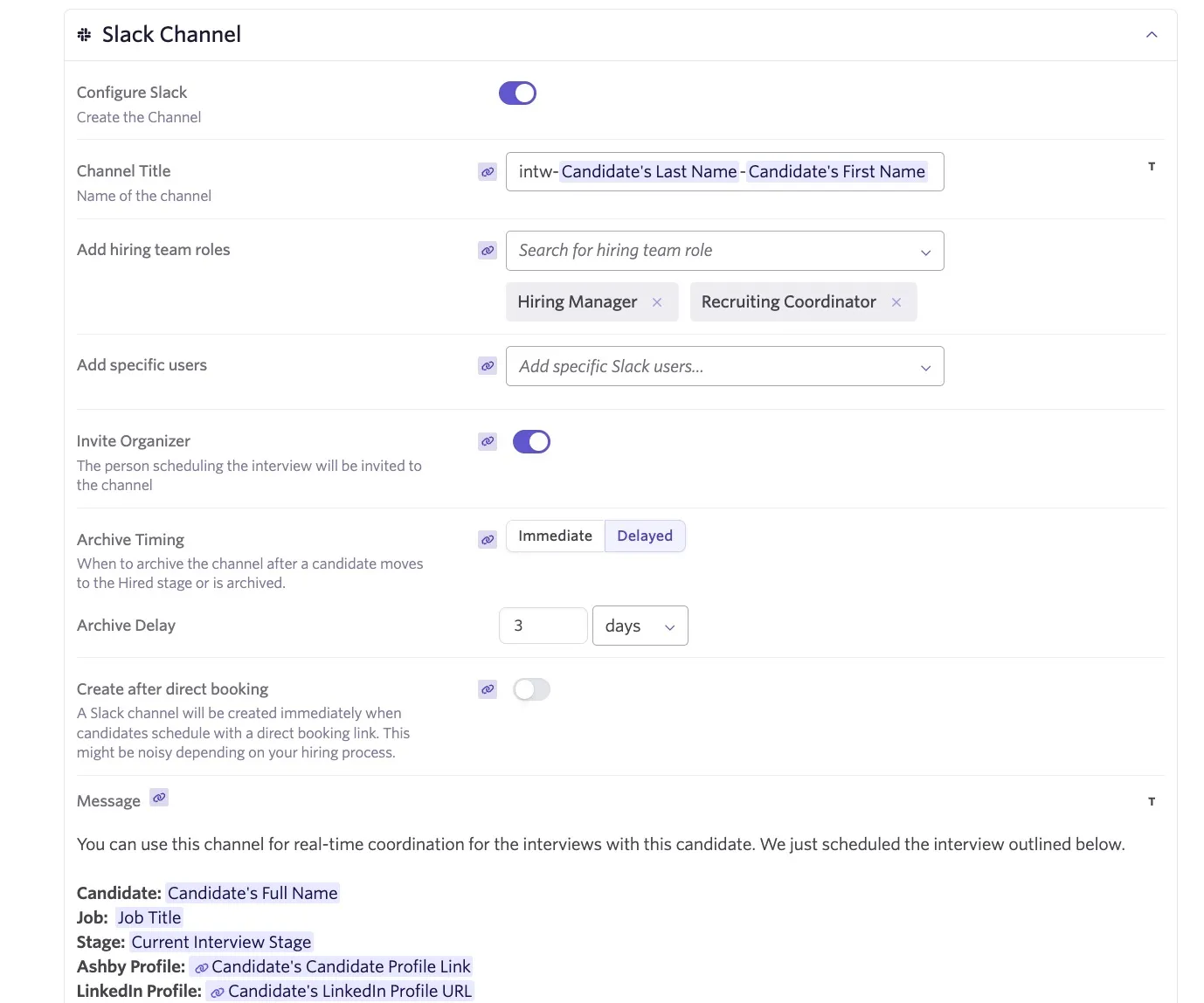
- Channel Title: Configure the name of the channel that will be created for the interview here. You can click the T icon to add substitution tokens.
- Add hiring team roles: Interviewers on the panel are added to the channel by default, but you can add hiring team roles here to add users in those roles to the Slack channel on creation.
- Add specific users: If you'd like to specify certain users to also be added to the channel on creation, specify them in the Add specific Slack users… field.
- Invite Organizer: Determine whether the person scheduling the interview is invited to the Slack channel.
- Archive Timing: When to archive the Slack channel once the candidate is moved to the Hired or Archived stages.
- Archive Delay: If the archive timing is set to delayed, you can determine the delay here.
- Create after direct booking: If you opt to send out a direct booking link to the candidate, you can switch this on to immediately create a Slack channel once the candidate has scheduled via the booking link. Depending on your hiring process and the stage the activity is in, this can be noisy.
- Message: Determine the contents of the Slack message to be sent to channel members providing additional information.
Setting default settings in scheduling defaults
It's not possible to enable private Slack channels to be configured globally. This ensures Slack channels are only created for the specified interviews and avoids creating too many Slack channels for early-stage interviews like recruiter screens.
If you'd like to specify defaults for creating Slack channels, they can be set within Admin > Interviews & Scheduling > Scheduling Defaults. The Slack Channel section is within the Communication tab, and you can set defaults for the channel title, whether hiring team users or specific users should be invited to join the created channel by default, and the Slack message sent to the channel.
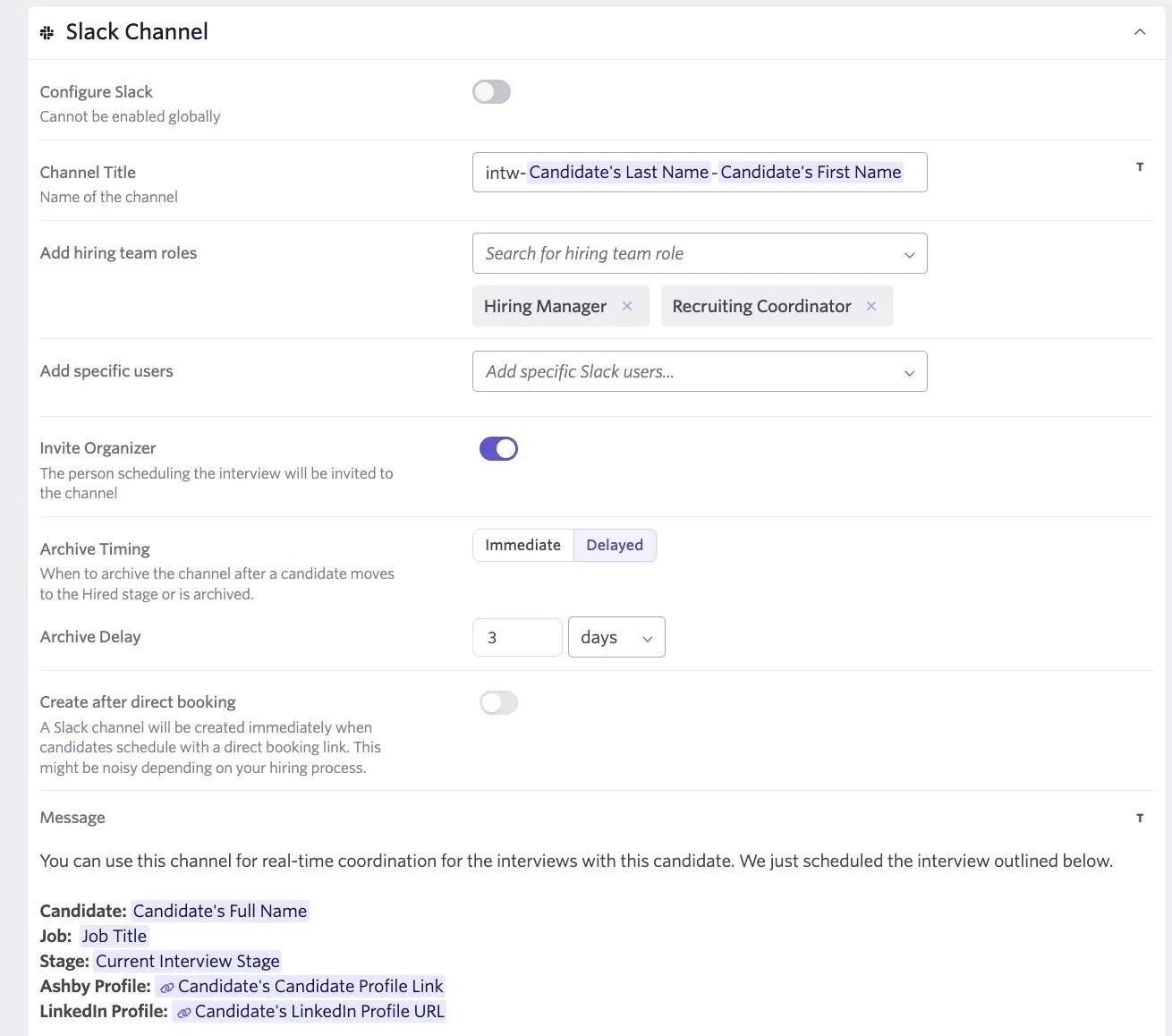
See Setting Scheduling DefaultsSetting Scheduling Defaults for more information on scheduling default settings.
Ashby agents in Slack
If you already have the Slack integration configured but would like to access agent capabilities within Slack, you need to re-install the Ashby app. Further instructions can be found at Using Ashby Agents in SlackUsing Ashby Agents in Slack.
During the time between deactivating and activating again, the Slack integration stops working completely. This means notifications and reminders do not go out. We recommend doing this during less busy hours to minimize disruption.
Ashby MCP
You can also connect to the Ashby MCP server and ask about your hiring directly in Slack. Like the Ashby Assistant, everything is scoped to what you can see in Ashby, and any action is presented for your review before it runs.
For full setup instructions and a complete list of available tools, see Ashby MCP Server (Beta).
The examples below show common things you can ask, along with the Ashby tools each one uses.
Review pipelines
"Summarize our engineering pipeline and flag where candidates are stalling."
- get_job_pipeline: Returns pipeline metrics for one or more jobs, including per-stage application counts
- filter_records: Finds applications, candidates, jobs, and offers using structured criteria
Prep for interviews and debriefs
"Build an interview brief for [Candidate Name], including prior feedback and open concerns."
- get_interview_details: Returns a detailed briefing for a specific interview, including candidate background and instructions
- get_submitted_feedback: Retrieves the scorecard feedback you have already submitted for an application
Look up records
"Pull up the details on [Candidate Name]'s application."
- search_records_by_name: Resolves a candidate, job, or application name to its record
- get_record_details: Fetches full details for jobs, applications, openings, offers, and more
Take actions
"Add a note to [Candidate Name] and move them to the onsite stage."
- add_note_to_candidate: Adds a note to a candidate's profile
- change_application_stage: Moves an application to a different interview stage
FAQs
I completed the setup — why am I not receiving notifications in Slack?
If the email address on your Slack account isn't the same as the one on your Ashby account, you need to tell Ashby what email address to use on your integration settings page.
How do I reconnect or reauthorize the Ashby integration with Slack?
To disconnect the integration from Slack, go to the integrations page, click Deactivate and then Deactivate Slack. Then simply follow the Steps to enable the integration for Slacksteps above to connect the integration to Slack again.
How can I request to have my data deleted?
Ashby doesn't own your company's data, and this applies to data synced from Slack through the integration as well.
If you are an admin in Ashby, reach out to us at [email protected] and we'll be happy to help you. Otherwise, contact your manager or the person responsible for your Ashby instance to make the request on your behalf.
Is there any fee for use of the integration?
No — your Ashby subscription includes the integration with Slack with no additional fee. If you haven't made the switch to Ashby yet, see our Pricing page for more info about our simple, all-in-one pricing model. (Slack may have their own pricing for your use of their services, which may include services used by Ashby's integration.)
Can alerts be delivered via Slack?
You can deliver alerts via Slack, both to a specific user or to a Slack channel. You can read more on configuring alerts and alert delivery at Alerts and more about templates at Alerts Library.
Can Slack alerts be replied to, and will those replies appear anywhere in Ashby?
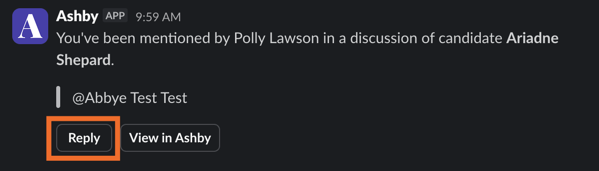
You can reply directly from Slack for the following notification types:
- New note created
- Reply to a note
- Mention in a note
The notification shows a Reply button. Click this to open the popover and add your response.
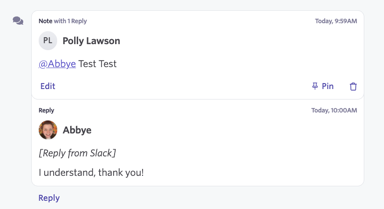
Once you've submitted your response, it is added to the note on the candidate profile, with a note that the reply was sent via Slack.
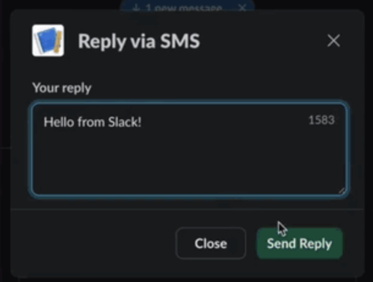
Can I respond to candidate text messages via Slack?
Yes! Similar to responding to notifications, you can click Reply on an SMS notification in Slack, type out your response, and then click Send Reply to send a response text to the candidate without logging into Ashby.
When an interviewer on a panel is replaced and a private Slack channel was created, does this also add/remove the correct corresponding Slack users?
The new interviewer is automatically added, but the previous interviewer is not removed from the channel.
Is it possible to create interview Slack channels when using soft booking with holds?
Slack channels are only created when booking an interview (not holds). However, a recommended workaround is to schedule the interview without sending the candidate invite. That creates the channel, and if they need to reschedule, you can make changes to the interview. If everything looks good, you can then choose to send the invite to the candidate.
Can I use Slack's webhooks to configure integrations with Ashby?
Slack webhooks do not return successful pings to Ashby, so we are unable to support configuring Slack webhooks at this time.
Two alternative options include:
- Use Ashby Alerts: How alerts work with Slack
- Explore using middleware like Zapier or Merge.