Remoteinterview.io
4 min
This guide walks you through the steps to integrate Ashby with remoteinterview.io, enabling you to send assessments to candidates directly from Ashby’s interview plan.
Step 1: Configure the Ashby integration in remoteinterview.io
- Navigate to https://remoteinterview.io/login and log in to your account.
- Click on Settings in the menu.
- Select Integrations from the Settings menu.
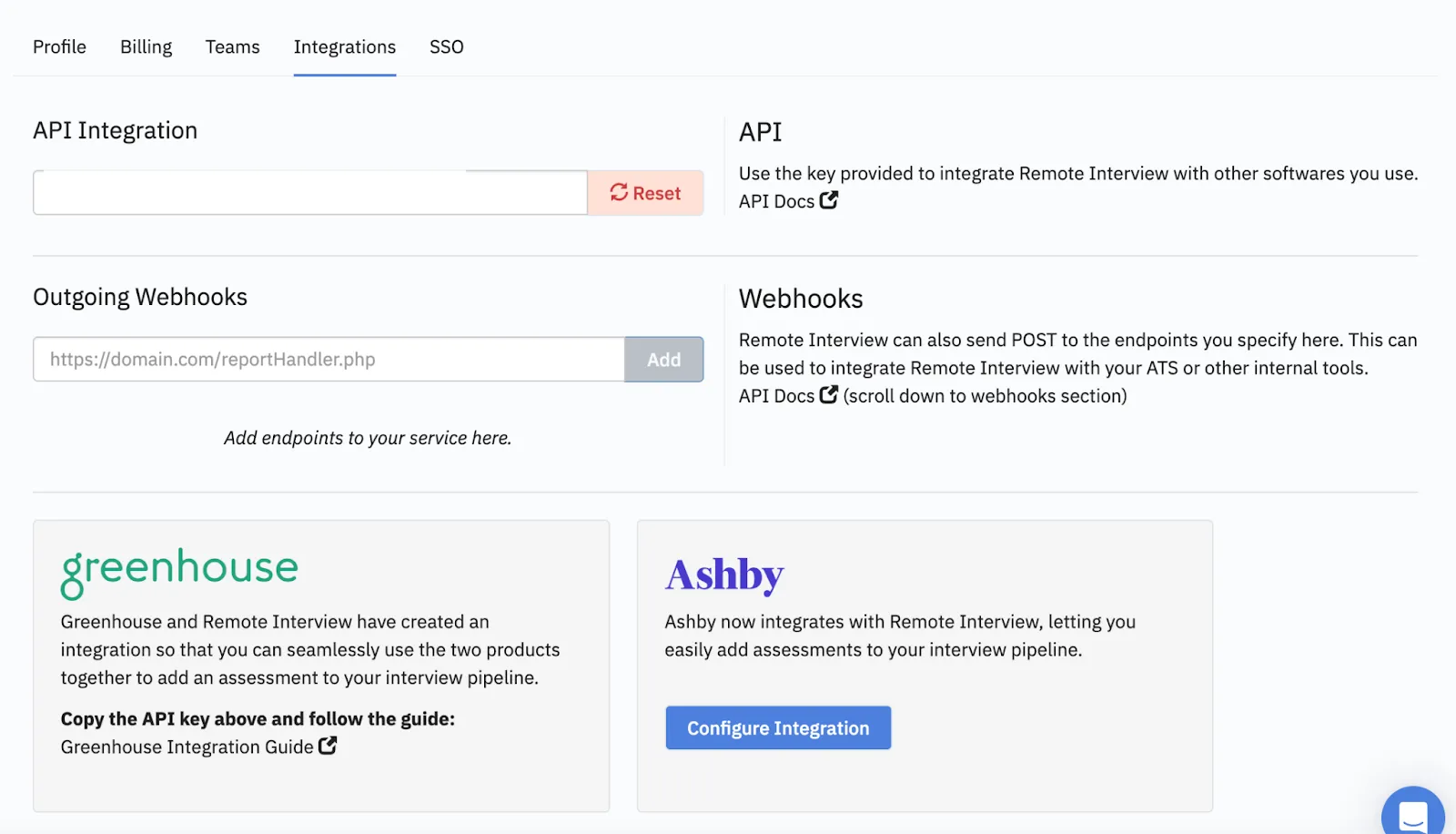
- Click the blue Configure Integration button under the Ashby logo.
- Copy the API key under the field Remoteinterview API Key
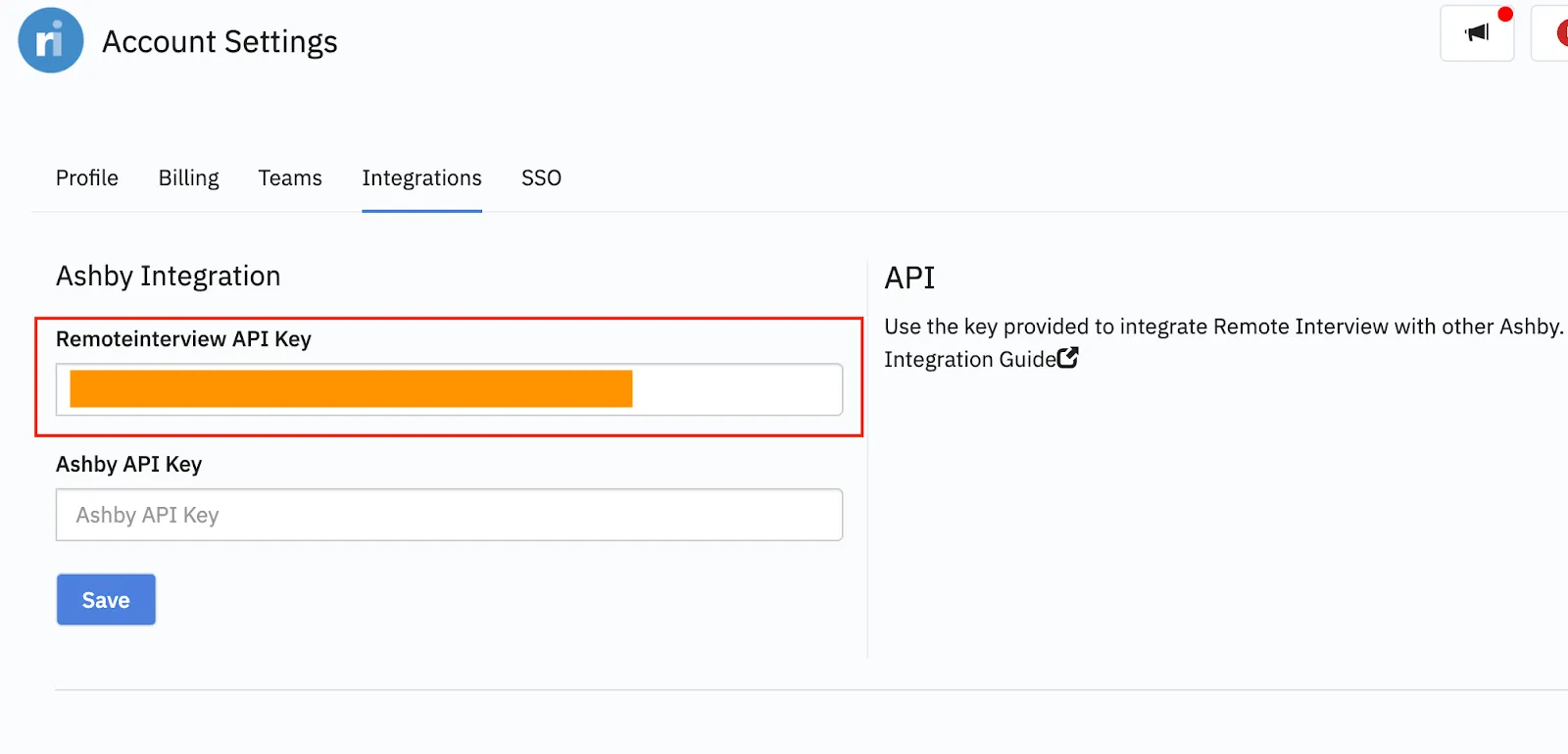
- Leave this tab open in your browser. You will come back to it later.
Step 2: Set up the remoteinterview.io integration in Ashby
- In a new tab, navigate to the Ashby portal and log in.
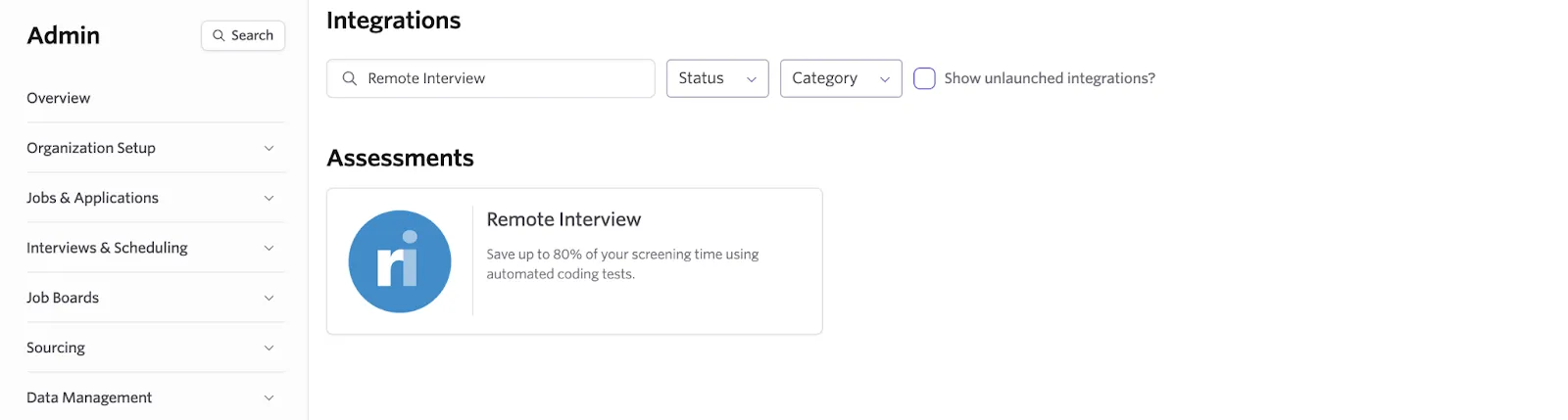
- Select Admin from the top menu bar, open the Integrations menu from the left sidebar, and select Integrations.
- Search for “Remote Interview” in the search bar and click on the Remote Interview tile that appears.
- Click the green + Enable Remote Interview button.
- Paste the API key you copied from remoteinterview.io into the Remote Interview API Key field.
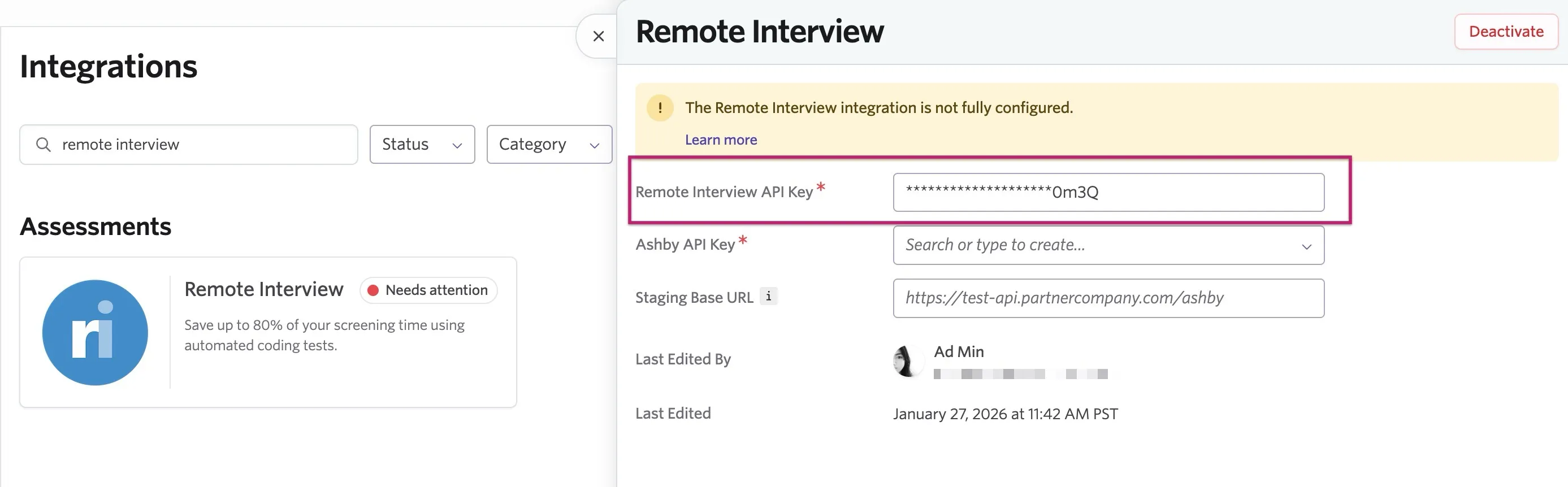
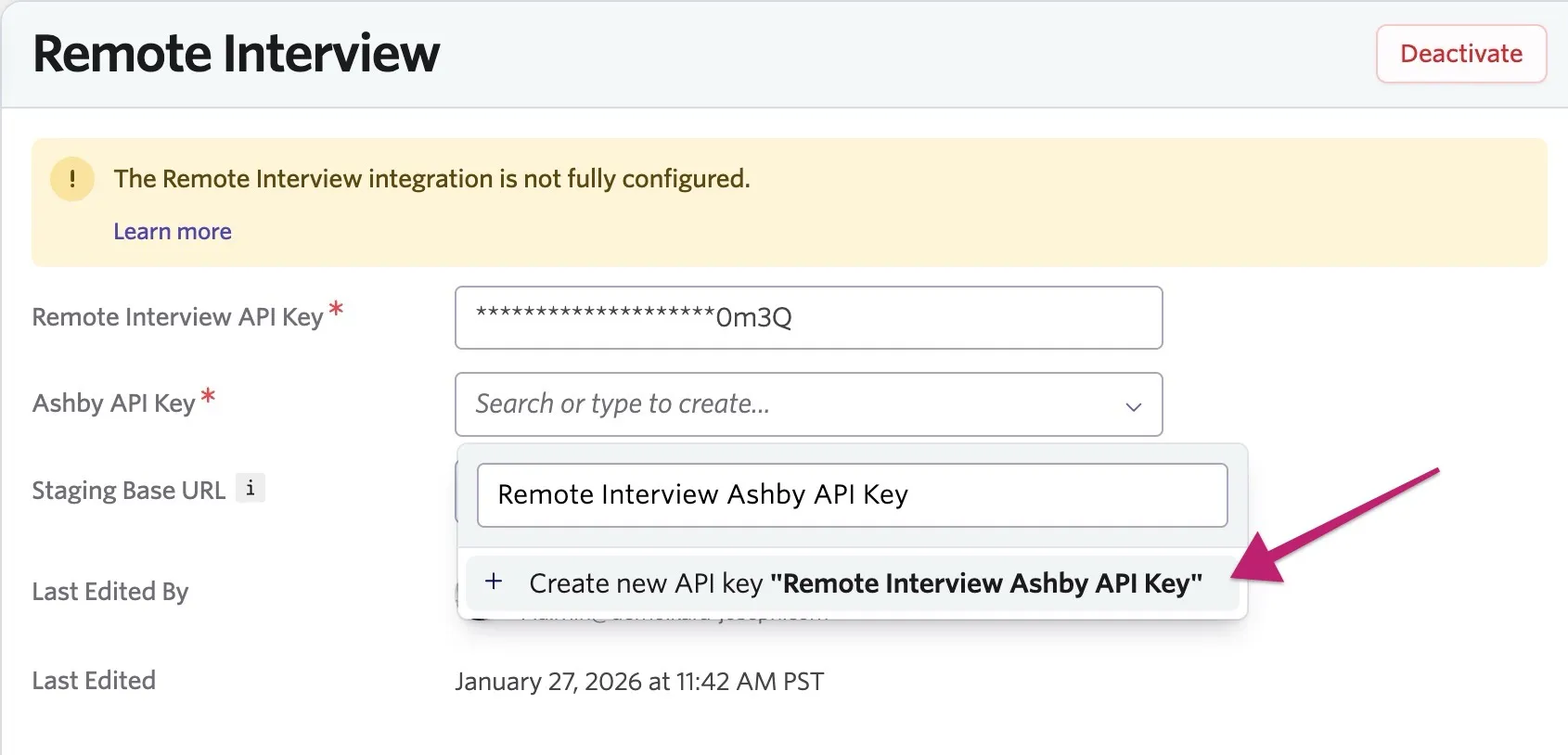
- Generate your Ashby API key by clicking into the Ashby API Key field and giving the API key a name, such as "Remote Interview Ashby API Key" or whatever works best for you. Select + Create new API key after you finish entering the name.
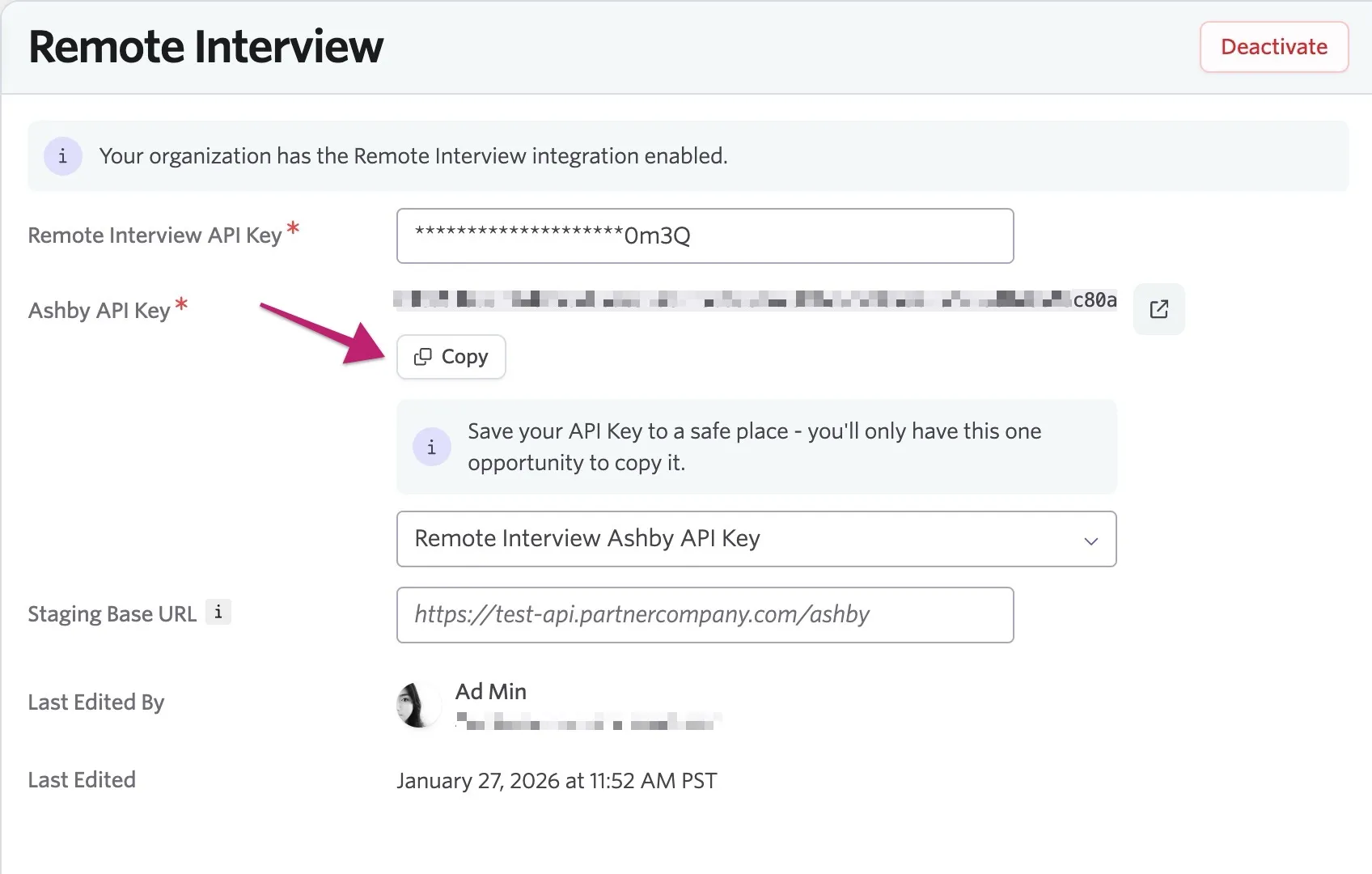
- Select the Copy button that appears below the Ashby API Key field to copy the key to your clipboard.
Final Step: Add the Ashby API Key to remoteinterview.io
- Go back to your browser tab with remoteinterview.io open. If you closed or navigated away from this page, you will need to log in again and navigate back to the Ashby integration tab.
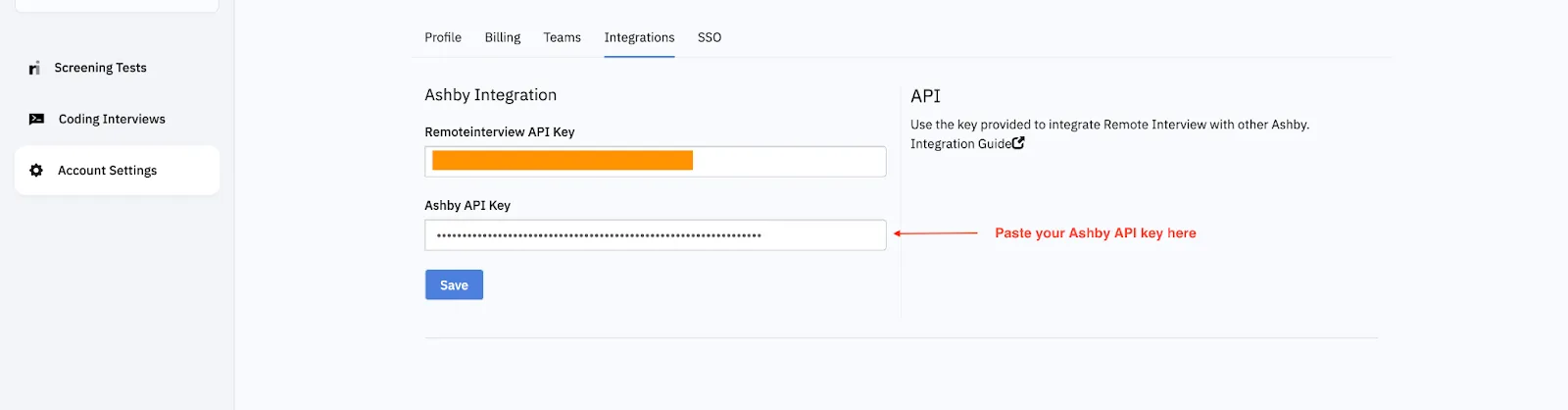
- Paste the copied API Key from Ashby into the Ashby API Key field and hit Save.
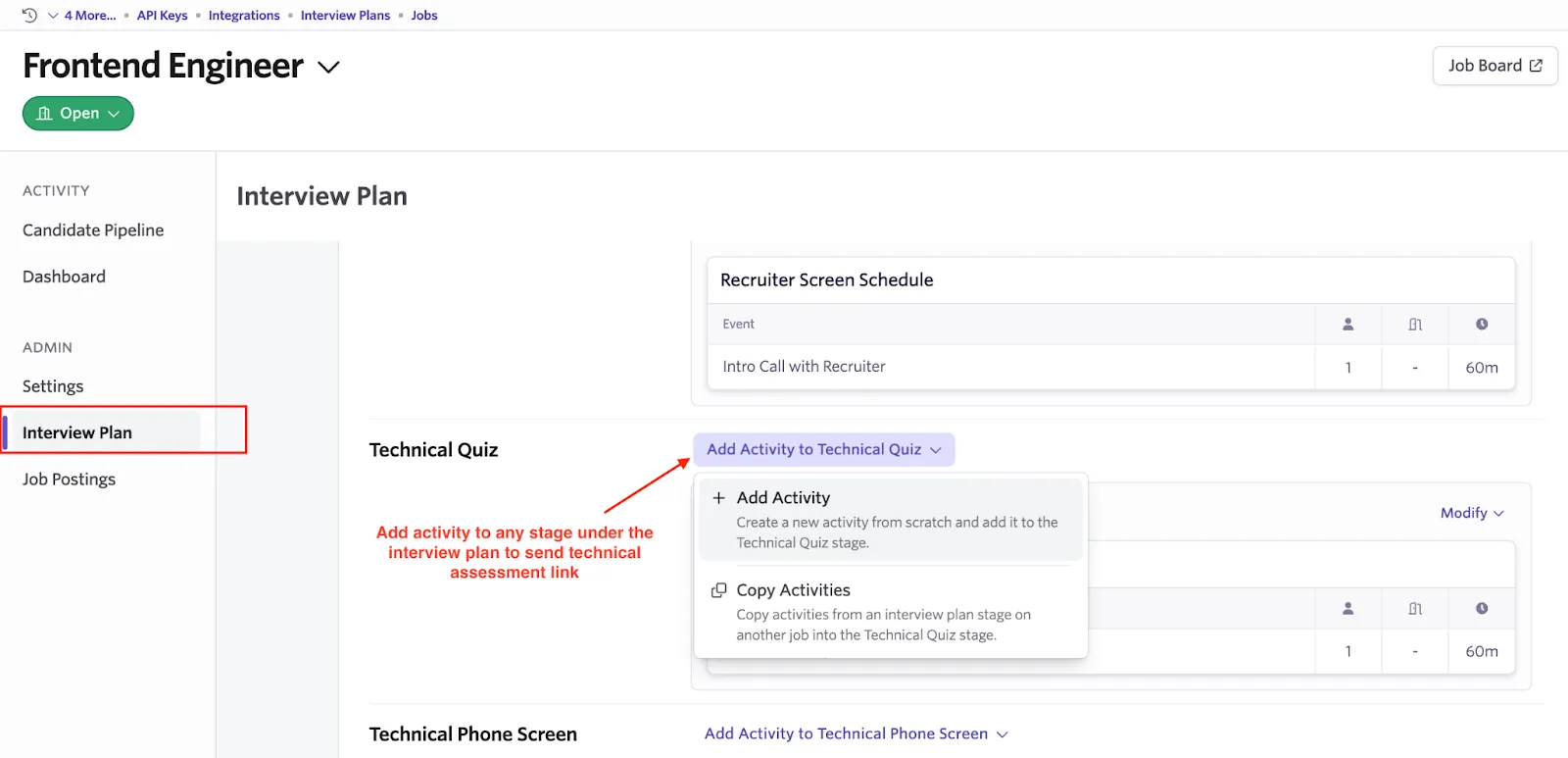
- You're now ready to start adding assessments to interviews! See Setting Up Assessment Integrations to learn how.