Pave
This guide walks through setting up Ashby's integration with Pave. Pave is a leading compensation platform that integrates directly with Ashby to provide Visual Offer Letters. For more on creating offers in Ashby, check out Offers and Offer Letters. To send e-signature requests, review E-Signature Offers.
Permissions & access
The Pave integration is available on Foundations, Plus, Enterprise, and Legacy Plus plans.
Foundations | Legacy Plus | Plus | Enterprise |
|---|---|---|---|
✅ | ✅ | ✅ | ✅ |
You must be an Organization Admin and have a Pave account to configure this integration.
Connecting the integration
- Navigate to Admin > Integrations and search for Pave.
- Select the + Create API key for Pebl button.
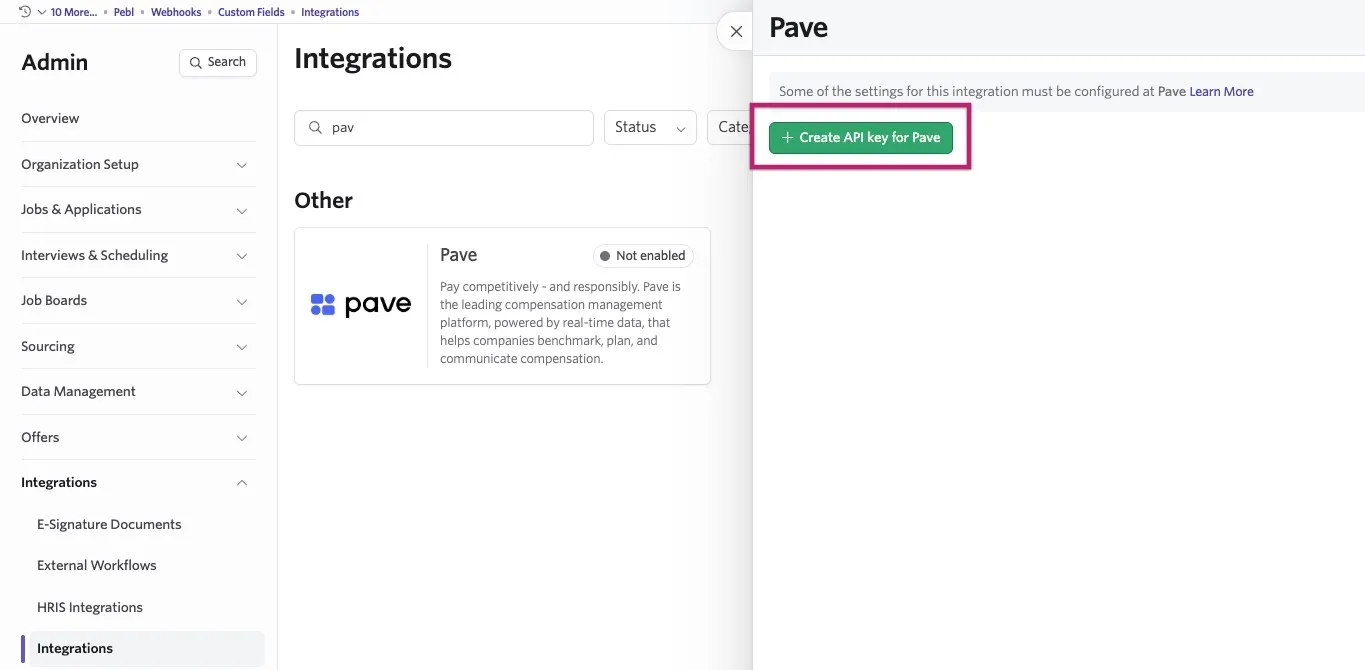
Copy the API key and store it in a secure place. You need this to complete the integration setup in Pave.
- Enter the API key in your Pave account.
Creating offers in Ashby
If the integration with Pave is turned on, offers created in Ashby are sent to Pave. You can view the Ashby-generated offer by logging into the Pave portal using the same email address associated with your Ashby account.
To see the offer, navigate to the menu on the left side of the page and select Offers. If you do not see Offers, reach out to your Pave Administrator to confirm your permissions.
To create a Visual Offer Letter in your Ashby, navigate to the candidate who should receive the offer. The candidate profile must have these fields completed before sending a Visual Offer Letter through Pave:
- Job
- First Name
- Last Name
- Recruiter
- Ensure the person creating the offer letter is tagged as the recruiter
Move the candidate to the Offer stage and select Create Offer. Complete the information associated with the offer. See Offers and Offer Letters for more information on creating offers.
These fields are required:
- Title
- Level
- Start Date
- City
- Country
- Salary (field type must be currency)
- Equity (optional; Pave recommends number of shares)
Pave also offers optional customizations for more complex candidate operations. For example, a Recruiter custom field (field type: User) can be added to the offer. If specified, Pave uses this to override the recruiter associated with the candidate.
Offers are generated in Pave when an offer is created or updated in Ashby. If you use the Ashby offer approval feature, the offer must be approved before it appears in Pave.
If an offer created in Ashby has the same email address as an offer already in Pave, it overwrites and updates the offer in Pave with the new details from Ashby (regardless of whether the offer was originally created in Pave or Ashby).
Editing offers in Ashby
To identify whether an offer was generated in Ashby, look for the green Ashby icon associated with the candidate or offer. Offers generated in Ashby must be edited directly in Ashby and appear in the Pave portal. This includes changing the recruiter for the offer.
Generally, the email address associated with the offer should not be edited. Editing a candidate's email address requires the candidate to create a new Pave account with the updated email address.
Deleting offers in Ashby
Ashby-powered Visual Offer Letters are deleted from Pave in any of the following scenarios:
- The candidate is marked as Accepted, Declined, or Canceled
- The candidate or offer is deleted
Offers generated from Ashby cannot be removed from within the Pave portal.
Sharing a visual offer letter
To share a Visual Offer Letter directly with a candidate from the Pave portal, select the candidate you want to send an offer to. Once you are in the candidate's offer, click the Send Offer button in the top right.

From there, you have two options:
- Click Send Offer to send with custom messaging. This is sent on company-branded letterhead.
- Click Copy offer link, then create a standard email and include the link to the offer letter. The link directs the candidate to sign up for Pave, where they can log in and view their Visual Offer Letter.
- Only the candidate can access this link to view their offer letter. Colleagues cannot use this link to view the candidate's offer letter.

Optional approval flow
If you are using an approvals workflow in Ashby, you can enable this optional feature to allow only approved offers to pull into Pave. Otherwise, Pave pulls in any offers that are pending candidate response.