E-Signature Offers
This guide covers the e-signature feature in detail. Check out the Offers and Offer LettersOffers and Offer Letters guide for the full feature overview.
E-signature offer overview
E-signature request templates are not shown in this video, but are available. See Creating and Managing E-Signature Request TemplatesCreating and Managing E-Signature Request Templates for setup instructions, or the Send an e-signature offer to a candidate section below for how to use them.
Permissions: offers and offer letters
See the table below for information on the access roles that can create offer letter templates and generate offers for candidates in the Offer stage.
Access Role | Can create offer letter templates? | Can create offers for candidates in the Offer stage? |
|---|---|---|
Limited Access | ❌ | ❌ |
Agency Users | ❌ | ❌ |
Elevated Access - External Recruiter (not linked to an agency) | ❌ | ❌ |
Elevated Access - Analyst | ❌ | ❌ |
Elevated Access - Hiring Team Member | ❌ | ❌ |
Elevated Access - Hiring Manager | ❌ | ❌ |
Elevated Access - Admin | ❌ | ❌ |
Elevated Access - Admin Private | ❌ | ✅ |
Organization Admin | ✅ | ✅ |
Create an offer letter with e-signature tokens
The first step in activating e-signature is adding the related tokens to your .docx offer letter template.
- Navigate to Offer Letter Tokens and locate the candidate and company signature tokens.
- Click a token to copy it to your clipboard, then paste it in the appropriate area of your .docx template. The candidate and company signature and date tokens are required to activate the e-signature feature.
- Navigate to the Offer Letter Templates page, click New, enter a title, and upload the file.
- Click the refresh button 🔄. The form validates for errors, and you are notified if anything needs to be updated.

The following default tokens are available for e-signature offer letters:
{{CANDIDATE_E_SIGNATURE}}
{{CANDIDATE_E_SIGNATURE_DATE}}
{{CANDIDATE_E_SIGNATURE_INITIALS}}
{{CANDIDATE_CHECKBOX}}
{{COMPANY_E_SIGNATURE}}
{{COMPANY_E_SIGNATURE_DATE}}
{{COMPANY_E_SIGNATURE_INITIALS}}
All four of the following tokens are required to activate e-signature. Without them, the e-signature feature will not work:
- {{CANDIDATE_E_SIGNATURE}}
- {{CANDIDATE_E_SIGNATURE_DATE}}
- {{COMPANY_E_SIGNATURE}}
- {{COMPANY_E_SIGNATURE_DATE}}
Adding text input fields to your e-signature offer letter
E-signature text input tokens can be used for e-signature offer letters generated via Dropbox Sign or Docusign.
If you want to add text fields to your offer letters so the candidate or the company signatory can fill out additional information within the offer, add the following tokens:
- {{CANDIDATE_TEXT_INPUT}} This text input field provides the candidate a field to add additional text.
- {{COMPANY_TEXT_INPUT}} This text input field provides the company signatory a field to add additional text.
To configure and add a text input token:
- In the Offer Letter Tokens tab, click a text input token.
- Select the field size by choosing a preset size or setting the width and number of lines.
- Optionally, check the Required checkbox to require the signer to complete the field as part of the signing process.
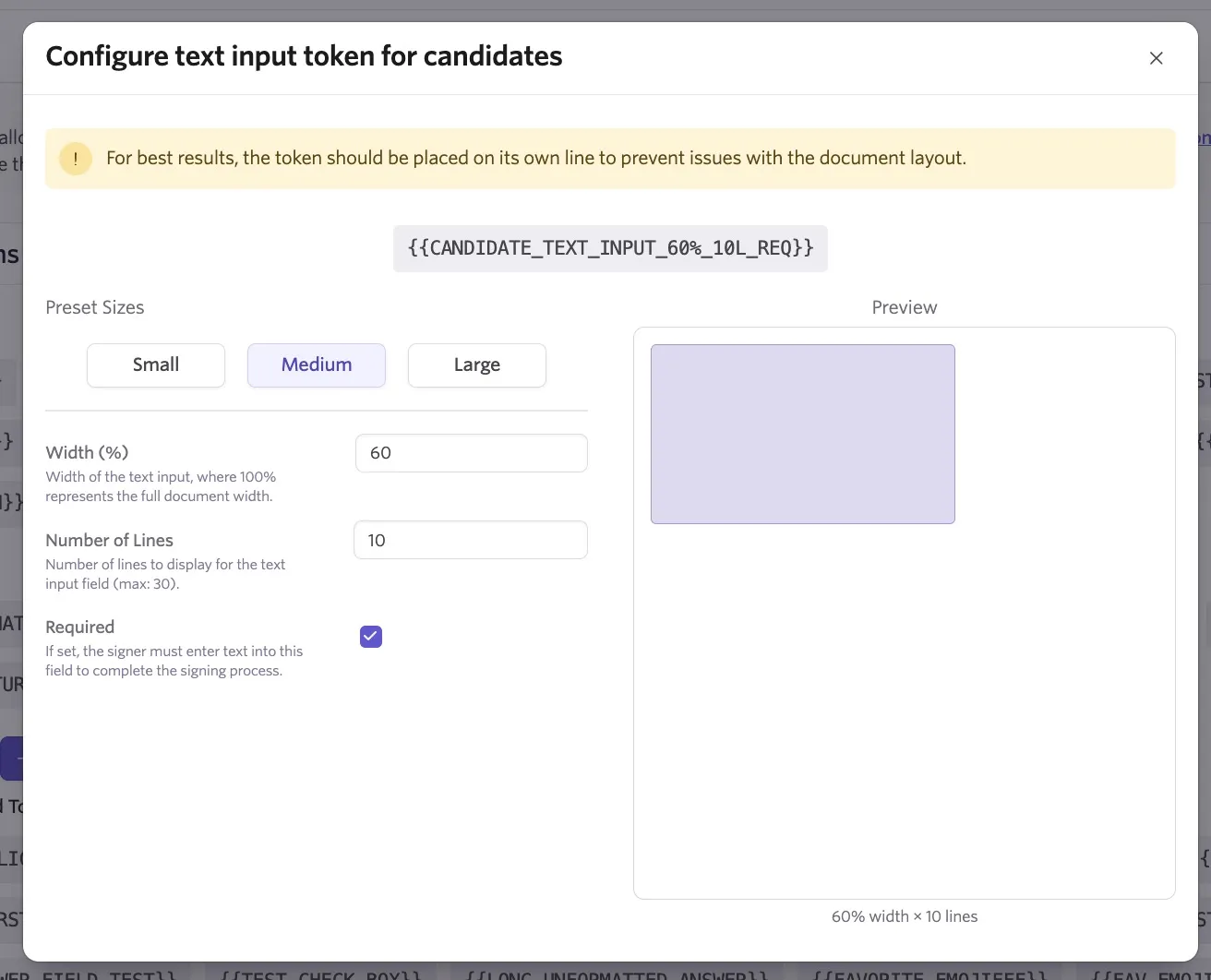
- Click the generated token to copy it.
- Paste the token into your offer letter.
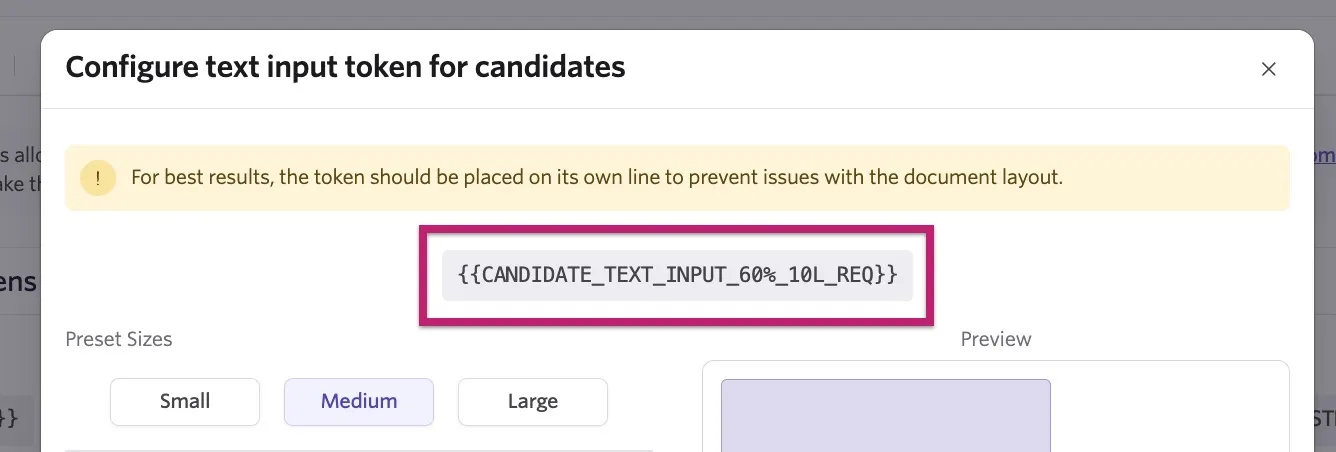
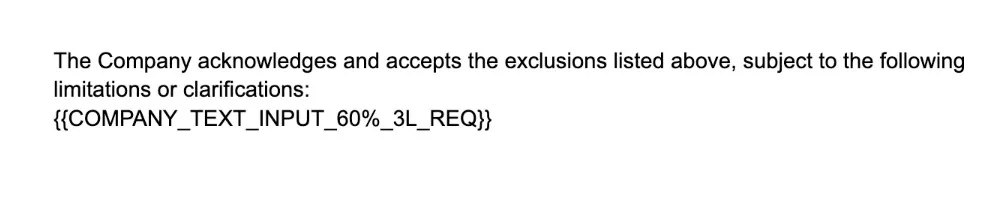
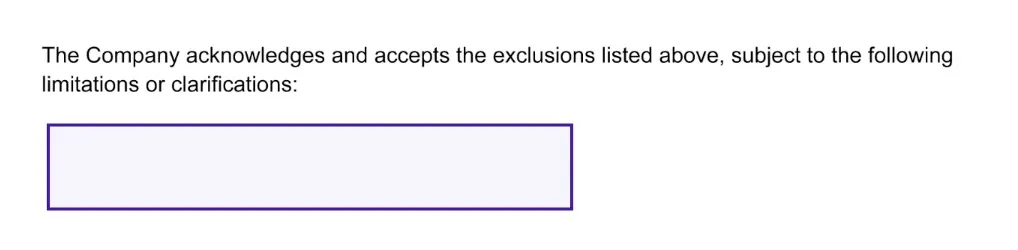
We recommend placing this token on its own line within your offer letter template to prevent layout issues. Here is an example of how the token should be placed and how it looks when an e-signature offer letter has been generated.
Send an e-signature offer to a candidate
Once your offer letter template is valid and complete, you are ready to create offers for candidates. Follow the steps below to successfully create and share an e-signature offer.
- Navigate to the candidate's profile and move them to the Offer stage. This generates an offer activity in the Activities & Progress timeline.
- On the New Offer activity, click Create Offer and then fill out the Offer Details form.
- Once the form is filled out, click View Offer on the Offer Created activity, then Generate Offer Letter.

- Select an e-signature offer letter from the Templates dropdown to generate the offer letter.
If you do not have e-signature offer letter templates, you need to go back and create them. See Create an offer letter with e-signature tokens above for more information.
- Once the offer letter has been generated, click Send Offer E-Signature (you may need to refresh the page).
- Fill in the e-signature request details:
- Title: This becomes the subject of the email to the candidate.
- Message: This appears in the body text of the email sent by the e-signature provider and is visible to all recipients including the candidate, any internal signers, and anyone CC'd on the request. Once the offer is sent, the message is not viewable on the candidate profile or elsewhere in the Ashby UI.
- Company signatory: The internal team member required to sign.
- Signing order: Determine who signs first, or whether anyone can sign at any time.
- Expiration: Select a specific date, or set to never expire. If the expiry date passes, a new e-signature request will need to be sent to be completed.
- CC: Any additional individuals you would like to receive the email.
Alternatively, you can apply an e-signature request template, which fills in these details automatically if your organization has built them.
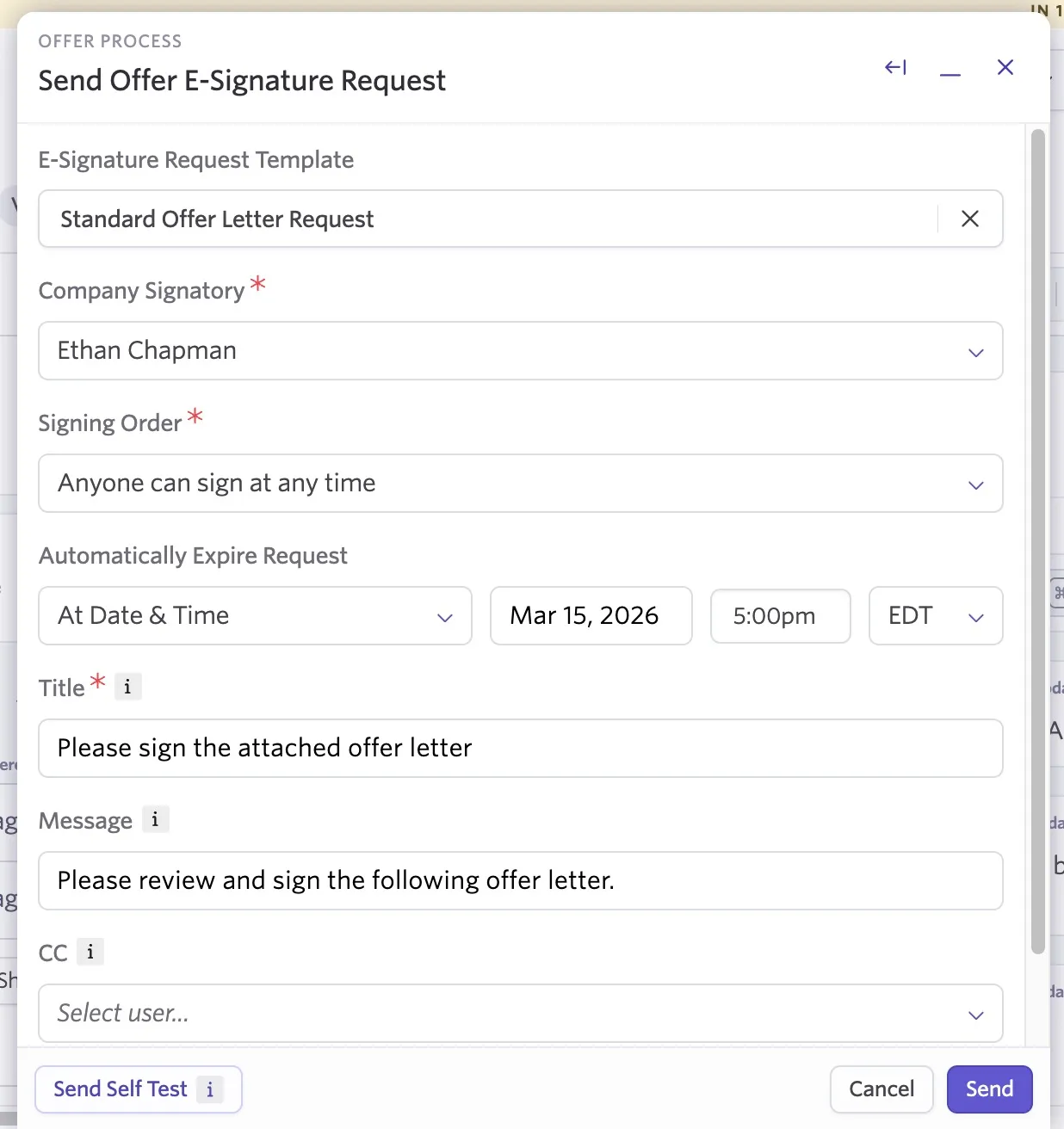
See Creating and Managing E-Signature Request TemplatesCreating and Managing E-Signature Request Templates for more information on creating e-signature request templates.
- You have the option to preview the email before sending by clicking Preview at the bottom of the pane, or to send a self-test to your email by clicking Self-Test if the preview option in your Offer Settings is not enabled.
- When ready, click Send to send the request to the candidate!
E-signature preview editor
The preview editor can be enabled under E-Signature Settings in Admin. When enabled, the signature request can be previewed in a document editor before sending the request to the candidate. This allows you to add special document inputs for the signer to fill out, which may not be offered in Ashby's templates.
Offer sent via Dropbox Sign or Docusign
Offers are sent via Dropbox Sign. Ashby's Dropbox Sign integration works automatically; you do not need a Dropbox Sign plan to use it.
If you have the Docusign integration in place, offers can also be sent via Docusign. You can read more on this integration at DocusignDocusign.
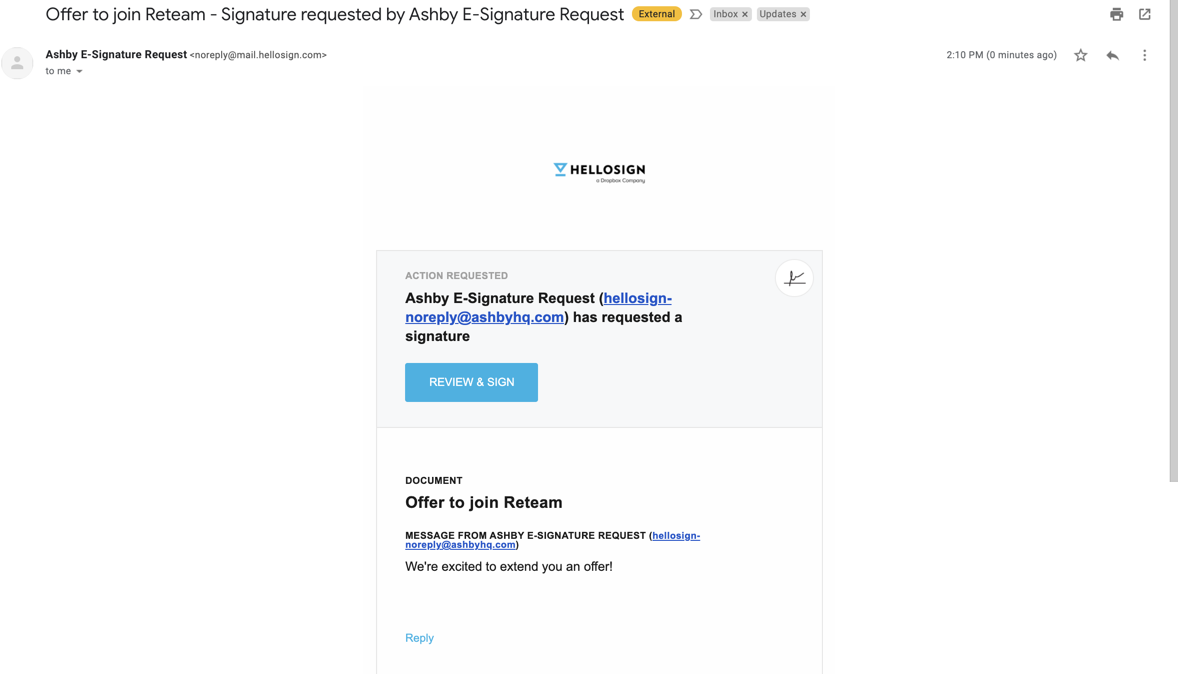
The candidate can start the signing process via a notification from either Dropbox Sign or Docusign.
E-signature status and reminders
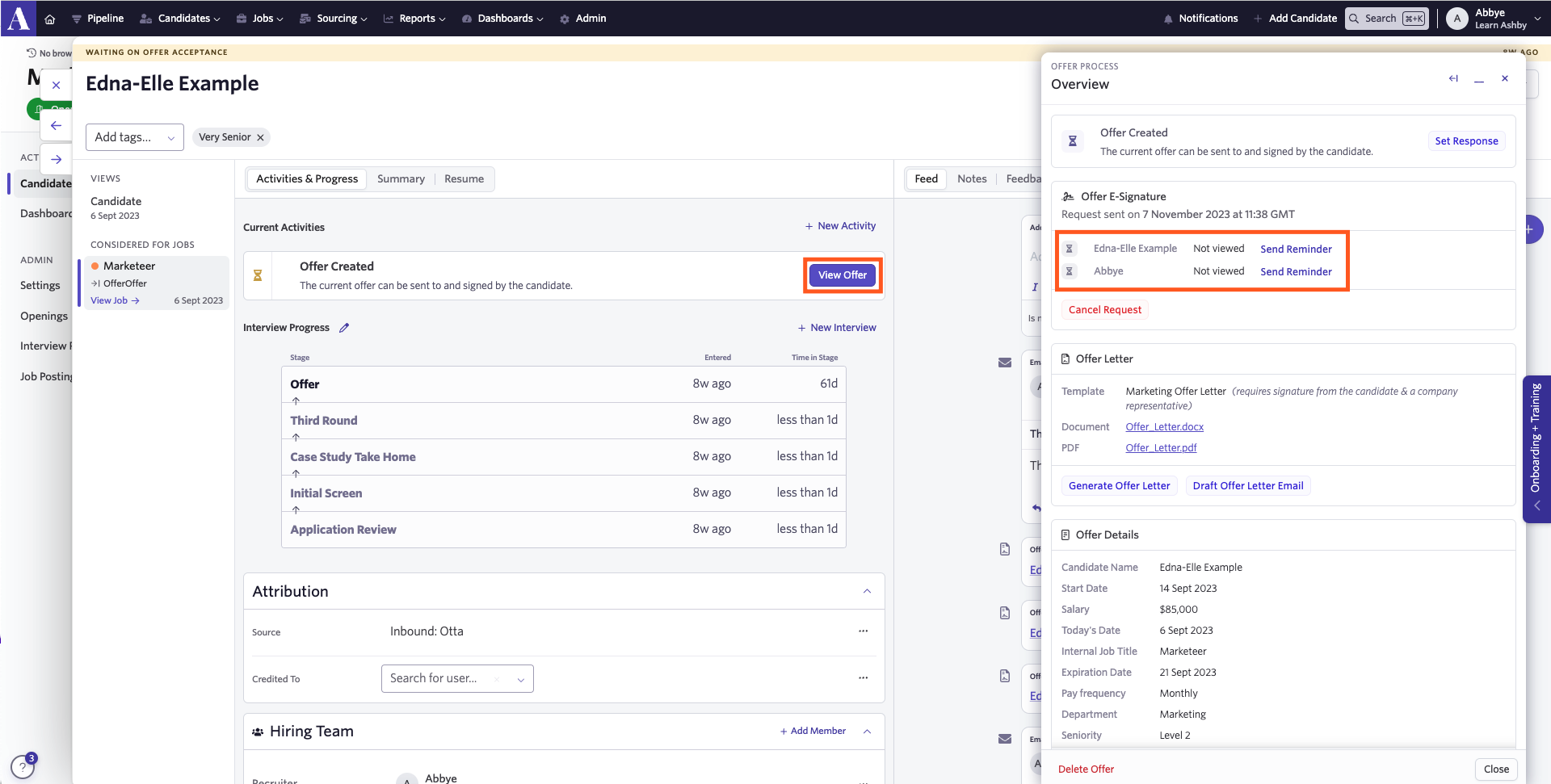
Once an offer is sent, you can review the e-signature status by clicking View Offer on the offer activity. From there, in the Offer E-Signature section, you can also send out reminders where needed.
Edit offer
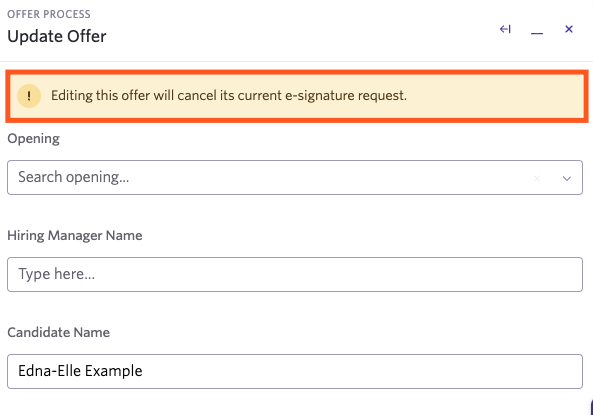
If you edit an offer, the e-signature request becomes invalid, and you need to regenerate the offer letter and resend the e-signature request.
Review signed offer
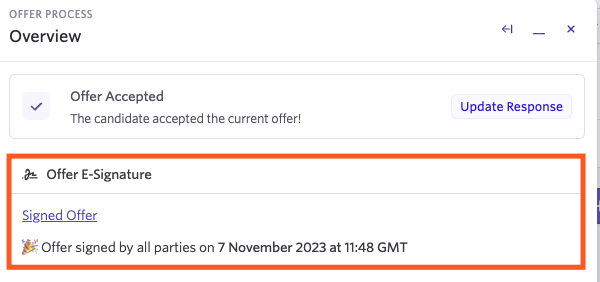
Once an offer is signed, you have the option to review the offer by clicking View Offer on the activity (now showing as Offer Accepted). You can click Signed Offer to view the signed offer letter.
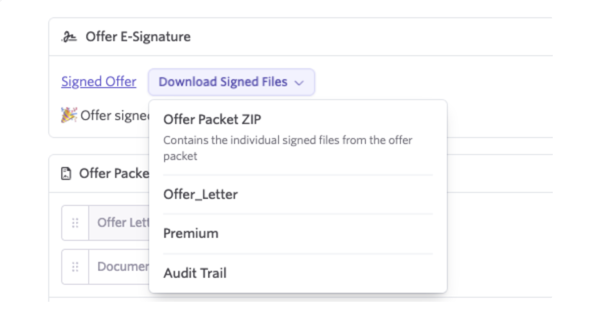
If you have multiple signed offer documents as part of an offer packet (more on this at Adding Multiple Documents to an E-signature OfferAdding Multiple Documents to an E-signature Offer), you also see a Download Signed Files button. Click this to either download a ZIP file containing all signed files, or to select a specific file from the offer packet to download.
E-Signature Offers: What the Candidate Sees
After you send an e-signature request, the candidate receives an email from either Dropbox Sign or DocuSign depending on your chosen tool.
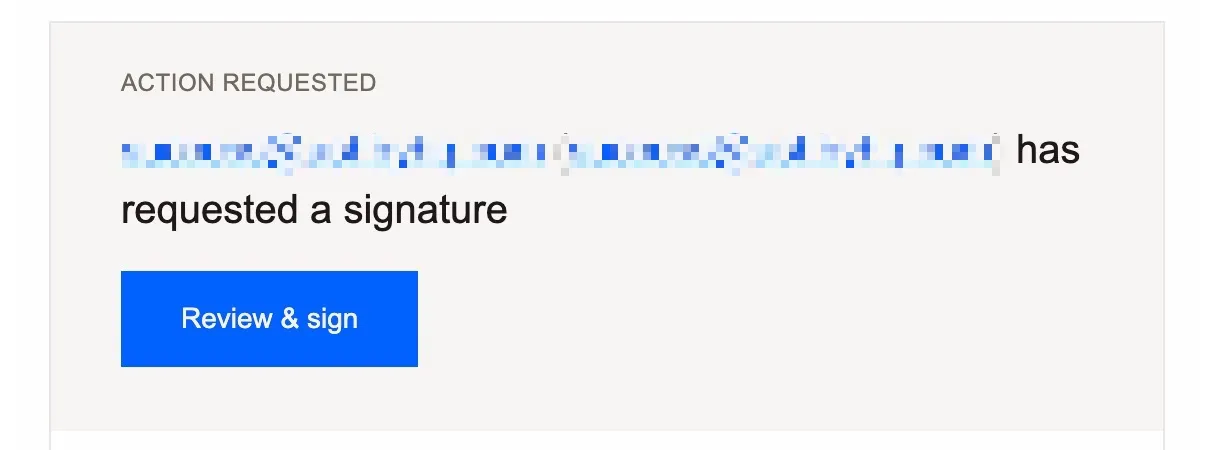
- If you are using Dropbox Sign, the candidate selects Review & sign in the Dropbox Sign email to open the e-signature document.
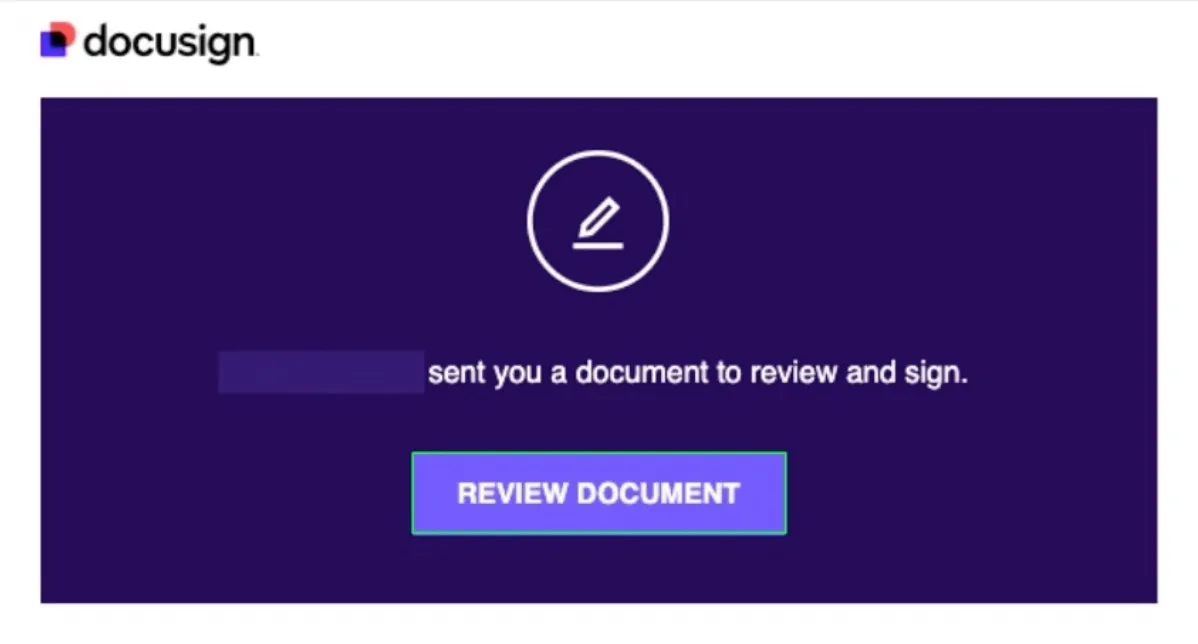
- If you are using Docusign, the candidate selects Review Document in the DocuSign email to open the e-signature document.
The candidate does not need a Dropbox Sign or DocuSign account to review or sign the e-signature document.
After everyone signs the document, the candidate receives a notification confirming completion.
- If you send the e-signature request via Dropbox Sign, the notification email includes the signed document as an attachment.
- If you send the e-signature request via DocuSign, the candidate selects View Completed Document in the notification email to access the signed document.
FAQs
Why do my e-signature placeholders show in the generated document?
This can happen when more than one font is used in the document template. Check out Offer Letter Template FormattingOffer Letter Template Formatting for more troubleshooting tips.
Can I set my e-signature request to expire?
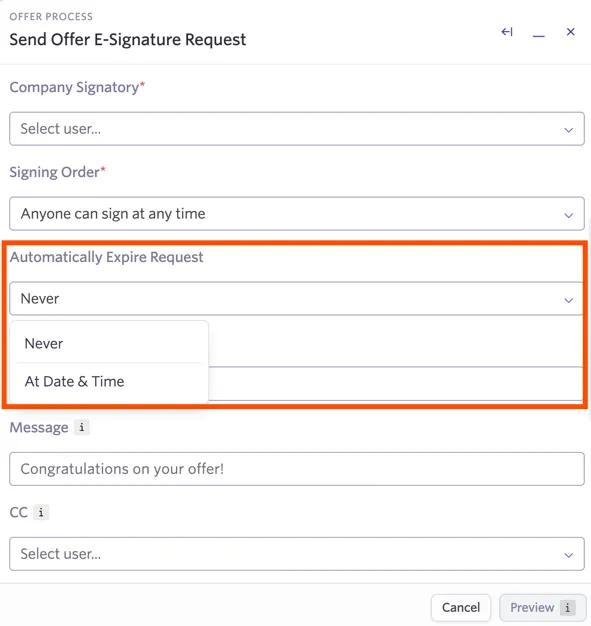
Yes! After creating your offer, you see the Automatically Expire Request option in the following menu after clicking Send Offer E-Signature Request. Use the drop-down menu to select At Date & Time if you want the request to expire; you can then specify the expiration date and time. Keep this set to Never if you do not want the request to expire.
What notifications are received when e-signature requests are sent?
You receive notifications when signatories view and sign the offer letter, as well as when all parties have signed. Each signatory gets a notification after signing the offer letter, providing them with their signed copy.
If you have set a signing order for the e-signature request, the signer(s) waiting for the other party to sign first get a "heads up" that an e-signature request is heading their way but is not yet ready for their signature.
For users to receive notifications from Dropbox Sign for offer e-signature requests, enable Use Offer E-Signature Preview Editor? under Admin > Organizational Settings > Offers > Offer Settings. This setting enables the embedded preview flow, which allows Dropbox Sign to associate the request with the user who initiated it.
What email address do e-signature requests come from?
E-signature requests come from [email protected].
Why do you recommend that we add the Dropbox Sign domain to an allowlist?
For external emails to candidates, Dropbox Sign's domain is highly trusted and it is rare that those emails get sent to spam. We've had a couple of instances where internal signature requests for company signatories were getting blocked, so in order to prevent that, Dropbox Sign recommends adding the email to an allowlist. More about this can be found in the Dropbox Sign documentation on email notifications.
Can I create custom tokens for e-signature documents?
You can generate custom tokens for candidate, job, and offer custom fields. For more information on setting these up, check out Custom FieldsCustom Fields. These allow you to pull information from custom fields into your e-signature templates.
Your custom field tokens for e-signature documents are listed in the Custom Field Tokens section of E-Signature Document Tokens within the E-Signature Documents section of Admin.