Offering Multiple Interview Options with AI Interviewer
If desired, you can give candidates a choice between completing an asynchronous AI interview and booking a live conversation with a recruiter. This article explains how to configure both options on the same interview-plan stage and present them clearly in the invitation.
Before configuring a multi-option path, create and publish the AI Interviewer and confirm that the interview activity has a Direct Booking link.
Permissions and access
You need access to the job's interview plan, AI Interviewer configuration, interview schedule configuration, and invitation templates.
Step 1: Configure the invitation template
Navigate to Admin > Organization Setup > Email Templates to configure the email template with both scheduling options.
You can also configure a SMS/Whatsapp message if desired.
Present both choices clearly in the invitation:
- Use the AI Interviewer Link token for the asynchronous option.
- Use the Direct Booking Link token for the live conversation.
- Label each option so candidates understand the difference, such as "Option 1: Complete an asynchronous AI Interview" and "Option 2: Book time to speak with a recruiter."
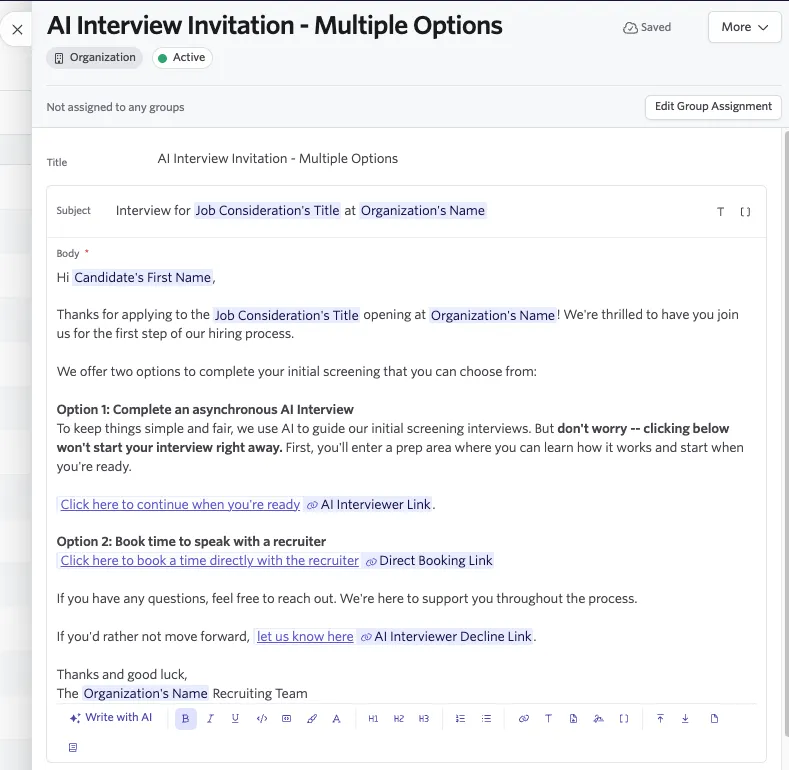
A common approach is to present the AI interview as the primary option and the live conversation as an alternative. Keep the decline option available when your process supports it.
Step 2: Configure the interview plan
Both activities must be on the same stage so either path advances the candidate through the same workflow. If the activities are placed on different stages, one path can skip or leave the other path unresolved.
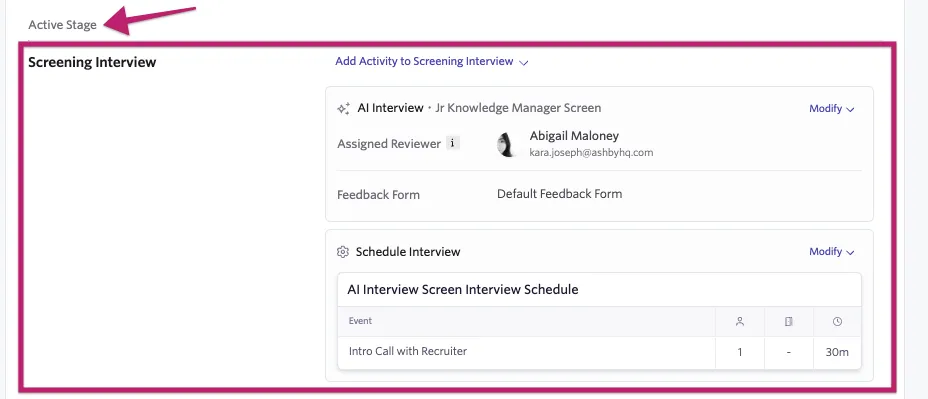
- Open the relevant interview plan. Under the Active Stage, ensure you have created a substage where both interview options will be added (such as Screening Interview, as shown above).
- Add an AI Interviewer activity to the stage.
- Select the AI Interviewer and version to use.
- Assign the invitation template you created above to the AI Interviewer activity.
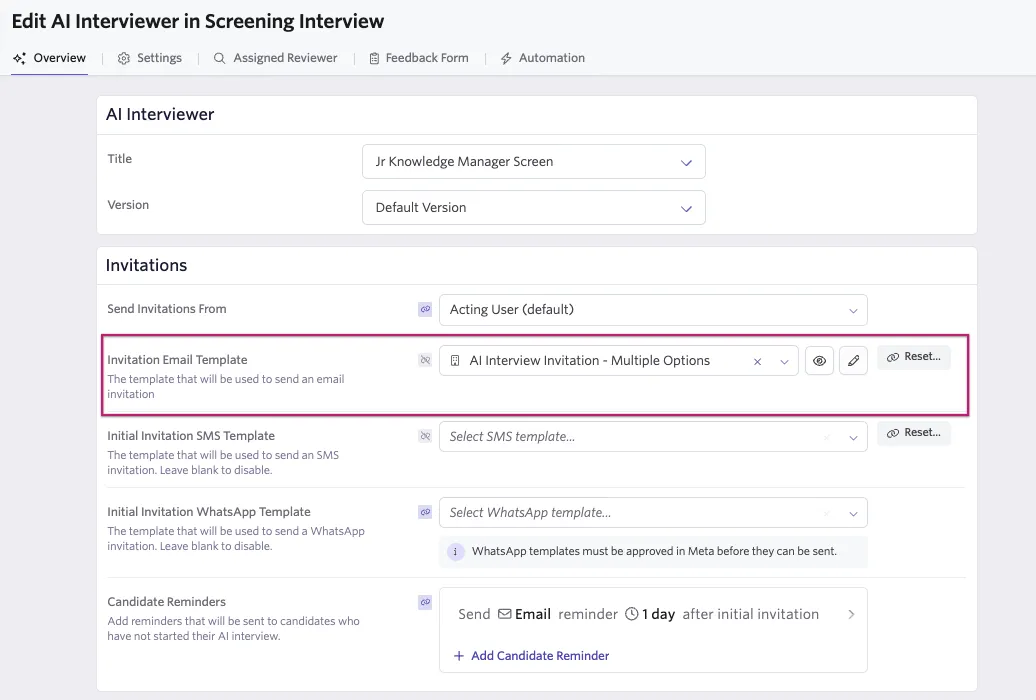
- Add an Schedule Interview activity to the same stage.
- Configure the Schedule Interview activity with the correct interview and interviewer(s) and ensure it is compatible with Direct Booking links by checking the indicator in the top left.
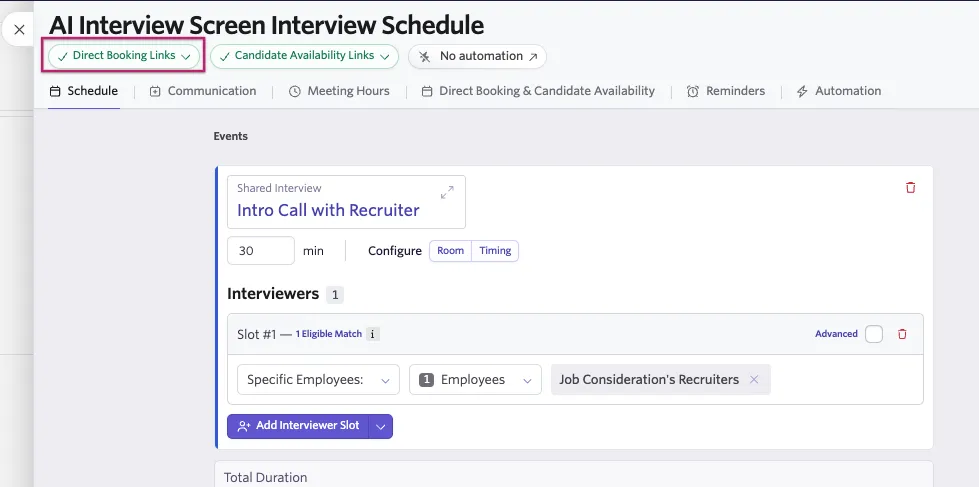
- Direct booking links will not be available if an interviewer isn't assigned.
- There is no need to configure settings on the Communication tab for the schedule interview activity because the AI Interviewer invitation template is used to send both the AI Interviewer and Direct Booking links.
Step 3: Review the candidate path
When set up correctly, both interview activities will appear on the candidate's activity feed when they are moved into the corresponding stage.
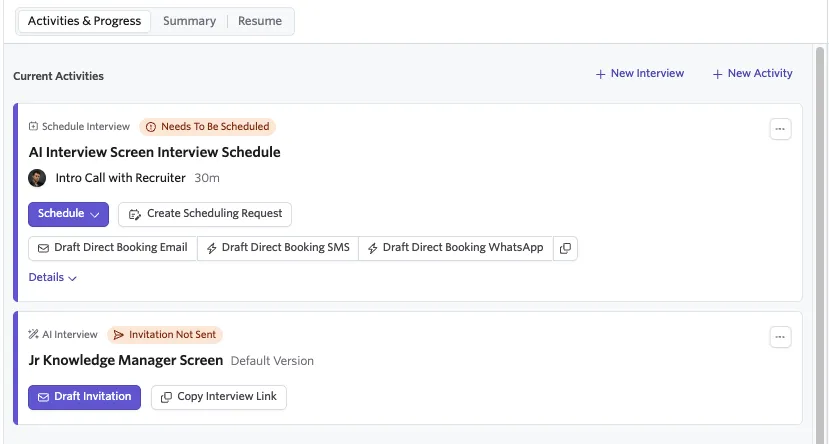
On the AI Interview activity, click Draft Invitation to send the invitation with multiple options (if automation is not configured to send it automatically).
You should see the sent email in the feed on the right.
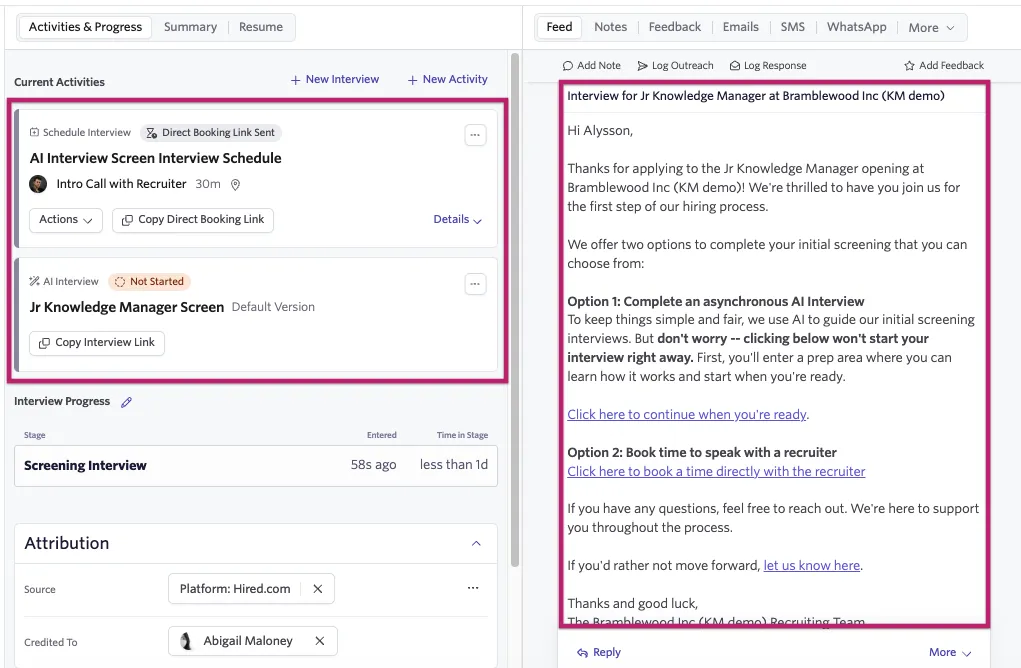
For the option that the candidate does not choose, you can select the three dots and delete it from their profile. Do not take this step until the interview option they chose has been completed.
For the candidate-facing AI Interviewer experience, see Candidate Experience with AI Interviewer.
FAQs
Do both activities need to be on the same stage?
Yes. Keep the AI Interviewer and schedule interview activities on the same stage so either path advances the candidate through the same workflow.
What happens if the Direct Booking link is missing?
Configure a Direct Booking link on the schedule interview activity before sending the invitation.