Mercer | Mettl
This guide will walk you through integrating your Mercer | Mettl account with Ashby. Mercer | Mettl's integration with Ashby allows you to link your Mercer | Mettl account with Ashby, send Mercer | Mettl Assessments to candidates from Ashby and get detailed results for these assessments back in Ashby.
Integration Overview
🔗 Mercer | Mettl is an All-in-one assessment platform for effective talent management. Measure personality, aptitude, communication and job skills.
To enable this integration, you should have a Mercer | Mettl enterprise account.
Connect Mercer | Mettl with Ashby
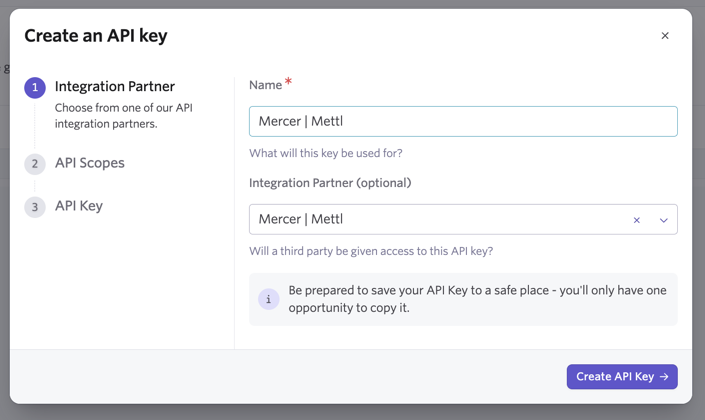
- In Ashby, create an API key at https://app.ashbyhq.com/admin/api/keys. Please ensure your Ashby API key has Write access to the Candidates set of endpoints, as this contains the assessment.update endpoint, which will be used to send data back to Ashby about the assessment. For more on creating an API key, check out How do I generate an API key?
- Copy the key created. Send this key to Mercer | Mettl’s Support team at [email protected] and request your Mercer | Mettl public key at the same time.
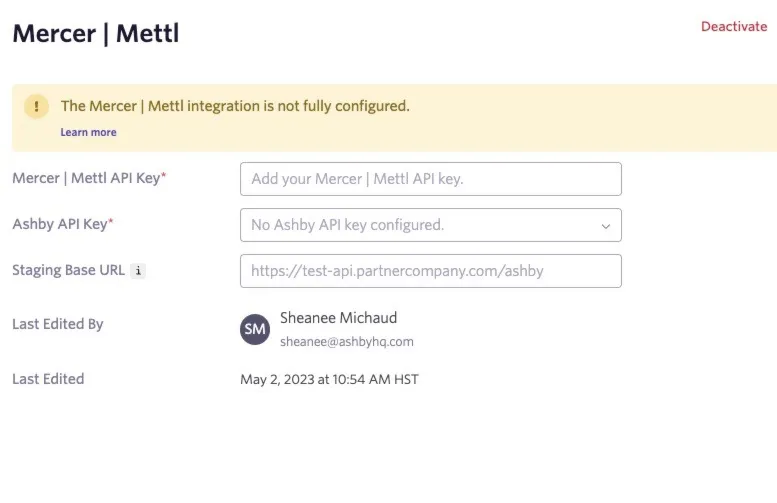
- Once you receive your Mercer | Mettl public key, head over to the Ashby Integrations settings page at https://app.ashbyhq.com/admin/integrations/marketplace/mercer-mettl.
- Tap on the +Enable Mercer | Mettlbutton to enter the Mercer | Mettl public key provided by Mercer | Mettl’s Support team and select your Ashby-generated key from the Ashby API Key dropdown box. You don’t have to enter anything in the Staging base URL field.
You can now start sending Mercer | Mettl assessment requests in your Ashby account
Sending Assessments
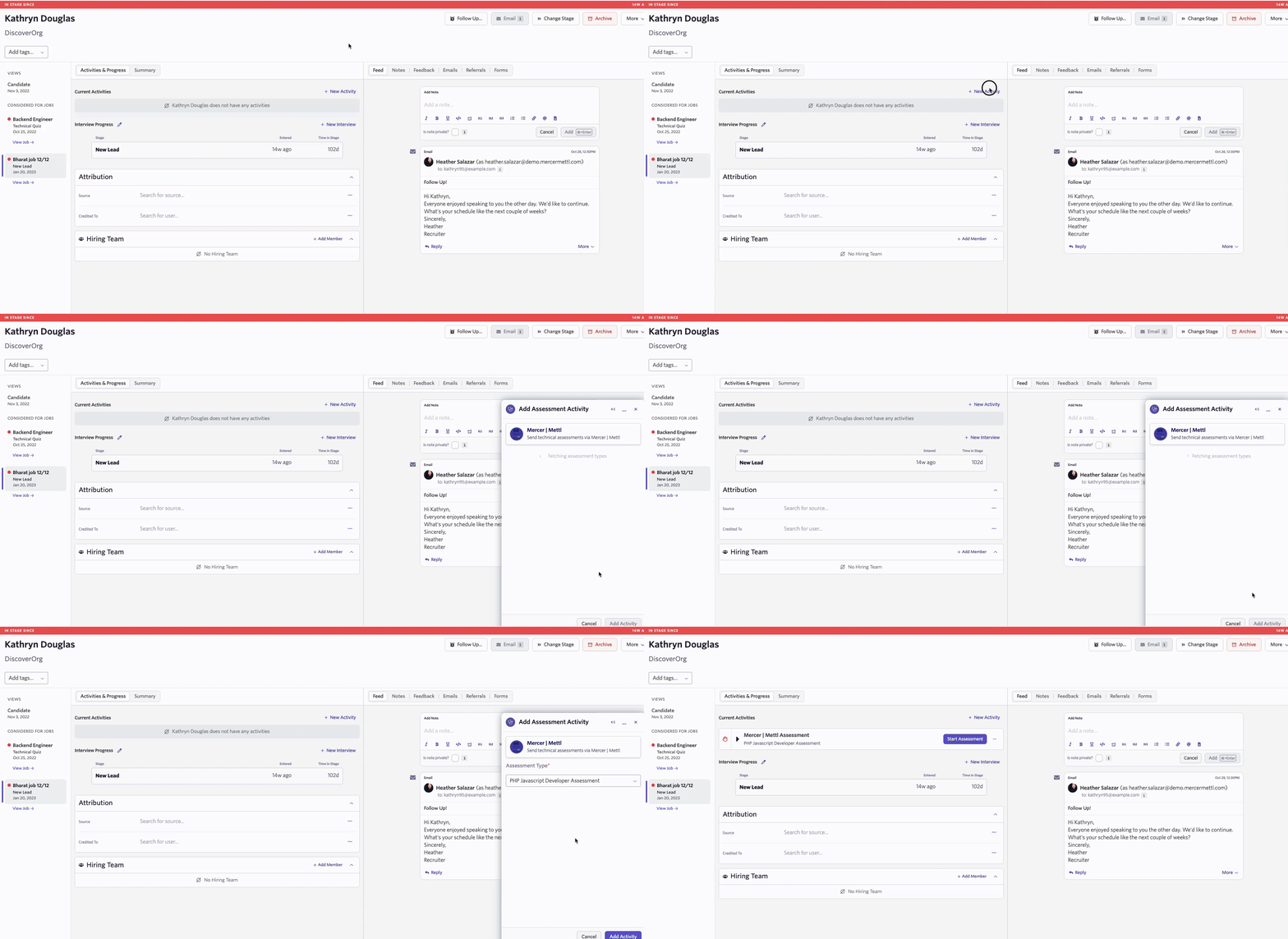
Assessments can be initiated directly in the candidate’s profile page or as an interview plan activity.
- In the candidate’s profile:
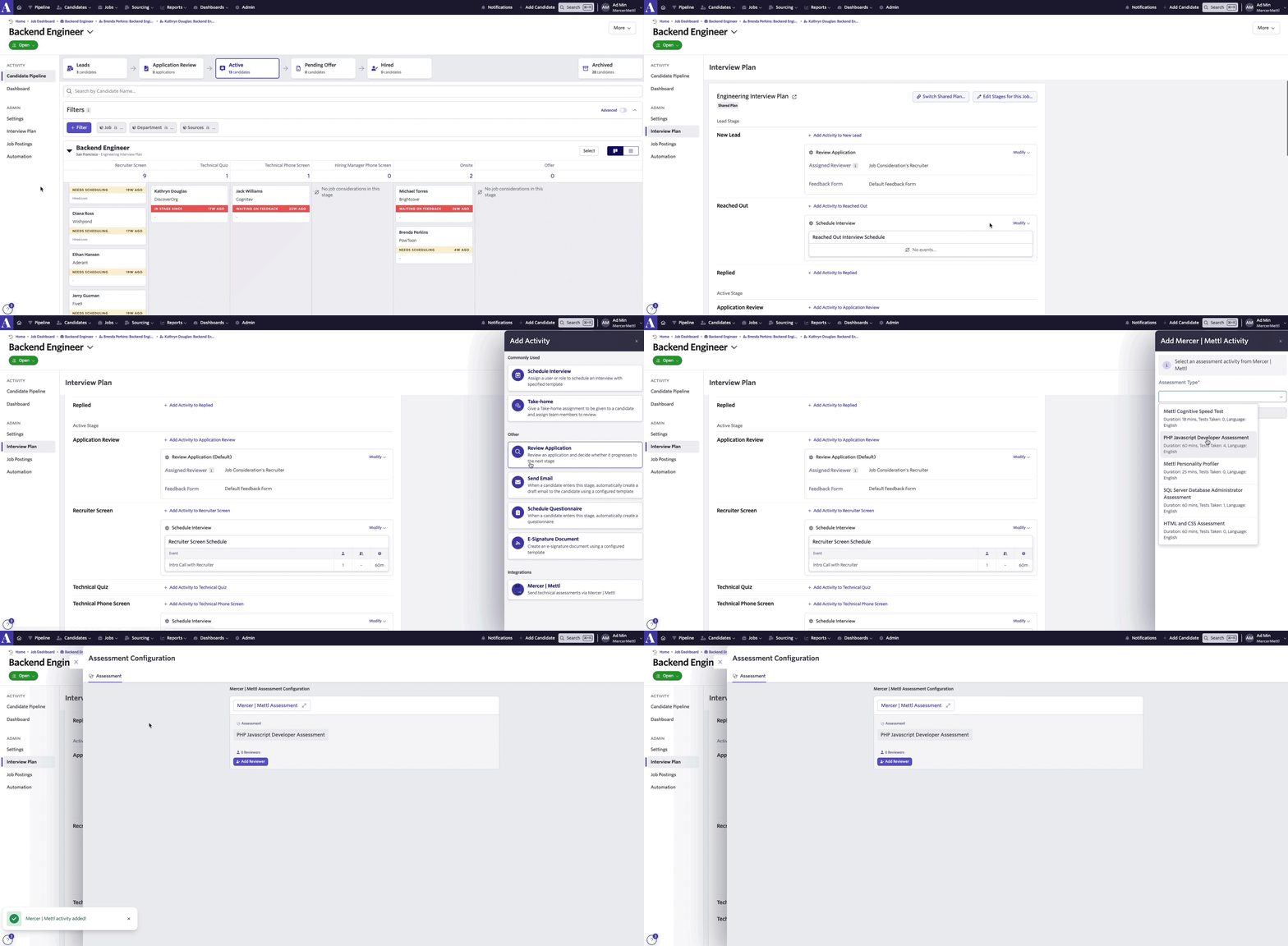
- Add the Assessment activity to the interview plan stage. This will automatically initiate the assessment when a candidate is moved to that stage.
Once the assessment is initiated, click the Start Assessment button to send email the assessment to the candidate.

Viewing the results of the assessment
When a candidate has completed the assessment, their results will show on the candidate’s profile in Ashby. You may view more detailed information about their assessment by expanding the activity and clicking on the hyperlink in the activity to go to your Mercer | Mettl dashboard.
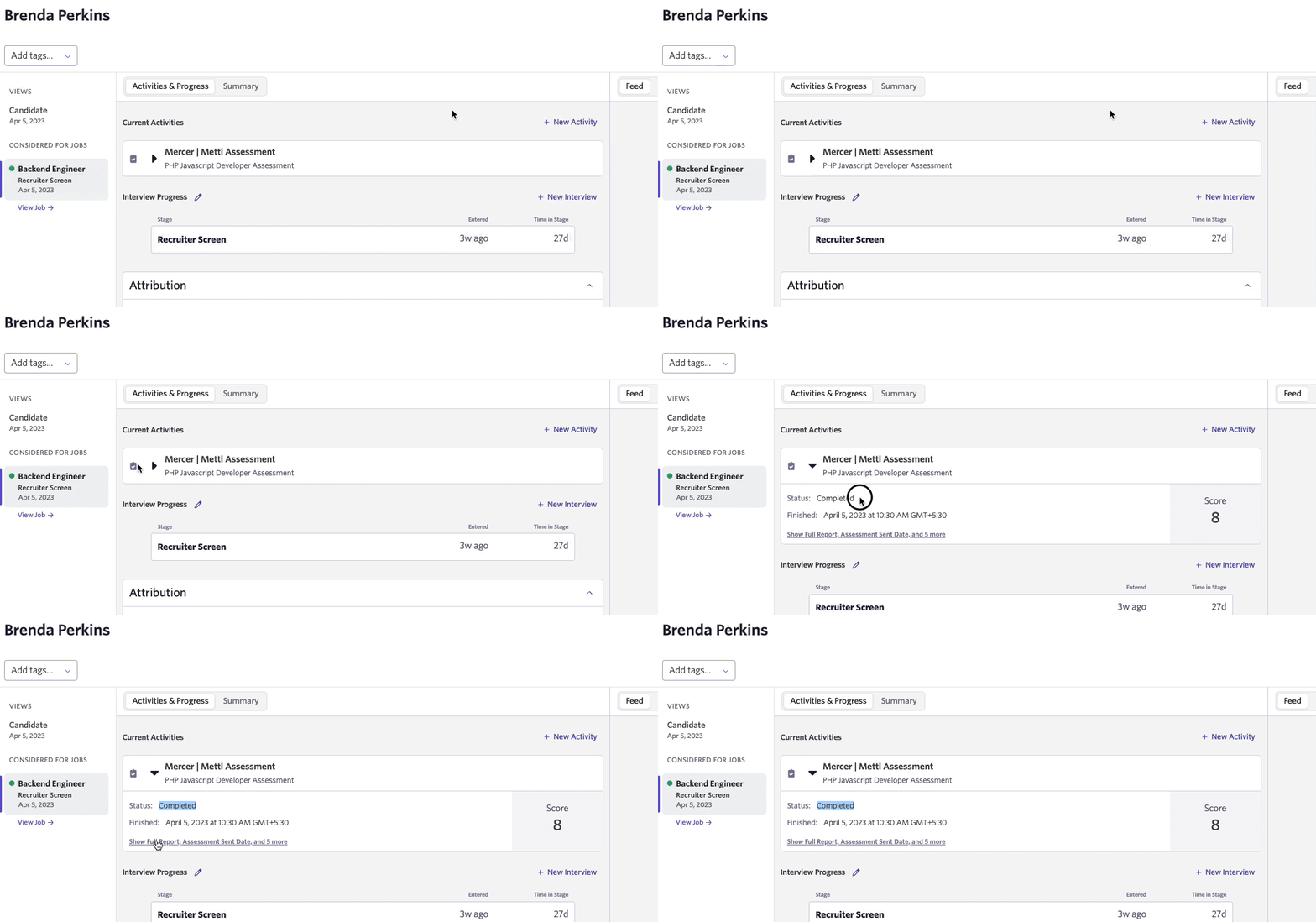
Video Instructions to set up and use the integration
Additional Information
Mercer | Mettl’s documentation on the integration can be found here. If you have any additional questions or feedback about the Mercer | Mettl integration, please reach out to [email protected].