Gem → Ashby Recruiting File-based Migration
Switching from Gem to Ashby is easier with a plan. This guide walks you through each step of the migration, shares best practices for preparing your Gem ATS and Gem CRM data, and explains what carries over so there are no surprises along the way.
A historical import preserves past records for reference. It does not recreate your previous Gem environment or provide a complete dataset for historical reporting.
Plan your import
Many teams use Gem ATS, Gem CRM, or both. Let your Ashby implementation specialist know which you use so we can plan your import accordingly.
Gem Product | |
|---|---|
Gem ATS | Includes jobs, applications, and hiring history. |
Gem CRM | Includes sourcing projects, prospects, and outreach activity |
If you use both, Ashby processes the Gem ATS export first, then the Gem CRM export, so sourcing records can match candidates and jobs already in Ashby.
Migration steps
- Set up the departments, teams, open jobs, and interview stages you need in Ashby.
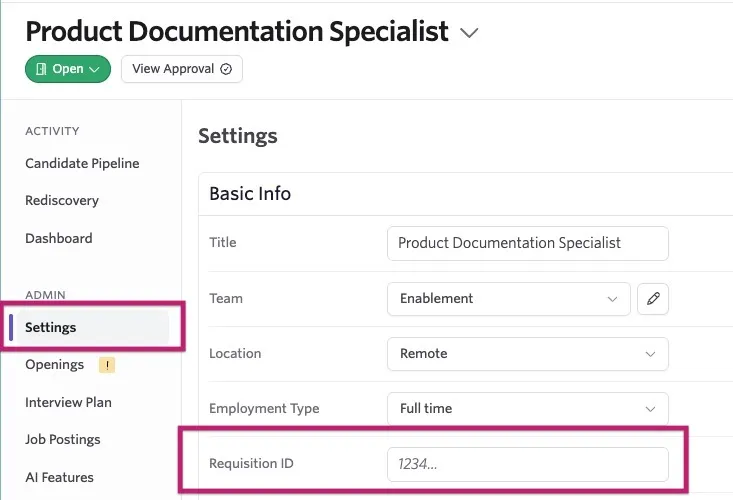
For any open job you're creating in Ashby that also existed in Gem, enter the Gem requisition ID in the job's Requisition ID field found under the Settings tab. This lets the historical importer match the two jobs together, so the job's history lands in the right place. See Ashby Admin Onboarding for more information on gettings started in Ashby.
- Import active candidates with the Bulk Import: CSV Import workflow before go-live.
Ashby recommends doing this one to two days before go-live so your team can continue working with active candidates in Ashby.
- Go live in Ashby and begin working there day to day.
- After go-live, request your historical Gem ATS export and, if applicable, your Gem CRM export without active candidates.
- Upload the complete export via the secure SendSafely link provided by your Ashby implementation specialist.
Keep the files together and do not remove files from the export. Missing files can delay the import or require a new export.
- If you use both Gem products, Ashby processes the ATS export before the CRM export.
For an overview of file-based migrations and the active-candidate workflow, see Historical Import Migrations.
Quick checklist
Use this checklist to prepare for your Gem import.
Tell your Ashby implementation specialist whether you use Gem ATS, Gem CRM, or both.
Gem ATS
Disposition candidates in Gem before exporting, and be ready to explain how your team structures Gem data and marks hired candidates.
Set up the Ashby jobs and interview stages for your active candidates. Add each Gem requisition ID to the Requisition ID field on the corresponding open Ashby job.
Match job titles and interview-stage names in your active-candidate CSV to Ashby. Confirm candidate email addresses match the email addresses in Gem.
Import those candidates through the self-serve CSV workflow one to two days before go-live.
After go-live, request the full export for each Gem product you use.
Gem CRM
Decide whether to import historical sourcing data or start fresh with new sourcing in Ashby.
Choose how to handle records owned by former Gem users: create matching Ashby accounts to preserve ownership, or reassign those records to a current Ashby user.
After go-live, request the full export for each Gem product you use.
Importing your active candidates
Import active candidates with the self-serve CSV workflow before the historical import. Ashby recommends importing them one to two days before go-live.
Why it matters:
- It gives the historical import a foundation. Set up the Ashby jobs and stages your active candidates need before importing them.
- It helps keep your active pipeline accurate. An active application created by the historical import can land in Application Review instead of its current Gem stage. Importing active candidates first helps them enter the intended Ashby jobs and stages.
Tips for your active-candidate CSV
- Match job titles. Use the exact job titles configured in Ashby, so candidates map to the intended jobs.
- Match interview-stage names. If you include each candidate's current stage, use the corresponding Ashby stage name exactly.
Preparing your Gem data
Before you request the export:
Exclude active candidates from your historical export. Your active candidates are already in Ashby from your self-serve CSV import, so they typically shouldn't be included in the historical import. Keeping them out helps prevent duplicate profiles and ensures no one's current pipeline is overwritten with outdated information.
Close out inactive candidates. Reject or archive any candidates in Gem who are no longer in process.
Review how your team uses Gem. Note how your team marks hired candidates and how your application stages are set up, so we can map them correctly in Ashby.
Request a full export for each Gem product you use after go-live. Gem ATS and Gem CRM exports are separate, so you need one for each. We recommend waiting until you're live in Ashby to request your historical import.
Why wait until go-live?
- You get the full picture Your export will include everything up to the day you switched over, so there are no gaps in your data.
- No double work Exporting before go-live can omit recent activity, requiring another export to catch up.
What the Gem ATS import includes
Ashby combines Gem ATS export files to create candidate profiles, job considerations, and jobs.
Candidates and resumes
Ashby matches candidates to existing profiles by email address. If the import matches an application already in Ashby, the historical import does not overwrite it. If it does not find a match, it creates a new profile. Ashby attaches resumes included in the export to the relevant candidate or application.
Applications and stage history
Ashby rebuilds each application's history from your Gem export, including:
- Application dates: The date each application was created and the date it closed (rejected or hired).
- Stage history: Ashby adds Gem's stage history as a note on the candidate's profile.
- Hire status and dates: Ashby marks a Gem application as hired only when its Gem status is Hired. If Gem doesn’t provide a Hired At date, Ashby uses the first available date from this list:
- The resolved date of the most recent eligible signed offer
- That offer’s last updated date, if it has no resolved date
- The date of the most recent stage exit, if there’s no eligible signed offer
- One second after the application date, if there’s no stage exit
A signed offer or a stage named “Hired” does not independently classify the application as hired.
- Archived applications: Ashby recreates these with their original archive reason.
The Gem historical import doesn’t place applications into their current Gem interview stages. Newly created applications start in Application Review; hired applications receive a terminal history entry in the job’s built-in Hired stage; and rejected or dropped-out applications use the Archived stage. Gem has no Lead mapping, and intermediate Gem stages are recorded in a note on the candidate’s profile. Import active candidates through the self-serve CSV workflow first, with their Ashby jobs and stages set up, so they enter the stages your team expects. If the import matches an existing application, it leaves that application unchanged.
Jobs and job matching
Ashby imports Gem jobs when they're included in your export. Before creating a new job, Ashby checks for a match with your existing Ashby jobs:
- Requisition ID: Ashby first looks for a job with the same requisition ID.
- Job title: If there's no requisition ID match, Ashby may match on an exact job title.
When Ashby can’t find a match, here’s what happens:
- Unmatched jobs: Ashby may create the Gem job as an archived job.
- No jobs in the export: Applications are added to a general job.
- Unmatched departments and locations: Ashby uses a general option.
Feedback
Ashby adds Gem scorecards as notes on candidate profiles, not as native Ashby scorecards. Notes may include the interviewer, stage, recommendation, key takeaways, and question-and-answer details, when Gem includes them in the export. These notes do not appear as scheduled interview events or feed native interview feedback.
Departments and offices
The standard Gem ATS importer does not import or match Gem department and office records. If Ashby creates a new job from the Gem export, it assigns a generic Gem team and location. If Ashby matches the job to an existing Ashby job, the job keeps its current organizational assignments.
What we do not import from Gem ATS
The Gem ATS import does not include:
- Job postings
- Openings
- Interview plans
- Scheduled interview events
- Complex office hierarchies
What the Gem Sourcing import includes
What we can import depends on what is in your Gem export. Exports can vary from team to team, so once you have yours, we'll review it with you and confirm exactly what will come over.
Many teams keep their Gem data as a historical reference and run new sourcing and candidate engagement directly in Ashby. This approach lets you preserve useful historical context while building new sourcing workflows in Ashby.
In general, you can expect:
- Candidates and projects: Your core sourcing data, including candidates and the projects they belong to.
- Team activity: Linked to your team members' Ashby accounts wherever we can match them.
- Outreach history: Includes the activity type, the date, and whether the candidate replied. The text of your messages isn't included.
Records owned by former Gem users
When a deactivated user or former employee owns sourcing projects or outreach history in Gem, we can't import those records as is, because that person doesn't exist in Ashby. You can choose between these approaches:
- Keep original ownership: Create an Ashby user with the matching email address for each former user whose records you want to retain under their name.
- Reassign ownership: Choose a current Ashby user to own records that belonged to former Gem users. The records no longer show the original owner.
What does not come over
The import does not reproduce the full communication history or detailed outreach activity. It does not include:
- Email message content or full message history
- Email templates
- Detailed outreach activity
Review the import
After Ashby confirms that the import is complete, review a sample of records from each export you provided. Check that:
- Candidates match the expected profiles.
- Job considerations appear on the intended jobs.
- Current candidates remain in the expected Ashby stages.
- Resumes, notes, and feedback appear where expected.
- Gem Sourcing projects and activity metadata have the expected owners.
- Important hire and application dates look correct.
If something is missing or does not look right, contact your Ashby implementation specialist and include examples of the affected records.
FAQs
Does Gem feedback become Ashby scorecard data?
No. Ashby adds Gem scorecards as notes on candidate profiles.
Does the Gem Sourcing import include email messages?
No. The import may include outreach activity metadata, such as activity type, date, and reply status, but it does not include message text or email templates.
Why does a Gem job appear as archived in Ashby?
If a Gem job does not match an existing Ashby job, Ashby may create it as an archived job. Add the matching Gem requisition ID to the Ashby job's Requisition ID field before the import, and confirm ambiguous or repeated-title matches with your implementation specialist.