CoderPad Interview
This guide walks you through integrating your CoderPad Interview account with Ashby, so you can use live interviews and take-home tests in your interview plans and when scheduling interviews with candidates.
If you are using CoderPad Screen, see CoderPad ScreenCoderPad Screen.
CoderPad API keys are only available to those with Custom/Enterprise CoderPad accounts.
CoderPad is a technical interview platform that helps candidates easily share their skills and ensures you understand how they work. This integration enables the generation and attachment of CoderPad Live Interview links when scheduling candidate interviews.
Permissions & access
The CoderPad Interview integration is available on all plans:
Foundations | Legacy Plus | Plus | Enterprise |
|---|---|---|---|
✅ | ✅ | ✅ | ✅ |
You must be an Organization Admin to set up this integration.
Connecting the integration
In CoderPad:
Log in to your CoderPad Interview account and follow CoderPad's API key access article for instructions on creating an API key on CoderPad.
If you are using both CoderPad Screen and CoderPad Interview, you need to generate separate API keys for each integration. CoderPad also recommends setting up a dedicated account for integrations to ensure API keys stay active.
In Ashby:
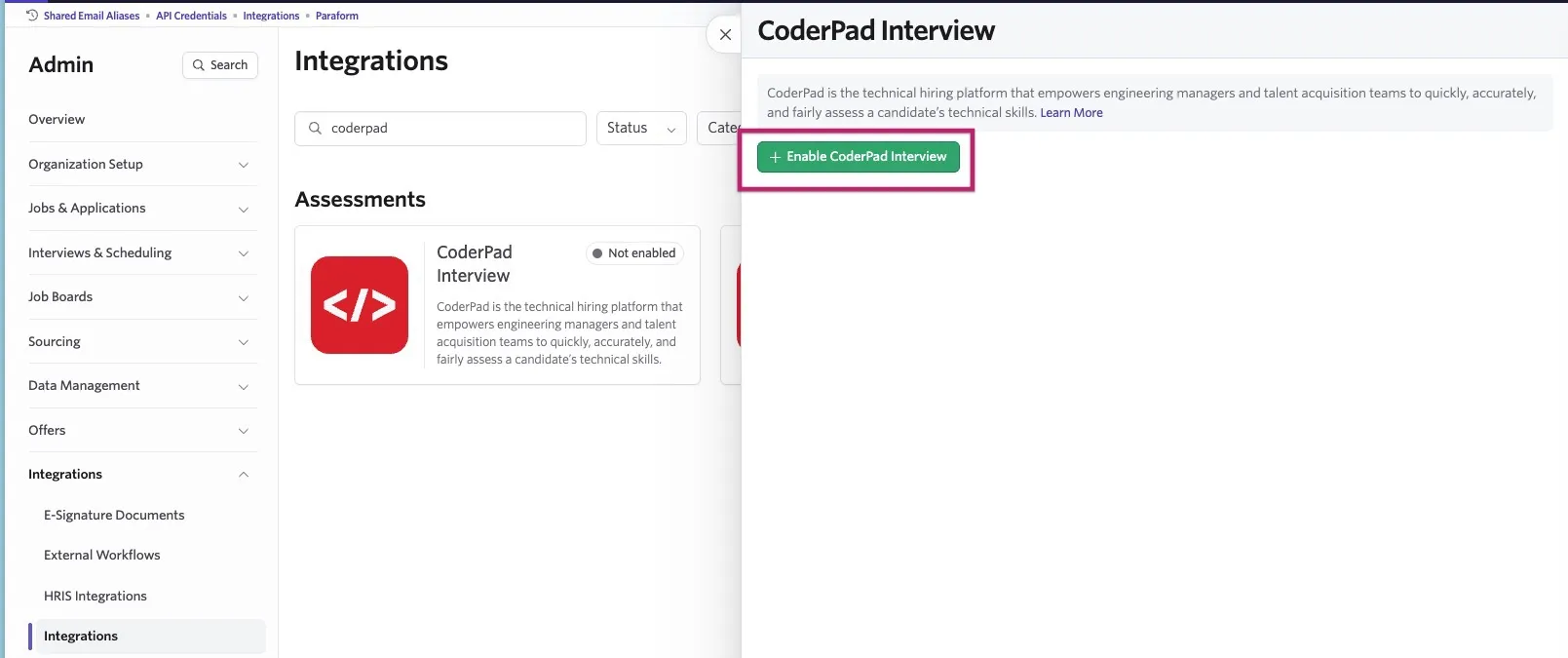
- Navigate to Admin > Integrations and search for CoderPad Interview.
- Click + Enable CoderPad Interview.
- Paste the CoderPad Interview API key into the CoderPad Interview API Key field.
- Create an Ashby API Key by typing the "CoderPad Interview" in the Ashby API Key field and selecting Create new API key "CoderPad Interview".
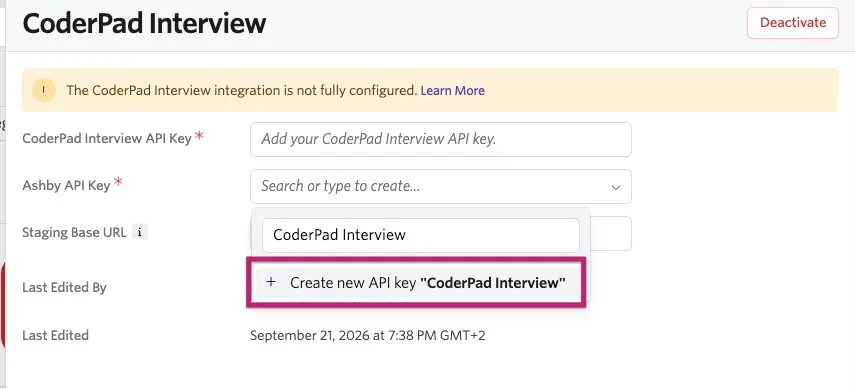
Copy the API key and store it in a secure place. Ensure your Ashby API key has Write access to the Candidates set of endpoints, as this contains the assessment.update endpoint, which sends data back to Ashby about the assessment.
Using the integration
Now that the integration is configured, you can start sending CoderPad take-home assessments to candidates.
Adding take-home tests
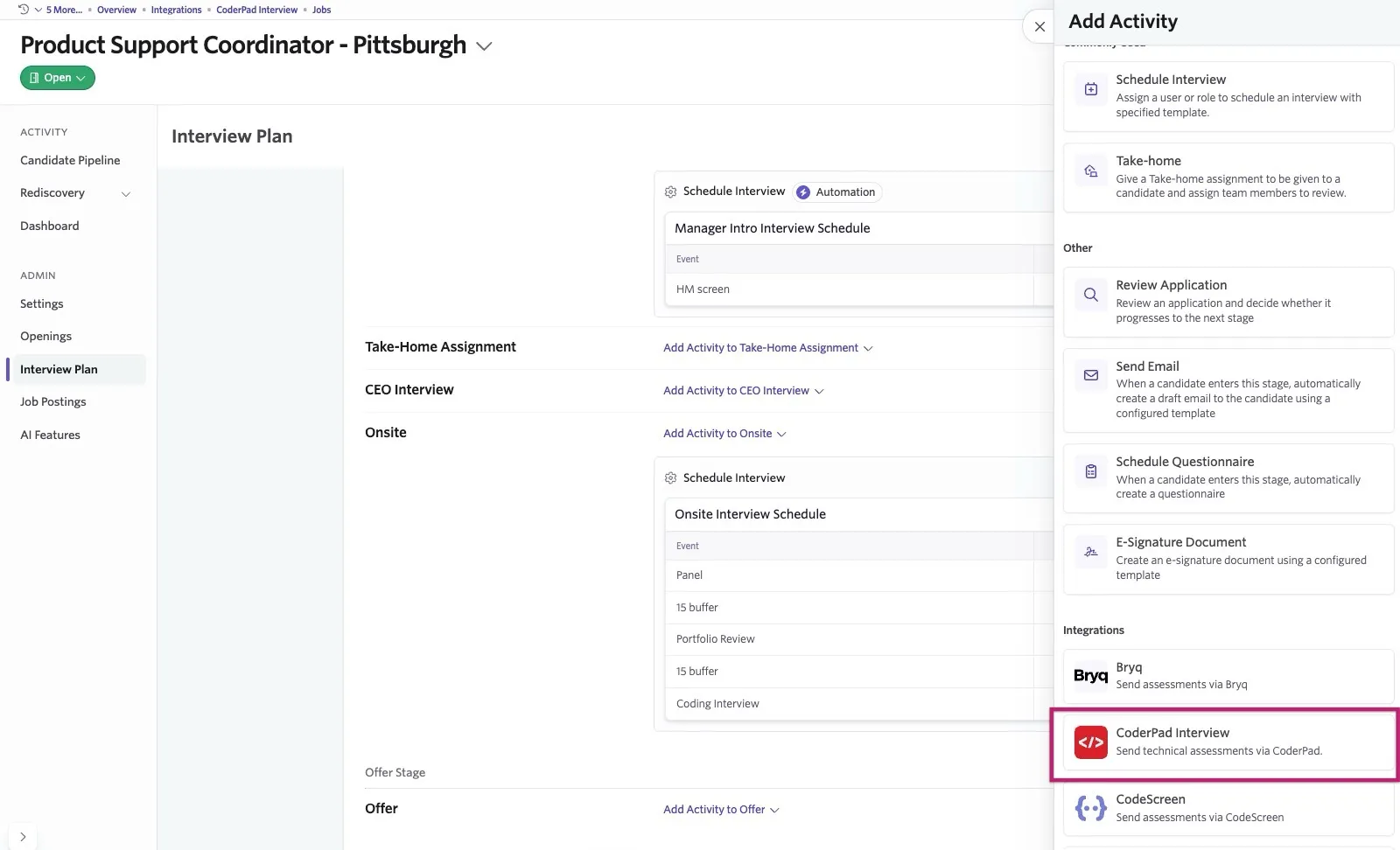
- Navigate to the job you would like to add the take-home to and select the Interview Plan tab.
- Click Add Activity to "Stage Name" > + Add Activity on the stage where you want to add a CoderPad take-home assessment.
- Select CoderPad Interview from the list of activities under the Integrations section that opens on the right side of the page, and choose the assessment you'd like candidates to complete at this interview stage.
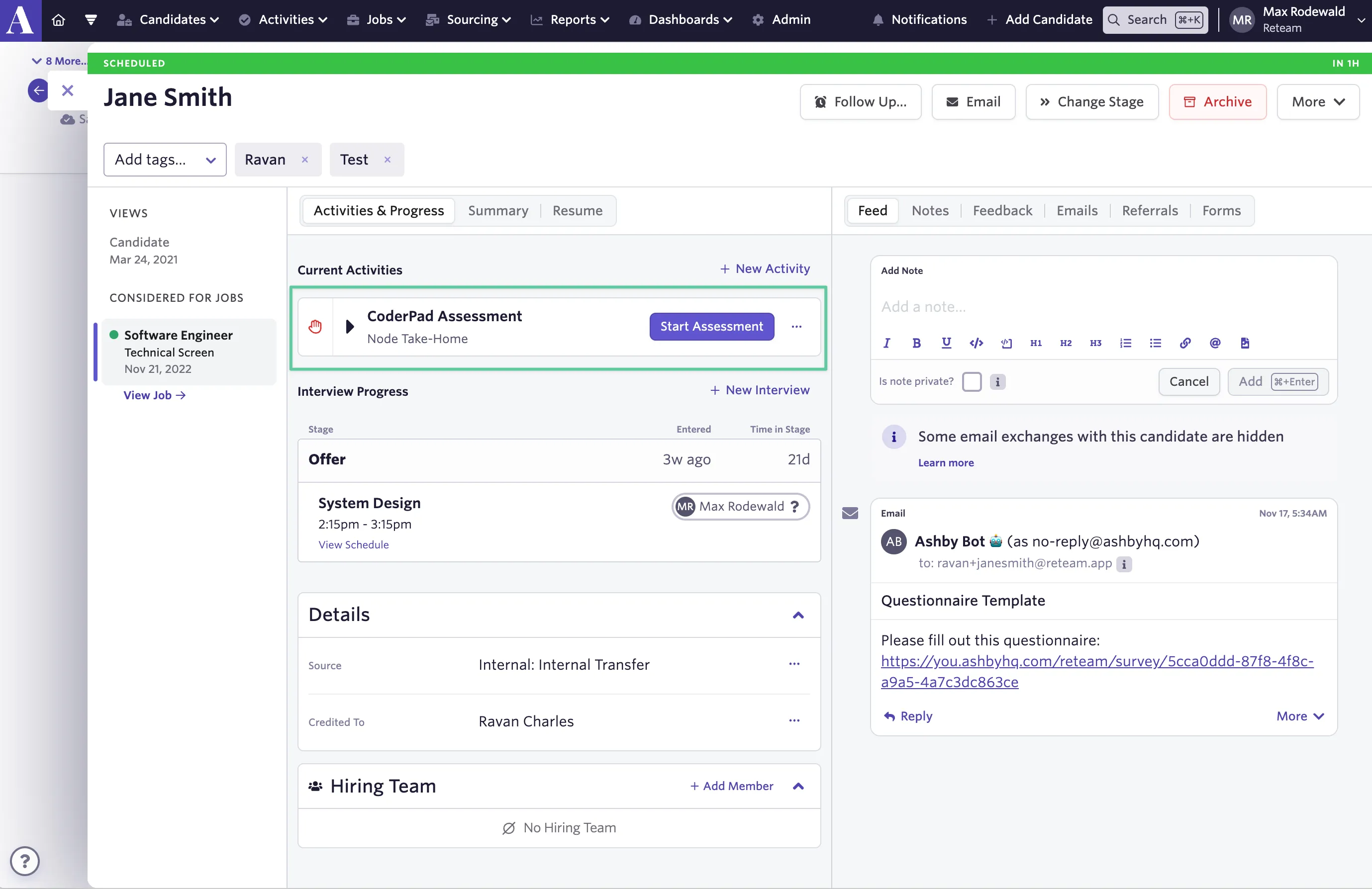
When a candidate reaches the stage where the take-home is set up, an activity appears on their profile indicating they need to be sent an assessment.
- Click Start Assessment on the activity on the candidate's profile to send the assessment.
The candidate receives an email with a link to the selected take-home assessment. As they complete the assessment, its status updates in Ashby. Assessment statuses may take up to four hours to be reflected in Ashby.
Adding live interviews
Alternatively, you can automatically attach live interview links to interview invitations when scheduling an interview in Ashby or when creating a schedule interview activity.
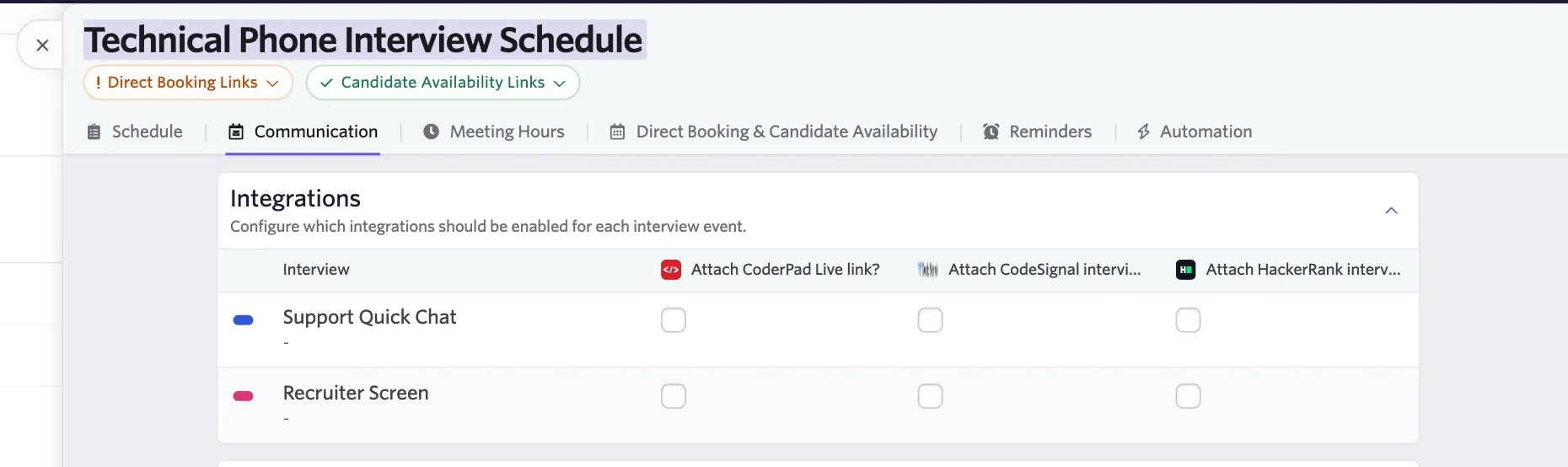
When scheduling an interview or configuring a schedule interview activity, check the Attach CoderPad Live link? checkbox. This option is under Communications for a schedule interview activity, or under Invite Settings when scheduling an interview manually. If you have an interview with multiple events, you can use checkboxes to specify which events should have the integration enabled.
See Setting up Schedule Interview Activities for more information on configuring schedule interview activities.
The interview link is included in both interviewer and candidate invitations.
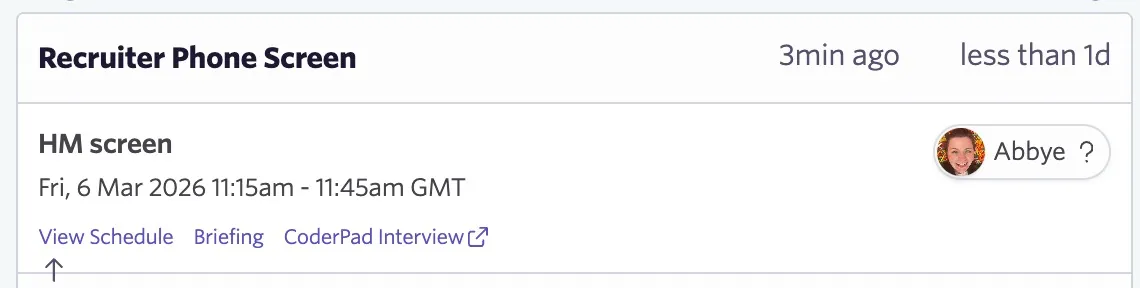
Once the interview has been scheduled and calendar invites have been sent, you can also access the live interview link in the Interview Progress section of the candidate's job consideration.
You can now start sending CoderPad assessments in your Ashby interview plans and CoderPad Live Interview links when scheduling interviews with candidates.