CoderPad Screen
The Ashby integration for CoderPad Screen allows you to send skills assessments as part of your Ashby workflow. If you are using CoderPad Interview, please check out CoderPad Interview
The CoderPad Screen integration and CoderPad API keys are only available to those with Custom/Enterprise Coderpad accounts. Please note that if you are enabling both CoderPad Interview and CoderPad Screen, you will need to create separate API keys for each integration.
Please refer to this guide to set-up CoderPad Screen as part of your Ashby workflow: https://coderpad.io/resources/docs/screen/integrations/ashby-for-screen/
Setup and configuration
- Go to the Integrations page by selecting Admin> Integrations > Integrations.
- Search for CoderPad Screen, and select the Screen integration.
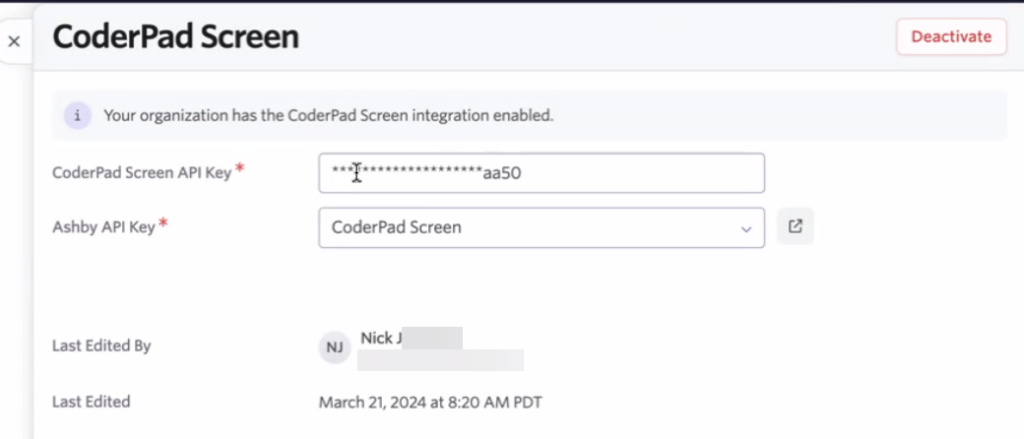
- When you click on the CoderPad integration tile, you’ll see a pop-up open with places to enter your API keys. Grab your API key from CoderPad Screen and paste it into the appropriate box.
If you are using both CoderPad Screen and Coderpad Interview, separate API keys will need to be generated for each integration. Coderpad also recommend setting up an account specifically to use for integrations to ensure API keys stay active.
- To get your Ashby API key, click on the pop-out menu to View API key settings.

- You’ll be taken to the API Keys screen. Click + New.
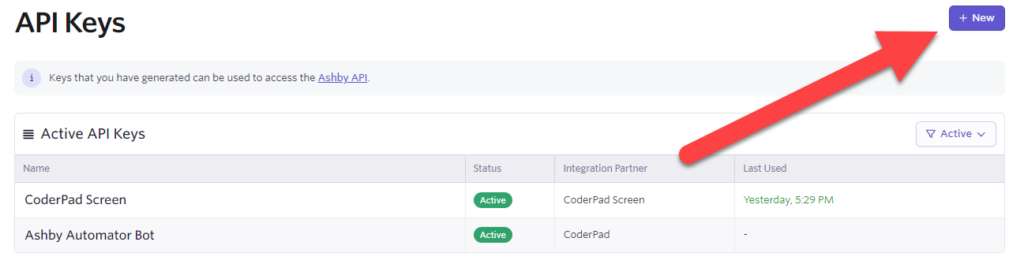
- On the API creation screen, generate a new key with CoderPad Screen selected. Please ensure your Ashby API key has Write access to the Candidates set of endpoints, as this contains the assessment.update endpoint, which will be used to send data back to Ashby about the assessment.

- Back on the API key entry screen, add your Ashby API key if it’s not already added.
- Contact Coderpad's customer support team with your Ashby API key so we can add it into our system. Customer support will send confirmation once your Ashby API key is set up.
- When complete, your API key window should look something like this.
Using the integration
This section will walk you through adding an assessment step for a candidate. You can either do a one-off test scheduling, or add a test as part of a workflow.
✅ The email sent to the candidate notifying them of their test comes directly from CoderPad Screen. You can customize the email content by editing the Screen test “Communication settings” in your dashboard.
One-off test
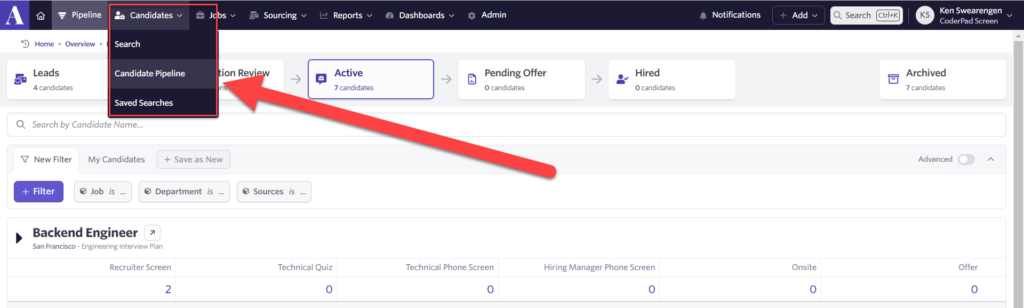
- Access the candidate pipeline dashboard by going to Candidates > Candidate Pipeline at the top of the screen.
- Click on the job for which the candidate has applied to expand the menu. Then click on the candidate you’d like to assess.
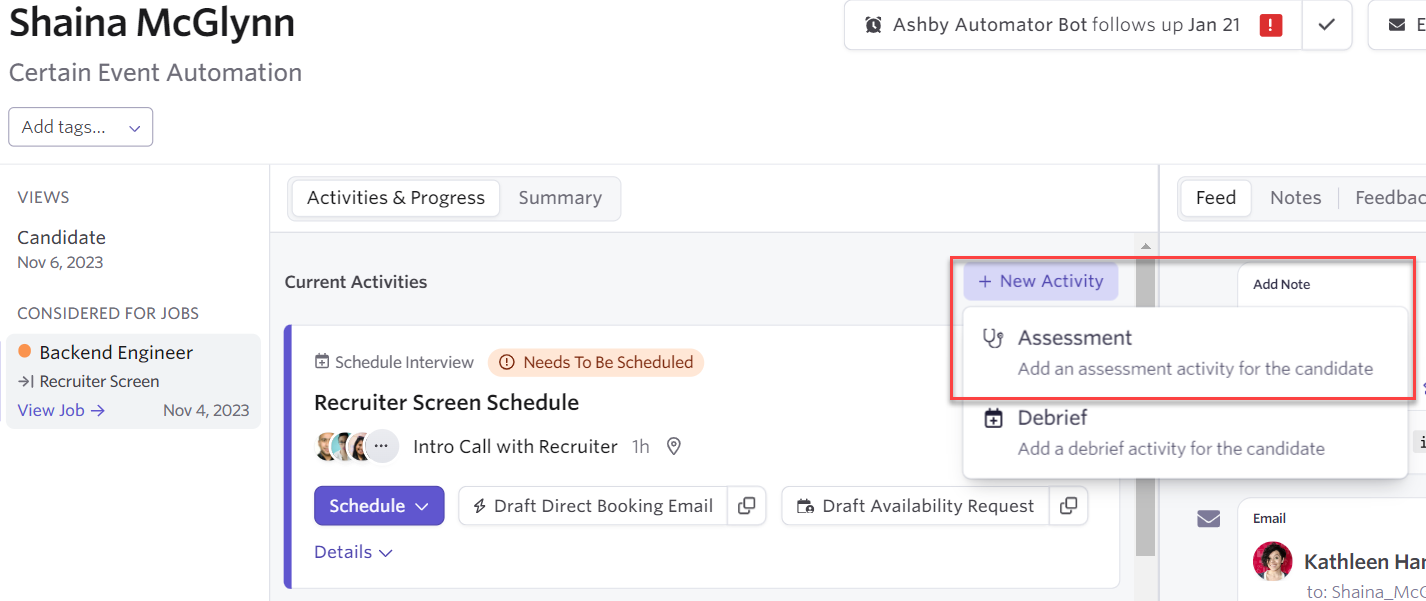
- On the candidate screen, click + New Activity and then click on Assessment.
- Select CoderPad Screen from the pop-out window.
- Click on the Assessment type dropdown and then select one of the tests.
- Once you’ve selected the assessment type, click on Add Activity.
- Back on the candidate dashboard, click Start Assessment, which will send the test to the candidate (Note that, in Ashby, Start means the test has been sent. It does NOT mean the candidate has started the test). You can also cancel/delete the assessment here if needed.


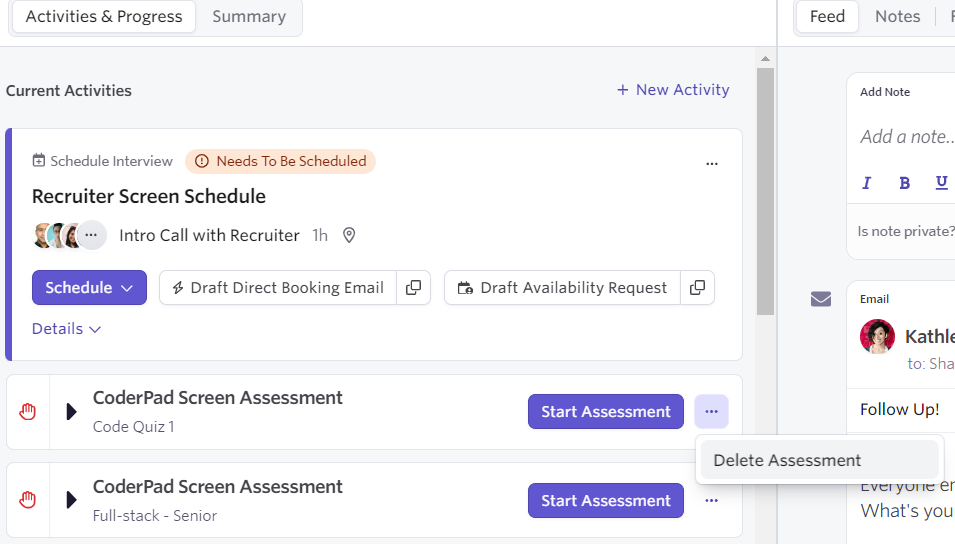
When you cancel in Ashby, it will move the assessment back to Ready to start on the Candidate page. When canceled from inside CoderPad Screen, that assessment will just be marked canceled and you will have to add another assessment if you need to modify and resend it.
Add a test to a workflow
You can set an assessment to automatically be sent to every candidate when you move them to a specific interview stage for a particular job. This is configured in the Interview Plans tab under the job. Check out the guide on Automated Activities here for more information.
Reviewing test status and results
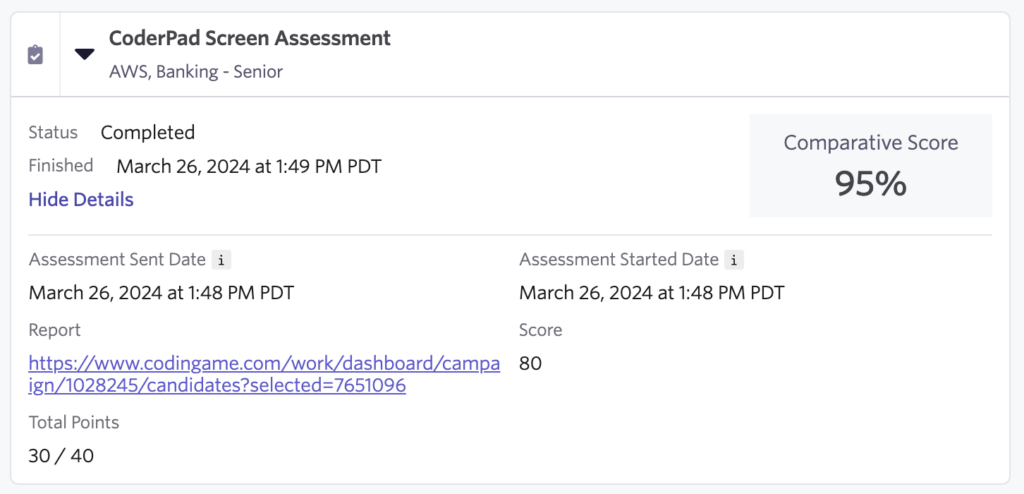
Once the candidate starts the assessment, the status will update with another date of when they started taking the test. You’ll also see an update to the status when the candidate completes the test.
Click on the assessment to expand it and see the results, including the total score, the comparative score, and a link to the detailed report.