cFIRST
This guide will walk you through integrating your cFIRST account with Ashby, allowing you to send background check requests as assessments in your interview plans.
Integration Overview
cFIRST is a global background screening service provider that helps enterprises of all sizes build reliable teams leveraging its API-enabled digital platform. cFirst’s integration documentation is available here.
Connect cFIRST with Ashby
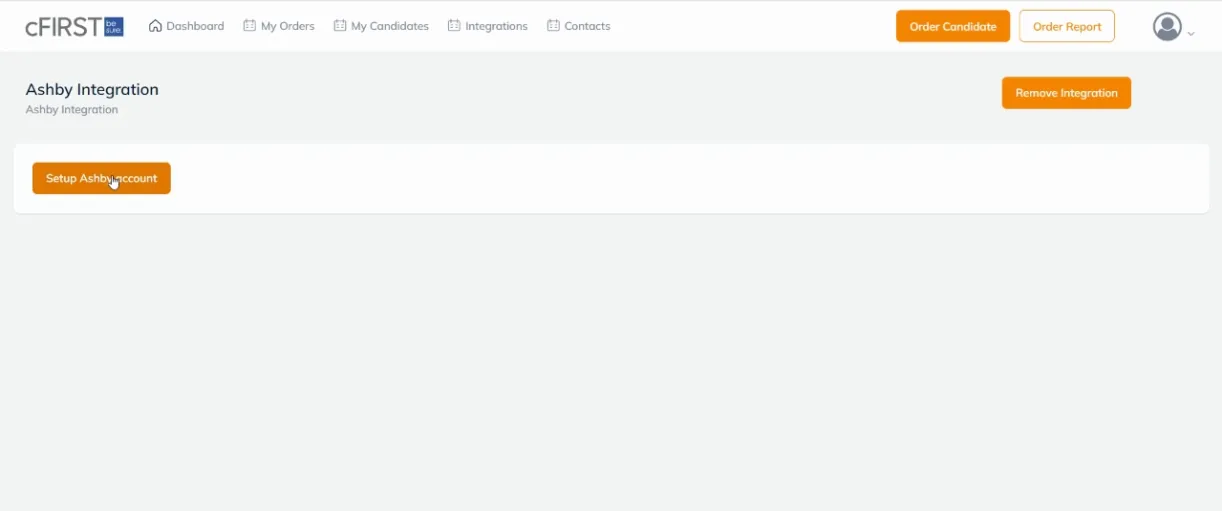
1: Log into your cFIRST client Portal and navigate to your cFIRST Account menu. Click on the Integrations tab, search for Ashby and click on the icon to enable the integration, then click on Setup Ashby Account.
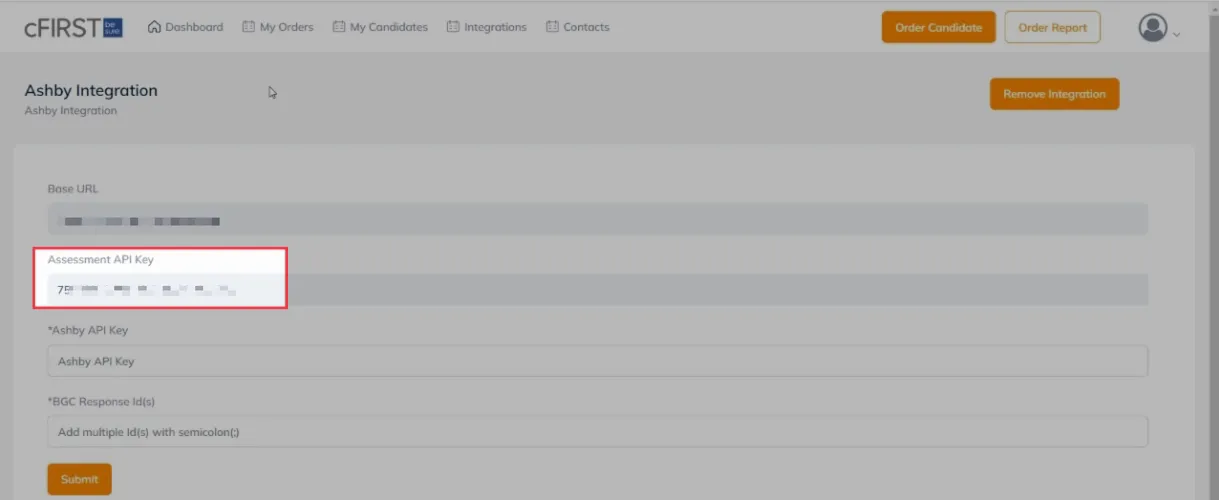
2: Your Assessment API Key will be automatically generated. Copy this key to paste into Ashby.
Ashby Setup
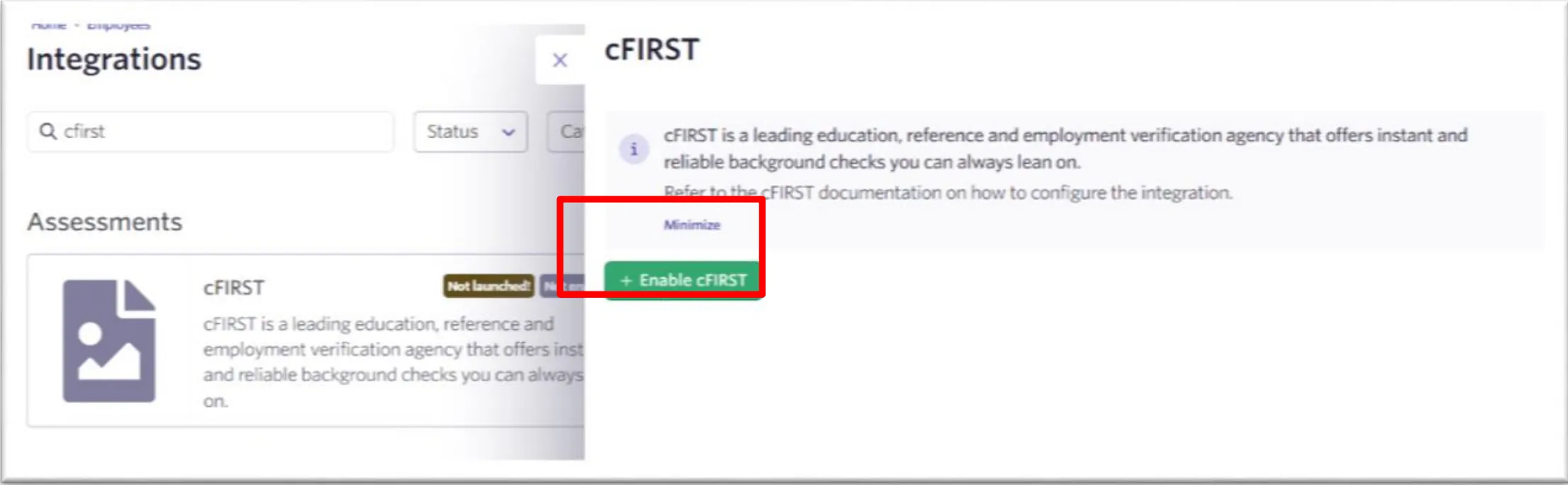
3: Log into your Ashby account and go to the Integrations page. Search for cFIRST and click on +Enable cFIRST.
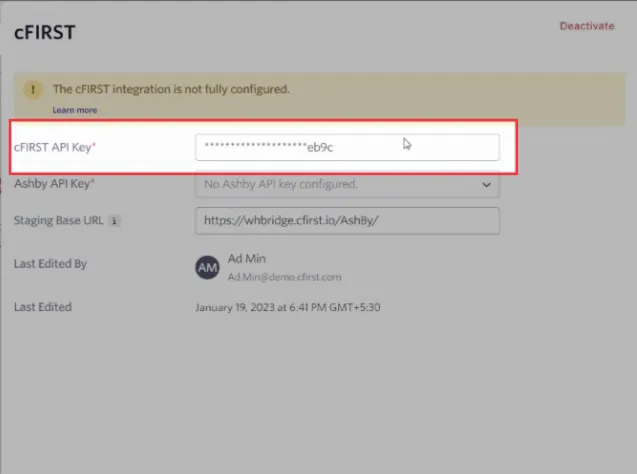
4: Paste the Assessment API key copied from cFirst and paste it into the cFIRST API Key field.
5: Generate an Ashby API Key for cFIRST and copy this API key. Our guide on this can be found at How do I generate an API key? Please ensure your Ashby API key has Write access to the Candidates set of endpoints, as this contains the assessment.update endpoint, which will be used to send data back to Ashby about the assessment.
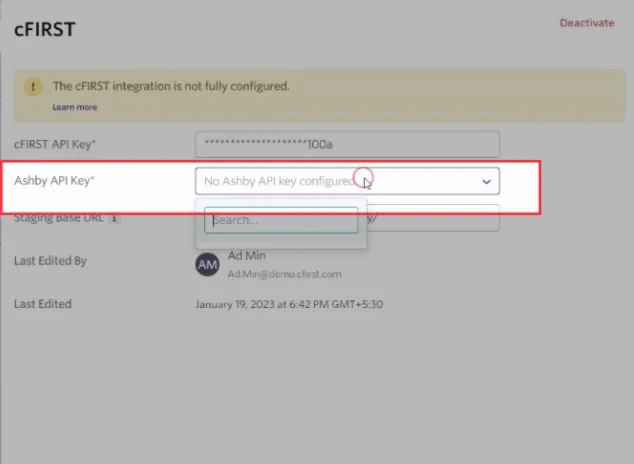
6: Then back in cFIRST, paste the Ashby API key into the Ashby API key field.
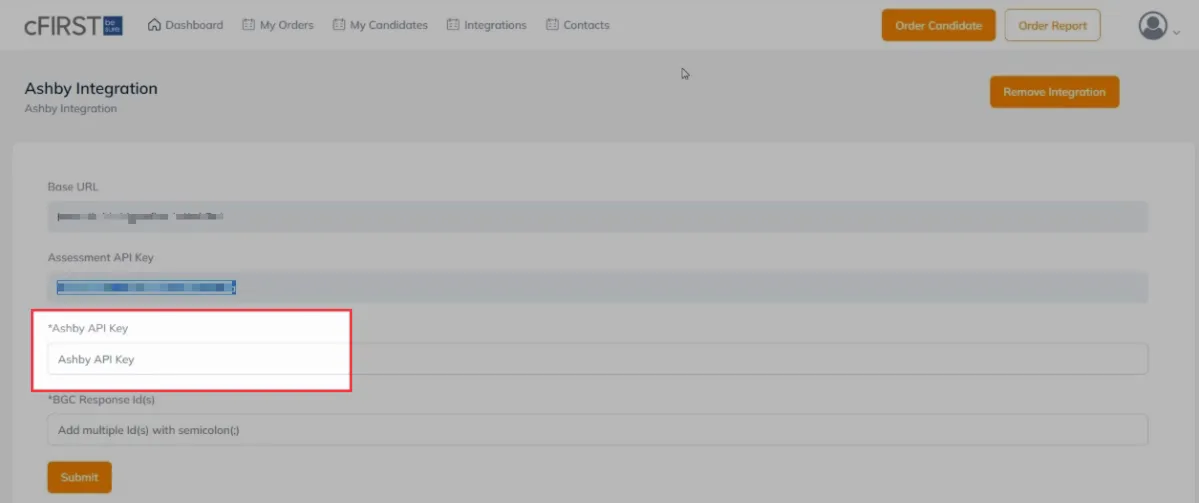
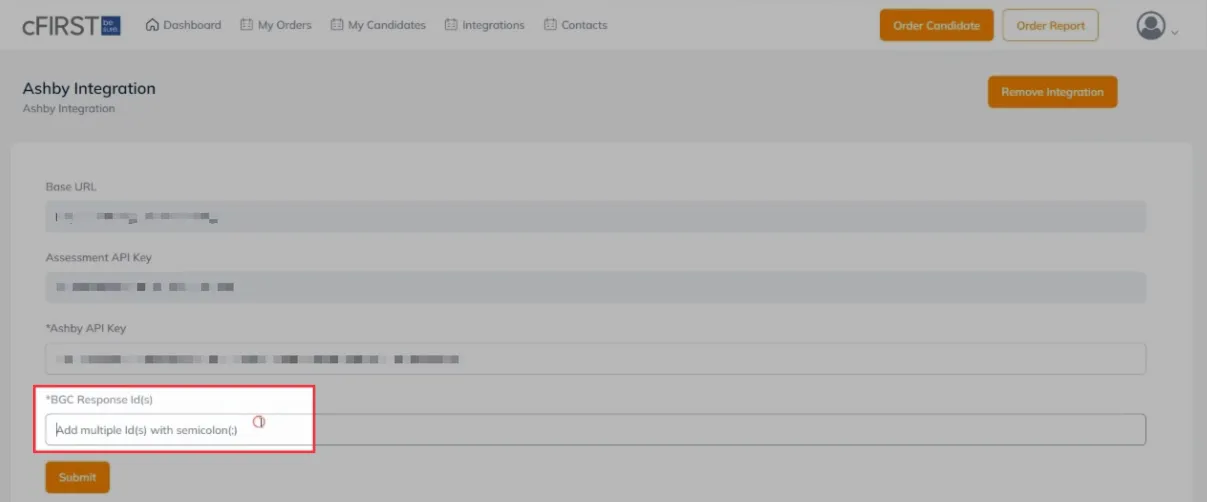
7: In the BGC Response Id(s) field, enter the email addresses that should receive a notification when candidates are successfully added. Separate multiple addresses using a semicolon. Then, click on Submit.
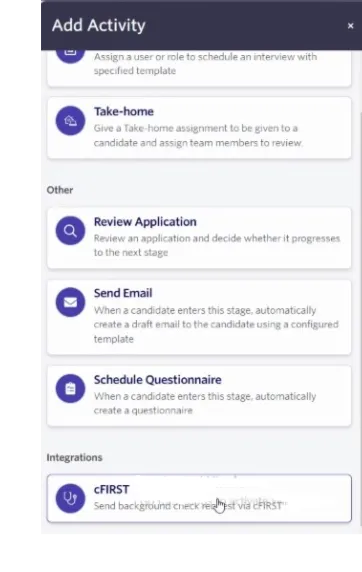
You can now start sending cFIRST background check requests as assessment activities in your Ashby interview plans
Video Instructions
For a cFIRST integration video walkthrough, please refer here.