Certn (Centric)
This guide walks you through integrating your Certn account with Ashby, allowing you to send background check requests as assessments in your interview plans.
Integration overview
Certn is a global leader in AI-powered background checks for enterprises. This integration enables you to send Certn background check requests as assessments within Ashby.
Connect Certn with Ashby
To connect Certn (Centric) with Ashby, you need to generate an application programming interface (API) key and webhook secret in Certn (Centric).
To generate an API key in Certn (Centric):
- Log into your Certn (Centric) account and navigate to Settings > Integrations, then click the API Keys tab.
- Click Create API Key to generate your API key.
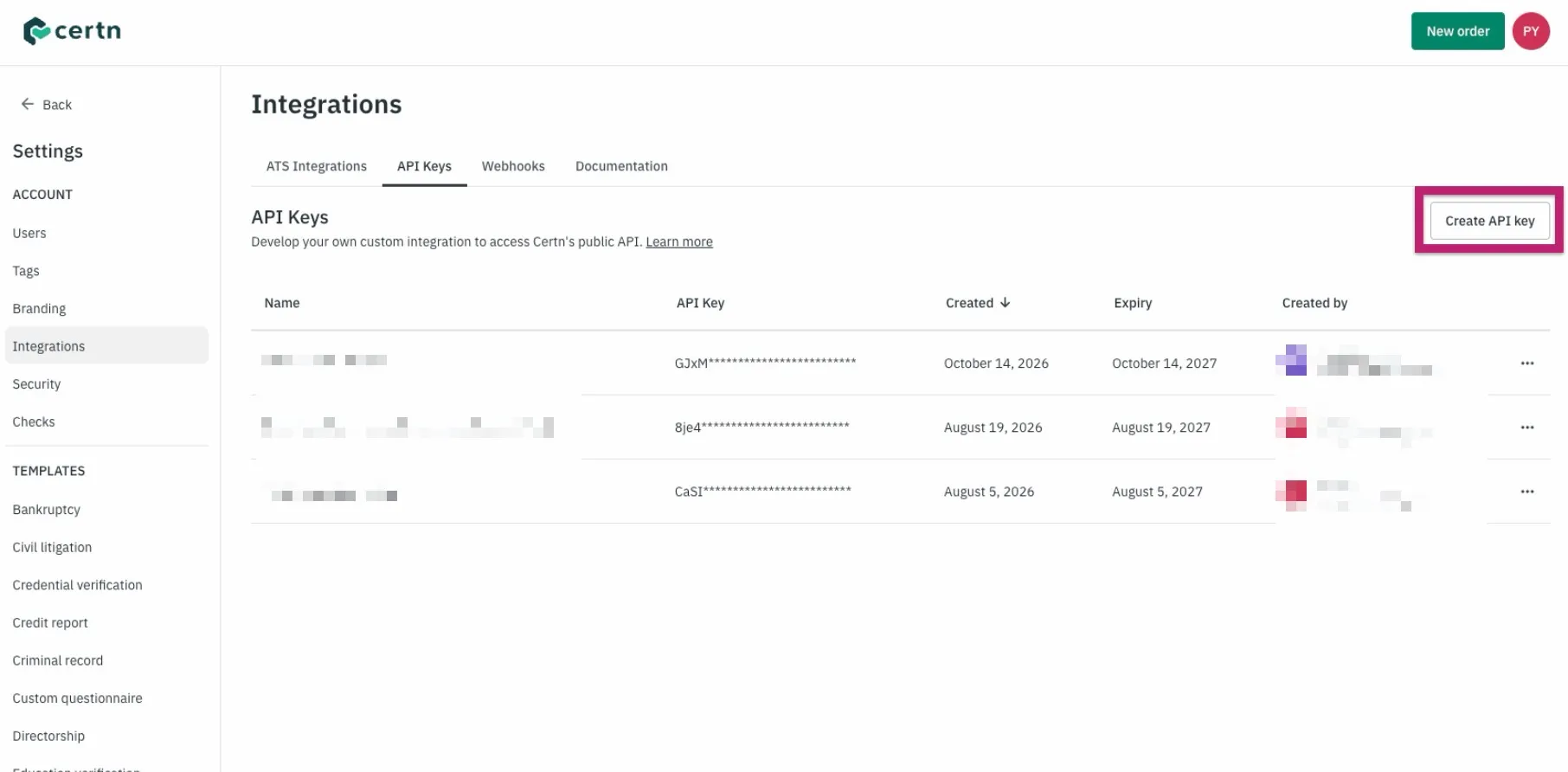
To generate a webhook secret in Certn (Centric):
- Navigate to Settings > Integrations, then click the Webhooks tab.
- Click Create Webhook.
- Add a new webhook pointing to this Ashby URL: https://app.ashbyhq.com/api/certn-centric/webhook
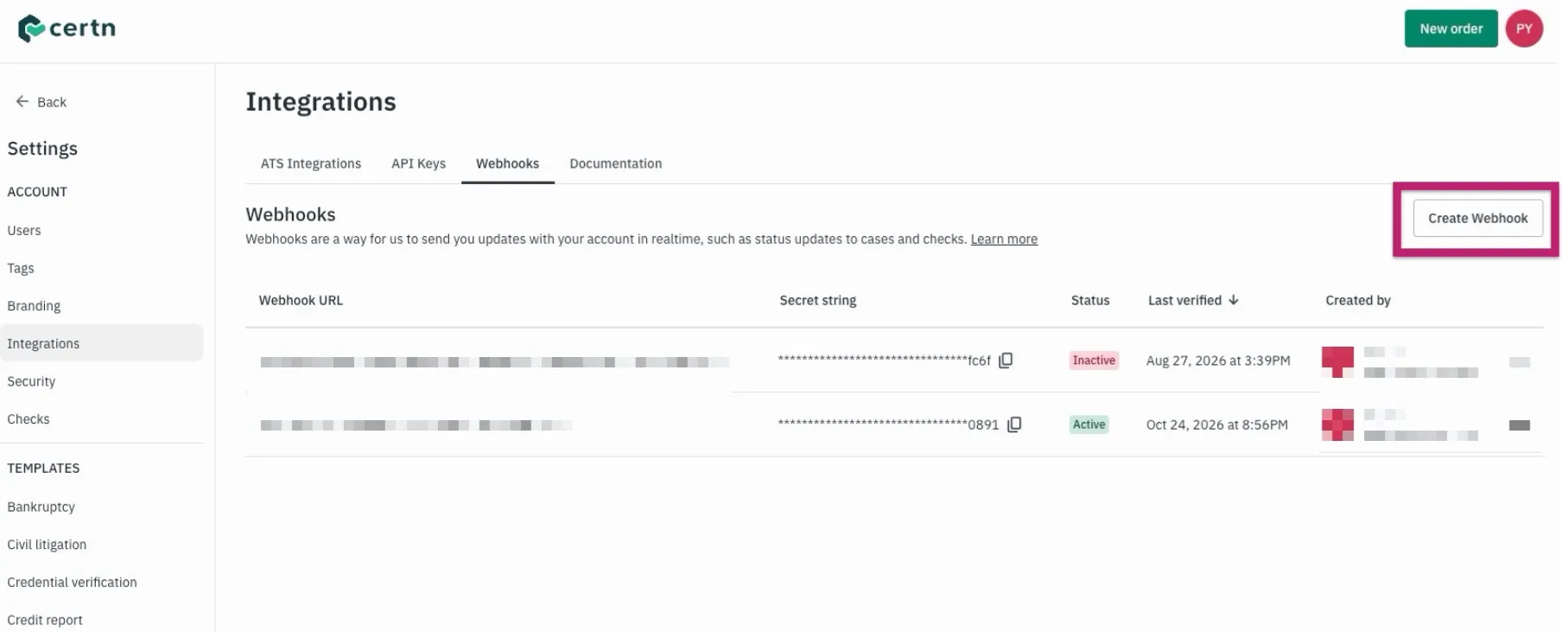
To configure the integration in Ashby:
- Navigate to Admin > Integrations > Integrations.
- Open the Certn (Centric) integration tile.
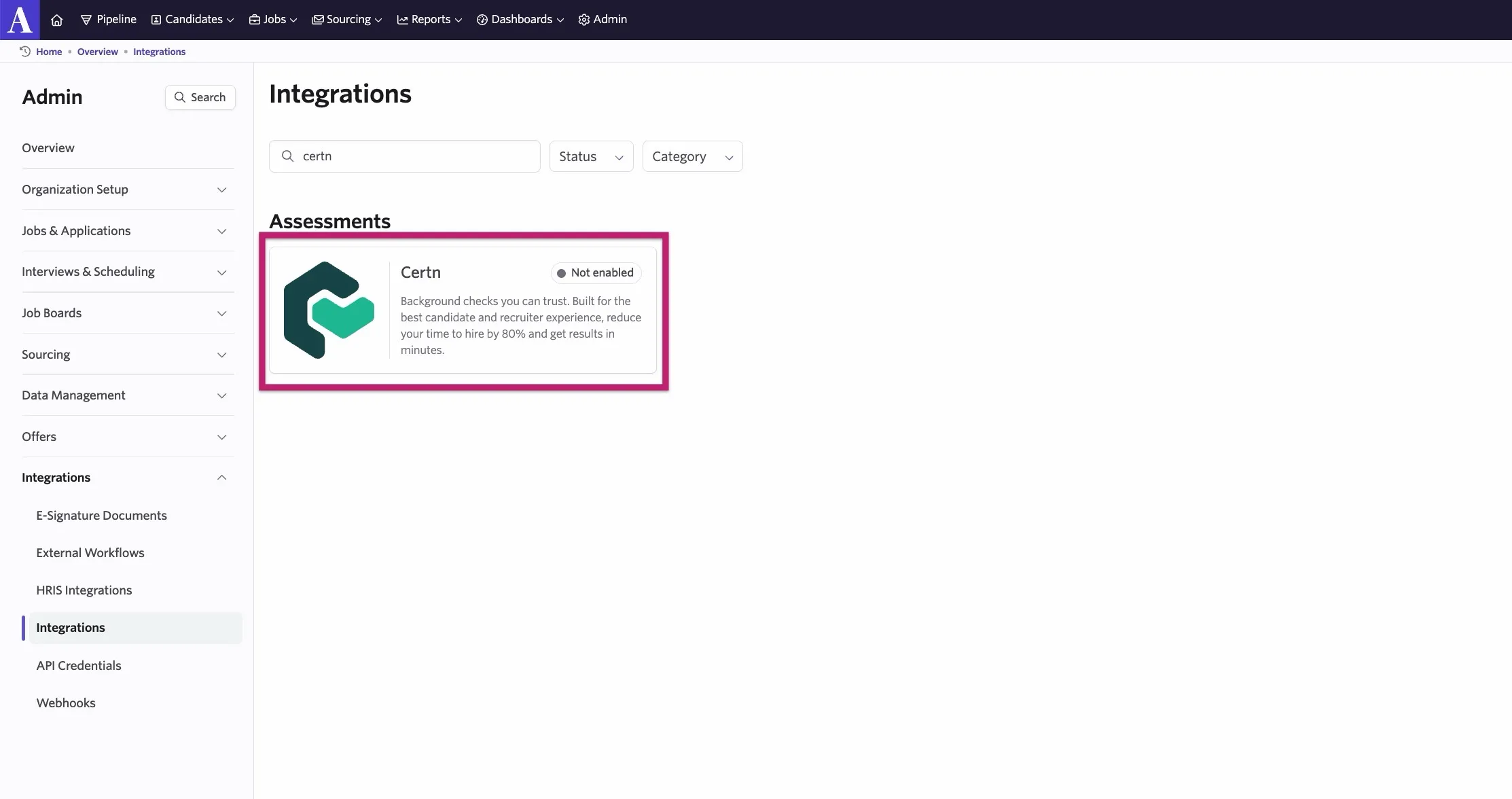
- Complete the integration fields.
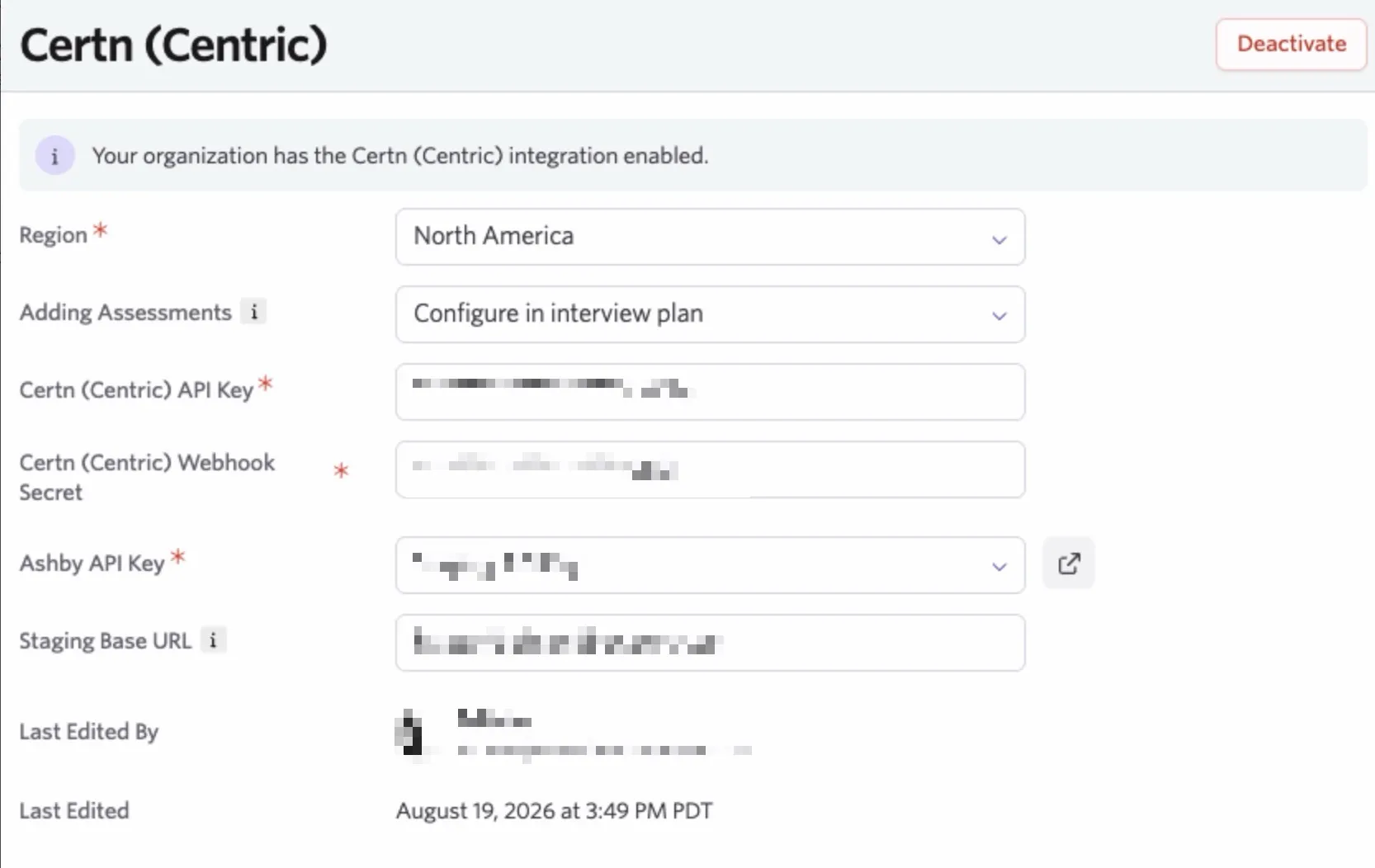
Region: If shown, select your region from the dropdown. Adding Assessments: Configure when you would like assessments or background check activities to be added to the candidate's profile. Choose from the following:
- Configure in interview plan: For each interview plan, you can configure Certn background checks at a specific stage.
- Automatically add to hired stage: Whenever a candidate is added to the hired stage for all jobs in your Ashby account, Ashby automatically adds a Certn background check to their candidate profile.
- Automatically add to offer stage: Whenever a candidate is added to the offer stage for all jobs in your Ashby account, Ashby automatically adds a Certn background check to their candidate profile.
Certn (Centric) API Key: Add the API key you generated in Certn (Centric) here. Certn (Centric) Webhook Secret: Add the webhook secret you generated or copied from Certn here. Ashby API Key: Generate an Ashby API key. For guidance, see How do I generate an API key?How do I generate an API key?. Ensure your Ashby API key has Write access to the Candidates set of endpoints. This contains the assessment.update endpoint, which sends data back to Ashby about the assessment. Staging Base URL: (Optional) Enter your staging base URL here. Group: Select the Certn Group (sub-account) your background check cases should be ordered under. This is required on accounts with more than one Group; orders fail if no Group is selected.
You can now start sending Certn background check requests as assessments in your Ashby interview plans.
Configuring a Certn assessment
If you chose Configure in interview plan in the Adding Assessments field in your Certn integration settings, you need to configure Certn assessment activities on your interview plans.
To do this:
- Select a job in Jobs > Jobs and click Interview Plan.
- Review your interview stages and click Add Activity To on the stage you'd like to add the assessment to.
- Select Certn from the activity list.
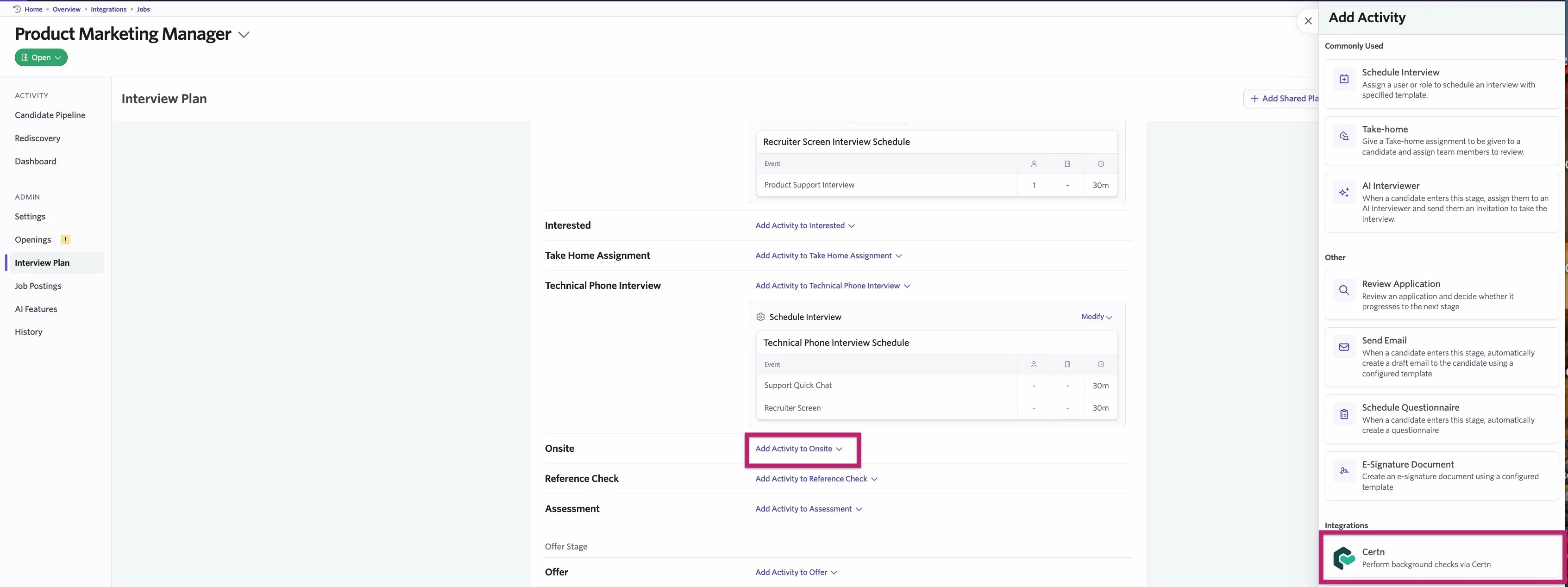
- Select the assessment you'd like to run. The activity is then added to your interview plan.
When you move a candidate to the stage with your assessment, Ashby adds a Certn activity to their job consideration.
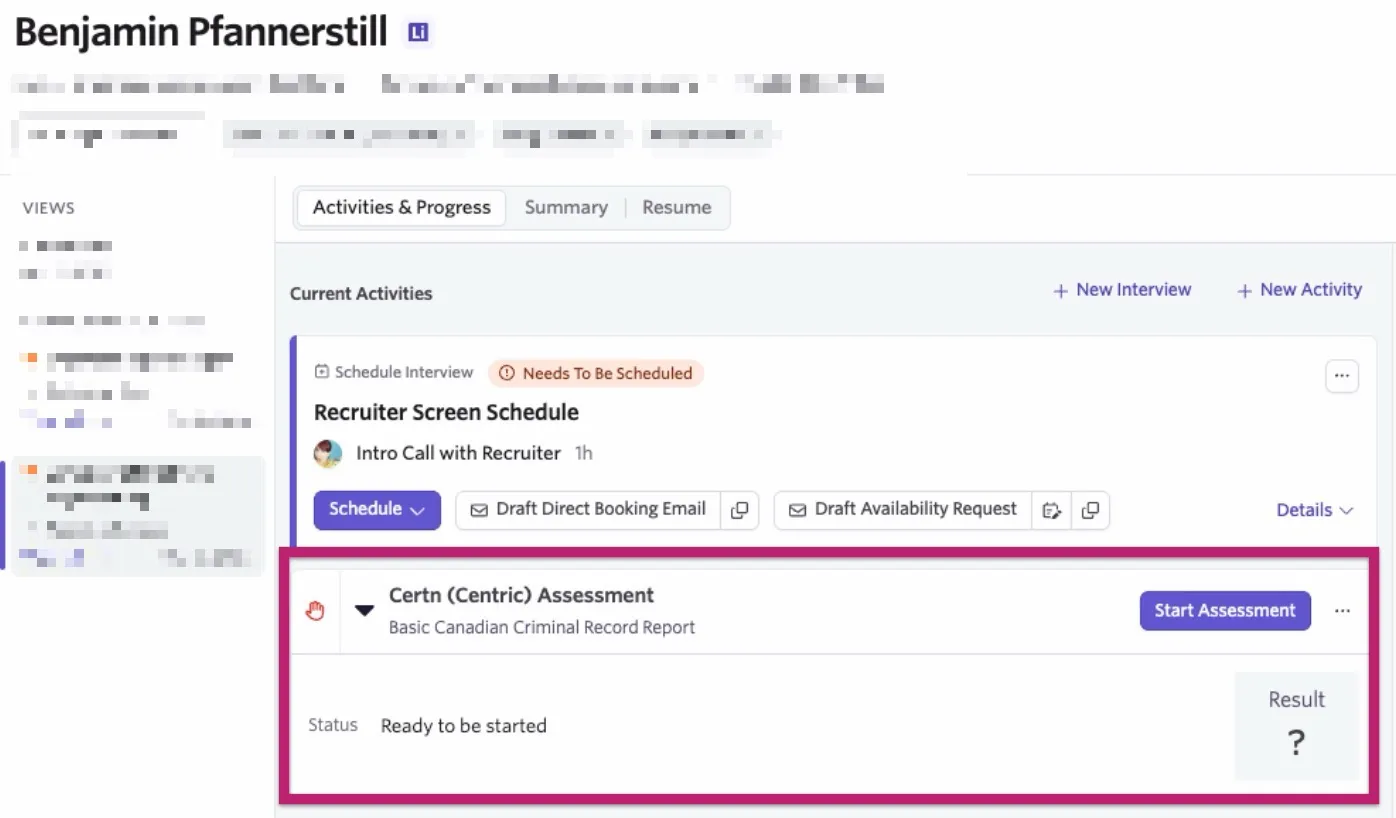
Click the Certn (Centric) activity and select Start Assessment. If your integration settings are Automatically add to hire stage or Automatically add to offer stage, the assessment will start automatically with the assessment settings specified in your interview plan.
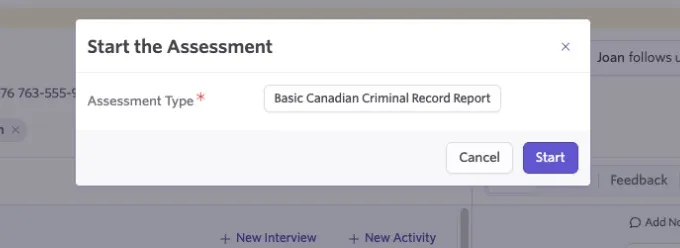
If you have the integration settings set to Configure in interview plan, a window will follow.Review the chosen assessment type, then click Start.
Once you order the background check, its status appears on the Ashby candidate dashboard and updates as the check runs.
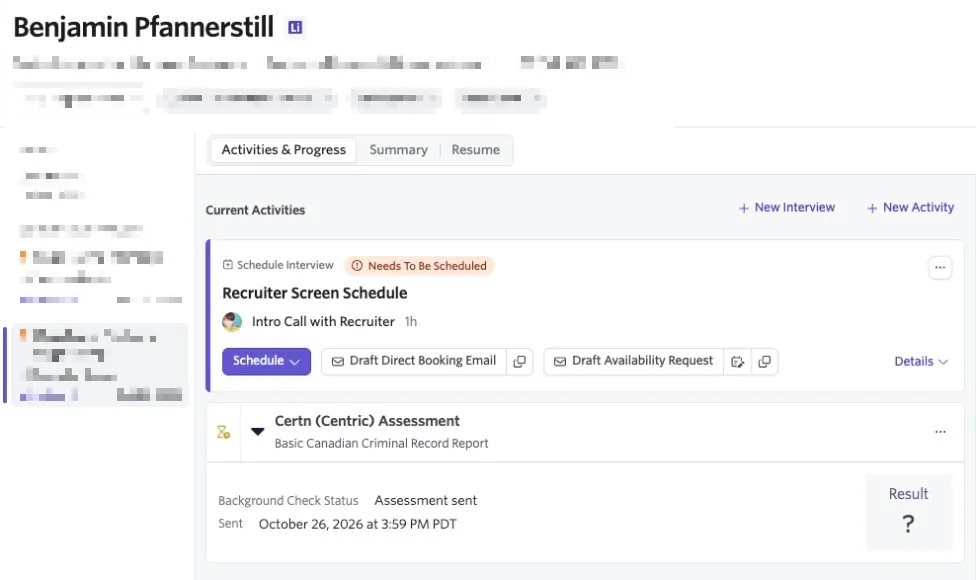
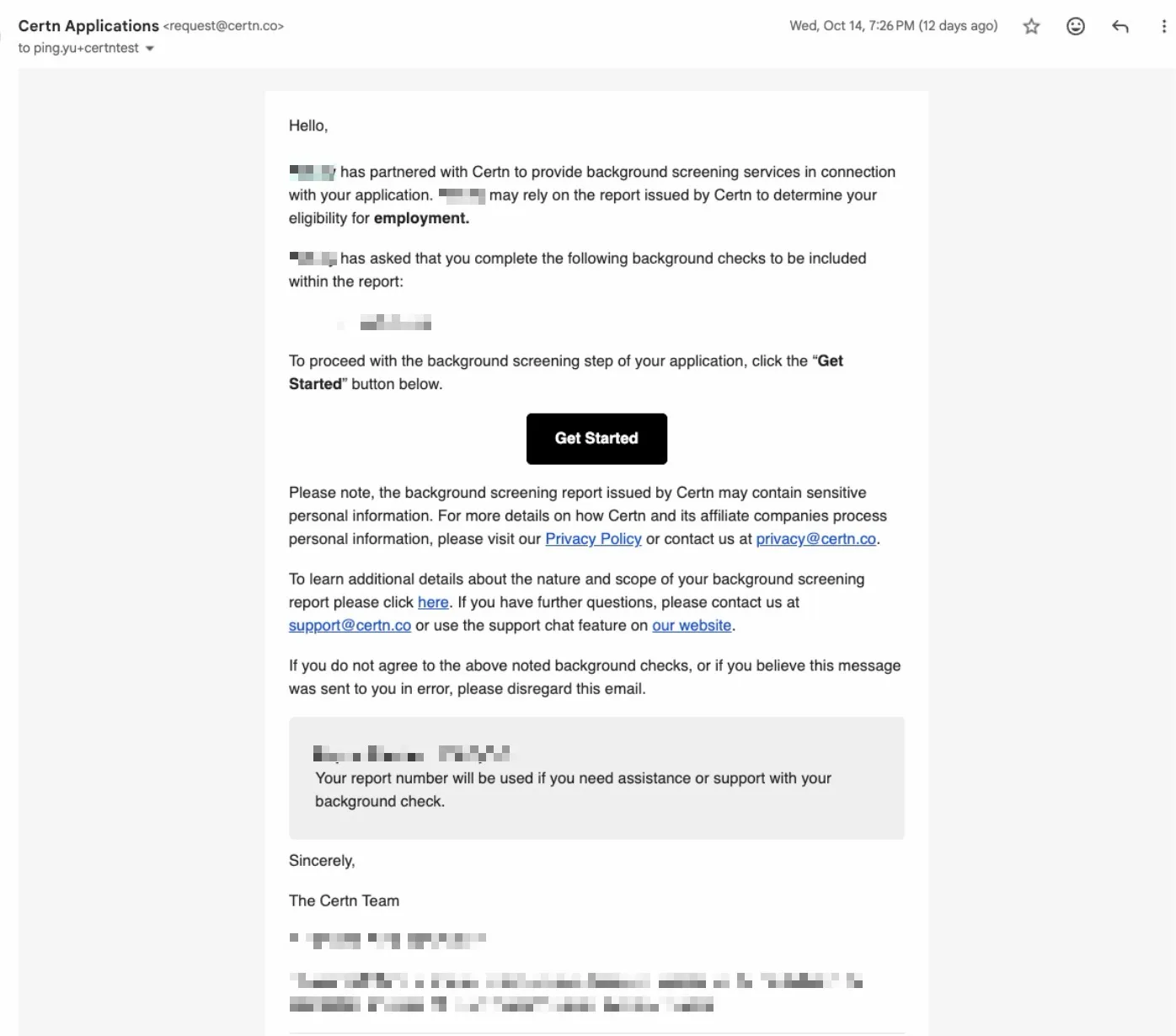
The candidate will receive an email from Certn with the assessment details and how to access the assessment.
A record of the assessment and the current status will also be visible in Certn.