Adaface
Adaface helps companies automate the first-round interviews with a conversational chatbot, Ada. Recruitment teams prefer Adaface because we focus on relevant challenges as opposed to asking trick questions, leading to accurate shortlisting.
Through this integration, you can send Adaface assessment tests to candidates via Ashby and receive the candidate's results in Ashby.
Prerequisites
A paid Adaface plan and Ashby Org Admin access is required to enable this integration.
Connect Adaface with Ashby
1: Reach out to your Adaface account manager to request your Adaface API key.
2: Once provided with your Adaface API key, head over to the Adaface integration settings page in the Ashby integration marketplace and click Enable Adaface
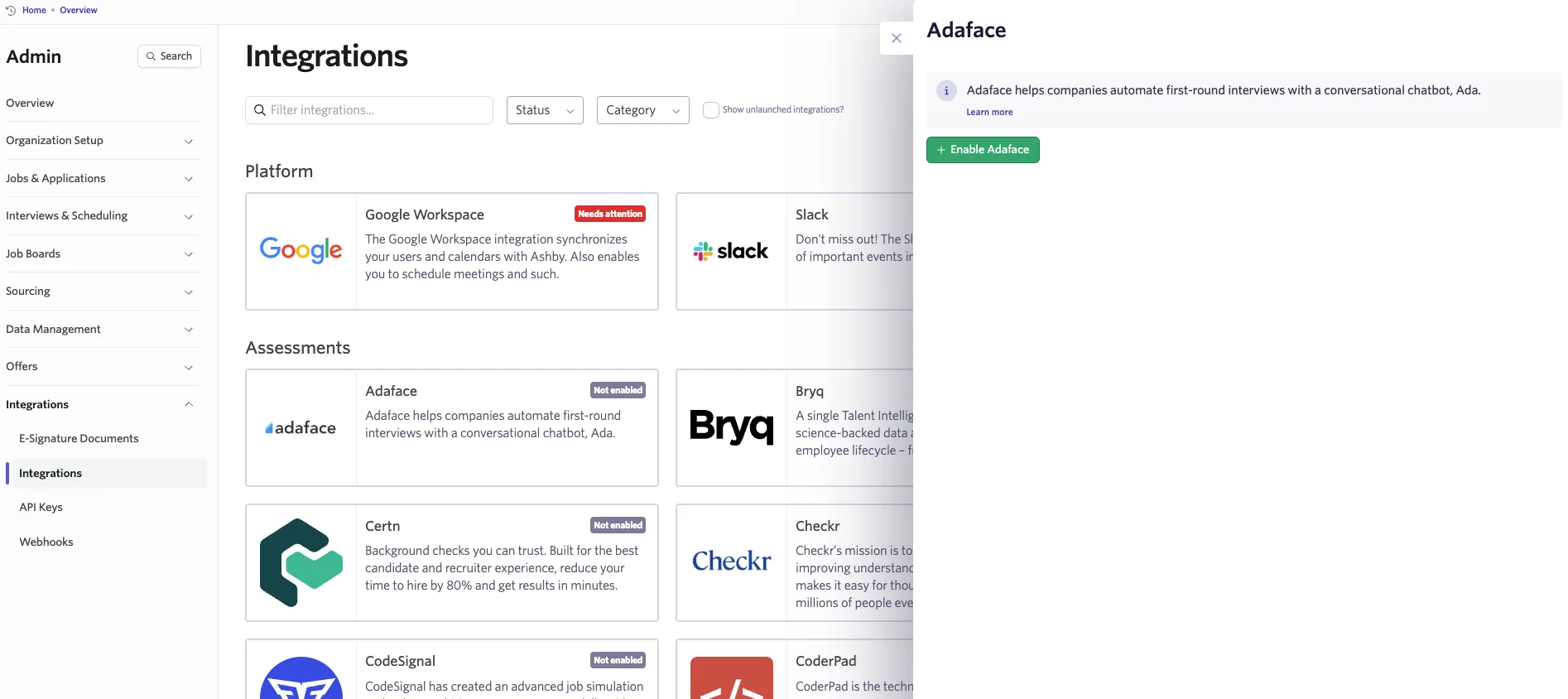
3: Copy and paste the Adaface API key.
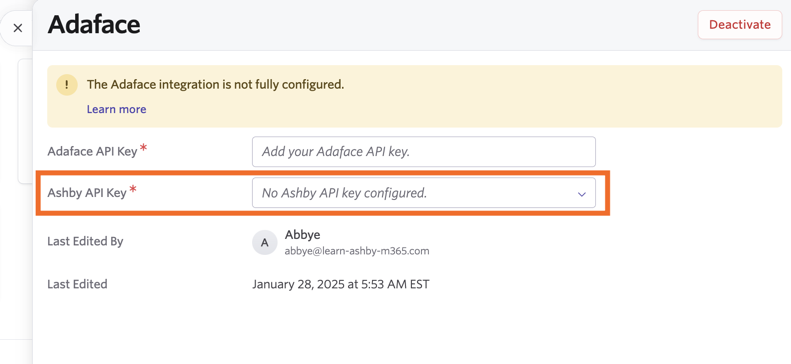
4: Generate an Ashby API key. Our guide on this can be found at How do I generate an API key? Please ensure your Ashby API key has Write access to the Candidates set of endpoints, as this contains the assessment.update endpoint, which will be used to send data back to Ashby about the assessment. You will need to copy your Ashby API key for step 5, so be sure to do this before closing out the API key setup wizard.
From here, select your newly created Ashby API key from the Ashby API Key drop-down in the Adaface integration settings tile.
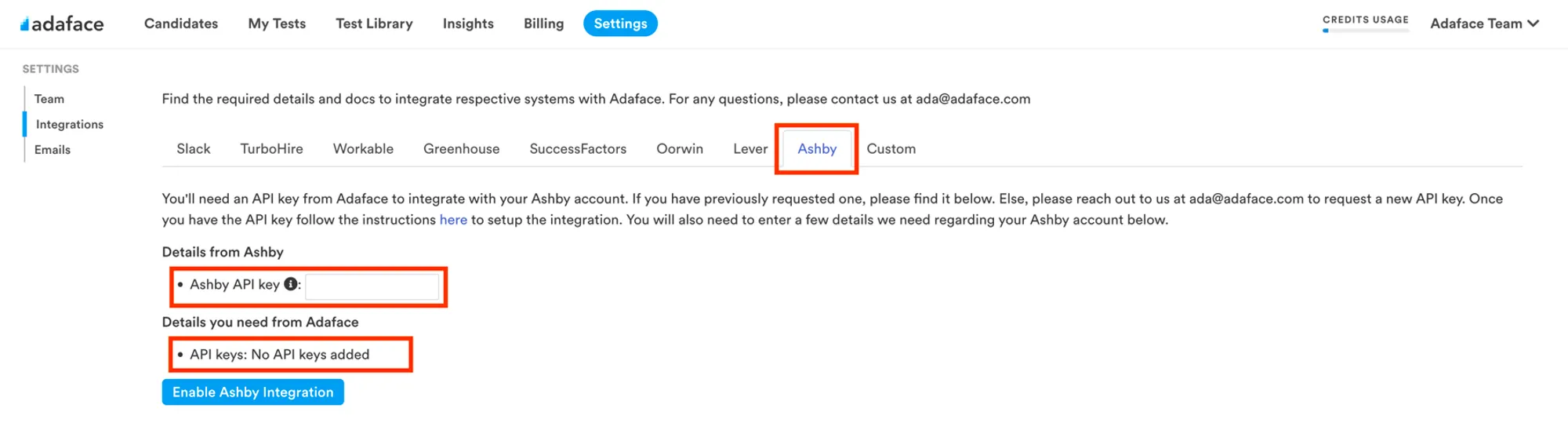
5: In your Adaface Dashboard, navigate to Settings > Integrations > Ashby. Paste your Ashby API key and click on Enable Ashby Integration.
That’s it! You’ve now integrated Adaface with Ashby
Using the Integration
The assessment can be initialized directly on the candidate’s profile page or as an automated activity in the interview plan stage.
- Manually initialize the assessment on the candidate’s profile page by going to the candidate’s profile page and clicking on the + New Activity button and choosing the Adaface integration. Then, select the Adaface assessment. The initialized assessment will show on the candidate’s profile.
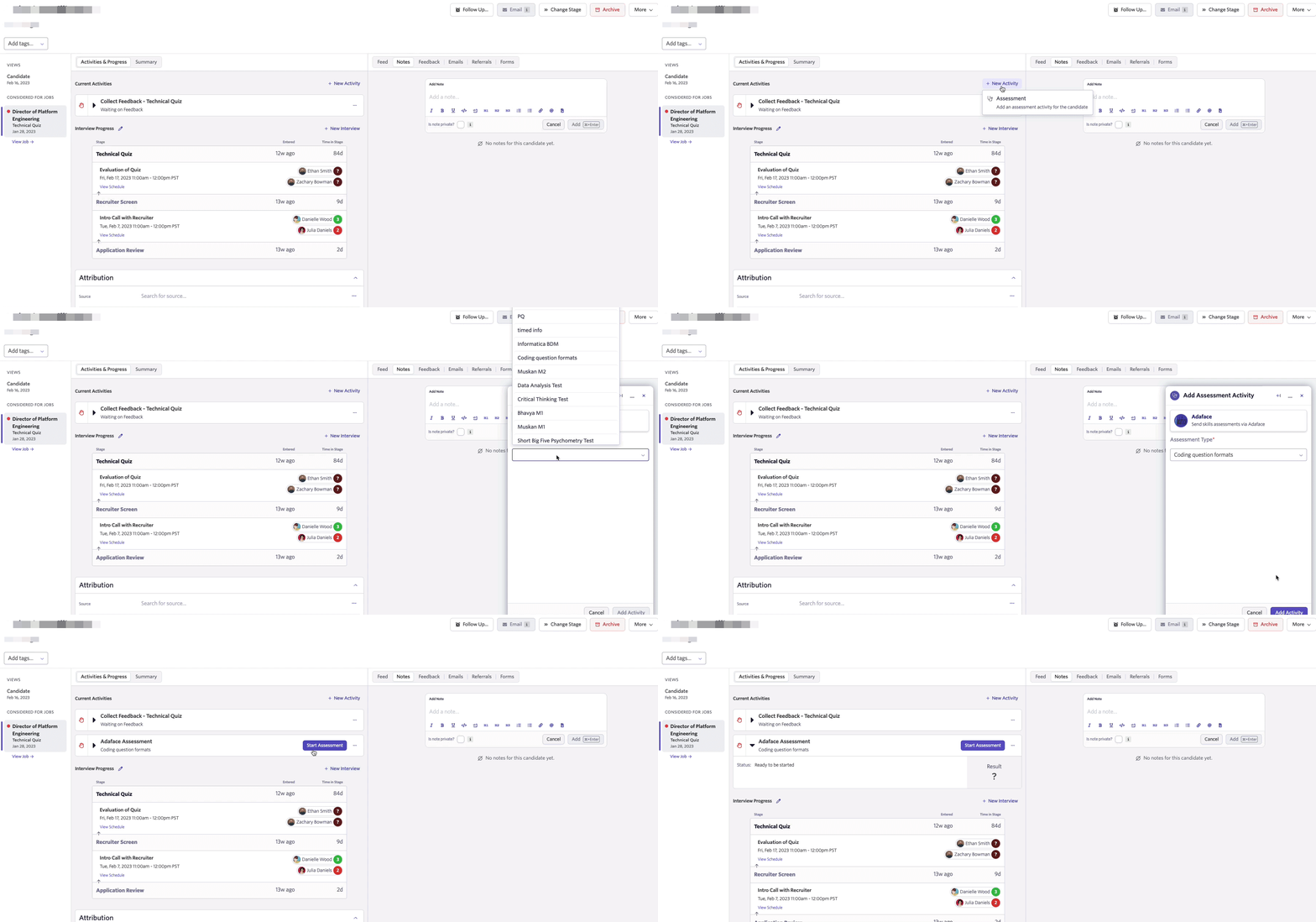
- Automate the assessment initialization as an interview plan stage activity. To do this, click on the Add Activity to… button for the interview plan stage. Choose Adaface and select the assessment. After a reviewer is assigned, this will add the activity to the stage. Then when a candidate is advanced to that stage, the assessment will automatically be initialized.
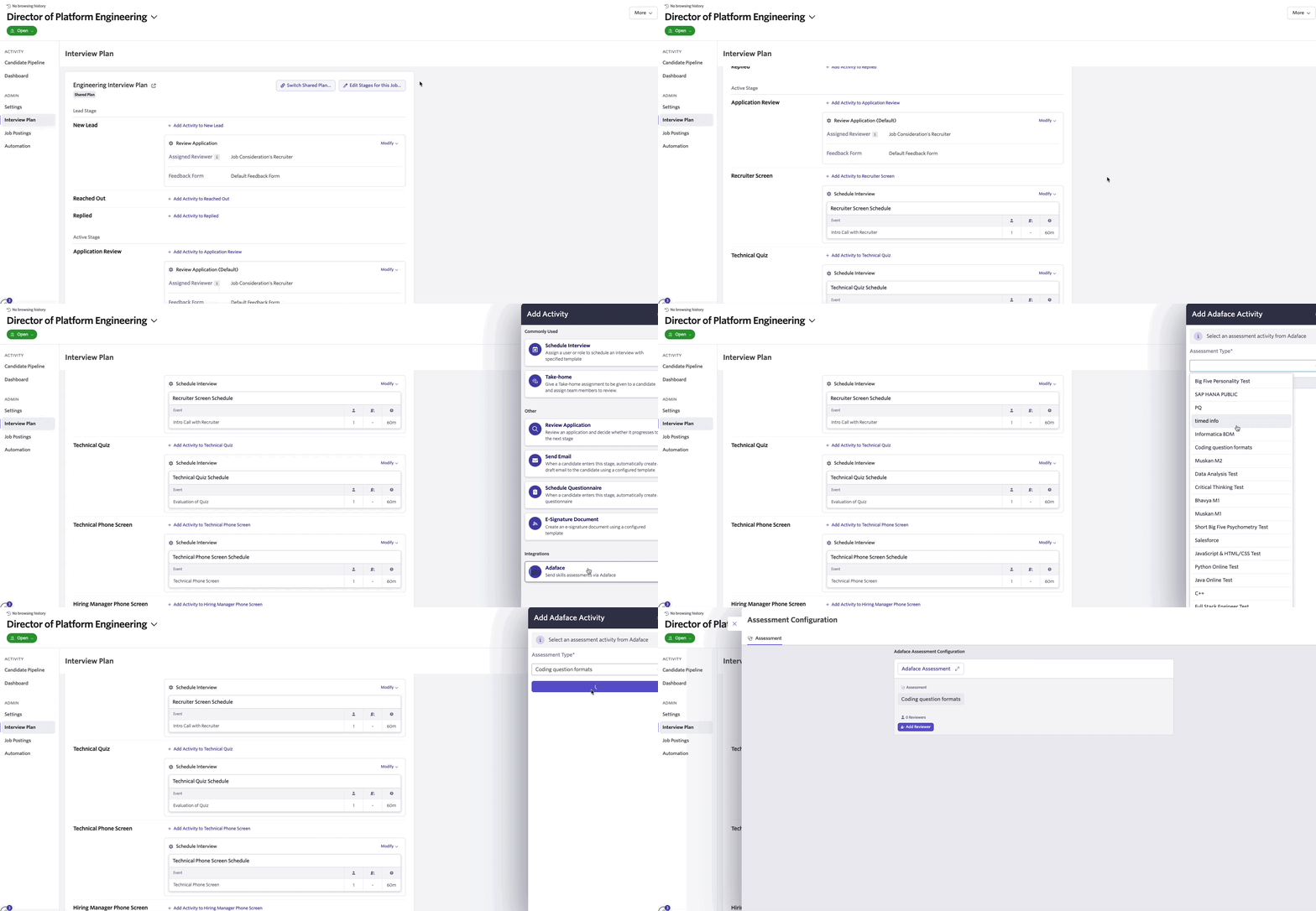
After the assessment is initialized, you can start the assessment by clicking on the Start Assessment button on the candidate’s profile page. This will invite the candidate to complete the assessment.
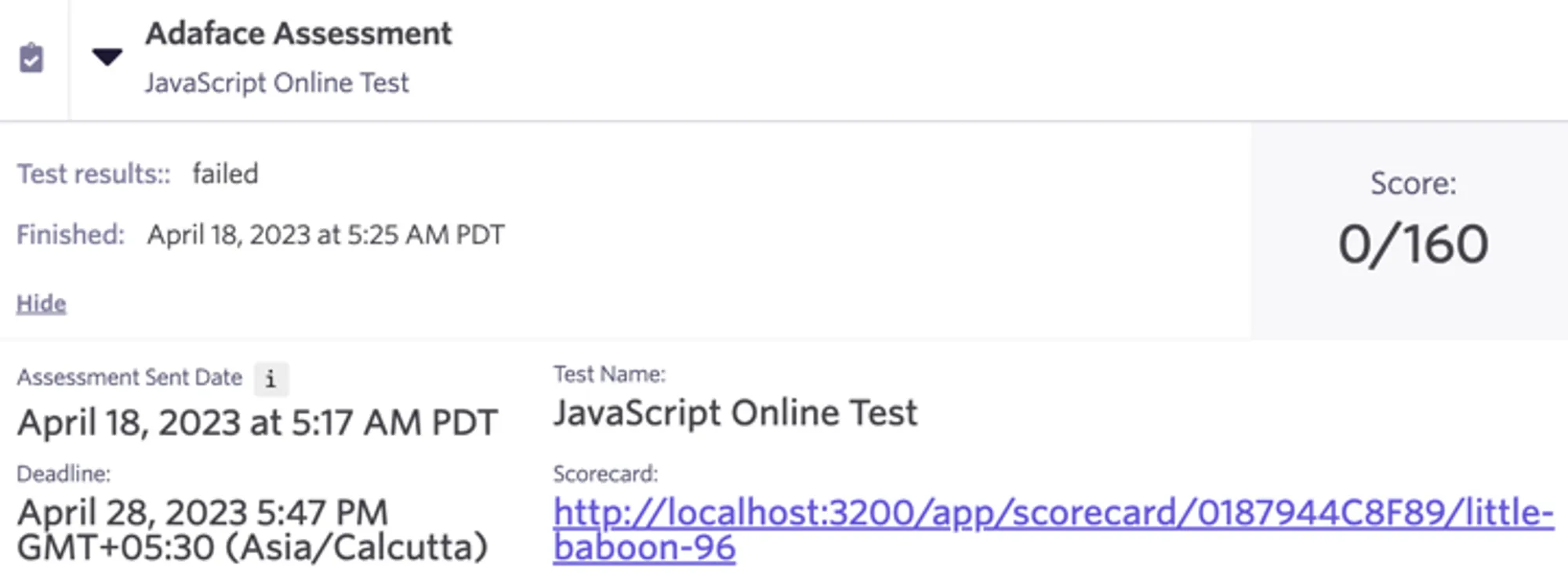
In Ashby, you’ll be able to see the assessment’s status, score and cancel the assessment.
Additional Information
For more information, head over to https://help.adaface.com/en/articles/7338946-adaface-ashby-integration. If you have any questions or feedback about the integration, please reach out to our team at [email protected].