Zoom
Ashby's Zoom integration allows you to add Zoom links when scheduling interviews from within Ashby. For setup, you only need to enable the integration in Ashby, we'll come back to review the rest later.
For integrations where an admin activates the integration by logging into their account (like Zoom), we would recommend setting up a department or service admin account for the integration, rather than using an admin user's account to configure the integration. The integration account connected would need to be a Zoom admin account.
Enabling the integration in Ashby
As an Organization Admin user, navigate to Admin > Integrations > Integrations > Zoom, then click Add to Zoom. You'll be prompted to login via SSO using Zoom Admin credentials.
After successfully completing the authentication process, the page will display a message confirming that you have successfully installed the integration.
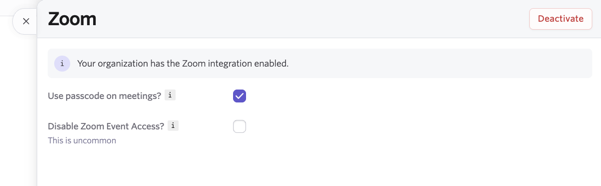
You’ll also see a couple of checkboxes once the integration has been activated:
Use passcode on meetings? If you choose to leave this checkbox unchecked, then a Zoom meeting with a waiting room will be generated instead.
Disable Zoom Event Access? When enabled, users will not be able to see scheduled Zoom meetings in Quick Schedule (please note this is not commonly used).


Generating a Zoom link for an interview panel
If you have multiple potential interviewers for an interview (for example, three interviewers that could take one interviewer slot on your panel), you can now auto-select a Zoom host based on the interviewer selected, rather than specifying a Zoom host for the interview.
This means that when the interview is scheduled, Ashby will select the Zoom account for the user who will actually participate in the interview and set them as the host, as opposed to having to decide on one specific host ahead of time. Please ensure that all interviewers have a Zoom user account in your company Zoom account so they are included in the host list.
Please note: the dynamic Zoom hosts feature is only currently available for single-event interviews. For multi-event interviews, a Zoom host would need to be specified using the Manual option If users with a basic Zoom license are selected as Zoom hosts, then the Zoom time constraints (40 minutes max per meeting) will be applied.
Setting up Dynamic Zoom Hosts for a Schedule Interview Activity
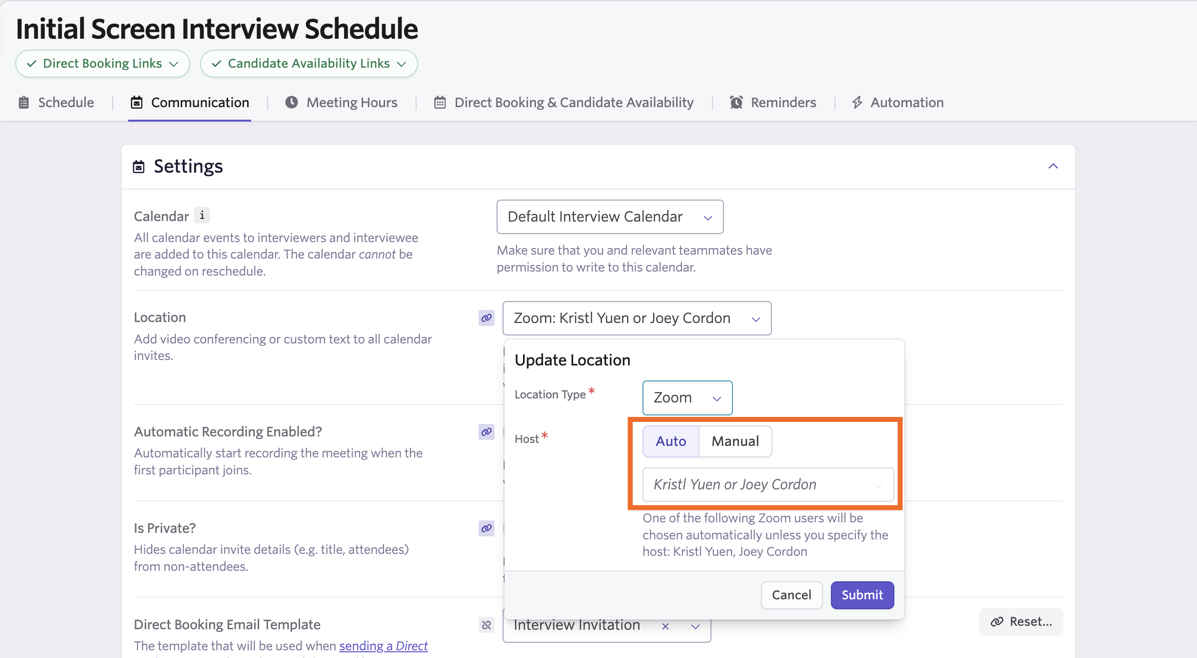
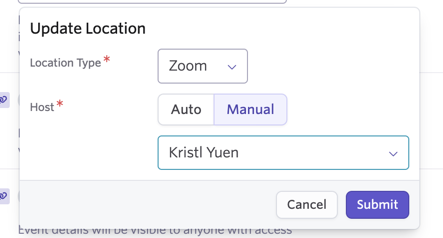
On the Communications tab of your schedule interview activity, when you set Zoom as the location type in the Location dropdown, you will see Auto and Manual options that you can toggle between.
Select Auto to allow Ashby to pick the host based on the Zoom users in the list. The Zoom users are pulled based on interviewer profiles in Ashby matching those of the users in the Zoom account.
When the candidate schedules their meeting via a direct booking link, the Zoom host will be determined based on the interviewer the interview is assigned to, so long as the interviewer is an active Zoom user in the connected Zoom account.
If you’d like to specify a certain host, click Manual and select the user from the dropdown list of Zoom users.
Setting up Dynamic Zoom hosts for Manual Schedule
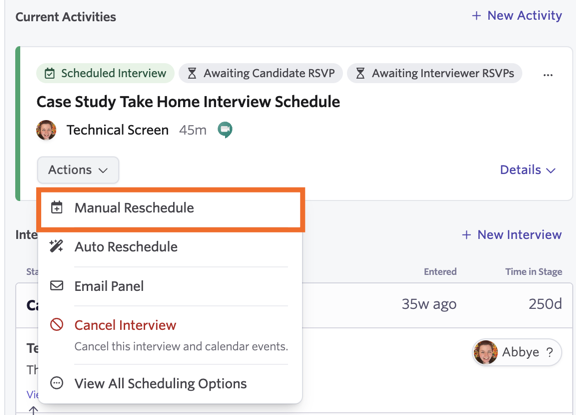
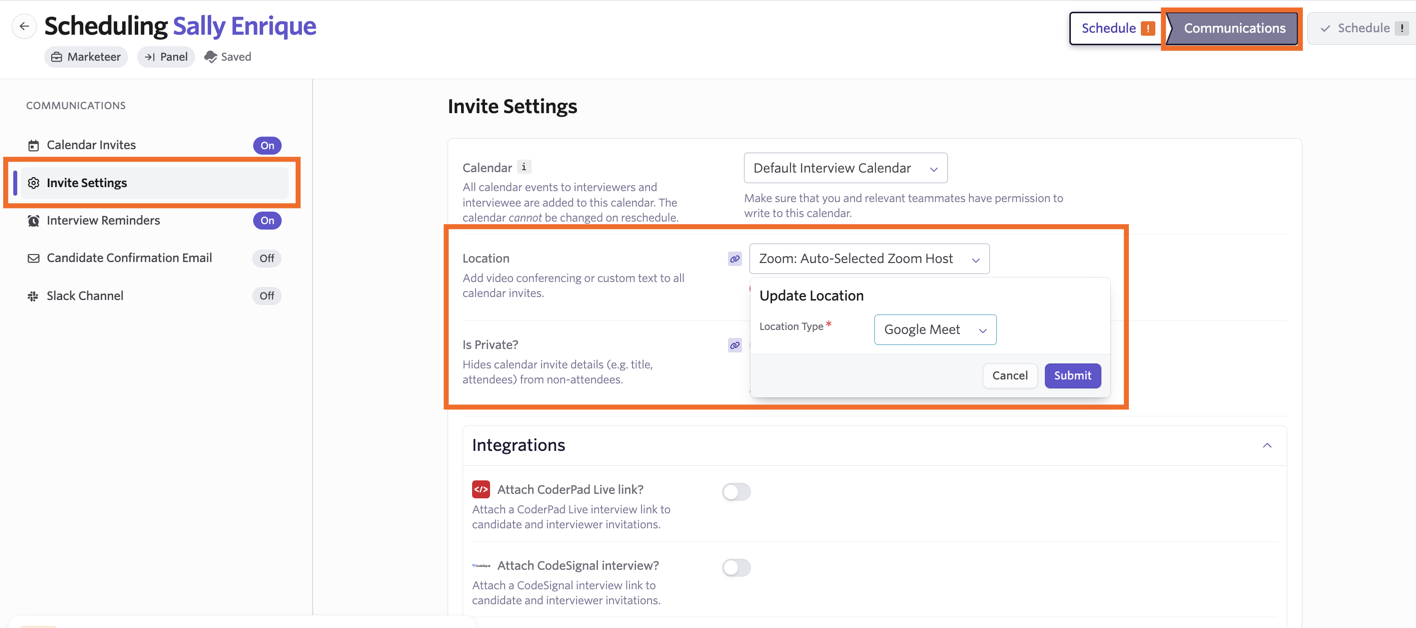
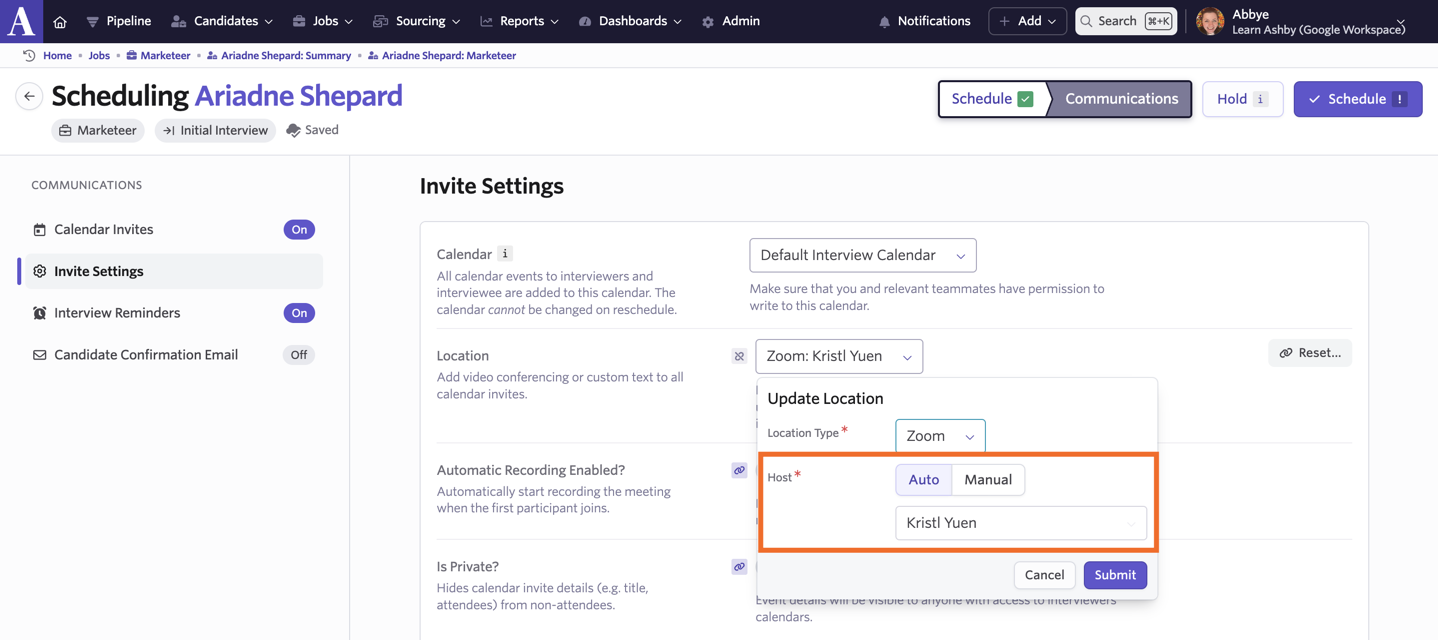
When manually scheduling interviews, you can also set dynamic Zoom hosts if needed by clicking the Auto option within the Invite Settings of the Communications tab.
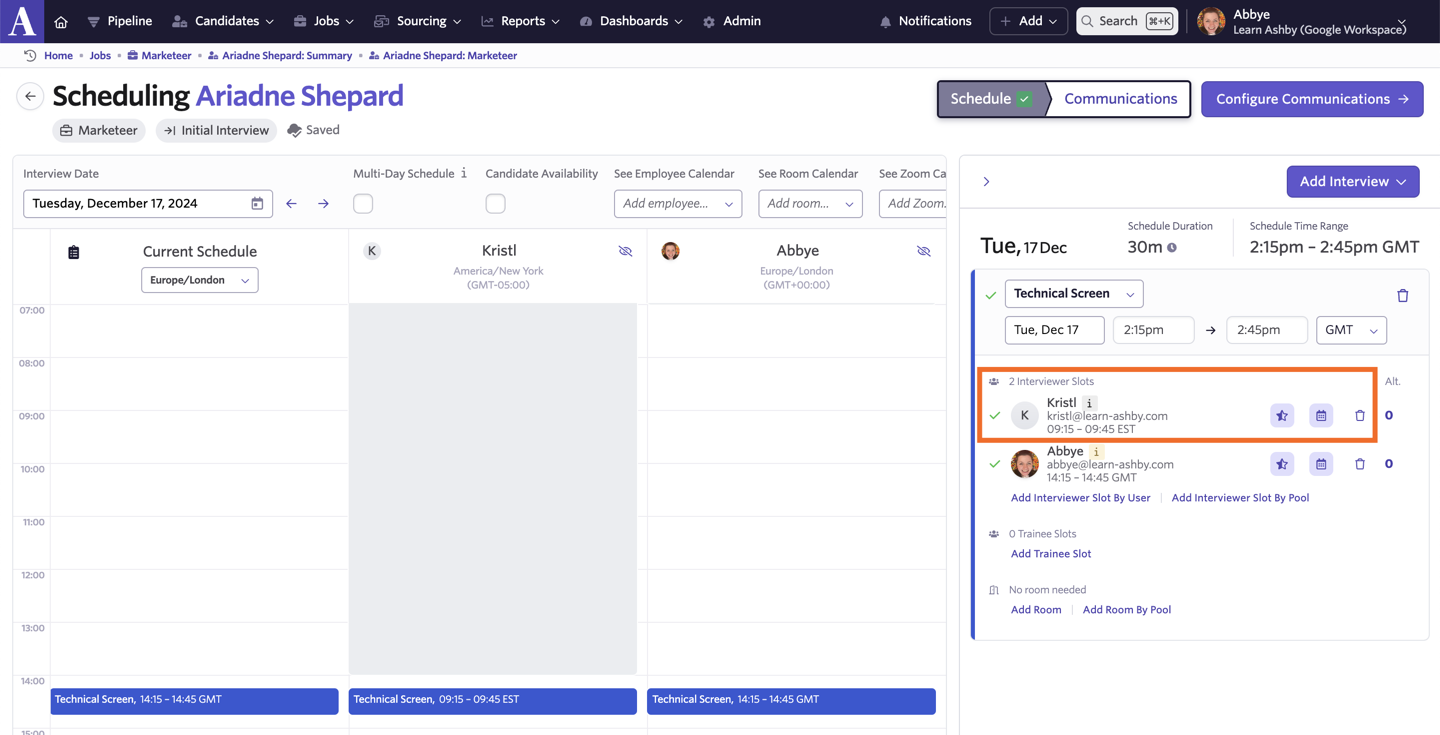
When determining the interviewers on your schedule, the interviewer in the first interview slot will be selected as the Zoom host on the Communications tab. You can remove or change the interviewer to adjust the zoom host selected.
If you’d like to select a host from the drop-down, click Manual, then specify the Zoom host.
Uninstalling the integration
To uninstall Ashby from your Zoom instance you'll need to login to Zoom, then navigate to the Zoom App Marketplace. Click Manage > Installed Apps or search for the Ashby app. Click the Ashby app, then Uninstall.
Zoom Setup and Settings
We recommend creating a separate Zoom user in your account that acts as an interview room for multi-panel interviews and round-robin interviews.
To create a separate Zoom account to serve as an interview room, you'll first need to create a separate Zoom user on your company Zoom license. For example, if you have a talent@ email address for your organisation, you could create a Zoom user account for that email.
Once configured, the shared Zoom account will appear as a host option when assigning Zoom as a location in the Communications tab of your schedule interview activities or scheduling defaults.
We suggest making this a paid account to avoid any issues with time limits, but you can set this up with a basic account as well.
We also recommend allowing attendees to join these meetings before the organizer. This ensures Zoom meetings are created accurately when there isn’t a clear host. Enable the Allow participants to join before host option within the shared account’s Zoom settings to allow attendees to join before the organizer.
Concurrent Meetings
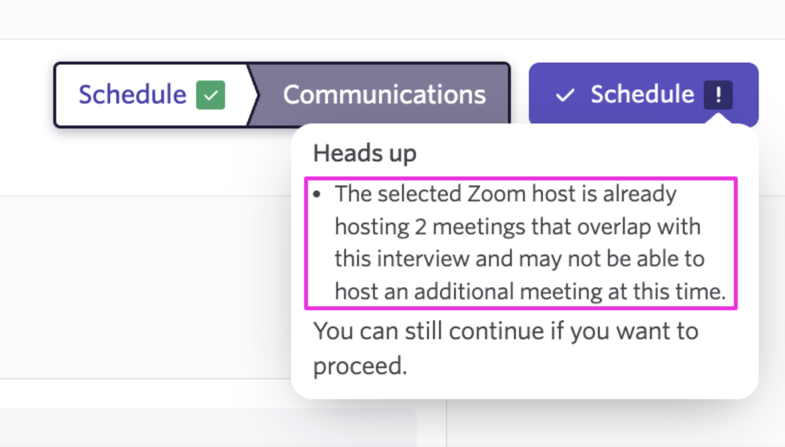
Each Basic user and Licensed user on a Pro account is limited to hosting one meeting at a time.
Licensed users on Business, Education, and Enterprise accounts can host up to two meetings at the same time. For more information on hosting simultaneous meetings, please check out Zoom’s guide here.
Concurrent Meeting licenses can be purchased from Zoom. There are two levels for Concurrent Meeting licenses - Basic and Plus. Each Basic Concurrent Meeting license can schedule up to 4 concurrent meetings, while those with a Plus Concurrent Meeting license can schedule up to 20 concurrent meetings.
The scheduler will need to select their Concurrent Meeting Zoom account as the host when scheduling interviews. This ensures you can book up to twenty concurrent interviews without needing to switch the host each time.
Additional notes
- If you'd like to enable screen sharing, but no member of the meeting is the host, you'll need to make sure that the Host Account's Setting enable All Participants to share. You can update this setting by going to the Host Account's profile and going to Settings -> In Meeting (Basic)
- Ashby's Zoom integration will allow you to create a meeting with any Zoom host in your account, regardless of their Zoom plan. It is important to note that meetings hosted by Basic users will still be time limited to 40 minutes if the meeting has more than 3 attendees.
- All Zoom meetings created through the integration will be password protected. Passwords are embedded in the URLs added to calendar invites to the interviewers and candidate.
- You will have the options to use Zoom passcodes on meetings and disable Zoom Event access as part of the integration settings. If you opt to not use Zoom passcodes, then Zoom meetings will be created with a waiting room instead. If you opt to Disable Zoom events, then scheduled Zoom meetings will not show on interviewer calendars when using the Manual Schedule option to book interviews.
- By default Ashby will generate a strong password using letters, numbers and symbols. If you would like simpler numeric passwords, edit your passcode complexity requirements in your Zoom account settings and specify “Only allow numeric passcode”. Ashby will apply this requirement for all new meeting passwords. Please note: You will need to be a Zoom admin with the privilege to edit account settings to make these changes.
- We acknowledge that Zoom isn’t optimized for interviews. For high-volume roles that may have many people interviewing at once, we’d suggest using Google Meet as links can be generated dynamically with this option.