Xobin
Xobin is an online talent assessment software, used by 5000+ customers from 55+ countries to assess, interview, and hire top talent 20x faster, saving 10x time, money and effort.
Xobin's integration with Ashby streamlines the candidate assessment process by allowing recruiters to send skill assessments directly from Ashby's dashboard with just a click. The results are seamlessly synced and displayed within Ashby, enabling effortless candidate screening and evaluation.
Overview
The integration between Ashby and Xobin allows you to seamlessly send assessments to candidates from within Ashby and receive detailed assessment results directly on the Ashby platform. Follow this guide to set up the integration and manage assessments efficiently.
Setting Up the Integration
Step 1: Generate an API Key in Xobin
- Log in to your Xobin dashboard.
- Navigate to the Settings page and select the Integration tab in the top-right corner.
- Locate the Ashby integration and toggle it on.
- Click Generate API Key, then copy and securely store the generated key for later use.
Step 2: Configure the Integration in Ashby
- Log in to your Ashby dashboard.
- Navigate to Admin > Integrations and search for Xobin
- Select the Xobin integration and Click on the + Enable Xobin button
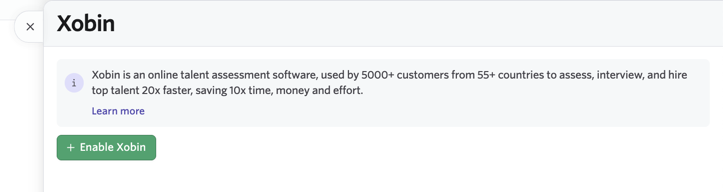
- Paste the API key copied from Xobin into the Xobin API Key input field.
- In the left-side navigation bar, go to API Keys (under the Integration menu).. Click on the New button in the top-right corner to create a new API key for your integration.
- Fill in the following details in the pop-up:
- Name: Enter a name such as Xobin Integration or Xobin Assessments.
- Type: Select Partner Integration and choose Xobin.
- Click Create API Key then configure the required scopes. Please ensure your Ashby API key has Write access to the Candidates set of endpoints, as this contains the assessment.update endpoint, which will be used to send data back to Ashby about the assessment. Once complete, then click Save and Continue. Copy the generated API key.
- Now, go back to the integration configuration and make sure the API key you just generated is also reflected there
- Finally to complete the integration configuration, Go back to xobin and paste the API key you just generated in Ashby in the Your API key from Ashby field and make sure to click Save. And that’s it you have successfully integrated Xobin and Ashby.
Sending Assessments to Candidates
Directly from the Candidate’s Profile
- In Ashby, open the candidate’s profile. Click New Activity beside the current activities.
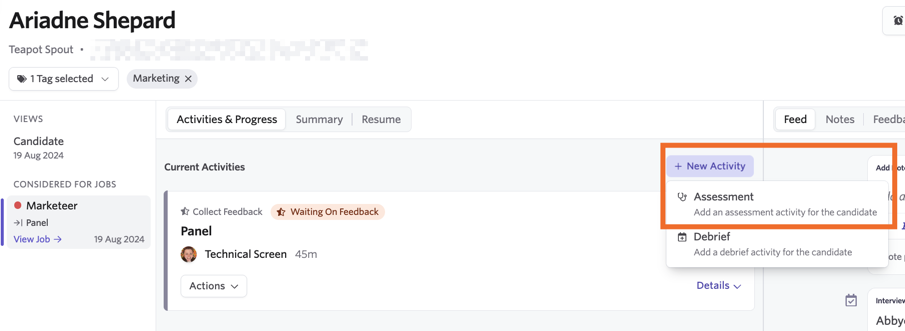
- Select Assessments from the activity types, then choose Xobin from the list of integrated platforms. Select the desired assessment type from the dropdown menu.
- Once the assessment is selected, a new activity will be added to the candidate, click Start Assessment to send the invite.
- Once sent, the candidate will receive a link to complete the assessment. After completion, view the status, completion time, and results directly in Ashby.
- The candidate has completed the assessment. Toggle the arrow on the left to view the assessment results. For a detailed report, click View in Xobin to access the Xobin platform.
Adding Assessments to a Job Pipeline Stage
- In Ashby, navigate to the job for which you want to add Xobin assessments. Go to the Interview Plan section and click Edit Plan Stages in the top-right corner.
- Add a new stage (e.g., "Xobin Assessments") or select an existing one. Save your changes.
- Click Add Activity to the chosen stage. Scroll to the integration section and select Xobin. Choose the assessment type to link to the stage and save your changes.
- When a candidate is moved to this stage, the Xobin assessment activity will be automatically added. All you have to do is click on Start Activity to send the invite and proceed as outlined in Method 1.
Viewing Assessment Results
- Navigate to the candidate’s profile in Ashby. Open the relevant activity to view the assessment status, completion time, and qualification details.
- To access a detailed report, Click Show Report URL to open the report on Xobin’s platform Ensure you are logged in to Xobin for direct access.
- Click View in Xobin to access the detailed report on Xobin’s platform. Ensure you are logged in for direct access. Click View in Xobin to access the detailed report on Xobin’s platform. Ensure you are logged in for direct access.
- Overall performance.
- Strength analysis (categorized as Strengths, Moderate, and Weaknesses).
- Skill-wise and section-wise performance data.
- Responses to individual questions.
- Logs of the candidate’s actions during the assessment.
With the Ashby - Xobin integration, managing candidate assessments becomes seamless and efficient, helping you make data-driven hiring decisions effortlessly. Set it up today and elevate your recruitment process!
Frequently Asked Questions
Additional Resources
For more information or questions that are not covered here, please reach out to Xobin support at [email protected]