TazWorks
TazWorks is a technology platform specializing in background screening software, offering comprehensive solutions for screening and compliance. This article explains how to connect TazWorks to Ashby, add a TazWorks assessment to your interview plan, and send background checks to candidates.
Prerequisites
Contact your TazWorks CRA (background check provider) to obtain your TazWorks API key before you begin.
Enter the TazWorks API key
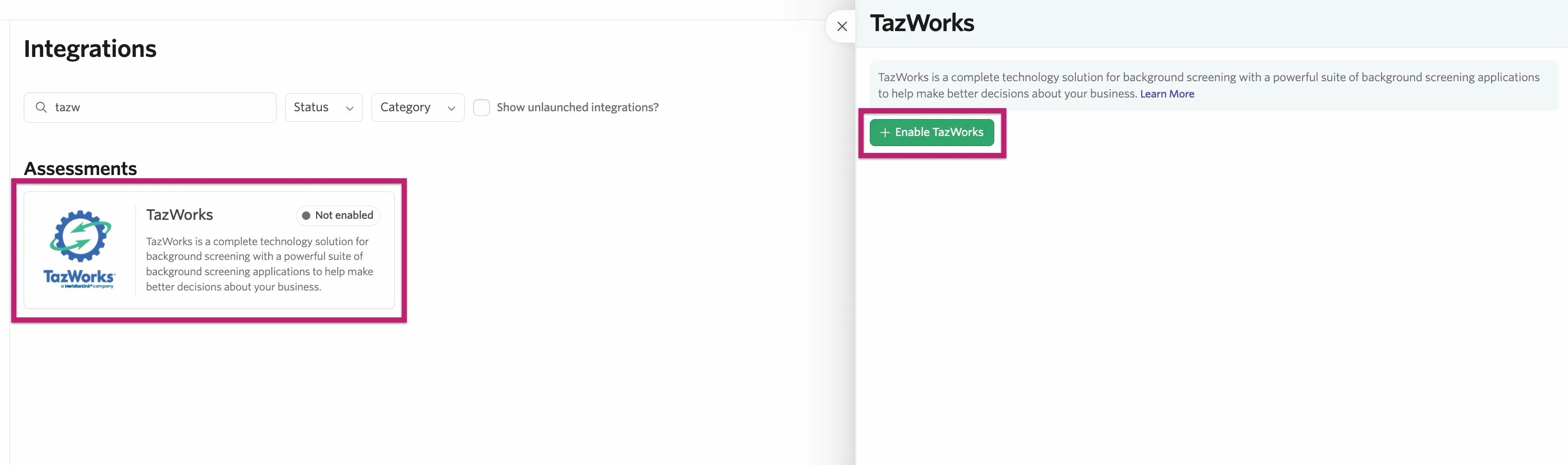
- Navigate to the Integrations Marketplace at Admin > Integrations > Integrations.
- Search for TazWorks in the search bar.
- Click the TazWorks tile, then click + Enable TazWorks.
- Enter your TazWorks API key.
Create an Ashby API key
Click into the Ashby API Key dropdown and add a name for your API key. After you type a name, click Create New API Key. Ashby then displays the API key.
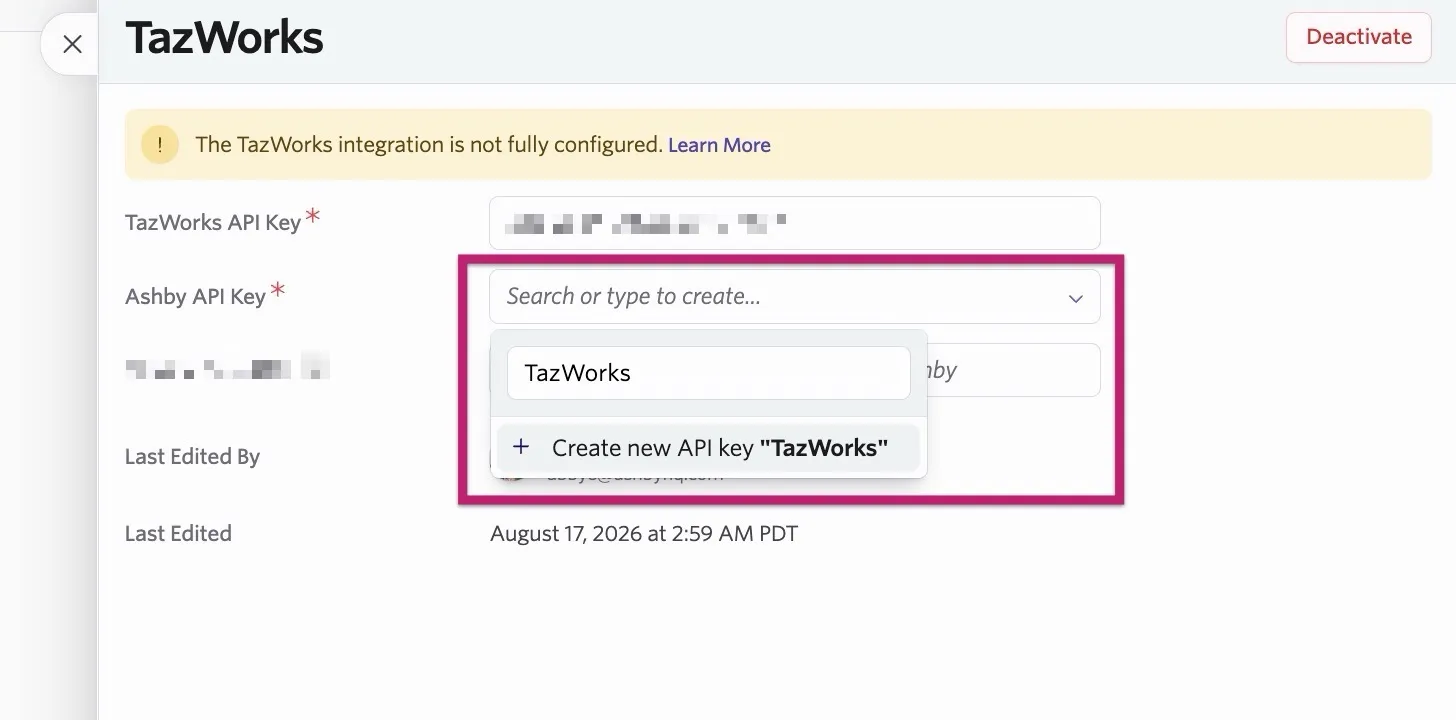
This API key is only available while you are on this page. If you navigate away and come back, the key disappears, so make sure to save it somewhere safe. Provide your CRA (background check provider) with the Ashby API key.
Add the activity
Next, add an activity to a stage of your interview plan. This generates a prompt to send the assessment to the candidate once they reach the specified stage.
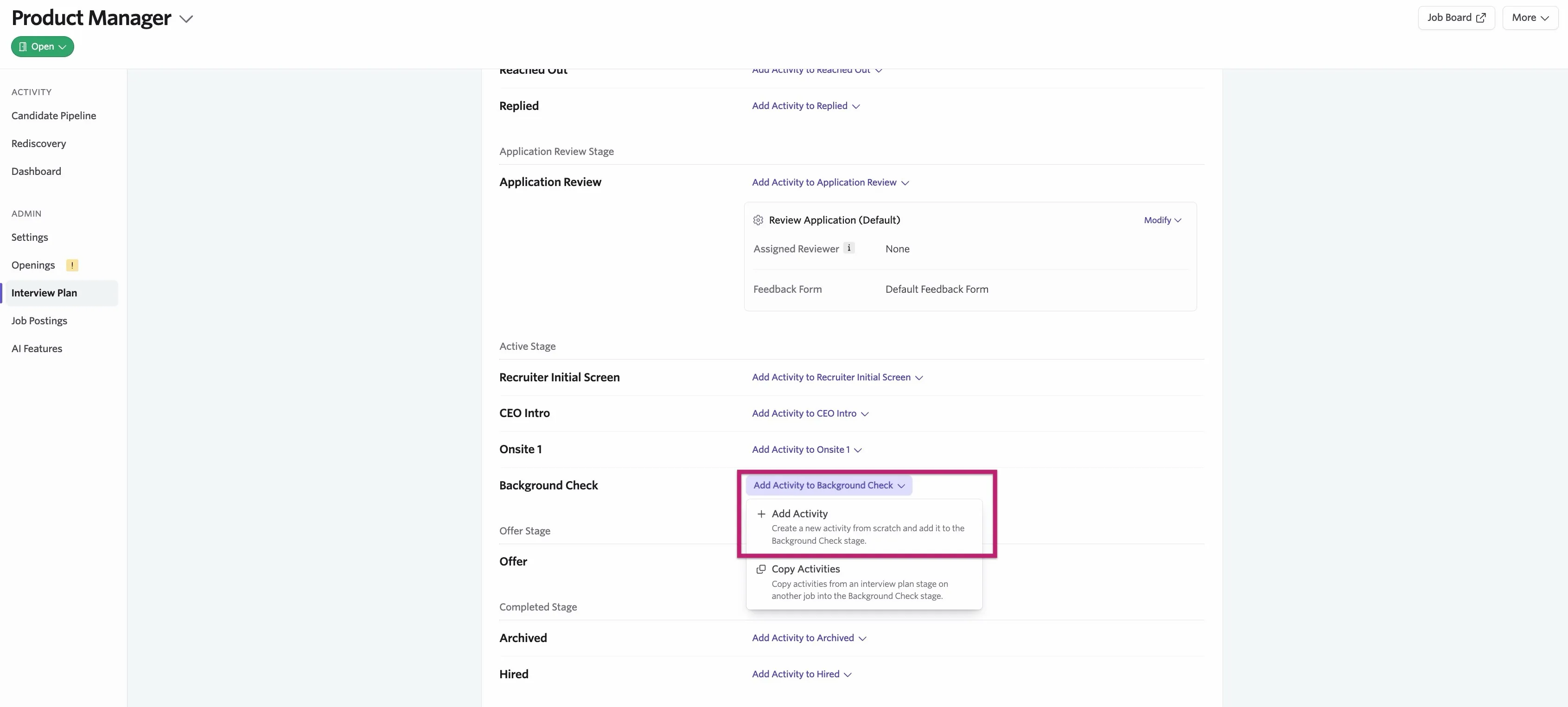
- On the Interview Plan tab of your job, click Add Activity to… on the stage where you want to add the assessment (Background Check is the name listed in the example).
- Click + Add Activity, then select the TazWorks option in the Integrations section.
- Select the TazWorks package from the Assessment Type dropdown. Your CRA creates these packages in TazWorks.
- Click Add.
Automate the assessment (optional)
From here you can opt to send the assessment automatically when the candidate reaches this stage. To add it automatically, click the Automation tab and check the box labeled Automate on Stage Entry?.
For more information, check out Automated ActivitiesAutomated Activities.
Send a background check
To send a background check to the candidate using the integration:
- Click Change Stage on the candidate's profile and select the stage where you configured the TazWorks assessment on the job.
- The TazWorks Assessment prompt displays automatically on the candidate profile. Click Start Assessment to kick off the assessment.
- Ensure that the product that is selected is correct and click Start on the following pop-up.
If you selected the Automate on Stage Entry? checkbox, you see a note that the assessment is starting automatically, along with the option to undo it. You have 15 seconds after the candidate moves into the stage to undo the automated activity and stop the assessment from being sent.
After you start the assessment in Ashby, the status of the TazWorks Assessment changes from Ready to be started to Pending. At this point, the candidate receives an email with a link that asks them for more information.
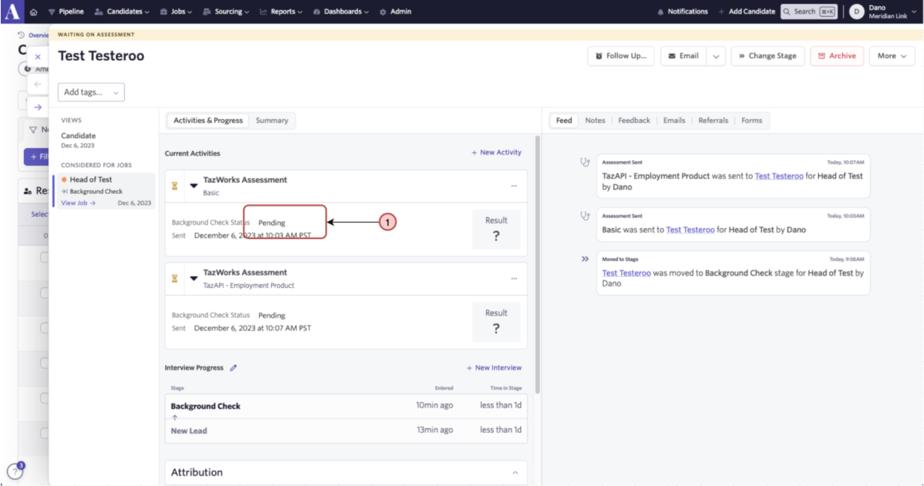
The TazWorks CRA uses this information to process the background check. Once the candidate provides the information, the status changes from Pending to In-Progress.
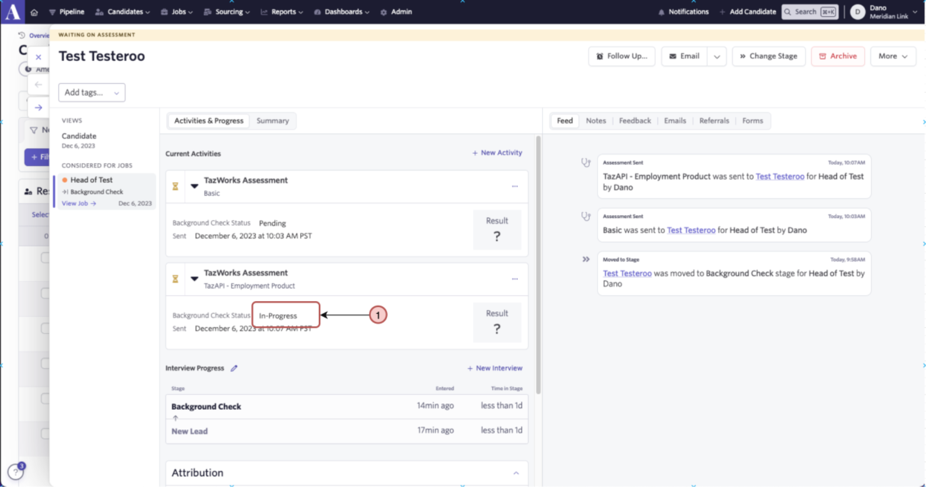
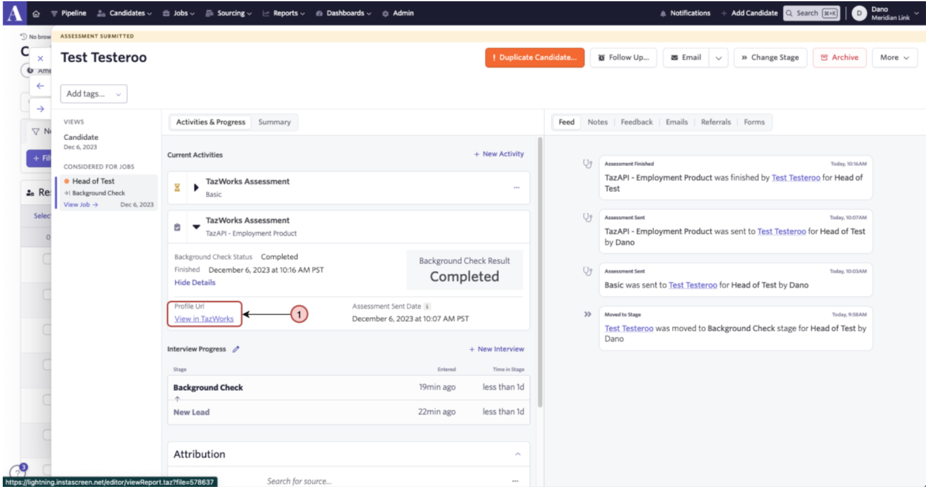
Once your TazWorks CRA completes the background check, the status changes to Completed on the candidate profile in Ashby. You also have the option to click View in TazWorks.
This option opens the consumer report in a new tab, where you enter your credentials (provided by your TazWorks CRA). Once logged in, you see the consumer report for the candidate.