---
title: Scheduled Dashboards
slug: scheduled-dashboards
docTags: xpcG-SQ3x96C56FT60nKJ,qlJKYUWjMngnQ034Z38DZ,G8dmC6tNw9fak7qGrSH3Z
createdAt: 2025-07-10T10:10:30.153Z
---
This document provides an overview of Scheduled Dashboard delivery, including set-up filtering, and finding scheduled content.
Scheduled Dashboards can be configured on the Plus, Enterprise and Legacy Plus plans:
| Foundations | Legacy Plus | Plus | Enterprise |
| ----------- | ----------- | ---- | ---------- |
| ❌ | ✅ | ✅ | ✅ |
## How to Create a Scheduled Dashboard delivery
:::hint{type="warning"}
Access to scheduled delivery depends on the dashboard's locking settings and your dashboard permissions. If the dashboard is locked, the locker and users with the `Editor` role can manage scheduled deliveries by default. The dashboard owner can also allow other users with dashboard access to manage scheduled deliveries.
:::
::::VerticalSplit{layout="middle"}
:::VerticalSplitItem
Click on the Scheduled Delivery button in the top right corner of the dashboard, then click on `Add Scheduled Delivery`.
:::
:::VerticalSplitItem

:::
::::
::::VerticalSplit{layout="middle"}
:::VerticalSplitItem
If you are viewing a dashboard that has been pinned to your Home Page, you will need to click the `Edit` button first in order to access the Scheduled Delivery button. Then click on `Add Scheduled Delivery`.
:::
:::VerticalSplitItem

:::
::::

Once a scheduled delivery has been added to the dashboard, you can configure the following:
1. When the dashboard should be delivered
2. How the Scheduled Dashboard will be delivered.
3. Who will receive the dashboard
4. Apply any filters
5. Select the delivery format
6. Enter a Title (required)
7. Add message content
8. Determine who the sender is.
### When the dashboard should be delivered
Select the cadence at which the dashboard should be delivered. You can choose from Day, Week, Month, or Quarter, and the day and time options are dependent upon which selection you make.

### How the dashboard should be delivered
Choose either Email or Slack as your delivery method. For more on the integration with Slack, check out [Slack](docId\:W4WjFtj8j0vkKxYkl2Vqo).

### Who will receive the dashboard
Choose who will receive the dashboard via Email or Slack. The table below provides an overview of to whom dashboards can be delivered by All-In-One and Analytics Ashby customers.
| | **Email**
**(Ashby users)** | **Email (entered manually)** | **Slack DM** | **Slack Channel**
**(public & private)** |
| -------------- | -------------------------------- | ---------------------------- | ------------ | --------------------------------------------- |
| **All-in-One** | ✅ (all users) | ✅ | ✅ | ✅ |
| **Analytics** | ✅ (with a license) | ❌ | ✅ | ❌ |
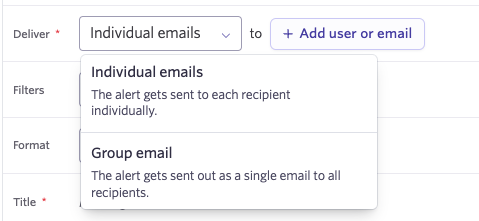
**Email:** Select users from your organization or enter an email manually. You can use the Deliver drop-down to determine whether individual emails will be sent to multiple users, or if the dashboard should be sent out to all recipients via one email.
**Slack:** Select a Slack user from your organization to send via DM or sent to a Slack Channel.
- To add the Ashby application to a channel: type @ashby as a message in the channel (where you would type a message to send to the whole channel) and select Ashby `APP` not in channel.
- Once the bot has been added, you will no longer see “Not in channel.”

- Syncing private channels may take up to 30 minutes after the Ashby app is initially added.
- To prevent private channel names from being revealed, you must type in the exact private channel name when creating your scheduled dashboard delivery.
### Apply any filters
If your dashboard uses Dashboard Filters, configure the filter selections that should be applied at the time of delivery. (This is not required).

:::hint{type="info"}
If you have a User filter in place and set this to filter by recipients (where they are applied as the "User" filter value automatically), then you will not be able to select the Group Email option in the Deliver dropdown.
:::
### Select the delivery format
Select the dashboard delivery format from the options listed below:
1. PDF: Allows you to send a PDF of the entire dashboard.
2. CSV: Allows you to send a ZIP file of all report results in CSV format.
:::hint{type="info"}
Please note that very wide or very high row-count tables will be truncated to match a visual snapshot of the dashboard as seen. Users will need to log in to scroll to view more data or view a drill down.
:::

### Enter a Title (required) and message body
Enter a Title for the scheduled dashboard delivery and a message if you would like.

Click on the Send Now button to see a dashboard delivery result at any time - this is helpful for testing out a scheduled dashboard.

### Activate the Scheduled Dashboard delivery
Once you have finished with configuration, you can activate the Scheduled Dashboard by clicking the Activate button. A schedule will be locked after activation and indicate who it was configured by.

## Advanced Filtering: Send dashboard filtered by recipient
When a dashboard has a User dashboard filter on it, you have the option to filter the dashboard delivery results by each recipient. This feature allows you to configure a single schedule with many recipients, all of which will receive a uniquely filtered dashboard specific to them.
::loom{url="https://www.loom.com/embed/c04aea2592074f22881b545c47ffebd1?sid=8df23f9d-96d5-4dfe-bbd2-9c1f5ea2d3d3"}
## How to Find Scheduled Deliveries
- Navigate to Dashboards > Click Saved Dashboards > Then click into the Scheduled Dashboards folder

When viewing any dashboard, the `Scheduled Delivery` button will show a count of schedules created on the dashboard, including those that are not activated. Mouse over the number to see the active and inactive counts.

## How to Edit or Delete a Scheduled Delivery
To edit a Scheduled Delivery, click the `Deactivate & Edit` button, make your changes, and then click the `Activate` button.

To delete a Scheduled Delivery, click on the Trash icon and then click the Remove button.

## FAQ
:::ExpandableHeading
### Can I have multiple scheduled deliveries for a dashboard?
Yes; any dashboard can have multiple scheduled deliveries added or configured.
:::
:::ExpandableHeading{isOpen="true"}
### Who can schedule a dashboard?
For Analytics customers, users need an Analytics Admin license. For All-in-One customers, users need dashboard editing or creation permissions.
Dashboard locking adds another control. On a locked dashboard, the locker and users with the `Editor` role can manage scheduled deliveries by default. The dashboard owner can allow other users with access to manage scheduled deliveries from **More > Access**.
For more information regarding dashboard editing/creation permissions, view [Permissions & Licenses in Analytics](docId:8bZAxa42Hiw-iSUDGSz-q).
For more information on dashboard locking, see [Confidential Reporting & Content Access Control](docId\:MuCHM4f6ZrjbV4r1fjn_o).
:::
:::ExpandableHeading{isOpen="true"}
### How do I configure Slack delivery?
- To set up the integration for Slack, please review our [Slack](docId\:W4WjFtj8j0vkKxYkl2Vqo) guide.
- Add the Ashby bot (@mention Ashby)to the channel where you would like the dashboards delivered.
:::
:::ExpandableHeading
### Who is the email delivery sent from?
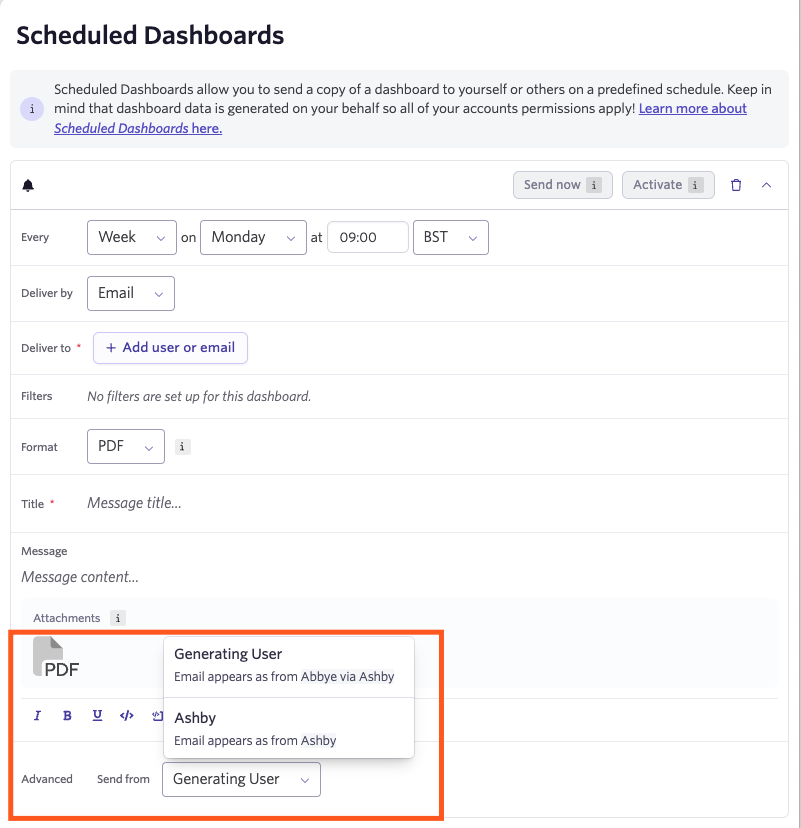
Within the Advanced section of the Scheduled Dashboards setup, you can select whether the dashboard should be sent from the generating user, or via Ashby if the dashboard is being sent out via email. If sending via Slack, the dashboard will always send from Ashby.
:::