---
title: Rippling
slug: rippling
docTags: rl7p3XLQknqPB1UQ70cu_,pnTugMDqVVXgkHZy0AYvk
createdAt: 2025-07-10T11:42:30.304Z
---
Once a candidate has accepted an offer you can push their data into Rippling to kick off the new employee onboarding process.
## Overview
| Sync custom fields | Sync offer letters | Sync file uploads | One or two-way sync | Notes |
| ------------------ | ------------------ | ----------------- | ----------------------------------- | ------------------------------------------------------------------------------------------------------------------------------------------------------------------------------------------------------------------------------------------------------------------------------------------------------ |
| See Notes | ✔ | ❌ | One-way sync from Ashby to Rippling | By default name, email address, phone number, salary and start date are pulled over and surfaced in Rippling.
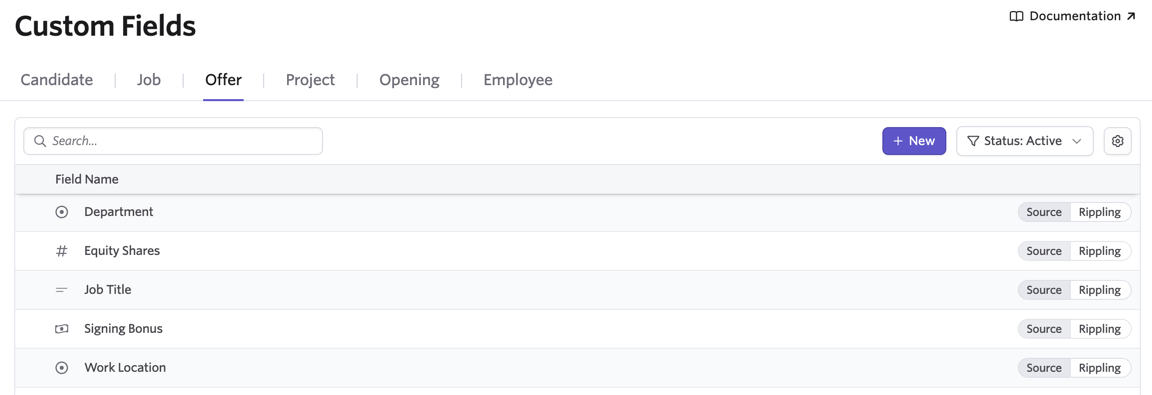
You have the option to enable the following custom offer fields: Department, Equity Shares, Job Title, Signing Bonus and Work Location. Offer letters can now also be pushed. |
## Set up Rippling
To set up the Rippling integration, click [here](https://app.ashbyhq.com/admin/integrations/marketplace/rippling) to navigate to the Rippling page in Admin > Integrations. Install the Ashby app in Rippling by clicking the green `Connect to Rippling` button in the righthand slideout sidebar.
::loom{url="https://www.loom.com/embed/7d366b6b7a7e499fb08240743765b1c3?sid=c6e520ff-42ec-4d96-ab04-7b36a1791df8"}
Once that process is complete, return to the Rippling page in Ashby’s Admin section to select the fields you’d like to sync.
## Push Candidate Data to Rippling
After the offer is accepted and the candidate is marked Hired, data can be sent to Rippling manually or automatically.
### Push Candidate Data to Rippling via the activity on the candidate profile
::loom{url="https://www.loom.com/embed/ba0d049248844611b62cebbfc078ae57"}
When a candidate accepts an offer and is marked as Hired, you see an option to push hired candidates to your HRIS system. Clicking `Add to Rippling` will create a new Employee in the system, including the data from their latest offer.
If you have multiple post-hire integrations in place, you can click Select a Post Hire Integration, then select Rippling from the list on the following pop-up. You will see a success message when the candidate has been successfully added.
Once the candidate has been pushed to Rippling, you’ll see a record of this as an event in their feed on their profile.
### Pushing Candidate Data to Rippling automatically
:::hint{type="warning"}
One candidate will need to have been previously pushed to the system via the manual steps above before this can be enabled.
:::
After the offer is accepted and the candidate is marked Hired, data can be sent to Ripping via an automatic sync. To enable this:
1. Navigate to **Admin > Integrations > HRIS Integrations**
2. Check `Automatically push hired candidates to HRIS integrations`
::Image[]{src="https://api.archbee.com/api/optimize/0p8tQ--ZZOxRtkVp6Qr-e/QlP5REGtSnP4bKQP0Ofj4_automatically-push-hired-candidates-to-hris-integrations.jpg" size="100" isUploading="false" width="1898" height="464" darkWidth="1898" darkHeight="464" showCaption="false" indent="1"}
## Hiring the Candidate in Rippling
::::VerticalSplit{layout="middle"}
:::VerticalSplitItem
The candidate data is pushed to Rippling but is not added to the flow as a fully configured hire. To add them as a hire, click the Hire option when in Rippling.
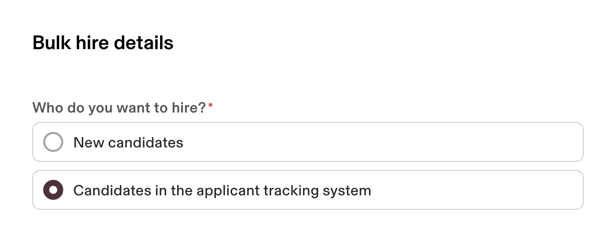
On the following page, select the `A Candidate in the Applicant Tracking System` option in the Who do you want to hire? section, then search for the candidate and select them from the results. Then continue the hiring process in Rippling.
:::
:::VerticalSplitItem





:::
::::
## FAQ
:::ExpandableHeading
### What fields are synced in Rippling?
- Email Address
- Phone Number
- Salary
- Start Date
- Name
:::
:::ExpandableHeading
### Some of my offer custom fields are duplicated within Custom Fields - should I archive the custom fields I’ve created in Ashby or the offer custom fields synced via the Rippling integration?
Once you’ve configured the integration with Rippling, custom fields with the Rippling source will be tagged as such within Admin > Organization Setup > Custom Fields.
Do not archive these fields and complete these fields within offers to ensure this information is synced to Rippling. You will also be able to report on the content of these fields. If you have duplicates, be sure to archive those originally created within Ashby.
:::
:::ExpandableHeading
### I pushed a candidate to Rippling but I’m not seeing the candidate or some fields of data are missing from the candidate in Rippling. What do I do?
Please view the question above to confirm fields that should be pulled over to Rippling. If the missing fields are values that should have been sent to Rippling, please reach out to Rippling’s support team.
:::
:::::ExpandableHeading
### I've sent over multiple candidates from Ashby to Rippling - can I use the Hire Multiple People option when adding new hires and still pull candidates pushed over from Ashby?
::::VerticalSplit{layout="middle"}
:::VerticalSplitItem
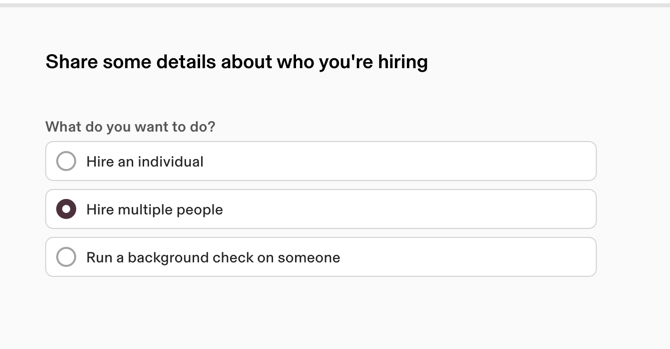
You can, yes. After clicking Hire in Rippling, select Hire multiple people, then Candidates in the applicant tracking system on the following page. You’ll then be able to search for and add new hires with the candidate data pushed over from Ashby.
:::
:::VerticalSplitItem
:::
::::
:::::
:::ExpandableHeading
### Where does the offer letter get synced to in Rippling?
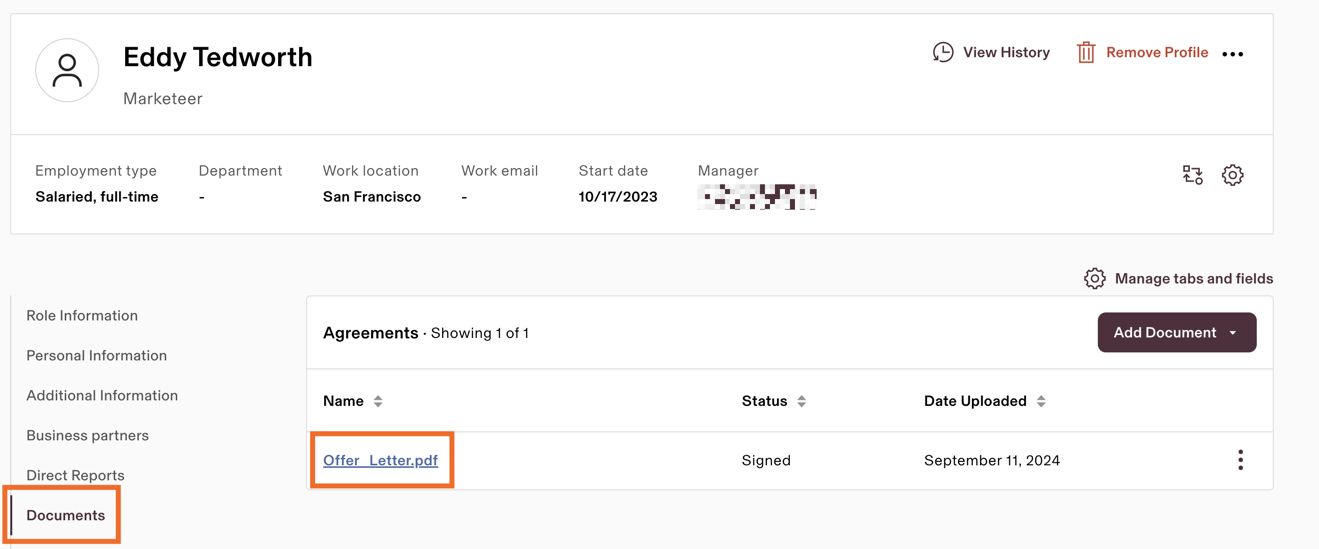
You can find the new hire’s offer letter in the Documents section of their profile in Rippling, under Agreements.
:::
:::ExpandableHeading
### I’ve already pushed over a hired candidate to Rippling - can I push them over again?
Once a candidate is pushed to a post-hire system, there isn’t a way to repush the same candidate
:::