Pigment
The Ashby integration lets you import recruiting data into Pigment for reporting and headcount planning. You can import Applications, Openings, or Offers, apply the available filters for the selected data type, and include custom fields.
For connection and import setup instructions in Pigment, see Connect Pigment with Ashby.
You must be a Pigment Workspace Admin to configure the connector.
How does the Ashby connector work?
The Ashby connector imports recruiting data from Ashby into Pigment. During import setup, select the type of Ashby data to import and then configure the available filters and custom fields for that data type.
The connector supports these entity types:
- Applications
- Openings
- Offers
Application imports
Application imports support filters for these Application statuses:
- Hired
- Active
- Lead
By default, only Applications with a status of Hired are imported. Existing imports continue to use the Applications entity and behave as before unless you change the selected entity or filters.
The default Application fields are:
- Application ID
- Employee name
- Department
- Job ID
- Job title
- Target start date
- Actual start date
- Salary
- Salary currency
- Application status
- Current interview stage
- Source
- Archive reason
- Archived at
- Opening ID
Offer imports
Offer imports support filters for offer status and acceptance status. If you do not select filters, the import includes all offer records.
The default Offer fields are:
- Offer ID
- Application ID
- Offer status
- Acceptance status
- Decided at
- Start date
- Salary
- Salary currency
- Opening ID
- Approval status
- Version created at
Opening imports
Opening imports include requisition data from Ashby.
The default Opening fields are:
- Opening ID
- Identifier
- Opening state
- Opened at
- Closed at
- Close reason ID
- Is archived
- Archived at
- Target hire date
- Target start date
- Is backfill
- Employment type
- Team ID
- Job IDs
- Location IDs
- Description
- Author ID
- Hiring Team User IDs
- Hiring Team Names
- Hiring Team Emails
- Hiring Team Roles
You can select custom fields when setting up an import.
Establishing the connection between Ashby and Pigment
A connection between Pigment and Ashby must be established before importing data into Pigment. The first step is to get an Ashby API token. This is needed when establishing the connection within Pigment. After getting the API key, a Pigment workspace admin can set up the connection on the Integrations page and establish which applications can use the connector. The last step is setting up an import and selecting the connection.
Generate an Ashby API token
To generate an Ashby API token you must be an Organization Admin.
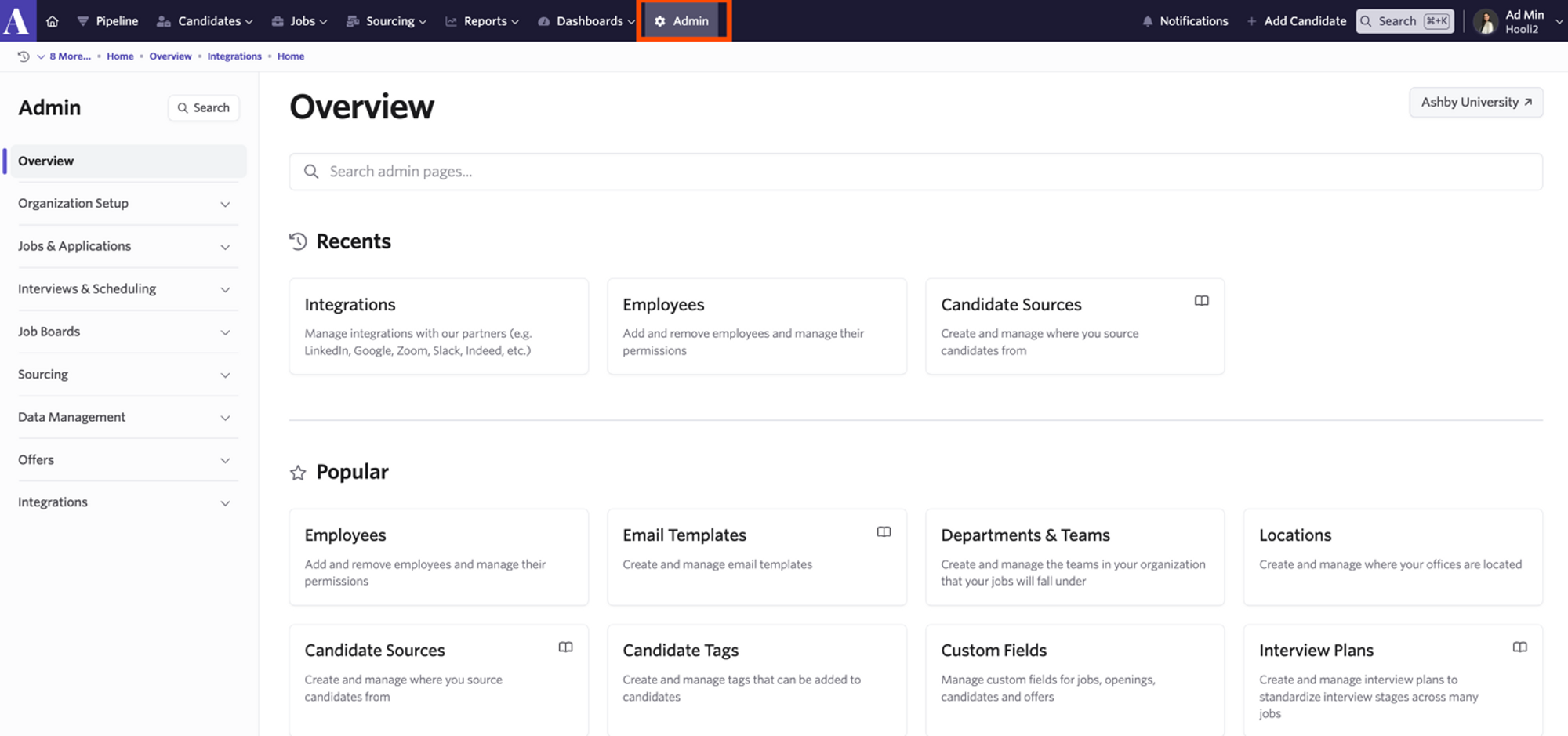
- Sign in to Ashby and click Admin in the top navigation bar.
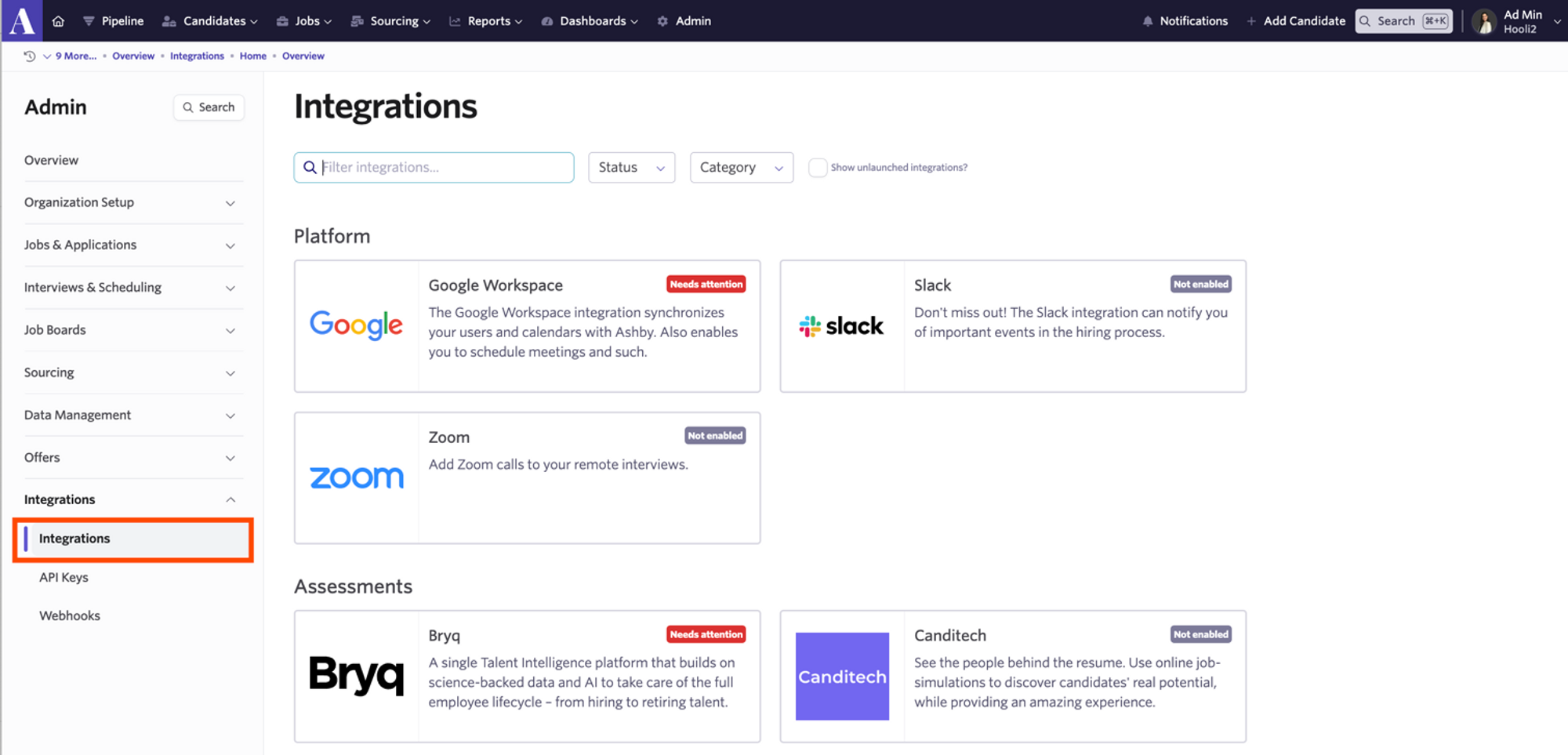
- Next, click Integrations on the left panel of the screen.
- Search the Pigment integration and click + Create API Key for Pigment. Copy the value provided and save the key somewhere secure for future reference.
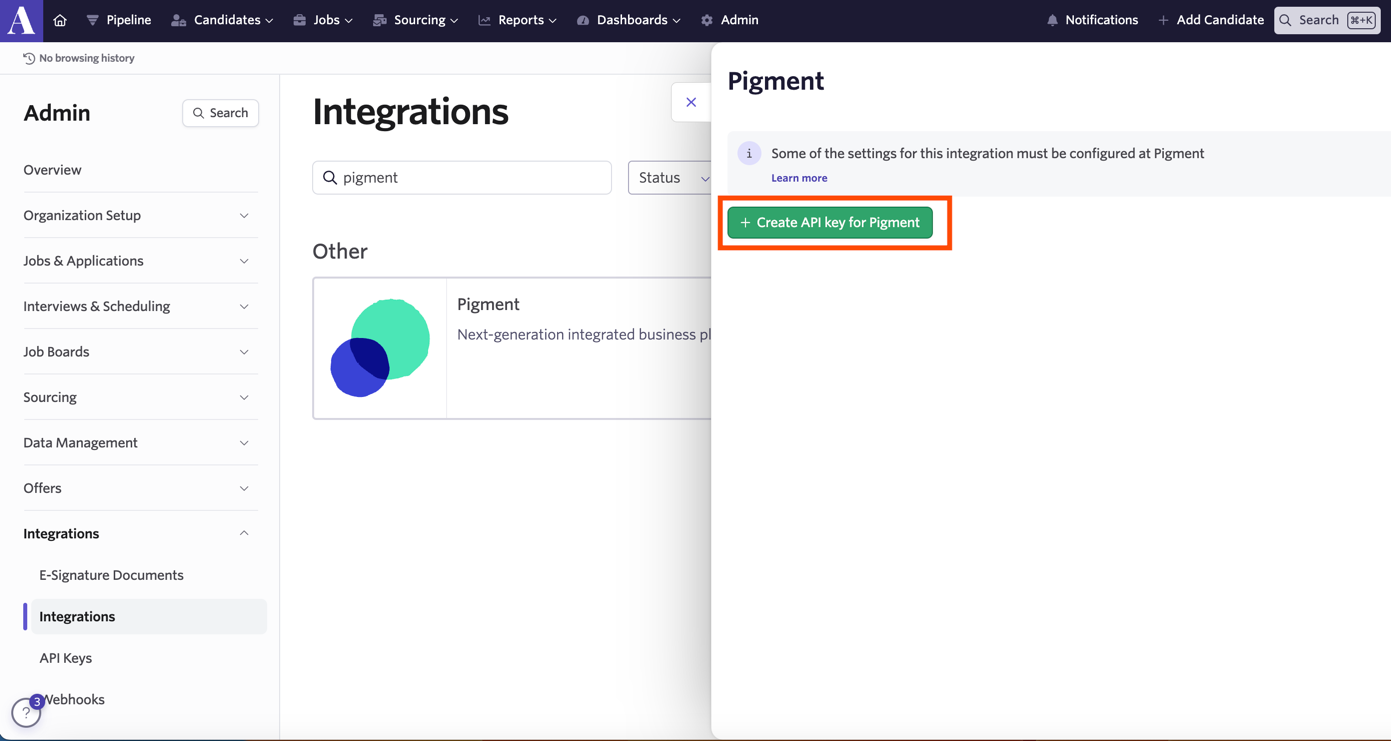
Selecting + Create API Key for Pigment creates the API key using the permissions configured for the Pigment integration. You do not need to select individual permissions during this step.
Set up the Ashby Connector in Pigment
For the most up to date steps on setting this up in Pigment, see Pigment's article: Set up the Ashby Connector in Pigment
From the Workspace home page, navigate to Settings → Integrations and click on + Add next to the Ashby integration.
Click Setup a Connection and then fill in the following fields. These fields will remain editable if you need to add additional applications or rename.
- Name: give a name to your connection (ex: “Ashby connection”)
- Application Access: list of applications that will be allowed to use this connection
- API Key: the token you generated at the previous step
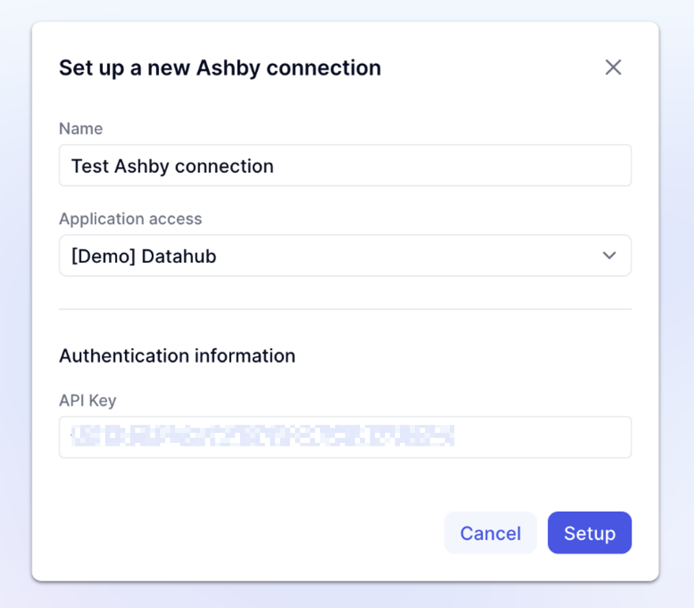
Click on Setup to finish.
Import Ashby data into Pigment
When the Ashby connection is configured, go to an Application where the connection is available.
- Select Import Data for the Block you want to import data into. For example, if you are importing into a Transaction List, open the List, then select Import data.
- Select the Integration tab, then select the previously configured Ashby connection from the drop-down menu.
- Select the entity type to import:
- Applications
- Openings
- Offers
Depending on the selected entity type, configure the available filters and select the custom fields you want to include in the import.
Update Application access
If you do not see the Ashby connection you configured, make sure the current Pigment Application is listed in the Application Access list for the connection.
To update access:
- Go to Settings.
- Select Integrations and confirm that the Application is included in the connection's Application Access list.