Permissions & Licenses in Analytics
This guide covers how to add permissions and licenses to users in Ashby Analytics. If you are using Ashby All-In-One, review our User PermissionsUser Permissions guide.
For more on adding and removing Ashby users, check out How do I provision new users in my Ashby account manually?How do I provision new users in my Ashby account manually?
You must be an Organization Admin to grant user permissions in Ashby Analytics.
Overview
When adding new users in Ashby Analytics, make sure you:
- Grant Permissions: the Permissions tab of the user profile lets you specify which data the user has access to, e.g. limiting reporting to a specific job or department.
- Assign licenses: the Licenses tab lets you assign a View Only or Admin license. The license type determines what features the user has access to, e.g. if they are able to build reports or not.
Licenses are an additional permissions option available in Ashby Analytics only.
- Configure the user's home page (optional): the Home Page tab lets you pin specific reports or dashboards to the user home page for easy access.
Organization Admin
This is a common role for analysts, admins, heads of talent, recruiting ops folks, etc. Many companies also grant the entire recruiting team this access level.
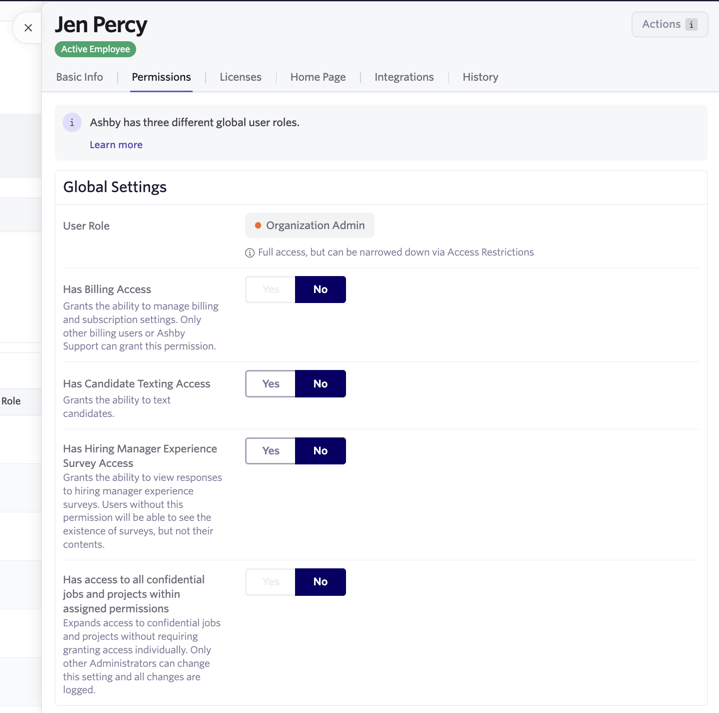
If you make someone an Organization Admin, they have access to all data in Ashby (excluding their own linked profile). Organization Admins don't have access to confidential roles by default.
To provide the user access to all confidential roles, switch Has access to all confidential jobs and projects within assigned permissions to Yes. If you'd prefer to only provide access to some confidential jobs, you can add access to these roles in the Access Restrictions section of the Permissions tab.
Admin for particular departments and jobs
If you want to grant someone partial access, select Elevated Access as the global role.
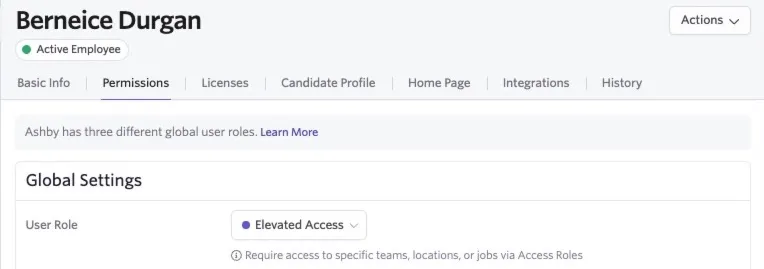
From here, you can grant individual access roles for departments or jobs.
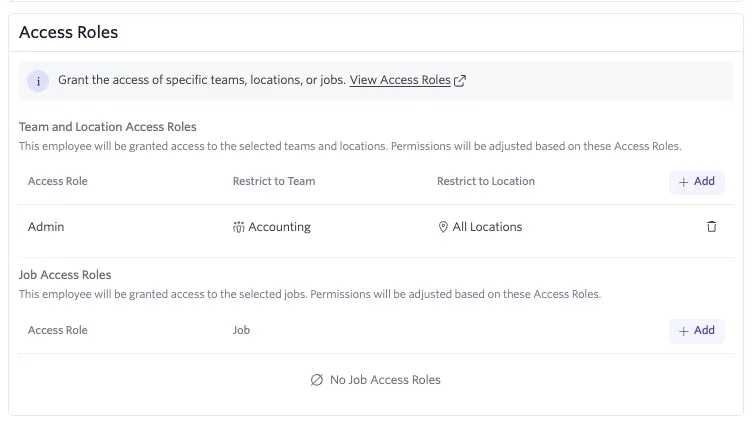
In the example above, Berneice has Admin access to the Accounting team. The Admin access role grants access to all data, except for private fields. For example, Berneice can't see or report on salary information on offers, since those fields are marked as private.
Admin private for particular departments and jobs
This role configuration is very similar to the above, except that the user can report on private fields and hired candidates as well.
License types
Ashby Analytics has two different license types.
Analytics - Admin
Users assigned this license can explore report templates and save and edit reports and dashboards. They have access to all features in Ashby Analytics.
Analytics - View Only
Users with this license are limited to viewing reports created by Analytics - Admin users. They can configure their personal home page to show their preferred dashboards and reports, but they can't create new reports or explore data (e.g. via filtering) on their own.
User home page configuration
New users start with no reports or dashboards on their home page by default. Admin users can pin a custom selection of any report or dashboard to each user's home page to ensure they see the required reporting when they log in to Ashby.
Navigate to the Employees section of the Admin view, and select the Home Page tab of any employee profile to add, remove, or arrange home page content.
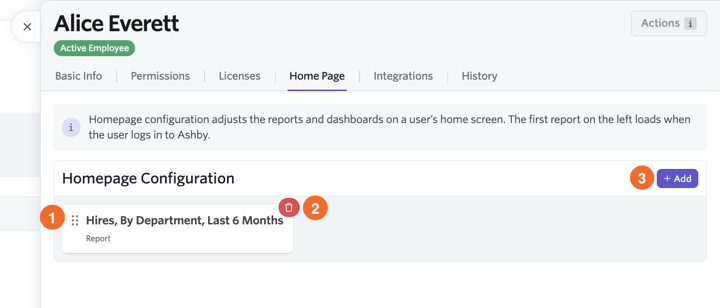
- Click and drag using the grid icon to the left of the reports or dashboards you'd like to move to re-order them.
- Click the trash can icon to remove a report or dashboard from the user's home page.
- Click + Add to add a new report or dashboard to the user's home page.