Navigating Ashby Analytics
This guide provides an overview of Ashby Analytics features and functionality. Learning some of the key concepts of Ashby Analytics will help you quickly build your own reports and visualizations and get previously hidden insights about your recruiting efforts.
Ashby offers two distinct products: Ashby Analytics and Ashby All-in-One. The full analytics functionality described in this article is available to all Ashby All-in-One users. When this article references "Analytics users," we mean organizations that have only purchased the Ashby Analytics product rather than the full suite of applicant tracking features.
A quick tour of Ashby Analytics
This section starts with a quick introduction of the Ashby Analytics product.
Ashby analytics features can be found throughout the Ashby product, depending on what data you're looking for and how you want to use it. If you're specifically looking to learn how to build reports and dashboards, see Ashby Analytics: Key Reporting Concepts and Building Your First Dashboard .
Key areas of Ashby Analytics
Home page
This is the page you land on when logging into Ashby. For Analytics users, this is blank at first.

You can click the + icon to add dashboards and reports so you can easily access them when you log in.
Every user's home page is unique, so they can each pin the reports they find most useful to their own home page.
Candidates
Search
Here you can view a list of your candidates and create and save searches. Use filters to determine your criteria, then click Save to add this as a saved candidate search in your account.
You can use the Advanced toggle to switch between basic filters and advanced filters. Basic filters provide the most commonly used filters, while Advanced filters give you more filtering options to choose from.

Saved Searches
Here you can view all saved candidate search reports. You can choose from searches you yourself have created and saved (under Mine), or searches that have been set up by other users in your organization. If other users have set their searches as private and you are not on the access list for the search, you do not see the saved search listed. For more on this, see Confidential Reporting & Content Access ControlConfidential Reporting & Content Access Control.

Jobs
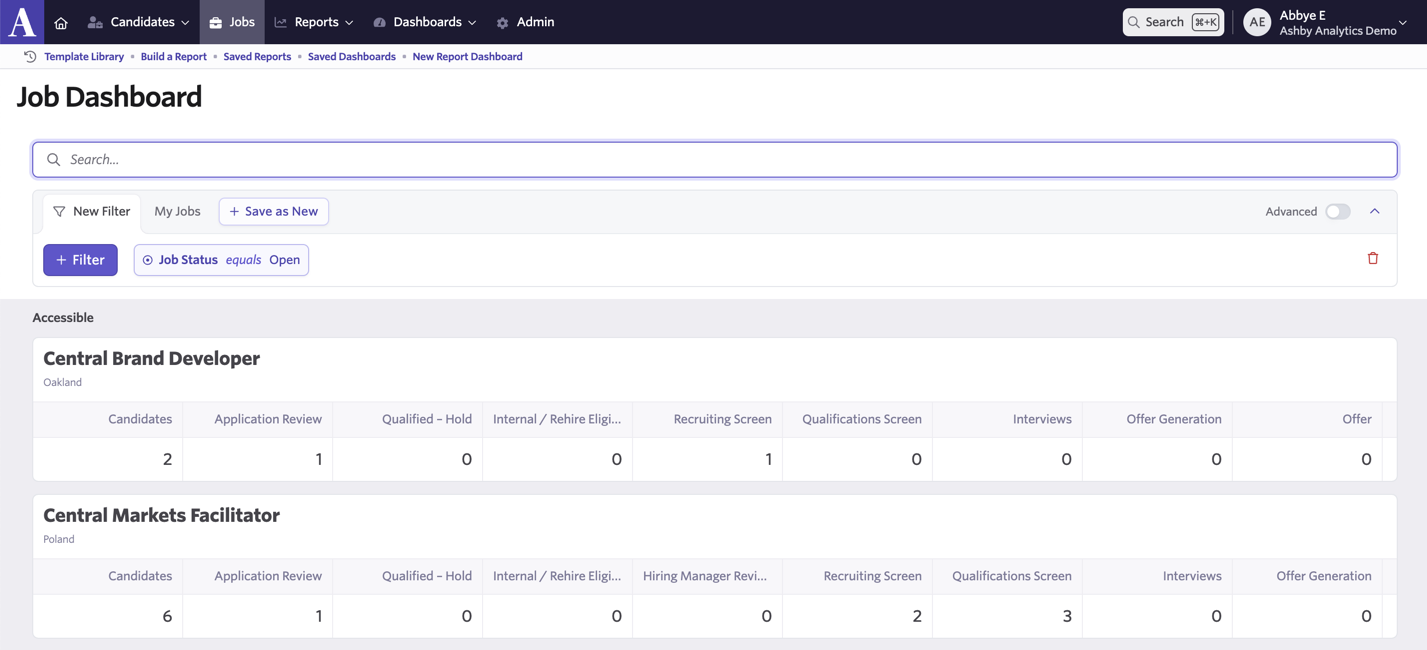
View and filter your jobs and job pipelines here.
You can click into a job to get more specific data on the stages candidates are in and access the pre-built job dashboard for the role.
Reports
Report Builder
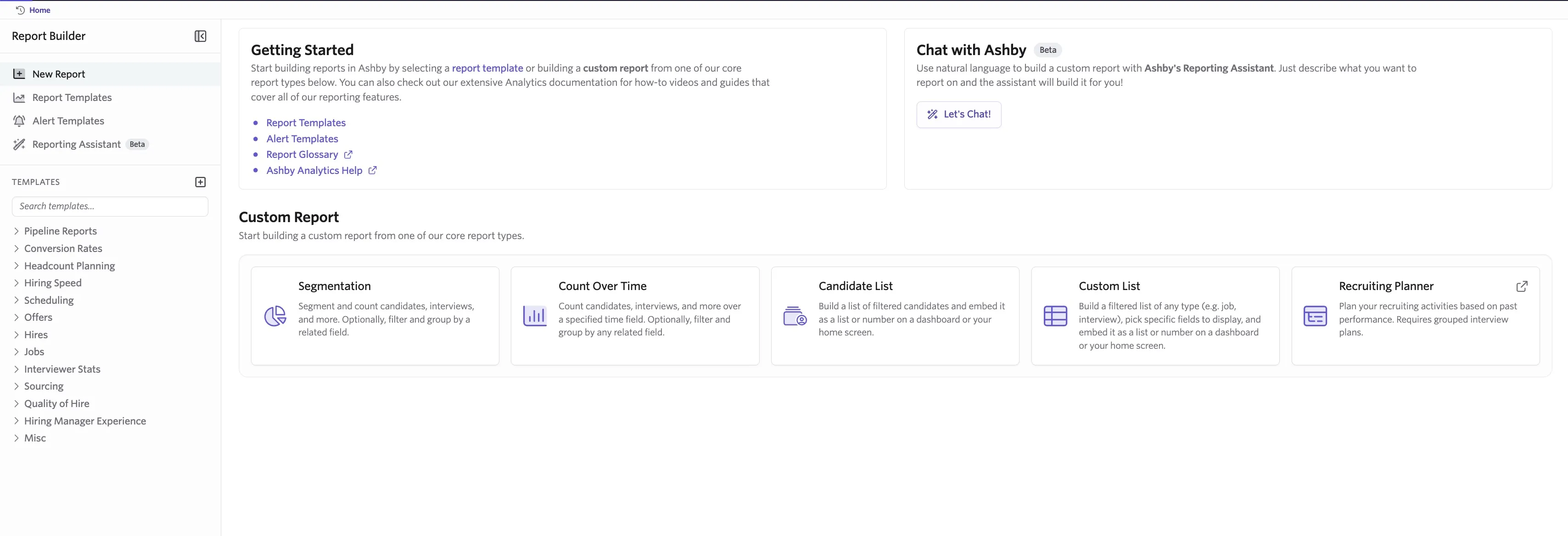
The Report Builder page gives you access to templates and the option to create custom reports.
For more on the templates we offer, check out Report Catalog: Templates.
For a guide on creating custom reports, check out Custom Reports. Custom reports can be configured on the Plus, Enterprise and Legacy Plus plans:
Foundations | Legacy Plus | Plus | Enterprise |
|---|---|---|---|
❌ | ✅ | ✅ | ✅ |
You can also chat with our AI Reporting Assistant and have it build a report for you. More on this at Report Builder & AI-Assisted Report Builder.
Saved Reports
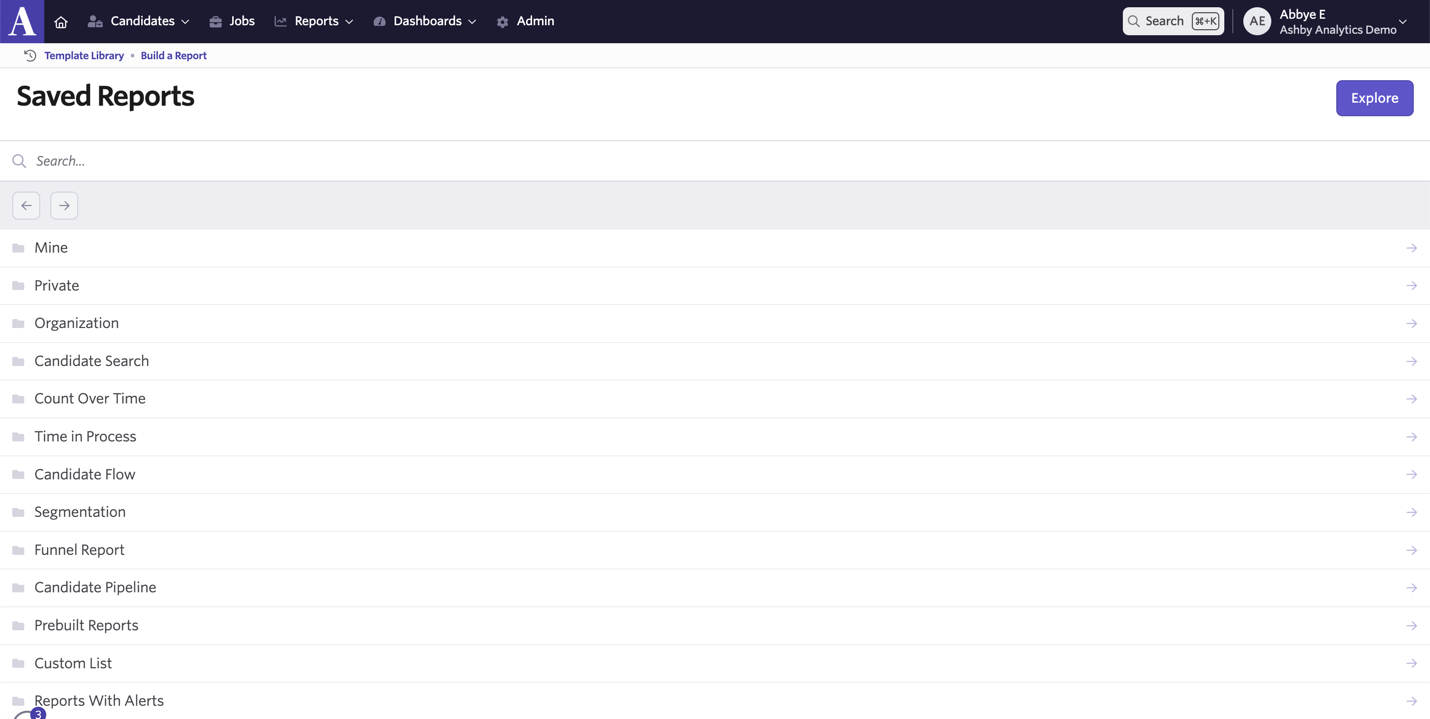
Here you can access all reports that have been saved. These are split into the following categories:
- Mine: Reports that you have created.
- Private: Reports that are set as private but that you are on the access list for.
- Organization: Reports that have been created by other users in the organization that can be accessed by all users.
You can also access saved reports of a specific type from this list (for example, view all Candidate Searches, Count Over Time, or Time in Process reports).
Dashboards
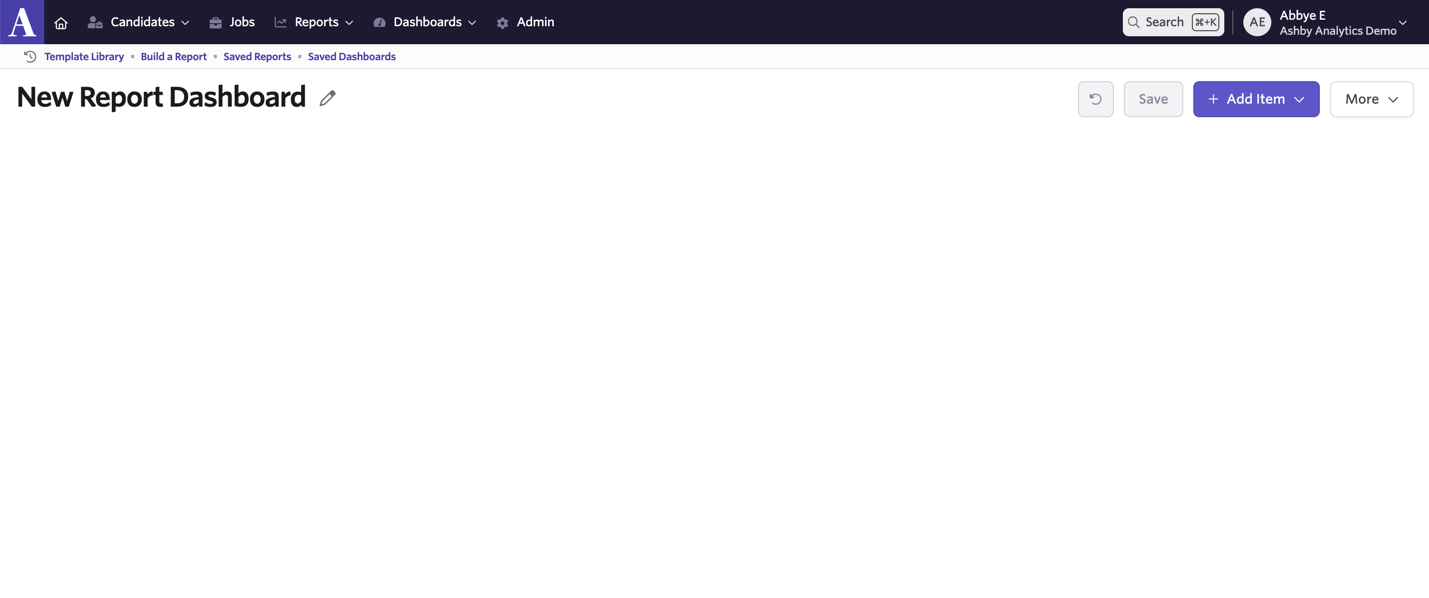
Create Dashboards
Here you can start building a dashboard to display your reports. For more on creating dashboards, check out Building Your First DashboardBuilding Your First Dashboard.
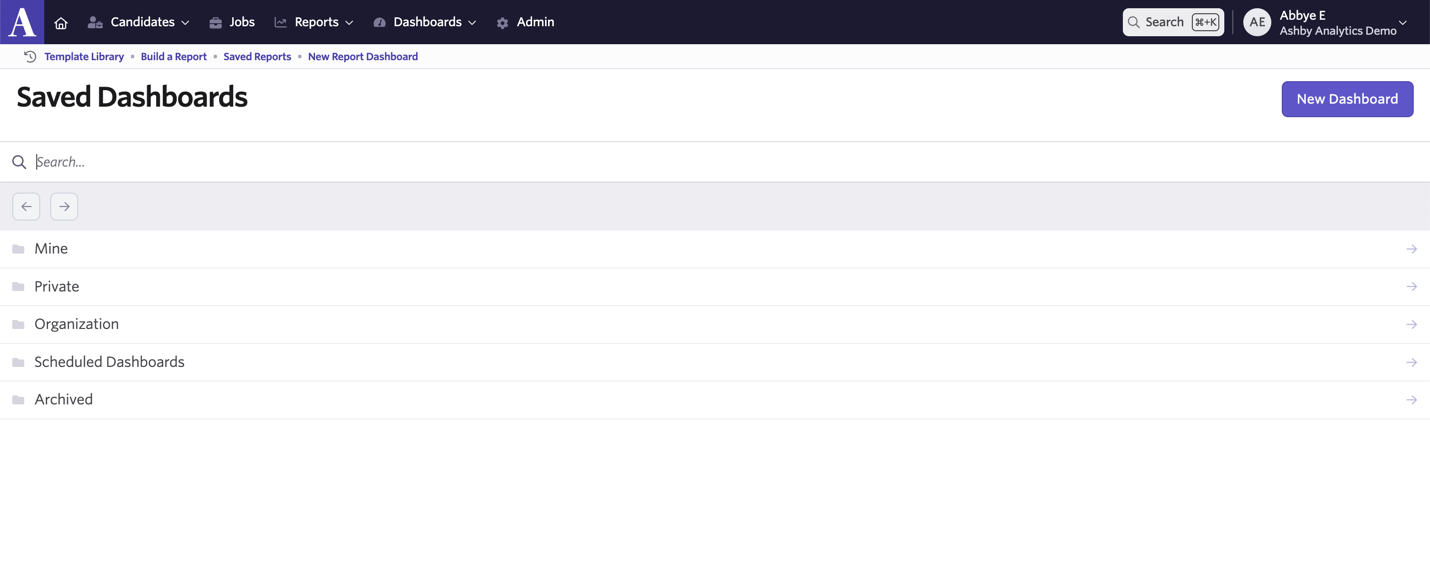
Saved Dashboards
Access all saved dashboards that you have built and have access to here. You can view your own dashboards, private dashboards you have access to, organization-wide dashboards, scheduled dashboards, and archived dashboards.
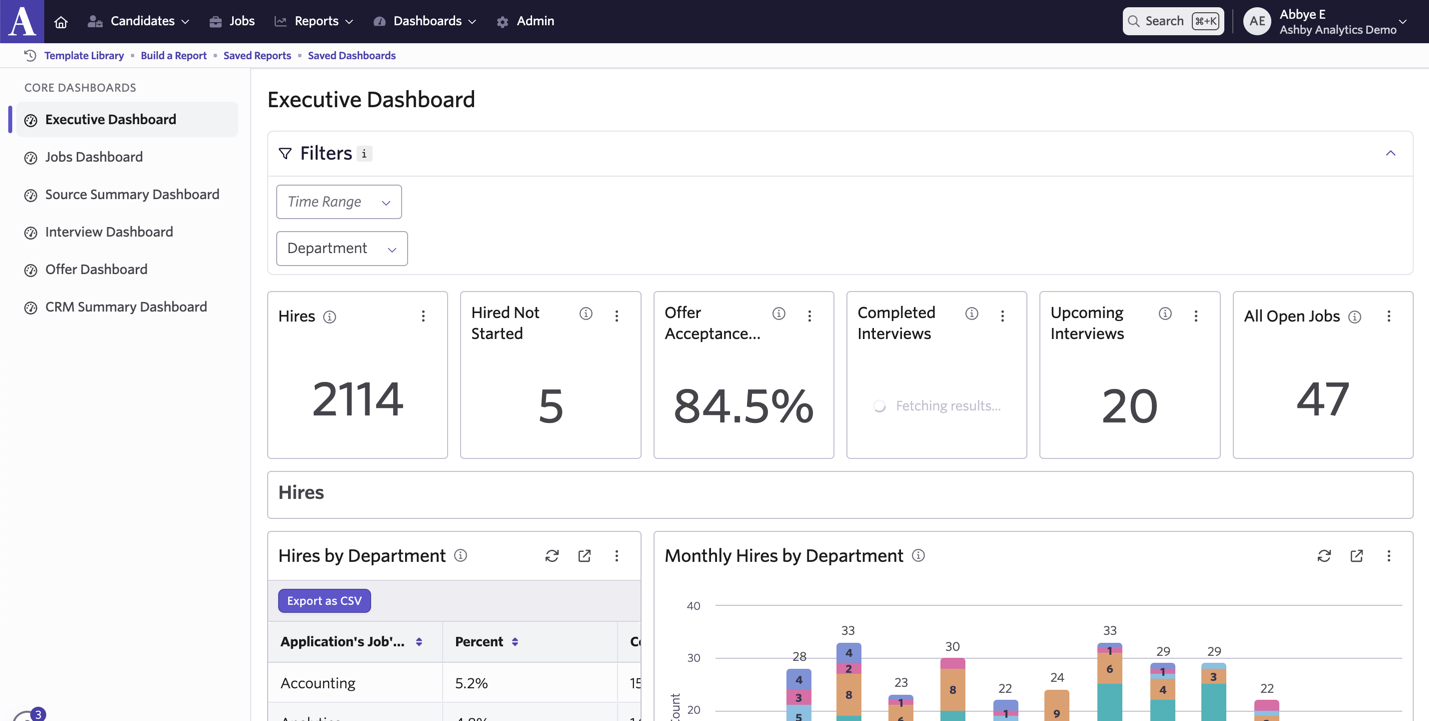
Core Dashboards
Some pre-built dashboards are available so you can access commonly requested metrics quickly. For more on the available reports and dashboards, see Core DashboardsCore Dashboards.
Admin
In Admin, you can adjust account settings, including adding and amending employee access in Employees, viewing and adjusting your billing settings in Billing, creating a grouped interview plan in Grouped Interview Plan, and more. Check out the key concepts and FAQ below for more specific information on areas of Admin.
Saving reports & dashboards
This video shows how to save a report and add it to a dashboard.
Once you've built your report, click Save to add it to your Saved Reports. A saved report can be added to dashboards and accessed by other users in your organization (pending the access control settings on the report).
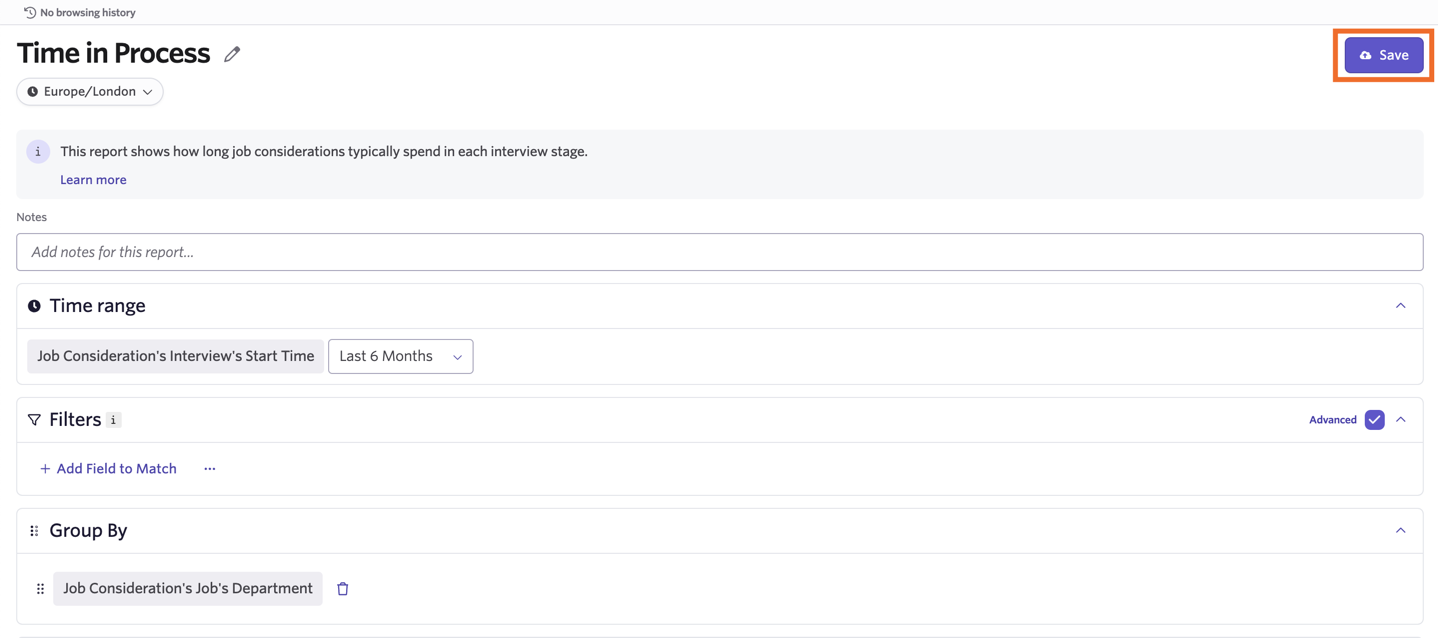
When saving, you can give your report a title and determine whether access control is on (so only you and users you specify can access the report) or off (the report can be viewed by anyone in your organization). Click Save to confirm your settings and save the report.
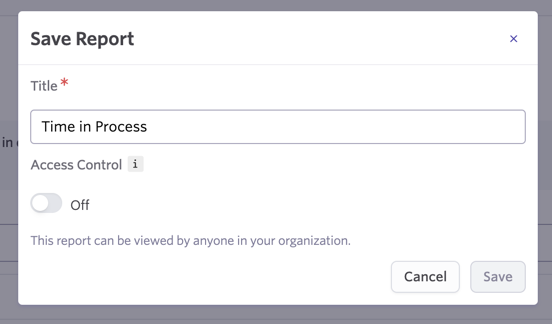
Users accessing the report can only see data relating to the departments, locations, and jobs that they have access to.
Adding the report to a dashboard
- Hover over Dashboards and click Create Dashboard.
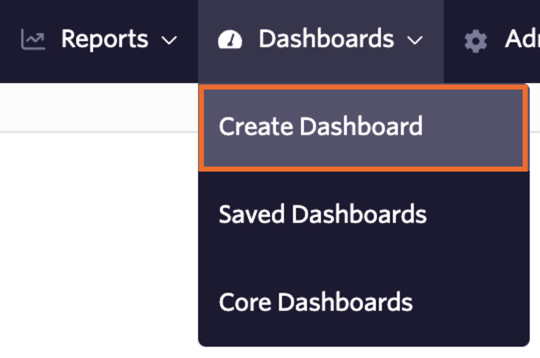
- Click + Add Item, then Report.
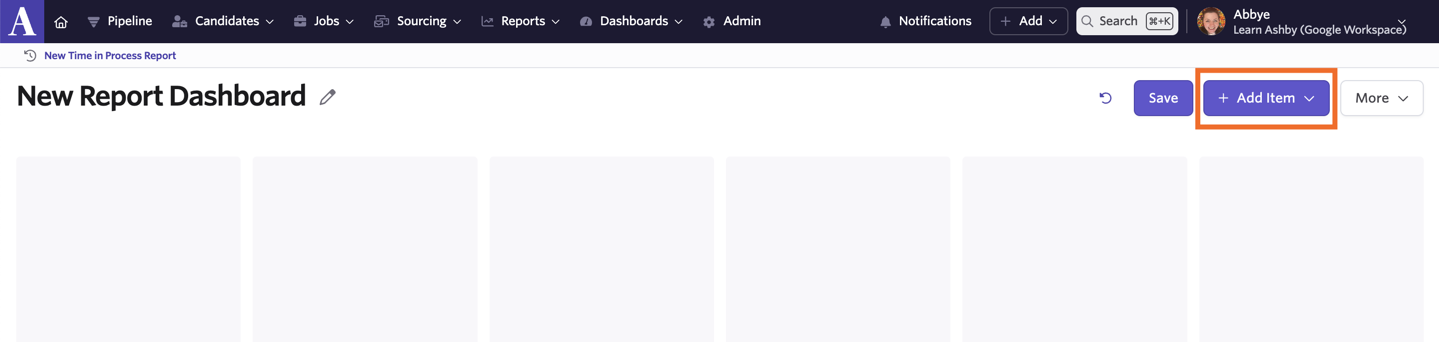
- Select a saved report to add it to your dashboard.
- To resize a report tile, click and drag the bottom-right arrow.
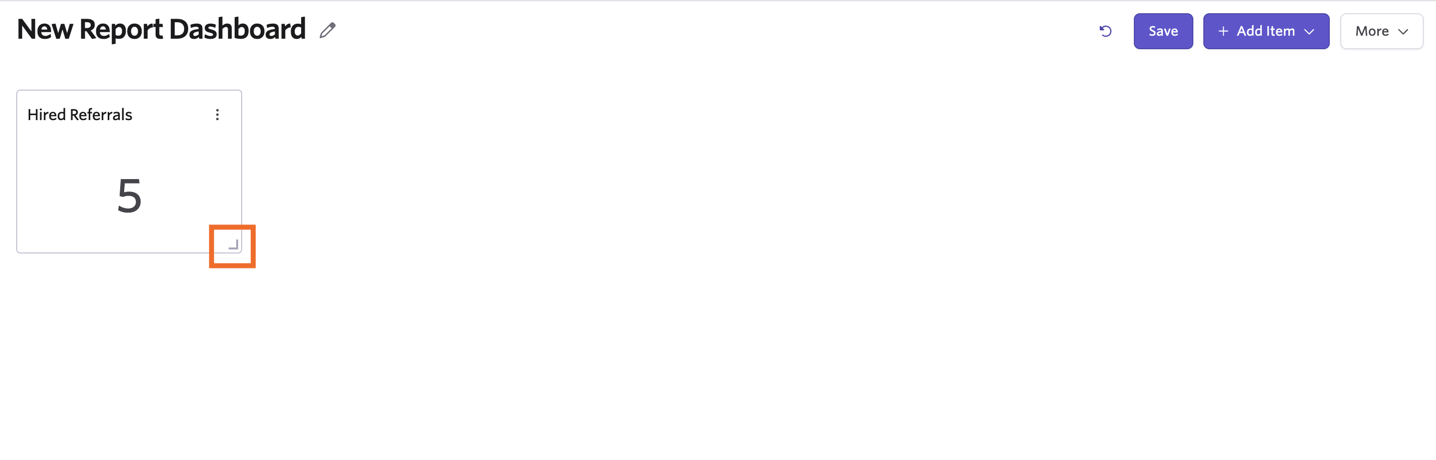
- To move a report tile, click and drag anywhere else on it.
- Click Save to keep your changes.
Using dashboard filters
This video shows how to add filters that filter an entire dashboard at once.
Adding a filter to a dashboard
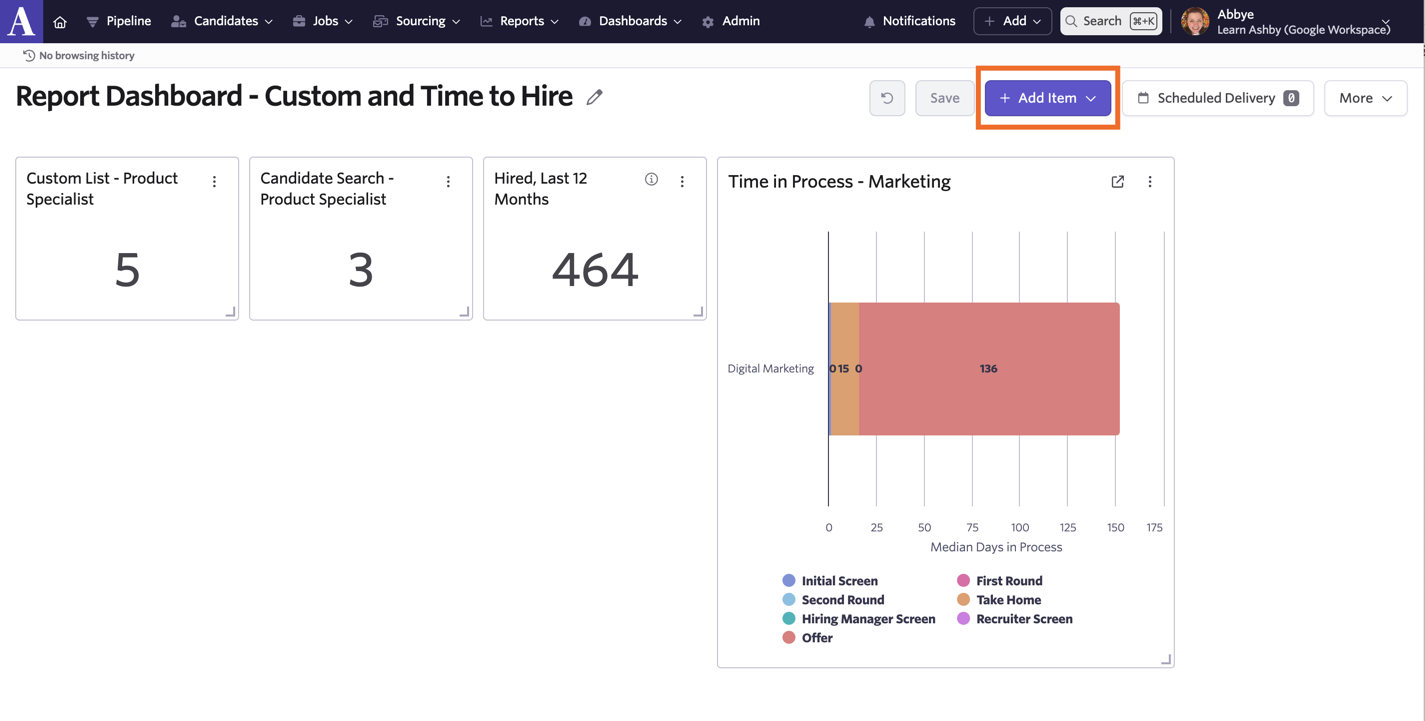
- Click Add Item, then Filter.
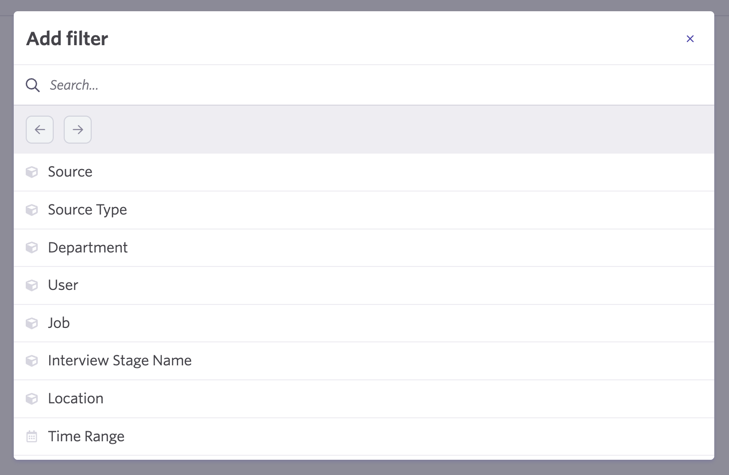
- Use the search bar to find a specific filter, or scroll through the list to find the filter you're looking for.
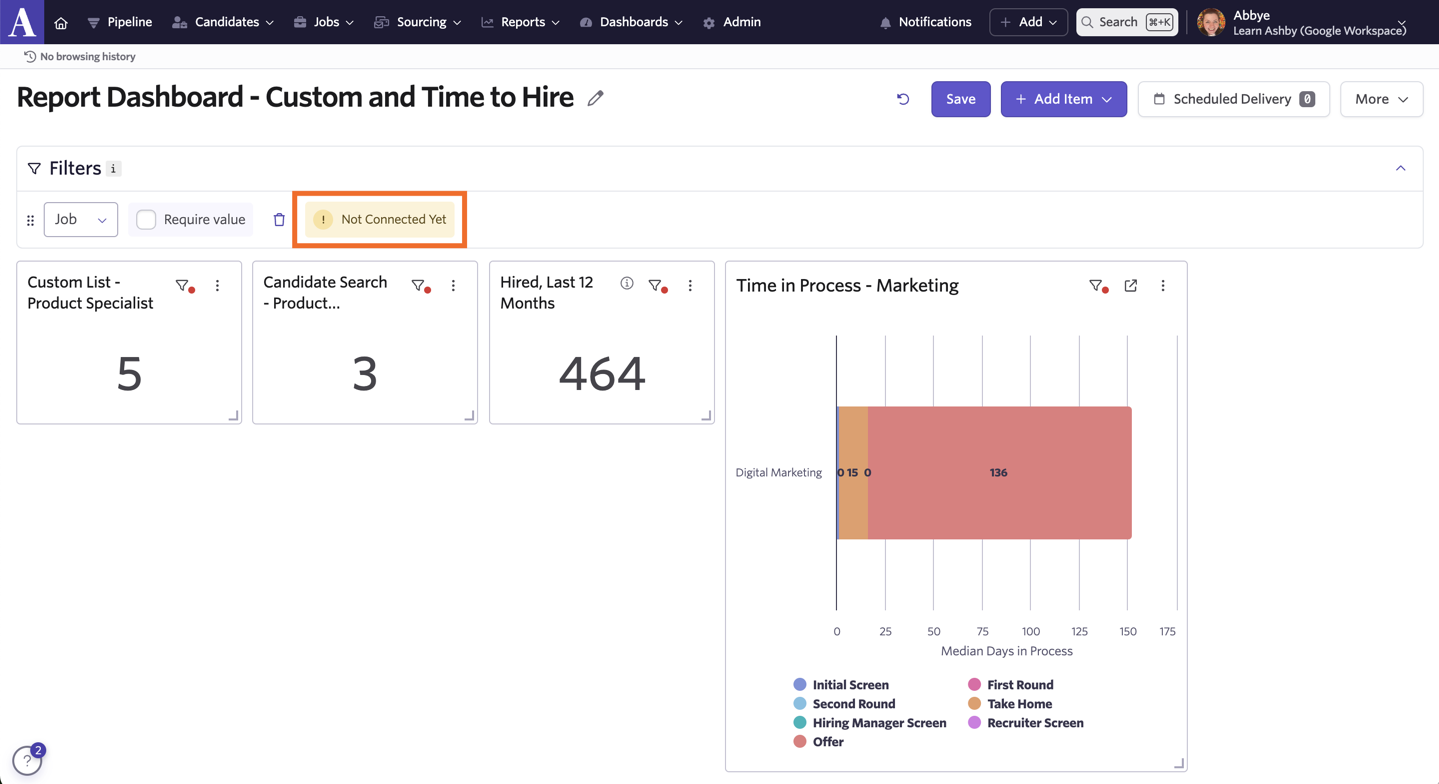
- Select your filter. You see a Not Connected Yet message — you need to connect your filter to the reports you'd like to filter for it to work.
Connecting a dashboard filter to a report
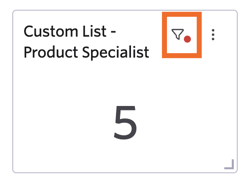
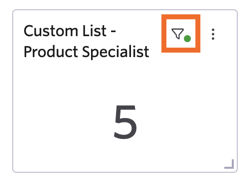
- Click the filter icon on the report tile.
- Specify the field you'd like to connect the filter to (for example, if you're filtering by job on your dashboard, look for the Job Consideration > Job field).
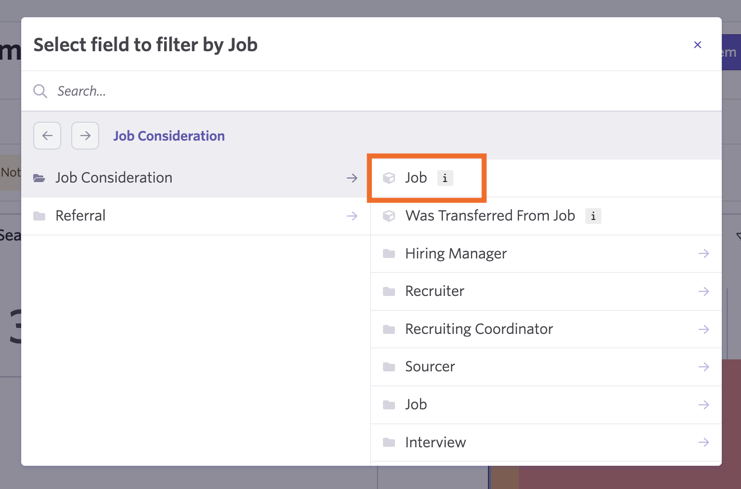
- Close the wizard. The filter icon indicator on the report now shows in green, and the dashboard filter now applies to your report when amended.
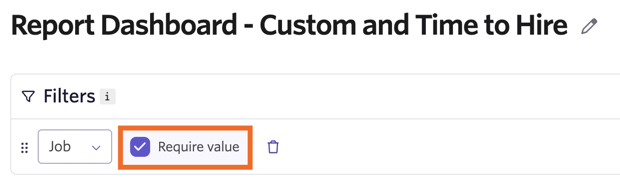
- To require users to select a value before seeing results across the dashboard, select the Require Value? checkbox beside the filter.