---
title: Multiple Brands
slug: multiple-brands
docTags: xrOgrg31YMNE0KArgFAHC,l8i-bYPSbKAD3aK_d6Ale,ylPExy2w5kjc6rwgpatt6,H6PEFHpt6qYEe4v_OYC0e
createdAt: 2025-11-28T16:07:59.003Z
---
The Multiple Brands feature allows you to manage multiple brand identities within a single account, giving candidates a seamless branded experience across job boards, candidate flows, and forms. This feature is ideal for organizations with multiple brands or subsidiaries and can help each brand maintain its unique presence under a unified system.
Multiple brands can be enabled for organizations on the Plus and Enterprise plans. Plus plan organizations can have a maximum of five brands:
| Foundations | Legacy Plus | Plus | Enterprise |
| ----------- | ----------- | ---- | ---------- |
| ❌ | ❌ | ✅ | ✅ |
:::hint{type="info"}
For details on setting up each branded job board with an existing careers website, check out [Can we post our jobs to our existing careers page?](https://docs.ashbyhq.com/can-we-post-our-jobs-on-our-existing-careers-page)
:::
## Overview
The Multiple Brands feature is built to support organizations with more than one brand or business line under a single data ownership structure, like a parent company with subsidiaries. With this feature, you can:
- Create branded job boards, job posts, and candidate touch points for each brand.
- Create brand-specific referral and custom tracking links for source tracking.
- Manage and configure external integrations, like LinkedIn, individually for each brand.
## Is my team’s use case suitable for Multiple Brands?
This feature is best for companies with shared data ownership among brands, like subsidiaries under a parent company.
| **Use Case** | **Recommended?** | **Notes** |
| ------------------------------------------------- | ---------------- | ----------------------------------------------------------------------------------------------------------------------------------------------------------------------------------------- |
| Parent Company with Subsidiaries | Yes | Multiple brands recommended. A parent company with several subsidiaries can set up each subsidiary as a brand while maintaining centralized data ownership. |
| Firms with Portfolio Companies | Maybe | If the firm maintains data ownership for each portfolio company, the Multiple Brands feature may be used. For independent data ownership, create separate organizations for each company. |
| Companies that require independent data ownership | No | Multiple brands not currently recommended in this case. Separate organizations are recommended to maintain privacy compliance. |
## Key Features
### Branded Job Boards and Candidate Flows
- **Distinct Job Boards**: Create unique job boards for each brand with specific URLs, logos, colors, and custom branding options.
- **Branded Candidate Flows**: Ensure candidates experience branded elements such as:
- Booking links
- Availability requests
- Surveys (including EEOC)
- **Branded custom tracking and referral links**
The brand experience is determined by the brand assigned to the job on the `Settings` tab.
## Configuring Multiple Brands
### Create and configure your first additional brand and the brand's job board settings
1. Navigate to Admin > Job Board > **Theme (Job Board)**
2. This will open up the Brands page. Your default brand will be shown here at first. To create an additional brand, click `Set up Multiple Brands`, then `Continue`

3. On the following page, add in the legal entity name. The legal entity name added here should be the name used for data consent requests, EEOC and other legal contexts. We also recommend adding in a recruiting privacy policy URL.
4. Click `Continue`

5. You will then be prompted to enter a display name and email address for your default shared alias.

:::hint{type="info"}
This will be used as the sender when emails are sent from the default no-reply address in cases where the brand is not specified or accessible. These examples include:
- Data compliance automation emails
- Survey form emails (if sent via bulk actions without filtering by job)
- Bulk action emails (if sent via bulk actions without filtering by job)
:::
6. Click `Continue` to confirm
7. Add your brand name and job board slug for your new brand.
:::hint{type="warning"}
At this point, we recommend ensuring that your email templates do not unintentionally reference brand names in them. The `Organization Name` substitution token can be used in email templates as this will adapt to the brand associated with the job.
We also recommend checking surveys and other forms do not reference specific brand names in questions, especially when using NPS fields. We recommend using 'us' and 'our company' instead.
:::

8. Click `Create Brand` to confirm and create your new brand. You will then be taken to set you new brand's job board settings.
9. Configure the new brand’s job board settings, including:
1. **Job board URL:** the first part of the URL on your brand's Ashby job board
2. **Brand name:** The publicly facing name of the brand
3. Logo and color scheme for branded candidate experience
:::hint{type="info"}
Visit [Job Board: Configuring Your Setup](https://docs.ashbyhq.com/job-board-configuring-your-setup) for full details on brand job board configuration options
:::
Moving forward, when you navigate to Admin > Job Board > Theme (Job Board), you will be able to select a brand before making adjustments to that brand's job board.
### Adding Additional Brands
Once you've configured Multiple Brands, you can add a new brand by heading to Admin > Job Board > **Theme (Job Board)** and clicking `+ New Brand`. You'll then be able to add in additional brand details like theb public facing name and website.

## Associating jobs with an alternative brand
1. Navigate Jobs > **Jobs** to view your job list
2. When in a job, head to the `Settings` tab, then select the brand in the `Brand` dropdown.
1. This assignment controls how each job appears on postings on branded job boards and in candidate communications. Each job’s brand controls the branding visible on job boards and other candidate-facing communications.
:::hint{type="warning"}
Jobs can only be connected to one brand. It's not possible to link a job to multiple brands
:::
::Image[]{src="https://cdn.zappy.app/54200cebe27cd77474b55e4c016724a4.png" size="78" width="691" height="592" darkWidth="691" darkHeight="592" position="center" alt="The Settings page of a job with the Brand listed in Basic Info." showCaption="false" indent="1"}
### Integration Support for External Job Platforms
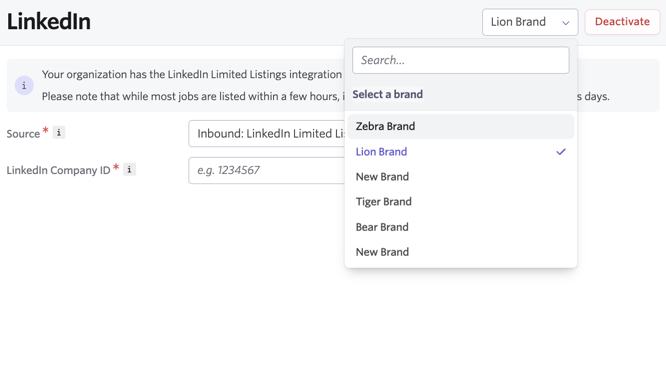
Each brand can be configured with its own integration settings for all job board integrations.
To configure job board integration settings for each of your brands:
1. Navigate to Admin > Integrations > **Integrations Marketplace**
2. Select the integration in question and open the dropdown menu to the top right to navigate between brand configuration pages.
3. Configure each to your team’s specifications (it’s not required to setup the integration for each brand).
Jobs that are associated with the selected brands will then be pushed to the third-party job board you've set up the integration with.
## Multiple brands: candidate texting (optional)
Multiple brands candidate texting allows you to assign different phone numbers to different brands for texting candidates. If you do not opt to enable this option, then text messages across all brands will be sent via the organization's default phone number.
:::hint{type="warning"}
Prerequisites:
- You will need to have candidate texting configured on your account prior to configuring phone numbers of each brand. Read more on setting up candidate texting at [Candidate Texting Onboarding](https://docs.ashbyhq.com/candidate-texting-onboarding) and [Candidate Texting](https://docs.ashbyhq.com/EQo_-candidate-texting).
- You will also need to have at least one additional brand configured to have the option to enable multiple brands texting.
:::
### Enabling multiple brands candidate texting
To enable candidate texting for multiple brands:
1. Navigate to Admin > Organization Setup > **Candidate Texting**
2. On the **General** tab, switch on `Enable Multiple Brands Texting`
Once this is enabled, brands will no longer be able to use the organization's default phone number and will need to have a phone number assigned to them. Any brands that do not have a phone number assigned to them will not be able to send texts.
### Add a phone number and assign it to a brand
Once you have candidate texting and multiple brands configured on your account, you can assign a phone number to each brand. To do this:
1. Navigate to Admin > Organization Setup > **Candidate Texting**
2. Click on the **SMS tab**
3. Any brands that are not associated with a phone number will be highlighted as not having a phone number assigned in a yellow alert above the table of phone number and linked brands.

4. Click `Add a Phone Number` on this alert to add a new phone number. You'll have options to filter by the country code, the area code, starting pattern, ending pattern and search pattern when finding and adding a new phone number.
5. Click `Search Phone Numbers` to view a list of phone numbers matching your criteria and select a number from the results by clicking `Add` next to the phone number you'd like to use moving forward.
::Image[]{src="https://api.archbee.com/api/optimize/0p8tQ--ZZOxRtkVp6Qr-e/dN2WSB3y3Ha2aIIlpkIdo_multibrand-candidate-texting-tutorial-2026-02-24-at-104714-am.jpg" size="100" width="1498" height="744" position="center" alt="The Advanced Phone Number Search screen." showCaption="false" indent="3"}
1. Find the newly added phone number and click the `+` icon in the Actions section of the table to associate it with a brand. Select the brand from the list pop up and click `Associate` beside the brand in question to confirm the association.
::Image[]{src="https://api.archbee.com/api/optimize/0p8tQ--ZZOxRtkVp6Qr-e/M7hF9YYYgDqzFRDbcBx_5_multibrand-candidate-texting-tutorial-2026-02-24-at-105507-am.jpg" size="88" width="949" height="710" position="center" alt="The menu showing the option to associate a brand with a phone number." showCaption="false"}
:::hint{type="info" indent="1"}
If you would like to filter the table to only view phone numbers that haven't been associated with a brand, toggle on the `Show unassociated only` option above the Actions column of the table.

:::
### Removing brand association from phone numbers
Want to remove brand association from a phone number? Click the crossed out link icon within the **Actions** column of the table. Click `Remove` to confirm. The phone number will still be listed as available to link to other brands or re-link to the brand it was associated with before.

### Deleting and restoring phone numbers from your account
If you'd like to remove a phone number completely, click the trash can icon in the **Actions** column of the table.

Click `Delete` to confirm the request to delete the phone number from your account. The phone number will be held for 30 days to allow incoming messages to be resolved, then will be removed. A deletion date with show in the Marked for Deletion column for your reference.
If within those 30 days you decide you'd like to keep that phone number moving forward, click the circular arrow icon in the Actions column, then `Restore` to restore the number and make it active again.

:::hint{type="warning"}
Deleted phone numbers cannot be restored after the date shown in the Marked for Deletion column.
:::
### Disable multiple brands texting
To disable candidate texting for multiple brands:
1. Navigate to Admin > Organization Setup > **Candidate Texting**
2. On the **General** tab, switch off `Enable Multiple Brands Texting`
3. Click `Disable` to confirm
When multiple brands is disabled, all brands will be assigned your organization's default phone number.
All mappings set up when enabling multiple brands texting will be preserved in case you opt to re-enable multiple brands texting.
### Multiple brands: brands and texts on the candidate profile
:::hint{type="info"}
This section will cover the areas of the Texts tab on the candidate profile that help you to identify texts from brands and sending a candidate text as a specific brand. For more on candidate texting in general, check out [Candidate Texting](https://docs.ashbyhq.com/EQo_-candidate-texting).
:::
**Filter texts on the candidate feed by brand**
Above each text message listed on the text feed you will see the name of the brand that send the message. You can hover over the brand here to view the receiver's number, the hiring team member who sent the text and a timestamp of when the message was sent.
Above each candidate's response, you will see the name of the brand their response has been sent to.

If you'd like to only see the texts sent from a specific brand on the Text tab of the candidate profile, use the `Show texts with:` dropdown to filter texts as needed.

**Sending a text from a brand**
Once you have multiple brands with associated phone numbers, you can select the brand from the `From` dropdown to determine who should send the text to the candidate

:::hint{type="warning"}
If the candidate has yet to opt in or opt out of receiving text messages, a message asking them to message START to consent to receiving texts or STOP to opt-out of future messaging will be sent on behalf of the organization using the legal entity name provided. If the candidate consents, this consent applies to all brands within your organization, so individual brands within your account don't need to reach out each time.
:::
## FAQ
::::ExpandableHeading
### What's currently supported for the feature?
:::Paragraph{listStyleType="disc" indent="2"}
Creating an unlimited number of brands on the theme page in Admin
:::
:::Paragraph{listStyleType="disc" listStart="2" indent="2"}
Each brand has:
:::
:::Paragraph{listStyleType="disc" indent="3"}
A fully customizable Theme page
:::
:::Paragraph{listStyleType="disc" listStart="2" indent="3"}
It's own Ashby hosted careers page
:::
:::Paragraph{listStyleType="disc" listStart="3" indent="2"}
The theme for each brand is applied to:
:::
:::Paragraph{listStyleType="disc" indent="3"}
Ashby hosted careers page (job board)
:::
:::Paragraph{listStyleType="disc" listStart="2" indent="3"}
Direct booking links
:::
:::Paragraph{listStyleType="disc" listStart="3" indent="3"}
Candidate availability links
:::
:::Paragraph{listStyleType="disc" listStart="4" indent="3"}
Survey and questionnaire pages
:::
:::Paragraph{listStyleType="disc" listStart="5" indent="3"}
Data privacy and compliance landing pages
:::
:::Paragraph{listStyleType="disc" listStart="4" indent="2"}
All external job board integrations support multiple brands:
:::
:::Paragraph{listStyleType="disc" listStart="5" indent="2"}
Internal job boards are supported but don't currently support a custom brand (the same case as accounts that don't use multiple brands)
:::
:::Paragraph{listStyleType="disc" listStart="6" indent="2"}
Opt-out settings for Settings: candidates can either unsubscribe per job or unsubscribe from all sequences across the organization.
:::
::::
:::ExpandableHeading
### Can I delete a brand?
Brand deletion is not supported currently. Please avoid creating unnecessary brands.
:::
:::ExpandableHeading
### I've enabled multiple brands on my account and want to disable it. Can I do this?
Please reach out to Support for assistance with disabling multiple brands on your account.
:::
:::ExpandableHeading
### What if I need independent data ownership for each brand?
Multiple brands features is focused on the candidate experience. Internally, data in your account lives in the same instance.
In cases where each brand requires independent data ownership, we recommend you use multiple Ashby accounts instead of the multiple brands feature. These accounts can be made easier to switch between by adding the same email addresses to both accounts.
:::
:::ExpandableHeading
### How do I configure external job board integrations for each brand?
Each brand allows you to set up a unique LinkedIn Company ID and Indeed in the Integration Settings for branded job posts. Use the dropdown to select the brand, then determine the integration settings for that specific brand.
:::
:::ExpandableHeading
### If I’m using the multiple brands feature, can I integrate with both Microsoft 365 and Google Workspace? Can I integrate with multiple instances of either Google Workspace or Microsoft 365?
Below you can find a table listing what is and isn't possible with corresponding documentation.
| Scenario | Is this supported? | Relevant guide |
| ------------------------------------------------------------------------ | --------------------- | -------------------------------------------------------------------------------------------------------------------------------- |
| Multiple domains within a single Google Workspace account | Yes | [Updating the domain or adding a secondary domain to an Ashby account](docId\:e9kgGNJ4ZFJwQ6CnJNpiS) |
| Multiple domains within a single Microsoft 365 tenant | Yes | [Updating the domain or adding a secondary domain to an Ashby account](docId\:e9kgGNJ4ZFJwQ6CnJNpiS) |
| Multiple domains across more than one Google Workspace | Yes, with limitations | [Does Ashby support integrating with either multiple Google Workspaces or Microsoft 365 tenants?](docId\:UWUiWFMUI_xNxVloeX5my) |
| Multiple domains across more than one Microsoft 365 tenant | Yes, with limitations | [Does Ashby support integrating with either multiple Google Workspaces or Microsoft 365 tenants?](docId\:UWUiWFMUI_xNxVloeX5my) |
| Multiple domains across both Google Workspaces and Microsoft 365 tenants | No | [Does Ashby support integrating with both Google and Microsoft at the same time?](docId:92txkuC2vVMOrzXEPtMKJ) |
:::
:::ExpandableHeading
### Can I restrict employee permissions based on brand?
Not currently. A workaround for this would be to configure brand-specific departments, ensure the jobs for each brand are connected to the correct department and then assign permissions based on department. For more on setting up departments, check out [Set up Departments and Locations](https://docs.ashbyhq.com/set-up-departments-and-locations). For more information on permissions, check out [User Permissions](https://docs.ashbyhq.com/user-permissions).
:::
:::ExpandableHeading
### Can I restrict entities other than jobs based on brand (e.g. email templates, tags, etc.)?
No, only jobs can be restricted by brand in Ashby currently.
:::
:::ExpandableHeading
### How does a migration into Ashby work with multiple brands?
All jobs from previous ATS systems will be synced to the default brand. We don’t currently support customising this but job brands can be edited post-migration.
:::
:::ExpandableHeading
### What happens if multibrand texting is enabled and a brand does not have a phone number associated?
A warning message will appear on the SMS tab of the candidate texting page at Admin > Organization Setup > Candidate Texting: X brands do not have an associated phone number. Brands without an assigned number will not be able to send text messages until a phone number is associated. Automations for jobs under unassociated brands will fail to send SMS.
:::
:::ExpandableHeading
### How does multi-brand texting affect interview scheduling automations?
When automatic interview scheduling is configured to send booking links via SMS, the system uses the job's assigned brand to determine which phone number to send from. The candidate receives the text from that brand's associated phone number.
:::
:::ExpandableHeading
### Do I need to update my existing schedule templates when enabling multi-brand texting?
No, your existing schedule templates will continue to work. They'll automatically use the phone number associated with each job's brand. However, ensure all brands that have jobs with SMS scheduling enabled have phone numbers associated and that you do not have brand names directly added as plain text to your text message templates to avoid confusion.
:::
:::ExpandableHeading
### How does the system determine which phone number to use for automated texts?
The phone number is determined depending on whether you have multi-brand texting enabled or not:
- Multi-brand texting enabled: Uses the phone number associated with the job's brand
- Multi-brand texting disabled: Always uses the default brand's phone number, regardless of the job's brand
:::
:::ExpandableHeading
### What if my organization has multiple brands but I haven't enabled multi-brand texting?
All text messages will be sent from your default brand's phone number. The system automatically falls back to the default brand when multi-brand texting is disabled.
:::
:::ExpandableHeading
### What happens if I disable multi-brand texting after already setting up multiple phone numbers with different brands?
When you disable multi-brand texting:
1. All brands will fall back to the default phone number. All outgoing text messages will be sent from your organization's default phone number, regardless of which brand the job belongs to.
2. Phone number associations are preserved. Your existing phone number-to-brand associations remain in the database. If you re-enable multi-brand texting later, your previous configuration will still be there.
:::