Keywords
Scheduling Keywords allow you to identify events on interviewer’s calendars that can be scheduled over by either you or a candidate when booking interviews.
Scheduling Keywords are available on Foundations, Plus, Enterprise and Legacy Plus plans.
Foundations | Legacy Plus | Plus | Enterprise |
|---|---|---|---|
✅ | ✅ | ✅ | ✅ |
Overview
Adding Scheduling Keywords
Scheduling Keywords can be created within Admin > Interviews and Scheduling > Scheduling Keywords. When setting up your scheduling keywords, you can assign them to one of two different categories:
Free: If these keywords are detected in a calendar event title, candidates will be able to schedule interviews over this event when booking via a direct booking link. When manually scheduling using Manual Schedule, interviews booked over or overlapping these events will not be counted as a scheduling conflict.
Soft Conflicts: Calendar events with these keywords in the event title can’t be booked over by candidates booking with a direct booking link. If scheduling an interview using Manual Schedule, any interviews that overlap with these events will be seen as a soft conflict.

Please note that if the calendar event is set as Free instead of Busy within the event settings in the interviewer’s Google or Microsoft 365 calendar, then candidates will be able to schedule over these when scheduling with a direct booking link, even if it’s labelled as a soft conflict in Ashby.
Click in the New keyword… field, type in your keyword and then click the + icon to add the keyword to the list. Keywords are not case sensitive but any spaces or special characters will be respected. You cannot add the same keyword to both the Free and Soft Conflict lists.
Scheduling when Scheduling Keywords are being applied
Free Scheduling Keywords
When using Manual Schedule to book in interviews, any calendar events with titles that contain any scheduling keywords in the Free category will show up in light purple.
When scheduling over that event, the interviewer will show as available. Here is an example where ‘Quick sync’ is a scheduling keyword that has been added in the Free category.
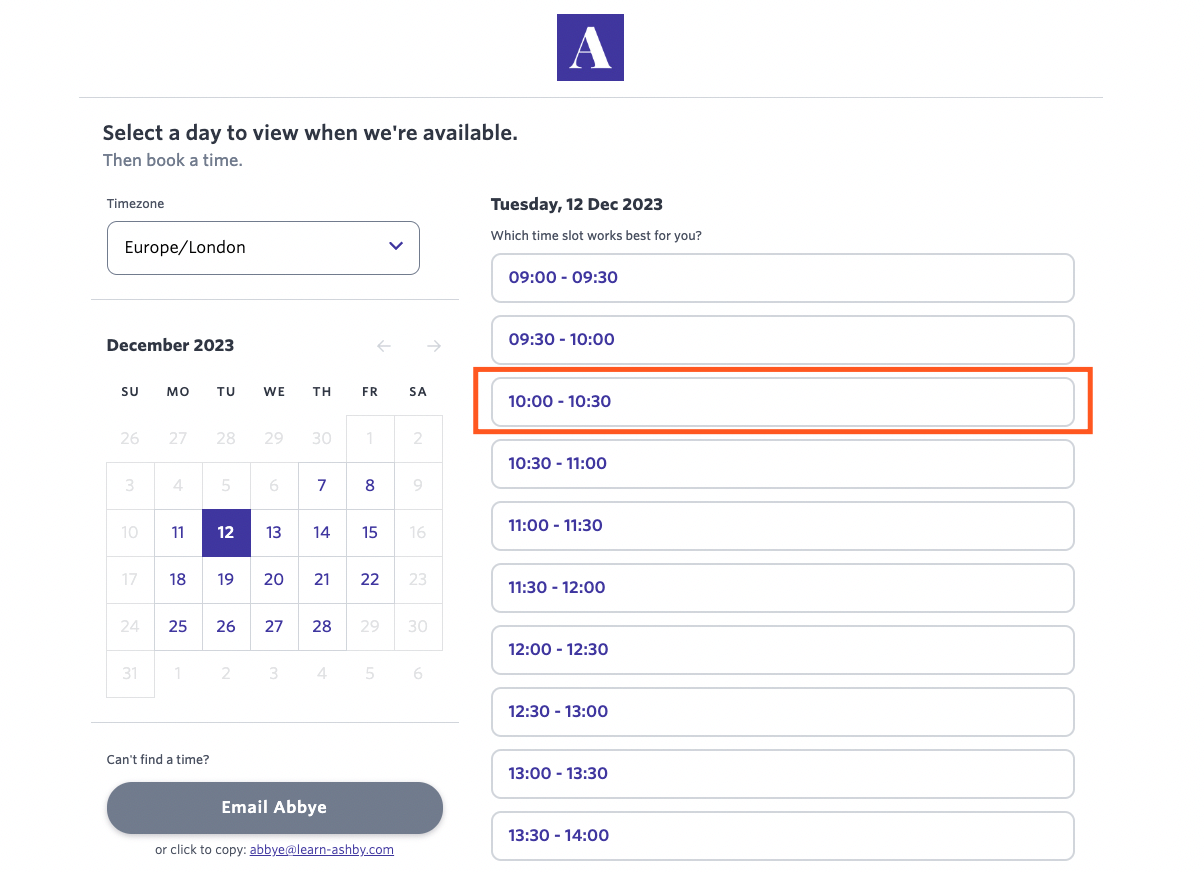
If sending a direct booking link out to the candidate, they will also see this time as available to book.

Soft Conflict Scheduling Keywords
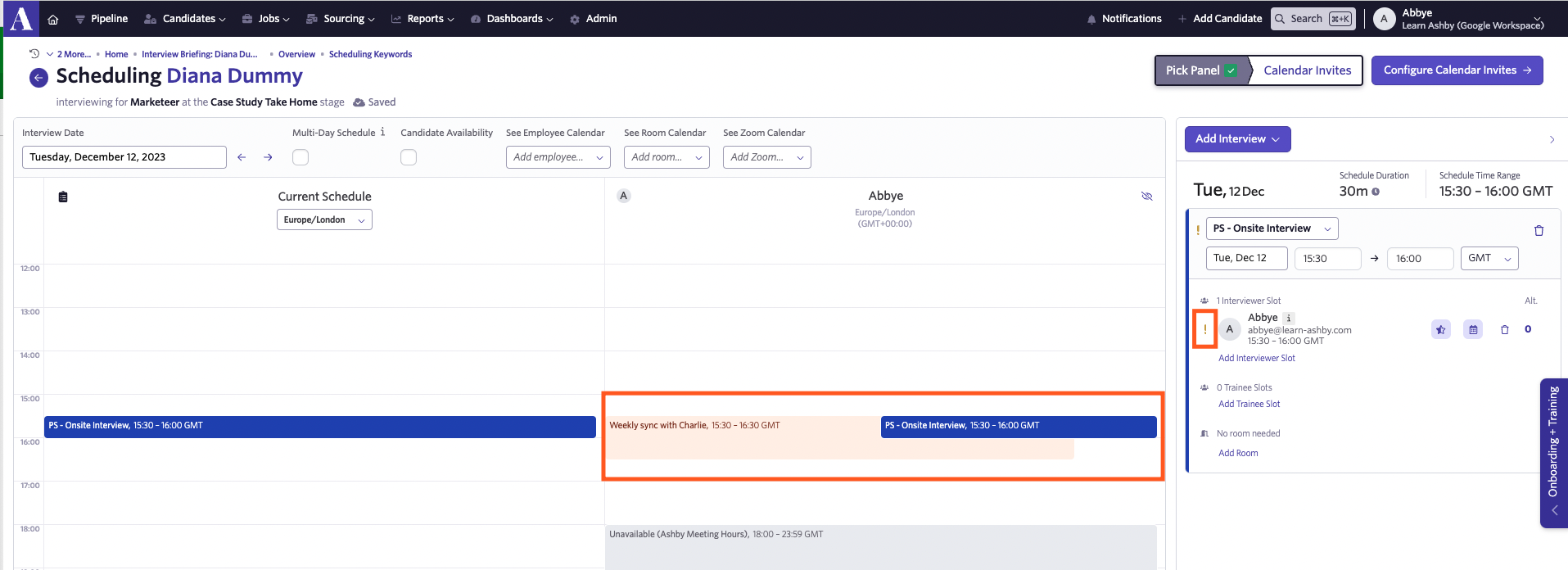
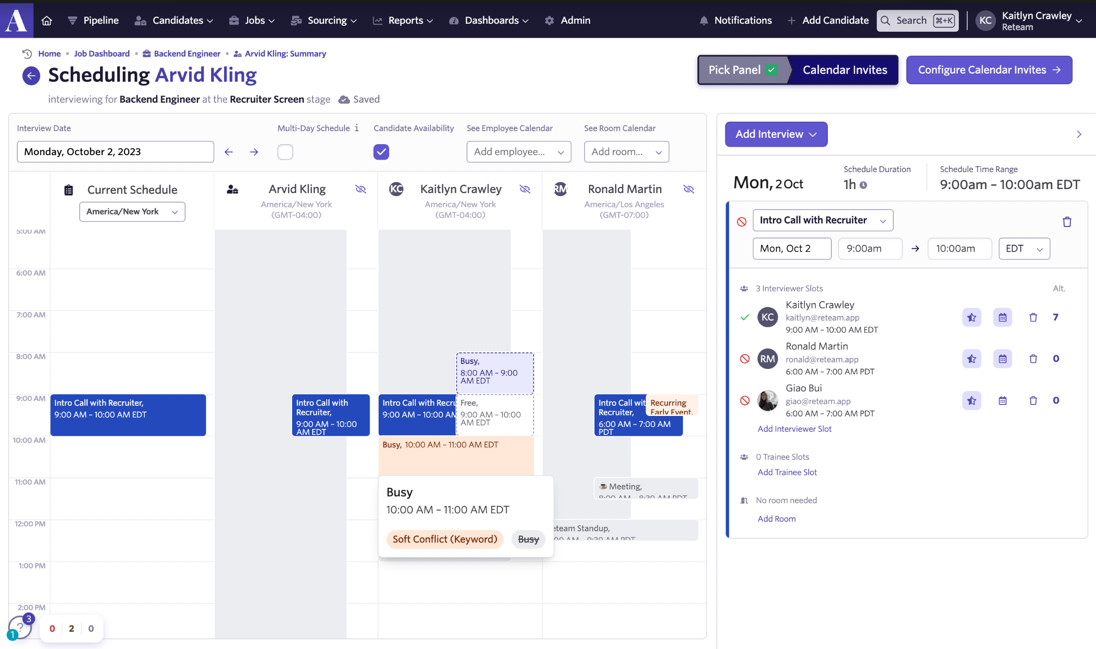
When using Quick Schedule to schedule in an interview, calendar events with titles that contain any scheduling keywords in the Soft Conflict category will show in light orange.
If scheduling over that event, a soft conflict will be highlighted beside the interviewer’s details.
A soft conflict event will not show as available to candidates booking via a direct booking link.