Juro
This article covers how to set up Ashby's integration with Juro and how to configure and use Juro contract workflows from within Ashby.
Prerequisites Before following these steps, reach out to your Customer Success Manager (CSM) or the Startup Customer Success team to ensure you have access to set up the integration.
Permissions & access
The Juro integration is available on the Legacy Plus, Plus, and Enterprise plans:
Foundations | Legacy Plus | Plus | Enterprise |
|---|---|---|---|
❌ | ✅ | ✅ | ✅ |
You must be an Organization Admin to set up this integration.
Users must have the Can add/edit candidates permission to start workflows from the candidate profile. See Manage Access RolesManage Access roles for more information.
Setting up the integration
Creating the API key in Ashby
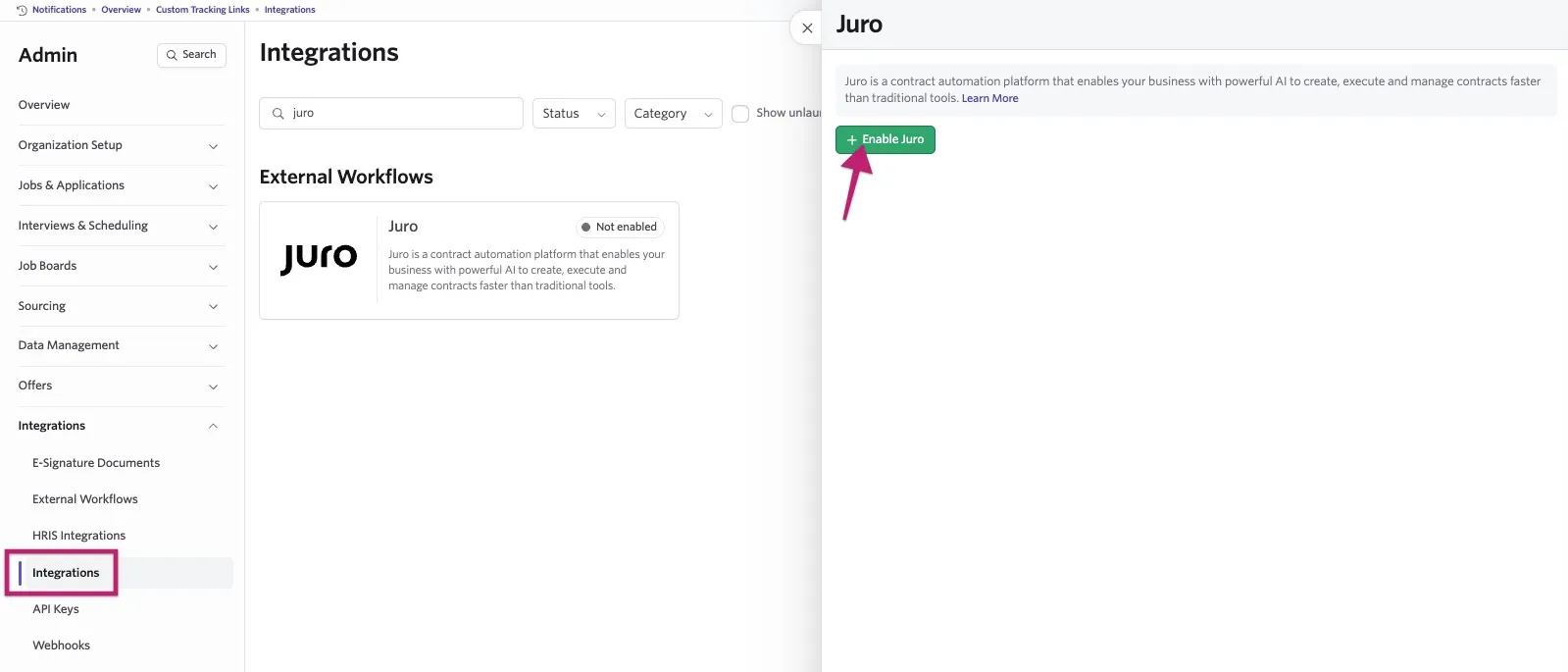
- Navigate to Admin > Integrations > Integrations and search for the Juro integration tile.
- Select the+ Enable Juro button in the top left of the Juro popover. You then see a screen where you need to enter some Juro configuration details.
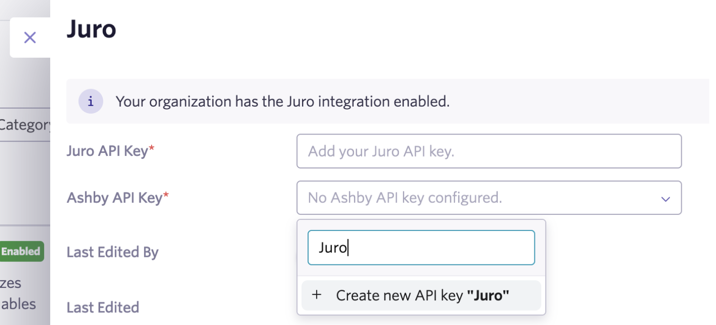
- Click the Ashby API Key box and type "Juro" to create an API key on the Ashby side.
You don’t need to copy this API key for Juro to push updates to Ashby. However, this is your only opportunity to access it, so we recommend copying it and storing it securely. Disabling the API key will revoke Juro’s access.
Creating the API key in Juro to add to Ashby
- Navigate to the Juro integration settings page.
- Select the API box in the API and Webhooks section.
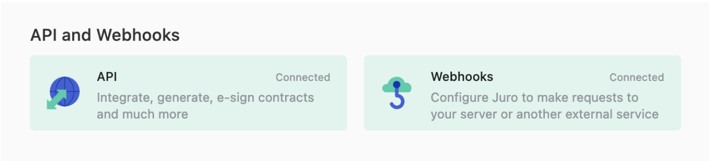
- On the API page, click the green Activate button (if not already active), then copy the API key from the text box. You need this key in the next step.
- Go back to the previous page and select the Webhooks box.
- On the Webhooks page, click + Add New.
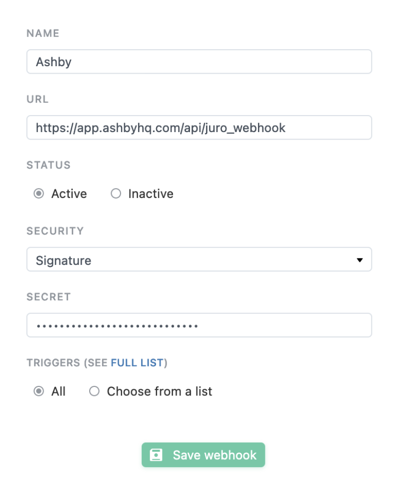
- Configure the webhook with the following details:
- Name: Ashby
- URL: https://app.ashbyhq.com/api/juro_webhook
- Security: Signature
- Secret (appears once you select Security: Signature): Paste your Juro API key here.
- Triggers: Choose All
- Click Save webhook.
Adding the Juro API key to the integration settings in Ashby
- Go back to the Juro configuration page in Ashby.
- Select the Juro API Key box, paste your Juro API key (the same one you used in the webhook step), and click Update.
The connection between Ashby and Juro is now complete! You can now import and kick off Juro contract workflows from Ashby.
Configuring a workflow
The video below provides an overview. You can also follow the steps in this article.
To set up a workflow, navigate to Admin > Integrations > External Workflows. Click + Add and select Juro.
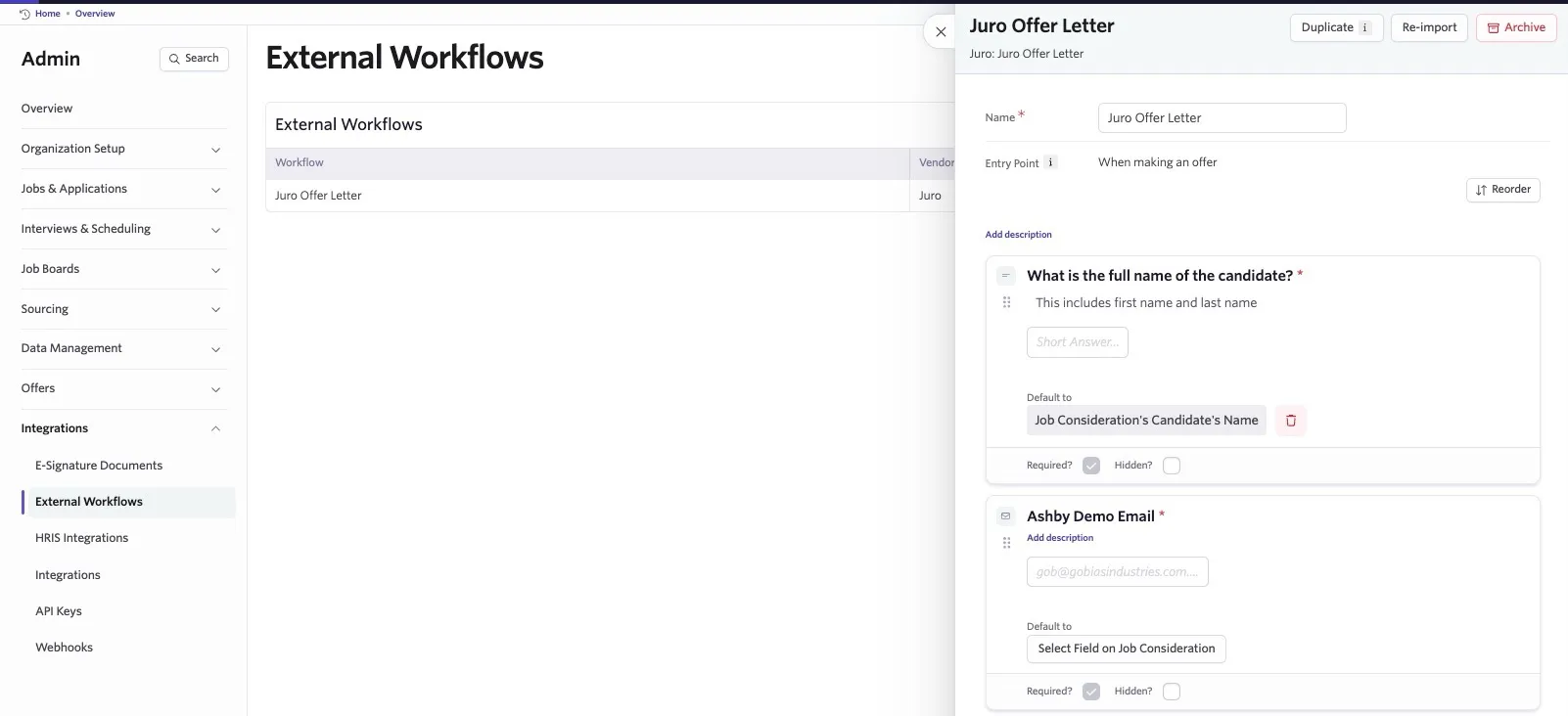
Each workflow has the following configuration fields:
- Name: The title of the workflow being imported.
- Entry Point: When and how the workflow can be added to the pipeline, either as an activity on an interview plan or when making an offer to a candidate.
- Field mapping: The fields in Ashby from which information is pulled to send to Juro.
- Required? Confirm whether the field is required.
- Hidden? Choose whether to hide this field when the form is displayed in Ashby.
Adding the workflow to an interview plan
You can add activities to your interview plans within a job or job template in the Admin section of Jobs. When in the Interview Plan section of the role, click Add Activity for the stage in question, then select External Workflow. Select the workflow from the drop-down list and click Add.
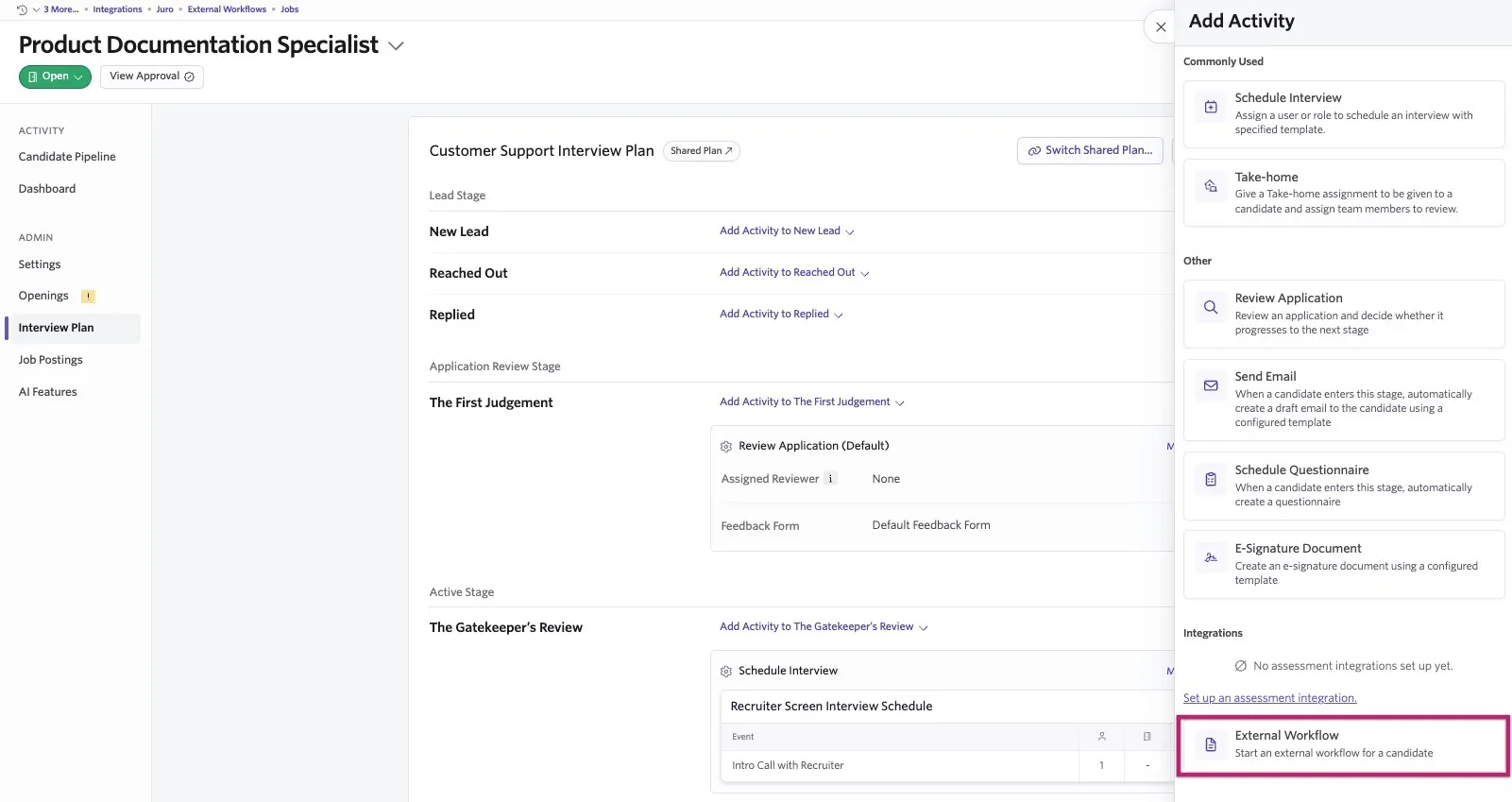
Once the candidate moves to that stage in your pipeline, you see a prompt on their profile to start the Juro workflow. Click Start Workflow, then confirm the workflow and click Start on the pop-up. Complete any fields that need to be filled, then click Submit to start the workflow. Click View Workflow to view more details from Juro.
Adding an external workflow to an offer
If you have an external workflow set to be available when making an offer to a candidate, once the offer is created (and approved, if needed), you see the option to start the workflow within the offer details.
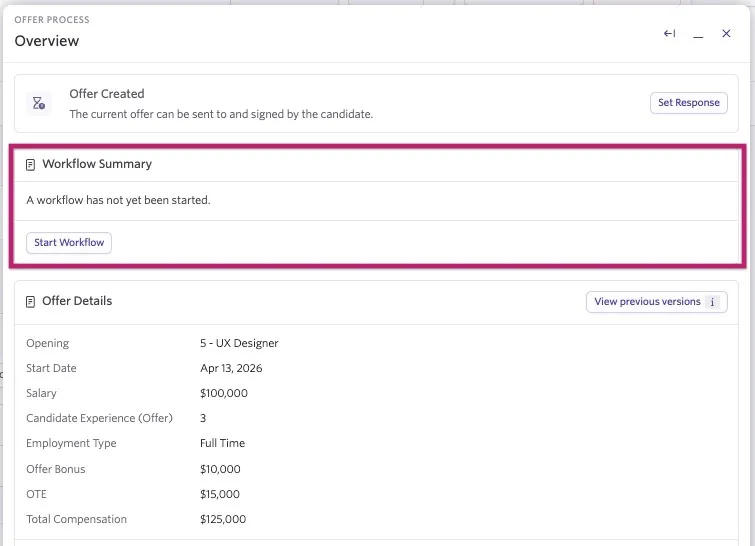
After clicking Start Workflow, select the external workflow you want to use in the pop-up. Click Start to confirm the workflow.
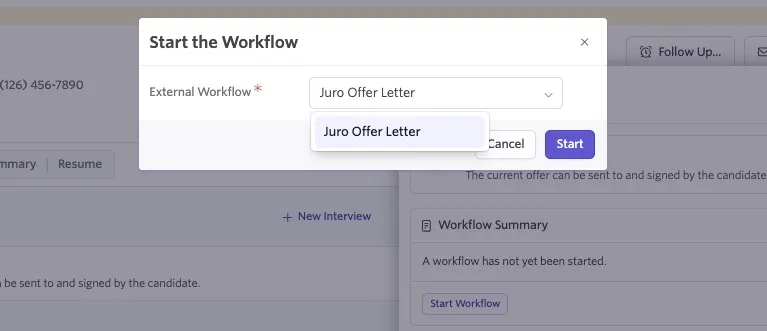
The workflow fields are displayed alongside the offer details for you to complete, so you can ensure the information matches. Click Submit to send this information to Juro.
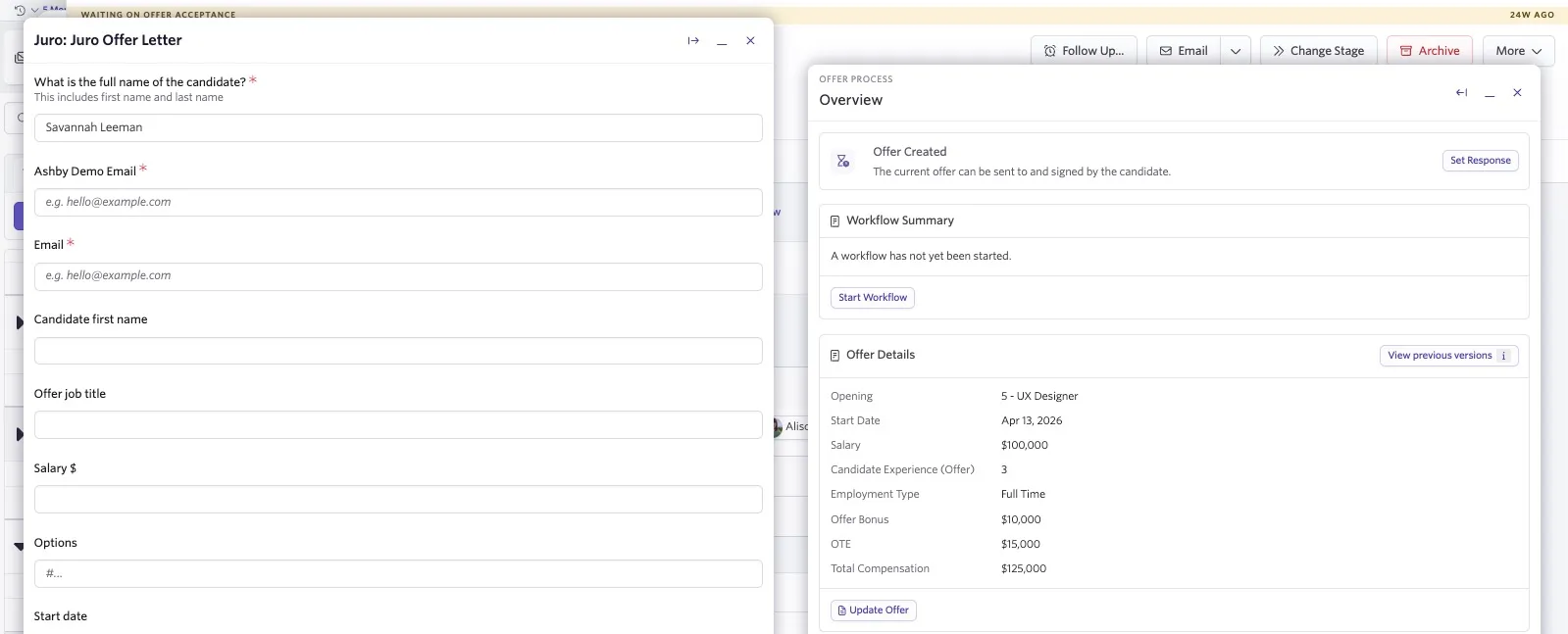
Initially, the workflow shows as Started within the activity on the candidate's profile. The status changes to Active once information is received from Juro. You can view the workflow details within the offer information. Once the workflow is complete, Ashby marks the offer as accepted.