Juicebox
Juicebox is an AI-powered sourcing tool that helps you find and engage candidates. With the Ashby and Juicebox integration, you can move job details and candidate profiles between the two platforms. This saves time on manual data entry, prevents duplicate outreach, and keeps your candidate data in one place.
Permissions & access
The Juicebox integration is available on Foundations, Plus, Enterprise, and Legacy Plus plans.
Foundations | Legacy Plus | Plus | Enterprise |
|---|---|---|---|
✅ | ✅ | ✅ | ✅ |
You must be an Organization Admin and on the Juicebox Business plan to configure this integration.
Connecting the integration
To get started, follow Juicebox's Ashby Integration Set-up guide to connect the integration in Juicebox.
In Ashby:
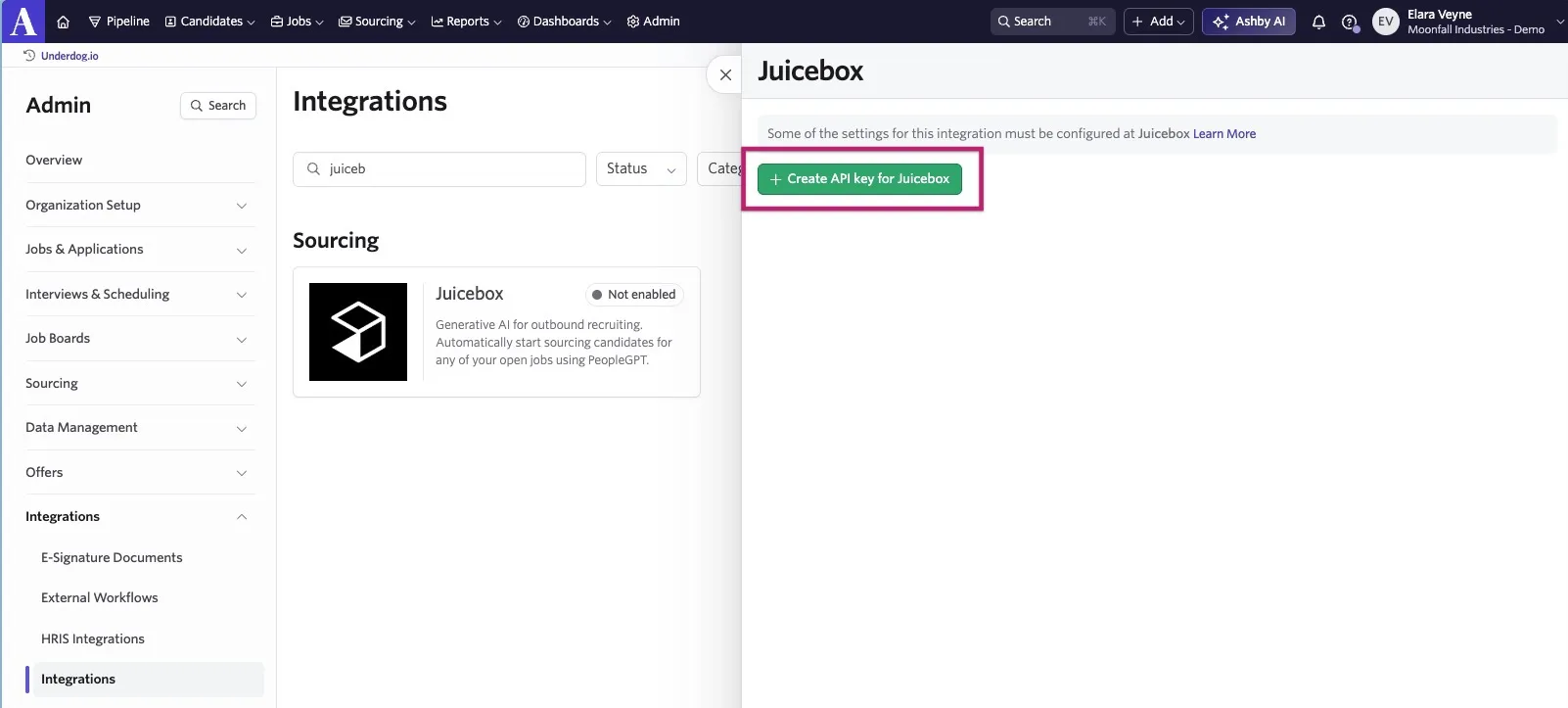
- Navigate to Admin > Integrations and search for Juicebox.
- Select the + Create API key for Juicebox button.
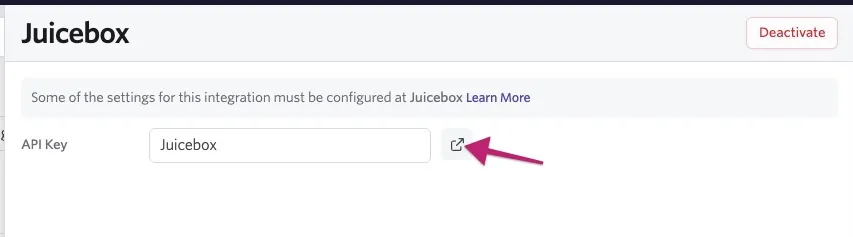
Copy the API key and store it in a secure place. You need this to complete the integration setup in Juicebox.
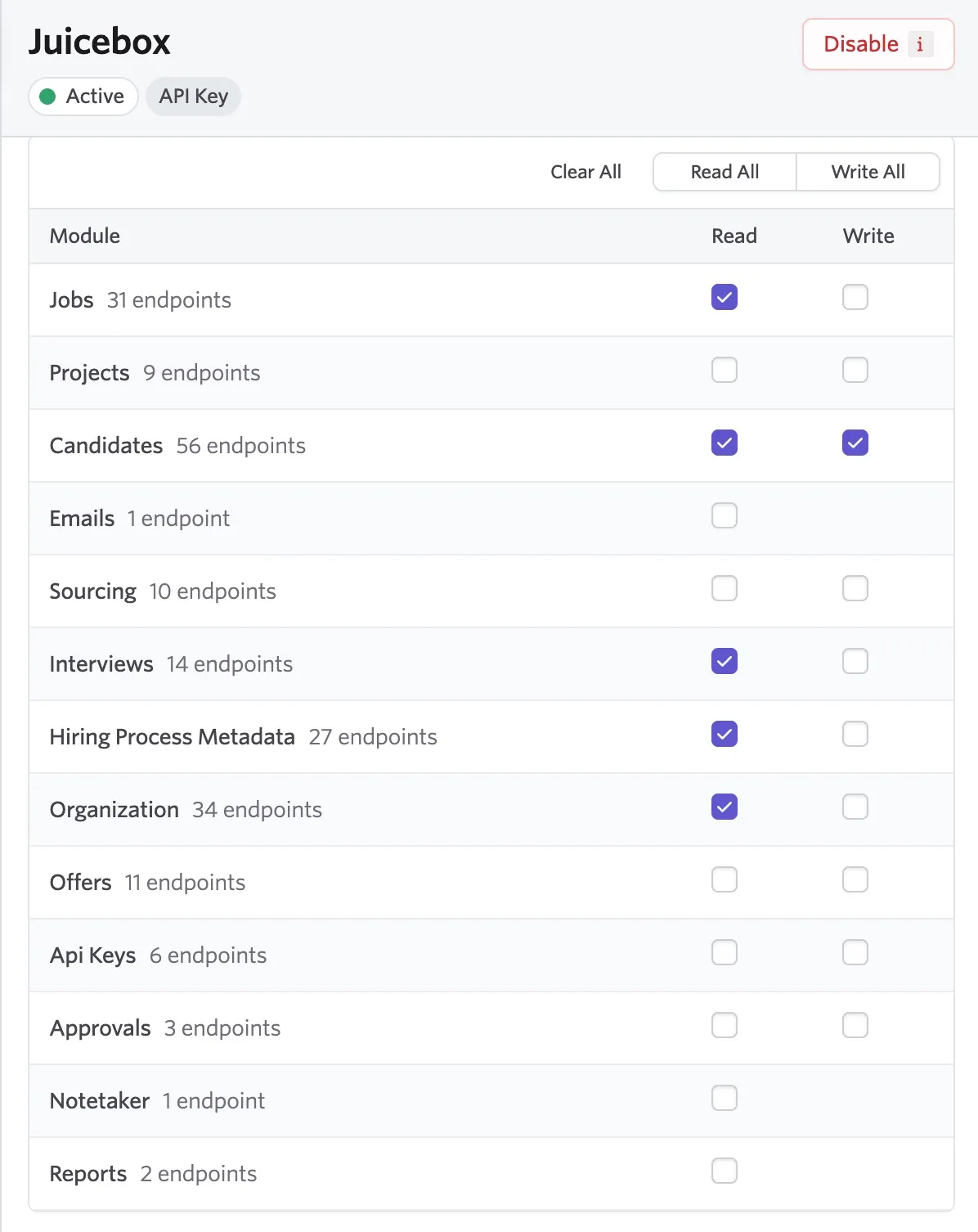
- Adjust the API endpoint permissions by clicking the View API key settings button.
- Below are the suggested minimum scopes:
Return to Juicebox to complete the setup. After you sign in, the window closes and you are redirected to Juicebox. Refresh your page. If successful, a green "Connected" button appears.
For an overview of all integration features, see ATS Integrations. If you experience any issues with your integration, contact the Juicebox support team at [email protected].
Congratulations! You have successfully integrated Ashby and Juicebox. It may take a few minutes for all data to sync between Juicebox and Ashby. Wait up to 10 minutes to ensure all data has synced.
Using the Juicebox integration
The integration supports three use cases.
Start a project from a job
Import a job from Ashby into Juicebox to start a new sourcing project. Juicebox uses the job description to kick off a candidate search automatically, so you don't have to write search criteria from scratch.
Export profiles to Ashby
Save candidate profiles from Juicebox straight into Ashby. You can export:
- Contact details
- Work experience
- Resumes
- Other profile information
You can choose which fields are included in the export.
Import profiles from Ashby
View profiles that already exist in Ashby from inside Juicebox. This lets you:
- Avoid contacting the same candidate twice
- See your team's relationship history with a candidate right away