Ironclad
This integration allows you to connect with Ironclad to import workflows, initiate the signing process from Ashby, populate fields in Ironclad using data in Ashby, and track the signing process from within Ashby.
Prerequisites External Workflows must be enabled on your account before you can set up the Ironclad integration. Please reach out to Support or your Customer Success Manager for assistance with this.
Permissions & access
The Ironclad integration can be set up on the Legacy Plus, Plus, and Enterprise plans:
Foundations | Legacy Plus | Plus | Enterprise |
|---|---|---|---|
❌ | ✅ | ✅ | ✅ |
Setting up the integration
Once External Workflows are enabled on your account, you can access the Ironclad integration option within the Integration Marketplace.
Click on the Ironclad tile within the Integration Marketplace, then click Connect to Ironclad.
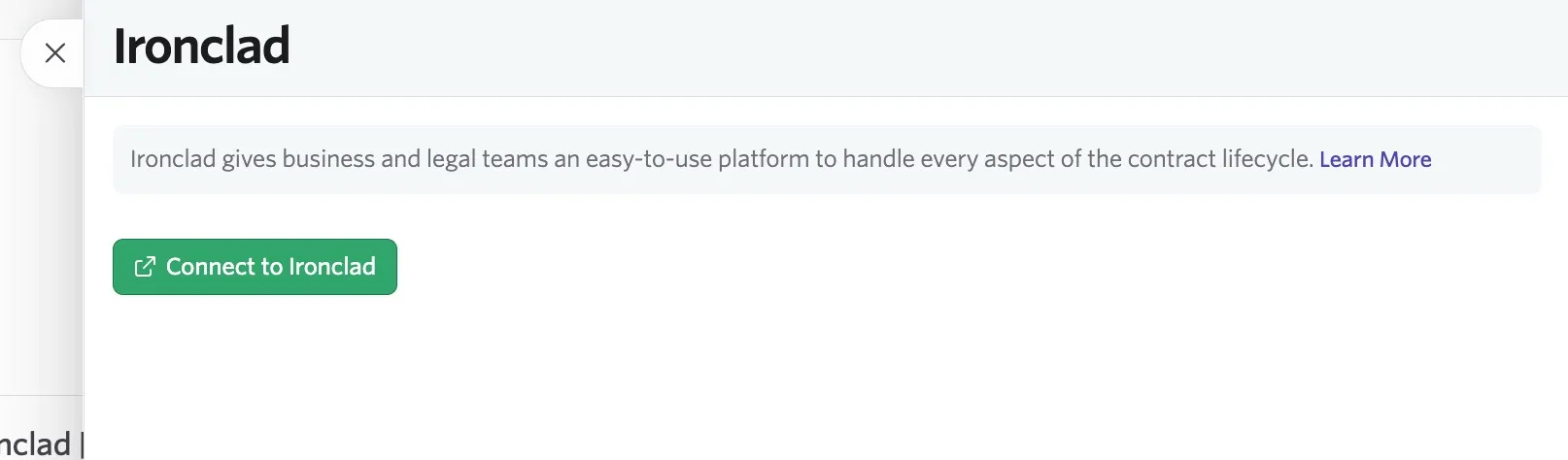
From here, all users that kick off workflows in Ashby need to authenticate with Ironclad. To do this, they can head to Personal Settings > Integration Settings.
Configuring webhooks in Ironclad
Configure the following webhooks in Ironclad as part of the integration setup:
Webhook events: workflow_updated, workflow_cancelled, workflow_completed
URL: https://app.ashbyhq.com/api/ironclad_webhook
Without these, Ashby will not receive status updates back as the workflow changes.
For more on configuring webhooks in Ironclad, check out their developer documentation.
Adding an Ironclad workflow to Ashby
To start the process of adding your Ironclad workflow to Ashby:
- Navigate to Admin > Integrations > External Workflows.
- Click Add and choose Ironclad, then determine the following details:
- Workflow Template: Select the workflow template being imported
- Entry Point: When and how the workflow can be added to the pipeline, either as an activity on an interview plan or when making an offer to a candidate.
- Review the fields to ensure they match what you expect, then click Import. Once the workflow is imported, you can edit the workflow template name in Ashby if needed.
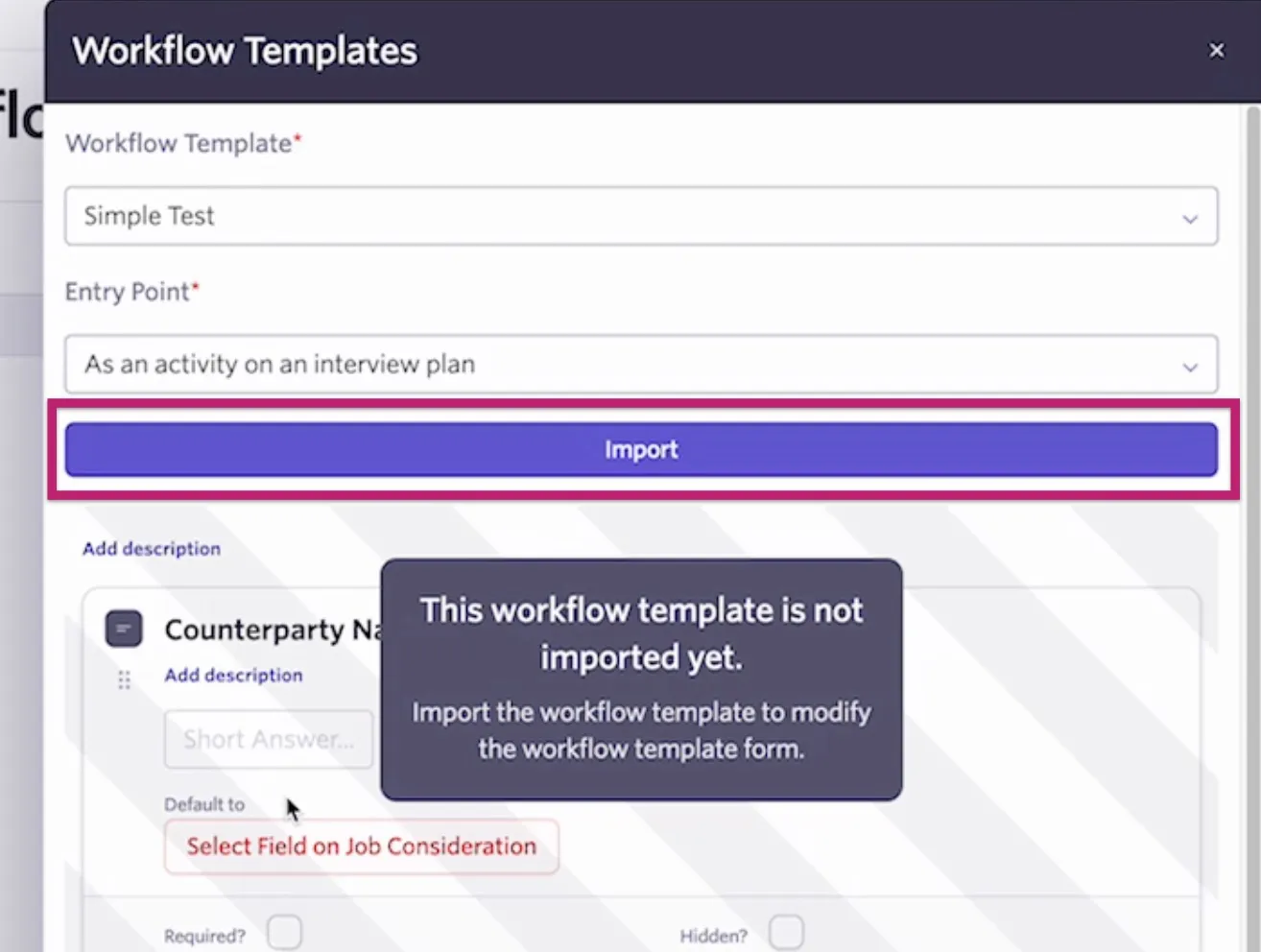
- Review the fields in your workflow in Ironclad and determine if any fields should be mapped or if any fields are required.
- Field mapping: Determine which Ashby fields populate the corresponding Ironclad fields, rather than entering information manually as part of the workflow.
- Required?: Ashby can't pull through the required status of a field in an Ironclad workflow, so we recommend checking this checkbox in Ashby if the information is needed.
If you have options set up for choice-based questions in Ironclad, Ashby doesn't pull these over, so you need to configure them again.
Adding the workflow to an interview plan
If you have configured the workflow to be manually added to interview plans:
- Navigate to a job in Jobs > Jobs.
- Click on the Interview Plan tab of the job.
- Click Add Activity to... for the stage in question.
- Select External Workflow.
- Select the workflow in question from the drop-down list and click Add.
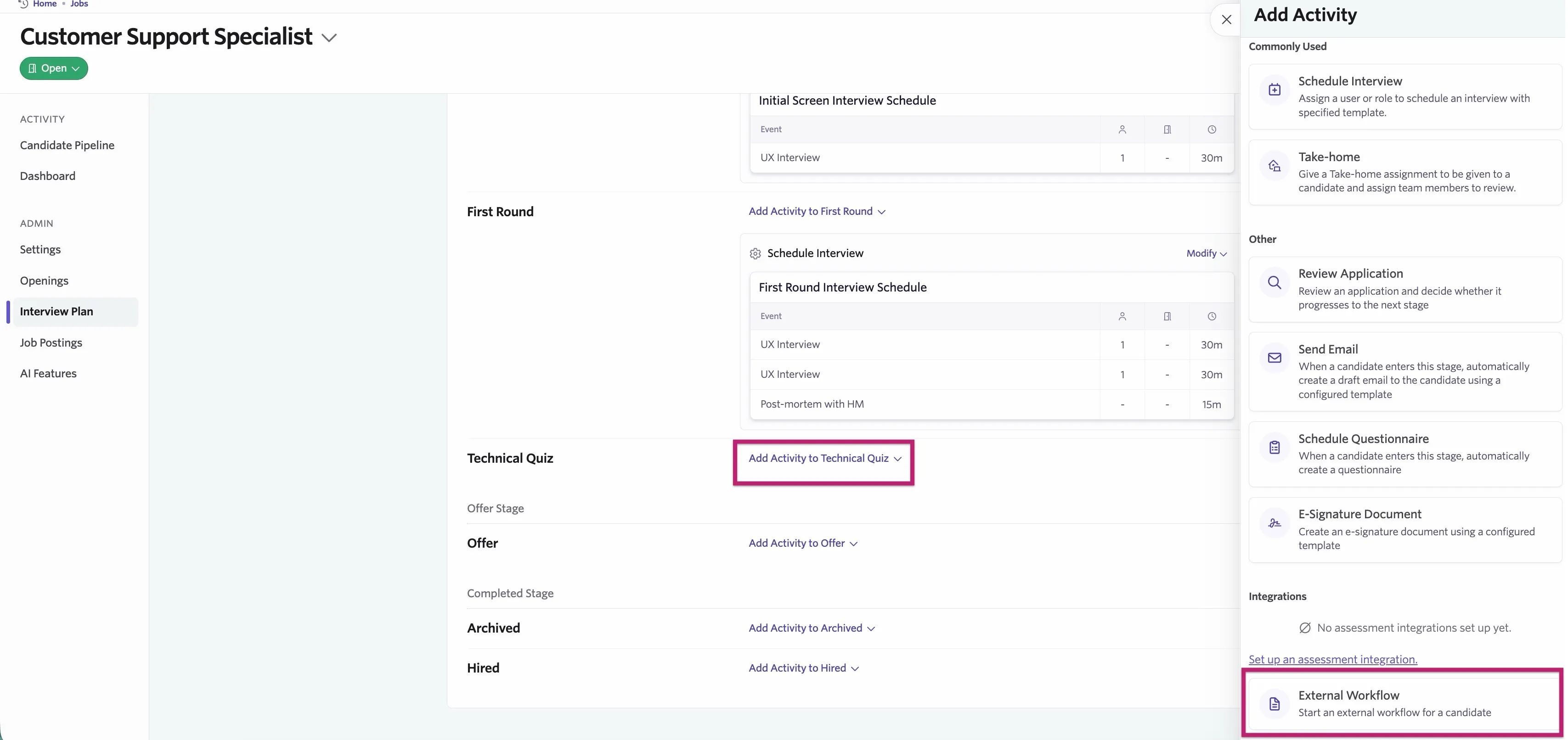
Once the candidate moves to that stage in your pipeline, you see a prompt on their profile to start the Ironclad workflow. Click Start Workflow, confirm the workflow, then click Start on the following pop-up.
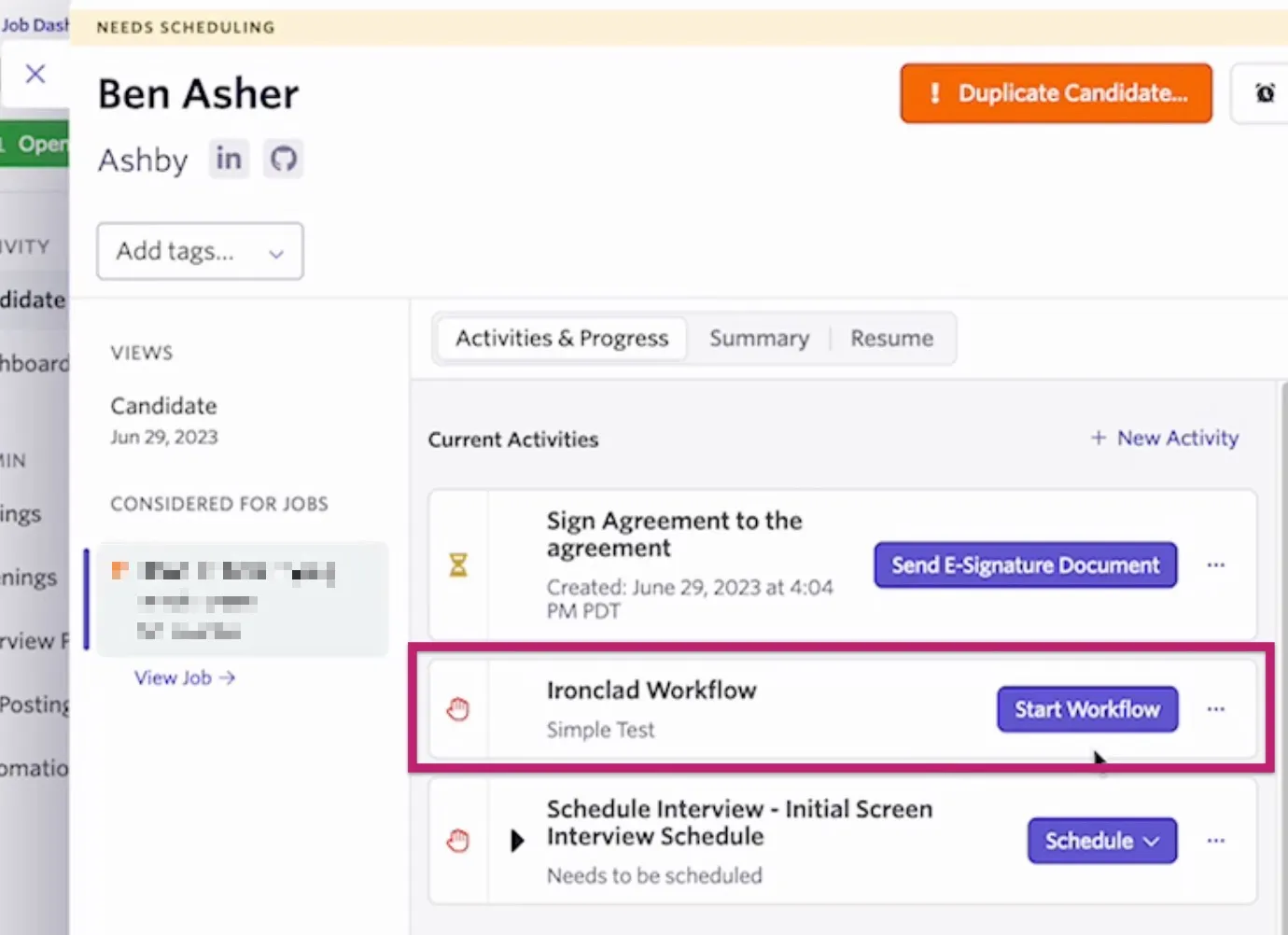
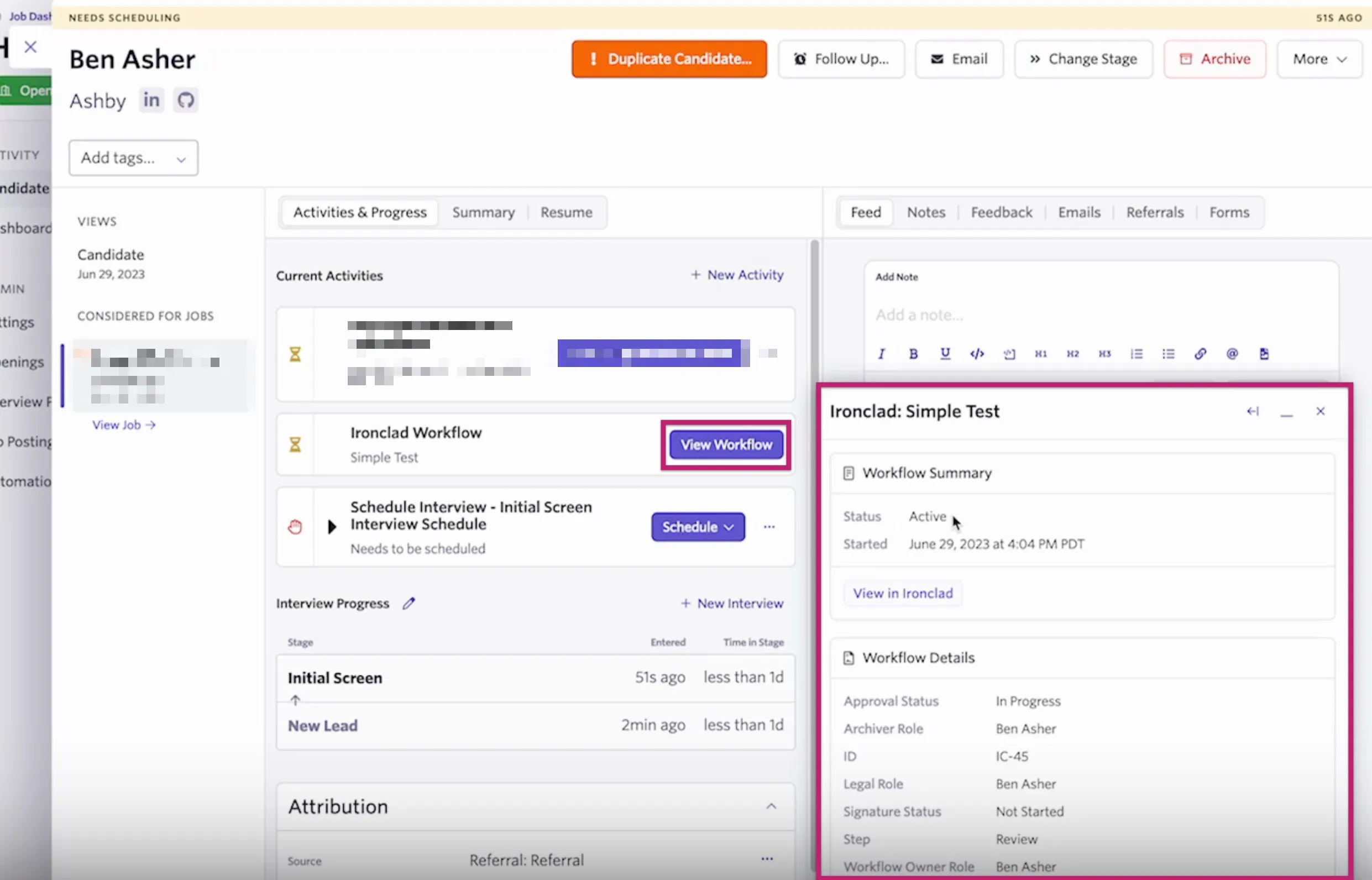
Complete any fields that need to be filled, then click Submit to start the workflow. You can click View Workflow to view more details that come in from Ironclad.
Adding an external workflow to an offer
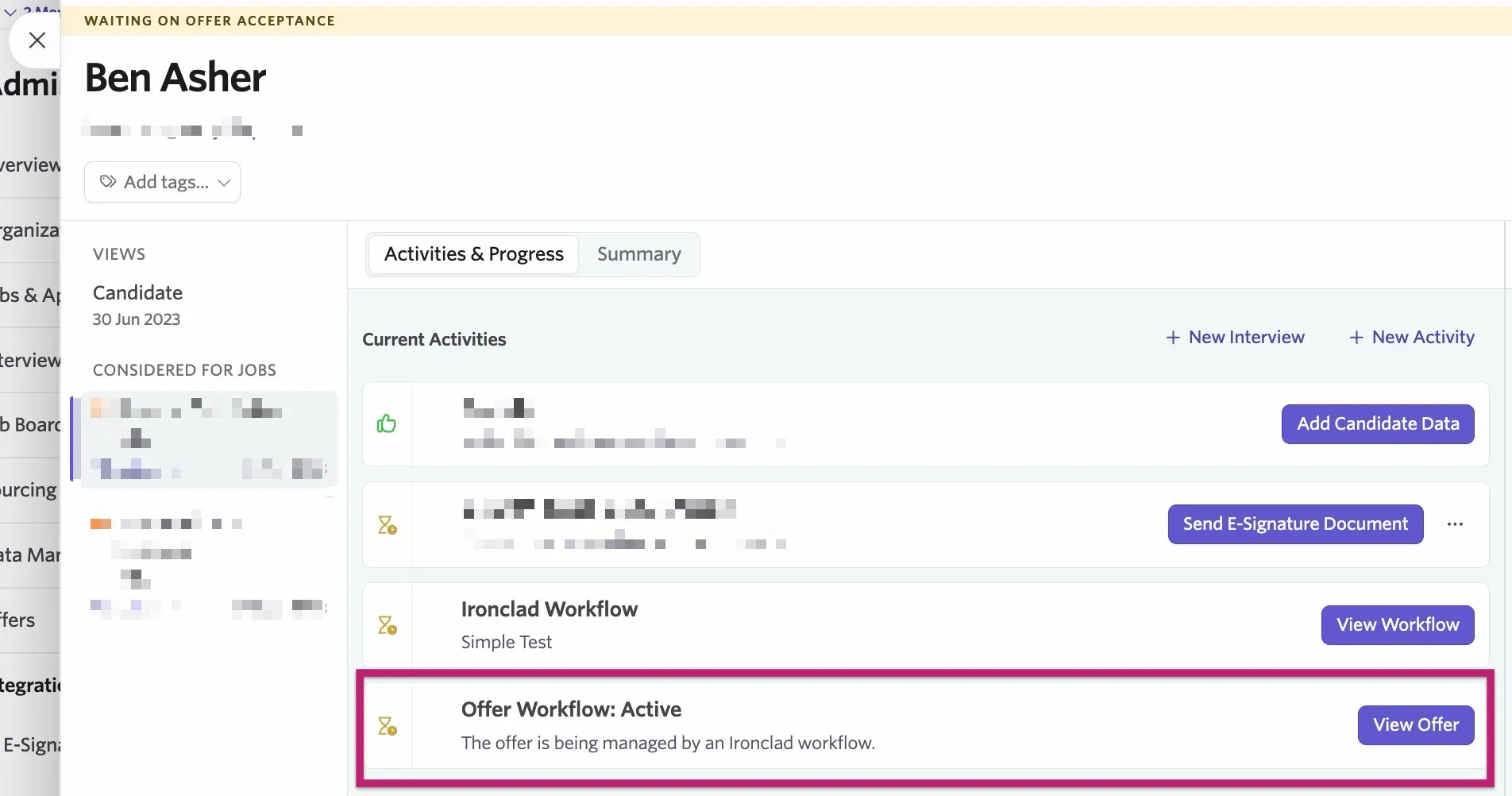
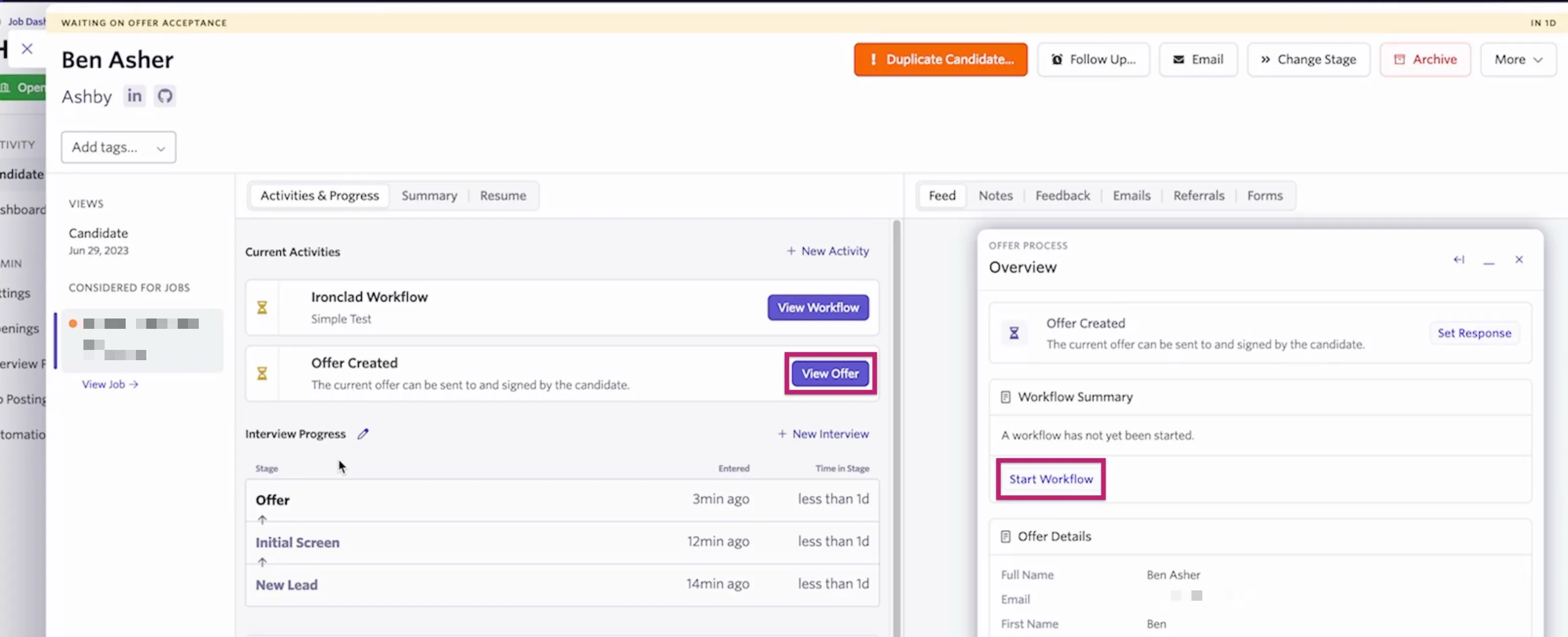
If you have an external workflow in place that is set to be available when making an offer to a candidate, once the offer has been created (and approved, if needed), you see the option to start the workflow within the offer details. Click View Offer on the offer activity on the candidate's profile, then Start Workflow within the Workflow Summary.
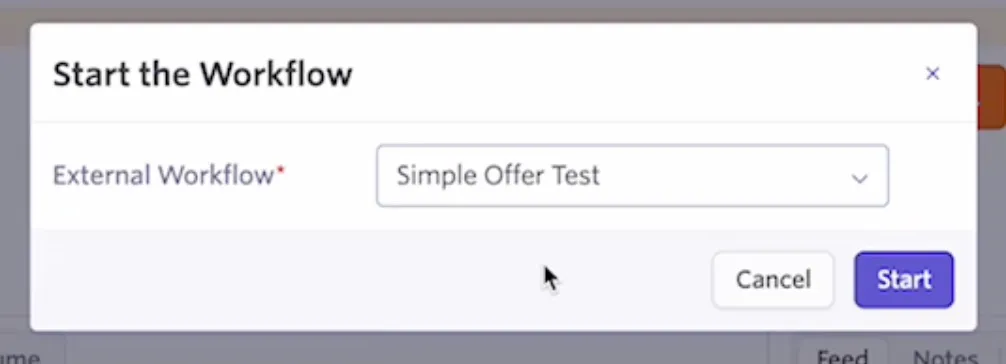
After clicking Start Workflow, select the external workflow you'd like to use in the following pop-up, then click Start to confirm the workflow.
Ashby then lists the fields for the workflow so you can complete them. These fields display alongside the offer details so you can ensure the information matches. You can click Submit to send this information to Ironclad.
Initially, the workflow shows as Started within the activity on the candidate's profile. It changes to Active once Ashby pulls in information from Ironclad. You can view the workflow details within the offer information. Once the workflow is complete, Ashby marks the offer as accepted.