Interview Plans
Interview plans determine the stages your candidates will pass through when interviewing with your team. Interview plans are created in Admin, then assigned to jobs. All jobs require an interview plan. You can see the stages of your interview plan displayed in the Candidate Pipeline section of the role it’s assigned to.
In this guide, we describe what an interview plan is, the types of interview plans, and how to set them up.
Permissions & access
See the table below for information on the roles that have access to set up and edit shared interview plans.
Access Role | Has Access? |
|---|---|
Limited Access | ❌ |
Agency Users | ❌ |
Elevated Access - External Recruiter (not linked to an agency) | ❌* |
Elevated Access - Analyst | ❌* |
Elevated Access - Hiring Team Member | ❌* |
Elevated Access - Hiring Manager | ❌* |
Elevated Access - Admin | ❌* |
Elevated Access - Admin Private | ❌* |
Organization Admin | ✅ |
*Only Organization Admins can configure shared interview plans by default. Elevated Access users can be given access to edit shared interview plans if needed. More on this at Additional User Permissions.
Viewing an interview plan setup
Here’s an example of an interview plan:
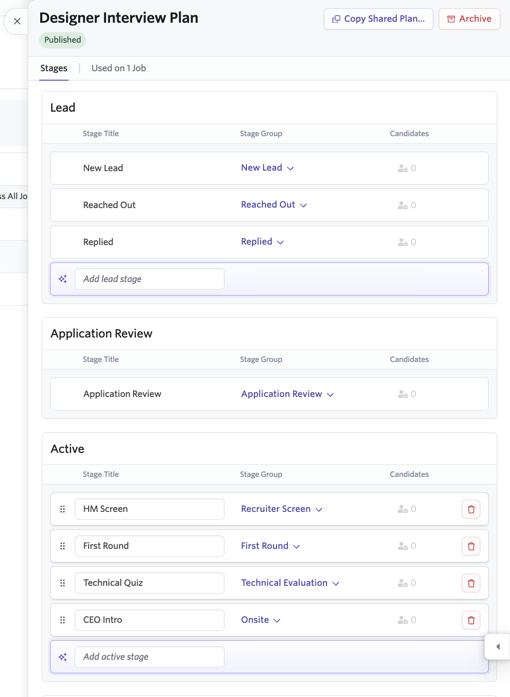
Interview plans have multiple sections, including:
Lead: These stages are used for sourced candidates, both when finding suitable candidates and when reaching out to them to gauge their interest. Additional stages can be added to customize the section.
The New Lead, Reached Out and Replied stages cannot be removed from the interview plan.
Application Review: This stage reflects that the candidates are being assessed for further action based on their applications. It is not customizable.
Active: This section allows you to add the stages that reflect your hiring process from when an application is received, right up to an offer being extended.
Offer: This section contains the stages that accompany extending an offer to a candidate and can be customized on certain plans.
See Configuring Offer Stage Admin Settings for more information on editing this section.
Completed: These are your stages that show the application result - either Archived (or rejected), or Hired.
Viewing an interview plan on a job
When you click into a job, you can see these stages laid out in the Candidate Pipeline tab. You can click on the stage sections at the top of the Candidate Pipeline view to view your leads within the Leads section, and view candidates in Application Review, your Active stages and those who are in the Offer stage. Hired and Archived candidates are also accessible via the Hired and Archived buttons.

When clicking on an option, you’ll be able to see the stages you’ve set up. In Active, for example, you can see each of the interview stages that were added to your interview plan and then the candidates listed in each stage.

Creating an interview plan
There are two types of interview plans in Ashby: shared and custom. Shared interview plans are templates that can be applied across multiple jobs, while custom interview plans are unique to specific jobs.
A grouped interview plan is a special plan used to consolidate the stages across your other plans into one unified set of stages for reporting. For more on grouped interview plans, check out What is a grouped interview plan?
Creating a shared interview plan
Shared interview plans help to standardize your interview stages across many jobs. We recommend setting up shared interview plans.
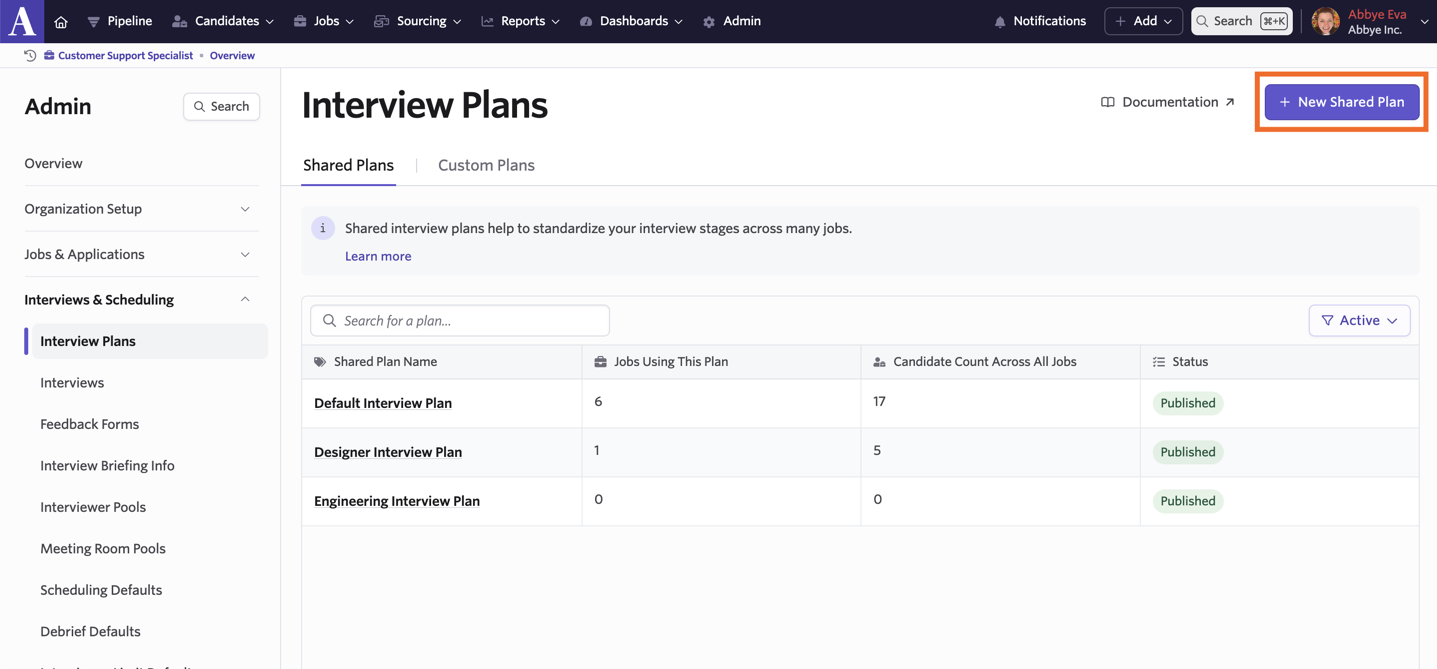
To create a shared plan, navigate to Admin > Interviews & Scheduling > Interview Plans and click + New Shared Plan. Input a plan name, then click Submit.
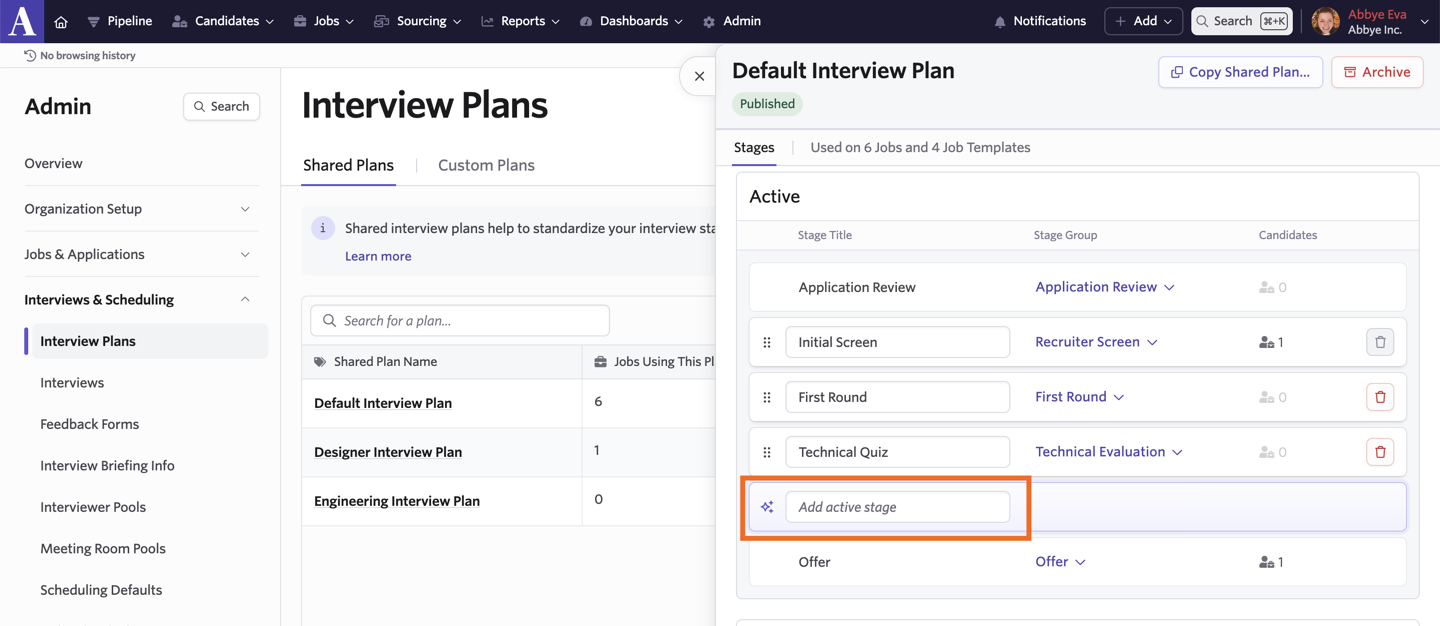
To add an active stage, click into the Add active stage textbox and search for or create the new stage name. Then click + Save to add the stage.
Configure your interview plan
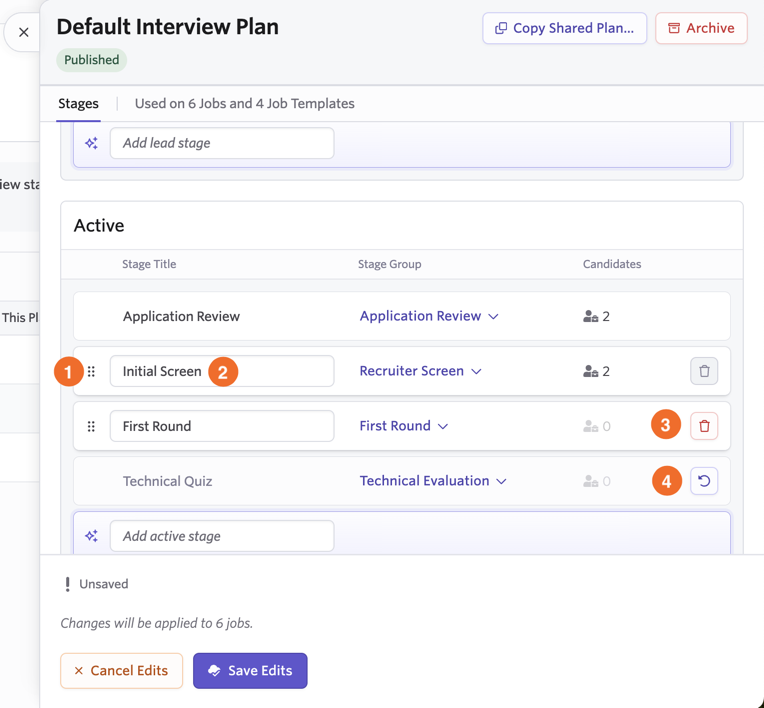
There are four options for editing your interview plan stages:
- Use the dragging icons to the left of the stage names to change the position of the stages you create
- Click on the name to open the menu to select or create a new name for an existing stage
- Click the trash can icon to delete a stage
- Click the revert arrow icon to revert a change
- Confirm your edits by clicking Save Edits.
Creating a custom interview plan
Custom interview plans make it easy to edit the stages for a single job without having admin permissions or affecting other jobs.
Create a new plan for a job
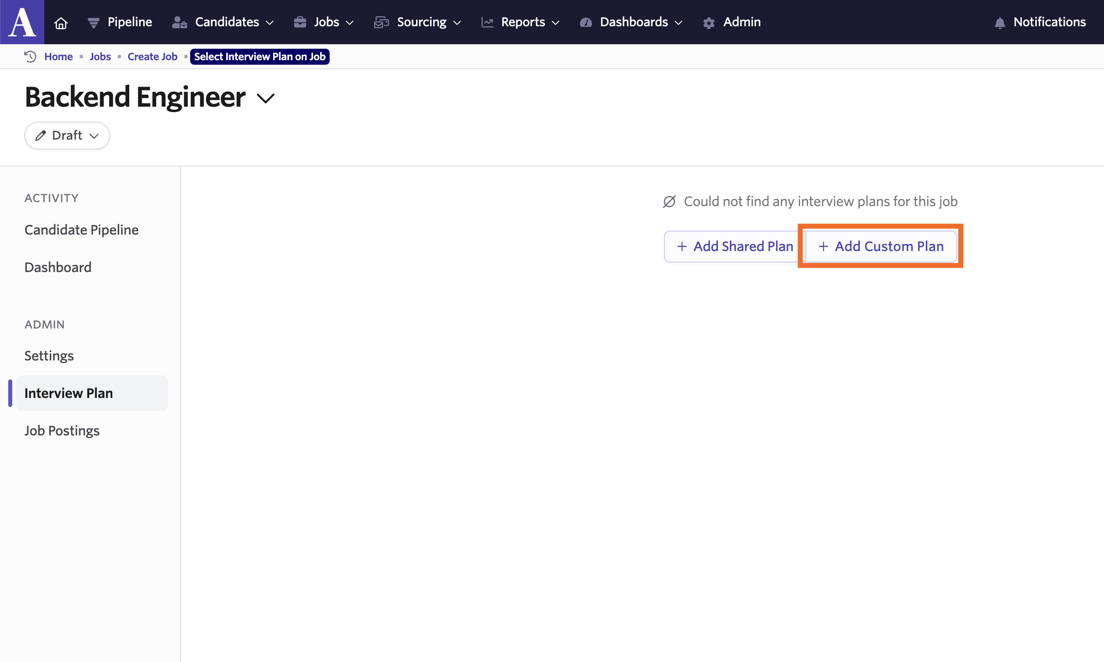
When creating a new job, you can skip adding one of your existing shared plans. When you do so, you’ll have the option to add a custom plan to the job. Click + Add Custom Plan to create a new custom plan.
Replace a shared plan with a custom plan
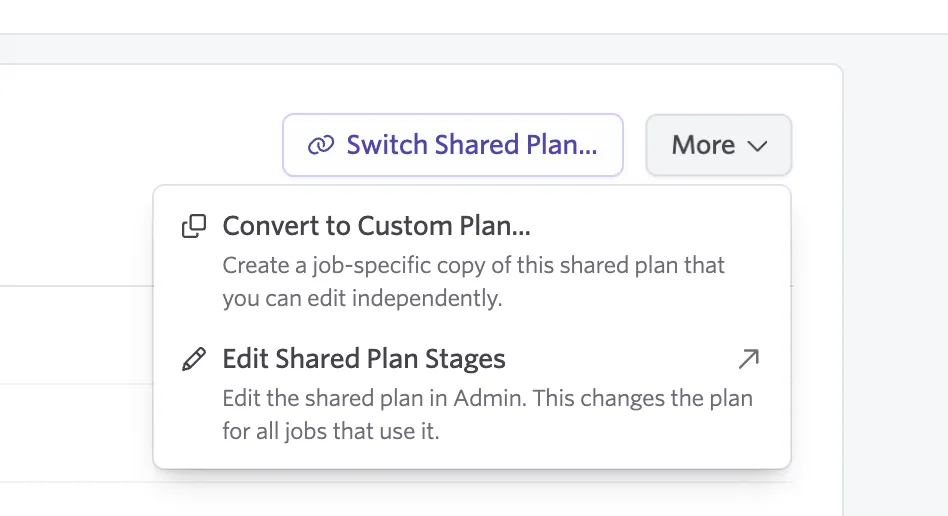
If you create a job with a shared plan but decide later you’d like to customize it (for example, add additional stages for the plan for just this role), you can click More in the upper right, and then select Convert to Custom Plan. This will create a custom plan that will replace the shared one that was added to the job previously.
If you’ve created a custom plan, but decide you’d like to switch to an existing shared one, click Switch to Shared Plan.
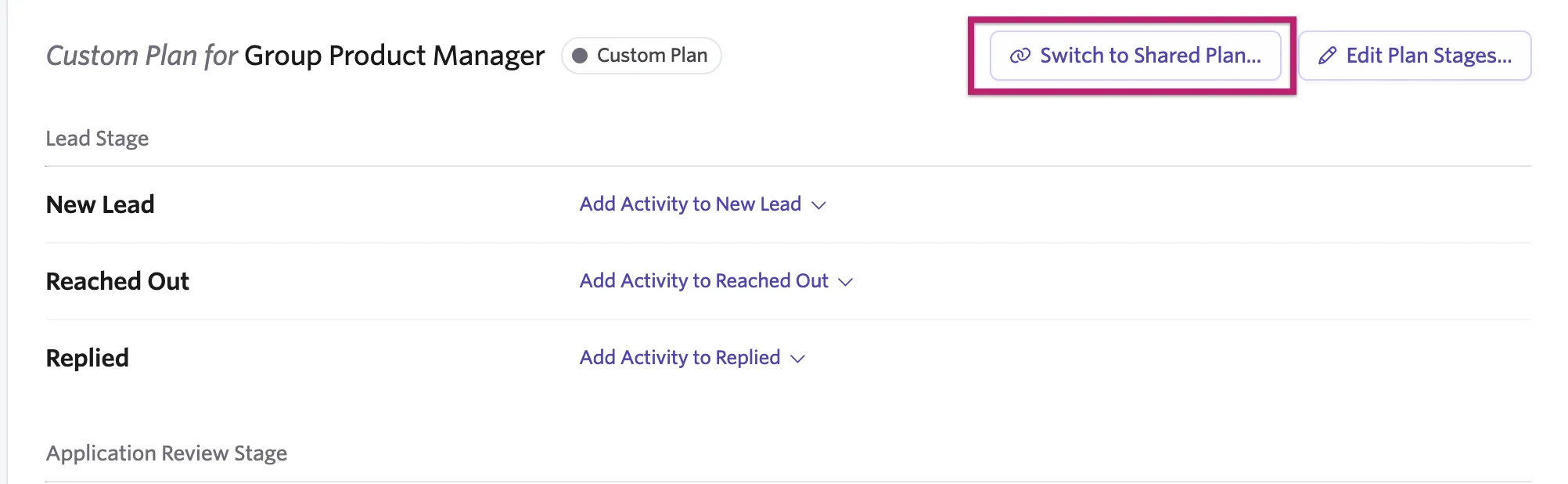
This will let you select the replacement and map the stage from the previous to the new plan to ensure candidates transfer seamlessly.
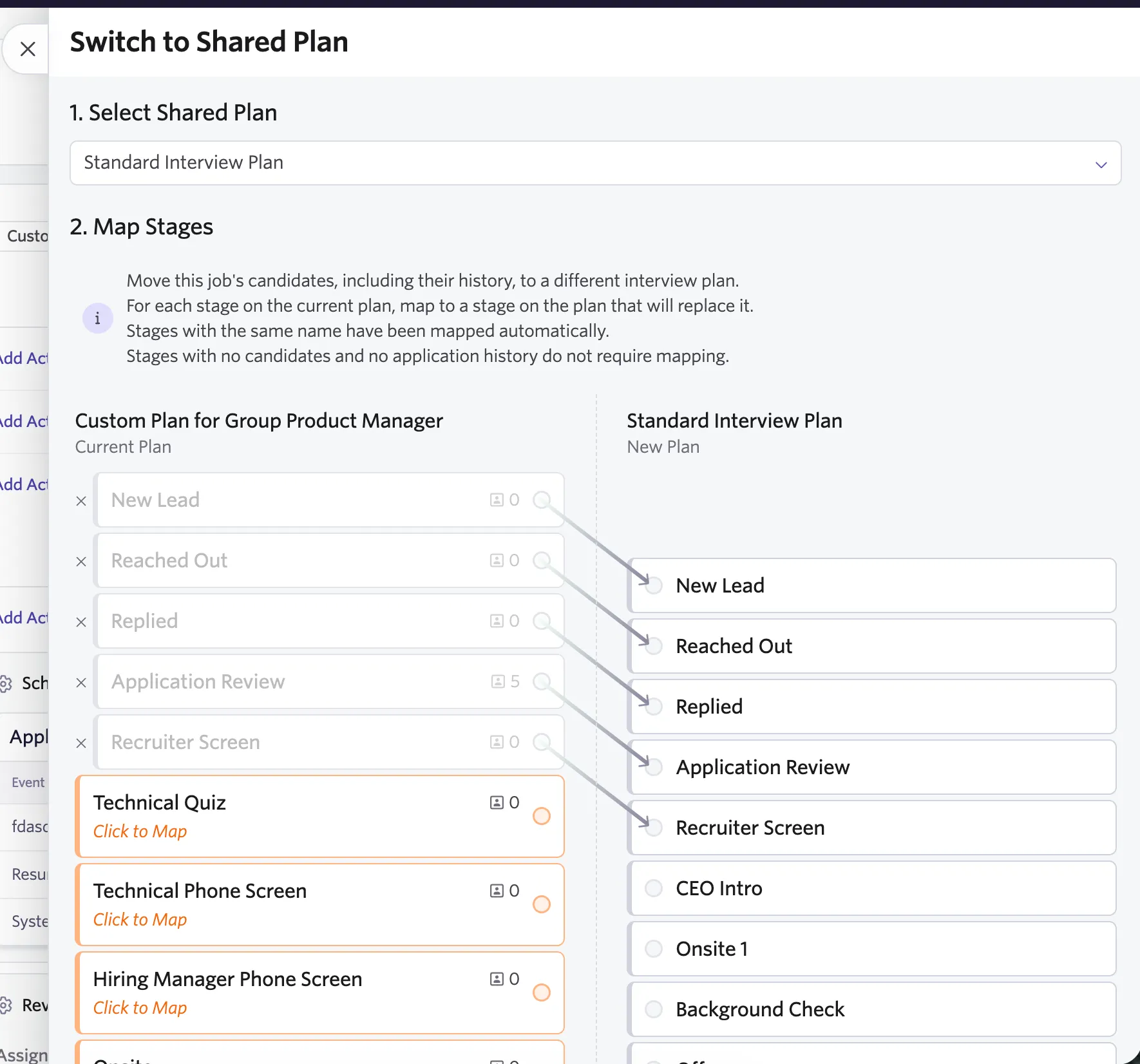
Turning a custom plan into a shared plan
If you’ve created a custom plan and want to make it accessible for more jobs, you can convert it a shared plan by clicking Edit Plan Stages… then Promote to Shared Plan.
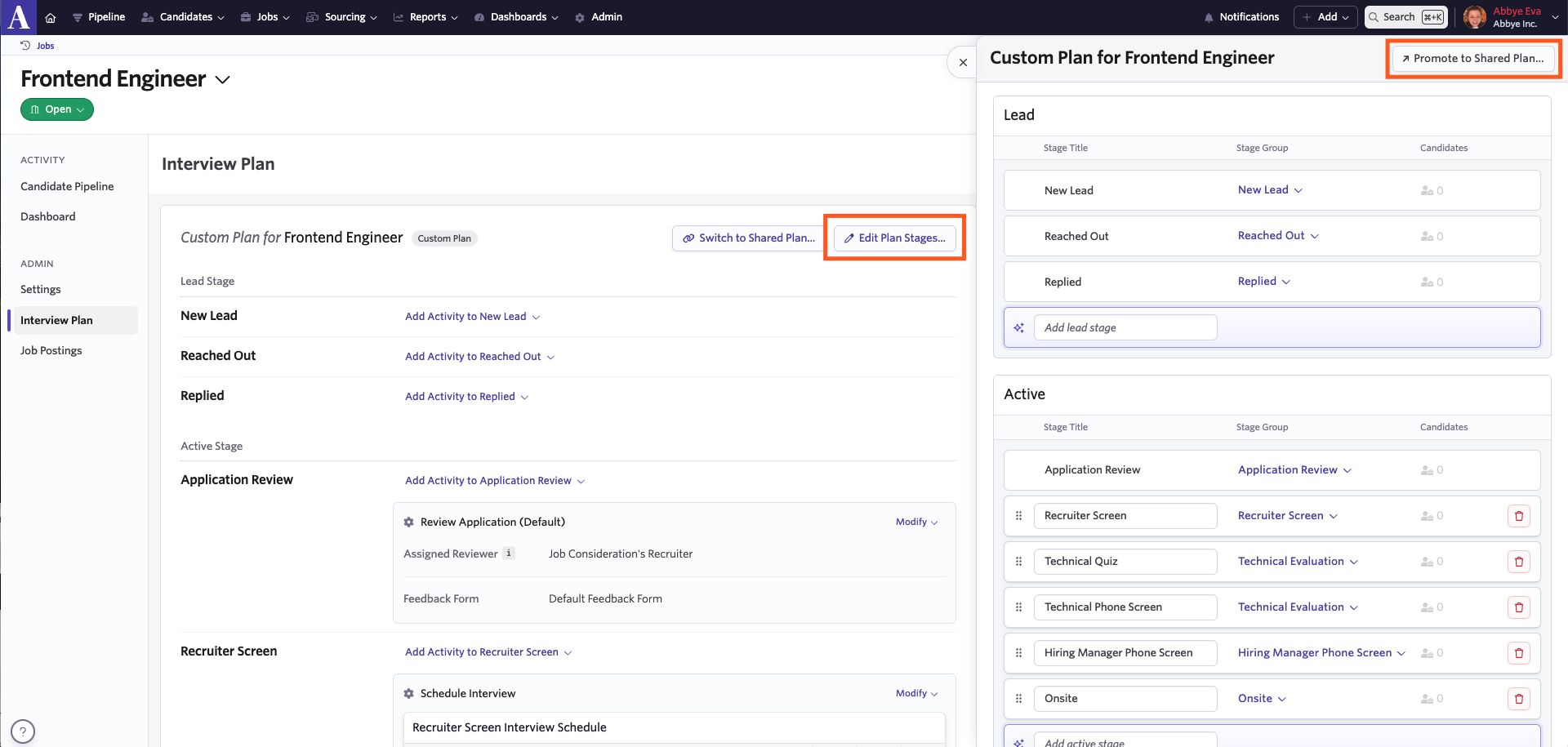
Edit stages on a custom plan
Once you’ve created a plan, you need to add stages. In most cases, you’ll do this in the Active Stage Name section of the plan, as these are the stages where your candidates are actively interviewing with your team.
To add an active stage, click into the Add Active Stage checkbox, then search for or create the new stage name. Click + Save to add the stage to your interview plan. Stages will be added between the Application Review and Offer default stages, and you can use the dragging icons to the left of the stage names to rearrange all stages between the two.
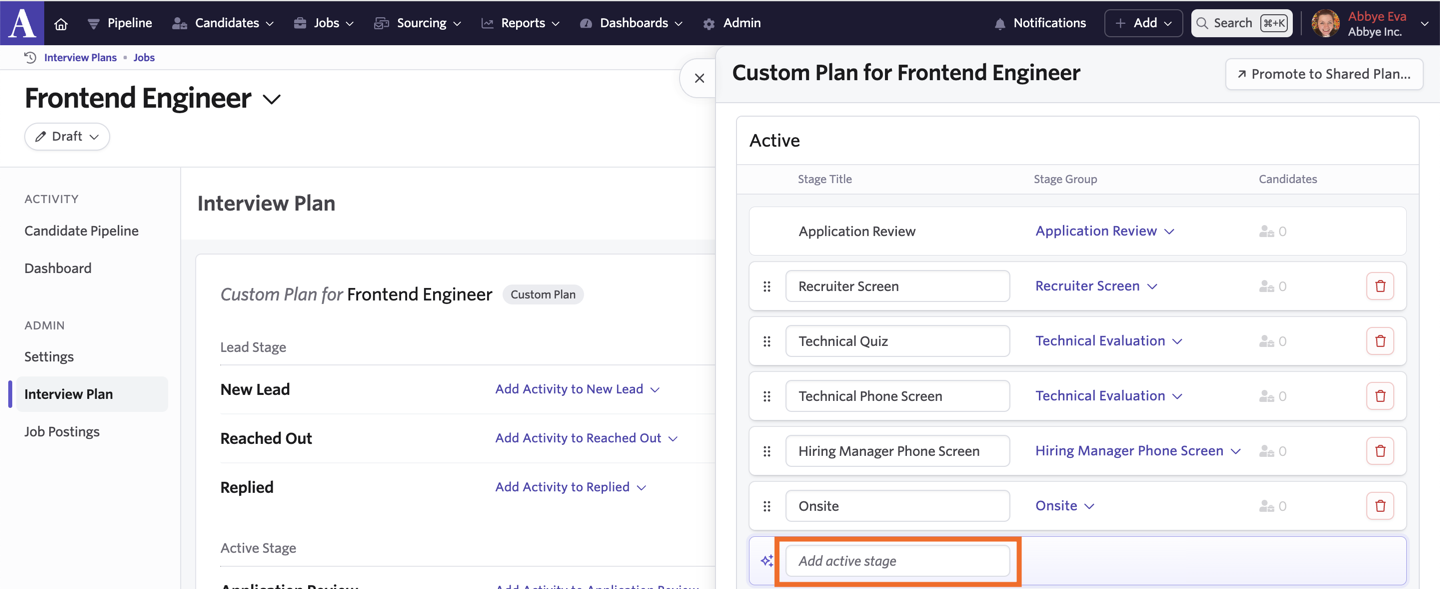
Configuring your custom plan stages
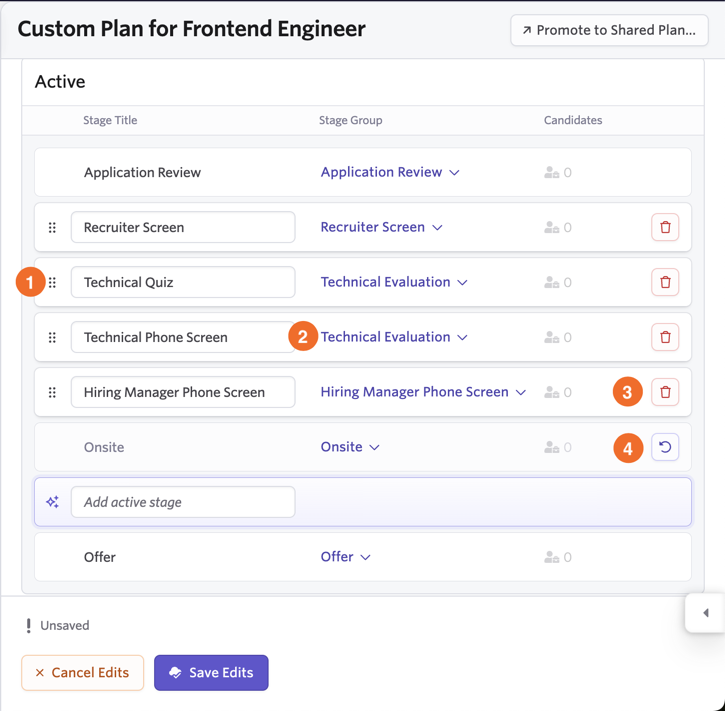
There are four options for editing your interview plan stages:
- Use the dragging icons to the left of the stage names to change the position of stages you create
- Click on the name to open the menu to select or create a new name for an existing stage
- Click the trash can icon to delete a stage
- Click the revert arrow icon to revert a change
- Confirm your edits by clicking Save Edits.
Add activities to your interview plans (recommended)
See Activities for more information on the activities you can add to your interviews plans on jobs
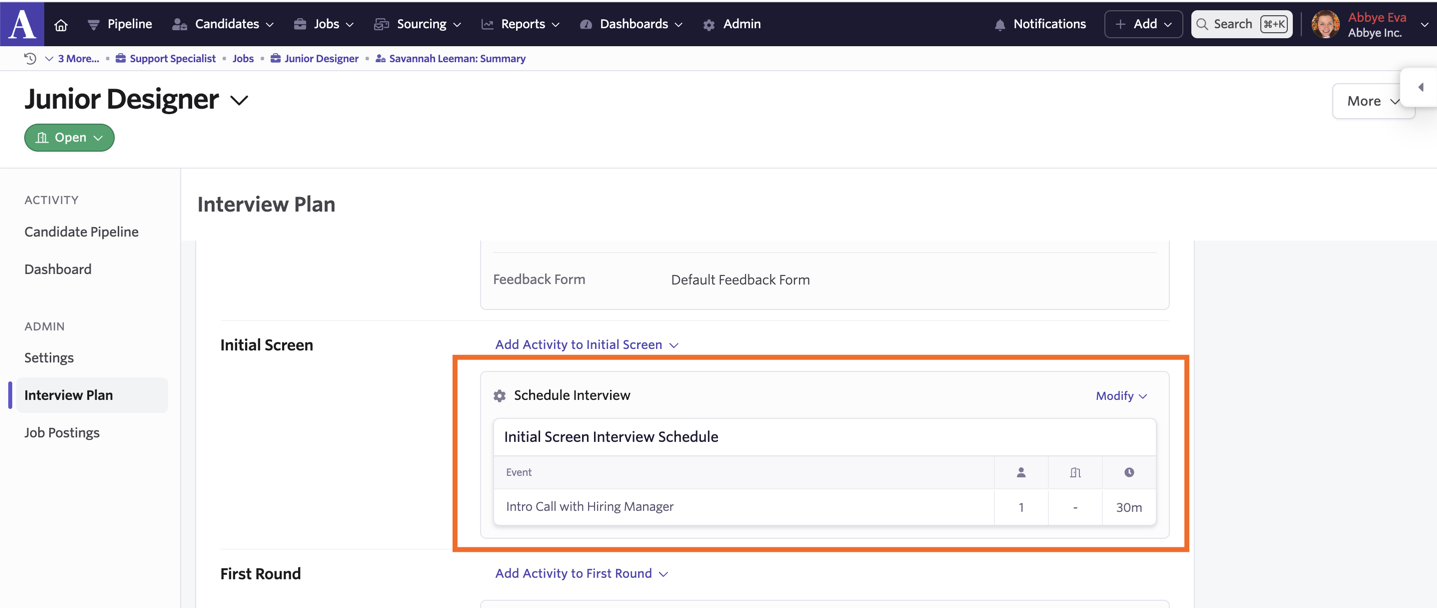
Adding activities helps streamline your processes by storing and automatically prompting you to complete key tasks when a candidate moves into a stage. Activities can only be added to an interview plan once it has been assigned to a job or job template.
For example, when you add a Schedule Interview activity to the Initial Screen stage of your interview plan, as shown:
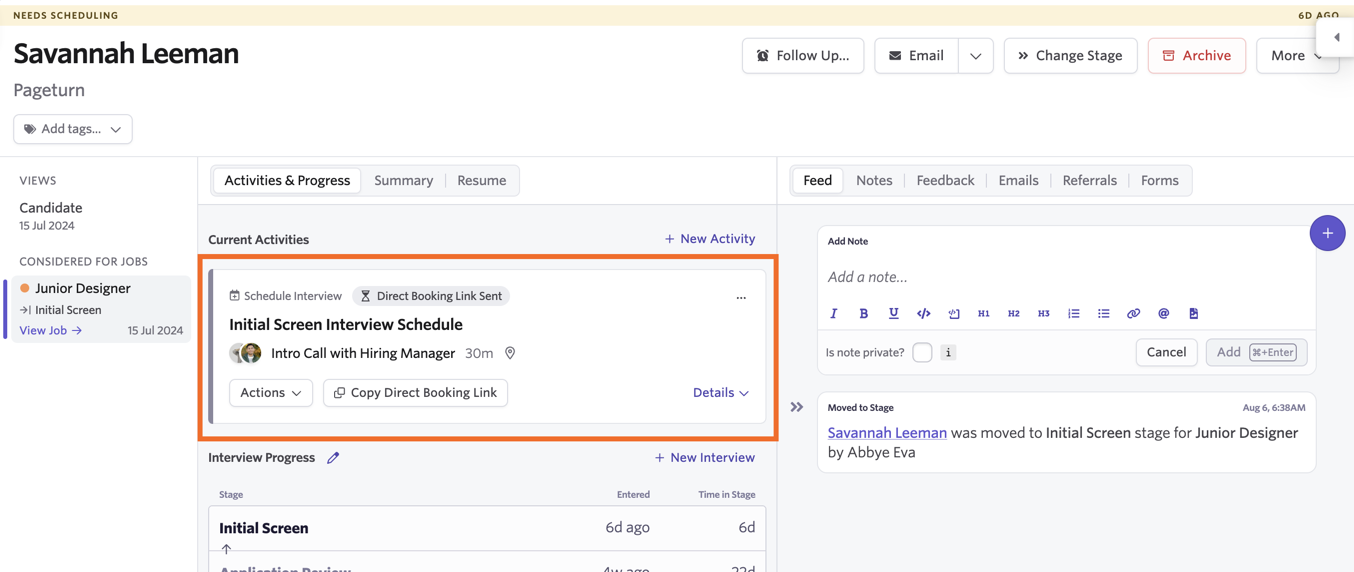
A corresponding activity will appear in the Activities & Progress feed any time a candidate moves into that stage in the pipeline:
Reuse configured interview plans
While activities can’t be added directly to the interview plans in Admin, there are two ways to reuse configurations: you can either create job templates or make copies of jobs.
Create job templates
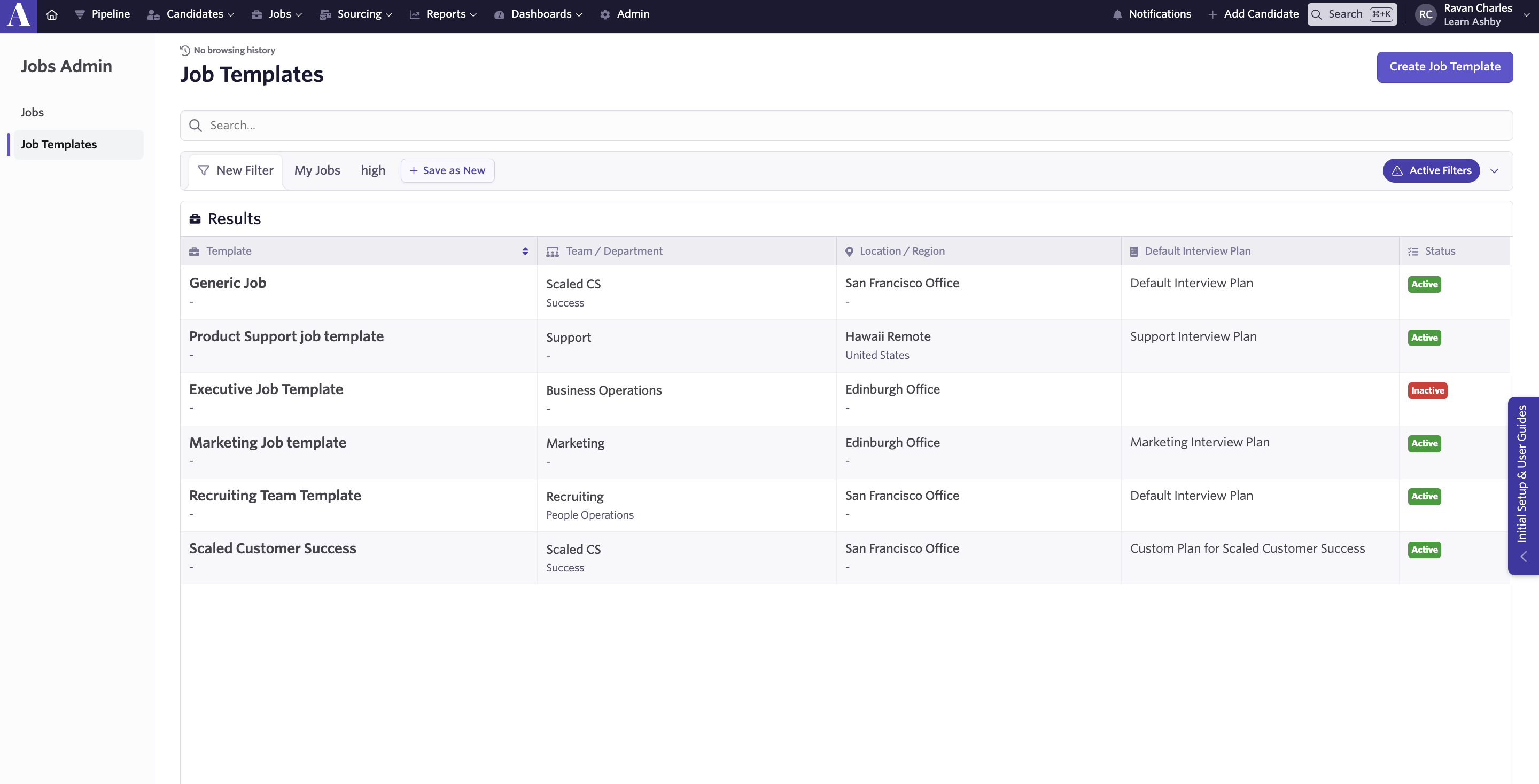
Job Templates are reusable versions of entire jobs that you can choose what you want to configure upfront, then use as a starting point when creating new jobs. If you add an activity to an interview plan on a job template, when you create a job using that template, the activity will be added to the newly created job's interview plan, saving you time.
Job templates can be configured with as much or as little detail as possible to give you a headstart on setting up a new job. To make a template, visit Jobs > Jobs then click on Job Templates.
Copy existing jobs
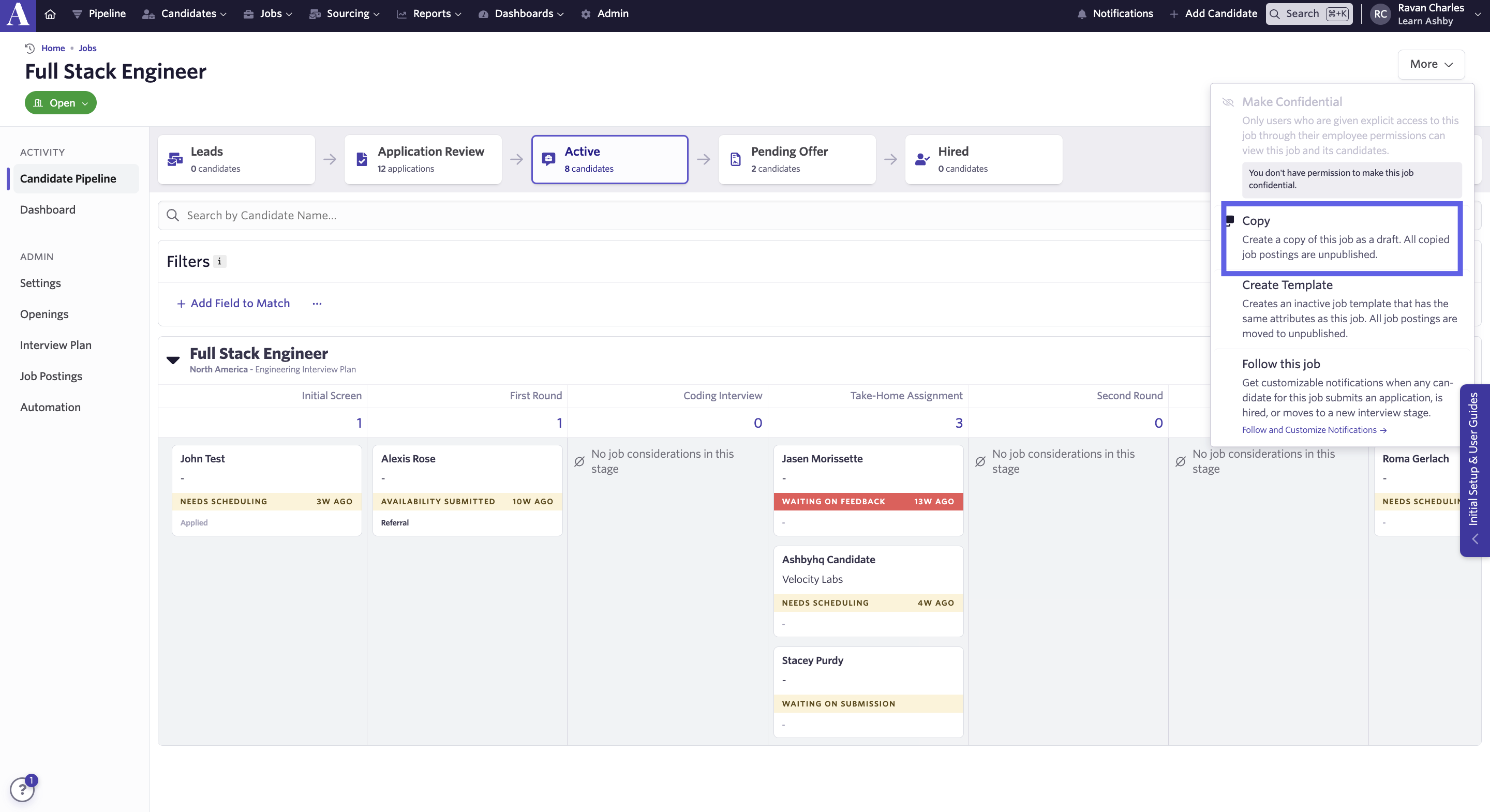
A copy is an exact replica of an existing job. To make a copy, visit a job, then click More> Copy in the top right corner of the page. Any activities on the original job's interview plan will then be copied over to the newly created job.
FAQ
Why are some of the stages grayed out and uneditable?
The following stages are grayed out and cannot be removed, moved, or renamed within your interview plan:
- New Lead, Reached Out, and Replied Candidates automatically move through the New Lead, Reached Out, and Replied stages based on your email communication with them. These stages cannot be removed.
- Application Review The Application Review stage has Application Review mode, which is unique to that stage.
- Offer An offer activity automatically appears when a candidate moves into the Offer stage.
- Hired If you've integrated an HRIS, you're prompted to transfer your new hire's data when they move into the Hired stage.
- Archived A candidate moves to the Archived stage when their job consideration is archived, or to Hired when hired for the role. You cannot add additional custom stages to the Completed section of an interview plan.
Can I have multiple interview plans on a job?
Ashby no longer supports adding multiple interview plans to a job. If there are optional stages in your interview plan, we recommend indicating that in the title of the stage, and skipping those stages with candidates where appropriate.
This is very flexible; what's the best practice?
- You can make edits to standardized processes across many jobs
- Reporting is automatically grouped by the stages on the shared plans
Can I add stages to the Completed section of my interview plan?
No, you cannot add additional Completed stages to your interview plan. You cannot edit the Archived and Hired stages. When adding Active stages to your interview plan, you cannot add them after the Offer stage.
Can I delete an interview plan?
You can archive an interview plan by navigating to Admin > Interviews & Scheduling > Interview Plans. Click the interview plan in question, then click Archive. The plan can no longer be used when creating jobs moving forward.
Can I restore an archived interview plan?
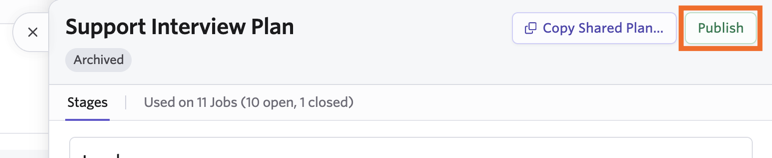
You can! Switch the Active filter to Archived when viewing your interview plans at Admin > Interviews & Scheduling > Interview Plans.
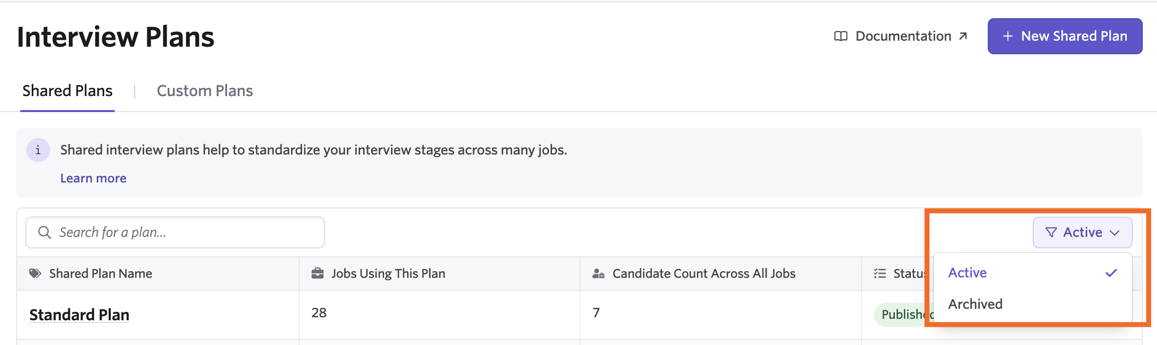
Select the archived interview plan in question, then click Publish to reactivate it. It can then be used when creating jobs moving forward.