How do I use multi-day scheduling?
This guide covers how to schedule interviews across multiple days. If you have any interview activities with multiple interview events within them (for example, an onsite), this helps you schedule interview events across a number of days when availability is limited.
Prerequisites:
- Those with Elevated Access - Hiring Manager access or above can schedule an interview. For more information on access roles, check out User PermissionsUser Permissions.
Permissions and access
Multi-day scheduling is available on the Foundations, Legacy Plus, Plus, and Enterprise plans.
Foundations | Legacy Plus | Plus | Enterprise |
|---|---|---|---|
✅ | ✅ | ✅ | ✅ |
Multiple interview events and candidate availability
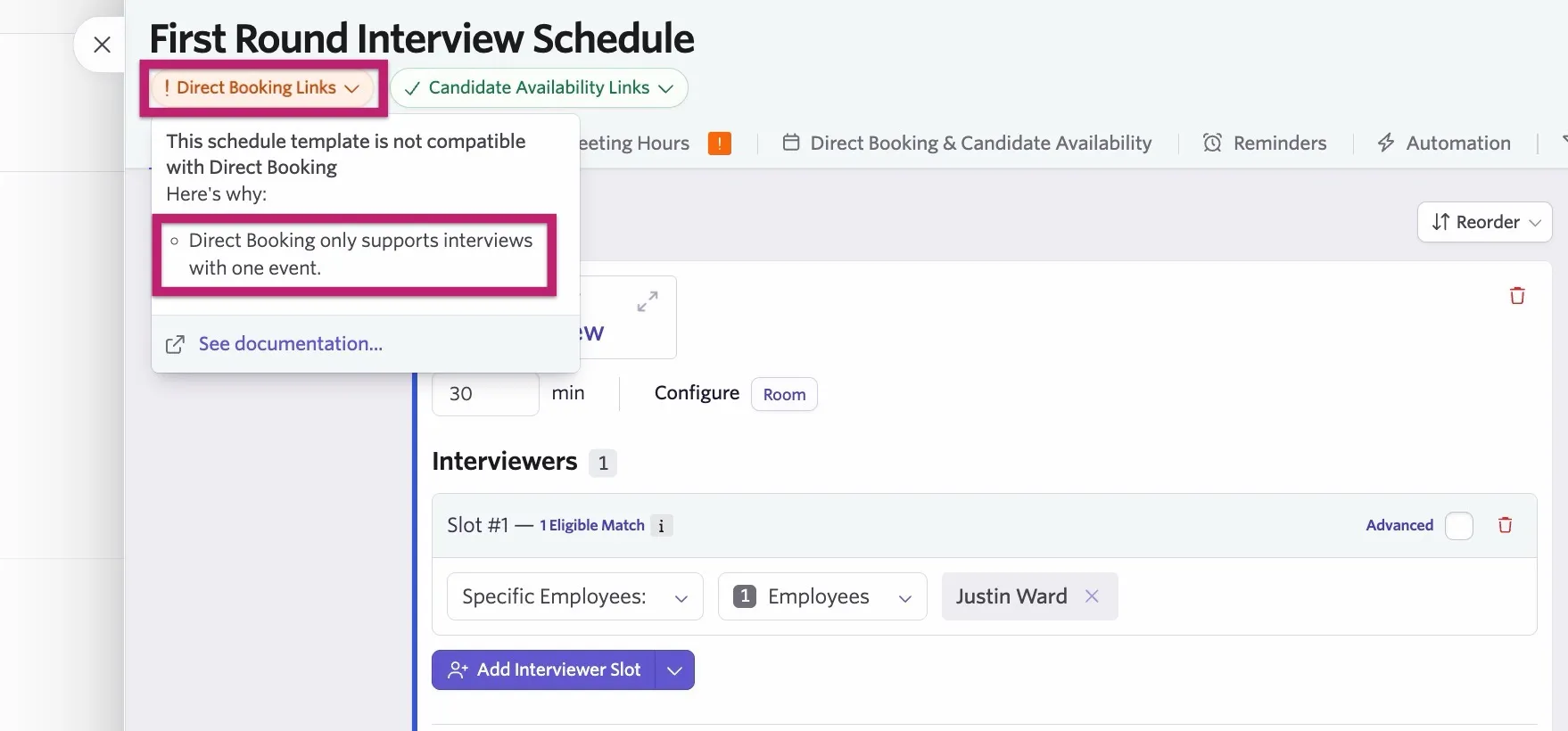
If you set up a schedule interview activity to include multiple interview events, you can no longer send out a direct booking link to the candidate.
This is because direct booking only supports interview activities with one interview event. As such, if you're booking an event with multiple events and want to find suitable slots, we recommend sending out candidate availability links so the candidate can add the time slots that are best for them.
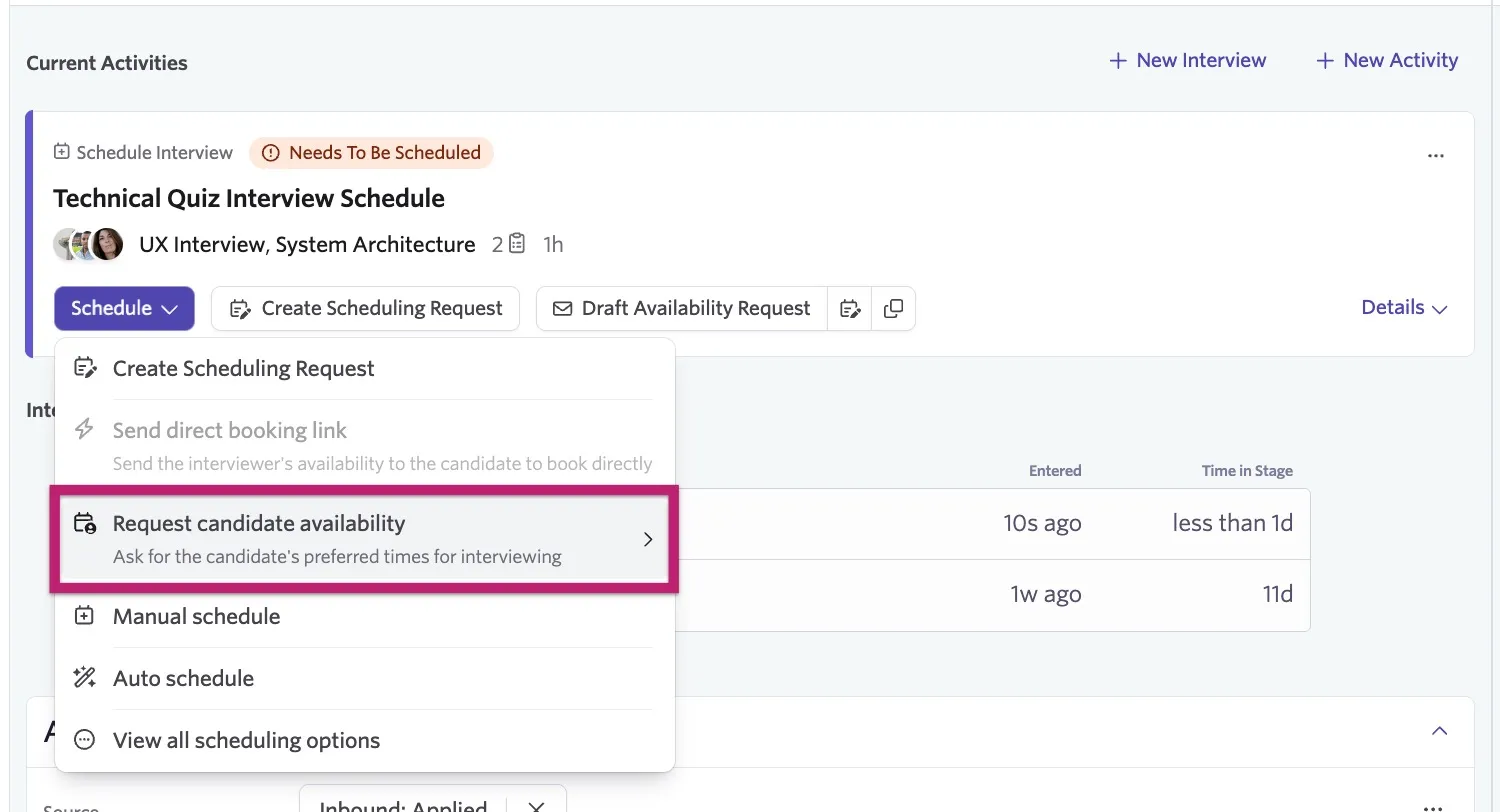
When you move a candidate to the stage with your configured interview activity with multiple interview events, you see the option to draft an availability request and to request candidate availability. Click either to create a candidate availability link to send to the candidate.
How does candidate availability work on the candidate's side?
When the candidate clicks the availability link, they're greeted with a landing page featuring your organization's job board logo and the avatar of the meeting organizer.
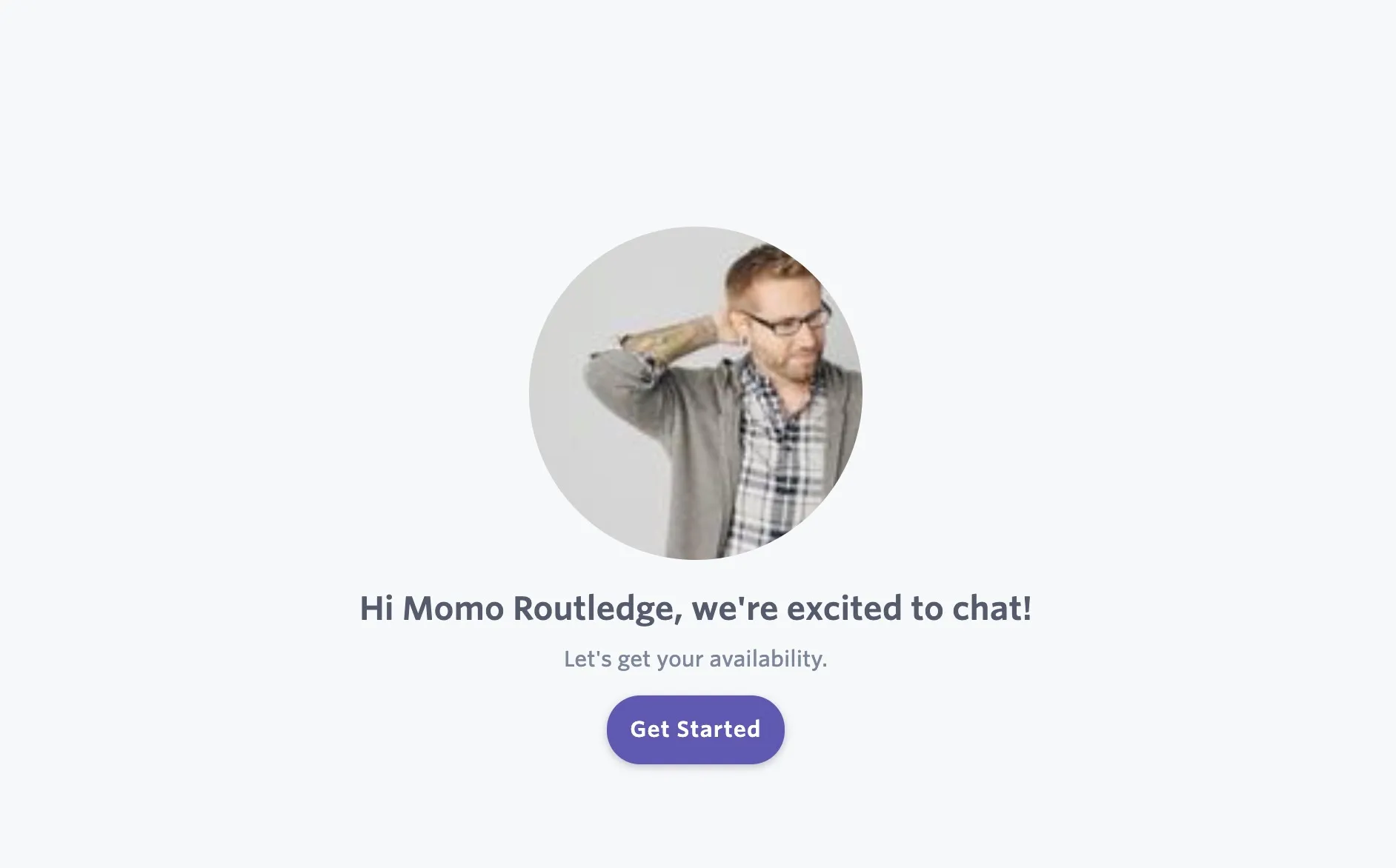
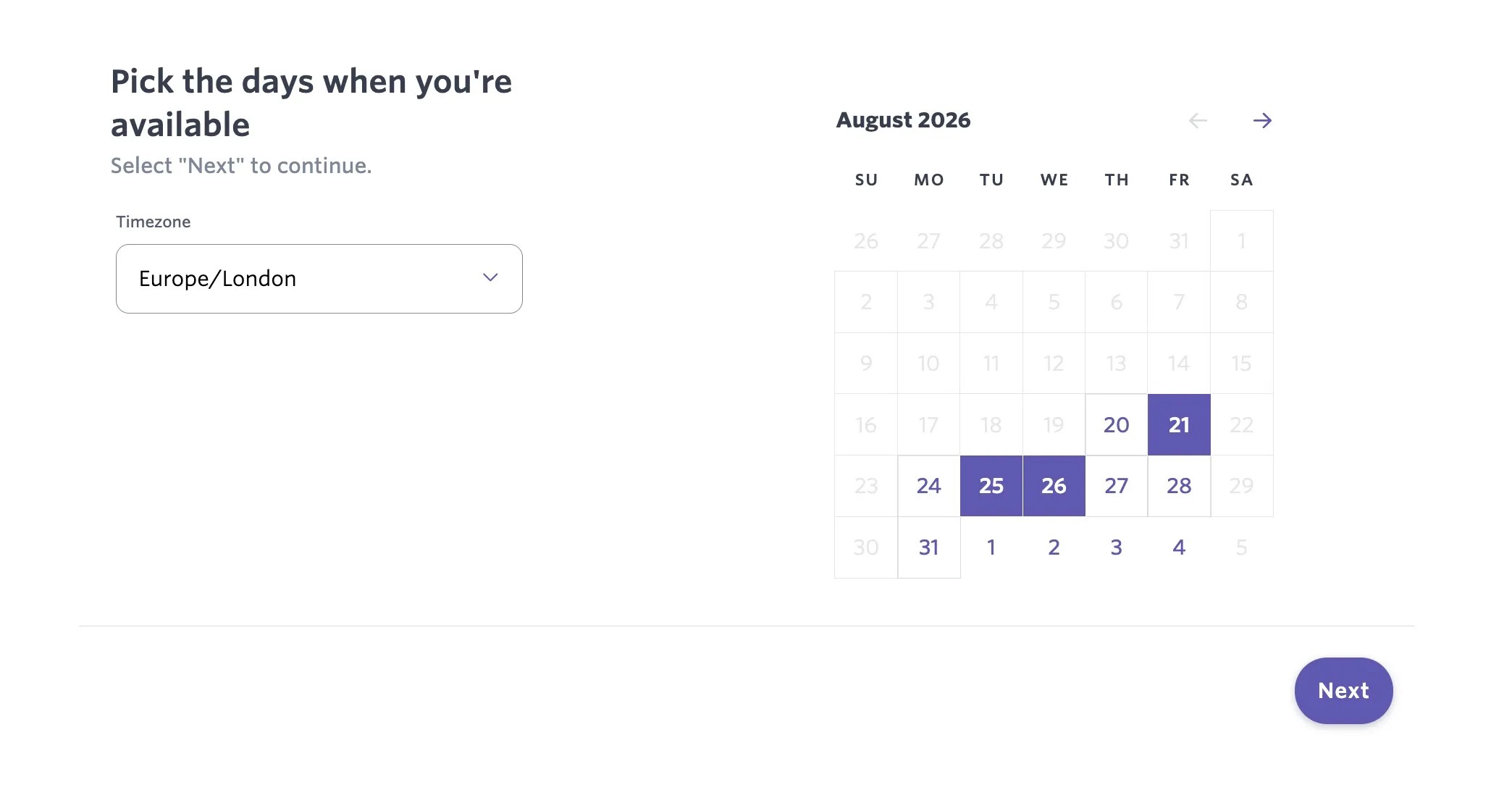
After clicking Get Started, the candidate sees a calendar that they can use to select the dates they are available for interview. Once the dates are selected, the candidate clicks Next.
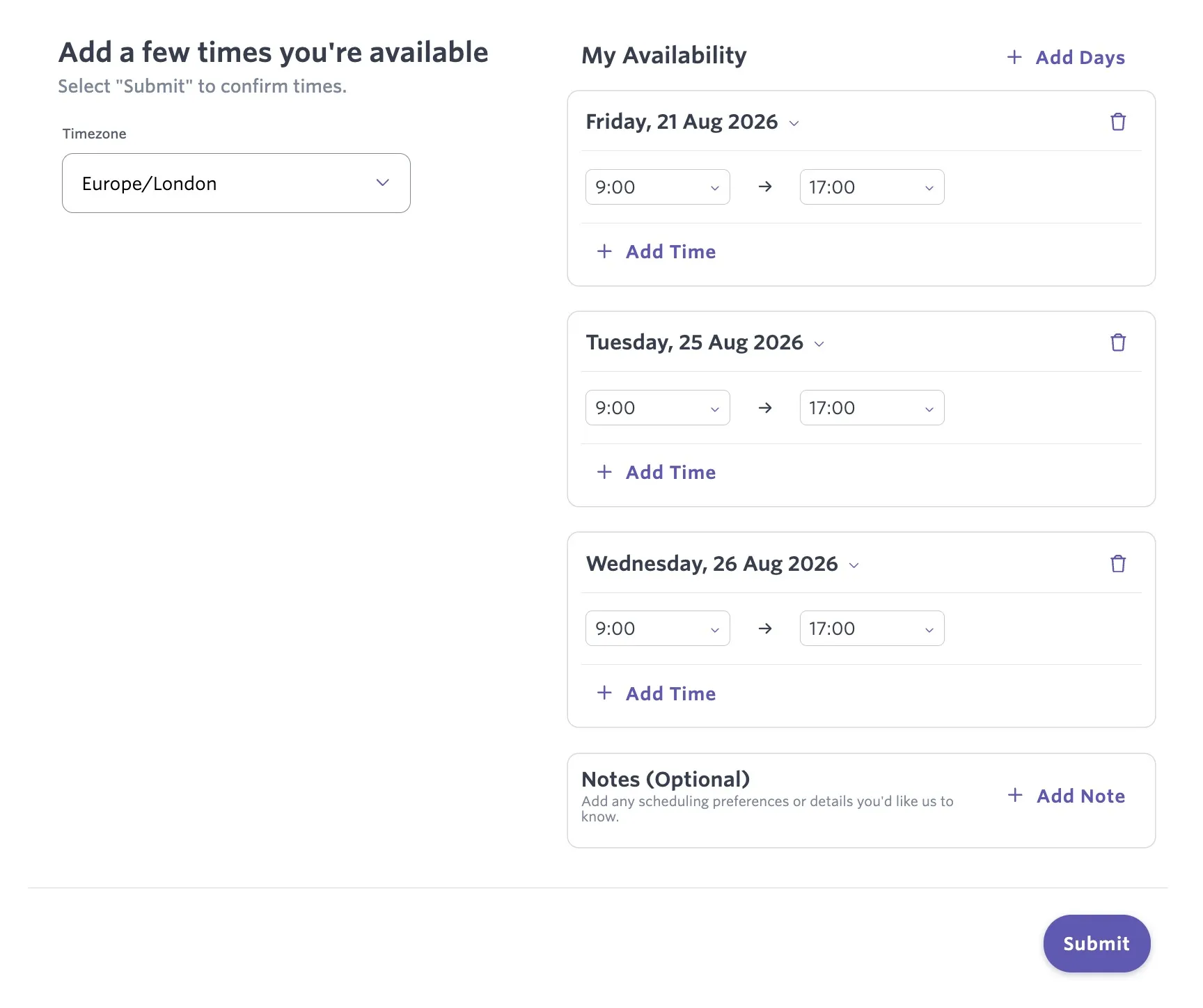
The following page asks the candidate to determine the times they are available on each of the dates they selected. The candidate also has the option to add a note on their availability.
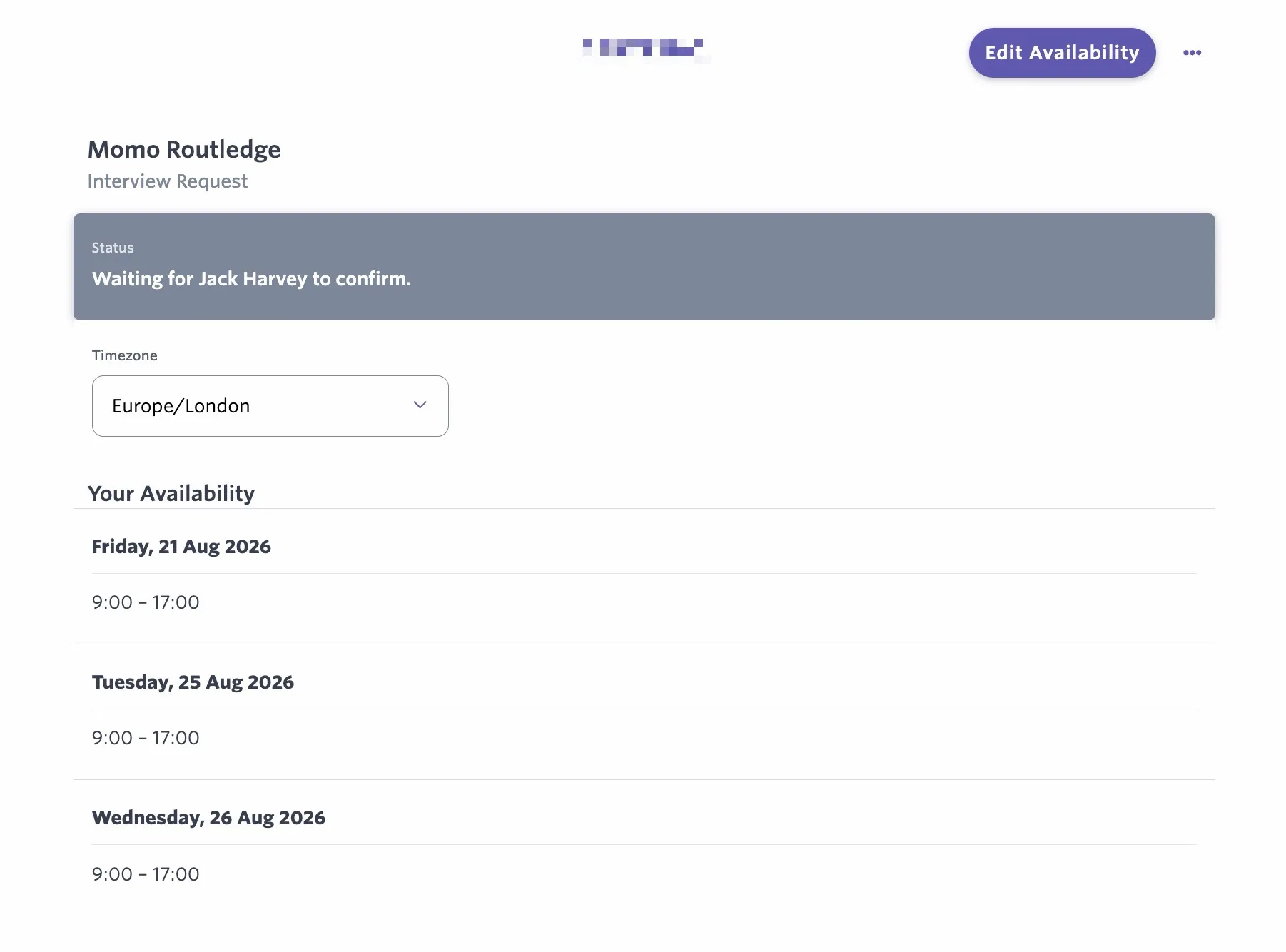
The candidate then clicks Submit to confirm their availability. They have the Edit Availability option on the confirmation page that they can use to make amendments.
Scheduling the interviews over multiple days
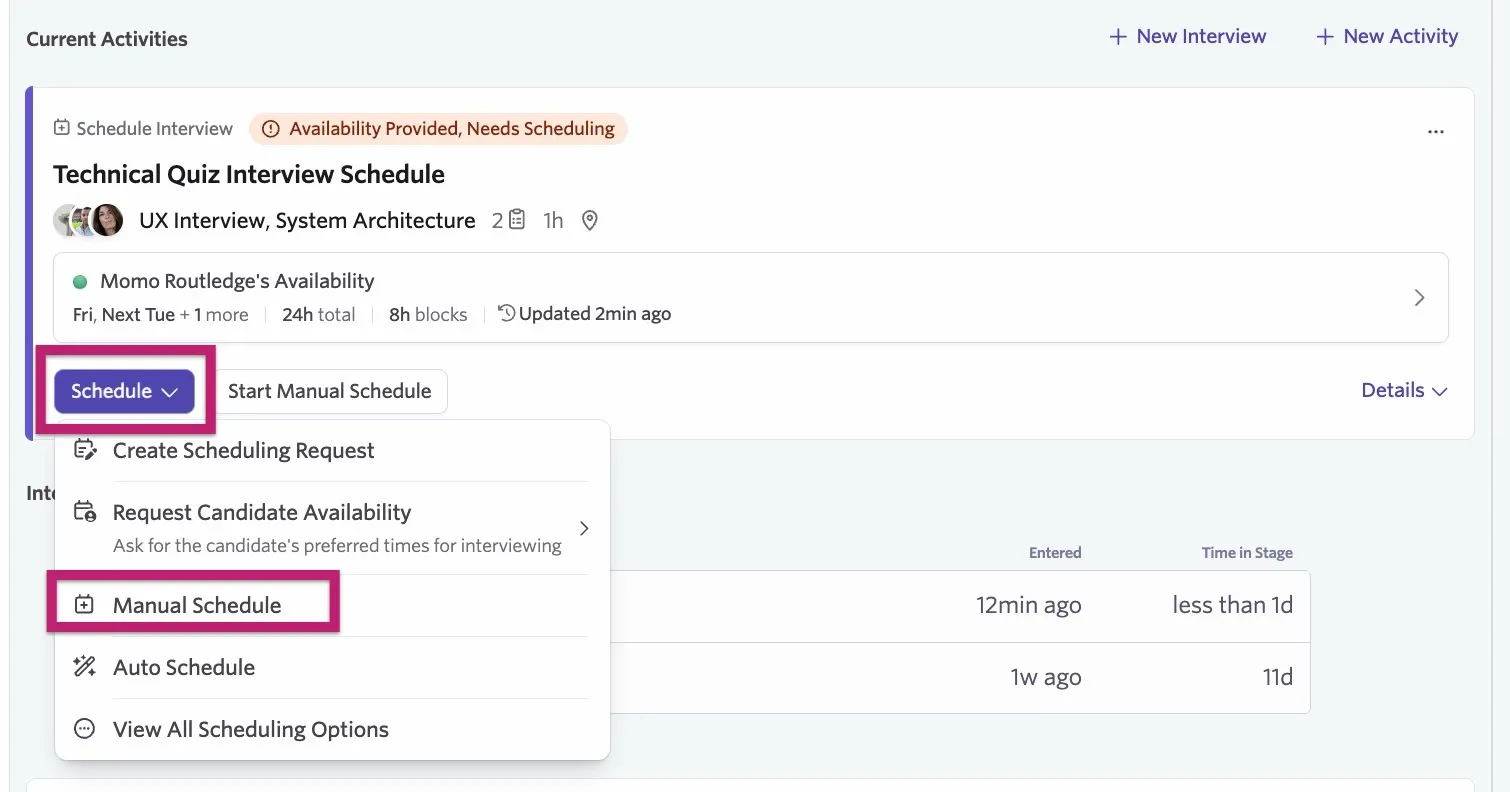
Once you receive the candidate's availability, or determine times that work via email, you can manually schedule the interview.
- Click Start Manual Schedule (or navigate to Schedule > Manual Schedule if the candidate didn't submit availability via a link) to schedule via the calendar interface.
- While selecting suitable slots on the calendar interface, check the Multi-Day Schedule checkbox. When you move to other days, the interviews are no longer automatically moved to those dates.
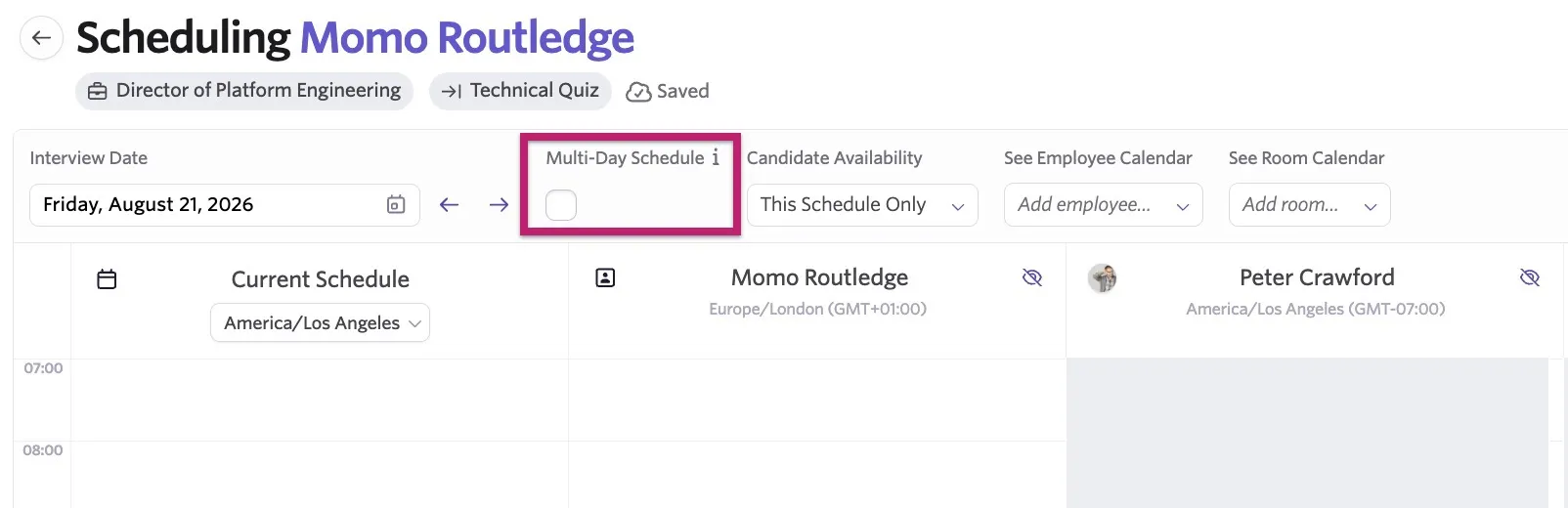
- Determine the dates for each event in the interview.
When you schedule multiple interviews, changing the date of one of the interviews also automatically enables multi-day scheduling.
Assigning a room to multiple interviews
If you have meeting rooms configured, use the Select Room for All dropdown above the interview event and interviewer details to select a room to use across all of the interview events. Ashby reviews the meeting rooms synced from Google Workspace or Microsoft 365 and shows the rooms with capacity and availability for all of the events first.
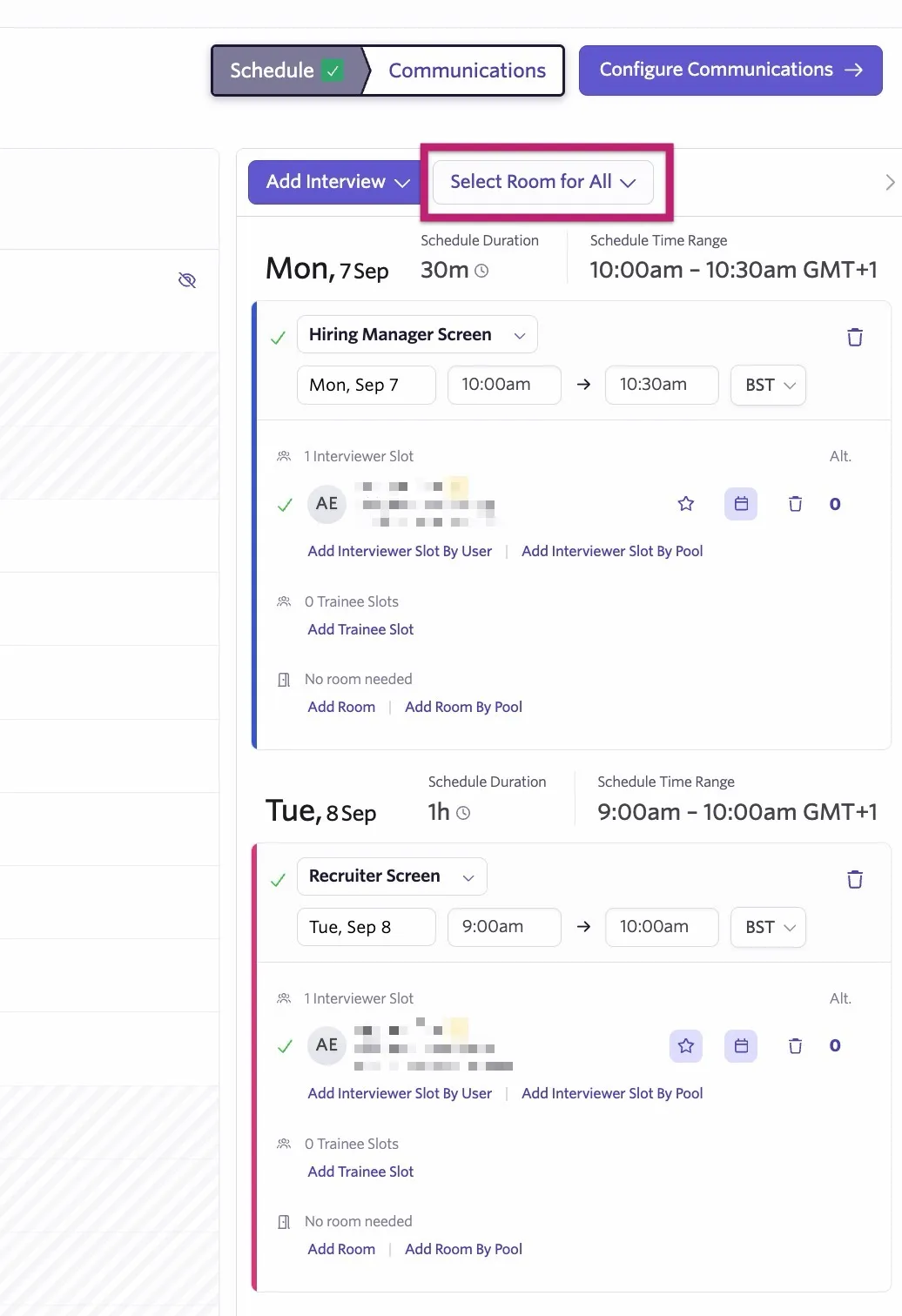
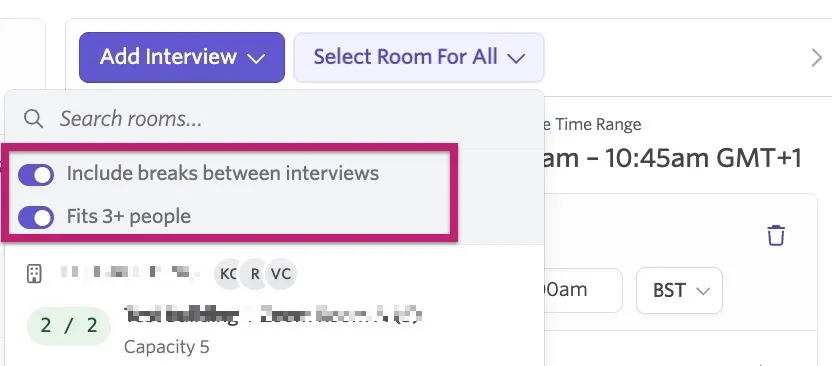
There are two toggles in the Select Room for All dropdown that you can switch on and off:
- Include breaks between interviews: Switch this on and Ashby will look for a room that is available from start to finish of all events across each day of a schedule, including any breaks in between. When a schedule spans multiple days, this will look for rooms that are available between the first and last event of each day accordingly. The room's availability will not be considered from the last event from one day to the first event of the next day on the schedule to ensure that the room is only booked when needed for the schedule.
- Fits X+ people: Displays only the meeting rooms with the appropriate capacity across all events.
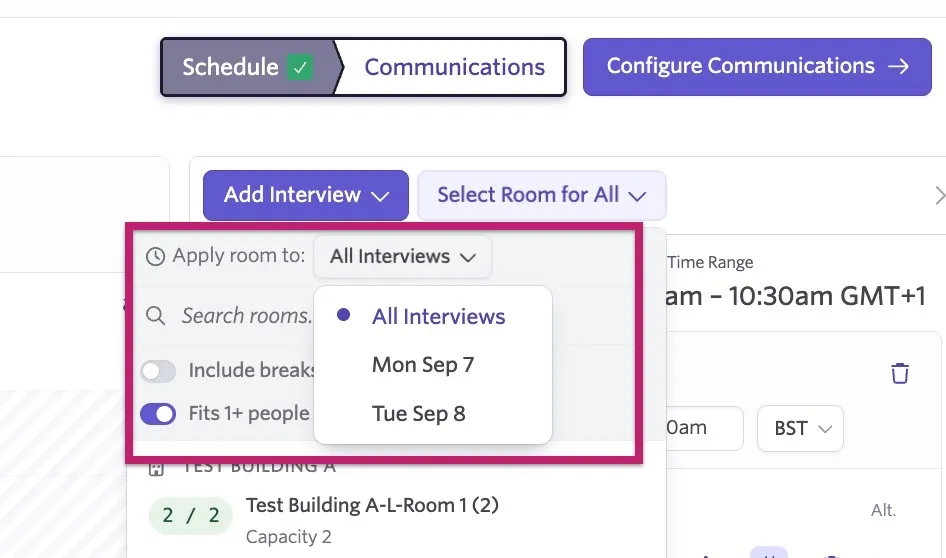
If you want to use one room for events on a specific date and another room for events on a different day, use the Apply to events dropdown to specify a room for each day.
Once your room is selected and the interviews are scheduled, the interview events block the meeting room calendar.
Calendar invites and reminder settings
In the Communications section of your scheduling process, you can configure your calendar invite and interview reminder settings for this interview.
Candidate calendar invites
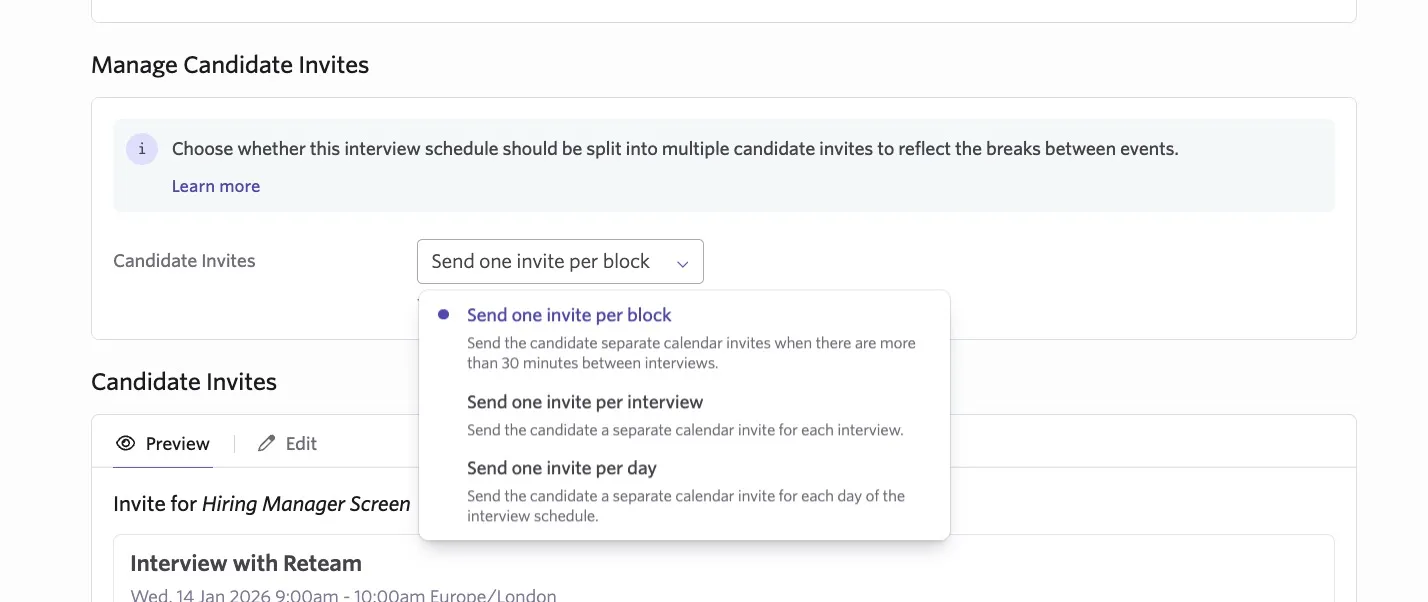
In the Manage Candidate Invites section, you can determine how Ashby sends the calendar invites. You can select from the following options:
Send one invite per block: The candidate receives a separate calendar invite for interview events that are more than 30 minutes apart. If they have two interview events with a 15-minute break between the two, they receive one calendar invite. If they have two interview events with a one-hour break in between, they receive two calendar invites.
Send one invite per interview: The candidate receives a separate calendar invite for each interview event, regardless of how far apart they are.
Send one invite per day: The candidate receives a calendar event per day they have interview events. So if they have one interview event on Monday, then the other two on Tuesday, they receive two calendar invites. If they have one interview event on Monday, one on Tuesday, and one on Wednesday, they receive three calendar invites.
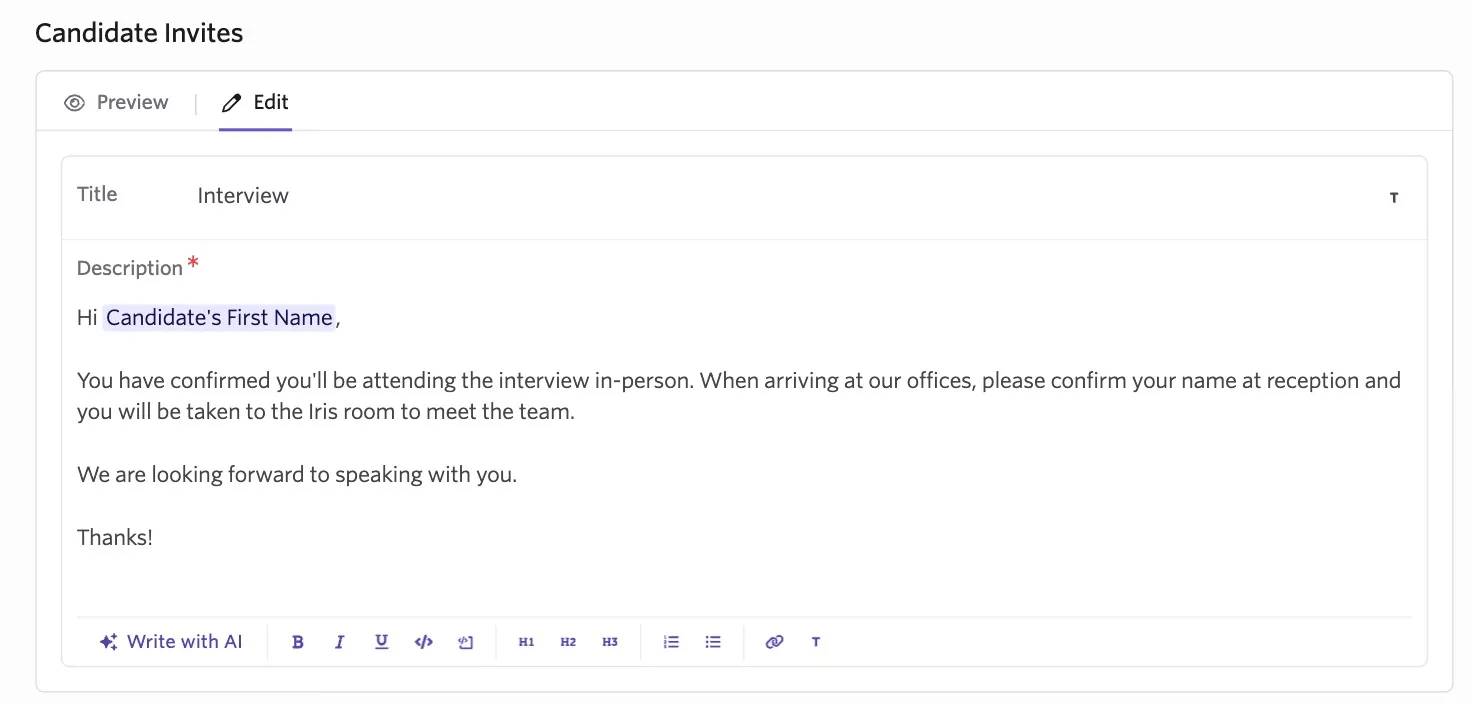
You can also click Edit on each interview calendar invite to update the calendar invite title and description per invite, so if you have specific information relevant to only one interview event, you can add it only to the relevant invite.
Interviewer invites
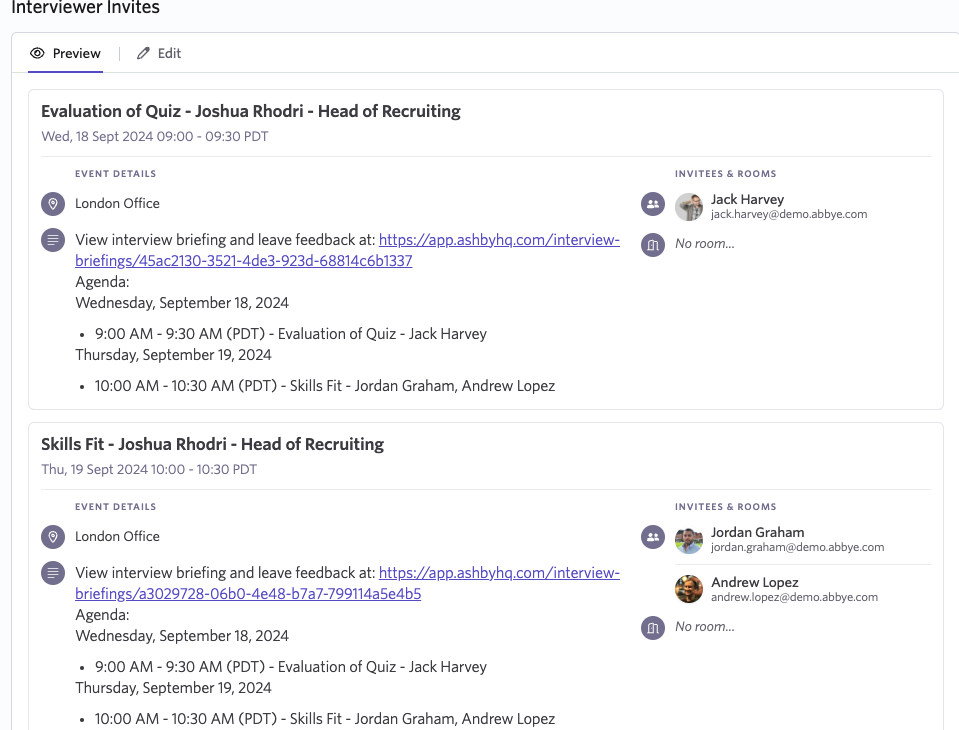
Interviewers receive a calendar invite for only the interview events they are on the panel for.
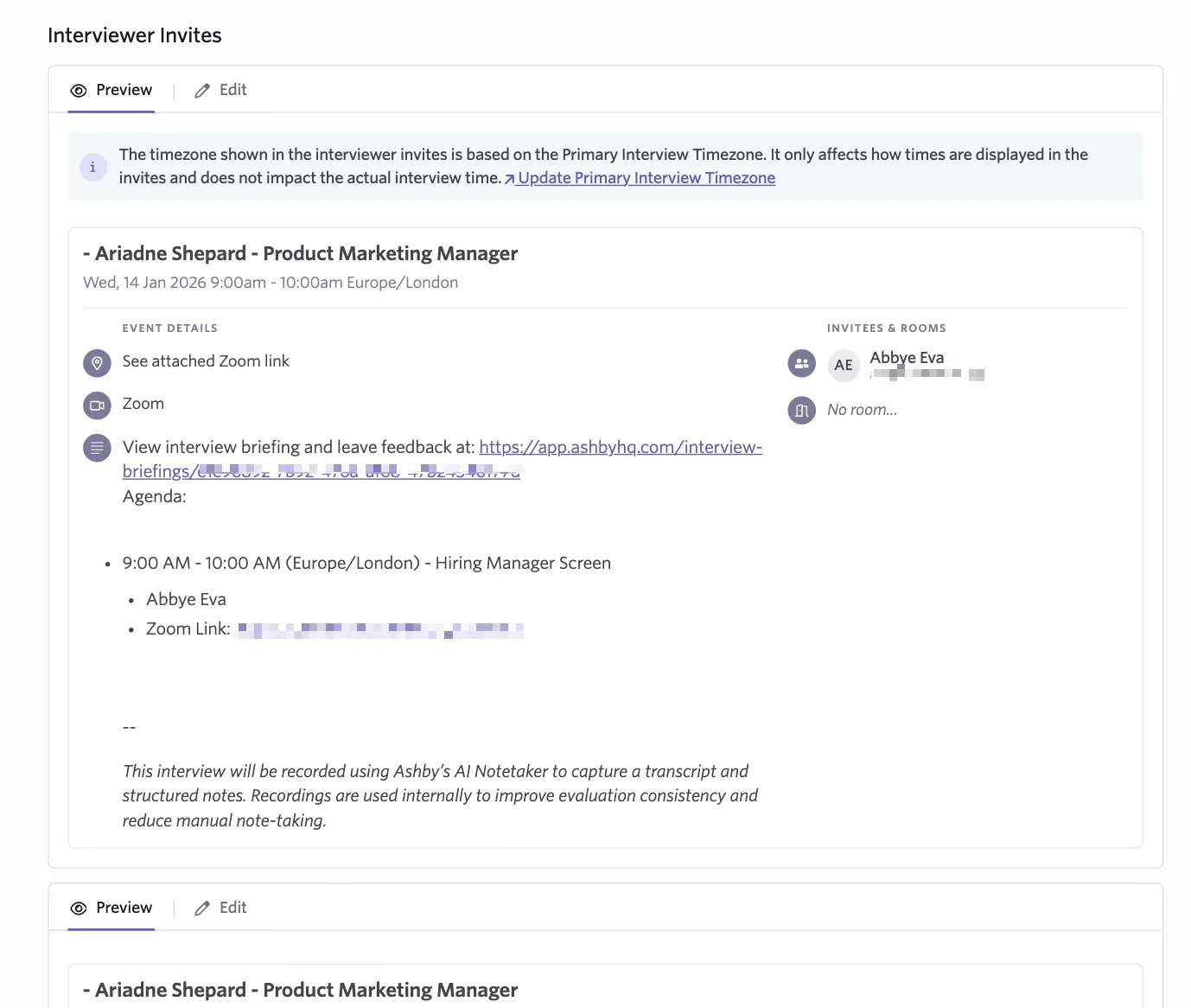
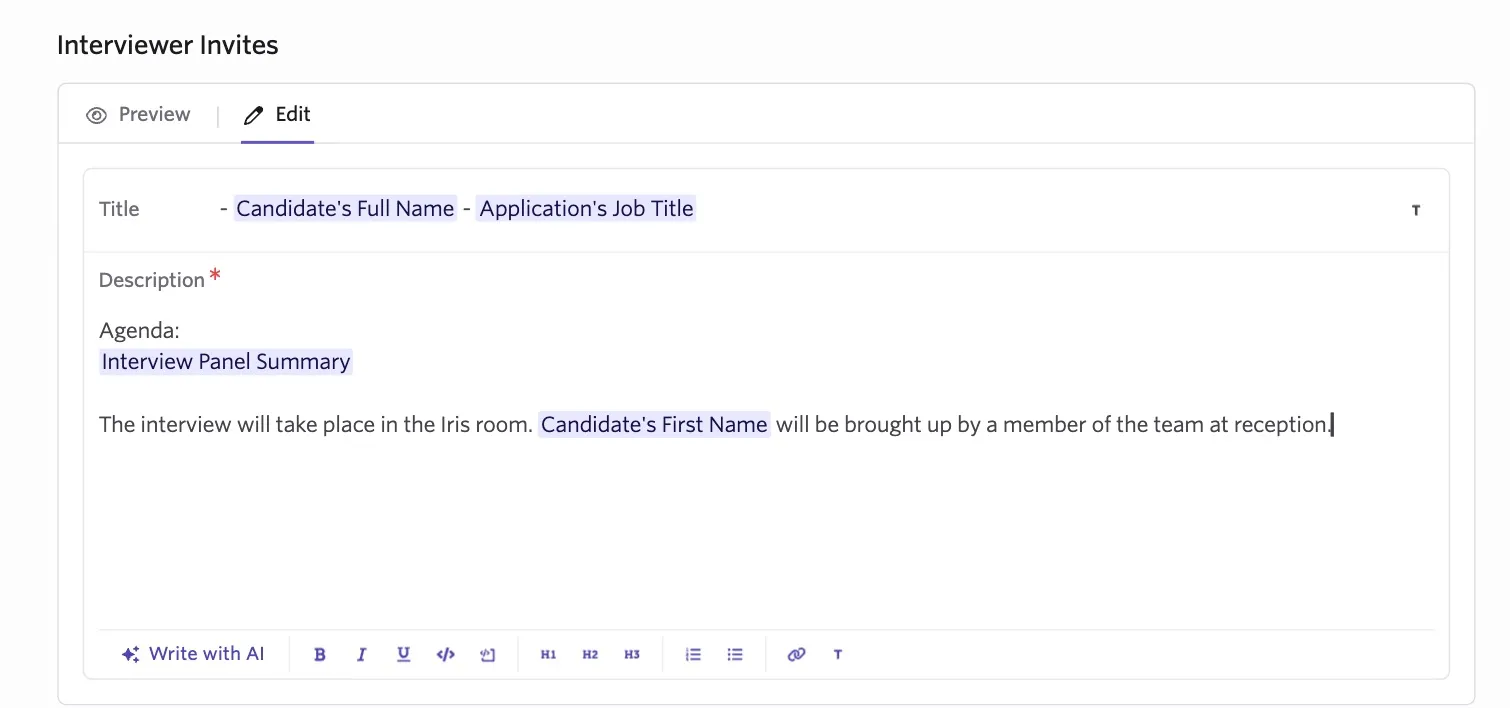
As with candidate calendar invites, you can click Edit to add specific information to the title and/or description of each calendar invite. This is helpful if you have interview-event specific information that isn't relevant across all interview events being scheduled.
Invite settings
Within the Invite Settings section, you can confirm the calendar you want to schedule the interview to and determine whether the calendar invite should be set to private (so details are hidden from non-attendees).
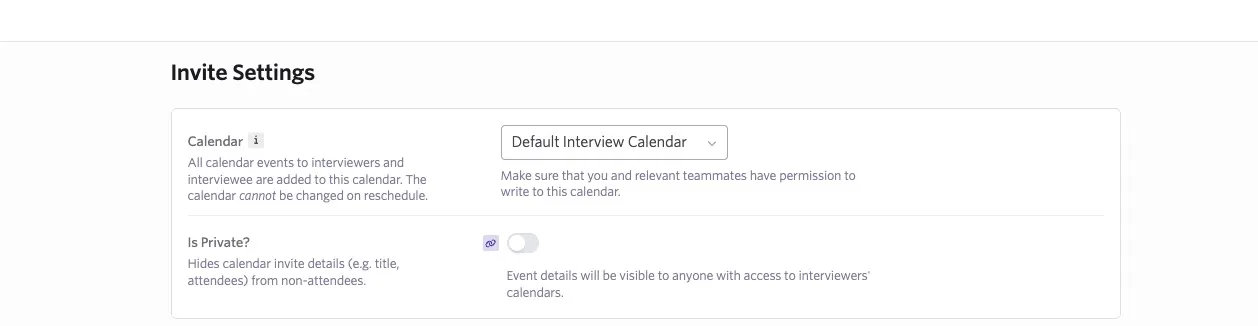
You can also confirm the interview's location type (for more on video conferencing, check out Conferencing links below).
Finally, if you have the CoderPad, CodeSignal Interview, or HackerRank integrations in place, you can also specify which events (if any) should use the integration. Ashby generates a unique assessment link for each event that the integration is enabled for and automatically includes it in both candidate and interviewer invites.
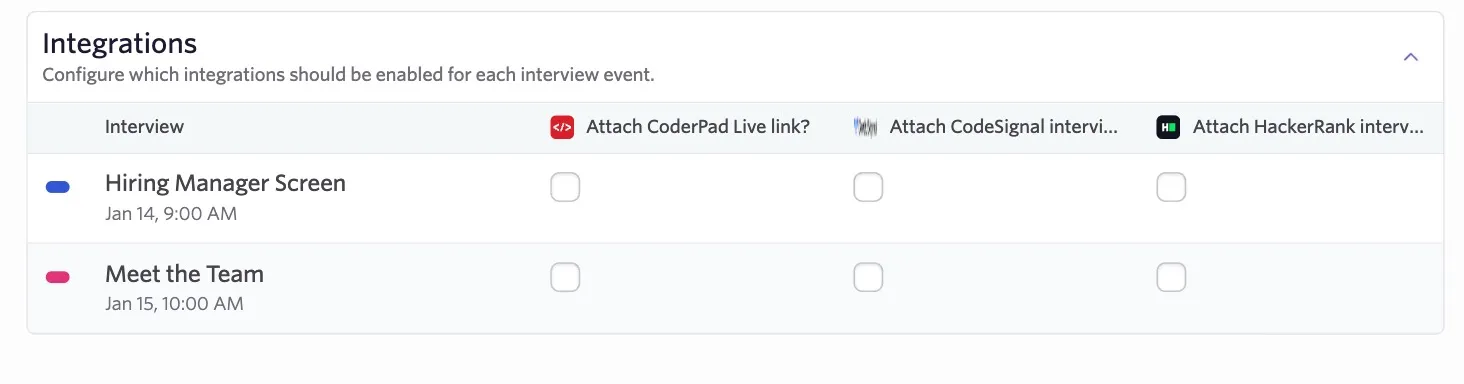
For more on each integration, check out the guides below:
HackerRankHackerRank
CodeSignalCodeSignal
CoderPad InterviewCoderPad Interview
Conferencing links
Ashby generates a unique conferencing link for each calendar invite if you set Zoom, Microsoft Teams, or Google Meet as the location for the interview events. The interviewer invite's conferencing link matches that of its corresponding external candidate calendar invite.
When you reschedule an invite, Ashby uses existing meeting links if at all possible.
- If Ashby creates a new external invite because you rescheduled an interview event, it generates a new meeting link.
- If Ashby deletes an external invite because you rescheduled an interview, it updates the corresponding interviewer invite's meeting link to match its new corresponding external invite's conferencing link.
Interview Panel Summary substitution token
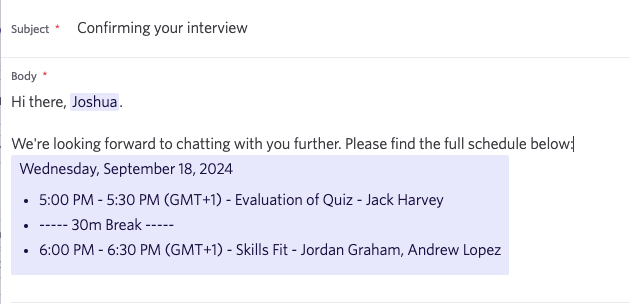
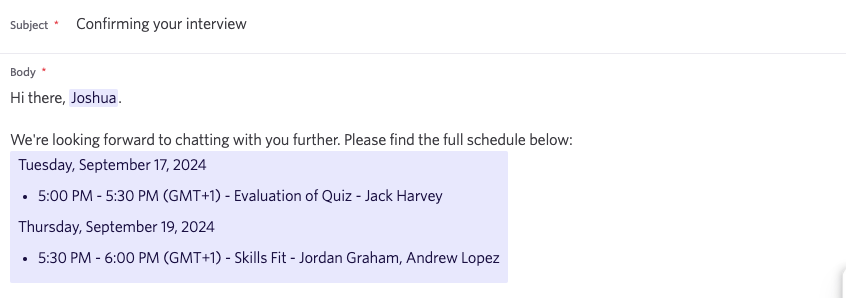
The "Interview Panel Summary" substitution token resolves as a bulleted list of interview events that includes the time, event title, and interviewers.
When you use this token in emails with multi-day scheduling
- If the full interview schedule spans a single day, the token resolves as a bulleted list with date, time, event title, and interviewer details. Any breaks are listed.
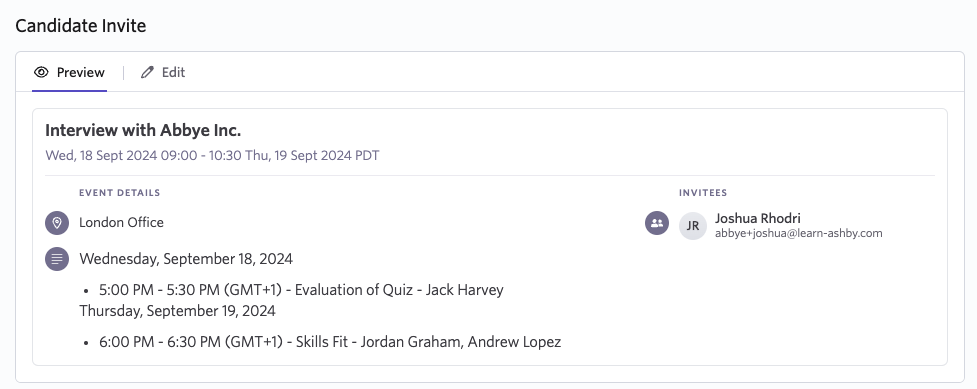
- If the schedule spans multiple days, Ashby includes the day followed by a bulleted list of the events occurring on that day.
When you use this token in calendar invites with multi-day scheduling
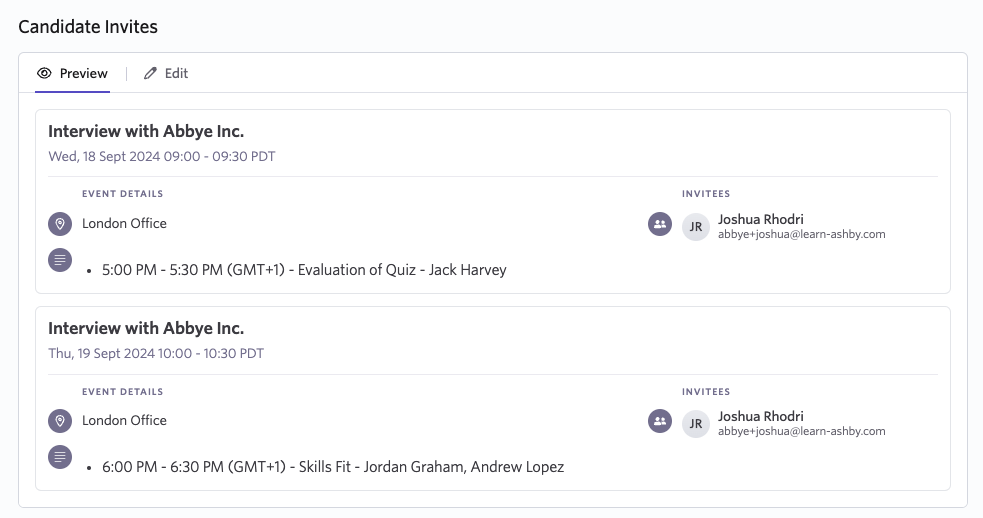
Instead of displaying all events in the schedule, the token only displays the events included in the corresponding candidate invite.
- Candidate invites with interviews spanning multiple days (with the candidate receiving a single calendar invite for each event).
- Candidate invites with interviews spanning multiple days (with the candidate receiving one calendar invite for all interview events).
- Interviewer invites - each interviewer gets an invite for the day their interview is scheduled.