How do I hand Ashby over to a new admin?
If you’re handing Organization Admin responsibilities over to another user, this guide will help you identify some key areas in Ashby to update prior to leaving the organization.
Amending user permissions
Please note that only Organization Admins are able to adjust user permissions. Organization Admins are not able to adjust their own permissions.
To set a new user as an Organization Admin, navigate to Admin > Organization Setup > Employees and select the new admin user from the list. Navigate to the Permissions tab and set the user’s global access role to Organization Admin.
You can also opt to give the user billing, DEI survey, candidate texting, hiring manager experience survey and confidential jobs and projects access within the Global Access section.
If the user had Elevated Access previously, please ensure all access roles to jobs, locations and departments are removed so they have full Organization Admin access.
Integration Settings
Integrations
If you have configured integrations within Ashby and will be removed as an admin from the integrated platforms, please ensure that admin access to integration partner accounts is passed over to the appropriate users.
For integrations where an admin activates the integration by logging into their account (like Zoom), we would recommend setting up a department or service admin account for the integration, rather than having an admin user account used to configure the integration.
If the integration was enabled via an admin user’s account, ensure that either a department account, or an active admin user on the Zoom account deactivates and reactivates the integration within Ashby to avoid any errors or issues moving forward. Deactivating and reactivating the Zoom integration will not impact Zoom links for existing interviews.
Google Workspace
If the admin leaving is also a super admin in Google Workspace, navigate to the Google Workspace integrations tile within Integrations Marketplace. If the email listed in the Primary Google Workspace Admin field is that of the admin leaving the company or handing over access, switch this email out to another super admin user’s email to ensure the integration continues to work as expected.
Microsoft 365
Generally, Microsoft 365 tenant-wide admin consent grants access to the application itself. As such, the integration shouldn’t need re-authentication unless access is revoked.
Auto-Reject rules and automation
If the admin user has set up auto-reject automation across job postings, these will need to be assigned to another user to avoid errors when the admin user account is deactivated. Even if the sender email address is set as an alias, an authenticated user will still be required to send the email.
To transfer auto-reject rule ownership, please reach out to [email protected] for assistance.
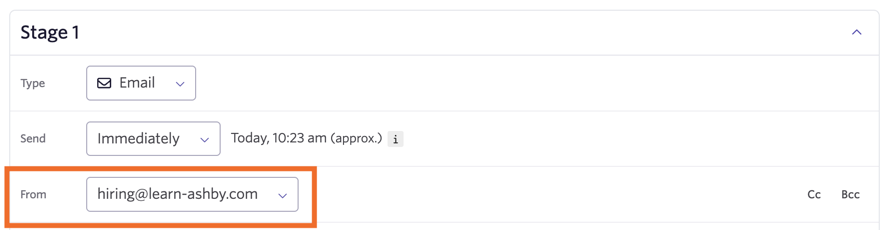
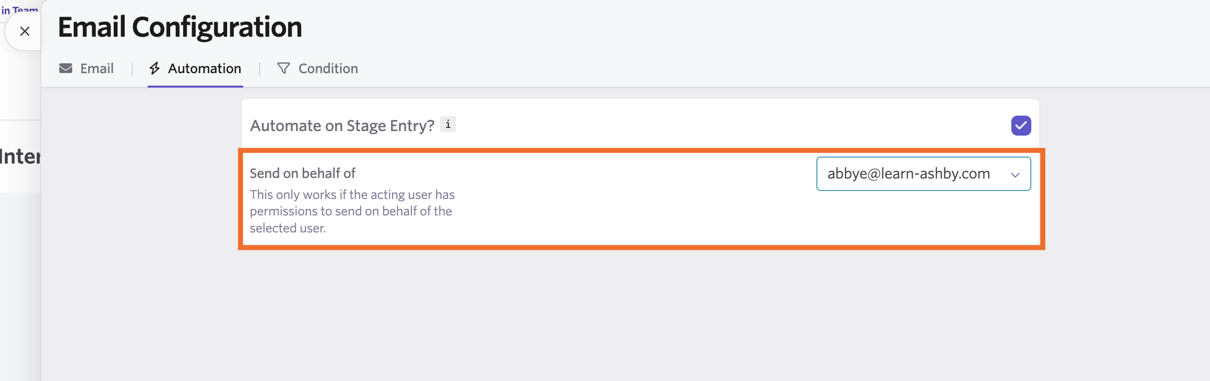
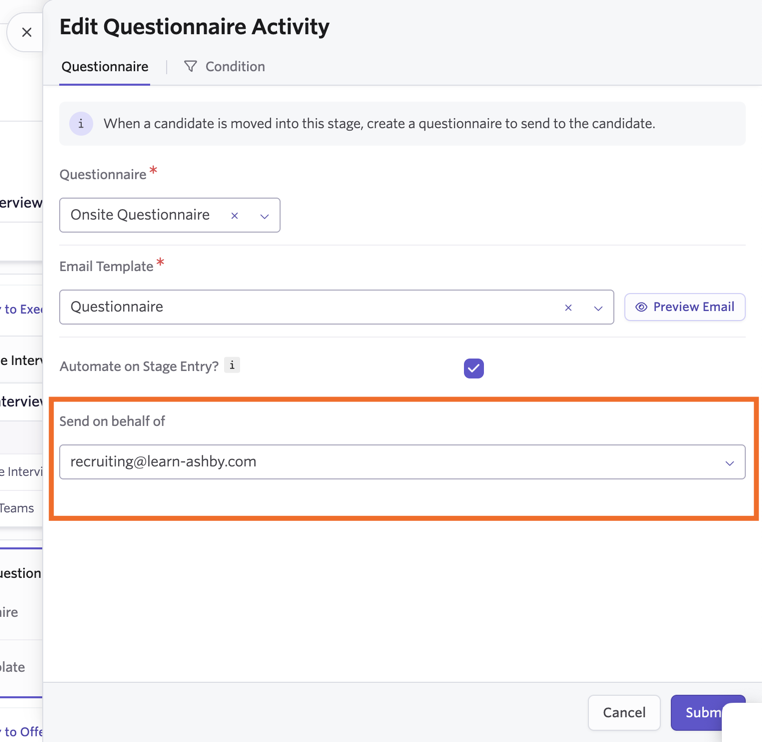
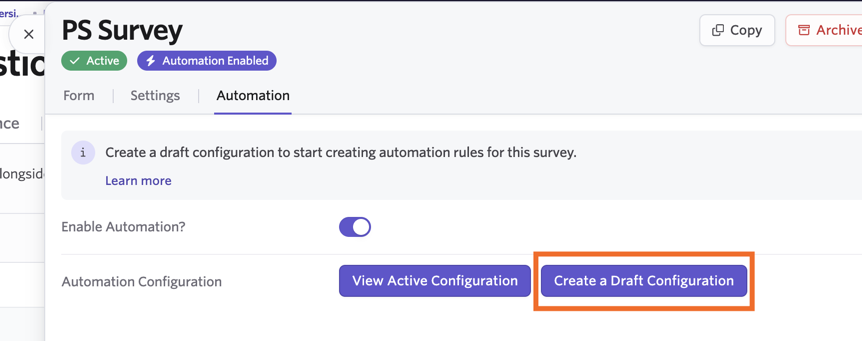
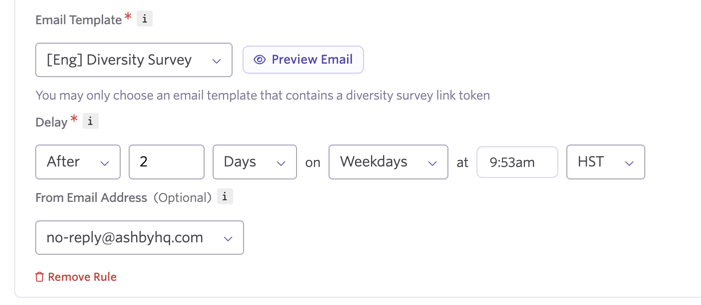
Please check over any sequences or email activities and ensure that the admin user’s email isn’t set as the sender email for any email automation. This includes survey automation rules. Switching the sender email to another user will ensure that automations will continue to run smoothly.
Reschedule any interviews involving the admin user
If the admin user is on any future interview panels for any jobs, reschedule the interviews in Ashby to assign a different interviewer in their place. If you have schedule interview activities in place, adjust the interviewers listed within the activity to avoid any errors moving forward. You can read more on configuring schedule interview activities at Setting up Schedule Interview ActivitiesSetting up Schedule Interview Activities and more on rescheduling interviews to change interviewers herehere.
If any future interviews have been scheduled to the admin’s personal calendar (versus a shared calendar, more on this at What is a shared calendar?What is a shared calendar?), then we would recommend cancelling and then scheduling the interview again.
Updating and communicating the new points of contact
To update points of contact, navigate to Admin > Organization Setup > Points of Contact. You can then update key contacts there as needed.
Terminating a previous admin after handover is complete
Please note that only Organization Admins are able to deactivate or terminate users.
Once you’ve determined that the previous admin no longer needs access to Ashby, navigate to their employee profile in Admin > Organization Setup > Employees, then click Actions. You’ll then have the option to deactivate or terminate the user.
Deactivating an account means the user loses access to Ashby and terminating an account means the user loses access to Ashby but all of their access roles are also removed from their profile. We recommend terminating the user account if they will never need access to the Ashby account again.