Hirevire
This guide will walk you through integrating your Hirevire account with Ashby, allowing you to send assessments in your interview plans.
Integration Overview
You can add Hirevire screening video questions as well as an assessment at the screening stage. Candidates receive an invite to an interview on Hirevire. Once the interview is complete, the responses are shown as a link in the activity details of the task inside Ashby. Ashby users can use this link to view the candidate's screening responses.
Connect Hirevire with Ashby
Log into your Hirevire account. Then go to My Account > Integrations and in the API Keys section, click on the Generate New button to generate an API key. Copy this key to paste into Ashby.
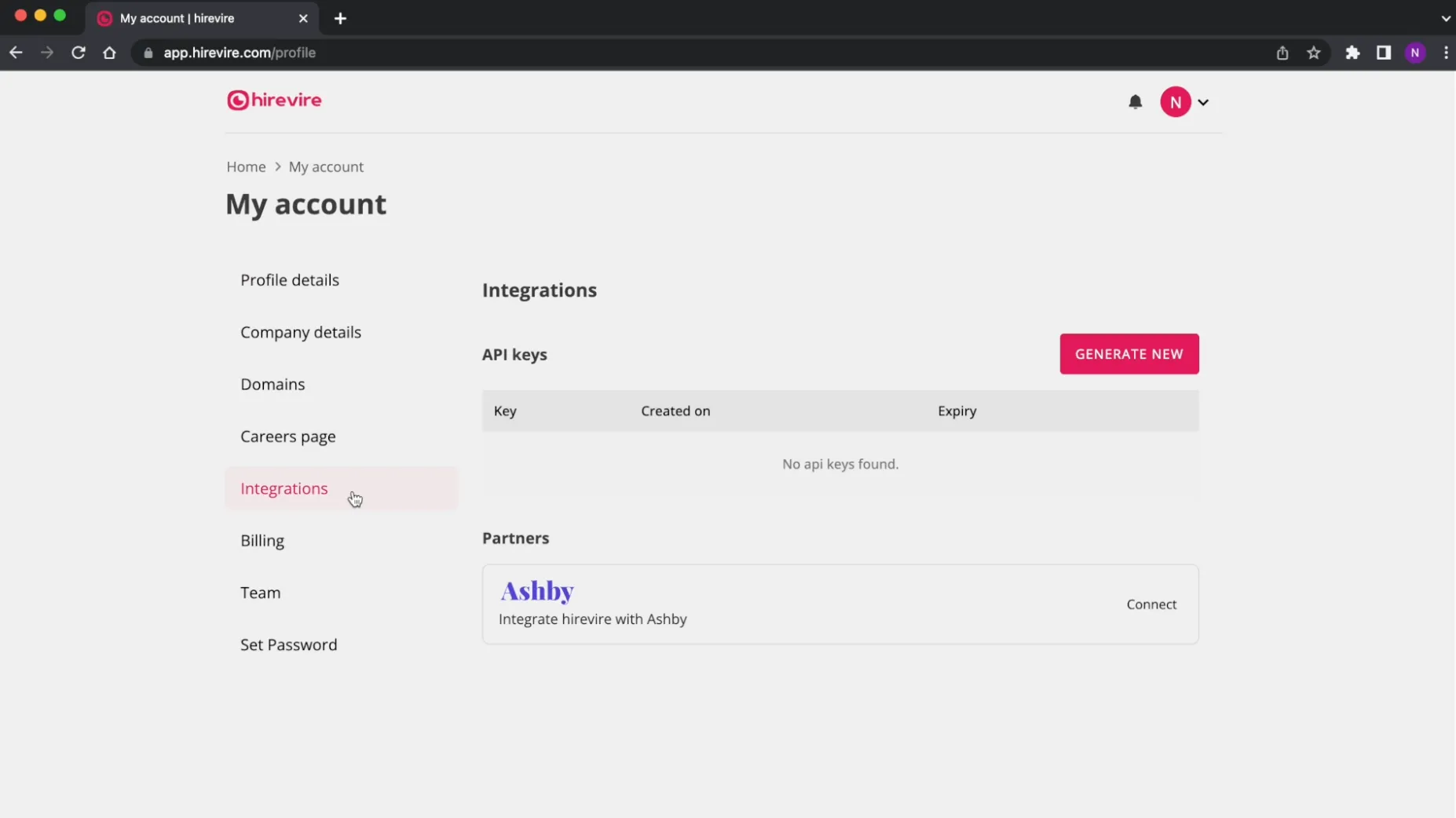
Ashby Setup
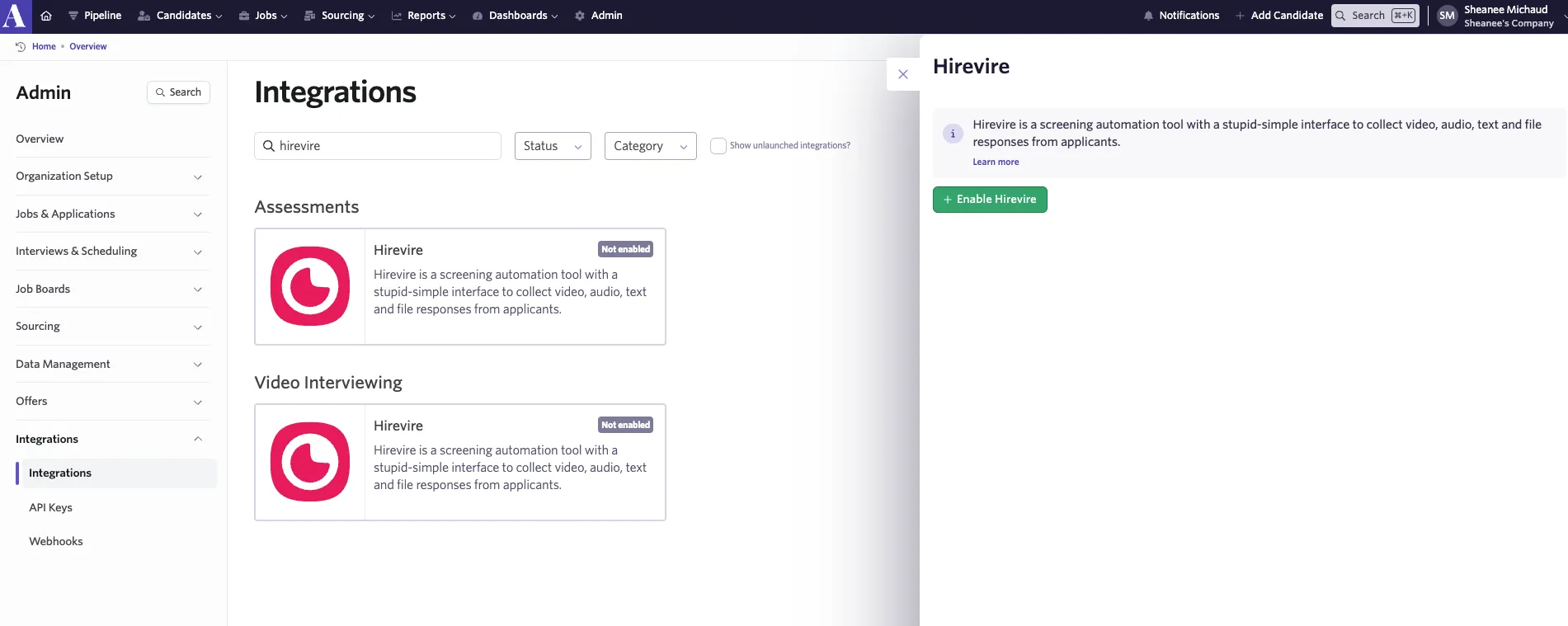
Navigate to Ashby and go to Admin > Integrations > Hirevire. Then tap on the Enable Hirevire button.
Paste the Hirevire API key that you copied from your Hirevire account into the “Hirevire API Key” section in the Ashby app.
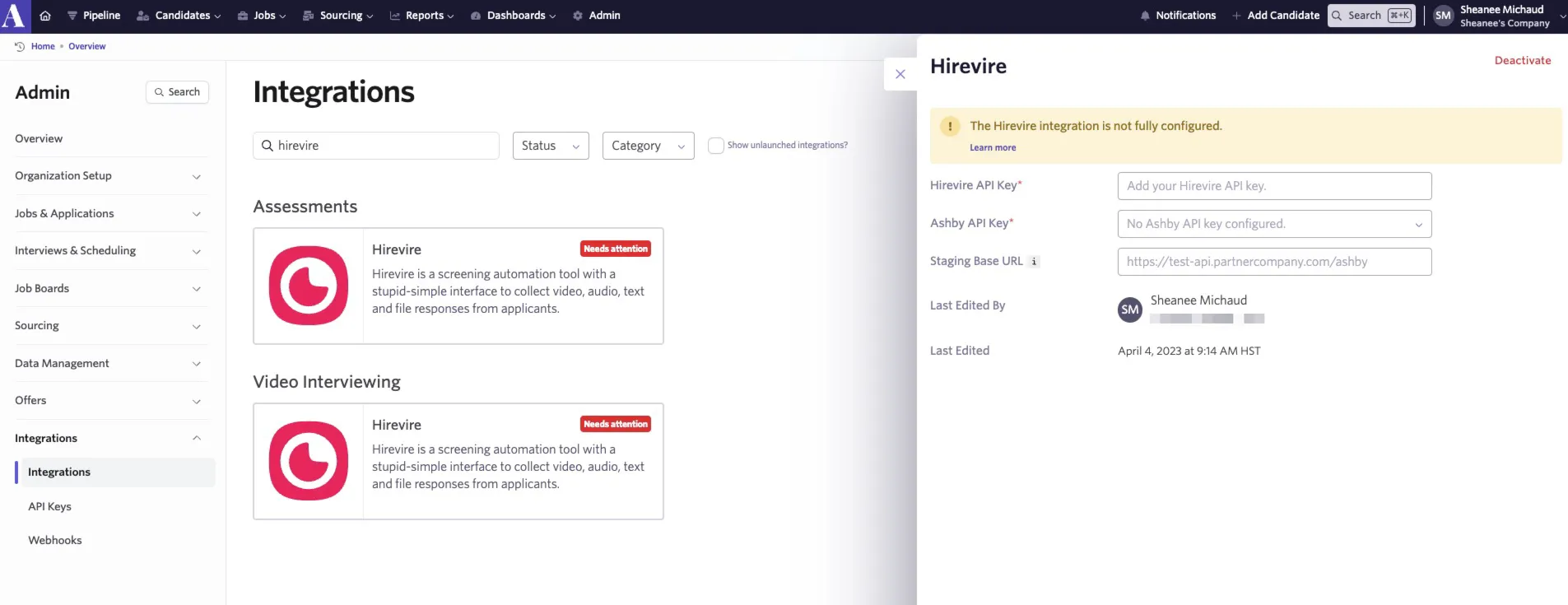
Select “Ashby API Key” and create a new API key. You won’t need to copy the Ashby API Key. If you have already created an API key in Ashby, you can select it from the Ashby API Key dropdown. If using an existing key, please ensure your Ashby API key has Write access to the Candidates set of endpoints, as this contains the assessment.update endpoint, which will be used to send data back to Ashby about the assessment.
You can add Hirevire assessments in these areas:
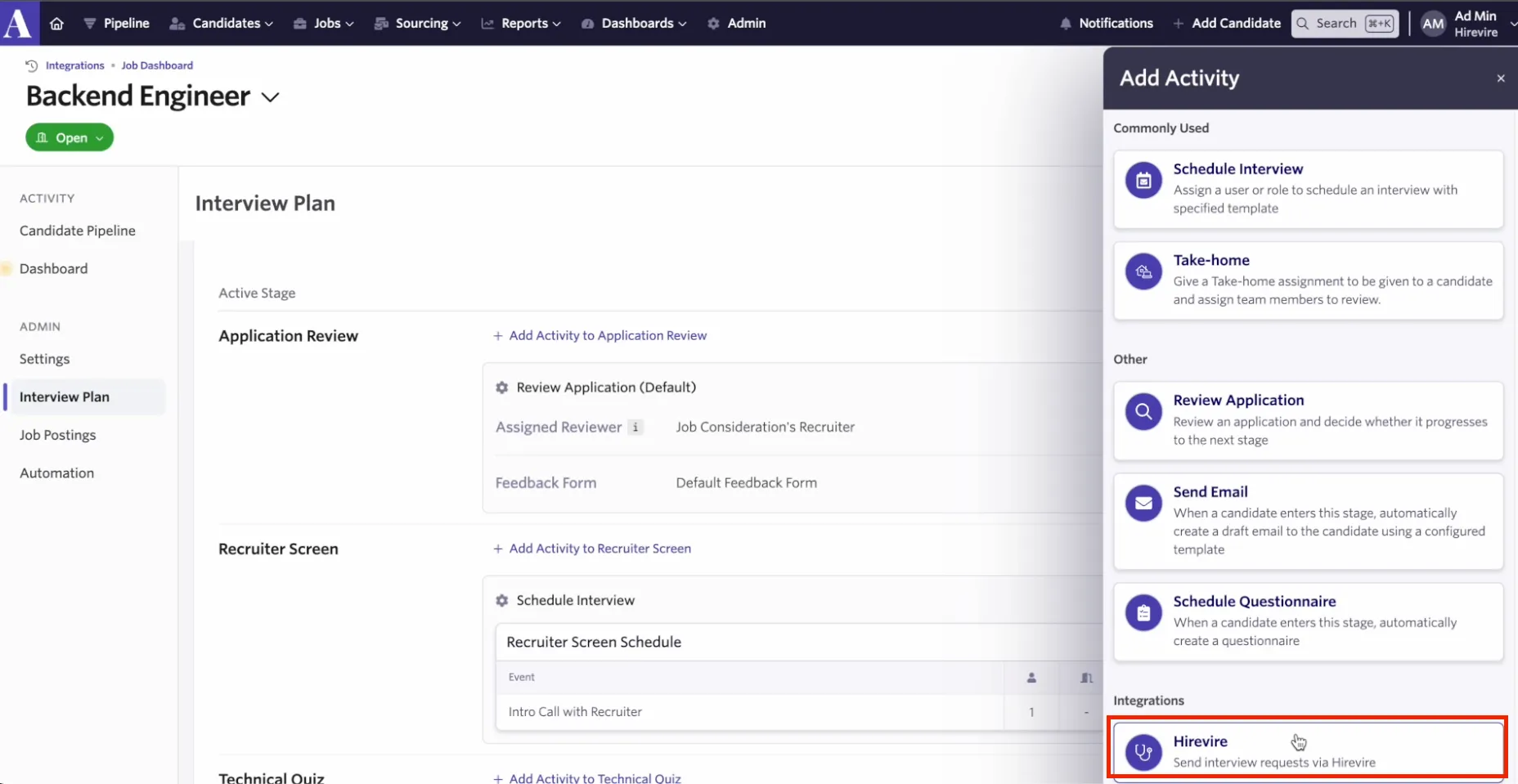
- As an interview plan activity: After selecting the assessment activity from Hirevire, this will create an Hirevire assessment activity after a candidate is moved into the stage.
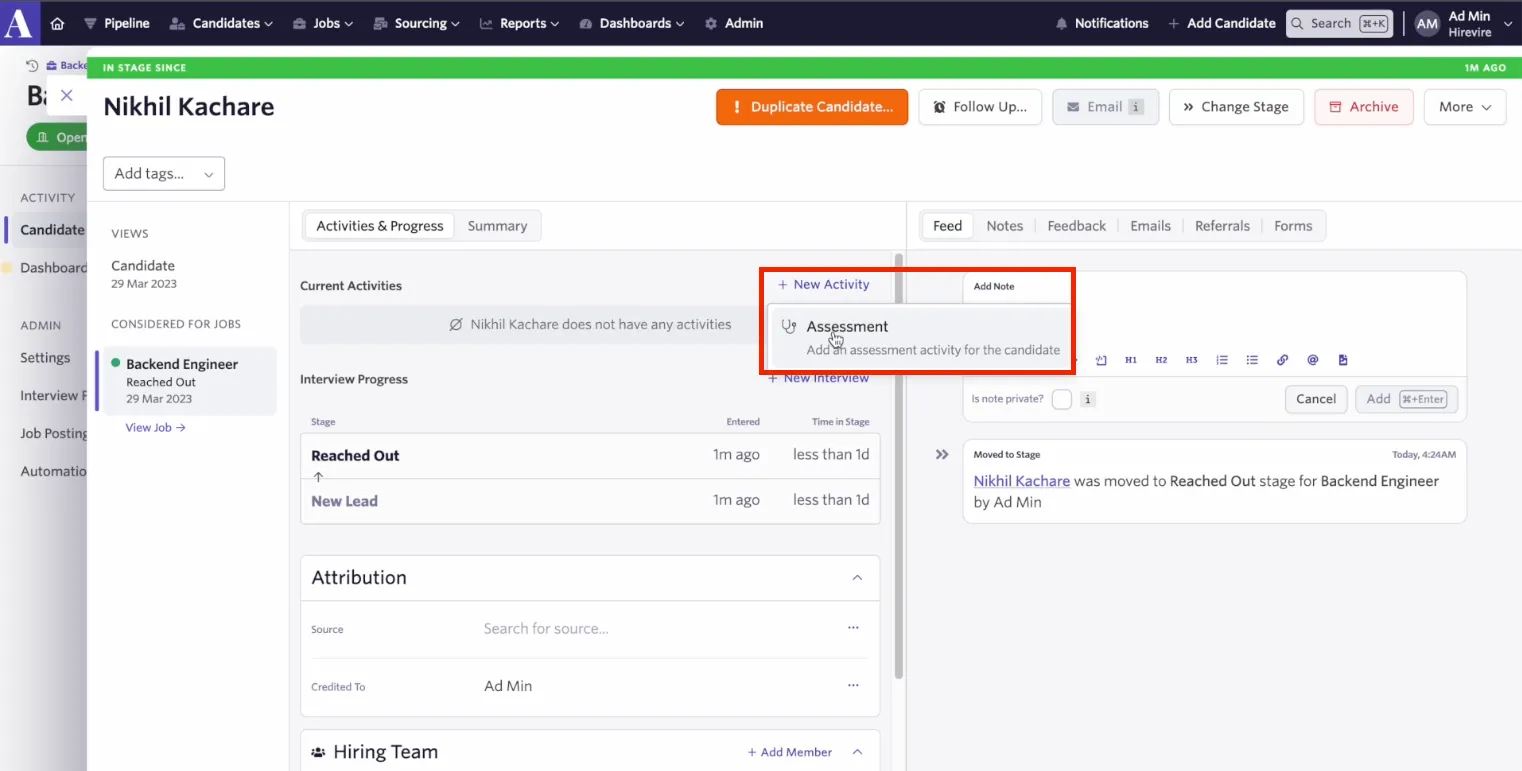
- Manually create an Assessment activity on the candidate’s profile page. This can be done by clicking on the + New Activity button, choosing Assessment, then Hirevire and selecting the assessment to send to the candidate.
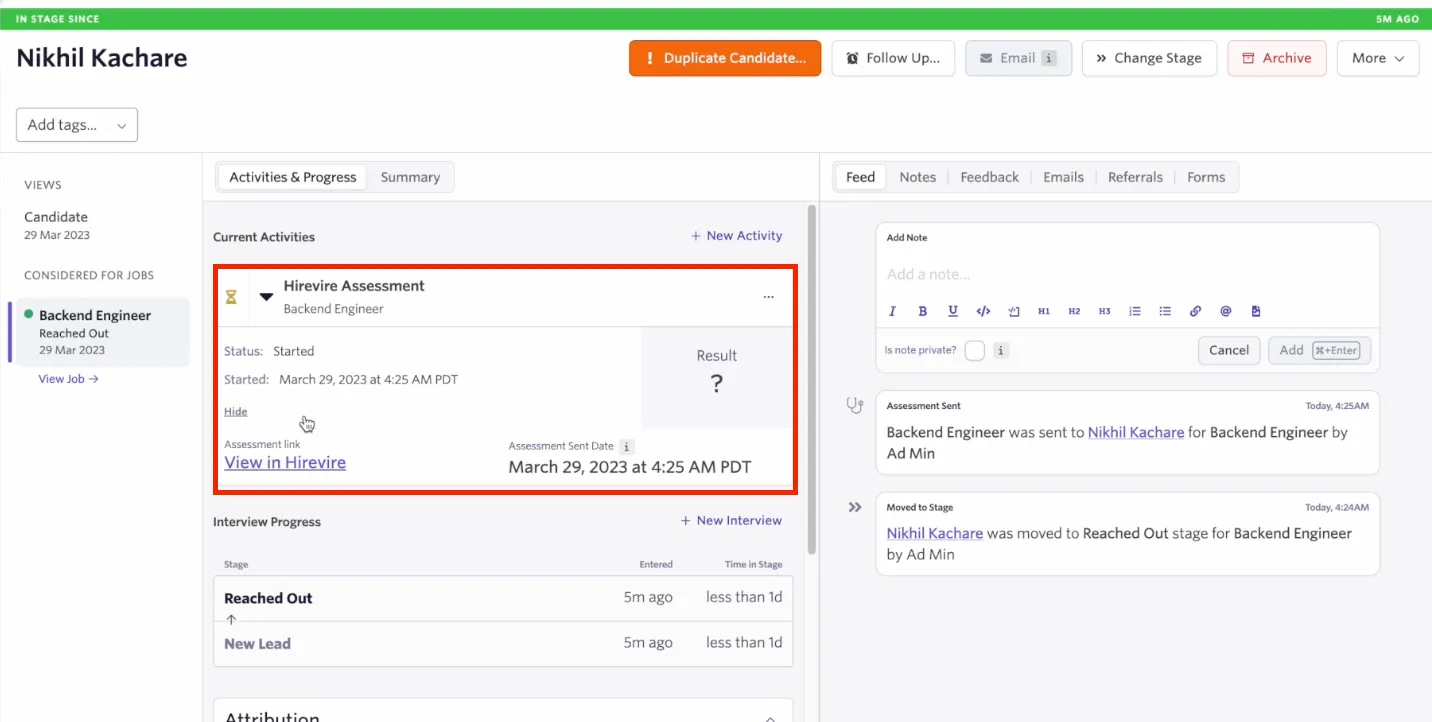
That’s it! Once the candidate completes their assessment, their result will show as an activity in the candidate’s profile. You’ll also see a link to the candidate’s assessment to access directly in Hirevire.
Video Instructions
A Hirevire integration video walkthrough is available below: