Emails & Candidate Texting
Emails
Email Sharing
13 min
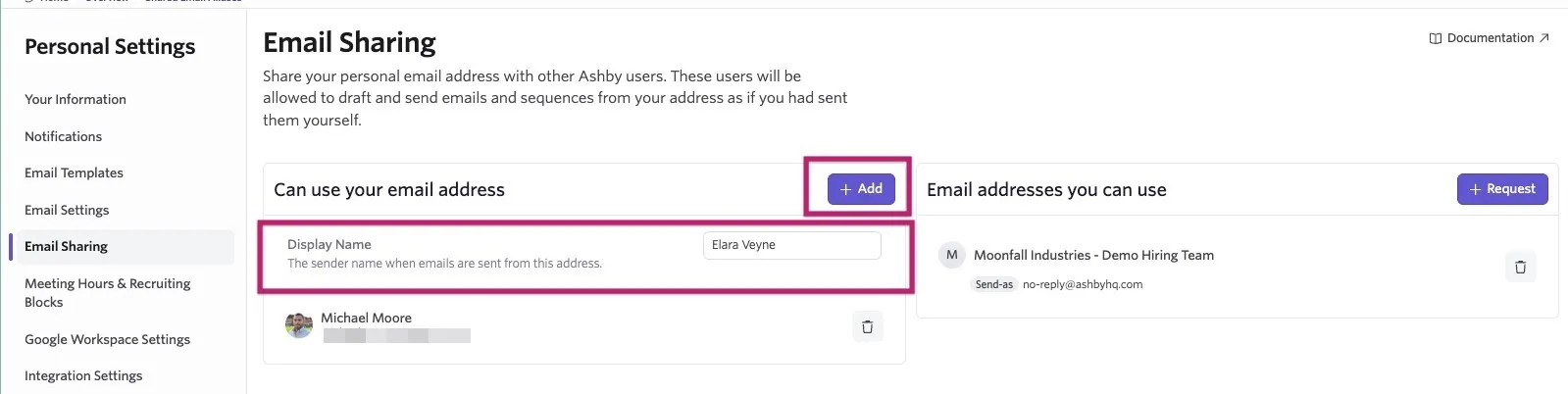
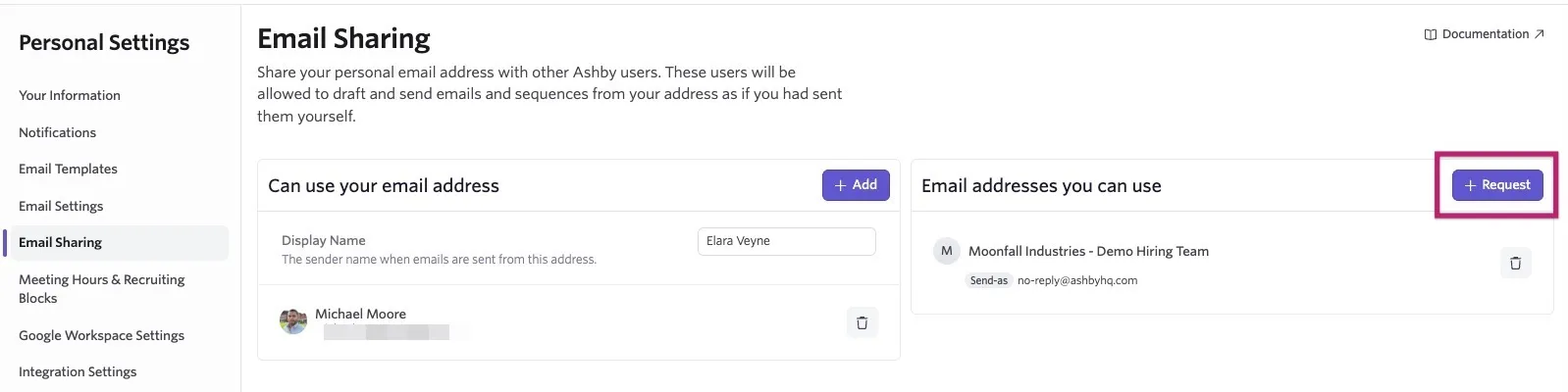
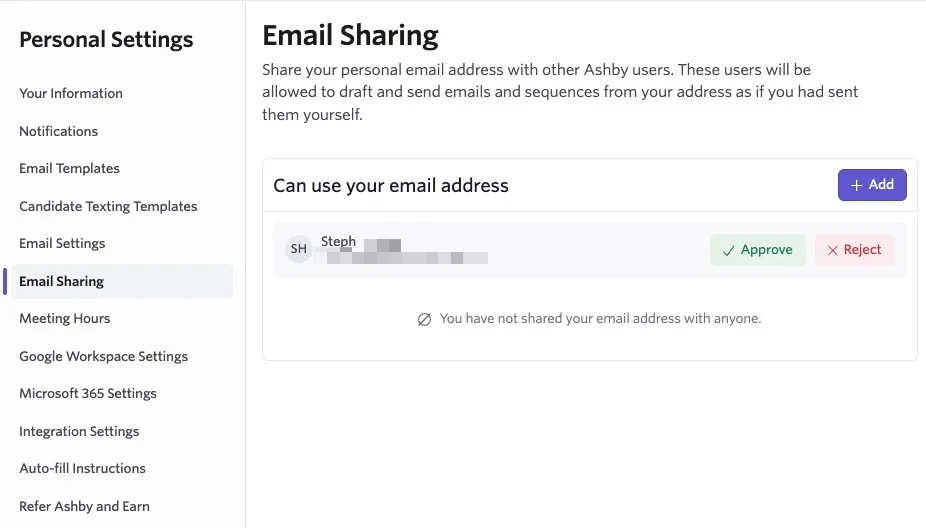
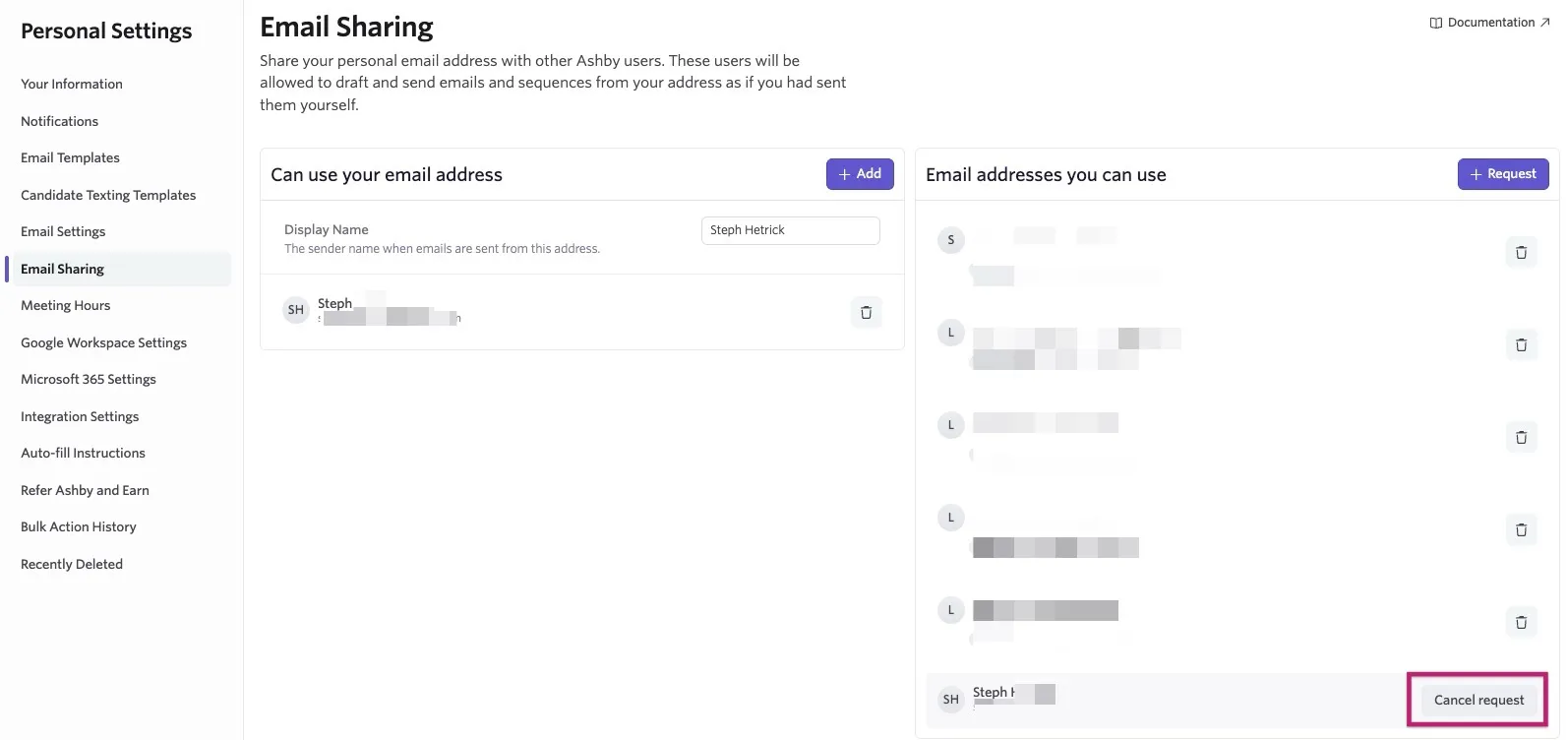
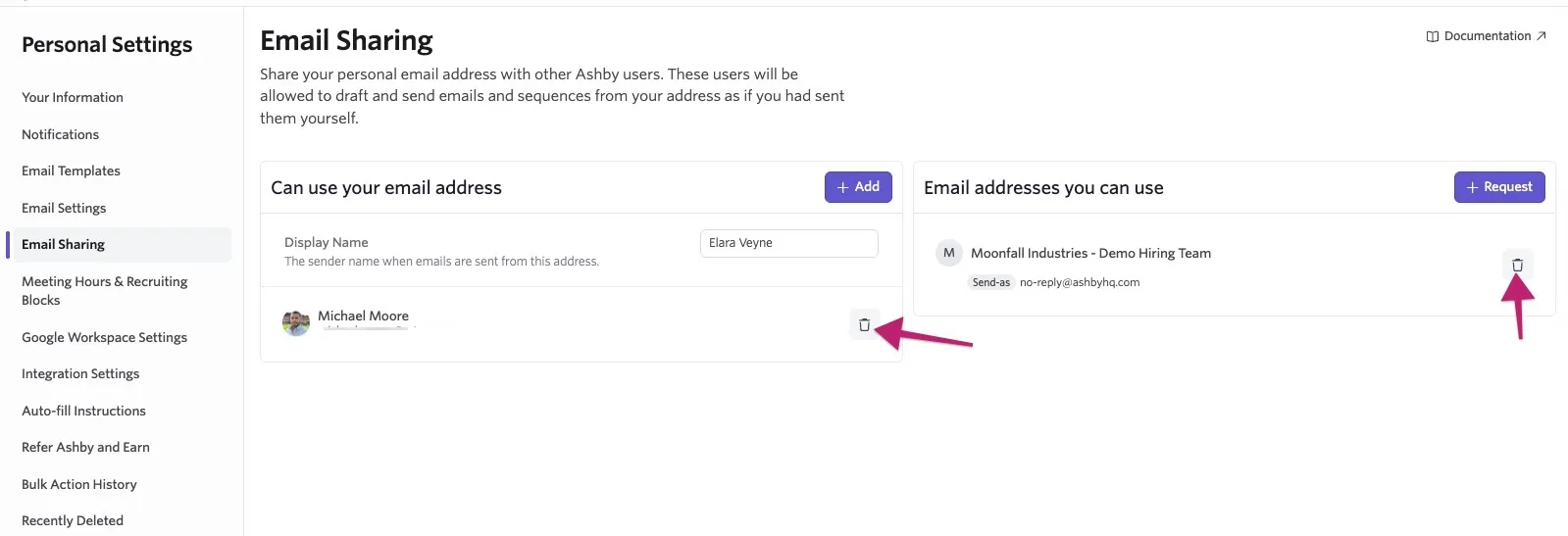
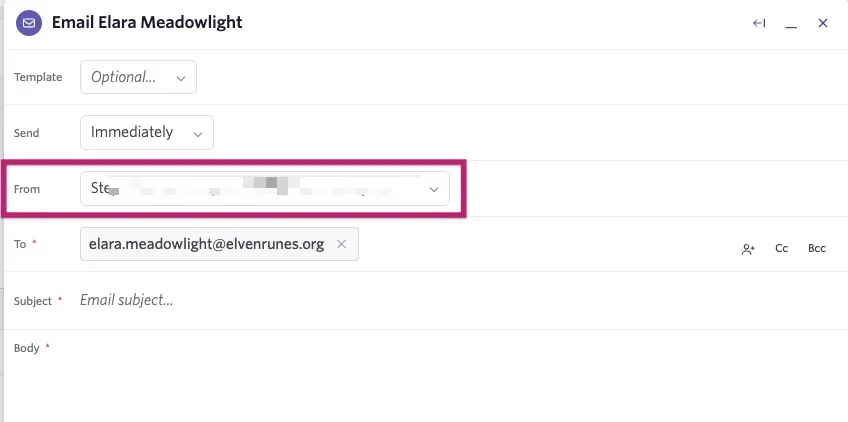
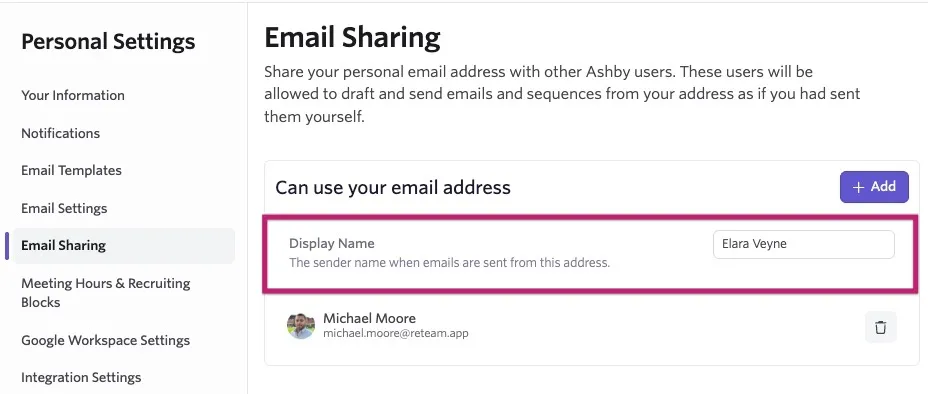
learn how to share your user email with other users, how to send an email on behalf of other users and set up a custom no reply email address sharing your email address with other ashby users ashby supports sharing your company email with other users to allow them to send emails on your behalf to share your email with another ashby user navigate to personal settings > email sharing click + add in the can access your email address section search for and select the user you’d like to allow to send emails on your behalf confirm the display or sender name used when emails are sent from your email address requesting access to send emails as other ashby users please note the user must have permissions to send emails to candidates in order for their email to be shared and used for sending emails to request access to another ashby user’s email, navigate to https //app ashbyhq com/settings/email sharing , and select the employee you’d like to request access from using the request access from employee dropdown the user receiving the request will get an email notification informing them of the request they can use the link in the email to navigate to email sharing with their personal settings to confirm or reject the access request removing email access and canceling email sharing requests to remove access to your email or cancel pending requests, click the trash can icon to the right of the user tile setting up a google shared email alias (and setting it as a company no reply address) please note these are the shared email alias instructions for users with the google workspace integration in place for more information on setting up aliases via microsoft, please check out docid eaaljgrtew uoxtk8i7 if you are sending over 1,000 no reply emails a day and would like to use a branded email for this, please check out docid\ rkqq453zhhg4vmishy9q2 ashby also supports sending emails on behalf of an alternate email address, by integrating with https //support google com/mail/answer/22370?hl=en first, you’ll set up a send as address in gmail, then you’ll share that address with your team on the https //app ashbyhq com/admin/organizational settings/shared email aliases page in ashby admin (organization admin access is required for this) you’ll also have the option to unshare and edit the alias’ display name and default status please note that no reply/default {{shared email aliases}} cannot be used when sending sequences we highly recommend setting this shared email alias using a service account (e g , mailto\ hiring\@yourcompanyname com ) to ensure continuity of access when the team changes if you set a shared email alias as a default, this will be used in place of the no reply\@ashbyhq com email address you can un share the email address or turn off the default option to use no reply\@ashbyhq com again if needed gmail’s send as feature supports two options for the alternate address new or existing email addresses ask your google workspace administrator to create a new email address that you’d like to send as and provide you with the password to the newly created account log into the new account and https //support google com/mail/answer/10957?hl=en to your main email address from here, you’ll need to request https //support google com/mail/answer/22370 to the newly created address new or existing google groups create a new google group that you’d like to send as using your primary account, join the google group from here, you’ll need to request https //support google com/mail/answer/22370 to the newly created google group note if you run into an issue where you aren’t receiving a verification email after requesting send as permission from a google group, see the faq at the bottom of this document gmail send as configuration recommendations entering a value into the name field that will represent the formatted name in emails you send from this address after setting up the send as permissions, the new address will appear in ashby on the https //app ashbyhq com/admin/organizational settings/shared email aliases page in admin using aliases in ashby once email sharing is configured, you’ll see a from dropdown option to select an alternate email address when you’re sending an email or sequence in ashby use the drop down to select the email address you’d like to send the email from faq i’m trying to send as a google group, but i’m not receiving my verification email after requesting send as permission your google group may not allow posting from emails outside your domain you may need to update the group to allow post permissions from anyone on the web to allow verification emails to come through only group owners can update these settings if you cannot see a setting to enable anyone on the web to post to your group, you will need to update your google workspace admin settings to allow group owners to pick this setting for that read google’s help doc https //support google com/a/answer/9441643?hl=en# text=under the resulting setting in the admin console should look like this e mails aren’t sending from our shared email alias anymore why? this usually means the person that setup the shared email alias is no longer an active ashby user you can fix this by resharing the email alias with your team from https //app ashbyhq com/admin/organizational settings/shared email aliases we recommend setting this shared alias up from a service account to prevent issues in the future you can amend your display name for emails send from the ashby no reply email address on the no reply address display name field in the messaging section of admin > job boards > https //app ashbyhq com/admin/organizational settings/theme the display name cannot be empty and has a maximum length of 30 characters can i determine a default sender when creating an email template? no, the sender would be determined at the time of drafting up the email from the template, or when setting up automation for emails d o i need access to the alias inbox to set up a no reply alias? yes, alias inbox access is required to set up a no reply alias in ashby will the user be notified if i accept or reject their request to send emails on my behalf? yes, the user will receive an email notification informing them of the outcome i ’ve set up an alias and new threads are being created in gmail from emails sent using the alias via ashby what’s going on? this can happen if a user is replying to a candidate in ashby using a google group alias when they aren’t a member of that google group ensure that all users using the alias have been given access to the google group to ensure all replies stay in one thread when would i use an alias or no reply email? aliases or no reply emails can be set as the sender for emails that you don’t want to use your personal company email address for for example, you could use an alias or no reply email when sending an email as part of an {{auto reject}} configuration (more on this at docid\ pdgw wrubwyfnzhka9ota ) or when sending an emailing confirming that you’ve received the candidate’s application (more on this in docid\ wq6uoydzwfatdmzhopsfj ) i send a large volume of no reply emails each day, can i still use a branded email address? this is possible if an email domain is configured within ashby if you are sending more than 1,000 no reply or automated emails a day and would prefer to use a branded email address, please check out our docid\ rkqq453zhhg4vmishy9q2 guide can i change the display name listed for my shared email address? yes if you’ve shared your email address with other users in ashby, you can make amendments to the name displayed by navigating to personal settings > https //app ashbyhq com/settings/email sharing adjust the name in the display name field as needed and it should be automatically saved